

Insights, ideas and inspiration. A go to wisdom hub right here.
Featured Posts

Tutorials
7 Min Read

Latest Posts
Tutorials
6 min read
How to Use GTmetrix WordPress plugin to Improve your Site Speed
Introduction
Is your WordPress website running slowly, thus affecting the user experience? Are you losing visitors and potential customers because of slow loading times?
It's time to take action and optimize your website's performance with the help of the GTmetrix tool. This tutorial will guide you through setting up and utilizing the GTmetrix WordPress plugin.
What Is GTmetrix Speed Test Tool?
GTmetrix is a tool to easily test the performance of webpages. Just enter the URL that you want to analyze performance, and within a few seconds, it will generate a detailed report providing recommendations for optimization.
One can easily identify performance bottlenecks and take appropriate actions to enhance your website's loading speed.
You can measure your website's loading times from different locations around the world. Currently, there are 7 free test locations and 15 premium test locations, for a total of 22 different global test locations. This allows you to understand how your web pages perform for users from different geographic locations around the world.
We can also test page loads on different mobile devices. As of this writing, GTmetrix supports testing on a real Android device or over 30 different simulated device options in its premium plan.
Installing and setting up the GTmetrix Plugin in WordPress
Step 1: Install and activate the “GTmetrix for WordPress” Plugin
The first step is to install and activate the “GTmetrix for WordPress” plugin on your WordPress website.
Begin by clicking on the “Plugins” menu and then clicking the “Add New Plugin” button, as shown in the screenshot below.
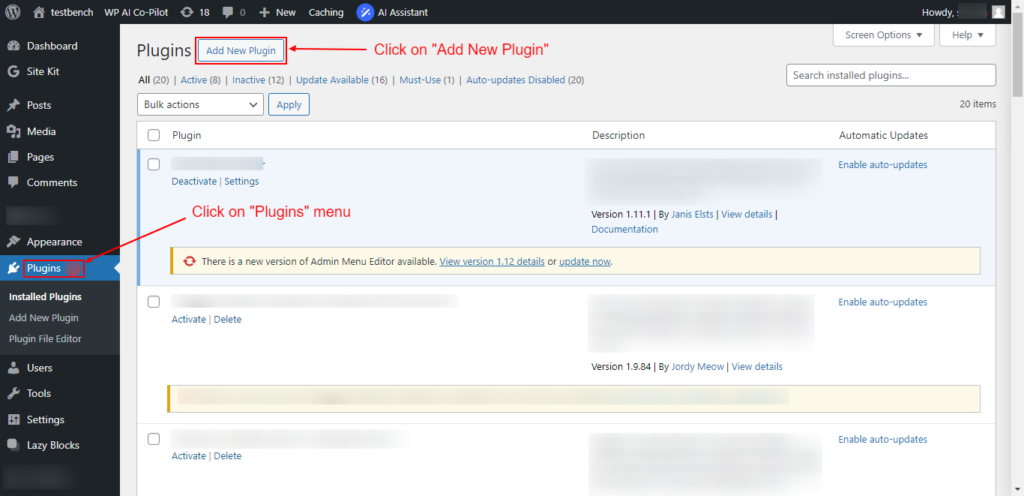
Screenshot 1: Click on the “Plugins” menu and select the “Add New Plugin” option.
Next, search for the “GTmetrix” plugin and install it, or download it from here, upload it, and install it on your website.
If you have already installed the plugin on your website, you can skip this step and go to step 2
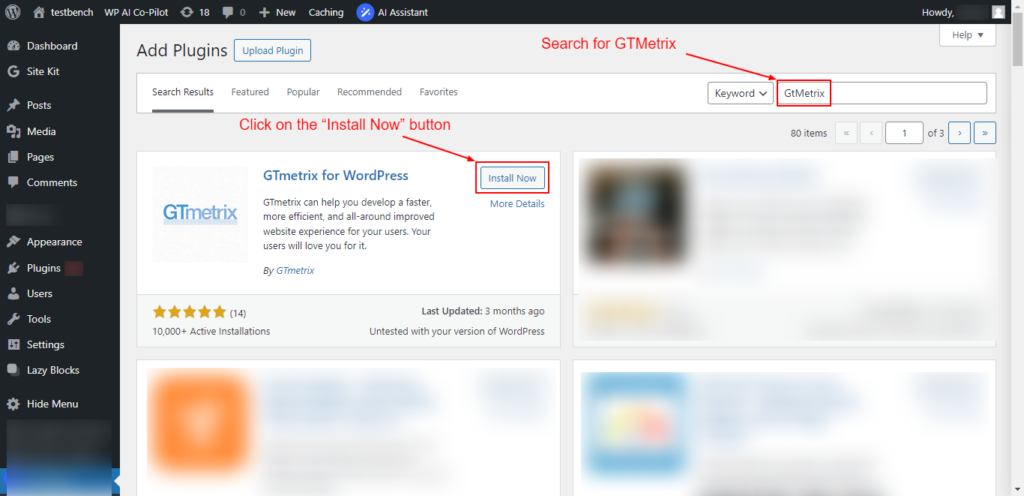
Screenshot 2: Search for “GTMetrix” in the available search box and click on the "Install Now” button.
Once activated, you will see the new menu option “GTmetrix” in your WordPress dashboard. Click on it, which will take you to the “GTmetrix for WordPress Settings” page.
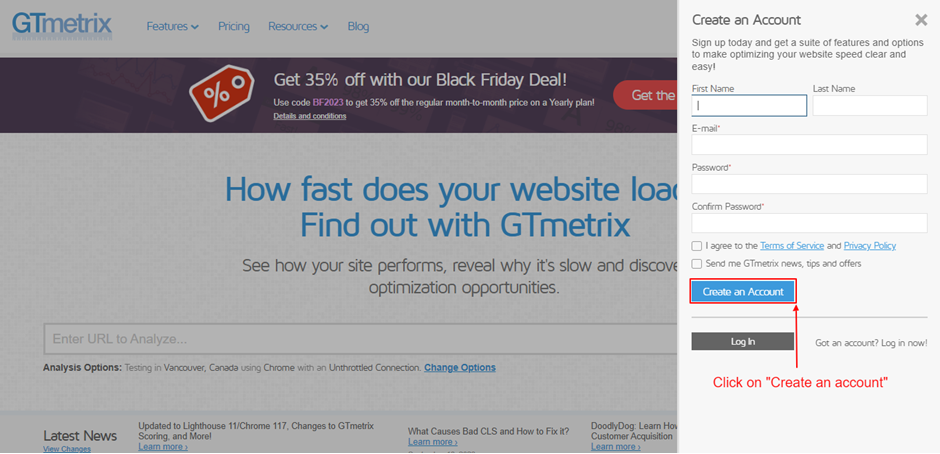
Screenshot 3: Click on the “Register for a GTmetrix account now” link.
To use the GTMetrix plugin, you need to create a GTMetrix account and generate its API key.
For that, simply click the “Register for a GTmetrix account now” link to go to the GTmetrix website, where you can sign up for an account, as shown in the below screenshot 4.
Step 2: Create a GTmetrix Account and log in to it
Once you are on the GTmetrix website, click on the “Get Started for Free” button to create an account. Skip this step if you already have an account and go to step 3.
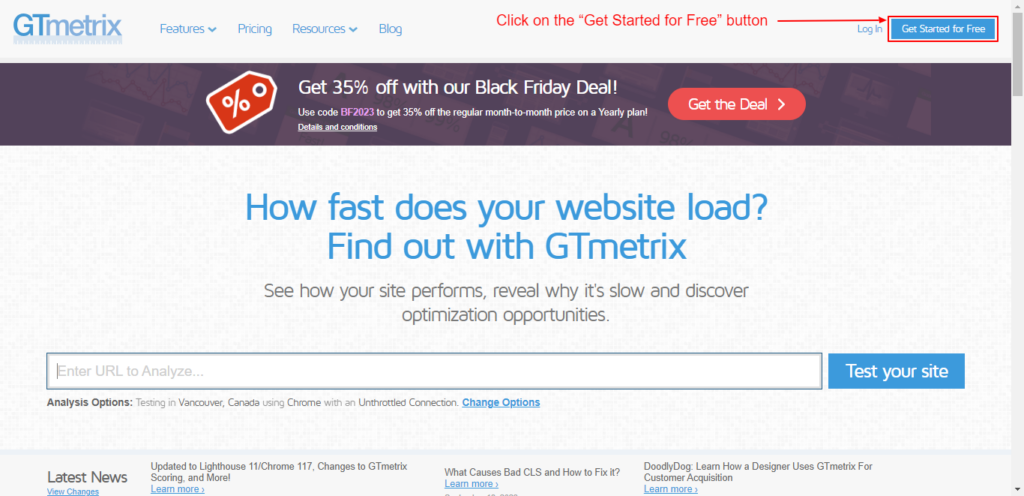
Screenshot 4: Click on the “Get Started for Free” button.
Fill in your information and agree to the terms, then just click on the “Create an Account” button as shown in below screenshot 5.
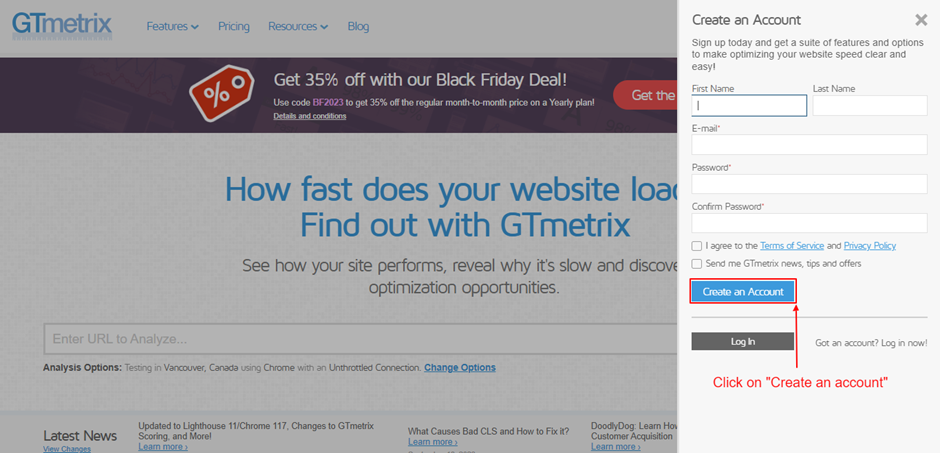
Screenshot 5: Fill in your information and click on the “Create an Account” button.
Next, you need to validate your email address to complete the account creation process. You will receive an email to verify your GTmetrix account.
Once you have created your account, Enter your email address and password, and click “Log in," as shown in the below screenshot 6.
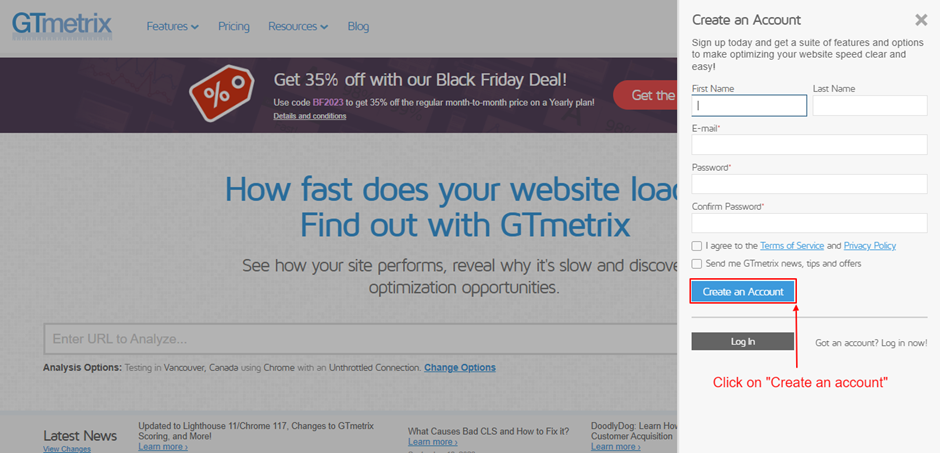
Screenshot 6: Log in with your email ID and password and click on “Log in.”
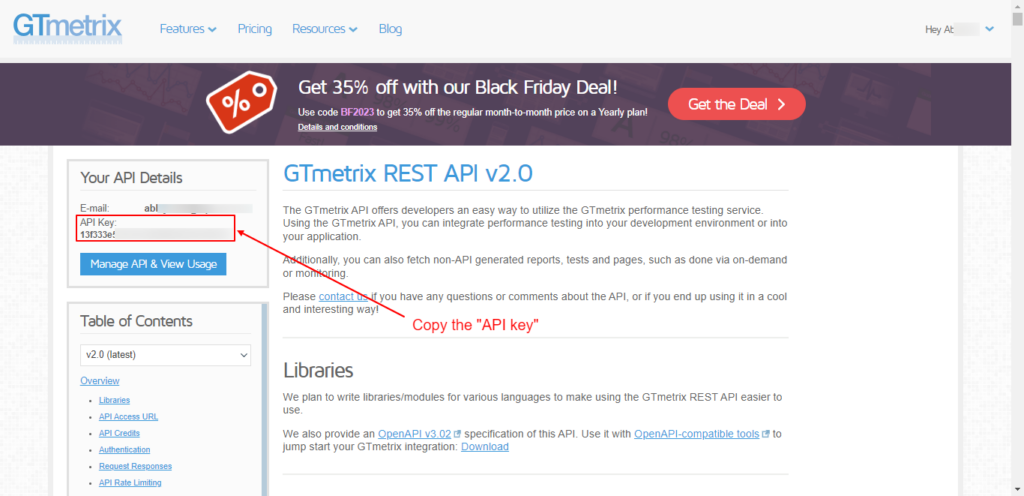
Screenshot 7: Get the “GTmetrix Rest API Key”
Note: If you are directly logging in to Gtmetrix.com instead of clicking the link from its plugin settings, you have to scroll to the bottom of the homepage and then click on "GTmetrix Rest API,” as shown in screenshot 8.
This would take you to the https://gtmetrix.com/api/docs/2.0/ webpage. As shown in the above screenshot 7.
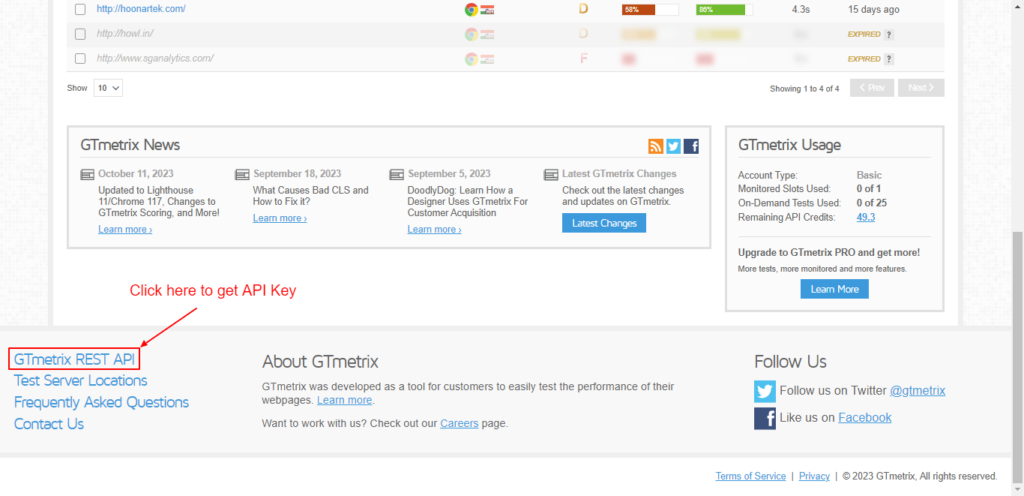
Screenshot 8: Click on “GTmetrix REST API” to get the API Key
Step 3: Generate a Gtmetrix API Key
Next, simply click on the ‘Generate API key’ button. Copy the API key, which is on the left-hand side of your screen.
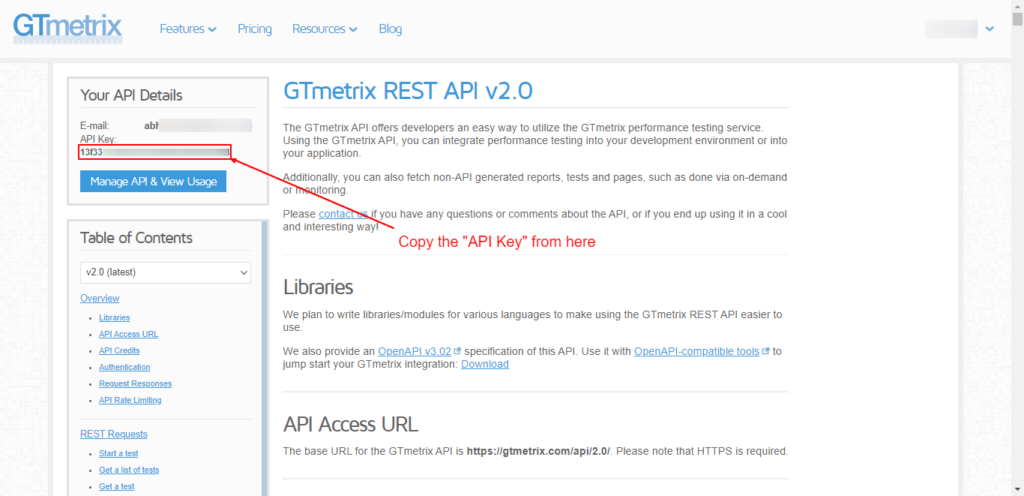
Screenshot 9: Click on “Generate API Key” and then “Copy the API Key.”
Now, switch back to the ‘GTmetrix’ settings page in your WordPress dashboard. Go ahead and enter your GTmetrix account email address and the API key you copied earlier (as shown in screenshot no. 7).
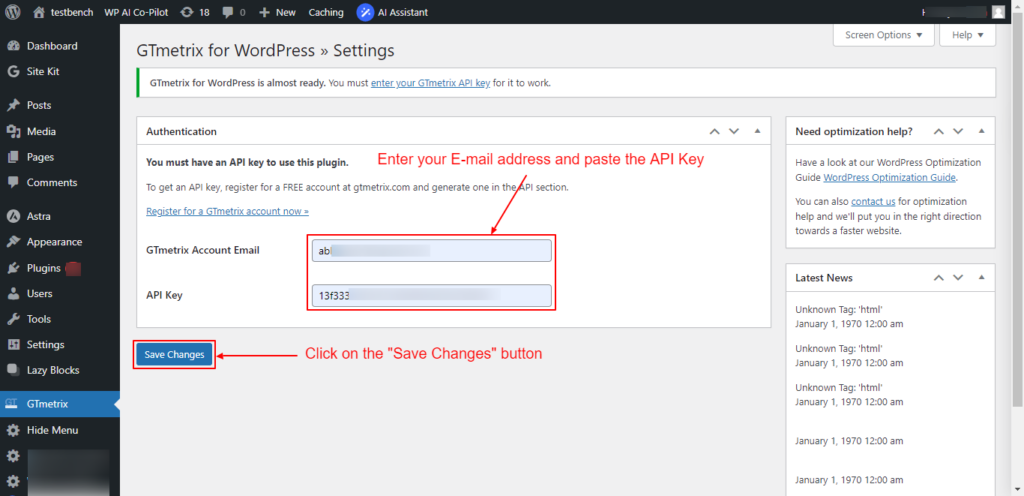
Screenshot 10: Enter your E-mail address and paste the GTmetrix API key
Don’t forget to click on the ‘Save Changes’ button to save your settings.
Step 5: Set Default options
Head over to the GTmetrix > Settings page, scroll down to the “Options” meta box, set the “Default location” drop-down to the Test Server location (region) that is closest to your hosting, and then again save the changes.
For this tutorial, we have selected Mumbai, India, as the default Test Server Region.
That’s it! You have successfully integrated GTmetrix with your WordPress site.
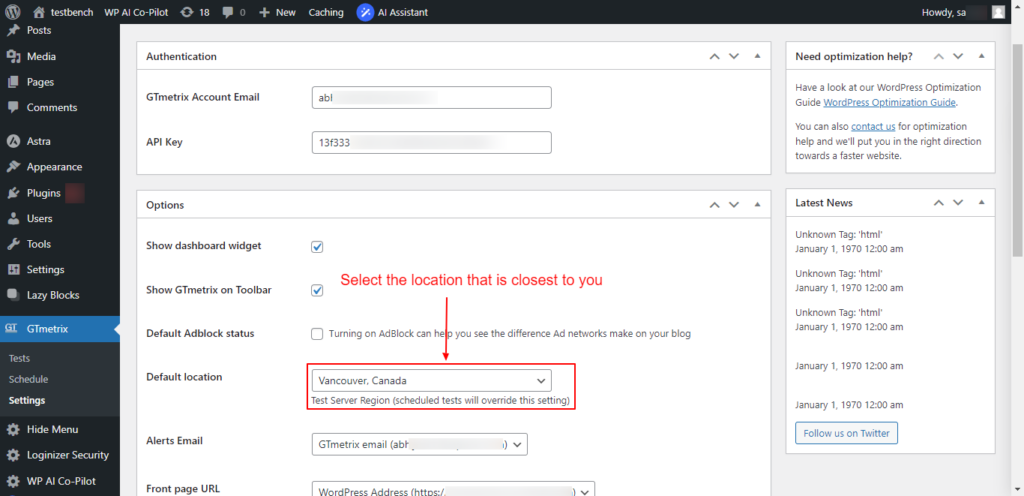
Screenshot 11: Select the Test Server location that is closest to your hosting
Step 6: Test the Web Pages
On the left-hand admin panel, click on the Tests sub-menu. Enter the page URL that you want to test the page load speed for.
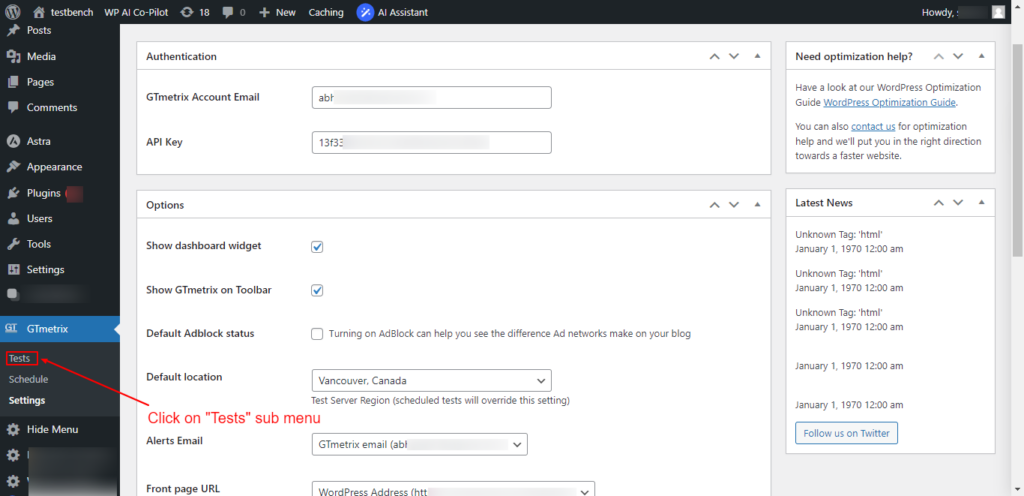
Screenshot 12: Click on “Tests” to perform tests on any page of your website.
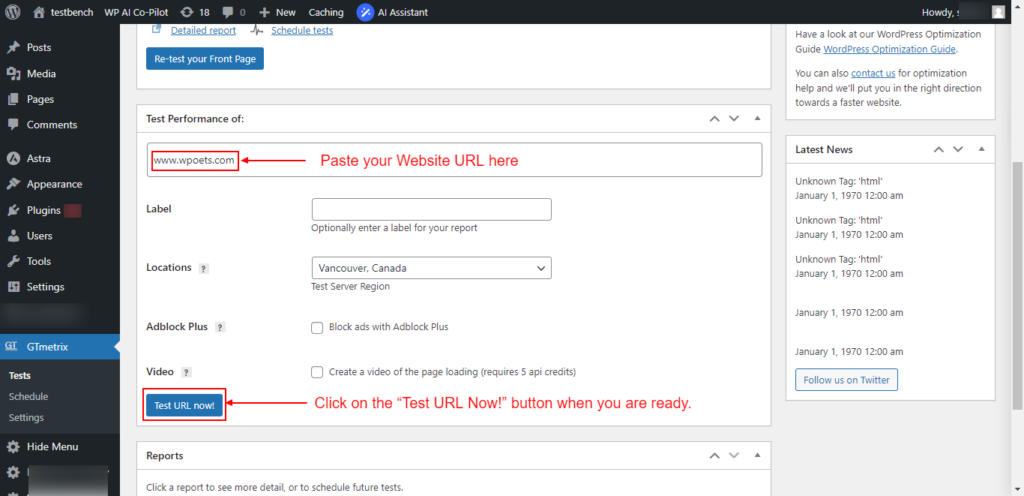
Screenshot 13: Paste your “Website” URL and Click on “Test URL Now!”
GTmetrix will take a few seconds to scan your whole page. Once the scan is finished, you will see your site's detailed reports, along with the top issues that you can fix to improve the user experience.
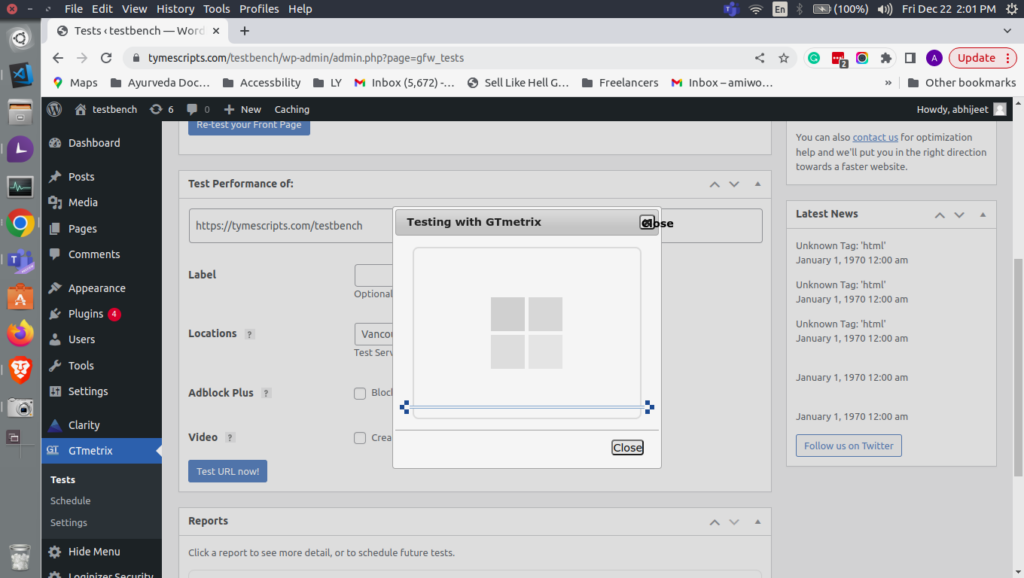
Screenshot 14: "GTmetrix" scan in progress.
This report generated gives you a detailed breakdown of your PageSpeed score, YSlow score, and a list of recommendations on what you can change to improve your page load time. Anything below a Performance score of “A” means there is room for improvement.
All the reports that have been completed are available under the “Reports” section (meta box) as shown in the below screenshot.
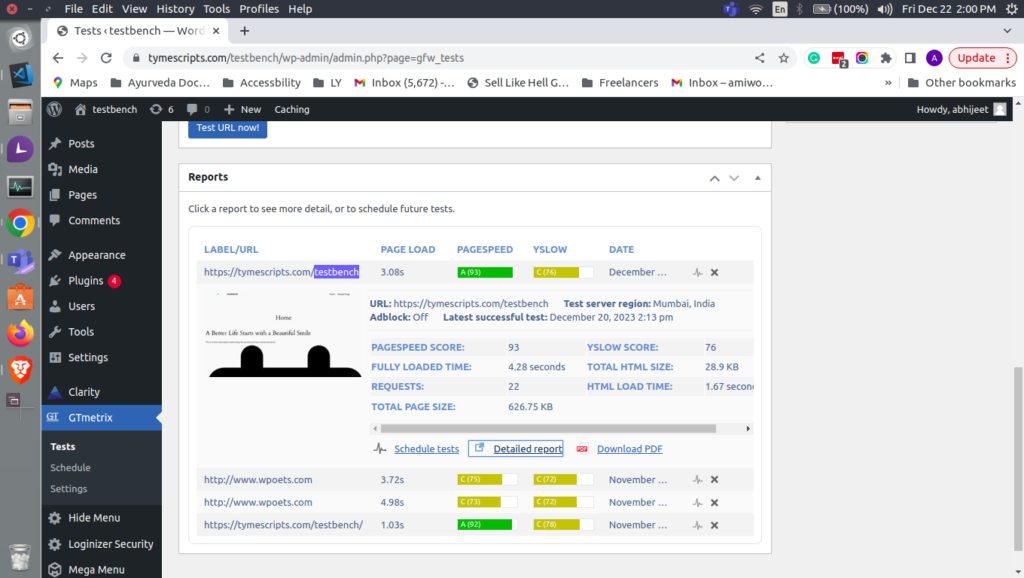
Screenshot 15: List of all reports. Click on Label/URL to expand/collapse
Individual reports can be expanded to view the summary of page speed scores, Yslow scores, load times, and other details, as shown in the above screenshot. Below the individual summary of the report, there are links to pages for scheduling future page load tests, viewing detailed reports, and even a link to download a PDF report.
For a detailed report, click on its link; it will take you to the GTmetrix web page, where you can view it in-depth. A sample report can be seen in below screenshot 15.
The detailed report is divided into different tabs. First, you will see your PageSpeed score, with different ranking items listed with their score.
Green items are good and don’t need your attention. Red items are slowing down your website and require further investigation.
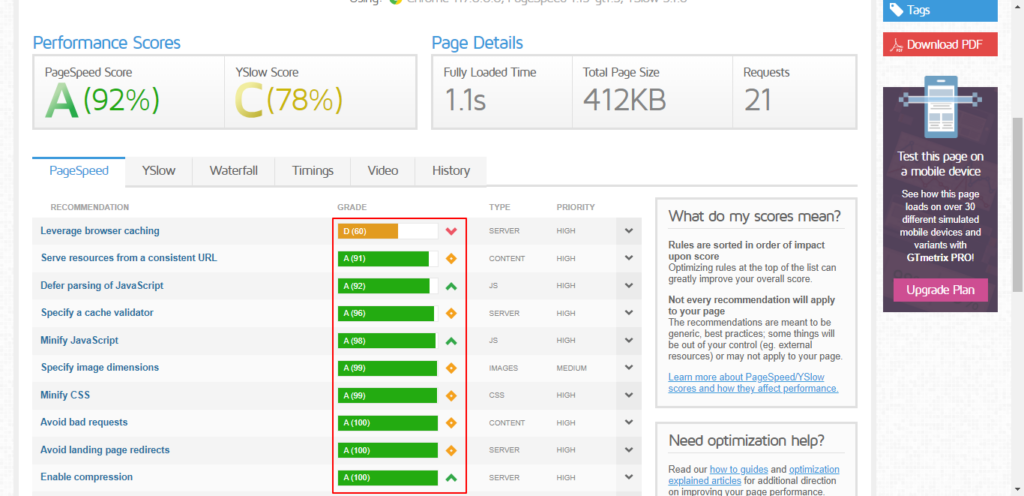
Screenshot 16: PageSpeed score with different ranking items listed with their individual scores.
The best part is that when you click on the suggestions, it tells you exactly what needs to be fixed.
Step 7: Schedule Tests (Optional)
You can also schedule the page load tests to run hourly, daily, weekly, or monthly. By default, scheduled tests always use the Vancouver, Canada, test server region.
The test will automatically run at the frequency you choose. The admin will be notified when the test completes and one of the following conditions is met:
- Page Speed score is less than A, B, C, D, E, or F
- YSlow score is less than A, B, C, D, E, or F
- Page load time is greater than 1, 2, 3, 4, or 5 seconds
- Page size is greater than 100 KB, 200 KB, 300 KB, 400 KB, 500 KB, or 1MB
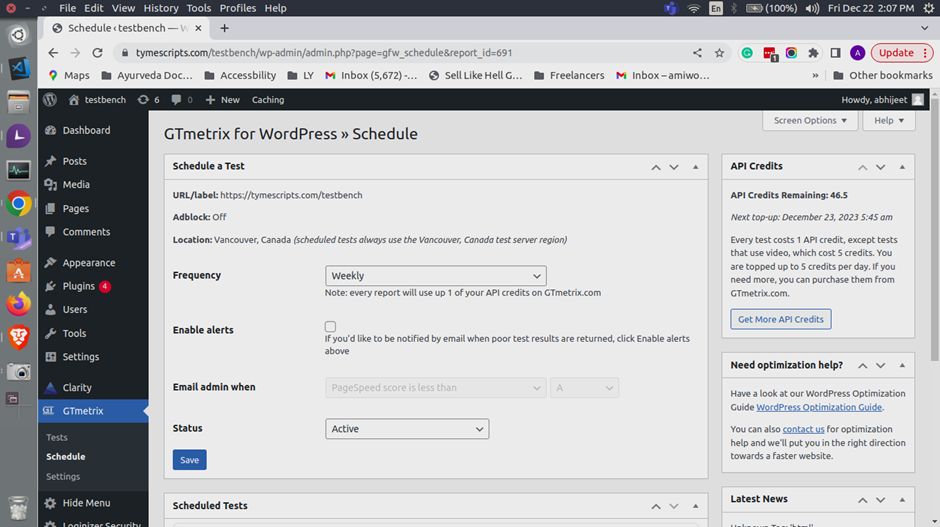
Screenshot 17: Choose a frequency to run the test automatically
Conclusion
In this tutorial, we saw how to install and use the GTmetrix plugin step by step. We also learned how to run and schedule page load tests to keep a check on your website's performance score.
The reports generated help you easily identify performance bottlenecks, such as large image sizes, excessive HTTP requests, slow server response times, and much more. With this crucial information, you can make the necessary changes to your website to optimize it, thus improving its loading speed.
That’s it for this tutorial. If you want your website to load blazing fast, connect with our Page Speed experts.
Tutorials
8 min read
How to optimize Interaction To Next Paint (INP) Core Web Vital in WordPress
Introduction
We all know how vital web performance is in today's digital world. Thanks to Google's Core Web Vitals, we know what to do to keep the performance of our website up! These metrics are designed to capture the most critical aspects of web performance that directly impact user satisfaction.
Google recently announced that Interaction to Next Paint (INP) will replace the First Input Delay (FID) as a core web vital starting in March 2024. Interaction to Next Paint is all about taking web experiences to the next level by optimizing user interaction and improving performance. In this blog post, we are going to cover everything about INP.
Importance of User Interaction
When we talk about websites, we're essentially discussing a digital space where users engage with content and perform actions. Simple activities include clicking a link, touching a mobile device button, or typing into a search field. User engagement makes a website live.
Imagine navigating the web without user interactions. It would be like reading a book where you can only view one page at a time, and you have to wait for someone to turn the page for you. The ability to interact with websites sets them apart from static documents. User interactions are the essence of the web, allowing us to explore, learn, shop, and communicate.
Whether you're booking a flight, scrolling through social media, or reading a news article, every action you take on a website is a form of interaction. These interactions drive the user experience and shape how we perceive a website's functionality.
Importance of Responsive Websites
Imagine clicking a "Buy Now" button on an e-commerce site and nothing happening for several seconds. Annoying, right? The latency between your activity and the website's response can make or break your experience.
However, responsive websites give instant feedback. After clicking that button, you expect the next page, the shopping basket, or confirmation of your activity. User happiness increases when websites respond quickly to user activities, creating a sense of seamlessness and control.
Slow-loading websites can make users confused, impatient, and even leave. Here comes Interaction to Next Paint (INP).
The Need for Interaction to Next Paint (INP)
As discussed earlier, as of March 2024, Google will switch from the FID to the INP metric as a Core Web Vital. INP will be used to measure the responsiveness of the webpage for the interactions by a user on a page. The lower the INP score, the higher the responsiveness of the webpage.
To put it in simple words, imagine you're eagerly waiting for a website to load, and you finally decide to click a button or link on the page. And guess what? Your action isn't instantly registered, leaving you hanging in the abyss of the digital universe.
Frustrating, right? That's where Interaction to Next Paint (INP) comes into play. INP measures the delay between your input and the page's response.
An example of poor versus good responsiveness (source: https://web.dev/inp/)
You must be wondering why Google is replacing FID with INP. While FID measures the delay between the user's first interaction with the page (such as clicking a button or a link) and the browser's response to that interaction, INP looks at the bigger picture and considers all the interactions from loading to exit.
This ensures a thorough evaluation of responsiveness throughout the entire lifecycle of a page. Google wants us to go beyond just measuring the first interaction and dive deeper into the complete user journey. With INP, you get a more comprehensive perspective on your page's responsiveness.
Factors that Affect INP Scores
INP measures how responsive a webpage is to user interactions, so it's critical to have a good score if you want to keep visitors on your site and boost your search engine ranking. Let’s take a look at factors that contribute to low INP scores.
1. Large and Complex JavaScript
If you have a lot of JavaScript on your site that takes a long time to load, it can cause significant delays when users try to interact with elements on the page. This can result in a poor user experience and decrease your score.
2. Heavy CSS Animations
Animations can make a website look more interesting, but they can also make pages take longer to load and lower the INP scores. To get better INP scores, you might want to make your animations simpler or get rid of some of them altogether.
3. Media Overload
If your site has a lot of images, videos, or other multimedia, it can bog down page speeds and cause delays. To combat this, try compressing images and using lazy loading to defer the loading of certain resources until they're needed.
4. Not Fixing Rendering Issues
If your site has trouble rendering and showing information, it could take longer for people to interact with the page. Make sure you test your pages carefully to find and fix any layout issues that might cause problems.
Effects of Low INP Scores on SEO
If your website's Interaction to Next Paint (INP) score is low, it can have negative effects on your SEO performance. Google considers page speed as one of the ranking factors, and a website's speed is directly correlated with its INP score. A low INP score can lead to decreased ranking, which ultimately results in decreased traffic.
Moreover, user experience is crucial for the success of any website. If your website is slow, visitors are likely to leave your site leading to a high bounce rate. This again negatively affects your website's ranking and traffic. In addition, a website with a poor user experience due to a low INP score is a sure way to drive away potential customers. Frustrated customers may never want to engage with your brand again, which can lead to a loss in revenue.
So, if you are serious about growing your business and improving your website's SEO performance, it is essential to pay attention to your page speed and INP score.
The importance of Monitoring INP Metrics continuously
It’s not enough to just improve INP scores; monitoring them is equally important. By regularly monitoring your INP scores, you can keep track of whether or not your improvements are working and continue to make necessary changes.
You can access Google’s official INP metrics to see how your website’s INP scores compare to others in your industry. With this information, you can set realistic goals and continuously work towards improving your website’s overall performance.
Advantages of INP
If you are still wondering why you should consider INP metric to measure your website’s performance score, take a look at its advantages:
Measures Complete User Interaction
Unlike FID, INP measures the input delay for all user interactions on a web page. This gives a more comprehensive picture of the website's responsiveness and performance.
Reliable Indicator of Page Responsiveness
INP not only measures the first input delay but also the delay in presenting subsequent frames and running event handlers. This makes it a more reliable indicator of page responsiveness than FID.
How to Measure INP
To understand how to measure INP, let us first understand what kind of user interactions INP focuses on.
- Mouse Clicks
- Touchscreen taps
- Key Presses
Every action taken by the user initiates a sequence of activities that result in a visual response on the page. This is known as ‘next paint’.
Knowing the definition and assessment procedure of INP is vital, but so is knowing what makes a good score and the consequences of a low result.
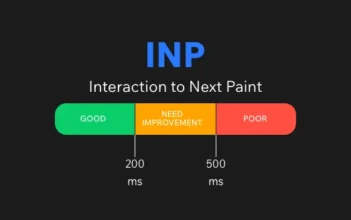
- Good: 200 ms or less is the optimum INP. This ensures that the visual reaction to user contact feels instantaneous, creating a seamless and gratifying user experience.
- Needs Improvement: An INP between 200 and 500 milliseconds suggests improvement. While not disastrous, these latencies may impair users' experiences.
- Poor: INP over 500 ms is poor. The latency between interaction and visual reaction may be visible and annoying for users.
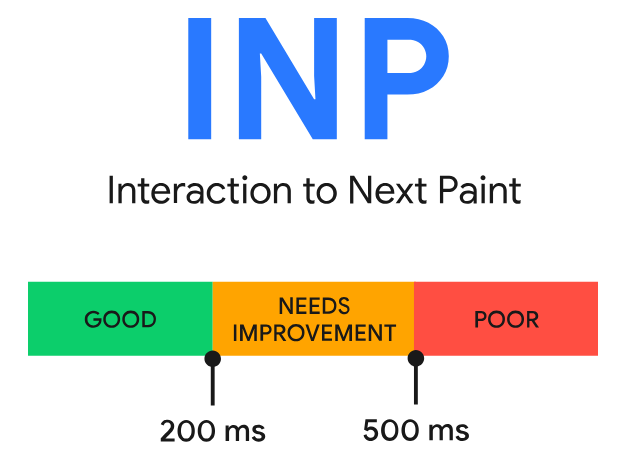
Thresholds for good and poor INP (source: web.dev/vitals)
Tools to Measure INP
You can use the following tools to measure the INP score as well as other Core Web Vitals:
PageSpeed Insights
You can measure the INP score on Google PageSpeed Insights. Just enter your site's URL and click on Analyze.
Under the Core Web Vitals Assessment section, you will see the newly added INP Core Web Vital (CWV).
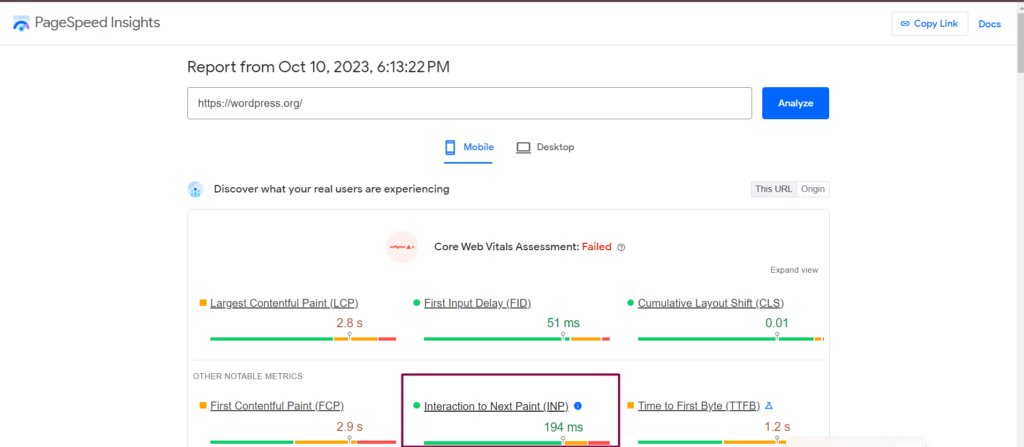
Screenshot 1: Pagespeed Insights INP Core Web Vital
DebugBear
Enter the URL of your site on DebugBear and click on Start Test. Click on Web Vitals to view the details about core web vitals, including INP.
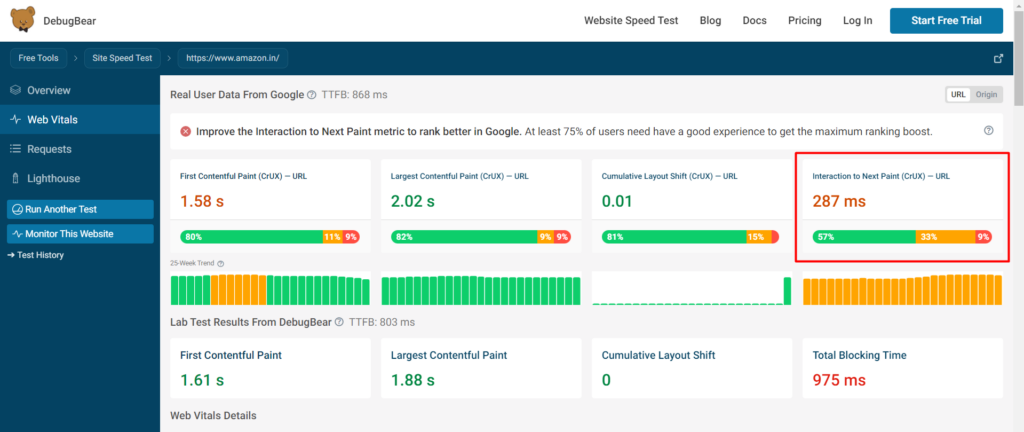
Screenshot 2: Debugbar INP Core Web Vital
How to Optimize INP
To improve your website’s INP scores, here are some ways to optimize it:
1. Minimize Input Delay
The first step to reducing input delay is to identify tasks that block the main thread. Optimize images and videos and defer non-critical JavaScript, which will speed up page loading time. Using a Content Delivery Network (CDN) to serve static assets can also help minimize input delay.
2. Reduce Process Time
Minimize the amount of time it takes for JavaScript to run. The main thread can be blocked by heavy JavaScript operations, delaying the response to user interaction.
3. Optimize Presentation Delay
Presentation delay can be optimized by reducing animations or queuing requests in the correct sequence. Compress photos, minimize CSS, and use contemporary image formats like WebP to reduce file size without compromising quality.
4. Breakup Long Task
Splitting Javascript tasks into several smaller tasks keeps the main thread free, thus reducing input delay.
5. Lightweight Event Handlers
If possible, keep the event handler code simple, as the computational load increases processing time and INP.
6. Web Workers
Using Web Workers, you can execute JavaScript on a different thread. Freeing up the main thread reduces processing time.
Conclusion
In conclusion, optimizing Interaction to Next Paint (INP) means making your website respond fast to user activities. Fast site speed makes users happy, and happy people are more likely to return.
Check your website's INP, implement techniques to improve its score, and monitor its performance. By doing that, you'll create a better experience for your visitors and set your website up for success in the online world.
WordPress
10 min read
Best Drag-and-Drop WordPress Page Builders in 2026
Introduction
Drag-and-drop page builders are becoming more and more important in the world of web design, which is always changing. With its easy-to-use interface, both experienced developers and complete newbies can make websites that look professional without having to write code by hand. In an era where online presence is paramount for businesses, personal brands, and virtually anyone looking to reach an audience, the ability to create an effective website is crucial. This blog explores the best drag-and-drop page builders for your WordPress website.Best Drag and Drop Page Builders of 2026
1. Elementor
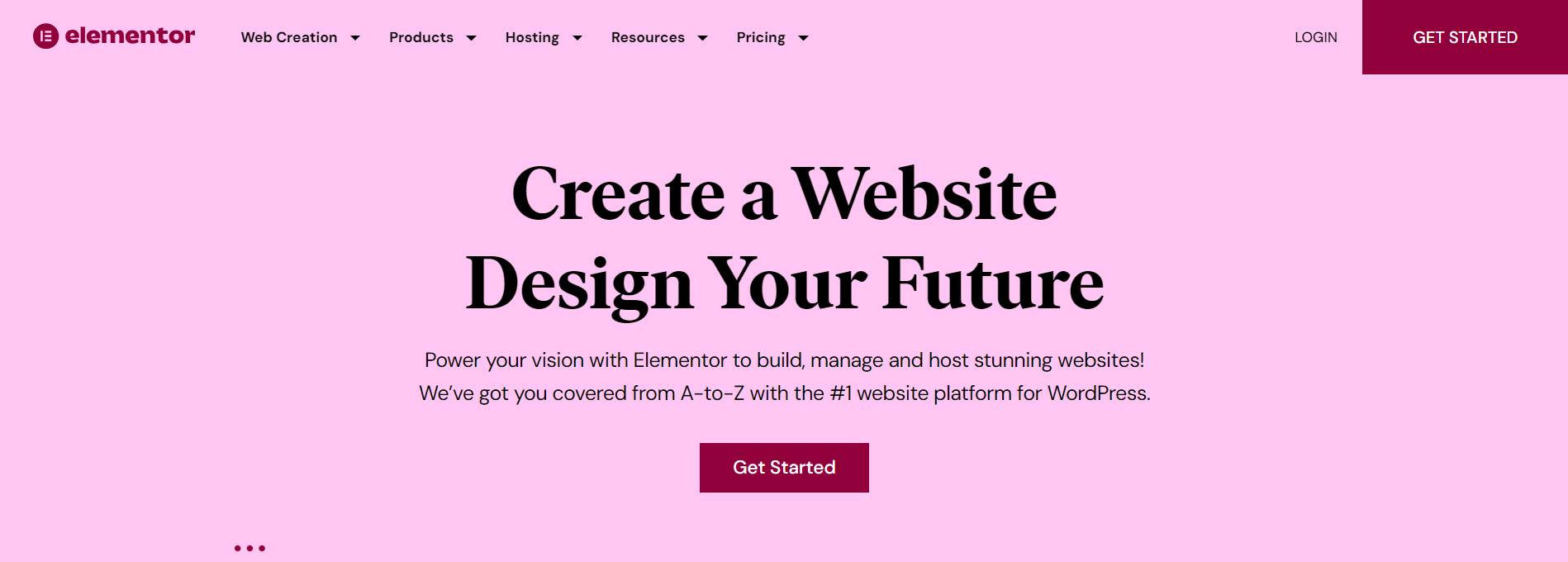 With its robust capabilities. flexible design options, and an easy-to-use interface, Elementor comes as a boon for both experienced and newbie web developers. Let's get to know more about Elementor.
Key Features
- Live Editing Interface: Elementor’s real-time design capabilities mean you can see changes as you make them, streamlining the design process and enhancing accuracy.
- Wide Range of Widgets and Templates: Elementor offers an extensive library of pre-made design elements and templates, allowing for quick yet customized builds.
- Responsive Design Controls: Create mobile-friendly designs effortlessly with specific controls for different devices.
- Integration with Popular Tools: Elementor integrates seamlessly with popular marketing and social media tools, enhancing its usability.
- Multilingual and RTL Support: Design websites in various languages with right-to-left text support, making it globally appealing.
Pricing
Check out the pricing plans for DiviBuilder here.Security and Reliability
When it comes to security, Elementor understands how important the safety and integrity of a website are to users. Using strict coding standards and best practices for web security, Elementor ensures that the user's website is safe and secure. And if you're the type who likes to add a little extra protection, Elementor plays nicely with a lot of the security plugins out there. So you can build up your site's defenses just how you like. Got a question or hit a snag? Elementor's support team has got your back. They've got loads of guides online, and there's a community of users who are always ready to lend a hand.Customization
Customization is where Elementor really feels like a playground for anyone wanting to create a unique website. Starting with the interface, it is a drag and drop thus allowing you to play with layouts, select colors, adjust fonts, and more. For those with more technical skills, Elementor opens up the possibility to explore custom CSS and JavaScript.In addition to these hands-on design features, Elementor also offers a rich library of pre-made templates. You can choose a template that closely matches your vision, and then tweak it to perfection.Flexibility
Imagine you're building a blog today, an online store tomorrow, and maybe even a portfolio site the week after that. This could mean learning three different methods with some tools, but not with Elementor. Elementor can be used for many different kinds of projects, irrespective of the requirements. Elementor's built-in features act like tools in a toolkit, and the third-party extensions act as specialty tools that can be added. There exists a vast ecosystem of modules and add-ons ready to extend Elementor's capabilities.SEO Impact
You don't just put together a website with Elementor; you craft it in a way that search engines can understand. This is essential because if search engines can readily read your website, they will be able to show it to more people. Elementor helps you build a search engine-friendly site.2. Divi Builder
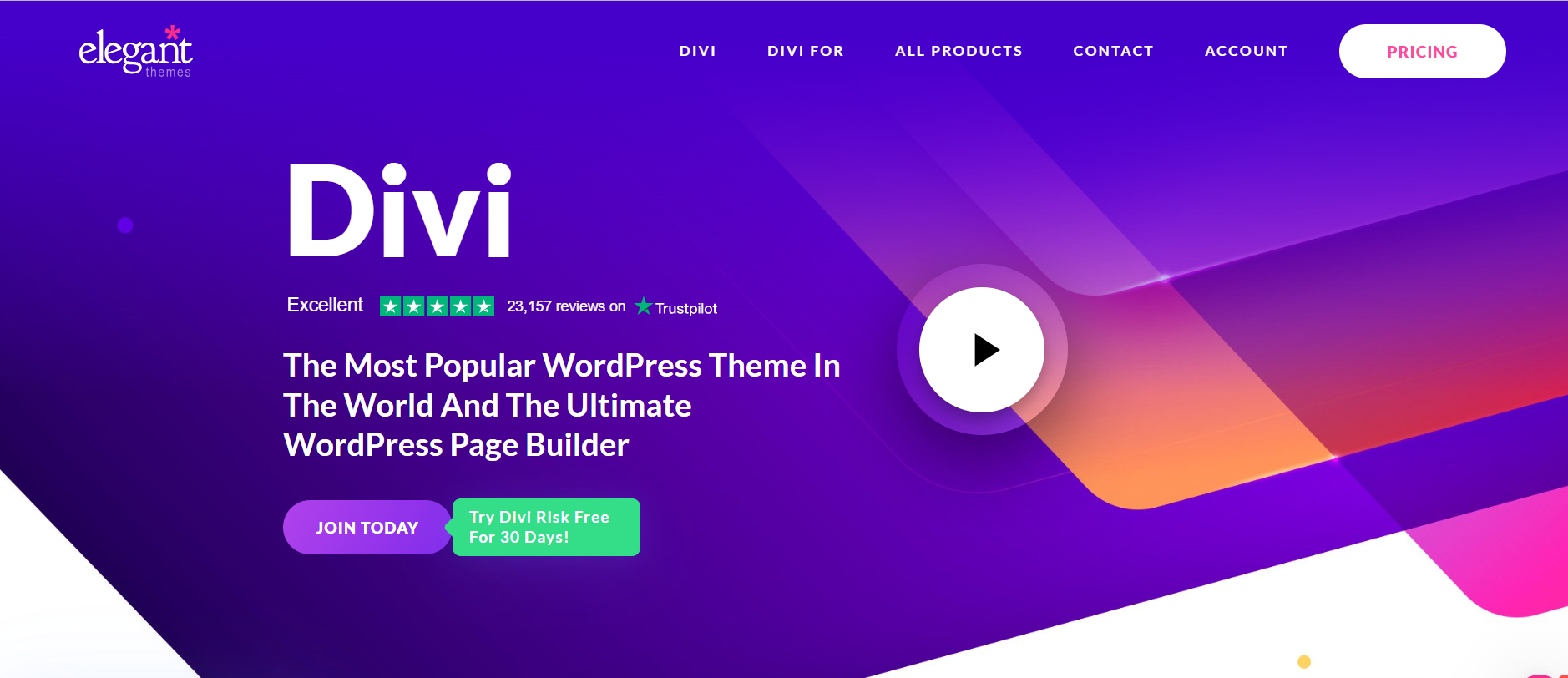 Divi Builder developed by Elegant Themes, is quickly becoming a favorite among WordPress users. Divi Builder has gained popularity due to its ease of use, vast customization, and varied design features it has. Let's dig in more:
Key Features
- Visual Builder Technology: Divi Builder offers a real-time design interface, allowing designers to see changes instantly without page refreshing.
- Modules and Layouts Library: A vast collection of customizable modules and layouts, catering to all design needs.
- Global Elements & Styles: Create global elements that can be used across the site, saving time and ensuring consistency.
- Split Testing: Test different design options to see what works best with built-in split testing tools.
Pricing
Check out the pricing plans for DiviBuilder here.Performance
Divi Builder is fast, which means you're not sitting around waiting for things to load. You can move things around, tweak them to your liking, and see the changes right away. Divi Builder's performance can vary depending on factors such as hosting, the complexity of your design, and the number of plugins you use.Security and Reliability
With frequent updates, Divi Builder maintains a secure platform. Moreover, Elegant Themes offers round-the-clock support, ensuring assistance when needed. Divi Builder provides an extensive library of tutorials and documents to help users navigate any challenges.Customization
Instead of abstract menus and settings, designers can click on any part of their website and modify it directly. Whether it's adjusting the typography of a headline, changing the color palette of a section, or adding interactive elements, Divi Builder lets users tinker and refine to their heart's content. While Divi Builder does come packed with a myriad of beautiful templates, each of them can be dissected, modified, and reassembled to create something entirely new.Flexibility
The digital world thrives on collaboration and interconnected tools, and Divi Builder embraces this wholeheartedly. By allowing and often facilitating integrations with a plethora of external tools, Divi Builder ensures that its users always have the right tool for the job, even if it's not native to the platform.SEO Impact
The very foundation of Divi Builder is built upon SEO-friendly principles. The generated markup is clean and streamlined, adhering to modern web standards. This clean code ensures that search engine bots can easily crawl and index the content. When these bots can efficiently understand the structure and content of a site, it naturally leads to better rankings on search engine results pages.3. Beaver Builder
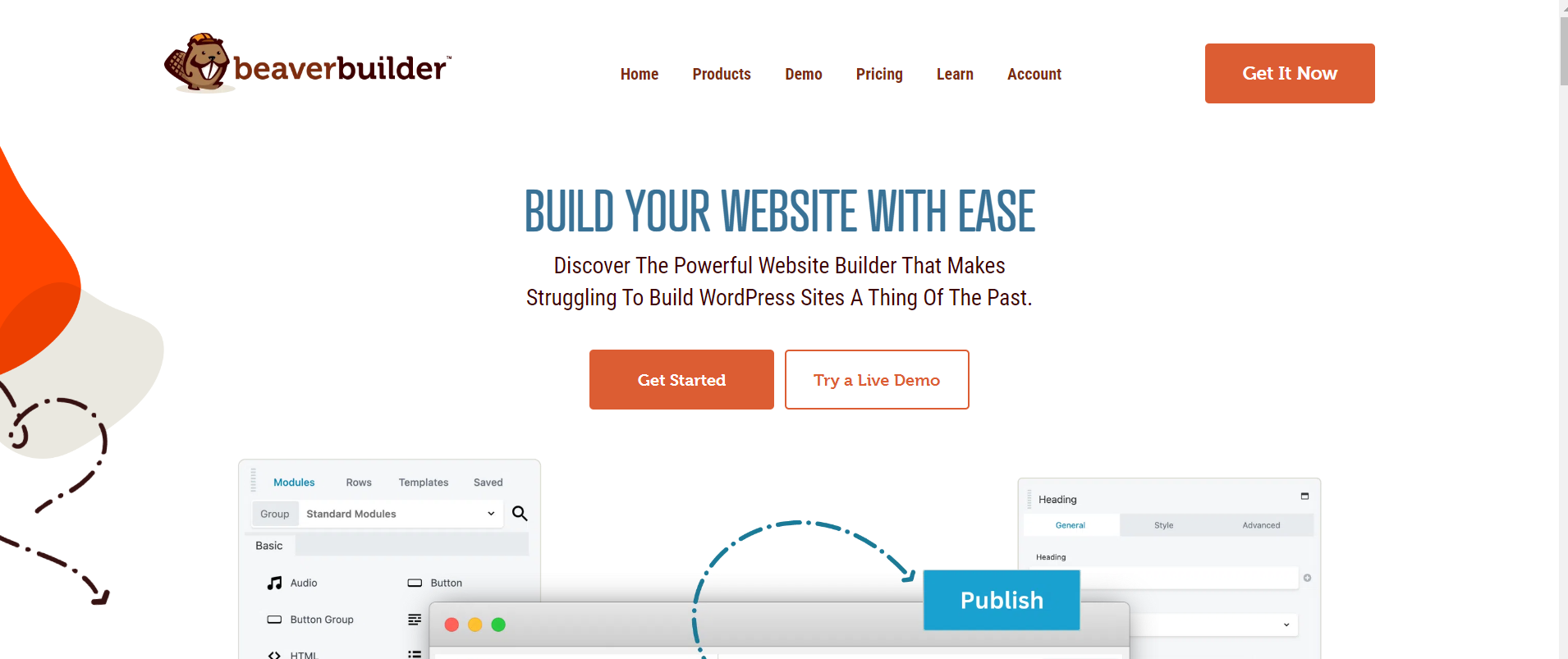 Beaver Builder has made a name for itself in the WordPress community as one of the best drag-and-drop page makers. It makes it easy for both new and experienced developers to create sites that look like professionals made them. Here's a more detailed look:
Key Features
- Live Front-End Editing: See changes as you make them with the real-time design interface.
- Module Variety: Various content modules like photos, text, and even maps can be dragged and dropped with ease.
- Page Templates: Access to pre-made layouts that help to quickly start the design process.
- White Labeling: Ideal for agencies, it allows you to replace the Beaver Builder name with your branding.
Performance
Professionals who value efficiency above all else will find Beaver Builder to be an excellent option because of its fast loading times, excellent responsiveness, and user-friendly interface for designing websites.Security and Reliability
Beaver Builder prioritizes data and browsing session security. Regular security audits find and resolve issues quickly. Open communication with the WordPress community has enhanced Beaver Builder's security posture. Feedback is quickly integrated, and concerns are addressed promptly. It is also known for its responsive support team that’s there to help with any issues. Beaver Builder's commitment to regular updates ensures compatibility with evolving web technologies and changing WordPress frameworks.Customization
From typography to column configurations, precise adjustments are feasible, ensuring a customized design outcome. Those who desire further customization and functionality modifications can use their own custom CSS and JavaScript in Beaver Builder. It enables the saving and reusing of design elements across multiple pages or websites, thereby promoting consistency and efficiency.Flexibility
Beaver Builder is always compatible with the latest WordPress releases and integrates well with various plugins. This ensures that users can blend multiple tools without compatibility concerns. The drag-and-drop mechanics appeal to beginners, while experienced coders are able to embed custom code. Global settings provide design uniformity and help users create site-wide design rules. SEO Impact Beaver Builder effortlessly collaborates with top-tier SEO plugins like Yoast SEO, enabling users to finely tune their SEO efforts without hitches. A crucial yet sometimes overlooked SEO factor is site speed. Beaver Builder's lightweight design ensures faster loading times, crucial for both user satisfaction and SEO optimization. A very important feature is that it offers clean code—essential for making sure search engines can efficiently crawl and index content, which, in turn, boosts website rankings.4. Visual Composer
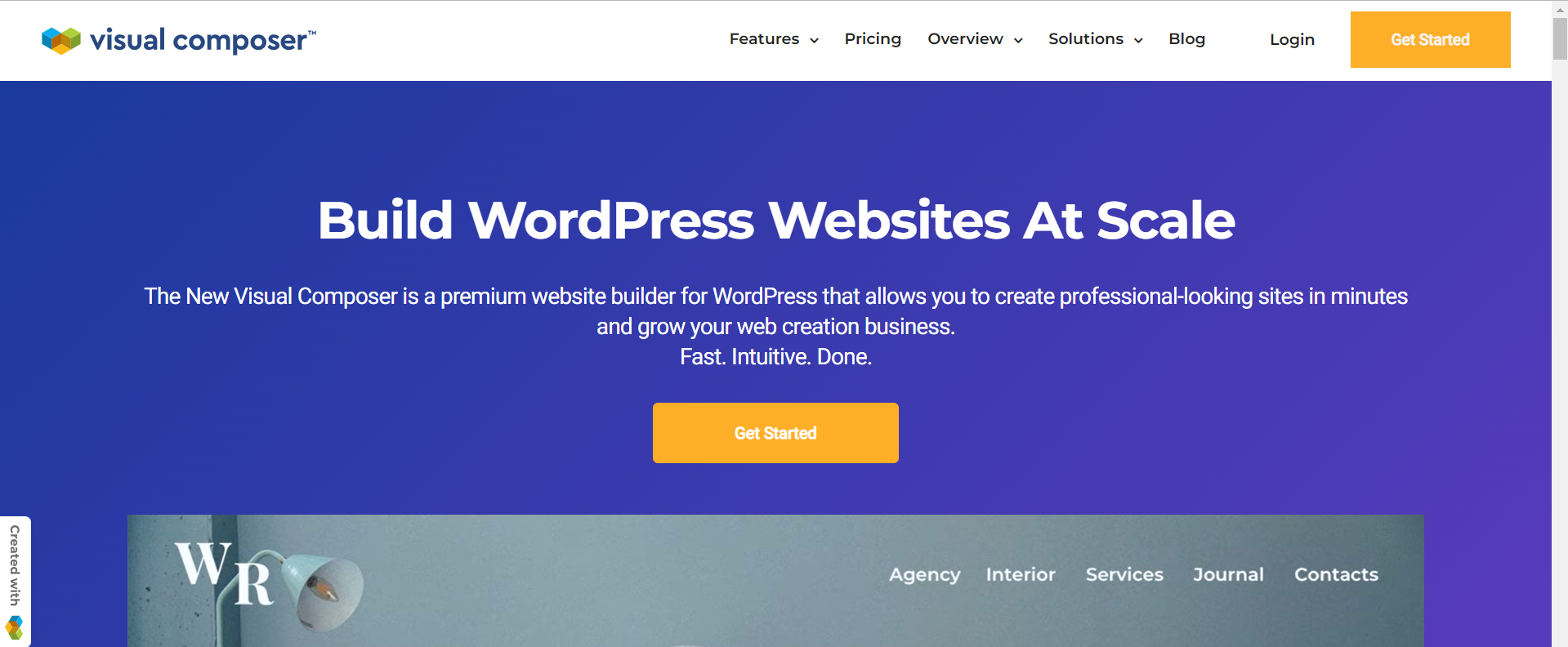 Visual Composer is a website builder with backend and front-end editing capabilities. Of course, like other page builders, this one also helps non-technical people to easily build websites.
While there are many excellent page builders out there, Visual Composer stands out due to its comprehensive features, dual editing modes, and extensibility. It's both beginner-friendly and robust enough for seasoned developers, making it a versatile choice for a wide range of WordPress users.
Visual Composer is a website builder with backend and front-end editing capabilities. Of course, like other page builders, this one also helps non-technical people to easily build websites.
While there are many excellent page builders out there, Visual Composer stands out due to its comprehensive features, dual editing modes, and extensibility. It's both beginner-friendly and robust enough for seasoned developers, making it a versatile choice for a wide range of WordPress users.
Key Features
- Dual Editing Modes: Offers frontend and backend editing capabilities.
- Wide Range of Elements: Basic to advanced elements, including post grids, slideshows, and interactive features.
- Templates: Comes with a variety of pre-designed templates to fast-track the design process.
- Extension Ecosystem: Supports a range of third-party extensions to extend its functionality.
- Integration Capabilities: Seamlessly integrates with many other WordPress plugins.
- Cloud Marketplace: This is a premium feature by Visual Composer which is an in-app marketplace for you to buy elements, extensions, and templates. This feature lets you build your website from the cloud.
- Unsplash Stock Images: Adding images to your website is made easy by this premium feature. From the Visual Composer Hub, you can get high-quality stock photos from Unsplash and add them to your site.
Pricing
You can check out the pricing plans for Visual Composer here.Performance
Websites created with Visual Composer generally maintain good loading times, but this also depends on other factors like hosting, image optimization, and overall website content. Visual Composer has clean code and is as optimized as possible. Still, like any tool, its performance can be impacted by how it's used. Overstuffing a page with too many elements or animations can naturally slow it down. Additionally, the plugin works with popular caching and optimization plugins. This collaboration allows for better loading times and performance with the appropriate setup.Security and Reliability
The Visual Composer is updated regularly to add new features, fix bugs if any, and also to add security patches. Thus, the tool wants to stay one step ahead of any possible threats. Visual Composer is known for its stability and reliability, even with WordPress updates. The Visual Composer staff provides excellent service. An active support system fixes difficulties and functions as a feedback loop to improve the tool based on user demands.Customization
A large library of elements and widgets of Visual Composer allows you to choose from simple text blocks to advanced sliders and social media feeds. This wide range lets you add functionality to your requirements without third-party plugins. When it comes to brand consistency or saving time, the templating features of Visual Composer are incredible. Design a layout, save it as a template, and use it on other pages or websites. This streamlines workflow and guarantees consistency without duplication.Flexibility
Visual Composer is flexible enough to accommodate a variety of project types, ranging from blogs and e-commerce websites to portfolio websites. This page builder not only offers a service, but a solution to your requirements. It easily integrates with the third-party plugins you require for your website without any hassle. You can customize designs with custom CSS, HTML, or JavaScript. Developers who are willing to push the tool's limits in designing can benefit greatly from this freedom.SEO Impact
Visual Composer uses SEO-friendly HTML markup, which is the basis for any search-optimized site. A good HTML structure helps search engines read your content, and this tool does that. Headings, meta descriptions, and picture alt texts are integrated characteristics that promote rankings. Since Visual Composer is flexible enough, it is easy to integrate SEO plugins, thus further helping in boosting your site’s visibility. The builder doesn’t add unnecessary bulk to your web pages, making sure they load quickly, thereby bettering your SEO score.Conclusion
We examined the most powerful and versatile drag-and-drop page builders for WordPress in 2026: Elementor, Divi Builder, Beaver Builder, and Visual Composer. Each has unique strengths and features that make it suited for various projects. The right page builder depends on performance, customization, adaptability, security, and SEO. A bad page builder can slow down your website, complicate design, and cause security problems. However, a good one may make your website quick, safe, and easy to use, improving user experience and SEO ranking. We hope our blog post will help you choose the right page builder according to your needs. If you are looking to build your website, look no further and connect with our WordPress experts.
Plugins
8 min read
Best WordPress Migration Plugins of 2026
Introduction
Website migration is essential for anyone who owns a website. It's like moving your entire digital identity from one place to another. Website migration is the bridge that lets you switch hosting providers, migrate from a development or staging environment to a live server, or revamp your site with a new name. Databases, themes, plugins, hundreds of files, and content elements are interconnected; therefore, one must migrate them without losing data or functionality. Manually doing this is time-consuming and risky. With the right WordPress plugins, migrating the website becomes easy. But how do you choose the right plugin? Worry not; read on to learn about the best plugins for migrating your website.Criteria for Choosing the Best Migration Plugin
Reliability and Accuracy of Data Transfer
When migrating your WordPress website, data integrity is critical. Choose a migration plugin with a track record of reliable and accurate data transfer. This implies that it must move all of your content without errors or omissions, including posts, pages, photos, databases, and configurations. A good plugin will ensure that the structure and content of your website remain intact during and after migration, preventing data loss or corruption.Ease of Use
Not everyone is a tech specialist, and an overly difficult migration can prove to be a nightmare. Choose a migration plugin with an easy-to-use interface and clear, step-by-step instructions. It should be simple enough for beginners to use while still providing extensive options for advanced users. A plugin with an easy-to-use interface can save you time and lessen the likelihood of costly mistakes during migration.Support for Different Migration Scenarios
Websites come in all forms and sizes, and your migration requirements may differ from those of others. Ensure that the plugin you select supports various migration scenarios. This covers both the standard single-site to single-site migration as well as more complex migrations, including going from a multisite network to a single site. The ability to handle a variety of scenarios provides you with flexibility and ensures that the plugin can adapt to your individual needs.Speed and Efficiency of the Migration Process
When it comes to website migration, time is of the importance. The migration plugin should be effective and quick in its process. Slow migrations might cause downtime and provide your visitors with a poor user experience. Look for a plugin that optimizes the migration process, reducing the amount of time required to accomplish the move.Compatibility with Different Hosting Environments
WordPress websites use many hosting providers and environments. Your migration plugin should work with shared, VPS, and dedicated servers. It should connect easily with your hosting environment, regardless of technical specifications, permitting a smooth migration regardless of hosting provider.Additional Features and Customization Options
While a migration plugin's main function is to migrate your website, extra features can be helpful. You can move or omit specific items with plugins that allow customization. Some plugins offer URL redirection, backups, and testing staging environments. These added features can improve migration and your WordPress management toolkit.Best Migration Plugins of 2026
Let’s take a look at the best migration plugins of 2026.1. WP Migrate DB
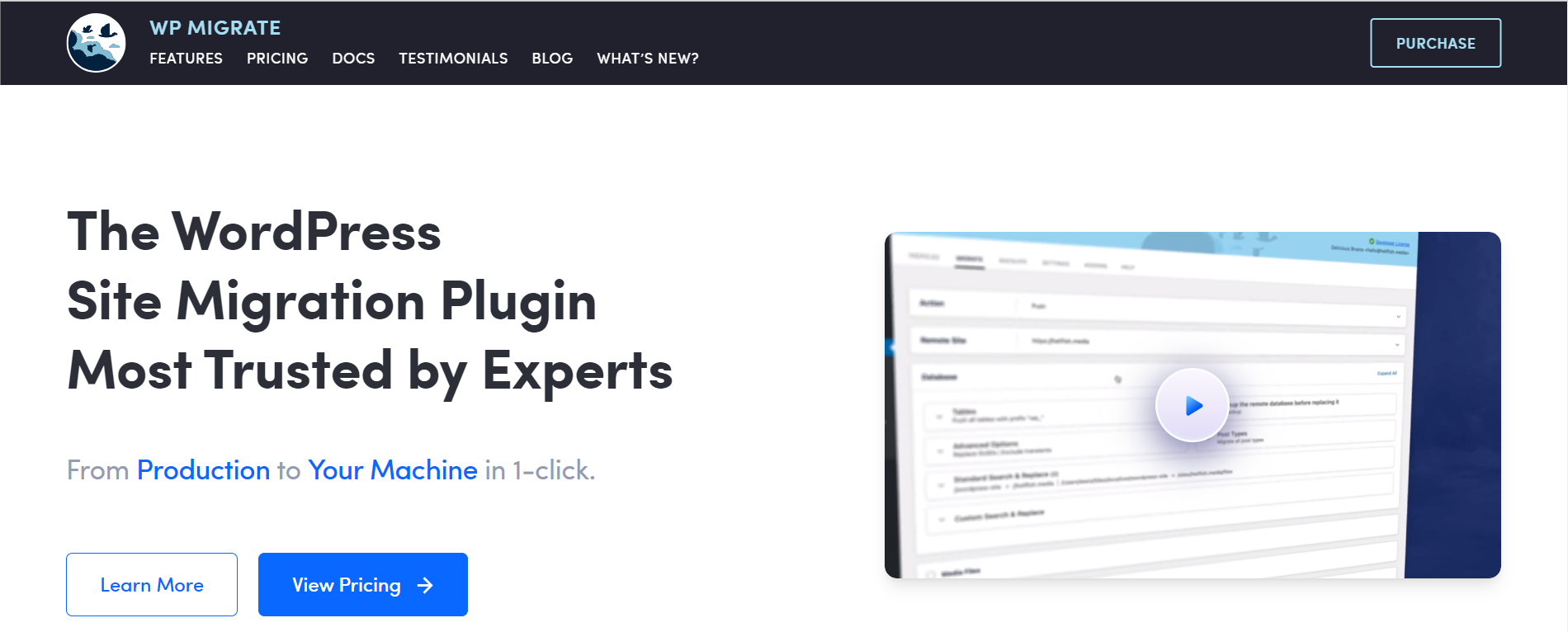 WP Migrate DB is primarily focused on database migration. It plays a crucial role in ensuring that your site's data is transferred accurately and efficiently during a migration.
Features:
WP Migrate DB is primarily focused on database migration. It plays a crucial role in ensuring that your site's data is transferred accurately and efficiently during a migration.
Features:
- WP Migrate DB focuses on WordPress database migration, including posts, pages, comments, custom post types, settings, etc.
- WP Migrate DB's "Find and Replace" feature is unique. This functionality searches your database for particular strings or URLs and replaces them. This helps with migrating domain names, directory structures, and other site-specific information.
- WP Migrate DB intelligently handles serialized data, ensuring that it remains consistent and functional after migration.
- You can use WP Migrate DB to export your database as an SQL file, which can then be quickly imported into the database of the new site. This strategy ensures data consistency and minimal data loss during migration.
- WP Migrate DB integrates with WP-CLI for advanced users and developers who prefer command-line interfaces. More automatic and scriptable migrations make it a flexible tool for varied use cases.
2. All-in-One WP Migration
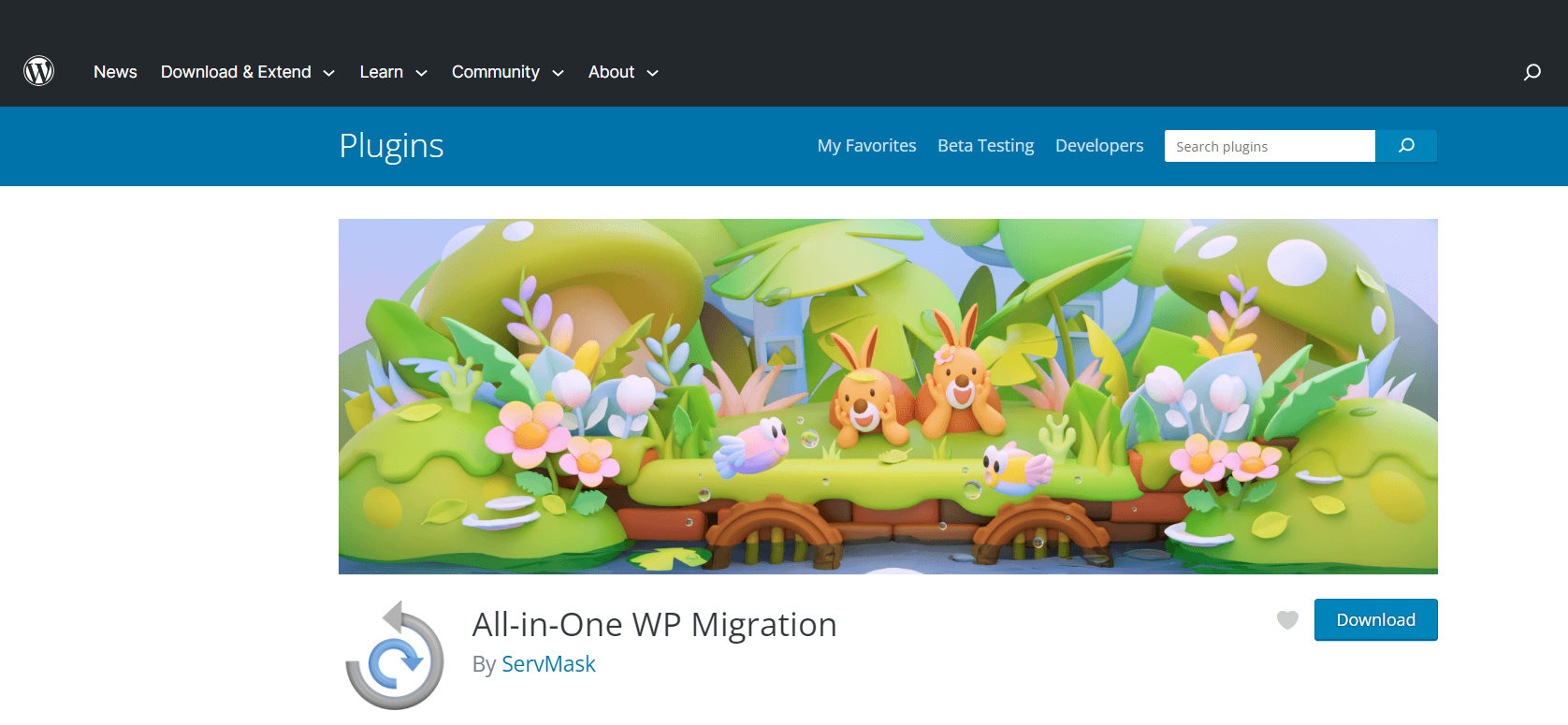 All-in-One WP Migration is famous among WordPress users for its simplicity and reliability. Its simplicity makes it a favorite among beginners and experts. The plugin's simple UI lets you migrate a website in a few clicks. Despite your lack of website development experience, the simple layout makes transfer easy.
Features:
All-in-One WP Migration is famous among WordPress users for its simplicity and reliability. Its simplicity makes it a favorite among beginners and experts. The plugin's simple UI lets you migrate a website in a few clicks. Despite your lack of website development experience, the simple layout makes transfer easy.
Features:
- The plugin, as the name suggests, offers a single-click migration.
- All-in-One WP migrations can handle PHP memory constraints better than other migrating plugins.
- The plugin handles large websites well, making it suited for content-heavy platforms.
- It works with many hosting providers and environments, making it a versatile WordPress plugin.
3. UpDraftPlus
 You can duplicate or clone your current website using UpdraftPlus. When switching to a new host or domain, this feature is really helpful. You can make an exact duplicate of your website using the clone tool without having any impact on the live site. This guarantees that there won't be any downtime or disruptions for your visitors while the migration is taking place.
It's essential to have a reliable way to recover your website during migration in case something goes wrong. UpdraftPlus is excellent at this. With only a few clicks, you can quickly restore your website from a backup. This implies that you can quickly return to a prior state during migration if anything doesn't go as planned without losing data or jeopardizing the integrity of your site.
Features:
You can duplicate or clone your current website using UpdraftPlus. When switching to a new host or domain, this feature is really helpful. You can make an exact duplicate of your website using the clone tool without having any impact on the live site. This guarantees that there won't be any downtime or disruptions for your visitors while the migration is taking place.
It's essential to have a reliable way to recover your website during migration in case something goes wrong. UpdraftPlus is excellent at this. With only a few clicks, you can quickly restore your website from a backup. This implies that you can quickly return to a prior state during migration if anything doesn't go as planned without losing data or jeopardizing the integrity of your site.
Features:
- Easy cloning and restoration of the website
- Compatibility with various hosting environments
- The plugin offers remote storage options such as Google Drive, Dropbox, Amazon S3, and many more
4. Migrate Guru
 Migrate Guru stands out for its amazing speed and efficiency, especially when it comes to large-scale migrations. Migrate Guru has been designed to easily manage a multisite network with several sub-sites, an e-commerce site with thousands of products, or a blog with a lot of content.
Migrate Guru does not export your site to a file and import it on the new server. It uses a real-time transfer method to transport website data from your old server to the new one without making backup files. This direct transfer approach cuts migration time dramatically.
Features:
Migrate Guru stands out for its amazing speed and efficiency, especially when it comes to large-scale migrations. Migrate Guru has been designed to easily manage a multisite network with several sub-sites, an e-commerce site with thousands of products, or a blog with a lot of content.
Migrate Guru does not export your site to a file and import it on the new server. It uses a real-time transfer method to transport website data from your old server to the new one without making backup files. This direct transfer approach cuts migration time dramatically.
Features:
- This plugin is 80% faster, meaning you can clone 1GB of site in less than 30 minutes.
- The migration process takes place on Migrate Guru’s server, so there is no overload on the website
- Since the cloned copy of your site is on Migrate Guru’s server, no storage space is required. After the migration is completed, the copy is erased.
- Moving multiple sites or sites with serialized data doesn't require add-ons.
5. BlogVault
 Though it is known for its backup abilities, BlogVault is also renowned for migrating websites easily and efficiently. BlogVault makes migrating your WordPress website to a new host, domain, or server easy in a few minutes.
Features:
Though it is known for its backup abilities, BlogVault is also renowned for migrating websites easily and efficiently. BlogVault makes migrating your WordPress website to a new host, domain, or server easy in a few minutes.
Features:
- BlogVault has zero migration downtime, meaning your website is accessible and functional to users during migration.
- Migration is streamlined by automating file transfers and database exports. It handles everything from backing up to restoring your site on the new server or host.
- BlogVault uses incremental backups for migration efficiency. After the first backup, only website modifications are stored. This decreases the backup size and speeds migration, making it suitable for large websites with heavy content.
- BlogVault offers staging environments for testing migrated websites before going live.
- It provides real-time monitoring and notifications during migration.
6. Duplicator
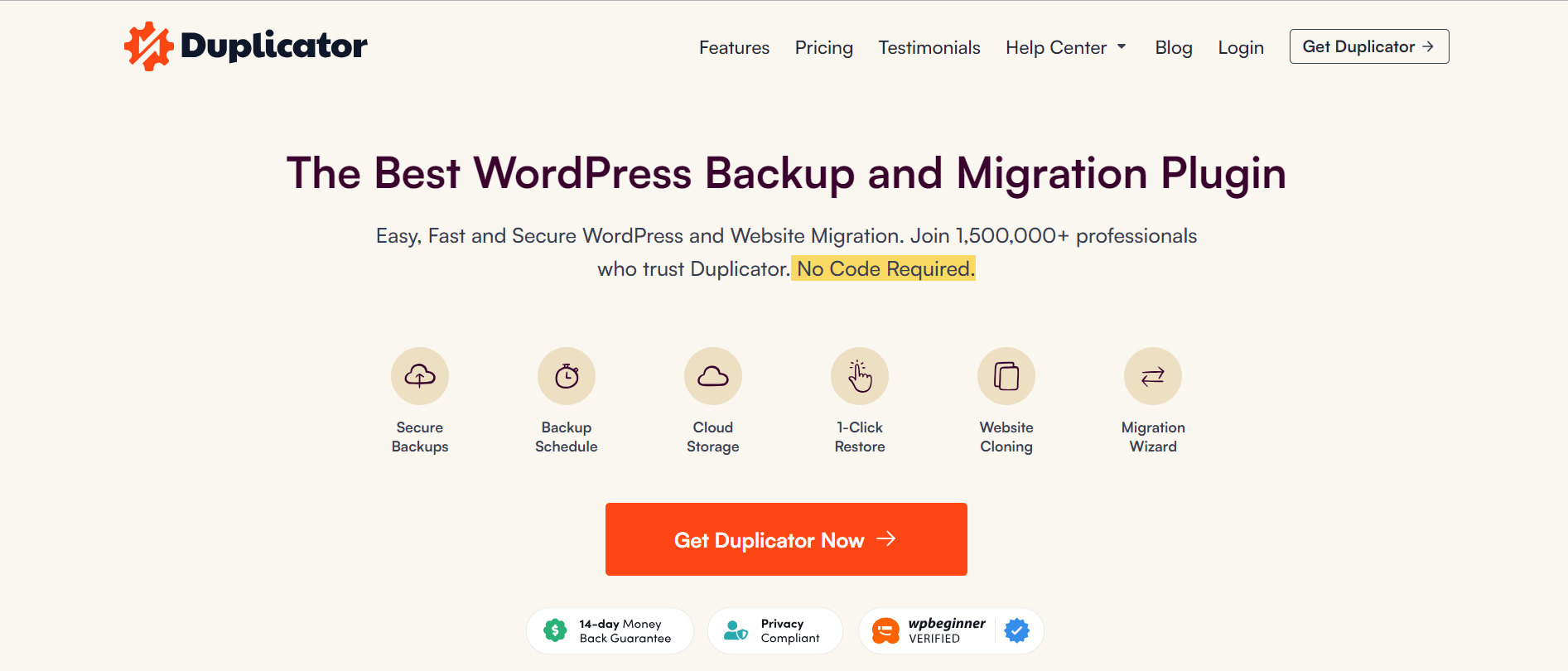 Duplicator's ability to efficiently clone and migrate WordPress websites makes it a top contender among migration plugins. Let’s see why Duplicator remains among the best migration plugins.
Features:
Duplicator's ability to efficiently clone and migrate WordPress websites makes it a top contender among migration plugins. Let’s see why Duplicator remains among the best migration plugins.
Features:
- Migration using Duplicator is reliable as it creates small packages of files, databases, themes, plugins, and settings during migration. This not only simplifies the migration process but also ensures that nothing is left behind.
- Its interface walks you through the migration process step by step, thus making it suitable for everyone.
- Duplicator automates database configuration during deployment, ensuring that your website functions correctly on the new server.
7. WPVivid
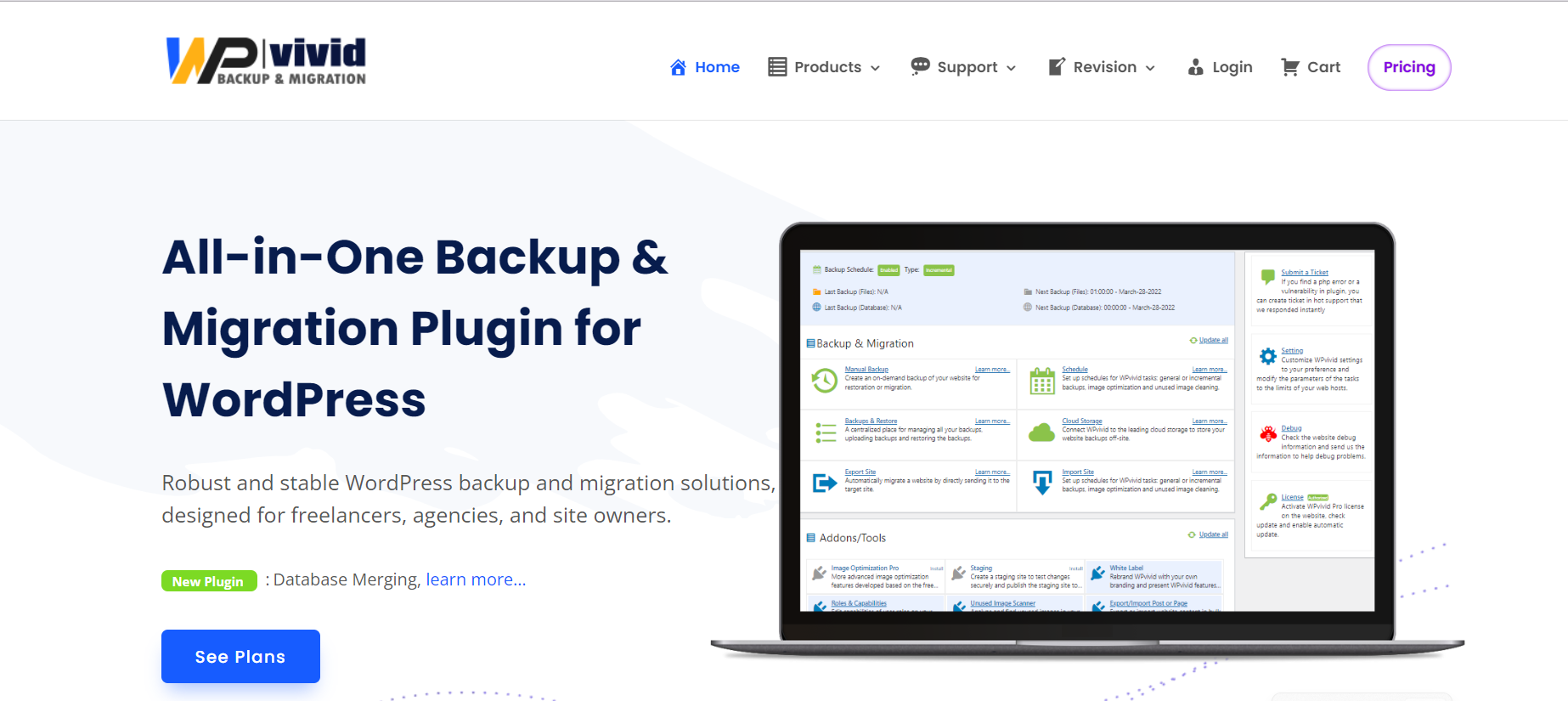 WPVivid offers a comprehensive set of features designed to simplify website migration while maintaining data integrity. It offers an easy user interface, making it usable for people with non-tech experience.
Features:
WPVivid offers a comprehensive set of features designed to simplify website migration while maintaining data integrity. It offers an easy user interface, making it usable for people with non-tech experience.
Features:
- It comes with a simple migration procedure that saves developers time when building WP sites and migrating them from dev whether local or remote, to live or new web hosting.
- The snapshot feature is built into the plugin, so even if the restoration fails for some reason, your current site won't be affected.
- It is important for WordPress transfers to replace site URLs in a safe way. The plugin has been tested a lot and works with most of the best page builders and themes out there.
- WordPress migration is easier with separate export and import operations. Websites can be exported to a web server, external storage, or target site (auto migration). Restore the site by importing from places.
Conclusion
We discussed the top WordPress migration plugins. Each plugin has its own benefits, including user-friendly interfaces, rapid cloning, extensive capabilities, versatility, and simplicity. Your plugin choice depends on your website's complexity and migration experience. We hope that this blog has helped you choose the right migration plugin for your needs.
WordPress
9 min read
WordPress 6.3: Exploring the Exciting Features and Enhancements
Introduction
WordPress 6.3 “Lionel” roared its way into the WordPress ecosystem on August 8, 2023. This major release includes many new upgrades that make creating and managing content all the more exciting. Among the features that come with WordPress 6.3, the Site Editor is perhaps the most notable addition, allowing users to handle everything from content to templates in one place. Block themes also enable users to preview new designs and customize them with greater ease. With the Command Palette, users can access expanded functionality with just a few keyboard strokes. At the same time, improved style revisions and annotations, as well as faster performance and improved accessibility, all make it even easier to manage and create content online.
Exploring WordPress 6.3
Here is a quick video exploring the new features of WordPress 6.3.1. Block Pattern System Changes
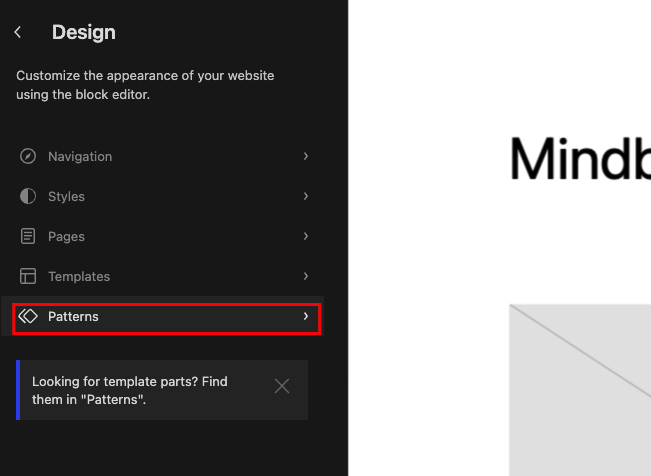
Screenshot 1: Pattern Tab
The Block Pattern System update in WordPress 6.3 has unlocked a new level of customization for pro-level editing. With new improvements and additions, it's now easier to create custom block patterns and apply them instantly to your content.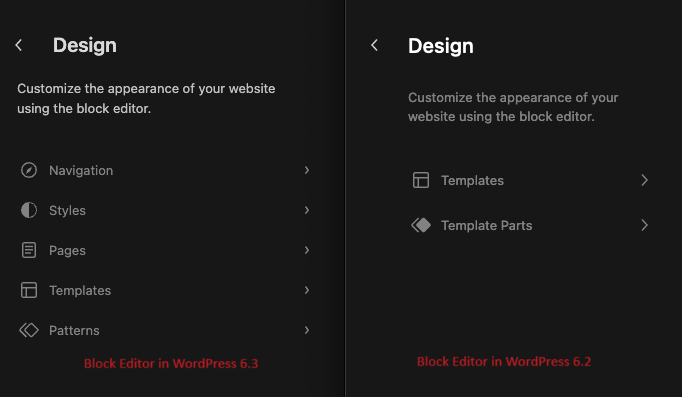
Screenshot 2: Comparison of Block Editor in WordPress 6.3 and 6.2
- Synced patterns, previously known as Reusable Blocks, are groups of blocks that can be saved and applied instantly without having to add the blocks repeatedly. Moreover, changes made to a synced pattern will apply globally on the website. Synced patterns can be used for elements like headers, footers, or sidebars that appear across the website.
- Non-Synced Patterns, previously known as Regular Block Patterns, allow you to customize. Any changes made to a non-synced pattern will only affect that particular pattern and not other places where it's used. Non-Synced Patterns can be used for page or post-specific content.
- The wp_block custom post type has been extended to support custom fields.
- The wp_block_sync_status field has been added to store the sync status of a pattern. This field indicates whether a synced pattern has been updated or not and whether those changes are reflected throughout your website.
- The block pattern design now has a source property to tell the difference between core patterns and user patterns.
- The REST API has been extended with a new endpoint for global styles revisions and it can be accessed at /wp/v2/global-styles/revisions.
2. New Gutenberg Blocks
WordPress 6.3 has added two new blocks, Detail and Footnotes.
Detail Block
The addition of the Detail Block allows you to hide content until the reader is ready to see it. You can now add extra information without cluttering your main text. With just a click, readers can reveal hidden information like event details, fine print notices, or even spoilers. It's like a secret hideout for your content!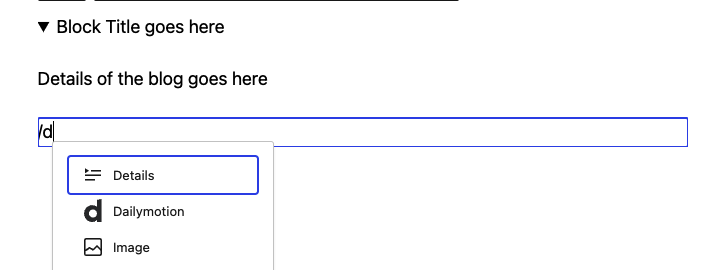
Screenshot 3: Add the Details block while creating the post

Screenshot 4: Details block hiding the content
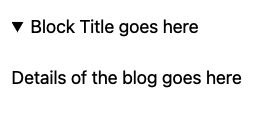
Screenshot 5: Details Block showing the content when expanded
With the addition of this feature, you now have two separate elements: a summary and hidden content. By default, the content is hidden, but readers can easily expand it by clicking on the drop-down arrow.Footnotes Block
Managing long texts is now easy with the Footnotes Block. With this new block, it's as easy as a couple of clicks. Just place your cursor where you want to add the link, click on the Footnote button, and done! A footnote appears at the bottom of the page. The Footnotes Block automatically adds, removes, and reorders footnotes as you edit your text. With this addition, you can effortlessly add context, source your work, or provide references right within your content.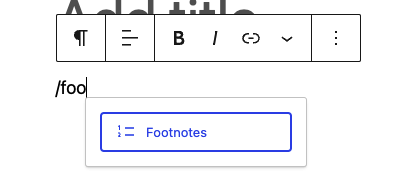
Screenshot 6: Addition of Footnotes Block
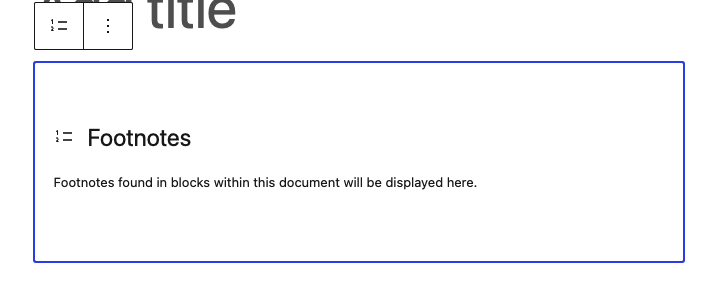
Screenshot 7: Display of Footnotes Block
3. Block Improvements
WordPress 6.3 has made some improvements to the existing Gutenberg blocks. Let's take a look at them. With the Cover Block enhancements, you can have more control over the layout of your cover. Various layout options, design options (text colour), and border options have made this block more useful and handy. The Duotone filter has surprised WordPress users with its improved functionality. You can set a global duotone filter from the Style panel of the Site Editor. It is no longer required to navigate theme.json for the Duotone filter application. And don't even think about using colour values for duotone. WordPress 6.3 raises the bar by employing colour prefixes instead.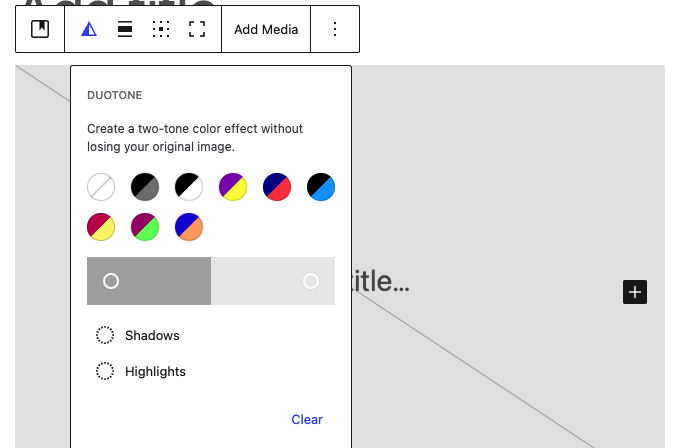
Screenshot 8: Duotone Filter
There are many other additional block improvements, a few of which are listed below:- The Button block now supports border color, style, and width.
- The Post Excerpt block now allows you to control the length of the excerpt
- For the Post Featured Image block, you can now adjust the aspect ratio.
- The Global Styles interface now includes controls for color and typography for the Caption element.
- A new variation has been added to the Post Date block - the Post Modified Date variation. This is particularly useful if you frequently update your posts and want to showcase when they were last modified.
4. Addition of the Command Palette
WordPress 6.3 introduces a new feature called the Command Palette, which has everyone buzzing with excitement.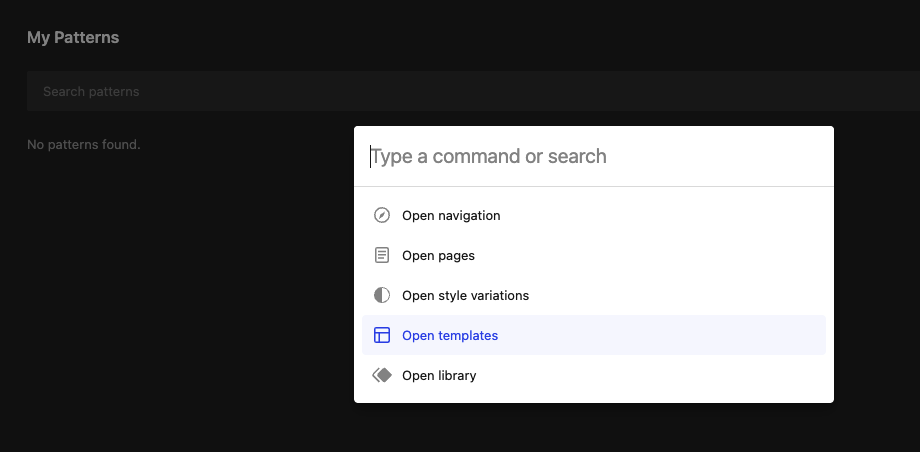
Screenshot 9: Command Palette
The Command Palette streamlines several tasks for developers and site managers. With this feature, you can quickly access tasks like resetting or deleting a template or a template part. You can also register your custom commands and even view design options for specific posts or pages. The Command Palette can also be used for core commands such as navigating the site editor, toggling UI elements, and creating new pages and posts. Using the Command Palette is easy, too. All you have to do is press the keyboard shortcut Command+Shift+P on macOS or Ctrl+Shift+P on Windows to open it. You can then start typing in the command you need, and the Command Palette will automatically suggest possible commands. Different commands are available depending on your needs. The command list includes dynamic results based on the user's query in the command palette input field, and a few commands are only available under certain conditions. When changing a template, contextual commands take precedence and show automatically. Developers can register custom static commands using wp.data.dispatch(wp.commands.store).registerCommand or wp.data.useCommand React hook. It also offers an API. Here is an introductory article about the command pallet API. In short, the Command Palette has undoubtedly eased the work of developers and site managers. Its easy design and ease of usage will make it a staple feature in future versions.5. Enhancements in Site Editor
The Site Editor now has a more intuitive interface, making it easier to navigate. A few other changes include:Enhanced Navigation
A fresh, clean interface that organizes everything improves navigation. Navigation, Styles, Pages, Templates, and Patterns are all in one place, making them easy to find. It's ideal for finding a page or template part and making quick modifications. You may now reach any WordPress page in the navigation menu with a few clicks without reading through interminable lists. The Command Palette holds all your favorite WordPress tools, ready to use! You can find the item you want instantly using the new search button. The search button includes Template Parts, providing you with additional content and design versatility.Improved Pattern Management
The Site Editor navigation has now been updated to include patterns as one of the main navigation items. You can see all your reusable blocks in the “My Patterns tab” by clicking on the Patterns icon.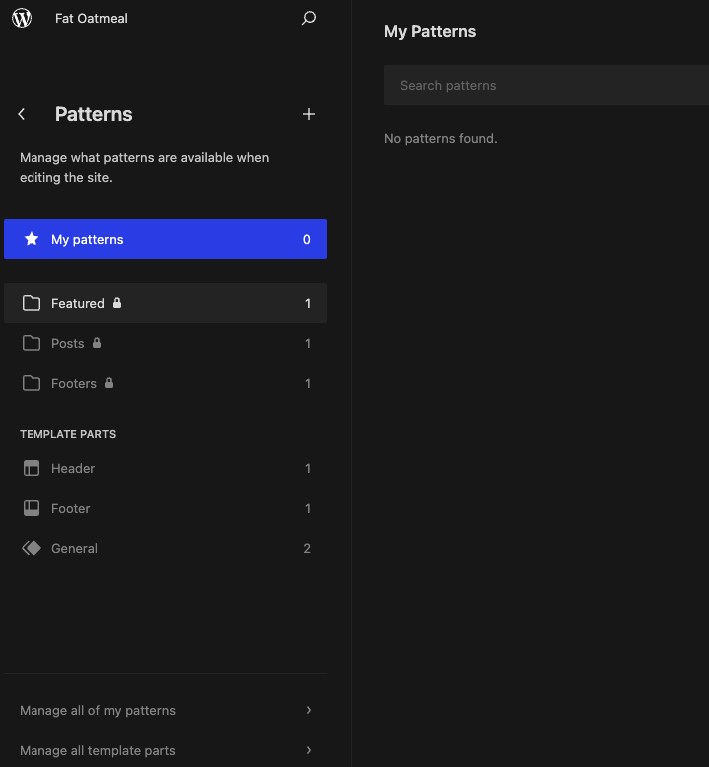
Screenshot 10: Pattern Management
Creating a new pattern or template part is just as easy as selecting the add (+) button. At the bottom of the navigation column, you will find links to manage all your patterns and template parts. With this feature, you can easily locate, edit, and create new patterns or templates to enhance your website navigation and overall design.Style Revisions
The Site Editor now provides revision history so you can browse and restore changes. This panel lists timeline revisions. It additionally tooltips each revision's author, date, and time. You may preview, restore, and navigate revisions in Global Styles at any time.Additional Improvements and Features
A new theme_preview parameter in WordPress 6.3 lets the Site Editor preview every block theme before activation. This update also improves the editor's loading state to prevent user interaction before loading. The WordPress 6.3 site editor has a distraction-free mode. This functionality has been in the post editor since WordPress 6.2. Distraction-free mode removes sidebars and toolbars, allowing you to focus only on editing.6. Changes and Performance Enhancements for Developers
WordPress 6.3 brings a wave of performance boosts and developer updates that will leave you in awe. The client-side performance has seen a remarkable 40% improvement for block themes and 31% for classic themes. On the server side, optimizations have made server response times 19% faster for block themes. And let's not forget the database performance improvements. Lazy-loading metadata and caching query results have made WordPress 6.3 more efficient than ever. But that's not all; there are exciting developer updates too! Script-loading strategies, lazy-loading images, low-level logic optimizations, and much more Among the numerous additions, we enlisted the following:- Image performance enhancements to improve page load speeds
- Improved emoji loader to reduce the time spent loading the emoji script. (#58472)
- Defer and async support added to the WP Scripts API. (#12009)
- Fetch priority support was added for images. (#58235)
- Skipping lazy loading for images outside the loop in classic themes. (#58211)
- Attempt rollback for failed plugin and theme updates. (#51857)
- Merge get_posts() and get_pages(). (#12821)
- Dropping Support for PHP 5
- Command Palette API
- Caching Improvements
7. External Library Updates
External library updates are an important feature of WordPress that take care of certain of your website's functionalities. These updates ensure that your site utilizes the most recent software available, with models regularly updated, and these upgrades may include new features, patches, or bug fixes. The WordPress 6.3 update includes modifications to various external libraries, which ensure that your website runs more efficiently and securely. Some of the updates are mentioned below:- PHPMailer is being updated to v6.8.0 (#57873)
- Requests library is being updated to v2.0.6 (#58079)
- jQuery is being updated to v3.7.0 (#58083)
- Sodium Compat is being updated v1.20.0 (#58224)
- jQuery Migrate is being updated to v3.4.1 (#58451)
- npm packages are being updated to the latest version (#58623)
8. Improvements in Accessibility
Accessibility Enhancements in WordPress 6.3 make it easier for users with assistive technologies to navigate, thanks to features like tab and arrow-key navigation and revised heading hierarchy. The new controls in the admin image editor ensure a better experience for users with disabilities. Here are a few major improvements in accessibility:- Improve accessibility of custom field UI
- Improved labeling, description, and focus style of block transform to pattern previews
- Fixed constrained tabbing failures with Safari and Firefox
- Fixed URL Input combobox to use the ARIA 1.0 pattern
- Fixed accessibility of the classic block modal dialog
- Improved Navigable Toolbar
- Multiple Tooltips from Focus Toolbar Shortcut on Widget Editor
- Support for aria content attributes in formatting
- Snackbar now has improved color contrast on hover for better readability
- Keyboard navigation has been enhanced for specific input types in the Writing Flow
- More details about the Accessibility Improvements in WordPress 6.3 can be found here.
WordPress
12 min read
The Ultimate Guide for WordPress Website Maintenance
Introduction
Developing a WordPress website is not the end of the task. Maintaining the developed site is crucial as it enhances the website's performance, ensures website security, maintains SEO rankings, and much more. A maintained website is a healthy website! In this blog post, you will get to know how to maintain your website and, at the same time, why you should do it.Crucial WordPress maintenance tasks to perform regularly
The following points describe each task in detail that is to be performed to maintain a website:1. Regular Backups
Whether your WordPress website is a small blog or a large eCommerce site, having a backup is essential. A backup is a saved copy of your website's data, including all the files and database. With regular backups, you can restore your site quickly if anything goes wrong.Importance of backing up your website
Backups are like insurance for your website. Here's why they are crucial:- Protection Against Data Loss: From server crashes to hacking attempts to simple human errors, various events can lead to data loss. Regular backups ensure that you can restore all your data, minimizing the impact of these events.
- Ease of Recovery: Backups allow you to recover quickly from any problem, whether it's a simple issue like a deleted post or a major one like a site crash. With a recent backup, you can get your website back to normal in no time.
- Protection Against Updates: Sometimes, updates to WordPress, themes, or plugins can lead to conflicts or errors. Having a backup means you can revert your website to its previous state if needed.
Tools and Plugins for Backups
There are several tools and plugins available that make backing up your WordPress website straightforward and convenient. Refer to our article about the best backup and restore plugins to know which backup plugin to choose for your website.Recommended Backup Frequency
The frequency of backups should align with how often you update your website. If you post daily, you should backup daily. If you update weekly, a weekly backup should suffice. However, for critical websites like eCommerce sites, where transactions occur continuously, real-time backups are recommended. Moreover, it's crucial to store your backups in multiple locations. For example, you could keep one copy on your local system and another in cloud storage. This redundancy adds an extra layer of protection.2. WordPress Updates
Developers frequently issue updates to the WordPress core, themes, and plugins. Updates like this are essential to keeping your website running smoothly and securely since they solve bugs, boost performance, and address security concerns. The importance of keeping your WordPress ecosystem updated cannot be overstated:- Security: Each new update patches vulnerabilities that could potentially be exploited by hackers. With roughly 90% of WordPress vulnerabilities attributed to plugins and themes, keeping them updated is crucial.
- Bug Fixes: Updates often fix bugs or glitches in previous versions, improving your site's performance and stability.
- New Features: Updates usually come with new features or enhancements that can boost your site's functionality and user experience.
- Compatibility: Updates ensure that the WordPress core, your themes, and plugins all work harmoniously together. This compatibility is key to preventing errors and site crashes.
Safely Updating WordPress, Themes and Plugins
While updates are essential, they should be performed correctly to avoid potential conflicts or issues:- Backup Your Website: Before updating anything, ensure you have a recent backup of your site. This gives you a safety net to revert to if something goes wrong.
- Update in Stages: Begin with updating your plugins, followed by your themes, and finally the WordPress core. This order helps avoid compatibility issues.
- Read the Changelog: Before updating, check the changelog for any significant changes that might affect your site.
Importance of Staging Environment while Updating
A staging environment is a clone of your live website where you can test updates without affecting your live site. This can be crucial for preventing update-induced issues on your website:- Test Compatibility: You can test updates in the staging environment to ensure they don't conflict with other elements of your site.
- Debugging: If there are issues post-update, you can identify and resolve them in the staging environment without affecting your live site.
- Experiment Without Fear: In a staging environment, you can freely explore and understand updates without the fear of breaking your site.
Frequency of Updates
The frequency of WordPress updates largely depends on when the updates are released by the WordPress team or the creators of the plugins and themes. WordPress Core Updates: Major WordPress core updates are typically released every few months. It's recommended to apply these updates soon after they are released, as they often include important features, enhancements, and security patches. Theme and Plugin Updates: These can happen more frequently, depending on the developers. It's also recommended to apply these updates soon after their release, as they can include security fixes and new features.3. Security Checks
A security check is like a health check-up for your website. It helps identify potential vulnerabilities, malware, and signs of unauthorized access or tampering. By regularly performing security checks, you can take prompt action to mitigate threats and protect your website. Regular security scans offer several advantages:- Identifying Vulnerabilities: Regular scans can detect security vulnerabilities before they are exploited, allowing you to fix them proactively.
- Detecting Malware: Scans can identify hidden malware that could be siphoning off your data or disrupting your site.
- Maintaining User Trust: By ensuring your site is secure, you can maintain the trust of your users and protect their data.
Plugins for Security Check
Security checks can be easily done by certain plugins. Yes, it is that easy! Refer to our article on the best WordPress Security Plugins to understand how to choose the best security plugins for your website.Understanding and Managing Security Reports
The results of security scans are often documented in reports generated by security software. Data on vulnerabilities, viruses, and suspicious activity may be included in these reports. Understanding these reports is crucial for taking appropriate action. It's advisable to familiarize yourself with the terminology and formats used in these reports and consult an expert if needed.What to do when a security issue is Detected
If your security scans detect an issue, take the following steps:- Verify the Issue: False positives can occur. Verify the issue independently or consult an expert.
- Isolate the Affected Component: If possible, isolate the affected part of your site to prevent the issue from spreading.
- Resolve the Issue: Use the security tool’s remediation suggestions, or work with a security expert to resolve the issue.
- Update and Strengthen Security: Update your WordPress core, themes, and plugins, and strengthen your security measures to prevent future issues.
Frequency of Security Checks
The frequency of security checks can depend on various factors, such as the nature of your website, the volume of traffic, and the sensitivity of the data you handle. However, a good rule of thumb is to conduct a security check at least once a week. For high-risk environments, real-time monitoring may be more appropriate.4. Database Optimization
A WordPress database stores everything that makes up your website. This includes posts, pages, comments, settings, and plugin data. Over time, this data becomes bloated with unnecessary information, slowing down your site.Optimizing Database
Optimizing your database involves removing unnecessary data, and here are the key steps to achieve this:- Deleting Revisions: WordPress saves every draft and revision of your posts. While this feature is useful, it can generate a lot of data that bloats your database. Regularly deleting old revisions can keep your database lean.
- Cleaning Transient Data: Transient data is temporary data stored by WordPress to speed up your website. However, not all transient data gets deleted when it's no longer needed, leading to unnecessary data in your database. Regularly cleaning up this data can help optimize your database.
Plugins for Database Optimization
There are numerous plugins that can assist you in database optimization. Some of them include: WP-DBManager, WPOptimize, Advanced Database Cleaner, and much more. These plugins automate database cleaning tasks, saving time while ensuring regular optimization. Additionally, they manage storage space effectively, contribute to site stability, and simplify site migration. Always remember to back up your database before running an optimization to avoid irreversible changes.Frequency of Database Optimization
The frequency of database optimization can depend on how often you update your site. If you frequently add or update content, you may want to optimize your database once a month. If your site is not updated regularly, a quarterly optimization might suffice. However, these are general guidelines, and the optimal frequency can vary based on your specific website's needs.5. Broken Link Check
Broken links are links that, when clicked, lead nowhere or display a 404 error page. This could be due to the linked page being moved, deleted, or the URL being updated.Identifying and Fixing Broken Links
Identifying broken links can be a manual or automated process. Manually, you would click on each link on your site to see if it led to a valid page. To fix a broken link, you either need to update the URL if it's incorrect, replace it with a new, relevant link, or remove it entirely. However, manually checking every link can be time-consuming for larger websites. That's where automated tools come in.Plugins and Tools for Checking Broken Links
Broken Link checking can be simplified by the use of various available plugins, such as Broken Link Checker and Screaming Frog (tool). These tools not only save you time, but they can also detect broken links that might not be immediately visible or accessible.Frequency of Checking Broken Link
The frequency of checking for broken links largely depends on how often you update your site and the size of your website. If you regularly add new content or modify existing content, bi-weekly checks may be advisable. For smaller, more static sites, monthly checks might be sufficient.6. Performance Monitoring
The performance of a website is measured by how quickly pages load, how quickly the site navigates, and whether or not all of the site's elements work as they should. Problems including poor load times, page problems, and unresponsive functionality can be identified with regular monitoring.Tools & Plugins For Performance Monitoring
There are several tools and plugins that can help you monitor the performance of your website. These include GTMetrix, Google PageSpeed Insights, and others. These tools provide comprehensive reports on various aspects of your site's performance, allowing you to target areas for improvement.Analyzing Performance Reports and Taking Action
At first, performance reviews can seem hard to understand, but with experience, they become easier to understand. They generally give a performance score and explain what is affecting that number. For instance, if your server takes a long time to respond, it could mean that you need better hosting. Large pictures might slow down page loads, so you might want to compress the images on your site. Once you know what problems are slowing down your site, you can take steps to fix them or ask for help if you need to.Frequency of Performance Monitoring
The frequency of performance monitoring depends on the nature of your website. High-traffic websites or websites that are frequently updated with new content should ideally monitor performance monthly. Smaller or more static websites can get by with monthly checks. However, any significant change or update to your site should be followed by a performance check to ensure everything is running smoothly.7. SEO Audit
An SEO audit is a thorough examination of your website from an SEO perspective. It identifies strengths, weaknesses, and potential enhancements to improve search engine rankings. An SEO audit is crucial because it:- Point out technical glitches affecting your visibility on search engines.
- Help you understand if your site isn’t getting the attention it deserves and why.
- Offer you insights to tweak your SEO game, helping your website rank better and attract more visitors.
Key Components of SEO Audit
An SEO audit has a few key parts:- Site Structure: This looks at whether search engines can easily understand and navigate your site.
- On-page SEO: Here you check things like title tags, meta descriptions, keyword use, the quality of your content, and how you're linking between pages on your site.
- Backlinks: You’ll also want to see who’s linking back to your site and ensure these links are of high quality.
Plugins for SEO Audit
There are various plugins that will help you perform an SEO Audit. Refer to our article on the Best SEO Plugins to understand and choose the plugins that suit your needs.Frequency of SEO Audit
How often should you do an audit of your SEO? That depends. If your website is always growing and changing, you should do an audit once every three months. If you don't post much content on your website, or don’t have a stable SEO strategy in place, you might only need a check-up once a year. And if you've made big changes to your site, you should do an SEO check right away to make sure everything is still in order.8. Regular Content Review and Update
Keeping your website's content up to date is a continuous job. It's a process that you do over and over again. It means making sure that what you have to offer is still useful to your audience and is up to date. Keeping your website's content fresh and relevant is essential because:- It improves SEO: Search engines love fresh content. Regularly updating your website can help improve your rankings.
- It increases user engagement: Users are more likely to return to your website if they find new and interesting content.
- It strengthens your brand’s credibility: Keeping your content current and relevant showcases your brand as a trusted and authoritative source of information in your field.
How to Keep your Content Fresh?
Here are some ways you can keep your content fresh:- Regularly review your content: Set aside time each month to review and refresh your content.
- Update statistics and data: Make sure that all your facts and figures are current.
- Refresh your images and multimedia: Visual content can become dated too. Regularly update your images, videos, and graphics.
Tracking Content Performance
To make informed decisions about updating content, you need to track its performance. Tools like Google Analytics can provide insights into which pages are performing well and which ones need improvement. Look for pages with high bounce rates or low time-on-page metrics; these are likely candidates for an update.Frequency of Content Update
The frequency of content updates depends on your industry, the nature of your content, and how often you publish new material. As a rule of thumb, you should review your content at least once a quarter, but high-traffic pages may need monthly reviews.Conclusion
We hope you have understood the importance of maintaining your website. Consider it a to do list for the success of your website. Each of these tasks mentioned in the blog are contributing factors for a safe, secure, and successfully running website.
WordPress
9 min read
Your WordPress website needs a retainer. Here is why!
Introduction
Starting and running a small or medium-sized business can be quite challenging. In today's digital age, having a WordPress website is essential for showcasing your products and services to your target audience. However, once the website is up and running, what's next? This is where WordPress retainers come in. WPoets WordPress retainers are an effective solution that provides SMEs with ongoing WordPress website support. With customized website solutions and regular security updates, it ensures the long-term success of your website. In this blog, we'll talk about how important WordPress Retainers are and how they can help you be successful in the long run.What are WordPress Retainers?
With WordPress retainers, you will have access to an expert WordPress team, ensuring continuous assistance ranging from regular updates to immediate troubleshooting during emergencies. WordPress is a powerful CMS, but it can be open to security breaches, downtime, and other problems if it isn't taken care of properly. The services offered typically range from maintenance (such as regular backups, updates, and security scans) to technical support (which involves troubleshooting and fixing any problems that may arise) to custom functionality development. The following are the key components that are typically included in a WordPress retainer:1. Development hours
 A key part of retainers is the number of hours spent on custom development. These hours are dedicated to adding custom features to the website that go above and beyond what WordPress already offers. It means building features on top of the website as per the business's needs.
The Wordpress Retainers offered by us include custom development hours that can be used for the following activities:
A key part of retainers is the number of hours spent on custom development. These hours are dedicated to adding custom features to the website that go above and beyond what WordPress already offers. It means building features on top of the website as per the business's needs.
The Wordpress Retainers offered by us include custom development hours that can be used for the following activities:
For custom functionality on the website
Custom functionality means features and functions that are made just for a website and aren't offered in standard WordPress themes or plugins. These unique features can differ based on what the website needs and what the business wants to achieve. The customization may include developing a custom CRM or RFQ system, a job portal, or maybe a portal to streamline your business processes.Third-party integrations
Third-party integrations of payment gateways, social media platforms, marketing automation tools, CRM systems, and other external services can be integrated with the WordPress website. The custom development hours will be used to integrate these services into your website.Creation of landing pages
The expert team here will design and develop landing pages that match your brand guidelines, which improves the user experience and thus boosts conversions. These landing pages could be for your social media campaigns on Facebook, Twitter, LinkedIn, and Instagram, or for your email marketing campaigns, or for your next tradeshow, conference, product launch, workshop, or seminar.Internal Web Page Development
Internal web pages for products, services, awards, and achievements, or any custom webpage for that matter, can be developed and optimized using development hours.Newsletters Development
Development hours can be used to create email templates that match the website's branding and are responsive across devices and email clients.2. UI/UX design
 UI/UX design is an important part of WordPress retainers. It involves creating interfaces that are both visually appealing and easy to use in order to improve the total user experience. It's the first phase before developing the website, where we create low-fidelity wireframes and then high-fidelity web page concepts using tools like Figma, Adobe XD, and many others.
Homepage Design
The homepage sets the tone for the entire website. An effective homepage design has a clear navigation menu, compelling imagery, concise content, and critical call-to-action features. It attracts visitors, makes relevant information easy to find, and guides them through the website. Based on the feedback from users, website analytics tools, user journey tools, and heatmap tools, the homepage should be continuously improved so that it is best optimized for conversions.Internal Landing Page Designs
Landing pages' main purpose is lead generation. A focused, campaign-aligned landing page maximizes conversions. The design engages visitors, communicates the value proposition, and motivates action. A Retainer plan takes care of everything on your website’s landing page.Any Web Page Design Concept
Website design involves coordinating text, color, graphics, and layout. A consistent design approach keeps the website professional, boosts brand recognition, and improves the user experience. This includes creating attractive, easy-to-use headers, banners, footers, navigation menus, sidebars, and content layouts for a web page.3. Graphics Design
 While WordPress Retainers do most of your job, graphic design is often left out. Don’t fret! We got you covered! Most WordPress retainer offerings don’t include graphics design, but we do.
The following graphic design activities can be done as per your needs,
While WordPress Retainers do most of your job, graphic design is often left out. Don’t fret! We got you covered! Most WordPress retainer offerings don’t include graphics design, but we do.
The following graphic design activities can be done as per your needs,
Images for Social Media Ads
Visually attractive creatives for advertising campaigns are vital for attracting and engaging the target audience. Images for social media platforms such as Facebook, Instagram, LinkedIn, and Twitter can be created to effectively communicate the intended message and encourage user interaction.Images for Social Media
SMEs often need images created to share them on social media. Images required for festivals, events, company updates, or any image for the social media calendar are included in the WordPress retainers. These images should be carefully crafted to fit the requirements.Icons for website
A well-designed set of icons may do wonders for the usability of a website or app. Custom icons can match the website's branding, aid navigation, or emphasize crucial features. These design icons should be visually uniform, instantly recognizable, and aesthetically pleasing.Images for website
Images play an important role in web design because of their ability to convey information, inspire emotion, and improve a website's aesthetics. We will create or find high-quality images that fit the site's design, content, and audience. Images will be carefully selected and edited for optimized web performance, reduced load times, and consistent appearances. These images could be featured images for blog posts, post content images, images for the homepage, landing pages, internal web pages, images for banners and sliders, or any images that are required for the website.Landing Page Graphics
Landing pages need eye-catching images to increase conversions. These graphics should match the content and goals. All the images required for the landing pages—banners, CTAs, infographics, or any other images—are covered. These images will convey the value offered and boost conversions.Email Newsletter Templates
Email marketing is a powerful tool for engaging with subscribers and driving conversions. Retainers include the design of brand-appropriate email newsletter templates. The newsletters will be designed as per your requirements. It could be for sending out weekly, or monthly newsletters, sending company updates to your team, or running any marketing campaigns for your products and services. These templates are optimized for email clients and devices, ensuring consistent branding and a visually appealing experience for subscribers.4. Technical Support and Maintenance
 Technical support and monthly maintenance are included in a WordPress retainer. This includes troubleshooting, bug fixes, software upgrades, security patches, plugin, and theme updates (to keep the website secure, reliable, and compliant with the newest WordPress version), and much more.
Plugin Management
WordPress plugins enhance website functionality and design. Updates can conflict and make managing these components difficult. Our WordPress experts will update or upgrade plugins regularly for performance and security.Security and Backup Solutions
It is a priority for any business to secure their website. Ongoing security measures protect the website from various possible threats. Implementing security plugins, monitoring for vulnerabilities, and fixing any issues quickly are all provided by our WordPress experts. Regular website data backups provide a recovery point in case of data loss or unexpected events.Performance Optimization
A website's speed and performance are crucial factors that define the user experience, and they also have an impact on search engine rankings. Specialists will analyze the website's performance, suggest areas for improvement, and apply ways to improve speed and performance. Optimizing code, implementing caching, image optimization, minimizing server response speed, and various other techniques are implemented for performance optimizations.Content Updates and Publishing
Websites need regular content updates to be fresh and engaging. The team will publish blogs or articles, case studies, success stories, or whitepapers and will update them as needed. Also, any content changes to the website pages such as the homepage, about us, products, and services, or any pages including landing pages are covered. Managing all the content on the website will be done by our team. The SMEs can focus on developing valuable content while experts handle content management.The Need for WordPress Retainers for

Continual Improvement of your Website
Any business website has a scope of work that is always changing and expanding. Your site will be updated and upgraded as per your needs on a regular basis, keeping it current and in step with your business's development. Your website's success and user satisfaction will both increase thanks to its continuous enhancements.Regular Maintenance of the Website
Regular maintenance checks, security scans, and updates protect the health and safety of your website. This proactive method can prevent problems, giving your company’s digital presence a strong line of defense.Eases your Financial Planning
Uncertainty about finances can be a big problem for any business. Unexpected costs can be a problem, especially if they are for important tasks like managing a website. A WordPress retainer gives you a set monthly cost for website services. Our pricing is transparent. This makes it easier for SMEs to budget, eliminates unexpected costs, and makes your finances more stable.Priority of Service
Most of the time, SME clients that opt for a WordPress Retainer will get priority service. This means that your requests are dealt with quickly, which cuts down on downtime and possible losses. In a business world where competition is high, the speed and ease of priority service can be a big advantage.Enhanced Security Services
Regular security updates are crucial for businesses, as they are more susceptible to cyber threats. It helps strengthen the website's security by providing regular patches and timely updates. It includes malware scanning and removal, SSL certificate installation, and backup and restore services. You can prioritize security without worrying about the technical aspects.Helps Focus on the core business
With a reliable partner taking care of your WordPress site, your team can focus on what it does best: brainstorming new ideas, building new strategies, and growing the business. For businesses, outsourcing website management can be a game-changer in terms of operational efficiency.Expert Support
One of the best things about WordPress retainers is that they give you access to a team of experts. These experts offer advice, help with problems, and solutions that are made to fit the needs of your SME. Their knowledge helps you improve the speed, functionality, and user experience of your website.Conclusion
WordPress retainers are a key part of making sure that SME websites keep getting better and doing well. SMEs can now focus on their core business activities while getting expert help and reliable website management. WPoets WordPress retainers give you the peace of mind you need to thrive in the digital world, from regular updates and maintenance to better protection and priority support. To discuss more about our retainer plans, please connect with our WordPress expert team.
WordPress
8 min read
Happy Birthday, WordPress! Celebrating the 20th anniversary and WPoets Town Hall 2.0
Pre-planning
Almost one month before the date, HR announced to the entire WPoets team in the weekly meeting that we are celebrating big this year. She asked the team members to volunteer for the event preparations. The organizing team was decided, and HR, along with a few senior team members, started to plan the flow for the event.Hashtag competition
With the trending era of hashtags on social media, we decided to craft a hashtag for our event too. We circulated among the team that there would be a hashtag competition. Whoever comes up with the best hashtag will be used for the event. The team started to contemplate various combinations of hashtags and gradually started submitting their word fusions to HR. The organizing team decided to announce the winner a couple of weeks before the event. So that everyone would start trending the hashtag on social media.WordPress milestones gallery
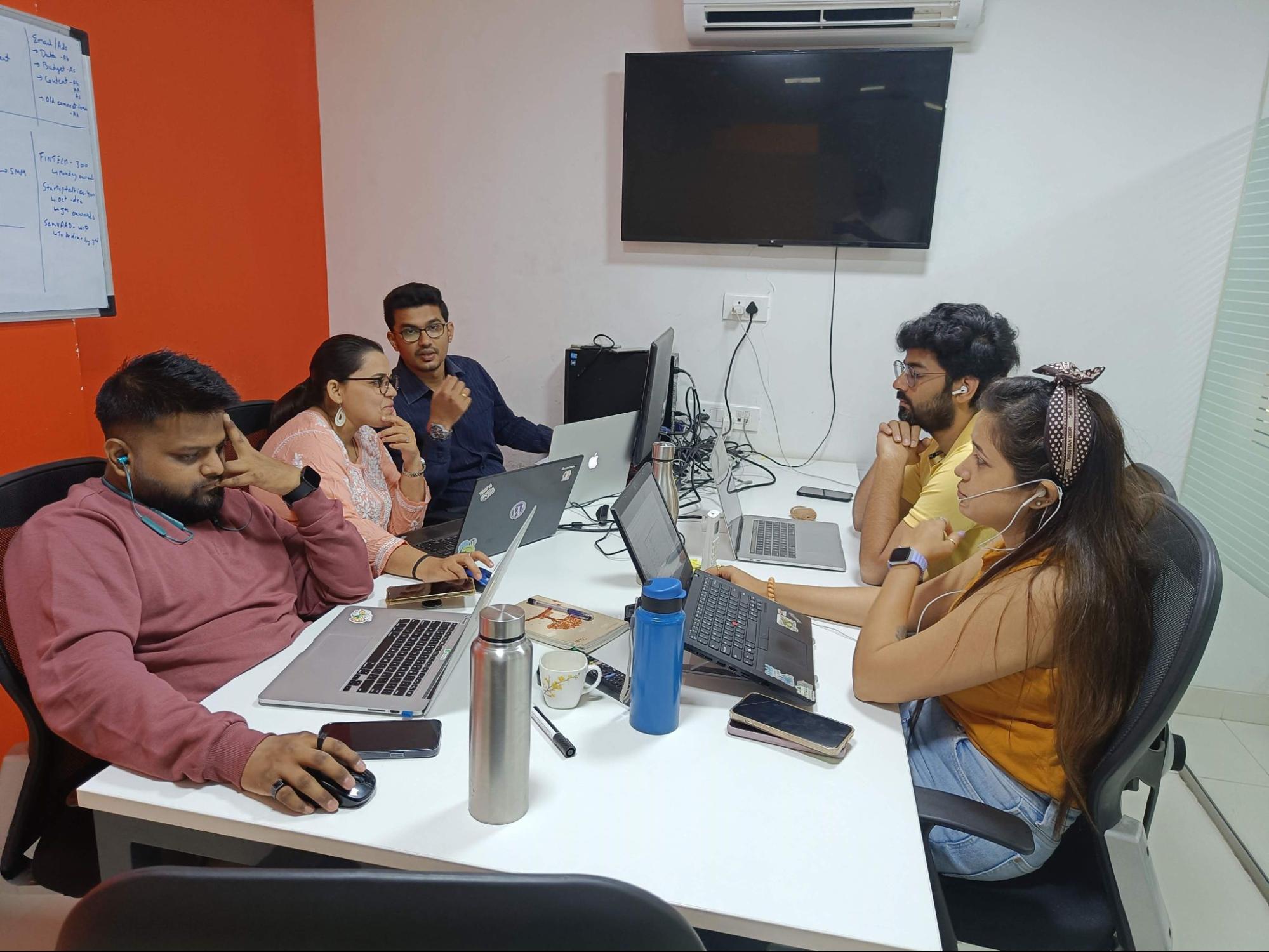
Team brainstorming ideas for the event
As it was going to be the 20th anniversary of WordPress, we decided to showcase the evolution of WordPress over these 20 years in the form of a gallery. We have also been using WordPress since the inception of WPoets, so we also planned to show how WPoets has evolved over that period of time. What energizing brainstorming days we spent sharing ideas with each other! As you can see in the picture above, the time and dedication spent on preparing the event to make it successful were quite distinguished. After a lot of discussions and meetings, images and storylines for the journey of WordPress and WPoets were finalized.
All set to celebrate the 20th anniversary of WordPress
Awards design
After the milestones gallery was finalized, the event management team moved on to the next step, which was to plan an award ceremony. We decided to give four awards, namely;- Instant Helping hand: The one who is always ready to help— The Madadkaari Award
- Most social in the team: The one who is an extrovert and ready to interact with everyone — The Ghulmil Award
- A good communicator: The one who can communicate and leaves you with no doubts — The Clear-Head Award
- Always ready to teach something: The one who is curious and ready to share knowledge at all times— The Gyaanvardhi Award

The final design of the awards
Awesome trophies
WPoets journey documentary
Just like the milestones gallery and awards section were funneled, the team moved forward with yet another captivating addition to the event; The Documentary. It was decided to create a documentary that would highlight the most important events and cover the journey of WPoets so far. Our journey was one big adventure, which was showcased in the documentary in a way that struck a chord with everyone. HR, along with some senior members of the team, sat down to collect all the photographs from the archives to create the documentary. The photos depicted all the events that took place and that WPoets was a part of and had organized. Be it a formal event or an informal team gathering, we had it all. The idiosyncrasy of capturing photos left us with so many memories, which shall continue ahead as well and compel us more to do so. After a lot of going back and forth in time through the photos, Aashish had finally planned the flow of the documentary.Awesome WP20 cake
Since it was WordPress’s 20th anniversary, how can one forget to celebrate without a cake? The team brainstormed a few ideas and designs of the cake before ordering the yummy cake, which you see in the picture below.
Delicious WP20 cake
WP20 Birthday celebrations & WPoets Townhall 2.0
Now you all know the setup that we went through before our event. In the fullness of time, the most anticipated day for the WPoets team was at the door. So let us take you all on a trip to our big day, which was the WP20 celebrations and Townhall 2.0. Everyone arrived at the venue with a lot of enthusiasm and excitement. Looking at each other's vibrant faces and energies, the atmosphere was completely kindled.
Welcoming the team
WordPress 20-Year Milestones and WPoets Journey gallery on display
The first thing that the team members noticed while entering the venue was the WordPress milestones and WPoets journey gallery. They were surprised and keen to have a look at both galleries. We wrote a detailed blog on WordPress 20-year milestones; you can read it here. Our design team put a lot of effort into creating the galleries. You can see in the pictures below their creativity, which did not miss to apprise everyone who took a glance at the gallery.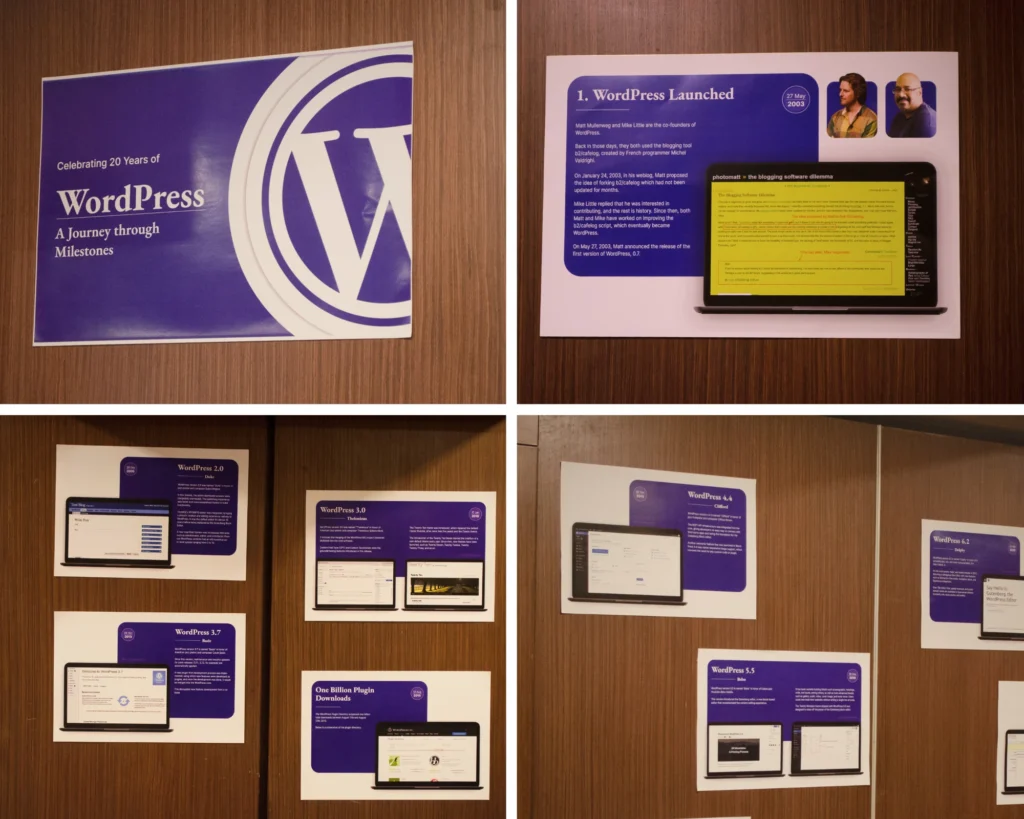
Gallery showing 20 years of WordPress journey through milestones

WPoets Journey Gallery
Screening the documentary
Once everyone was gathered and settled, our hosts began the event. They set the environment with a warm welcome and by starting off “The Documentary.”
Team members enjoy the WPoets documentary
All the eyes were completely hooked to the screen, and they could not stop praising the brief journey that they had just experienced. How could we not thank the director of this documentary, Mr. Aashish Ladhwe, for giving us such an unforgettable memory. The efforts made by him to illustrate all the milestones were truly admirable.Speech by the CEO
After the screening of the documentary, the team was addressed by our CEO, Mr Amit Singh. He shared his vision and the forthcoming plans that he has set for the organization.
Mr. Amit Singh shares his ambitious plans for WPoets
Quizmania
After the CEO’s speech was completed, everyone thought we would be moving for the cake-cutting. Who knew what surprises the organizing team had planned for everyone? Our hosts announced the quiz competition “Quizmania”, spontaneously to engage everyone and make the event more entertaining. To the team’s surprise, everyone became excited. We asked our project managers to pick up the chits one by one to build their teams to play in the competition. Four teams were created. The quiz revolved around questions about WordPress and the shortcode-based low-code framework, Awesome Enterprise.
Quiz competition in progress
The quiz session continued for about an hour. The team was relishing the time, along with some munchies and cocktails. While one of the hosts was keeping a record of the score for all four teams. You can see in the above gallery what a pleasant atmosphere it had become. Though it was a tough competition, everyone in the team enjoyed it.Prize distribution
After the quiz was over, we asked the team to wait for the results. Then the hosts announced the winning team of the quiz competition. You can see the happy faces of the winning team in the picture below.
Quiz competition winners
After that, the hosts announced the winner of the hashtag competition.
Hashtag competition winner
Awards Ceremony
Next up in the event was the awards ceremony. With no more delay, the host finally started announcing the four awards, The Madakari Award, The Clear Head Award, The Gyanvardhi Award, and The Ghulmil Award. There was a tie for The Madakari Award, so we decided to give both contenders the award.
Awards ceremony
The winners stood as an example for the rest of the team members. They encouraged others to compete in the next award ceremony by improving themselves and ingraining the qualities that helped them win the awards.Cake Cutting
The long-awaited moment that had everyone on the edge of their seats was finally pounding their hearts. Now that we had conducted all the segments of the event successfully as per plan, it was time to celebrate the 20th anniversary of WordPress. The mouth-watering cake was cut by Abhijeet and Sandip.
WP20 birthday celebrations
Vote of Thanks
With so many efforts and plans made by the organizing team to carry out the whole event as it was supposed to be executed without any deviations, it couldn’t stop our business head, Mrs. Savita Soni, from showing gratitude to all of them.
Vote of thanks by Mrs. Savita Soni
Last but not least, to motivate the WPoets team, she recited the following poem,
“Koshish Kar Hal Niklega” - written by Anand Param
Dance and Lunch
Last but not least, everyone moved to the buffet to savor the lunch and show a good time to their tummies and taste buds. Some of them could not stop their feet from rushing towards the dance floor to groove to the music of the DJ.
Dance and lunch
 It’s lunchtime
Wrapping it up
That’s how it was at the WP20 celebrations and WPoets Townhall 2.0. It was a fun-filled day with a variety of events. A special thanks to everyone who participated in making this event a hit. Hope you all enjoyed reading this blog. We promise to bring you more such events and their blogs. So stay tuned, and don’t forget to follow our LinkedIn company page, WPoets - WordPress Website Experts. Happy Birthday, WordPress, once again.
General
9 min read
Website Audit: Key Elements to Consider When Creating It
What should the website audit cover?
A website audit should examine all aspects of your website's performance and potential. It should assess your site's search, user experience, conversion optimization, on and off-page SEO, and many other factors. The following are the key areas that the website audit should address:1. Design Audit:
A design audit is an in-depth analysis of a company's visual identity, including but not limited to its website, logo, typography, and color scheme. The purpose of the audit is to make sure that all of a company's design elements are consistent with the brand's goals. It primarily focuses on:- User Interface (UI): Make sure that elements like buttons, icons, forms, and design aspects like colors, fonts, spaces, etc. are all the same. Consistency makes things more comfortable and easy to use.
- User Experience (UX): Check to see if the website's navigation, information hierarchy, and usability make sense to the user. You could try usability testing tools or surveys to learn more.
- Responsive Design: You should check your website on various screen sizes and devices to ensure the design is responsive and provides a consistent experience across all platforms.
- Branding Consistency: Ensure that the look and feel of your website are consistent with your brand's guidelines and successfully convey the brand's message.
Design audit frequency
Design audits should be performed every 6-12 months, however, this number can vary widely depending on the specifics of your company. Based on the findings, you should continuously improve your website.2. SEO Audit:
Evaluating how well your site is optimized for search engines is part of the SEO audit. The purpose of the audit is to identify strengths, weaknesses, and opportunities in order to increase search engine rankings and, hence, traffic. Here are the things to be considered in an SEO audit:Technical SEO
Technical SEO refers to server and website optimizations that affect how well search engines can crawl and index your content. Among these things are:- Crawlability: You can use tools like Google Search Console to find out if search engines can crawl your site correctly.
- XML Sitemap: Keep an accurate and up-to-date XML sitemap that search engines can use to learn about your site's structure.
- Robots.txt file: This file tells search engines not to visit certain pages. Make sure everything is set up right in the file.
- Site Speed: How long it takes for a page to load affects user experience and how search engines rank it. Use tools like Google's PageSpeed Insights to evaluate your site's speed.
- Mobile Optimization: Google uses mobile-first search, so your site should be easy to use on mobile phones.
On-Page SEO
This refers to a page's text and HTML source code:- Meta Tags: Make sure every page has unique and informative meta titles and descriptions.
- Header Tags: Look at how your H1, H2, etc. are used and where your keywords are placed.
- Keyword Optimization: Verify to see if your pages are optimized for important keywords, but avoid overusing keywords.
- URL Structure: URLs should be short, detailed, and include keywords. They should also be search engine friendly.
Off-Page SEO
This refers to ranking factors outside of your site, such as:- Backlinks: Use tools to assess your backlink profile. Check the quantity and quality of backlinks and look for links that could be damaging or of low quality.
Content Analysis
- Duplicate content: Having the same content on your site can hurt your SEO. Use tools to find and eliminate duplicate content.
- Quality of content: The content should be of good quality, relevant, and useful to the user.
- Internal Linking: Check to see if you have the right internal links, which help search engines understand how different pages on your site relate to each other.
Local SEO
If your business has a local presence, make sure your NAP (Name, Address, and Phone number) information is the same everywhere on the web. Also, make sure that your Google My Business page is optimized.Security
Check your site's security (HTTPS) to make sure it's safe. Google gives secure sites a higher score.SEO audit frequency
It is recommended to conduct an SEO audit quarterly. Additionally, you should also consider doing an audit if you notice a sudden drop in rankings or traffic, or after making major changes to your site. If you're interested in learning more about SEO tips, check out this article.3. Content audit
Reviewing the content you’re creating periodically will help you visualize gaps for which new content can be created and also highlight what old content pieces can be repurposed.- Performance Metrics: Analyse the performance of every bit of content. You can look at things like page views, bounce rate, time spent on the page, conversions, and social shares.
- Relevance and accuracy: Check to see if the information on your website is still relevant and accurate. Many times, content in blogs, case studies, and whitepapers, among others, needs to be updated. It's important to make sure the information is regularly updated.
- Consistency: Check to see if the tone, style, and voice of all your content are the same. Consistency helps build a strong brand identity.
- SEO Review: Analyze your content from an SEO point of view. Examine the use of keywords in your content. Meta descriptions and alt tags should be in place and working well. Organize your content properly with the appropriate use of headers.
- User Engagement: Identify if the content is intriguing to your target audience. You can determine this from how many comments, shares, and likes your post gets.
- Content Duplication: Make sure your site doesn't have any duplicate content, which can hurt your SEO. Use tools to look for content that has been copied.
Content audit frequency
It is recommended to perform a content audit every 3-4 months if you post content on your site frequently. If you do not post content regularly on your website, you can perform the audit every six months or once a year.4. Speed/Performance Audit
A website audit includes a look into the page speed and core web vitals that show how well or poorly the page is loading. Addressing website speed issues leads to better UX and a positive impact on SEO. It should cover the following aspects:Page Load Speed
The time needed to download and view the website content is a crucial factor.- Server Response Time: How quickly your site loads depends on how fast your server is. This can be measured with tools like Google's PageSpeed Insights.
- Large Images or Files: If your site has too many large images or other media files, it will move much more slowly. Images need to be optimized for the web.
- Render-blocking JavaScript and CSS: JS scripts and CSS files can slow down the speed at which a page loads. These can be found with the help of tools like PageSpeed Insights.
Website Functionality
- Broken links: These lead to 404 errors, which can be a nuisance for users and bad for SEO.
- Redirects: If your site has too many redirects, it can slow down and affect the user experience. Aim to reduce them as much as possible.
Compatibility with browsers
Your site should load quickly and work well in all of the major browsers. Make sure of this by testing your site on more than one device.Mobile Performance
Since more than half of all internet traffic now comes from mobile devices, it's important that your site works well on them. This means both speed and usefulness.Website Hosting
How fast your site loads depends a lot on how well your web hosting server works and how it is set up. Make sure you have a good host that fits the needs of your website.Plugins and themes
If you use a content management system like WordPress, keep in mind that some plugins or themes can drastically slow down your site. Check your plugins and themes often and update them to make sure they don't negatively impact your site's speed.Website speed audit frequency
Ideally, a thorough performance audit of the entire website should be carried out somewhere between six months and a year. However, using tools like Google Analytics and PageSpeed Insights to track your site's speed and performance monthly could prove beneficial. You should also do a performance audit after making any major changes to your site, including adding new features, media, or plugins, to make sure they haven't slowed it down.5. Security audit
A part of the technical audit of the website involves scanning the website for malware and checking against security best practices. An advanced security audit also includes steps like penetration testing. Consider the following aspects when performing the security audit:- Vulnerability Assessment: Look through your website for vulnerabilities that hackers could use. This includes things like security holes, bugs, and misconfigurations.
- Penetration testing: Simulate an attack on your website online to see how safe it is.
- Access Controls: Evaluate who has access to which website information and functions. Ensure there are appropriate restrictions in place.
- Data Encryption: Check to see if private information like customer information, credit card numbers, etc., is encrypted both in transit (using SSL/TLS) and when it is stored.
- Security Policies: Look over your security policies to make sure they are up-to-date and cover everything you need them to. This could include password policies, data retention policies, incident response plans, etc.
- Software Updates: Make sure that all of your software used to build and manage your website is up-to-date, including your CMS, plugins, third-party apps, and themes. Older versions may have known vulnerabilities that can be used against them.
- Backup and Disaster Recovery: Confirm that your website is being backed up regularly and that a disaster recovery plan is in place.
- Firewalls and Intrusion Detection Systems (IDS): Ensure that there is a good firewall and that intrusion detection systems are active. They should be set up properly to find threats and respond to them.
- Log Analysis: System and security logs should be looked at regularly to find any suspicious behavior.