

Insights, ideas and inspiration. A go to wisdom hub right here.
Featured Posts


Tutorials
7 Min Read

Latest Posts

Tutorials
10 min read
How to Add Google Analytics 4 in WordPress from Scratch (With and Without Plugins)
Introduction
Google is advising website owners to upgrade to Google Analytics 4, as Universal Analytics (UA) will be discontinued on July 1, 2023. (July 1, 2024, for Analytics 360 properties). It's critical that you switch to Google Analytics 4 as soon as possible since UA will stop collecting data after sunset. In this article, we’ll show you how to easily switch to Google Analytics 4 and add the tracking code to your WordPress website.Switch to GA4 from GA3 using the setup assistant
The first step to setting up Google Analytics 4 is to create a new property in your Google Analytics account. 1. Log in to your Google Analytics account. 2.1 Once you have logged in to your account, you will see a warning message to migrate to GA4 property (from UA). As seen in the below screenshot, click on the “Manage GA4 migration” link.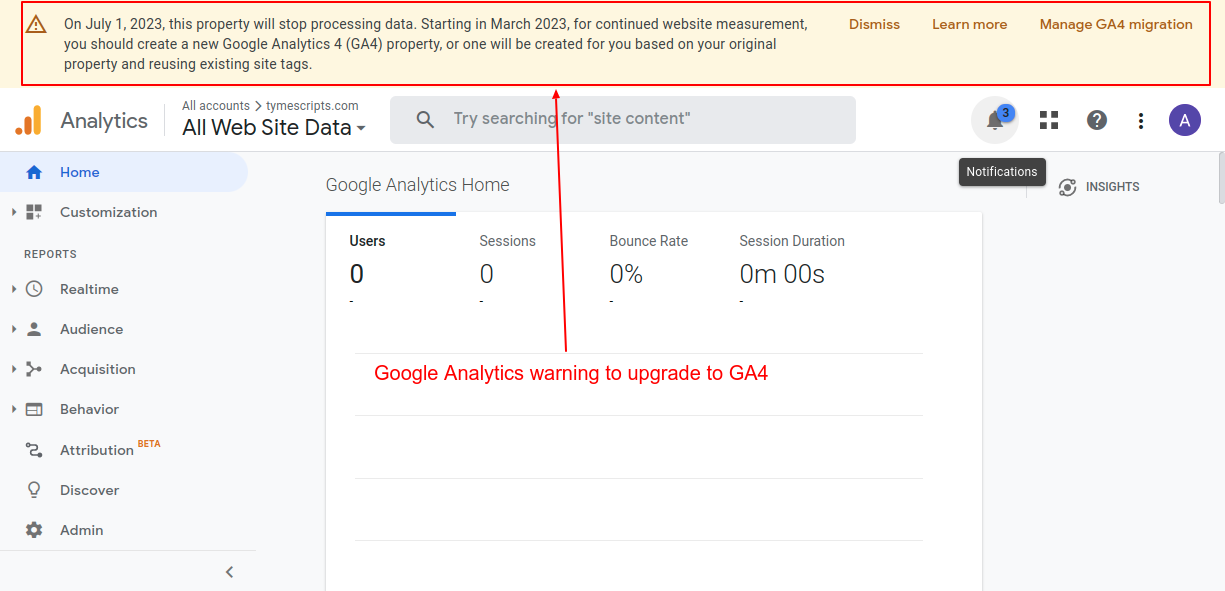
Screenshot 1: Migrate to GA4 warning message
2.2 If you don't see any warning messages, then head over to the admin section on the bottom left.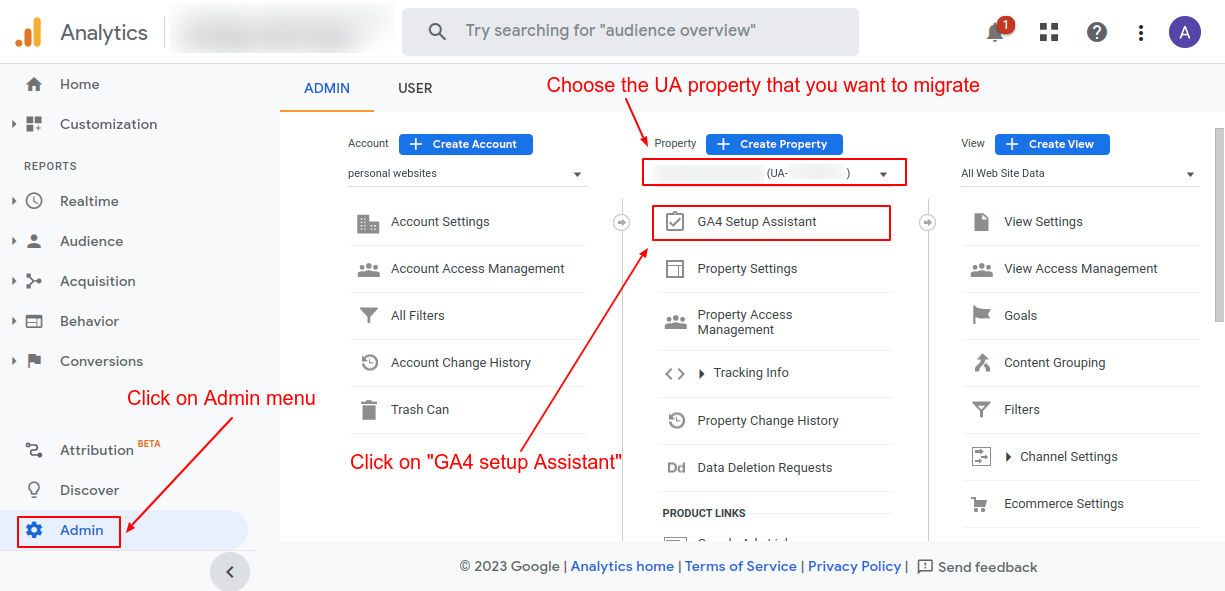
Screenshot 2: Choose the UA property to migrate
3. Choose the UA property you want to migrate, and click on the “GA4 Setup Assistant.” 4. To create a new GA4 property, click on "Get Started."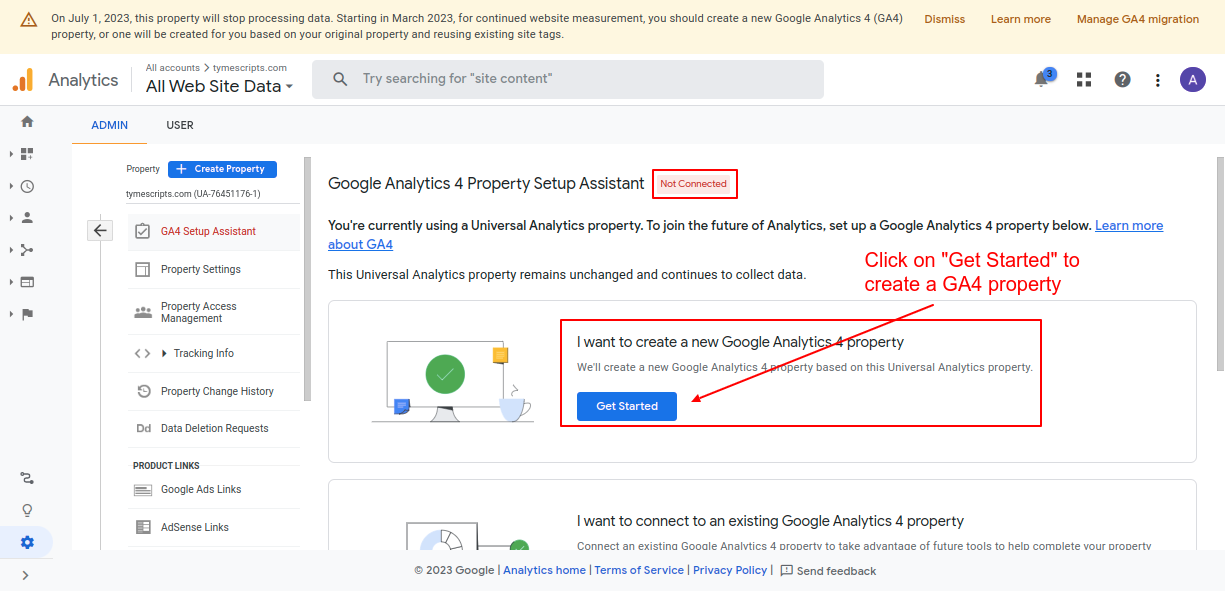
Screenshot 3: Click on “Get started” to create a GA4 property
5. The setup assistant popup will appear; click on “Create and continue.” This step will create a new GA4 property.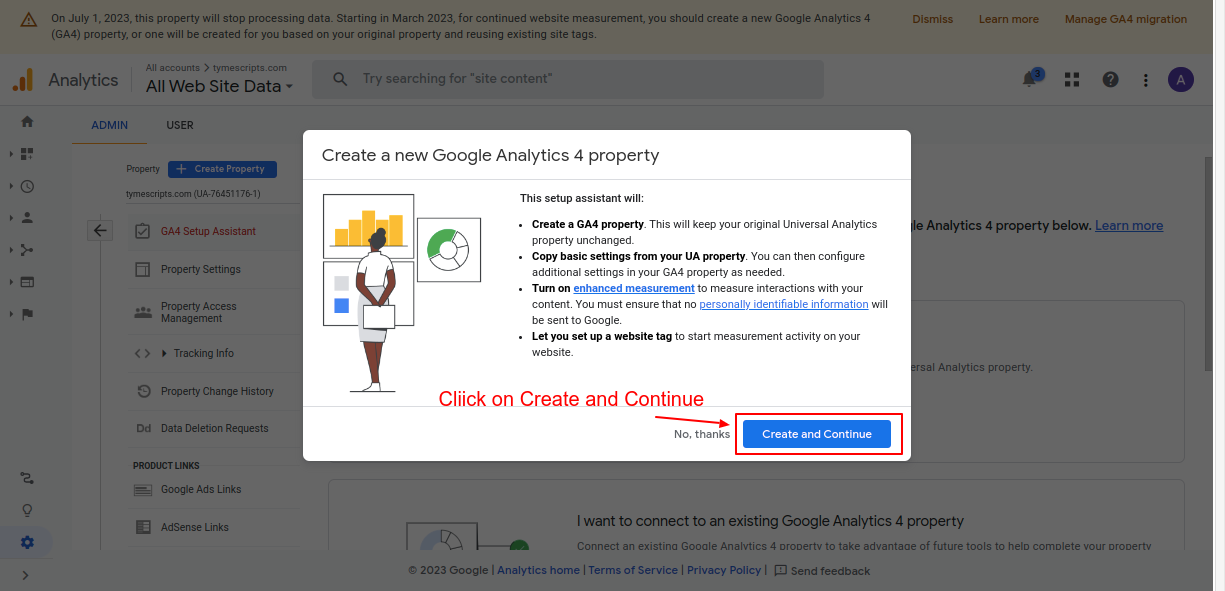
Screenshot 4: Click on “Create and continue” in the GA4 setup assistant popup
A few things to note when you are creating a new property using the GA4 setup assistant- The setup assistant will keep your original Universal Analytics (UA) property unchanged.
- Basic settings from your UA will be copied over to the GA4 property. If you have configured advanced settings in UA, then it needs to be set up manually in GA4.
- By default, the setup assistant creates a website tag to start measuring activity
- GA4 offers enhanced event measurements, which capture all the interactions on your website as events. This new feature is enabled by default.
| Measurement option (event name) | Parameters collected |
| Page views (page_view) |
|
| Scrolls (scroll) | No parameters are collected |
| Outbound clicks (click) |
|
| Site search (view_search_results) |
|
| Video engagement (video_start, video_progress, video_complete) |
|
| File downloads (file_download) |
|
| Form interactions (form_start, form_submit) |
|
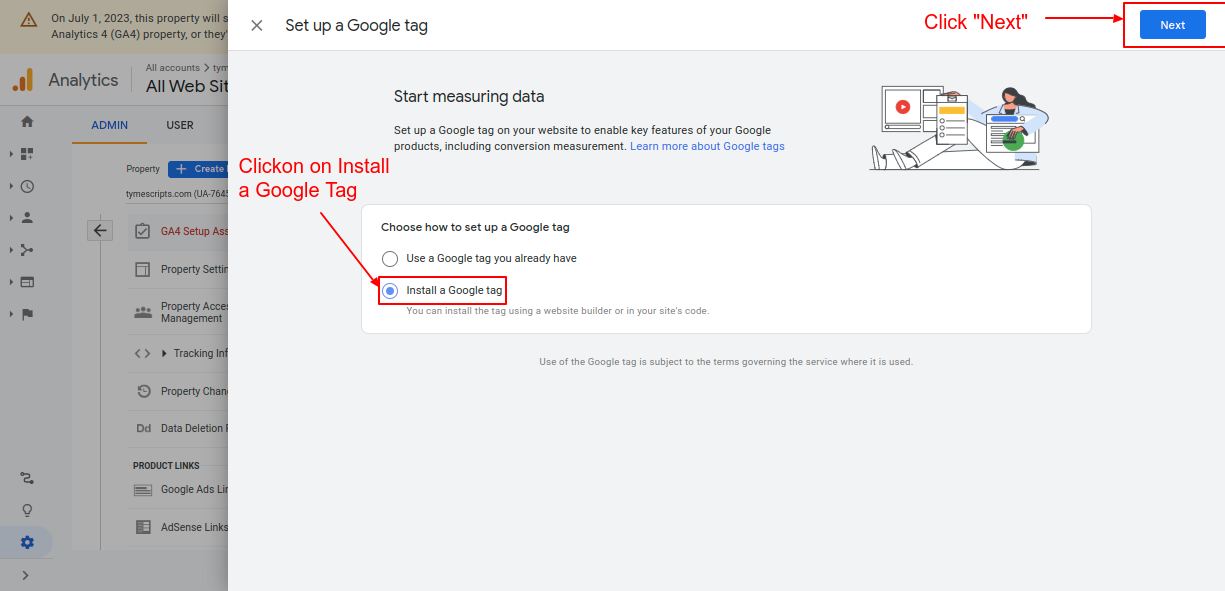
Screenshot 5: Choose how to set up a Google Tag
After that, it will give two options to configure Google Analytics 4 property
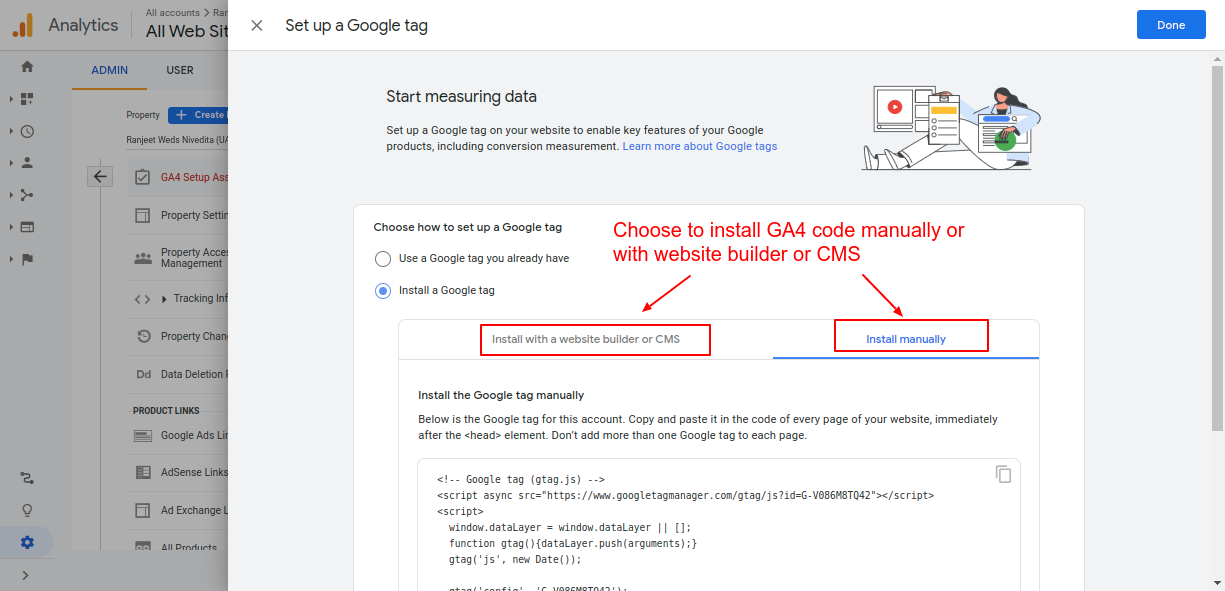
Screenshot 6: Two options to install GA4 code
7. Click on the “Install Manually” tab to copy the code that is generated. This will be later used in setting up GA4 manually.
<!-- Google tag (gtag.js) -->
<script async src="https://www.googletagmanager.com/gtag/js?id=TAG_ID"></script>
<script>
 window.dataLayer = window.dataLayer || [];
 function gtag(){dataLayer.push(arguments);}
 gtag('js', new Date());
 gtag('config', 'TAG_ID');
</script>Let’s dive deeper into both options to configure GA4.
Methods for adding GA4 to your WordPress website.
Once you have created your new GA4 property, the next step is to install the tracking code on your WordPress site. We’ll show how to do it using two different methods.- Method 1: Manually add the GA4 code (without plugins)
- Method 2: Using Site Kit and MonsterInsights Plugins
Method 1: Install the GA4 tag manually on your WordPress website (without plugins)
A few things to consider when you are manually adding code- We recommend adding GA4 code to the child theme instead of the Parent theme. If you don't have a child theme installed follow this tutorial for creating a child theme.
- Before making any changes to your site we recommend, you should always back it up. Read this blog on how to back up a WordPress website. At the minimum, you should make a copy of your child theme’s header.php file or functions.php since we are modifying it. if something goes wrong during the editing process then you can restore it.
- We recommend adding the tag manually only if you have the technical expertise to do so.
Option 1: Adding a tag to the header.php file (recommended for developers)
To install the GA4 tag manually, first log into your WordPress dashboard. 1. Go to Appearance -> Theme File Editor (If you’re using a block-based WordPress theme then go to Tools -> Theme File Editor ) Because we were directly editing the theme files, you will see a warning popup message as shown in below screenshot 3. Hence, we recommend this option only for developers.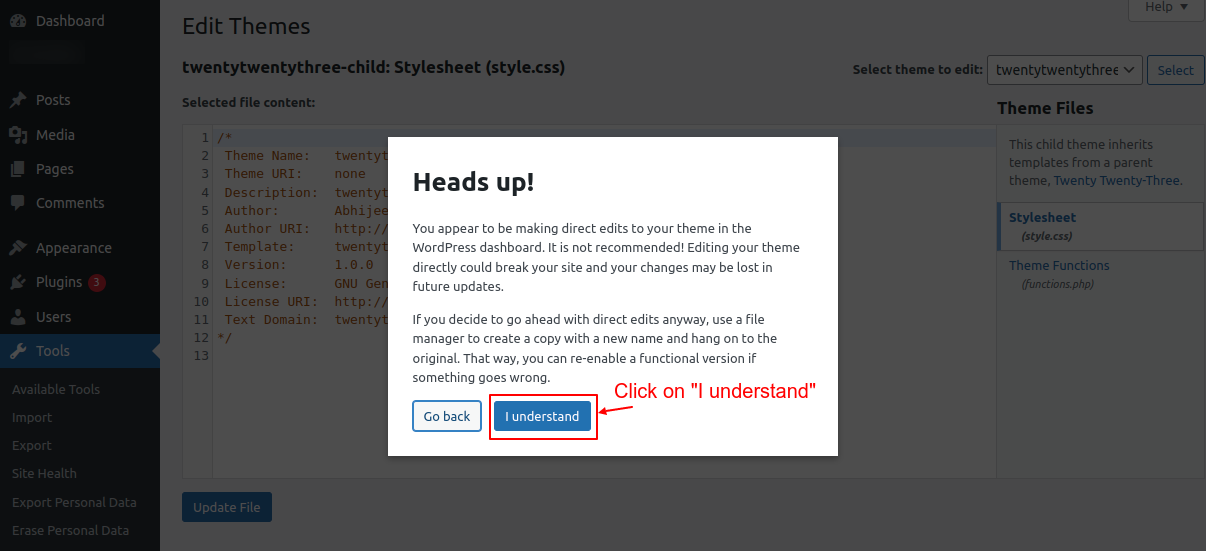
2. Select the child theme to edit from the dropdown on the right. After that, select the header.php file.
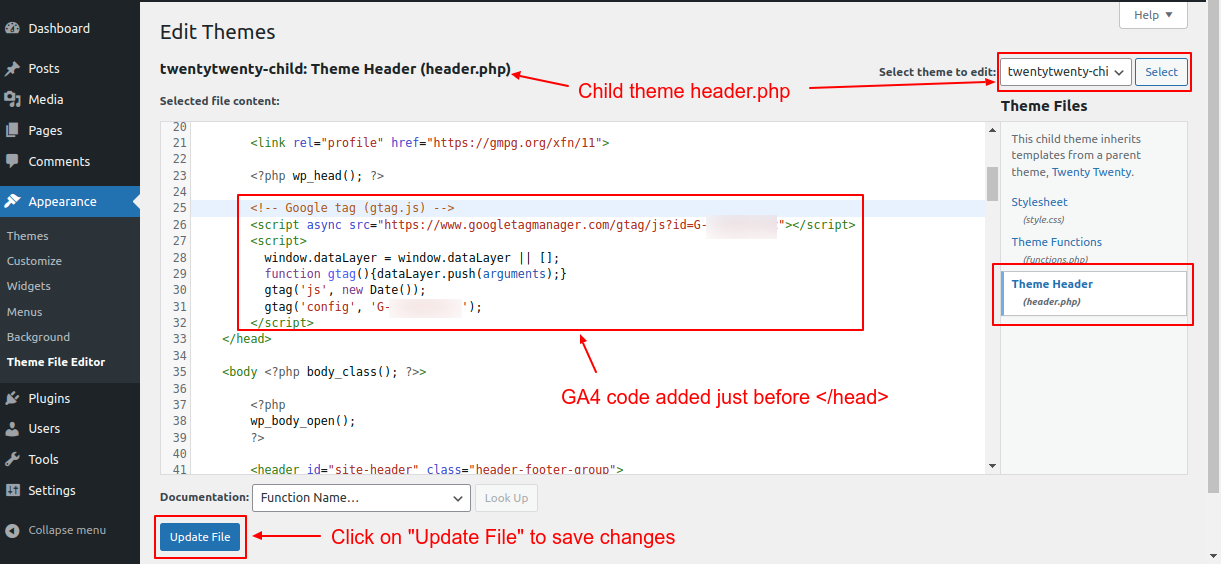
Screenshot 8: Paste the GA4 code before the HTML </head> tag
3. Paste the GA4 code (that was copied from the previous step) just before the HTML </head> tag, as shown in the above screenshot.
4. Click on “Update File.”
Option 2: Add a Google tag through the functions.php file (recommended for developers)
1. Open the child themes functions.php file in the code editor. Here is a blog for more information on the functions.php file. 2. Add the GA4 code snippet (that was copied from the previous step) at the end of the file.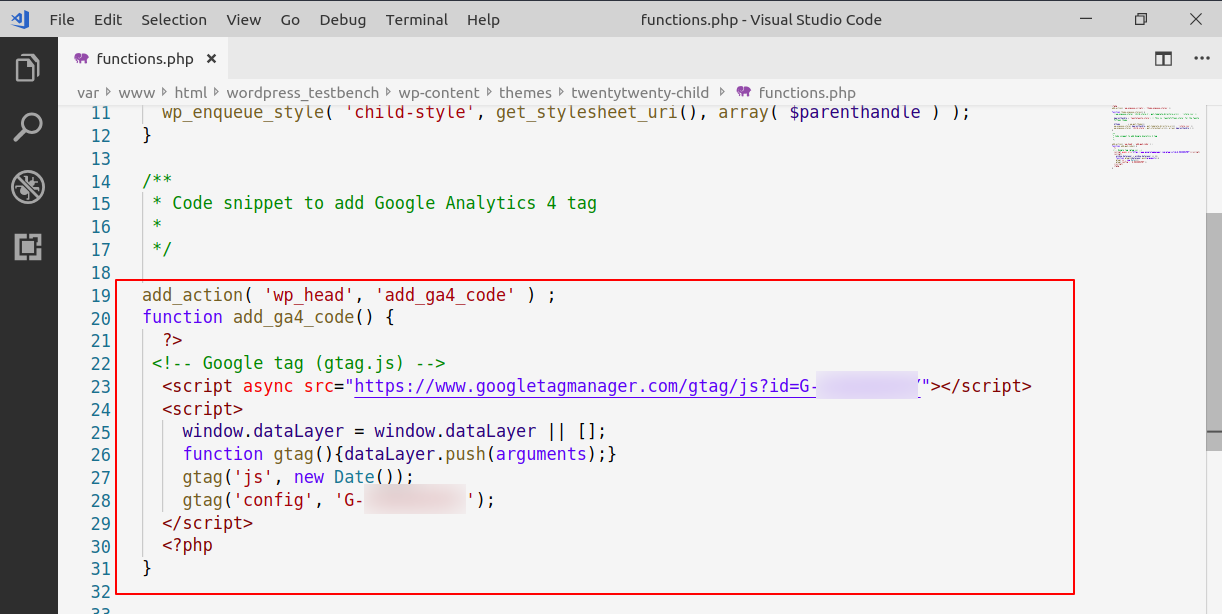
Screenshot 9: GA4 code added through functions.php file
4. Save the file and reload your webpageadd_action( 'wp_head', 'add_ga4_code' ) ;
function add_ga4_code() {
?>
<!-- Google tag (gtag.js) -->
<script async src="https://www.googletagmanager.com/gtag/js?id=TAG_ID"></script>
<script>
window.dataLayer = window.dataLayer || [];
function gtag(){dataLayer.push(arguments);}
gtag('js', new Date());
gtag('config', 'TAG_ID');
</script>
}
Code snippet 2: Sample GA4 code added through functions.php file
Method 2: Using a free version of the plugins (Site Kit or Monsterinsights )
Note: In the steps that follow, we will assume that you are installing the Site Kit or Monster Insights plugin from scratch.Option 1: Adding GA4 tag using the Site Kit plugin by Google
1. Head over to Plugins -> Add New Plugin, in your WordPress backend. Search for the keyword “google analytics”. 2. Next, install and activate the Site Kit plugin, as shown in the below screenshot.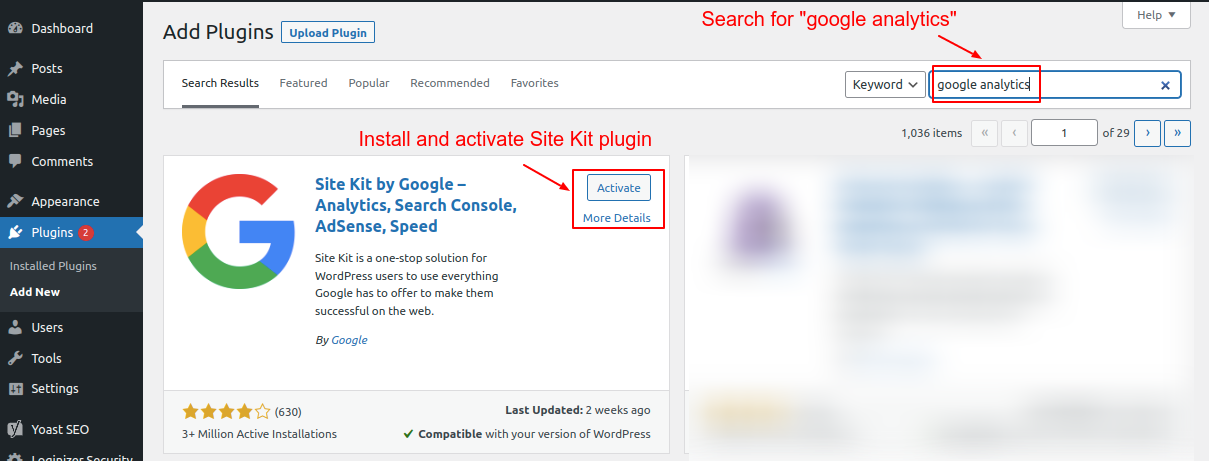
Screenshot 10: Install and activate the Site Kit plugin.
3. Once the Site Kit plugin is activated, click on "Start setup."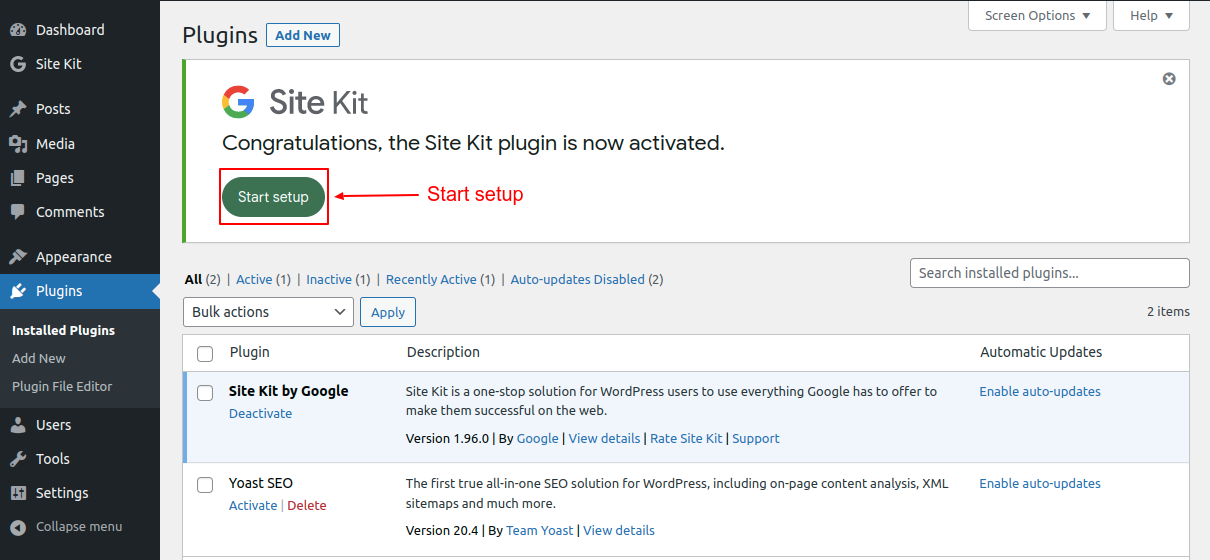
Screenshot 11: Click on "Start Setup."
4. Select the check box ”Connect Google Analytics as part of your setup.” This step is important in configuring GA4. 5. Click on “Sign in with Google.”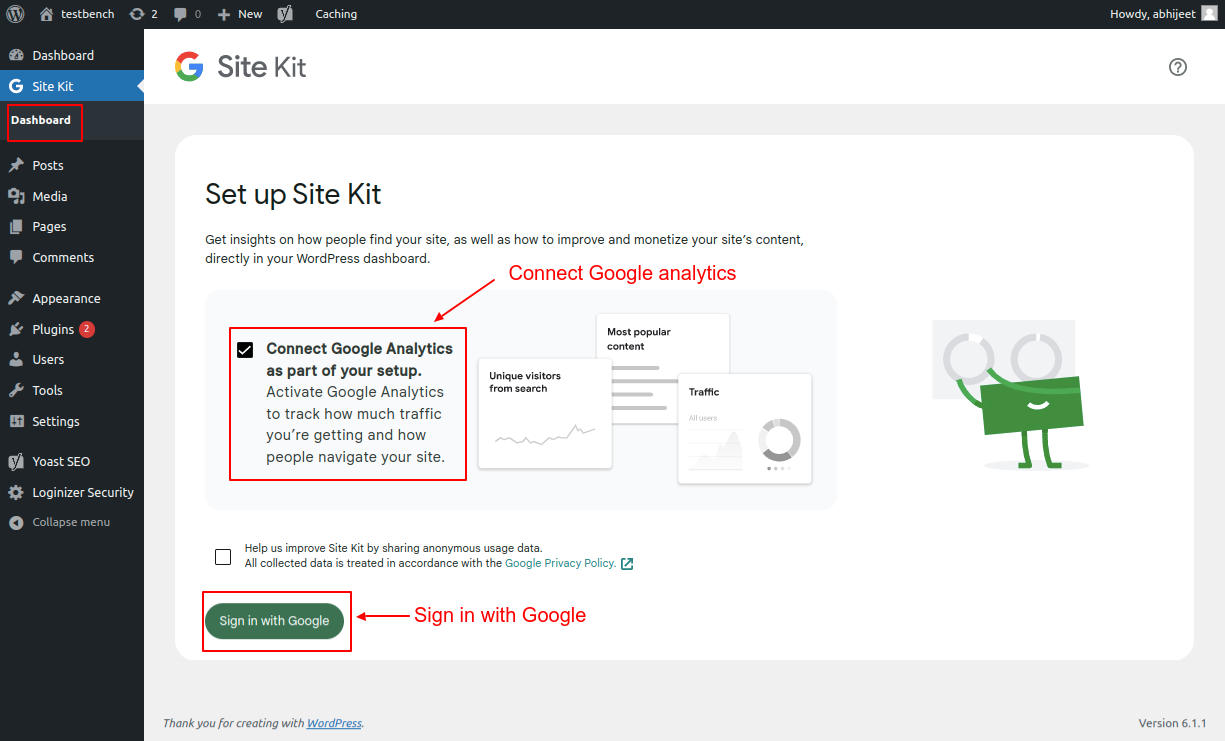
Screenshot 12: Connect Google Analytics as part of your setup
6. Choose an account that you use to login into Google Analytics.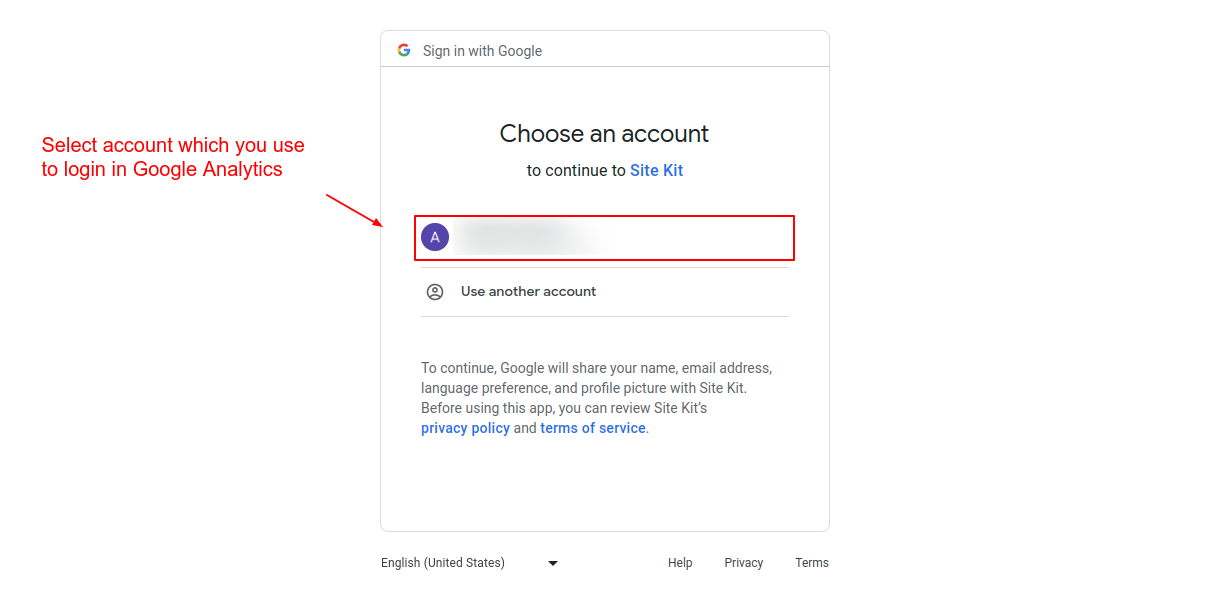
Screenshot 13: Choose the Google account that you use to log in to Analytics.
7. Give access to the Site Kit as shown in the below screenshot and click “Continue.”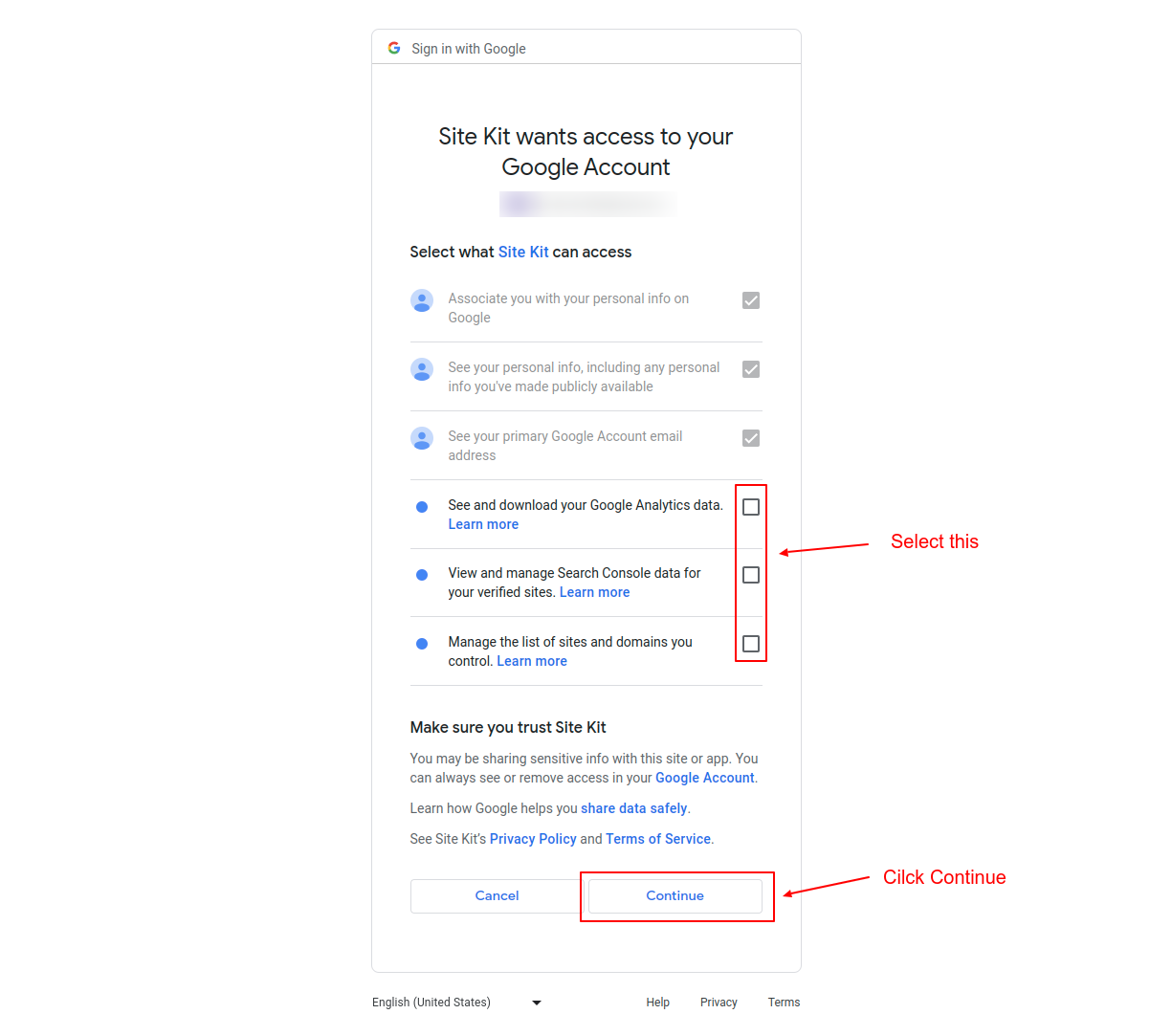
Screenshot 14: Select all the checkboxes to proceed further.
8. Click on “Verify.” This will add a verification token to your site's HTML code.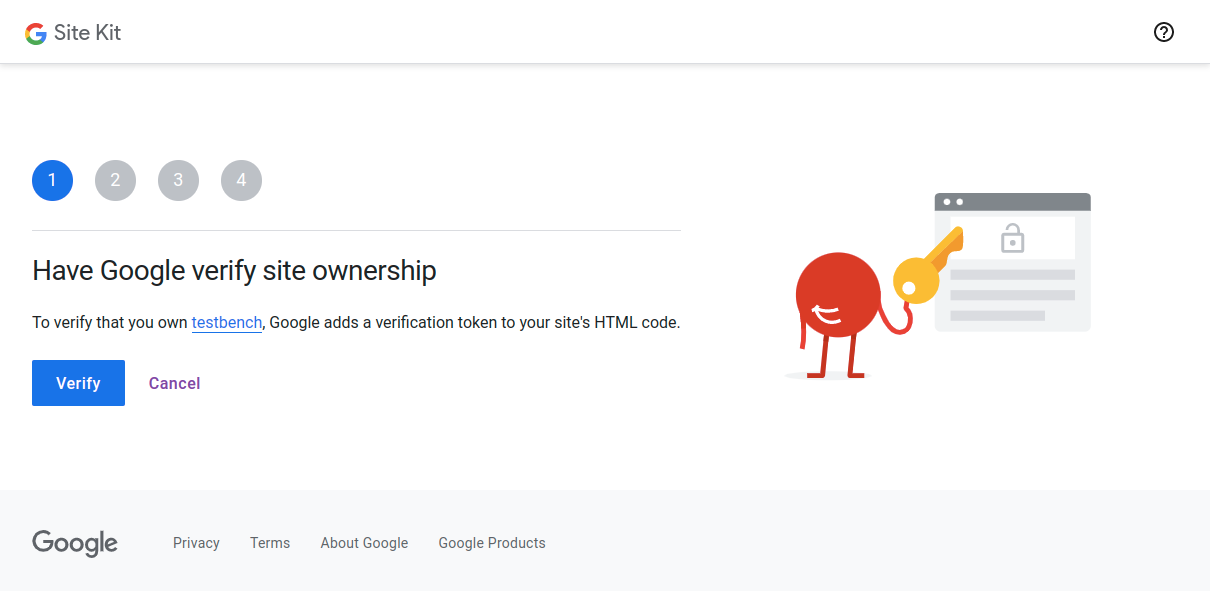
Screenshot 15: Verify site ownership
9. Click "Allow." It will allow your website to access Google Analytics data. The metrics will be shown in the Site Kit dashboard.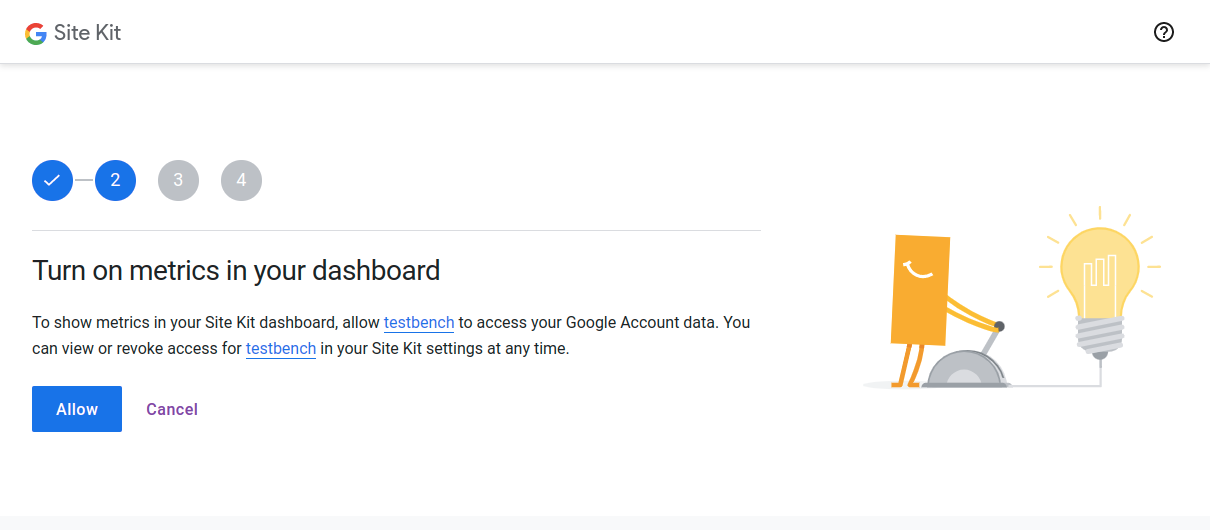
Screenshot 16: Allow your website to access Google Analytics data
10. Click on “Setup” to connect Site Kit and Search Console.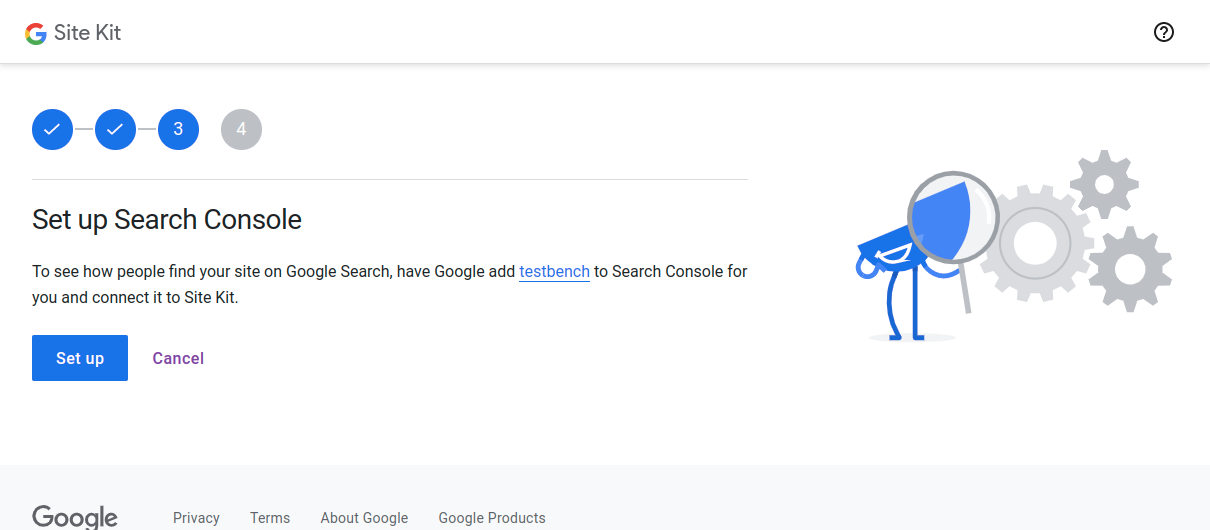
Screenshot 17: Connect Site Kit and Search Console
11. Click on “Next” to allow Site Kit to set up Google Analytics. You will be redirected to the Site Kit dashboard.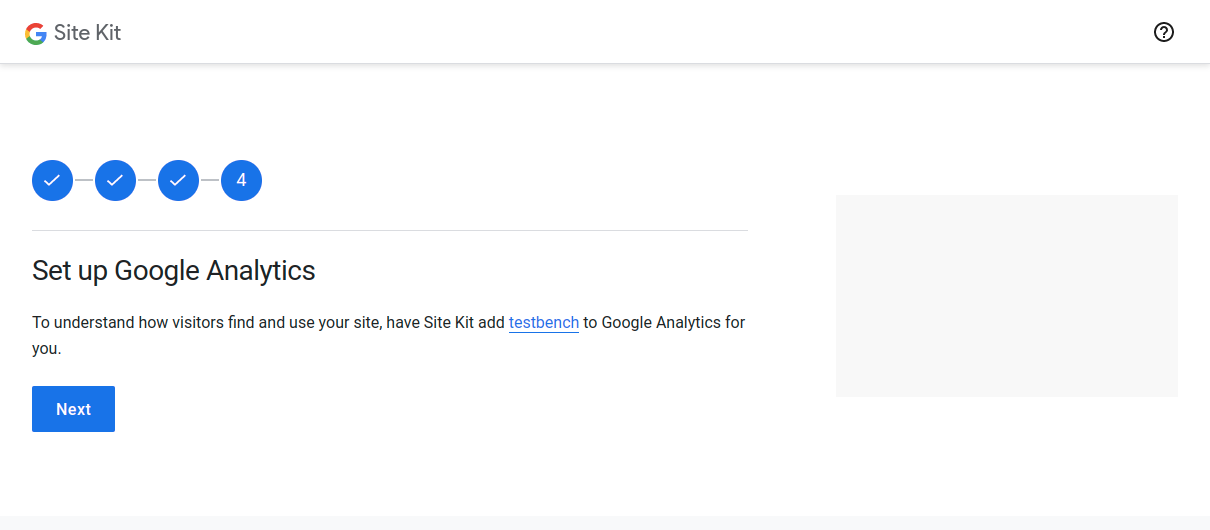
Screenshot 18: Allow Site Kit to add your website to Google Analytics
12. In the Site Kit dashboard, select the Google Analytics account and the newly created GA4 property. Also, select the associated UA (GA3) property as shown in the below screenshot.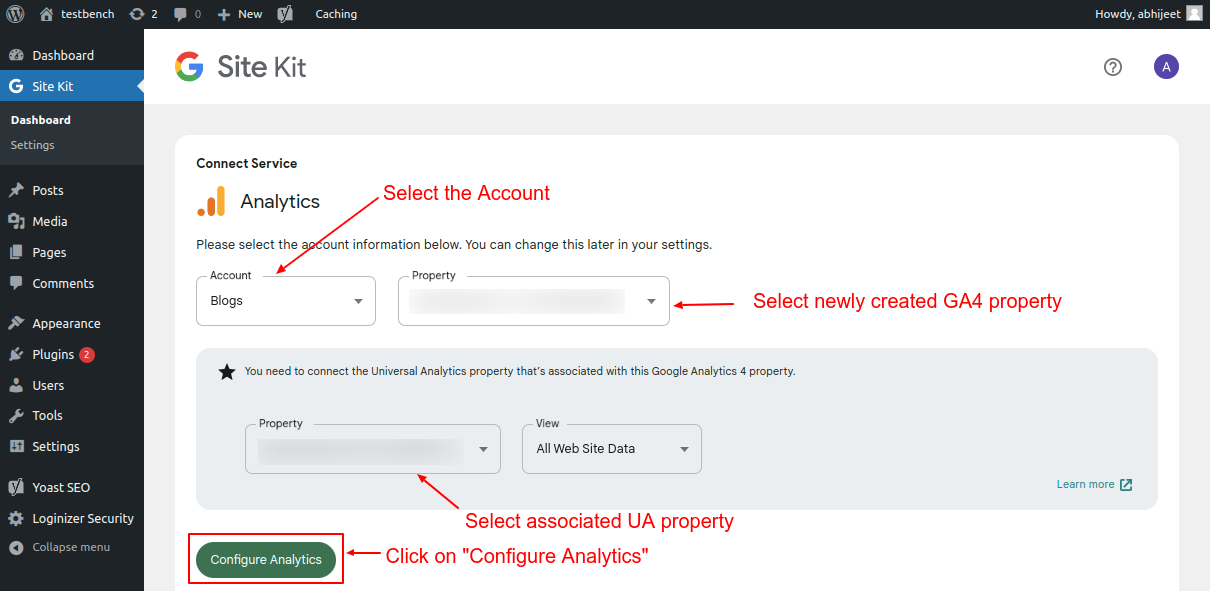
Screenshot 19: Connect Google Analytics service
13 Click on “Configure Analytics,” and the Site Kit setup is complete.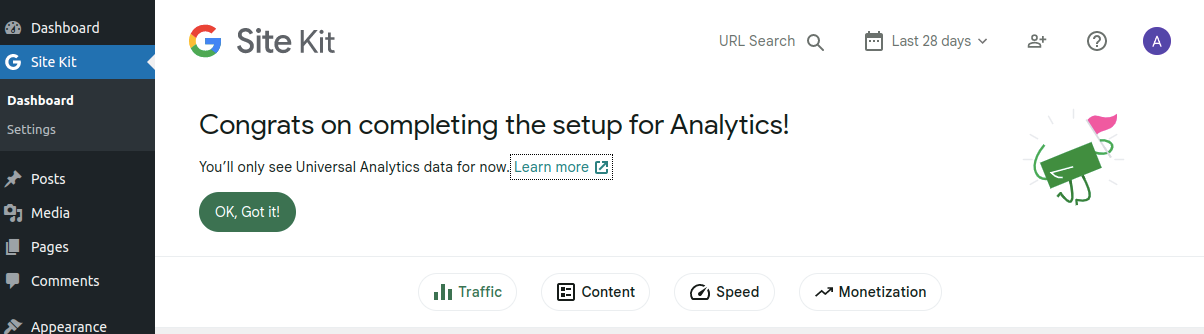
Screenshot 20: Site Kit setup completed
Here is a screenshot of the code snippet added by Site Kit.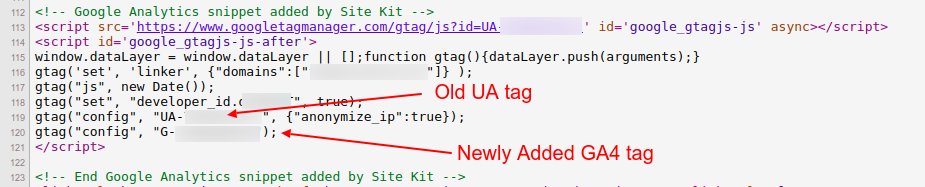
Screenshot 21: Google Analytics snippet added by Site Kit
Few things to note when you have installed the GA4 tag using the Site Kit Plugin- If Site Kit is used to configuring UA and GA4, stats will be tracked for both properties.
- At the time of writing, GA4 statistics are not shown in the Site Kit dashboard and can only be viewed. Integration of GA4 data to Site Kit’s dashboard is not yet implemented in the current version of the plugin hence you have to view GA4 data in your Analytics account.
Option 2: Adding GA4 tag using the MonsterInsights plugin
1. Go to Plugins -> Add New Plugin, in your WordPress backend. Search for the keyword “monsterInsights”. After that, install and activate the plugin as shown in the below screenshot.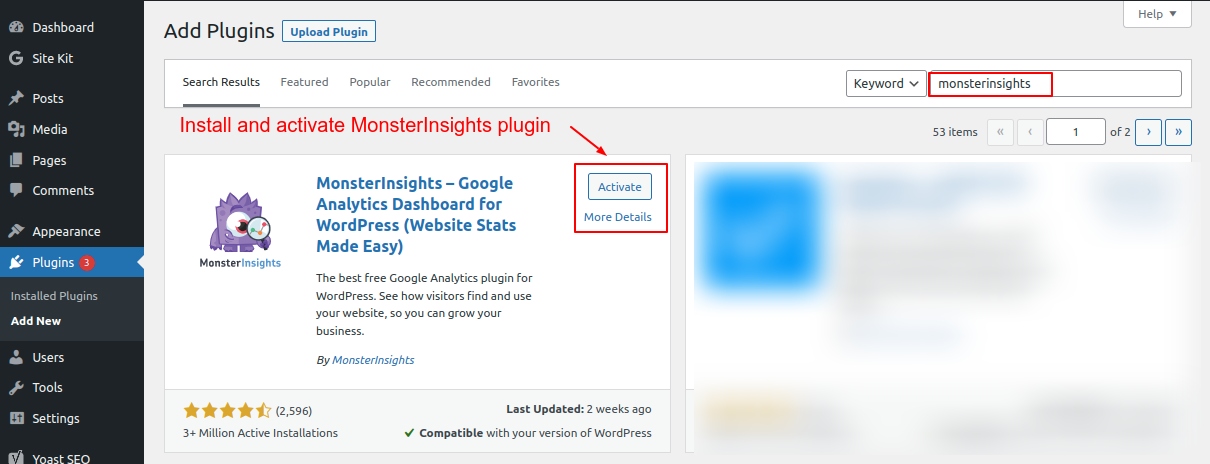
Screenshot 22: Install and activate the MonsterInsights plugin.
2. Click on “Launch the Wizard.”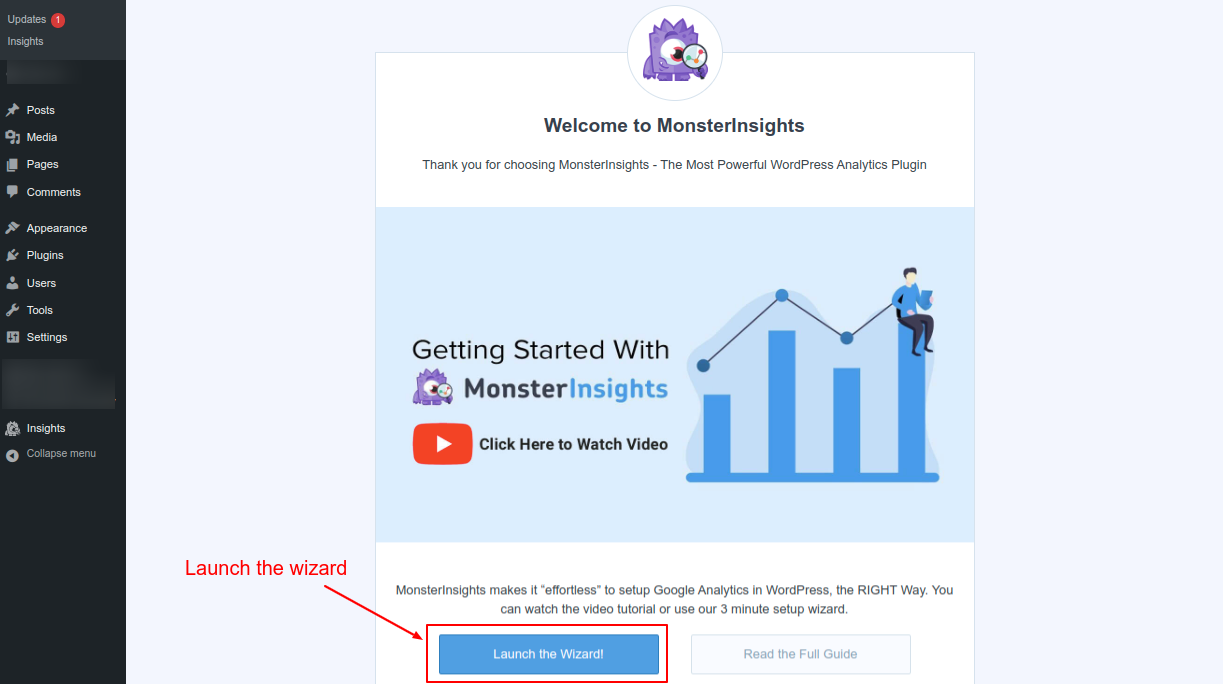
Screenshot 23: Launch the wizard
3. Choose your website category and click “Save and Continue..”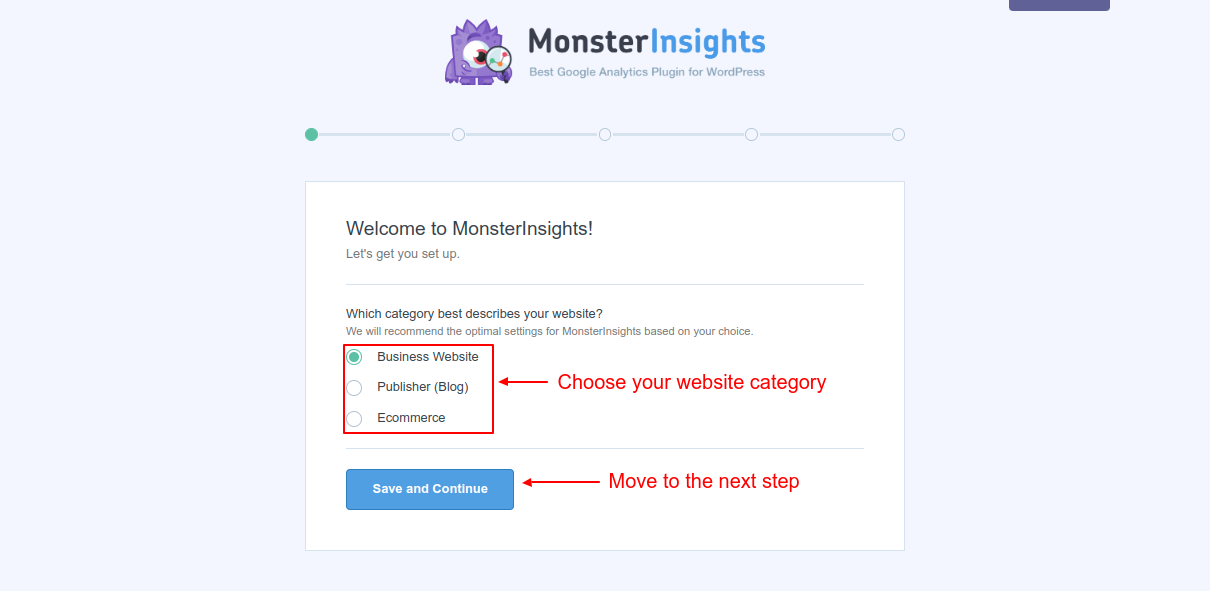
Screenshot 24: Choose a category that best describes your website
5. Click “Connect MonsterInsights.” After which you will be redirected to the MonsterInsights website to connect your Google Analytics account.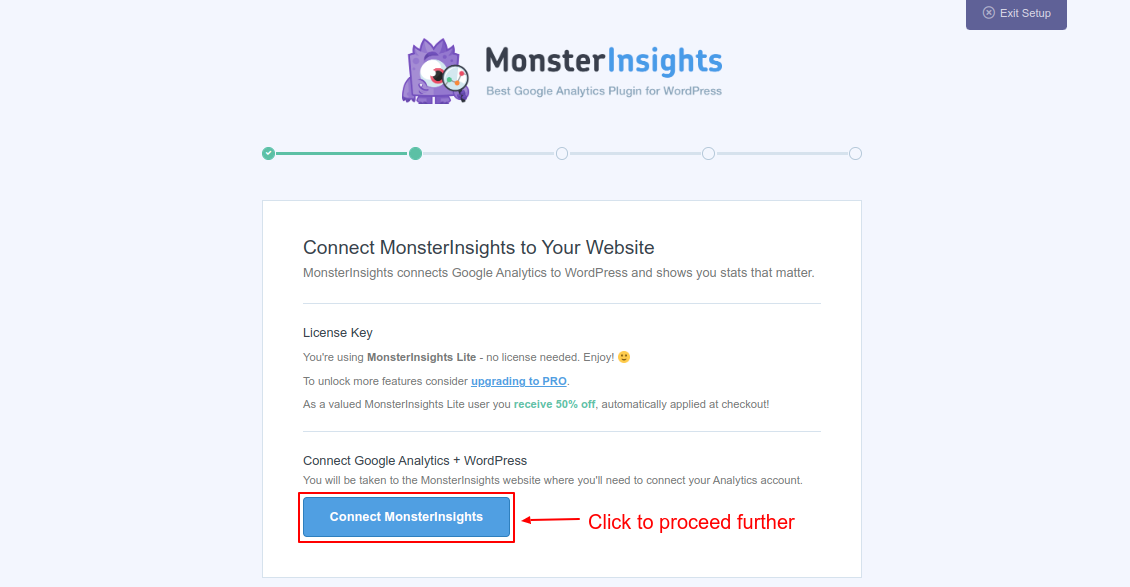
Screenshot 25: Connect MonsterInsights
6. Choose a Google account to continue.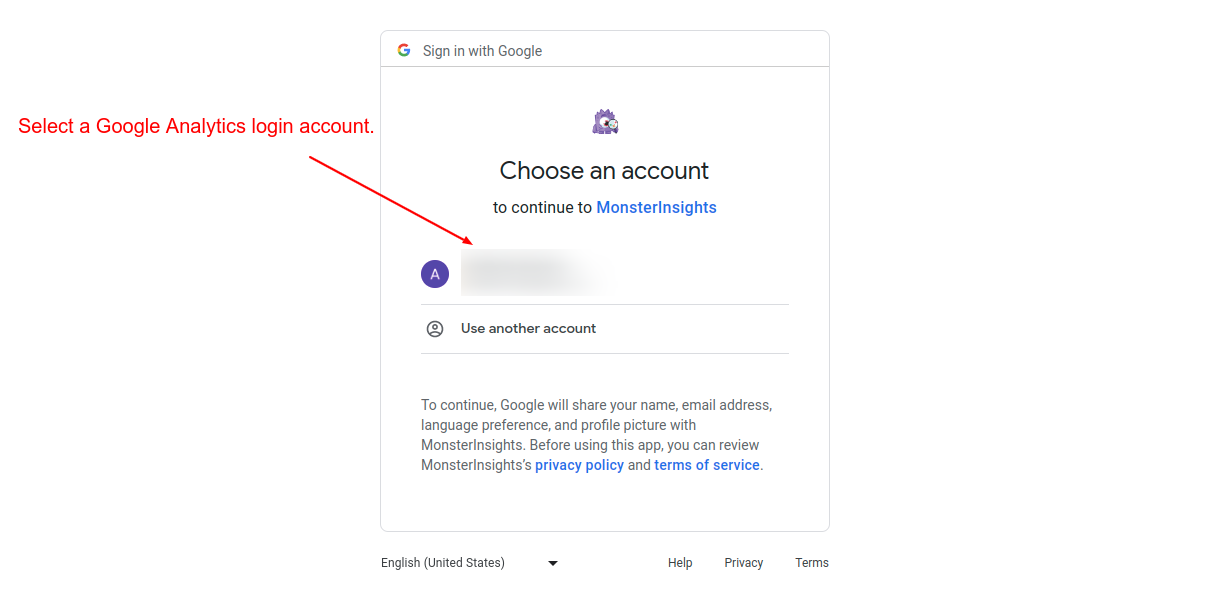
Screenshot 26: Select a Google Analytics account.
7. Click on “Allow” to give MonsterInsights access to your Google Analytics and Search Console data.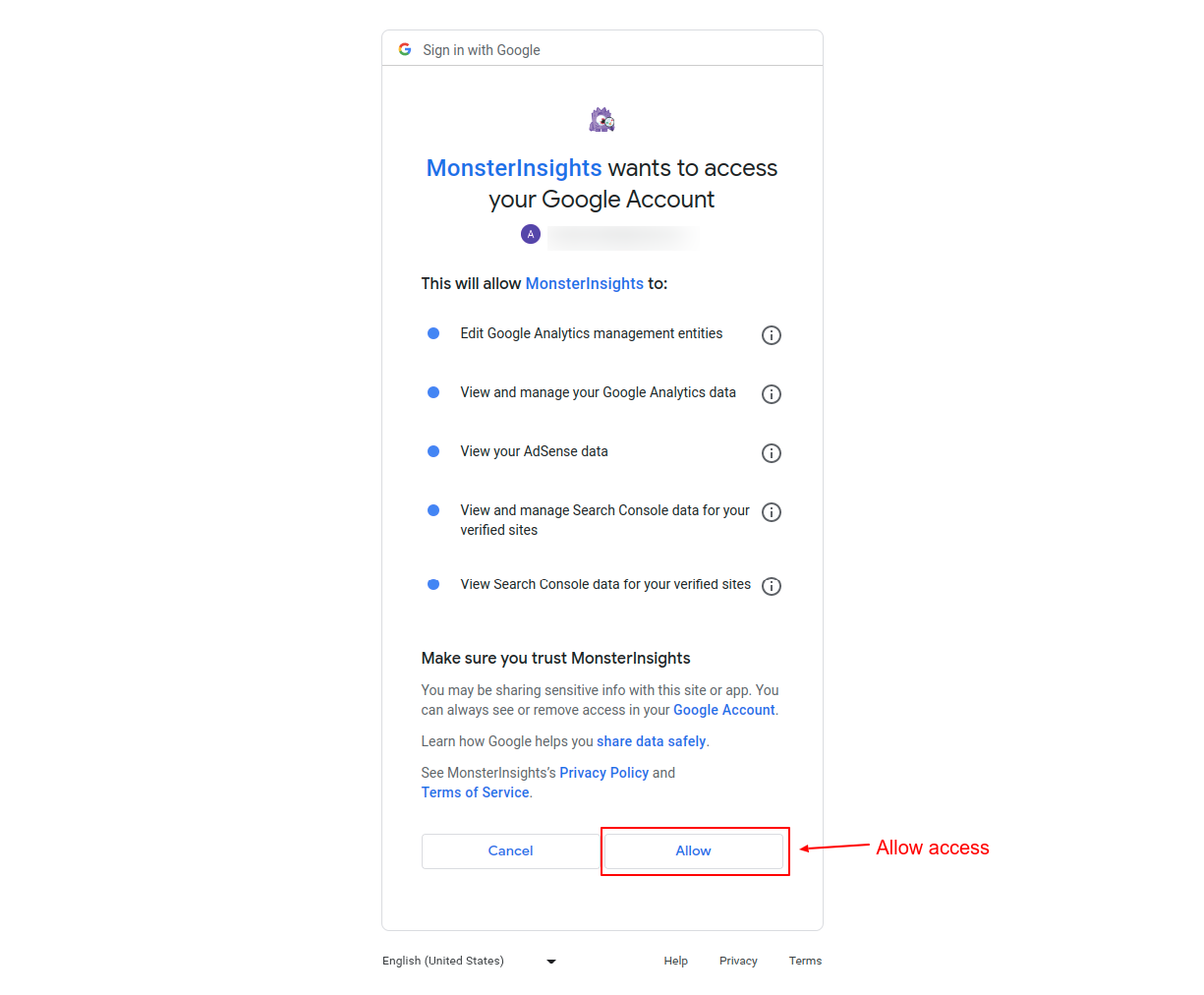
Screenshot 27: Allow Monsterinsights to access your Google account data.
8. Choose the GA4 property from the list of available properties and click on “Complete connection.”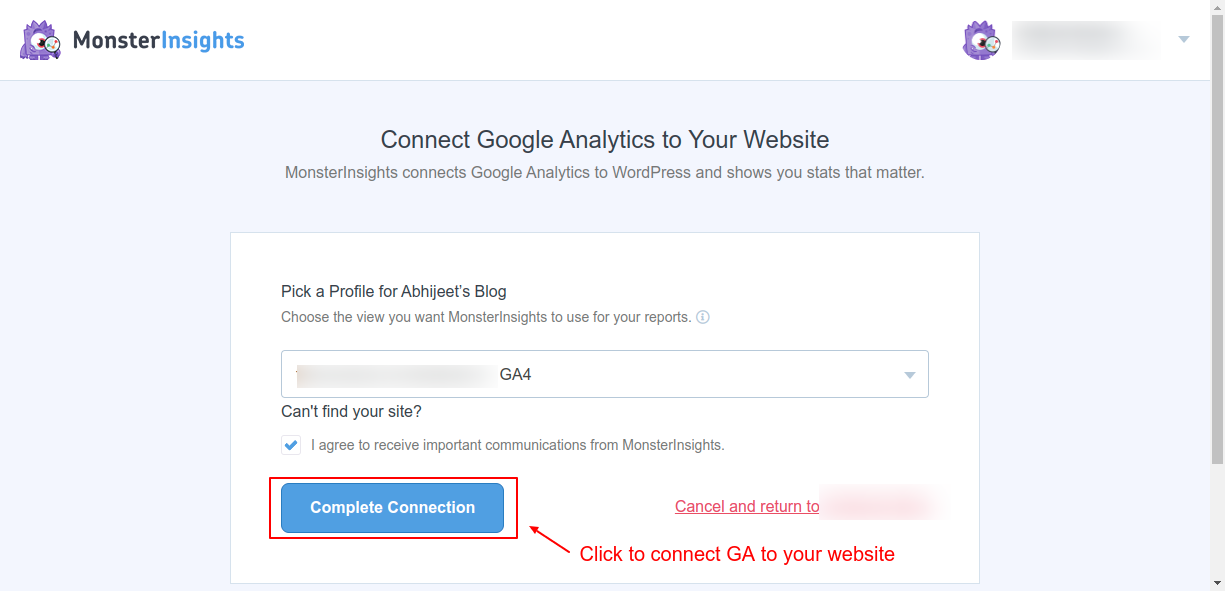
Screenshot 28: Choose the GA4 property to connect
9. Click on “Save and continue” on the recommended settings page.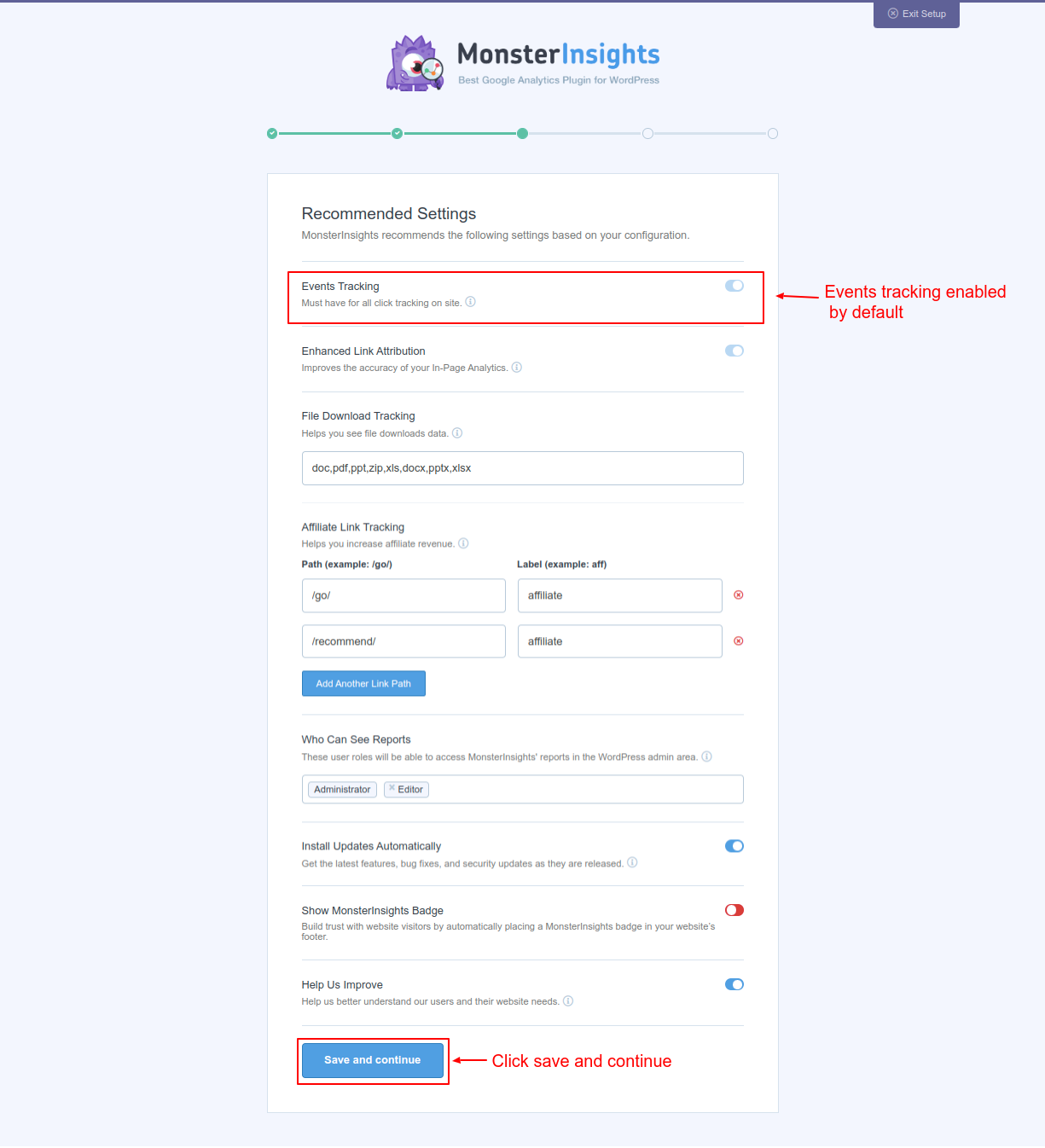
Screenshot 29: Events tracking enabled by default
10. Choose which features you want the MonsterInsights plugin to enable. We recommend enabling the “Advanced Reports” and “Advanced Tracking” features. 11. Click on “Continue.”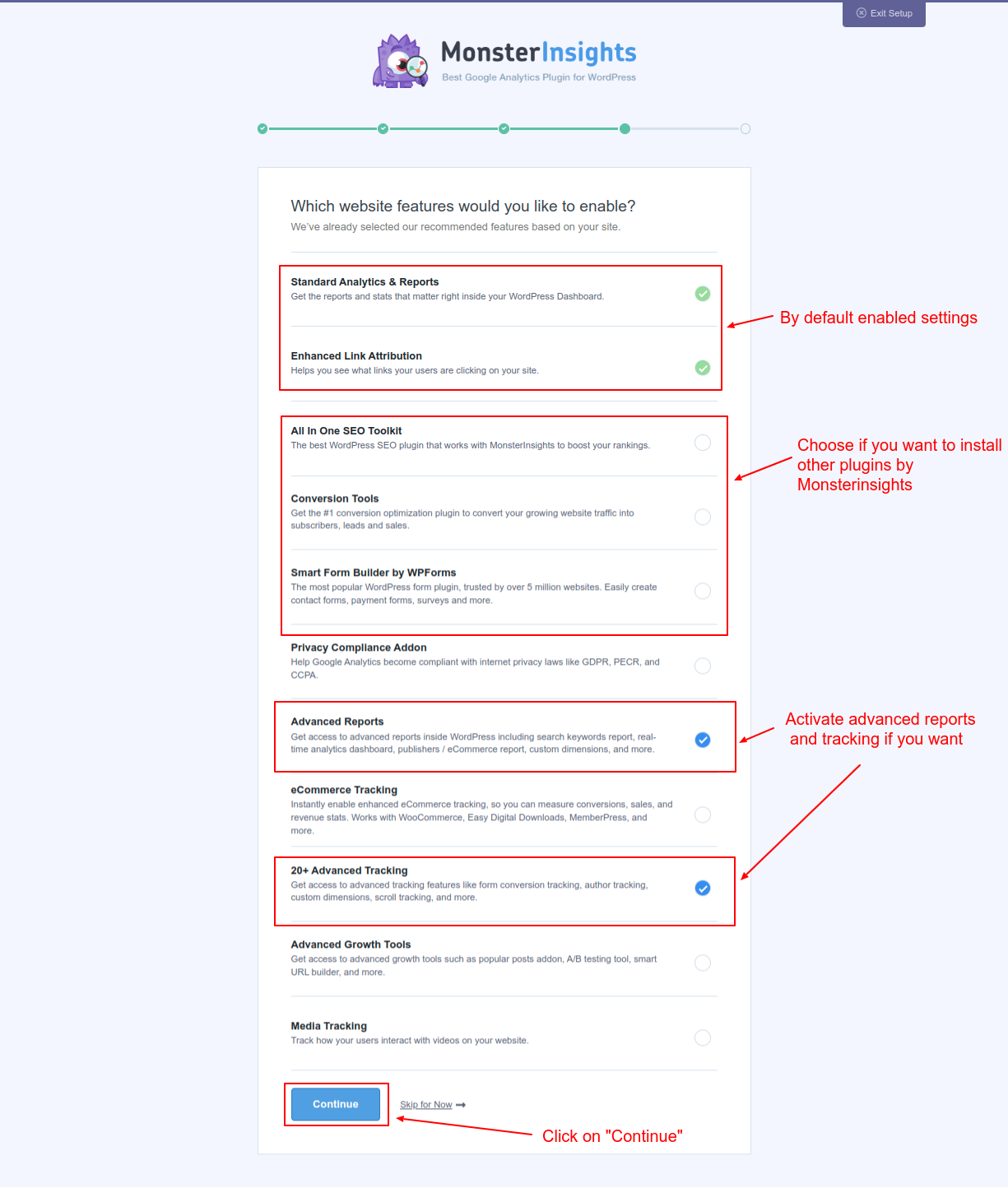
Screenshot 30: Choose which feature you want to enable.
At this point, the tracking and analytics setup is complete. 12. Next, click on “Complete setup without Upgrading.”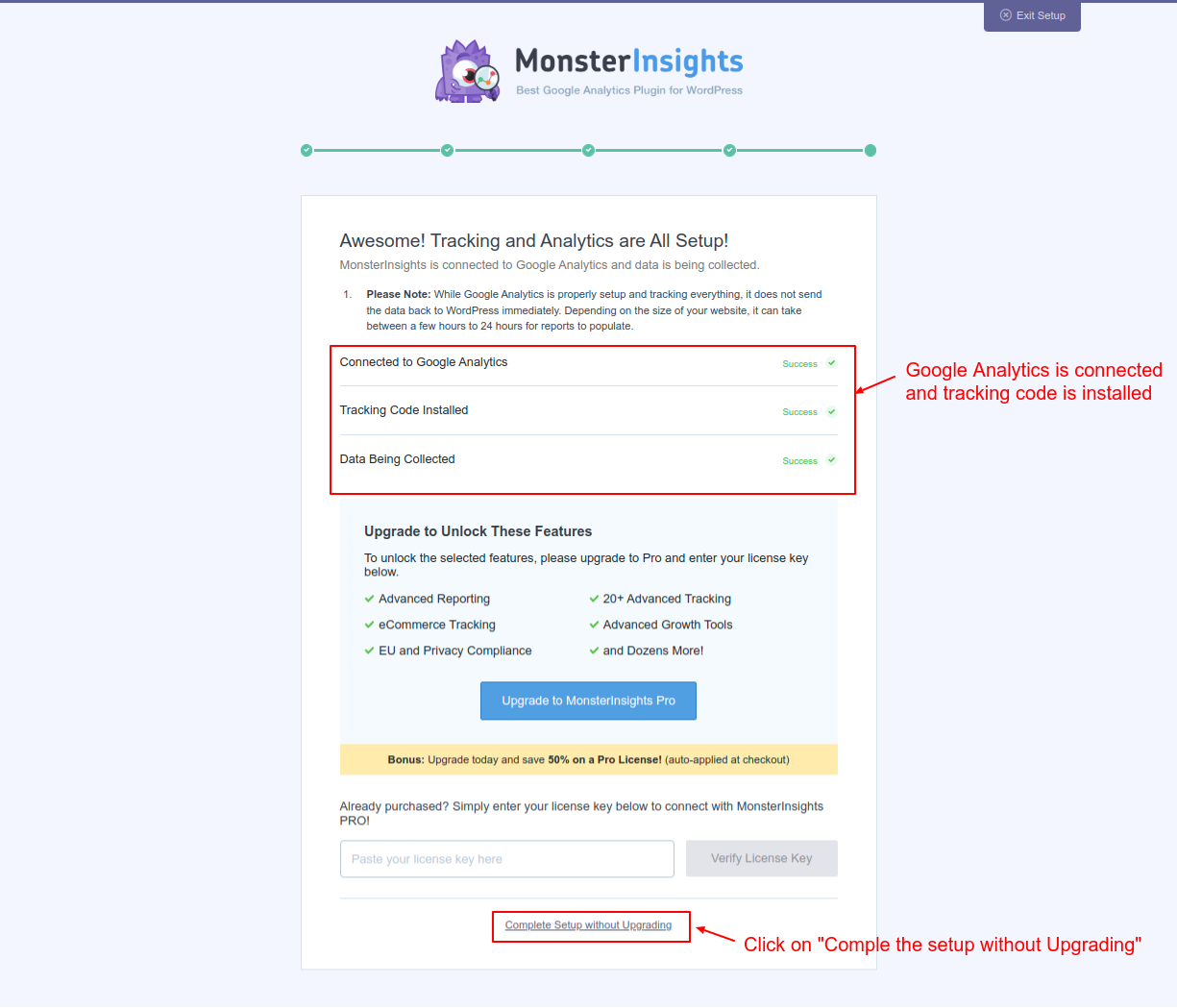
Screenshot 31: Google Analytics is connected, and the tracking code is installed.
You will be redirected to the settings page, which will show a success message. 13. Click on “View Reports.”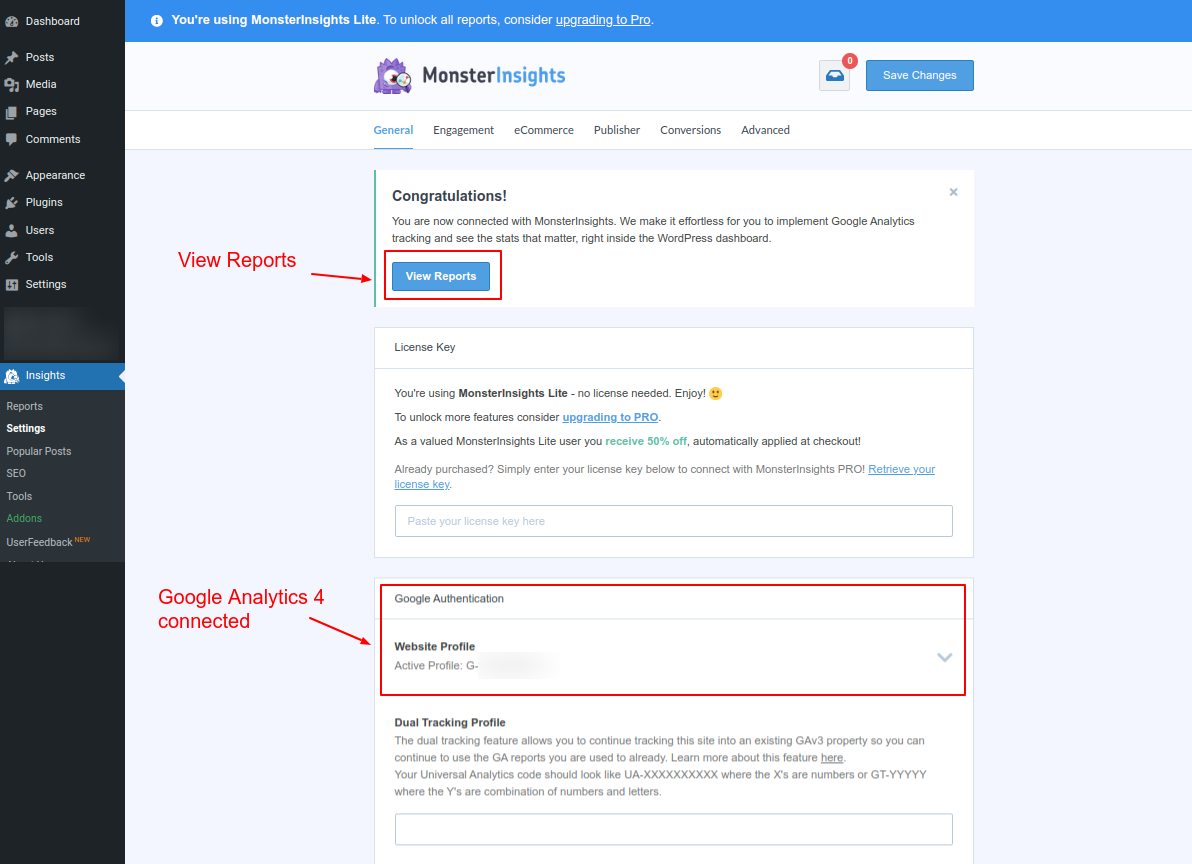
Screenshot 32: Google Analytics 4 property is connected
You will be redirected to the “Reports” menu, where you will be able to see Google Analytics 4 data in the WordPress dashboard.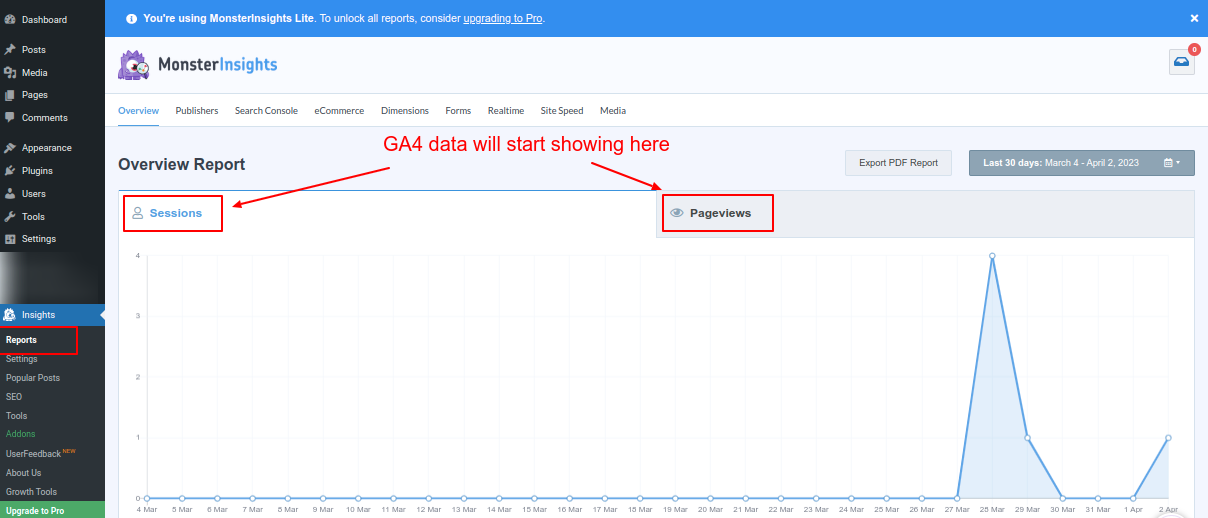
Screenshot 33: View reports to see your GA4 data flowing.
Note: It can take a few hours for the data to start appearing in GA4 and in your MonsterInsights Dashboard.Conclusion
Google is sunsetting Universal Analytics (UA) as of July 1, 2023, which means it will stop collecting and processing new data. In order to have a considerable amount of GA4 data tracked before UA is retired, we advise setting up Google Analytics 4 (GA4) as soon as you can. After this date, Site Kit will no longer display previous UA data. In this blog post, we discussed in detail two methods of adding GA4 code. First, by adding code manually, and second, by using the plugins Site Kit and MonsterInsights. That's it for this blog, Signing off for now. If you want experts to manage your WordPress website, then hire our awesome experts.
Tutorials
13 min read
How to Add FAQ Schema in WordPress with and without plugins (2026)
Introduction
Are you looking to add a FAQ schema to your WordPress website? If yes, then you have come to the right place. In this blog, we will discuss in-depth & step-by-step methods of adding an FAQ schema to a WordPress website.What is FAQ Schema, and why should you add it to your website?
In simple terms, a FAQ schema is structured data (JSON markup) that allows the contents of frequently asked questions (FAQs) on your website to be displayed in rich result snippets, as shown in the below screenshot.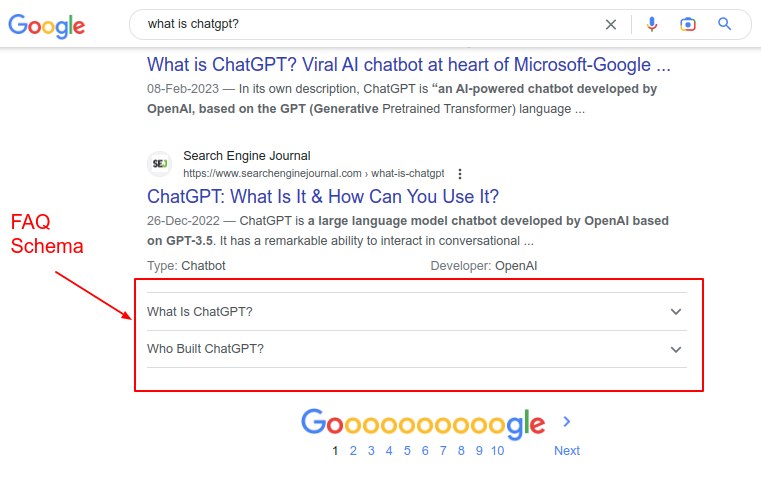
Screenshot 1: Example of FAQ schema in action
As you can see from the above screenshot when a user searches for the query “What is ChatGPT?”, along with the blog content that has ranked organically, there are two FAQs shown below it. You can accomplish this by adding a FAQPage schema markup to your website. The benefit of implementing FAQ structured data markup is that you get more screen estate in SERPs, it improves click-through rates, and it will drive more traffic to your website. In short, by adding an FAQ schema to your website, you can help search engines better understand your content so that they can display it in rich results.Methods for adding FAQ schema in WordPress
In this post, we’ll show how to add a FAQ schema using two different methods. Method 1: Using Plugins Method 2: Manually adding the schema code Note: All the methods that we discuss in this post use the Gutenberg Block Editor.Method 1: Using a free version of Plugins (Rank Math SEO and Yoast SEO)
The simplest and most straightforward method is to add an FAQ schema using plugins. The plugins will automatically generate the FAQ schema and dynamically add it to the post without you worrying about the underlying technical aspects of it.Option 1: Adding FAQ schema using Rank Math SEO
Step 1.1: Install and activate the Rank Math SEO plugin
The first step is to install and activate the Rank Math SEO plugin on your WordPress website. This plugin makes it very easy to add structured data markup to your website, such as FAQ Schema. If you have already installed the plugin on your website, you can skip this step and go to step 1.2.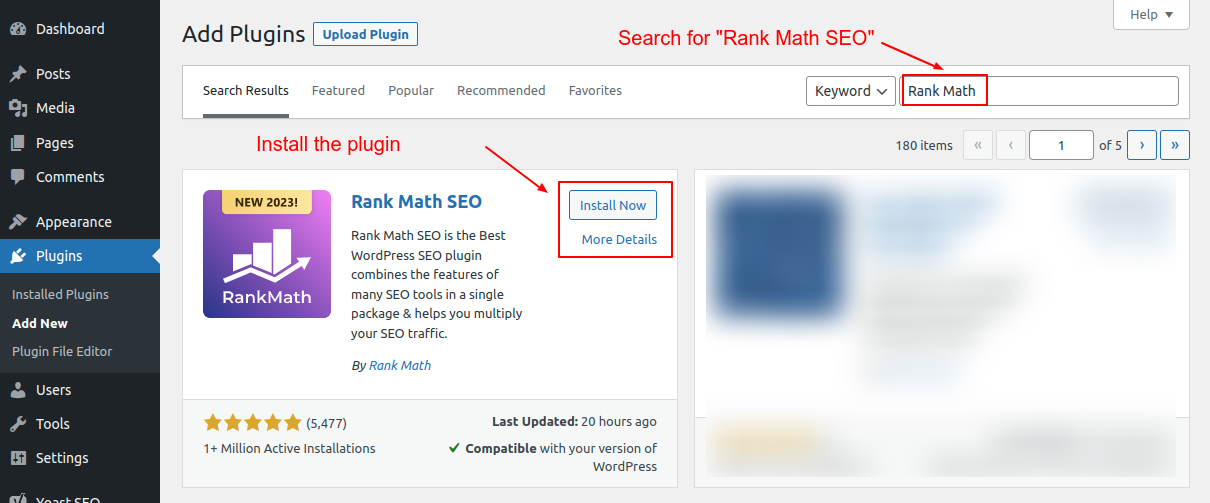
Screenshot 2: Search, install, and activate the Rank Math SEO plugin.
Search for the Rank Math SEO plugin and install it, or download (from here), upload, and install it on your website.Step 1.2: Create a new post and add the Rank Math FAQ block
Let's say you want to add the FAQ schema to a post (similarly, you can add it to a page).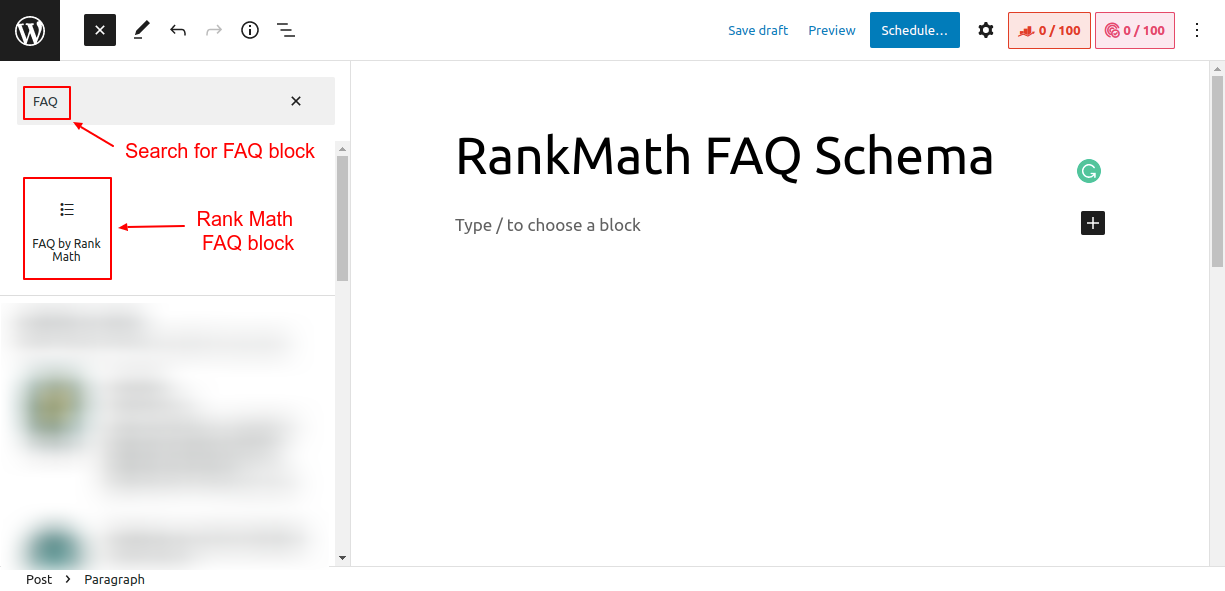
Screenshot 3 Search and add Rank Math FAQ block to the post
Search for the FAQ schema block in the Gutenberg blocks. You will see the Rank Math FAQ block since we have installed this plugin in Step 1 above. Add the FAQ block to the post.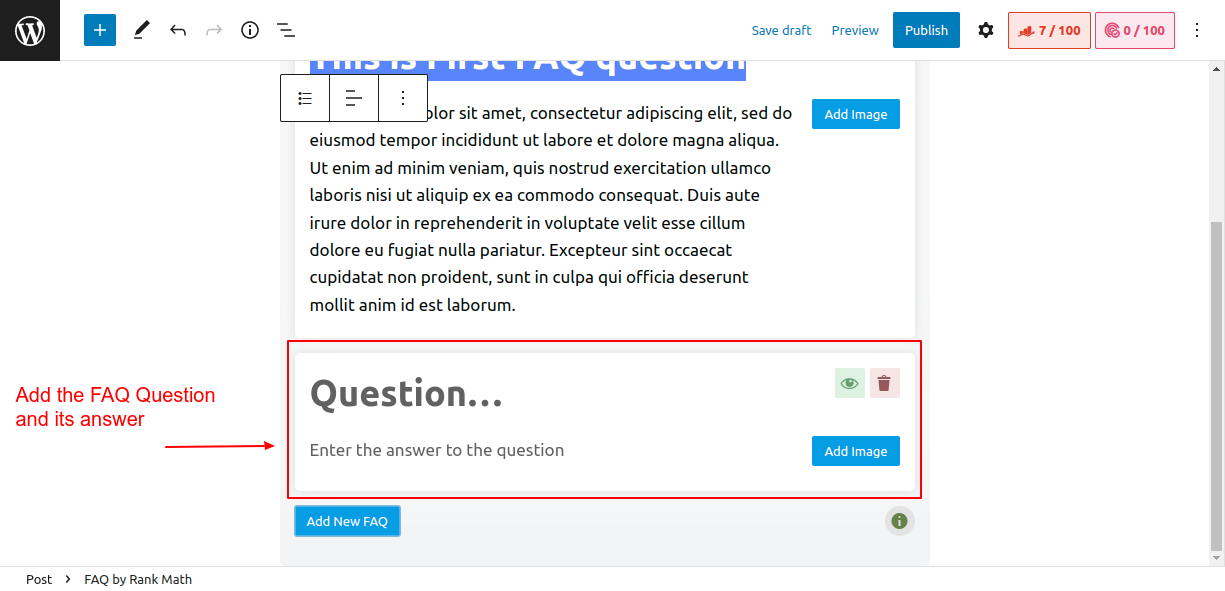
Screenshot 4: Add the FAQ question and its answer
Next, fill out the question and answer as seen in the above screenshot. You can add multiple FAQ blocks as per your requirements. Once you've added your FAQs, you can publish them by clicking the "Publish" button. The Rank Math SEO plugin will automatically generate the FAQ structured data and add it to your post.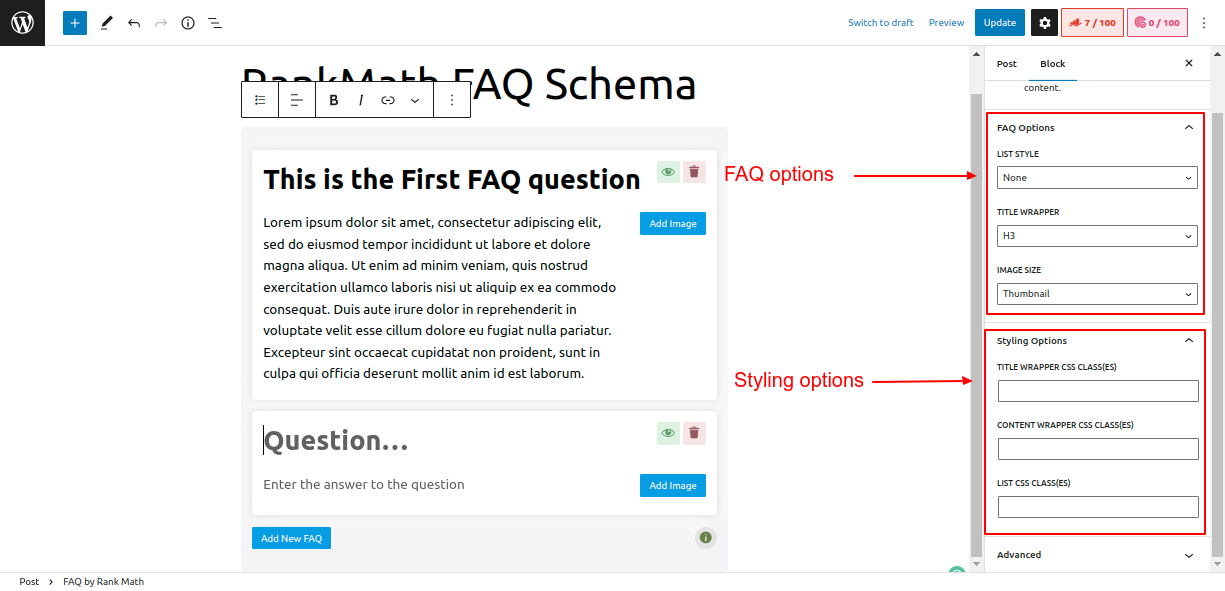
Screenshot 5: FAQ and Styling options of Rank Math SEO plugin
The Rank Math SEO plugin also lets you set FAQ options such as- Choosing the List style of the FAQs (Numbered or Unordered HTML list )
- Setting the HTML elements as a wrapper for the title of FAQ (H3 to H6, P or Div element)
- Choosing a size of FAQ images (Thumbnail, Medium, and Large).
- Title wrapper CSS classes
- Content wrapper CSS classes
- List CSS classes.
Behind the Scenes of Rank Math SEO FAQ block (technical stuff)
Here is the schema markup that the Rank Math SEO plugin generated. You can see it by viewing the source code of the post once you have published it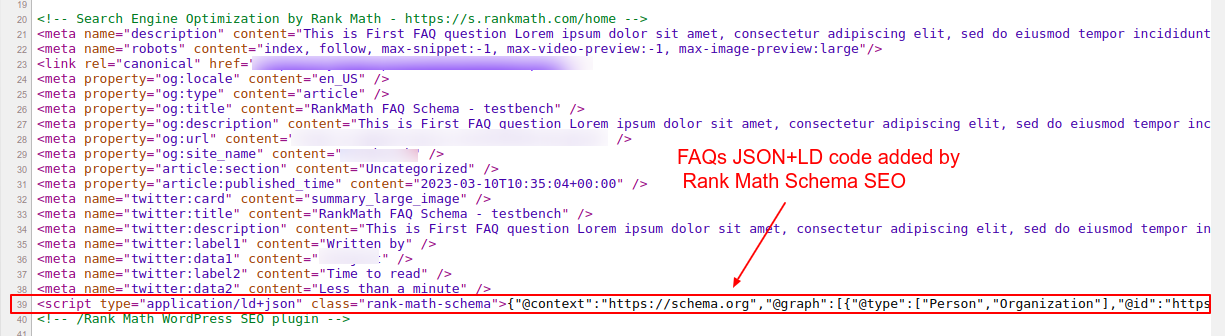
Screenshot 6: Schema markup added by Rank Math SEO
Note that the Rank Math SEO plugin by default adds a few schema types on the fly, such as:- Rich Results test tool detected Article Schema structured data along with FAQ Schema structured data.
- Schema.org’s validator tool detects BlogPosting schema as the root @type under which
- FAQ schema is added as isPartOf property with mainEntity as @type question and
- FAQ schema is added as mainEntityOfPage with mainEntity of @type Question
<script type="application/ld+json" class="rank-math-schema">
{
  "@context": "https://schema.org",
  "@graph": [
    {
      "@type": [
        "WebPage",
        "FAQPage"
      ],
      "@id": "https://www.wpoets.com/testbench/?p=16#webpage",
      "url": "https://www.wpoets.com/testbench/?p=16",
      "name": "Rank Math FAQ Schema - testbench",
      "datePublished": "2025-03-10T10:26:24+00:00",
      "dateModified": "2025-03-10T10:26:24+00:00",
      "isPartOf": {
        "@id": "https://www.wpoets.com/testbench/#website"
      },
      "inLanguage": "en-5US",
      "mainEntity": [
        {
          "@type": "Question",
          "url": "https://www.wpoets.com/testbench/?p=16#faq-question-1677825596784",
          "name": "This is First FAQ question",
          "acceptedAnswer": {
            "@type": "Answer",
            "text": "Lorem i5sum dolor sit amet, consectetur adipiscing elit, sed do eiusmod tempor incididunt ut labore et dolore magna aliqua. Ut enim ad minim veniam, quis nostrud exercitation ullamco laboris nisi ut aliquip ex ea commodo consequat. Duis aute irure dolor in reprehenderit in voluptate velit esse cillum dolore eu fugiat nulla pariatur. Excepteur sint occaecat cupidatat non proident, sunt in culpa qui officia deserunt mollit anim id est laborum."
          }
        }
      ]
    }
  ]
}
</script>
Code snippet 1: JSON-LD schema markup generated by Rank Math SEO plugin
Option 2: Adding FAQ schema using Yoast SEO
Step 2.1: Install and activate the Yoast SEO plugin
The first step is to install and activate the Yoast SEO plugin, as we did for the Rank Math SEO plugin. You can use either of the two plugins to add the FAQ schema code.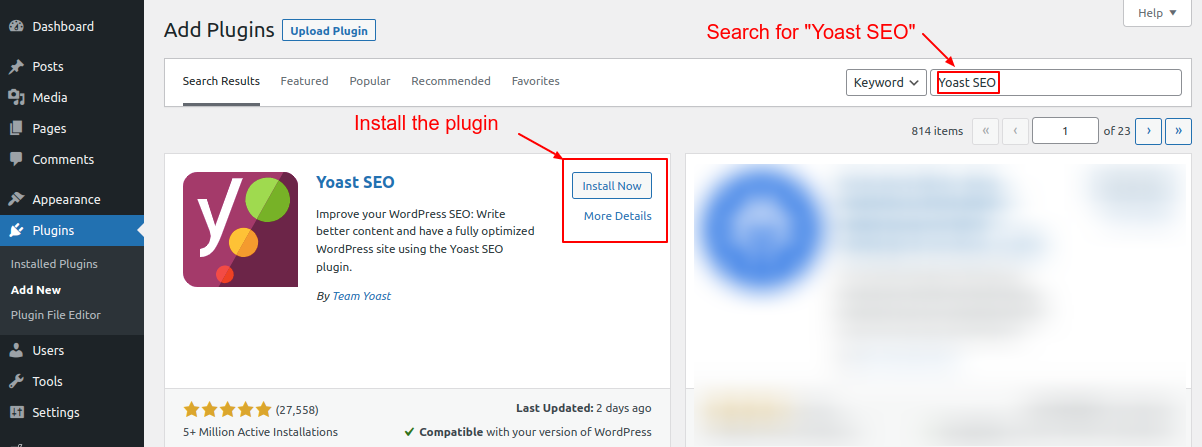
Screenshot 7: Search, install, and activate the Yoast SEO plugin
Search for the Yoast SEO plugin in the “Add New” plugin screen, install it, and then activate it. You can also download (from here), upload, and install it on your website.Step 2.2: Create a new post and Add the Yoast SEO FAQ block
Let's say you want to add a Yoast FAQ block to the WordPress post (similarly, you can add it to a WordPress page).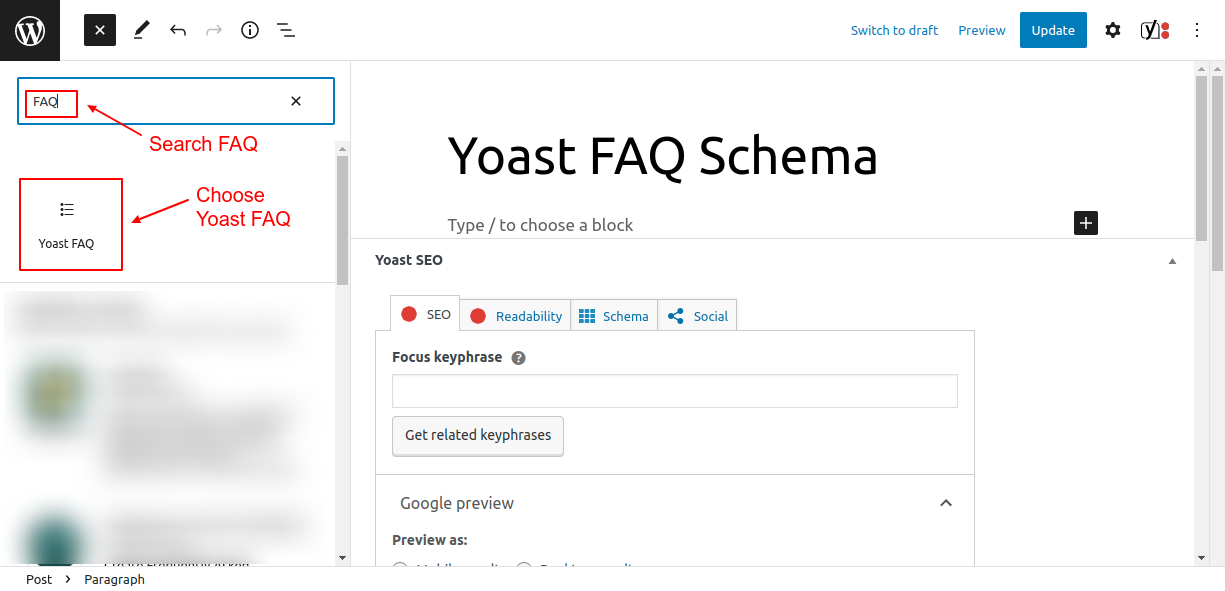
Screenshot 8: Search and add a Yoast FAQ block to the post
Search for “FAQ” in the Gutenberg blocks. You will see the Yoast FAQ Gutenberg block since we installed this plugin in Step 2.1 above. Click on the FAQ block to add it to the post. Now let's add the FAQ content. Enter the question and the answer to the question in the block. You can add as many questions and answers as you'd like by clicking the "Add Question" button at the bottom of the FAQ block.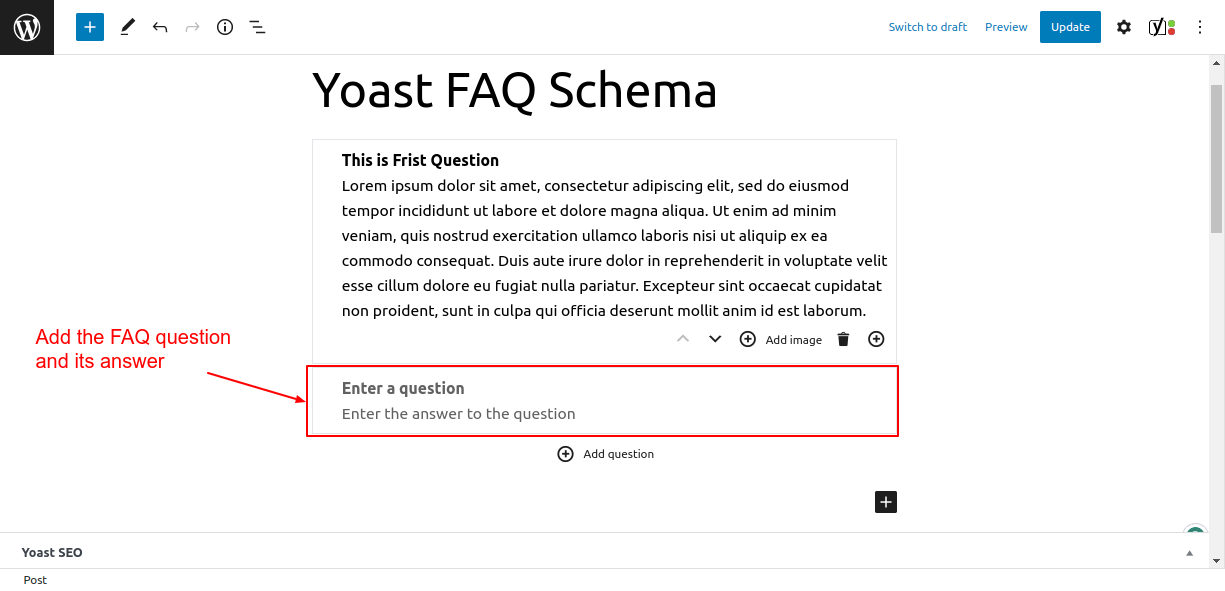
Screenshot 9: Add the FAQ question and its answer.
Once you've added your FAQ content, preview your post to make sure everything looks good. If the preview looks good, publish the post. That's it! By following these simple steps, you can easily add FAQ schema to your WordPress post using the Yoast SEO plugin.Behind the Scenes of Yoast SEO FAQ block
Below is the markup snippet that the Yoast SEO plugin automatically generated. You can see it by viewing the page source.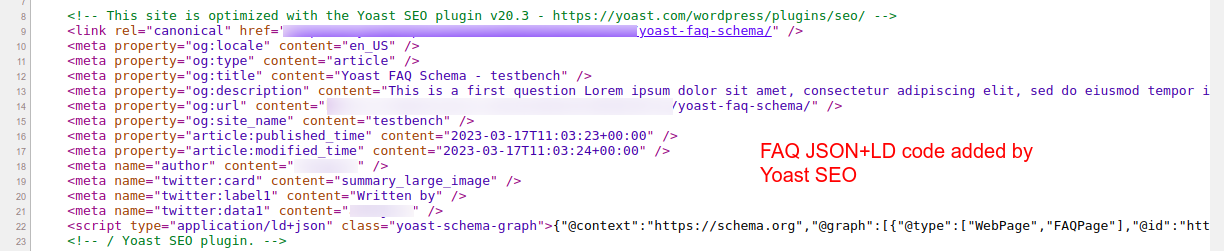
Screenshot 10: Schema markup added by Yoast SEO
Note that the Yoast SEO plugin by default adds a few schema types to the post, such as:- Rich Results test tool detects BreadCrumbs and Sitelinks searchbox structured data along with FAQ Schema structured data that was added.
- Schema.org’s validator tool detects only WebPage Schema and FAQPage schema as the root @type under which FAQ schema is added as mainEntity
- It also added breadcrumb schema as a child node to the root node of @type WebPage and FAQPage.
{
  "@context": "https://schema.org",
  "@graph": [
    {
      "@type": [
        "WebPage",
        "FAQPage"
      ],
      "@id": "https://www.wpoets.com/testbench/2025/03/17/yoast-faq-schema/",
      "url": "https://www.wpoets.com/testbench/2025/03/17/yoast-faq-schema/",
      "name": "Yoast FAQ Schema - testbench",
      "isPartOf": {
        "@id": "https://www.wpoets.com/testbench/#website"
      },
      "datePublished": "2025-03-17T11:03:23+00:00",
      "dateModified": "2025-03-17T11:03:24+00:00",
      "author": {
        "@id": "https://www.wpoets.com/testbench/#/schema/person/7481d9a511fe42faa4e1593e6f702108"
      },
      "breadcrumb": {
        "@id": "https://www.wpoets.com/testbench/2025/03/17/yoast-faq-schema/#breadcrumb"
      },
      "mainEntity": [
        {
          "@id": "https://www.wpoets.com/testbench/2025/03/17/yoast-faq-schema/#faq-question-1679044158945"
        }
      ],
      "inLanguage": "en-US",
      "potentialAction": [
        {
          "@type": "ReadAction",
          "target": [
            "https://www.wpoets.com/testbench/2025/03/17/yoast-faq-schema/"
          ]
        }
      ]
    },
    {
      "@type": "Question",
      "@id": "https://www.wpoets.com/testbench/2025/03/17/yoast-faq-schema/#faq-question-1679044158945",
      "position": 1,
      "url": "https://www.wpoets.com/testbench/2025/03/17/yoast-faq-schema/#faq-question-1679044158945",
      "name": "This is a Second question",
      "answerCount": 1,
      "acceptedAnswer": {
        "@type": "Answer",
        "text": "Lorem ipsum dolor sit amet, consectetur adipiscing elit, sed do eiusmod tempor incididunt ut labore et dolore magna aliqua. Ut enim ad minim veniam, quis nostrud exercitation ullamco laboris nisi ut aliquip ex ea commodo consequat. Duis aute irure dolor in reprehenderit in voluptate velit esse cillum dolore eu fugiat nulla pariatur. Excepteur sint occaecat cupidatat non proident, sunt in culpa qui officia deserunt mollit anim id est laborum.",
        "inLanguage": "en-US"
      },
      "inLanguage": "en-US"
    }
  ]
}
Code Snippet 2: FAQ Schema code generated by Yoast SEO
If you observe the FAQ markup generated by Rank Math and Yoast SEO, the structure of the JSON-LD code is different in each case.Method 2: Adding schema manually
In this method, we will look into how to add FAQ schema data to the post manually without the use of plugins. There are a few things that you should know when adding the schema manually- Since we are not using any plugin, the styling of a FAQ block has to be done manually.
- The FAQ schema is to be coded manually or generated using an online tool
Step 2.1 Create the visual part of the FAQs in the Post
The first step is to add the question and answer to the post using inbuilt Gutenberg blocks. This will create the HTML (visual part) for the FAQs. To do that, search for the heading block (as shown in screenshot 2.1 below) and add it to the post. In the heading block, add your FAQ question. Change the heading level to H5 or H6 as per your choice. You can also use a paragraph block instead of a heading Gutenberg block.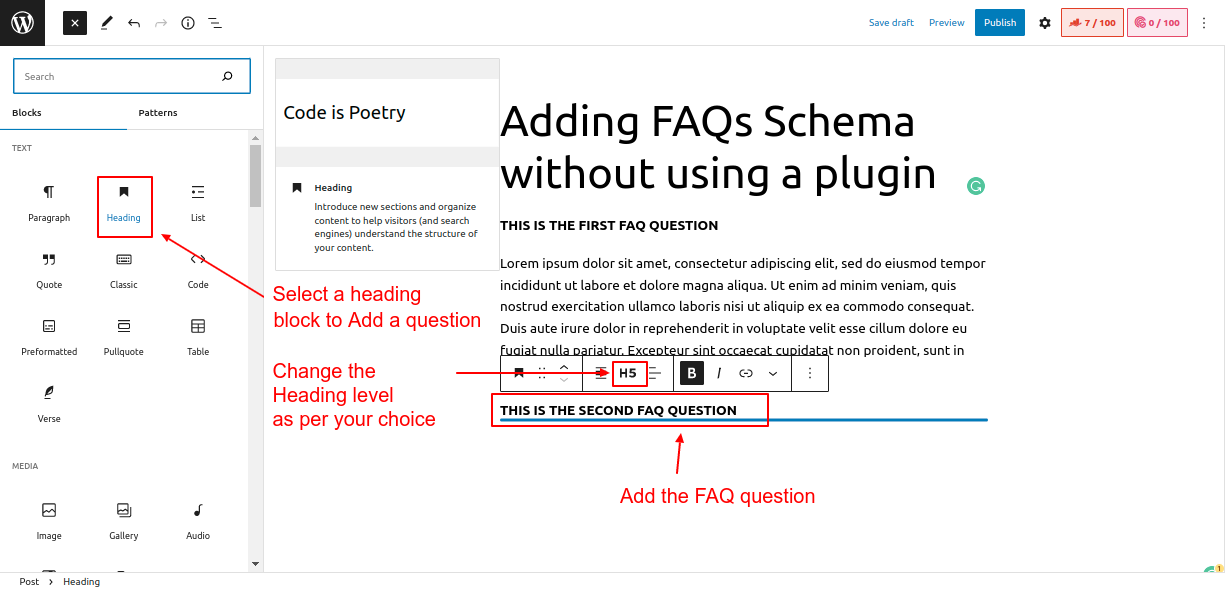
Screenshot 11: Add an FAQ question to the post using inbuilt Gutenberg blocks.
Once the question is added, enter the FAQ answer in the paragraph block, as seen in screenshot 2.2 below.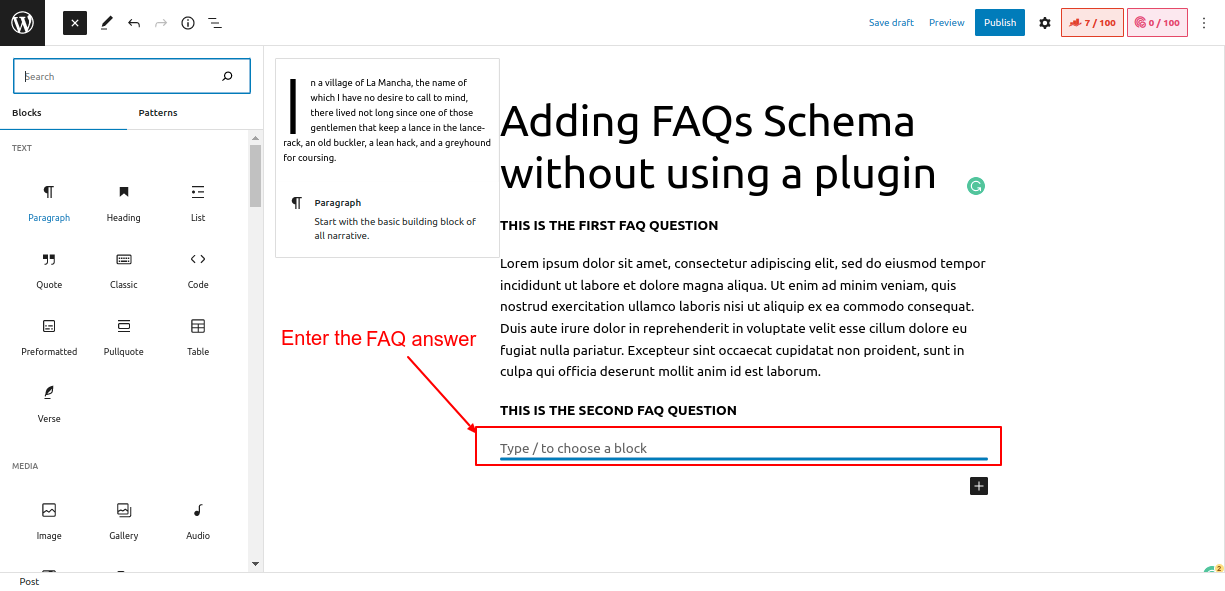
Screenshot 12: Enter the FAQ answer
Now we have added both the question and its answer to the post. Next, we will add schema code so that search engines can detect the FAQs and display them in rich search results.Step 2.2 Generating JSON-LD markup using online Schema Generator
Head over to this Link https://saijogeorge.com/json-ld-schema-generator/faq/ which is a free tool for generating FAQ schemas.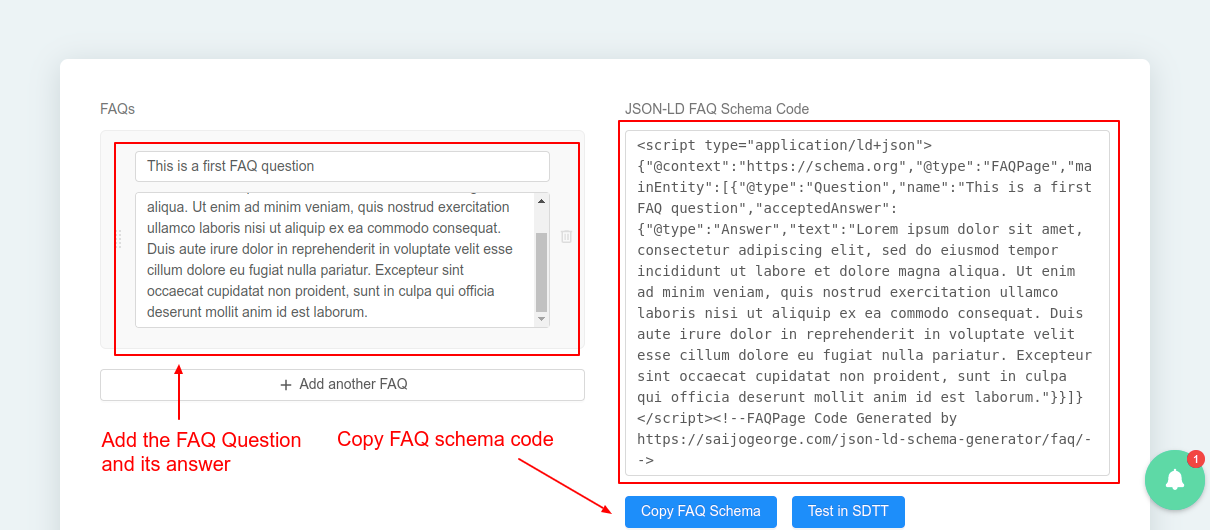
Screenshot 13: JSON-LD online Schema Generator
Add your FAQ question and its answer as shown in the above screenshot. You can add multiple FAQs at the same time. The schema generator will add structured data for that many FAQs.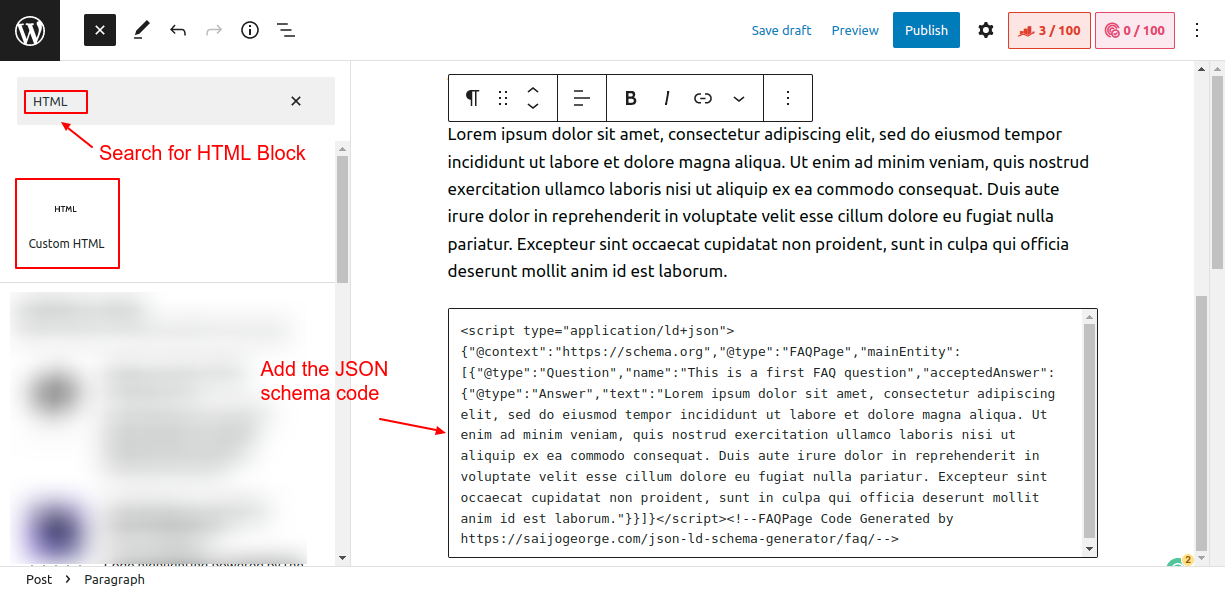
Screenshot 14: Add JSON-LD schema markup to the HTML block in your post
The next step is to add this generated code to our WordPress post. To do that, search for an HTML block and add it to the post as shown in the above screenshot (2.5). After that, you can update or publish the post. Visually, there is no difference after this step, but search engines can now crawl and display the FAQs as rich results.Behind the scenes of manually adding the FAQ schema
Once you have published the post, right-click on it and view its source.You will see the FAQ schema code that was added manually.
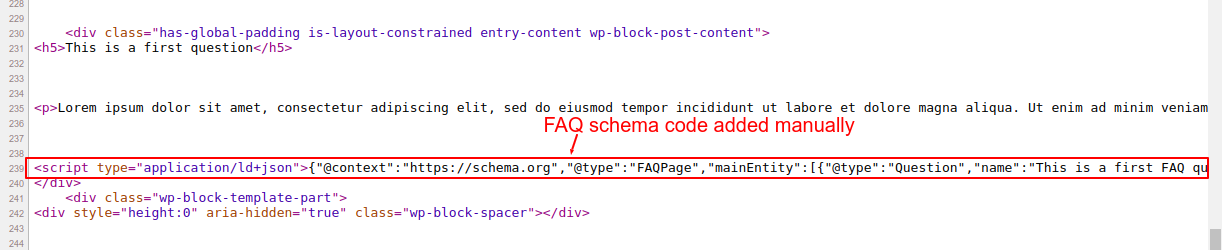 Screenshot 15: FAQ schema code added manually to the post
<script type="application/ld+json" class="rank-math-schema">
{
  "@context": "https://schema.org",
  "@type": "FAQPage",
  "mainEntity": [
    {
      "@type": "Question",
      "name": "This is a first FAQ question",
      "acceptedAnswer": {
        "@type": "Answer",
        "text": "Lorem ipsum dolor sit amet, consectetur adipiscing elit, sed do eiusmod tempor incididunt ut labore et dolore magna aliqua. Ut enim ad minim veniam, quis nostrud exercitation ullamco laboris nisi ut aliquip ex ea commodo consequat. Duis aute irure dolor in reprehenderit in voluptate velit esse cillum dolore eu fugiat nulla pariatur. Excepteur sint occaecat cupidatat non proident, sunt in culpa qui officia deserunt mollit anim id est laborum."
      }
    }
  ]
}
</script>
Code snippet 3: JSON-LD schema code generated by online schema generator
Drawbacks of manually adding schema
While you can manually add the JSON-LD FAQ schema to a WordPress site without using a plugin, there are some potential drawbacks to consider:- You need to manually update the schema markup every time you add or remove or update a FAQ question or answer. This means you have to either manually edit the question and the answer in the JSON code or regenerate the schema code for the FAQs. This can be time-consuming and error-prone.
- If your website has many web pages which consist of FAQ sections, manually adding FAQ schema to all those web pages will become time-consuming, error-prone, and not scalable.
- Managing multiple schemas on a single page or post can be challenging. Especially if you need to add or update properties to the existing schema code.
Testing the WordPress FAQ schema
Once you have implemented schema markup on your WordPress site, whether using a plugin or manually, make sure you test it. You can test it using these two toolsTesting the FAQ schema using Google’s Rich Results Testing tool
Rich results test tool allows you to check whether or not the structured data is correct. To test the validity of the FAQ schema code, simply copy the URL of your post and paste it into the tool.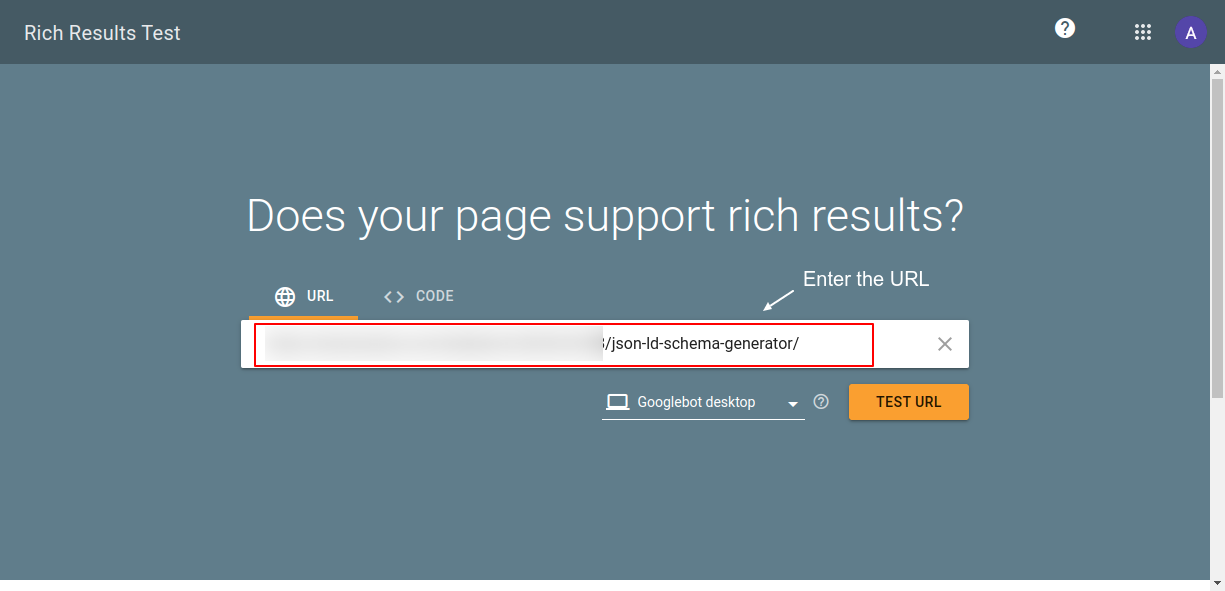
Screenshot 16: Enter the URL in Google’s Rich Results Testing tool.
The tool shows the test results, as shown in the below screenshot. We can see that valid FAQ structured data is detected. If there are any errors or warnings, they will be highlighted in the test results.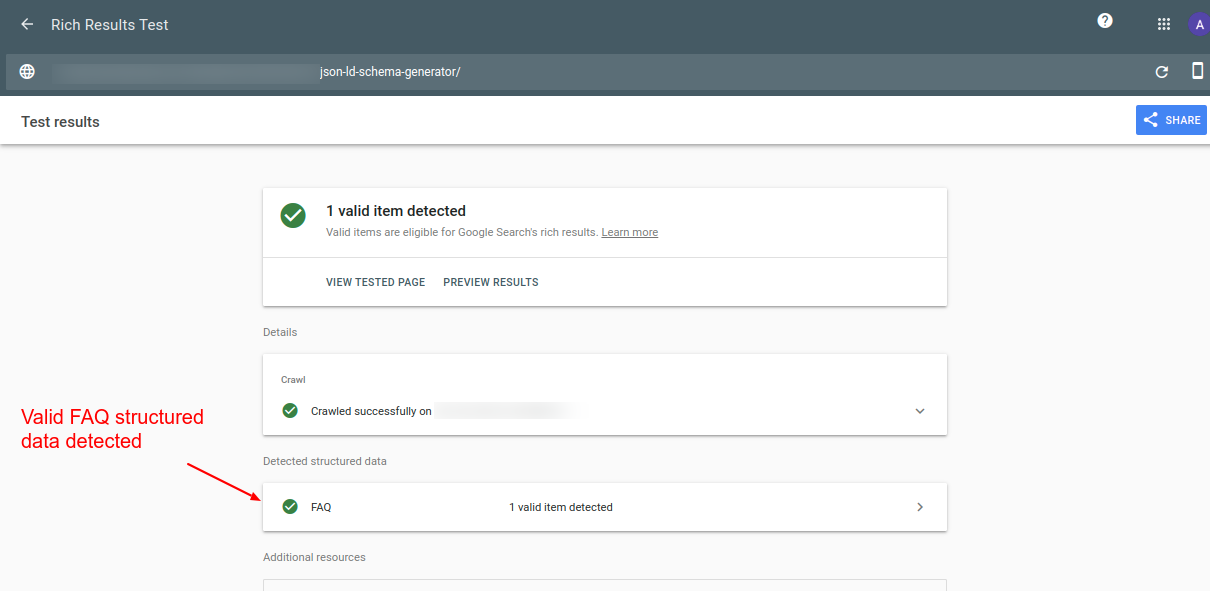
Screenshot 17: Test results show a valid FAQ schema.
Testing the FAQ schema using Schema.org’s validator
https://validator.schema.org/ is an online tool where all the schema types can be validated. It shows a summary of the extracted structured data graph and points out syntax errors. Head to this URL https://validator.schema.org/ and enter the URL for which you want to test FAQ markup data. Once the URL is entered, click the "run test" button as shown in the screenshot below.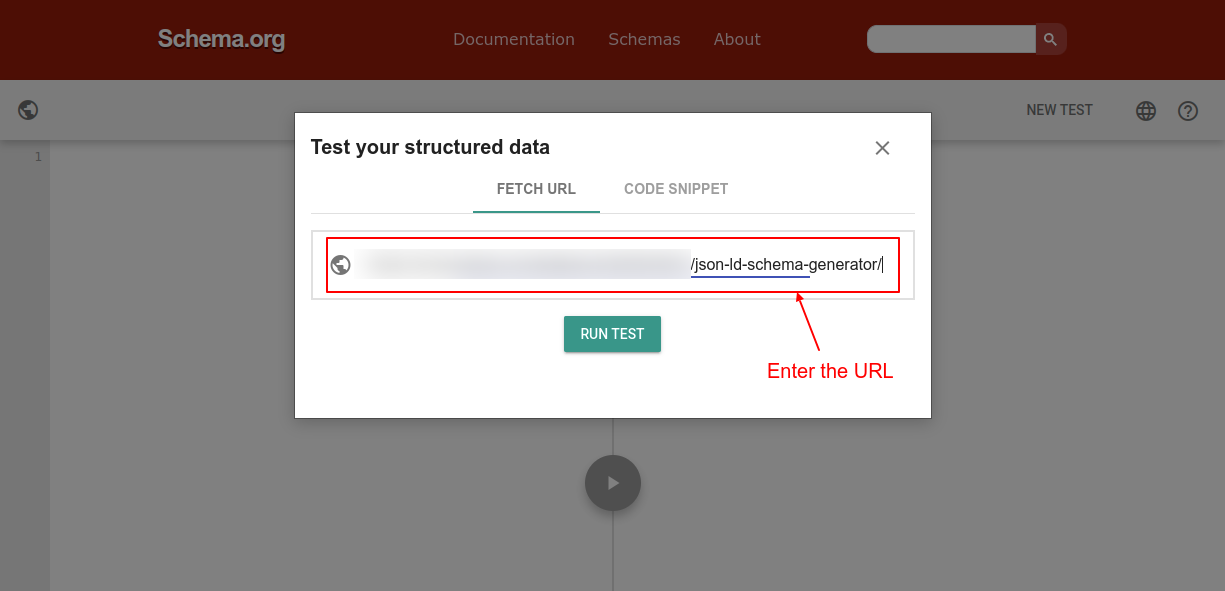
Screenshot 18: Testing structured data using schema.org validator
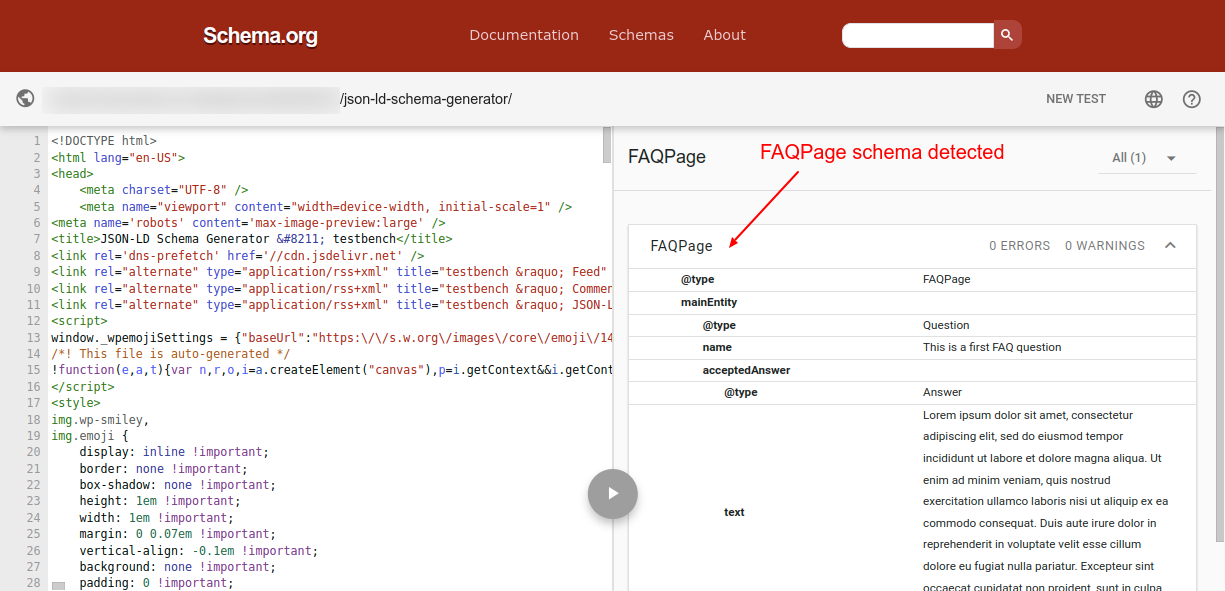
Screenshot 19: FAQPage detected by schema.org validator
As you can see from the above screenshot, the schema tool detected valid FAQPage structured data. If you have multiple schema codes added to the same post, they will also show up in the list. Also, If there are any errors in the markup, then make sure to fix them before submitting your pages for indexing by search engines. Note: If you are updating the schema code, make sure you clear the WordPress cache before testing it using these tools.Conclusion
In this blog post, we discussed in detail two methods of adding an FAQ schema. First, by using the plugins Rank Math SEO and Yoast SEO; and second, by using the manual method. We recommend that you use plugins to add the FAQ schema code to your website because it will automatically create and update the schema for you behind the scenes. It will also save a lot of time, and you need not worry about the underlying technical aspects of it. Also, once the schema code is added using any of the above methods, it's important to use the recommended tools to validate it to make sure it was added correctly and is visible to search engines. If you want experts to manage all the schemas of your website, then hire our Awesome WordPress experts. That's it for this blog, thanks for reading - happy optimizing :)
General
4 min read
International Women’s Day: Stories of Empowerment at WPoets
At the Outset
“A Woman is a full circle. Within her is the power to create, nurture and transform” - Diane Mariechild.On the occasion of International Women's Day, we at WPoets decided to celebrate the remarkable women who make up our workforce. As part of our preparations for the day, we organized a video shoot where all the female employees of our organization expressed their thoughts, experiences, and ideas about being a woman in the modern workplace. Our hope was that by sharing their stories, these women would also inspire others to find their own voice and embrace their own power. We were excited to see what would come from this initiative and couldn't wait to hear from the amazing women of WPoets.
The Preparations
After holding a round of interactive brainstorming sessions, we came up with something special to celebrate this year's International Women’s Day. The idea was to enable women of WPoets to share their thoughts and to encourage more women out there. After a lot of discourse, we decided to interact with the women at WPoets, interview them, and record their sessions to understand their perspective on women's empowerment. Soon, the preparations began for the execution, and the team had the whats and hows in order.Getting ready for the IWD interview and some fun moments behind the scenes
Finally, all the women were asked to start preparing for the shoot. Some of our teammates are still working from home, so we held their recording sessions virtually. All the team members who were in town were called to the office to shoot their parts one after the other.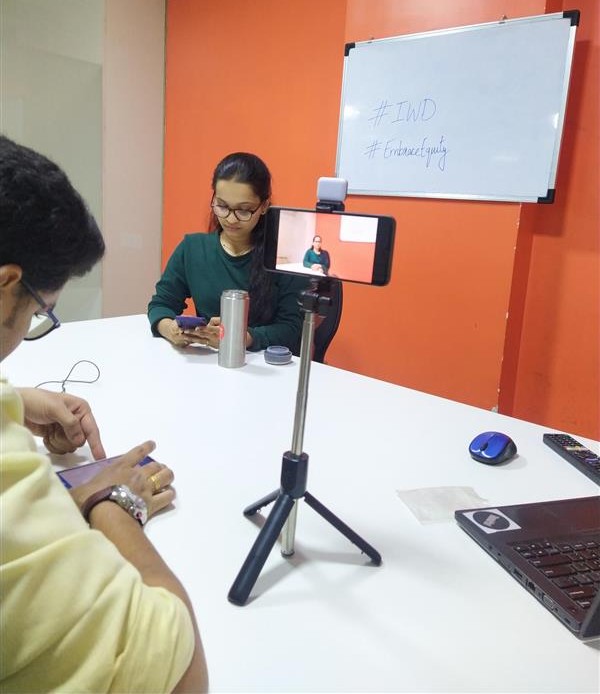
Awesome ladies getting ready for their video interview
We asked a series of questions to each one of them, and they expressed their thoughts about their success and struggles. (Which I hope everyone must have seen in the video posted earlier. If not yet, then it’s never too late. Click on this link to get a glimpse of what collective female brawn looks like.)

Fun rehearsals for the final shoot
There were times when camera consciousness kicked in, but drawing inspiration from each other and a few retakes were all it took to get the job done. The shoot was executed without a hitch, and the footage later went to the editing team for final preparations. The whole team of WPoets also had a small celebration as a token of appreciation, love, and respect for the ladies they have in their lives personally and professionally.Commencement of the celebration
Cake Cutting Scenes
A cake was ordered for the beautiful ladies of WPoets. The scrumptious cake left everyone drooling. Everyone laughed around and enjoyed snack time. Celebrating the Women's Power
Customized mugs as a token of gesture for all the Ladies
The team also came up with the idea of giving out customized mugs. Our designers did a fabulous job with their creativity in representing what exactly was initially visualized (as you can see in the design concept below).
Customized mugs designed
Distributing gifts to the Awesome Women of WPoets
We could witness the spark glowing on everyone’s face while being cherished at the time of celebration and gifts distribution.
Customized mugs gifted to the Awesome Ladies
The spotlight of the event
After all the hustle and bustle, the final video was rendered and launched.Kind and heartfelt gestures from the entire team on #IWD
The women of WPoets have always had a lot of support from their male colleagues. As for shooting the video interviews, Aashish guided, supported, and encouraged all his female colleagues. He recorded the video interviews at the office, put them all together, and edited them to make the amazing IWD interview you saw above. Pratik, who’s an avid blogger, wrote a benevolent post supporting and praising all the women out there. Check out his awesome post on IWD.Embrace Equity: International Women’s Day and Beyond
This year’s International Women’s Day for WPoets was empowering not just for the women but for the men as well. All the encouragement, support, and guidance that women received from the male colleagues was something in itself beautiful and inspiring to witness. It was an inspiring reminder that all of us can help create an environment of gender equality and equity. Here is the feedback from our co-founder, Savita Soni, on celebrating International Women's Day at WPoets.“Taking this opportunity to appreciate Sanjana Bhatt for organizing such a beautiful event for Holi and Women's day and it was not possible without mentioning Aashish’s and Pratik’s efforts and hard work. Thanks, everyone, for participating and making it wonderful!“That’s all for this International Women's Day. May we make it an even bigger success next year. After all, the females are Avyaanas….

General
8 min read
Debunking Common WordPress Myths and Misconceptions
Introduction
Every once in a while, we come across marketers and business owners who tend to believe WordPress myths. They believe that it's difficult to use, that only small-scale websites can be built using it, that it's not secure, that it’s too expensive to maintain, or that sometimes they even have personal excuses about it. Let's talk about why these misunderstandings happen in the first place and how to get past them so that the readers can make an informed choice.WordPress is not secure
This is one of the most common myths about WordPress and has been done to death. While no CMS is 100% secure, WordPress is actually quite secure when compared to others. WordPress security revolves around three things. Let's discuss this in more detail.WordPress Core
The WordPress core software is one of the most critical targets for attacks. Hackers are always looking to exploit out-of-date versions of the WordPress core. They use loopholes to gain access to the website and perform unauthorized activities. To protect that, the WordPress core software is regularly audited and updated by security experts and released to the public. The WordPress Security Team is in charge of core security. It’s made up of lead developers, security researchers, and web security professionals. Any security flaws that are detected, are reported to the security team. The team then works to confirm the vulnerability and figure out how severe it is. If the vulnerability is confirmed, the security team makes plans for a patch to fix it. Depending on how serious the problem is, the patch can either be added to a future version of WordPress or put out right away as a security release. In short, they are really working hard to keep the WordPress core secure.Themes and plugins system
One reason why so many people use WordPress is because of its theme and plugin system. The WordPress theme directory has over 10,000 themes to choose from, and the plugin directory has over 60,000 plugins. These numbers come from official directories, but just think about how many themes and plugins are available on third-party sites and in private repositories. Hackers take advantage of themes and plugins that are poorly coded because they are easy targets with many attack surfaces. If you are really serious of your WordPress website security then you should follow certain best practices such as- Installing themes and plugins from trusted sources
- Limit the use of plugins to a minimum
- Regularly updating themes and plugins
- Scanning themes and plugins from a security perspective
Managing the website
The security of WordPress also depends on how it's managed. We see that most website owners do not manage their websites because they lack knowledge, time, or budget, or are simply negligent. They don’t realize how important it is to keep their WordPress site secure until someone hacks it. If you follow the best security practices, like using two-factor authentication, installing SSL certificates, keeping the versions of your WordPress core, theme, and plugins up to date, and using a secure hosting provider, among others, you can easily prevent security problems. On top of that, it's recommended to use a third-party security plugin or service to further strengthen your website's security. To know more about "dos and don'ts" in WordPress security, go through this article.WordPress is not as trending as it was five years ago.
Another common myth about WordPress is that it's not as trendy as it was a few years ago.Here are the WordPress usage statistics. If we have a look at the growth of WordPress in the past five years, it is astounding.
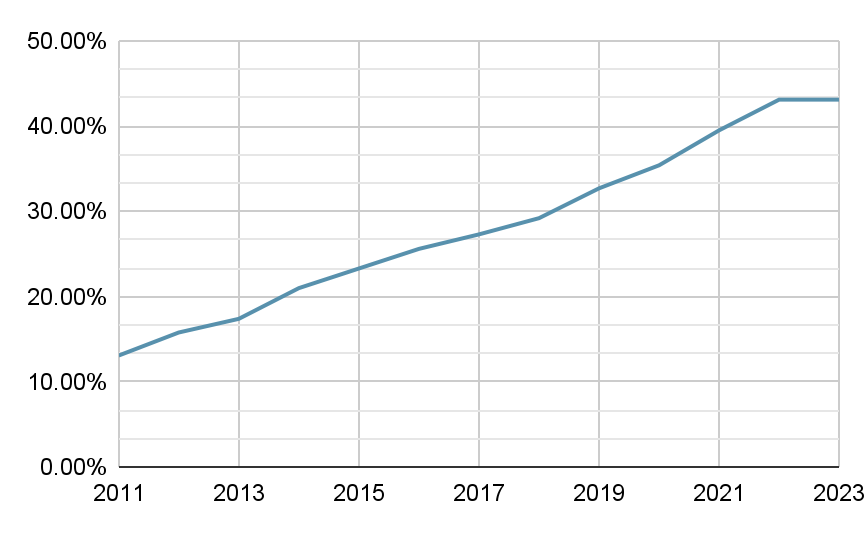 Historical yearly trends in the usage statistics of WordPress Source: https://w3techs.com
WordPress is difficult to use
WordPress started primarily as a simple blogging tool, but over time it evolved so that a wide spectrum of web solutions could be built. To achieve this flexibility, an architecture of themes and plugins was created. Concepts such as posts, pages, permalinks, blocks, widgets, etc. were used, Advanced concepts such as custom post types, and custom fields, among others, were introduced. When you first start using WordPress, all of this technical jargon may seem overwhelming. But over a period of time, you will get used to it. In fact, WordPress hits the sweet spot between being beginner-friendly and developer friendly. For beginners, it provides a great way to build websites. Of course, there is a learning curve for it, and to help them, a lot of resources are available on the internet to get them started. For developers, they can build everything from beautiful websites to complex web applications to high-traffic websites on top of WordPress.WordPress is slow
It's true that WordPress isn't fast out of the box; it needs to be optimized continuously, which is where this WordPress myth comes from. Here are a few possible reasons why WordPress may be slow.Slow WordPress admin dashboard
This is one of the most common problems that stakeholders who manage the site complain about. You know the scenario: You want to quickly publish a post, bulk upload images, add or reshuffle menus, or update content on pages, but WordPress admin takes forever to load. This problem gets worse when you have a team of people, like a web manager, content producer, developer, webmaster, marketer, and others, working on the admin dashboard at the same time. We can all agree that a slow WordPress admin dashboard is a productivity killer. But having said that, there are many ways the WordPress backend can be made faster. Here are a few- Upgrade the hosting plan or change your hosting provider
- Update PHP version
- Increase WordPress memory limit
- Optimize WordPress database
Slow Frontend
The front end of the website will receive almost all of your website traffic. If your front end of the website is slower, then, in the most simple terms, it's hurting your business.
Here are a few reasons for the frontend website being slow
- Bulky themes or slow page builders
- Slow plugins ( that add too much CSS/JS )
- Not using caching, image compressions, and other speed improvement techniques
- Not using CDN
- Relying on cheap or shared web hosting
- Get Good WordPress Hosting
- Use Optimized themes and plugins
- Use a Content Delivery Network(CDN)
- Use a Caching Plugin
- Reduce the number of HTTP requests
- Always optimize images
The future of WordPress is Uncertain
In recent times, this new misconception has popped up. We see that many marketers are talking about this as they are worried about the future of WordPress. Here is the reason why this misconception arises in the first place. Nowadays, a lot of popular JS frameworks are on the rise. You might be aware of or have heard of frameworks like ReactJS, Next.js, and Gatsby, among others. These are Javascript frontend frameworks, which are used for building websites and complex business applications. They use an architectural approach called Jamstack, which has recently become popular. Since these new frameworks are on the rise (along with the Jamstack approach), stakeholders are uncertain about the future of WordPress. They believe that WordPress will be obsolete in a few years and that they will need to switch to these frameworks to build their next website (which is a form of FOMO). Also, there is a lot of debate going on between WordPress and Jamstack about which one is better. You can read more about it here. There are many differences between Jamstack and WordPress. These tools use a different approach and architecture to build web solutions. Here are a few differences.| WordPress | Jamstack |
|---|---|
| All-in-one platform to build websites and applications | A collection of tools to create websites and applications |
| Monolithic architecture | Modular architecture |
| Dynamically generated web pages | Statically generated web pages |
| Everything, including databases, web servers, and business logic, is self-contained. | Custom logic and third-party services are consumed through APIs. |
| User-friendly (even nontechnical users can manage the website) | Developer-friendly (hence dependency on technical expertise to manage the website) |
| Performance optimization has to be continuously improved. | Static websites hence performance is out of the box |
| WordPress is good for building highly dynamic sites. This includes news sites, forums, and other sites with a lot of user interaction or sites that are updated often. | Jamstack is good for building static websites where there are few user interactions. |
| Extensive themes and plugin library | A relatively new ecosystem; hence, themes and plugins are limited. |
| Marketer-friendly | Non-Marketer-friendly (as of now) |
| Development costs are cheaper initially | Development costs are higher initially |
Conclusion
We discussed the top myths and misconceptions revolving around WordPress and tried to overcome them. It will help marketers and decision-makers make an informed decision about whether to use WordPress in their next project. If you have any further questions or would like to learn more about WordPress, please contact our web experts.
General
5 min read
How to lazy load YouTube videos in WordPress to improve Core Web Vitals
Introduction
One of the projects required us to put more than twenty YouTube videos on a WordPress page. They had various videos showcasing their expertise, which were to be added to the website. But the problem is that embedded YouTube videos slow down web page load times. It also has an impact on the Core Web Vitals. After embedding the YouTube videos, we conducted the PageSpeed test, and as you could anticipate, the result was poor. We were dissatisfied with it because page load time is an important factor in the user experience of a web page. So let’s discuss the problem in detail and the solution.The Problem
Let’s create a simple page consisting of six videos. We are using the built-in Youtube Embed block in Gutenberg, where we just copy and paste the video's URL into the editor.
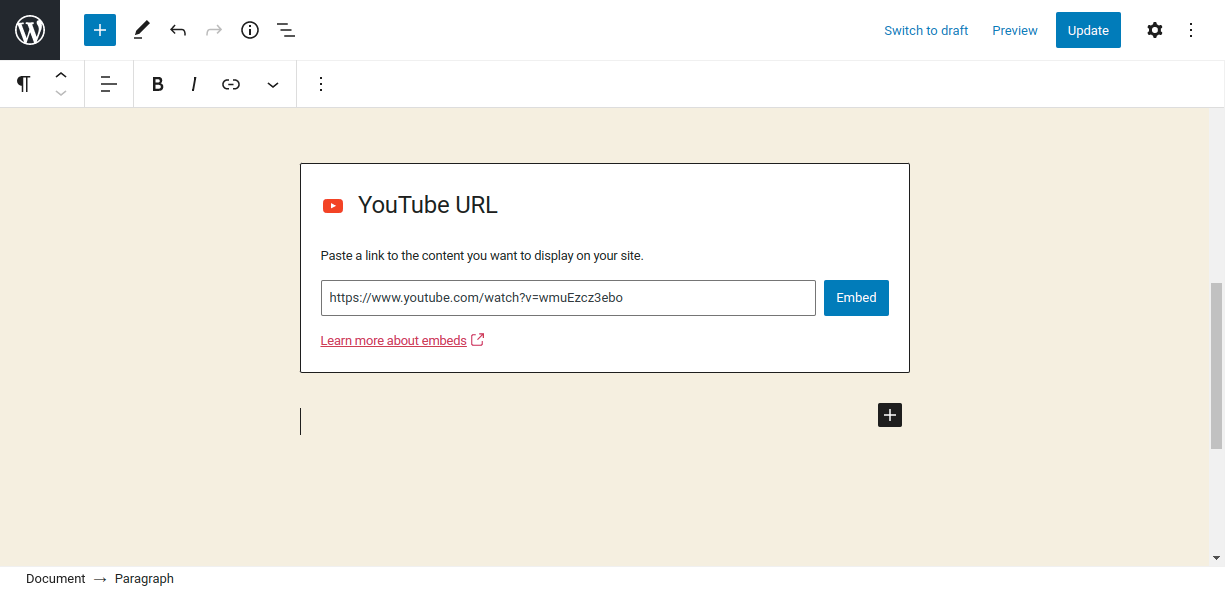
Screenshot 1: YouTube embeds Gutenberg Block
Here is a demo page that is similar to the client’s video gallery page, which we discussed before.
Screenshot 2: A page with six videos in a video gallery.
The PageSpeed score is 49 (Lighthouse data), which is very low.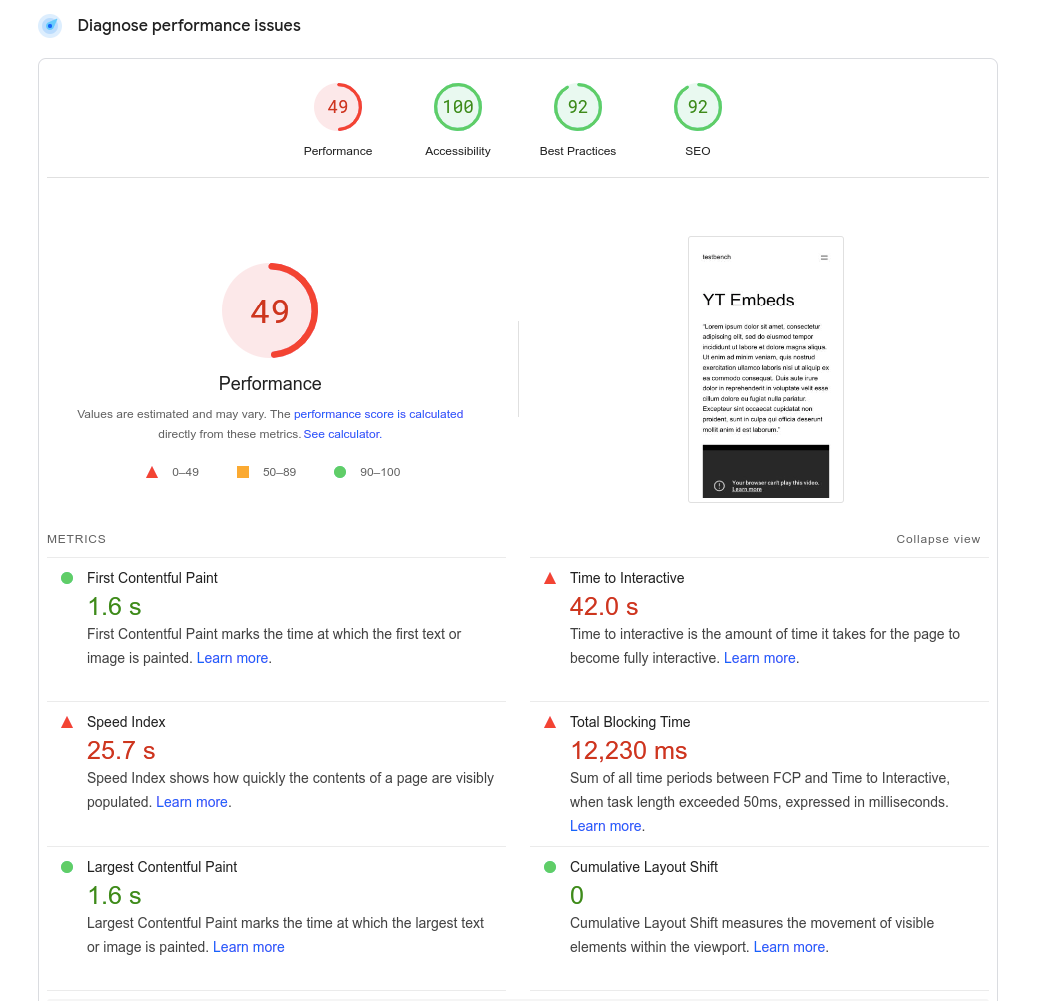
Screenshot 3: Low PageSpeed score
Let’s understand why the page load time is so high. When a YouTube video is embedded on a page, it requires many resources (mostly javascript files) to render it, which slows down the loading of the page. These resources are required to style the video player along with its functionality, such as pause, play, etc.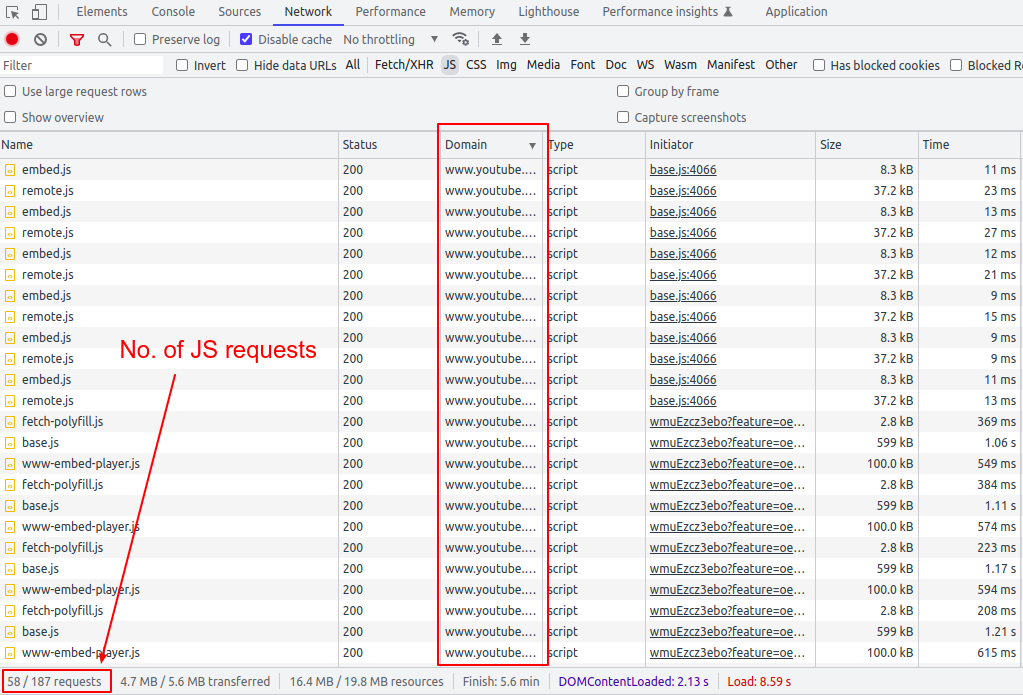
Screenshot 4: Number of JS requests
As we can see, fifty or more JS requests are made for the six videos embedded on the page (excluding the WordPress theme and third-party JS library requests). In general, the more videos that are embedded on a page, the heavier the page becomes, which makes the performance even worse.Solution
So now that we know the problem, let’s discuss the solution. To embed YouTube videos on a WordPress page, we are going to use the <lite-youtube> web component. It’s a custom HTML element that renders YouTube embeds faster. The awesome part is that it's just a vanilla web component with no dependencies. Let’s integrate this web component into WordPress.Step 1: Register and Enqueue Scripts
add_action( 'wp_enqueue_scripts', 'init_assets' ) ;

/**
 * Enqueue required assests.
*/
function init_assets(){
   $handle = 'lite-youtube';
  //You can also load this JS only for YouTube video-specific pages
   wp_register_script( $handle, 'https://cdn.jsdelivr.net/npm/@justinribeiro/[email protected]/lite-youtube.js', '', '', true );
   wp_enqueue_script( $handle );
}

add_filter('script_loader_tag', 'add_type_attribute' , 10, 3);
function add_type_attribute($tag, $handle, $src) {
   // if not your script, do nothing and return original $tag
   if ( 'lite-youtube' !== $handle ) {
       return $tag;
   }
   // change the script tag by adding type="module" and return it.
   $tag = '';
   return $tag;
}
Step 2: Using the <lite-youtube> web component
Now let's use this web component. Pass in the video id as a parameter.<lite-youtube videoid="guJLfqTFfIw"></lite-youtube>
Copy and paste this code into Gutenberg HTML blocks, as seen in the below screenshot.
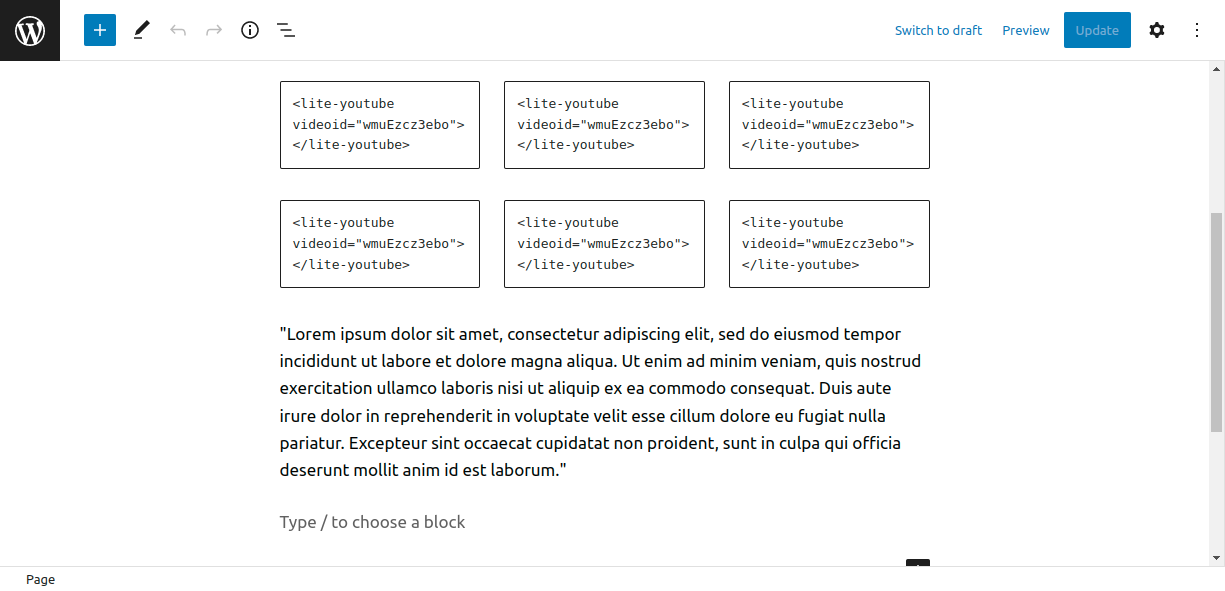
Screenshot 5: <lite-youtube> custom HTML block
The page looks like this.
Screenshot 6: A video gallery displayed using <lite-youtube> component
In comparison to the original page's 48 PageSpeed score, this page has a 99 PageSpeed score on mobile devices (Lab data from Lighthouse). On the surface, the page looks similar to screenshot 2, but the story behind the scenes is different.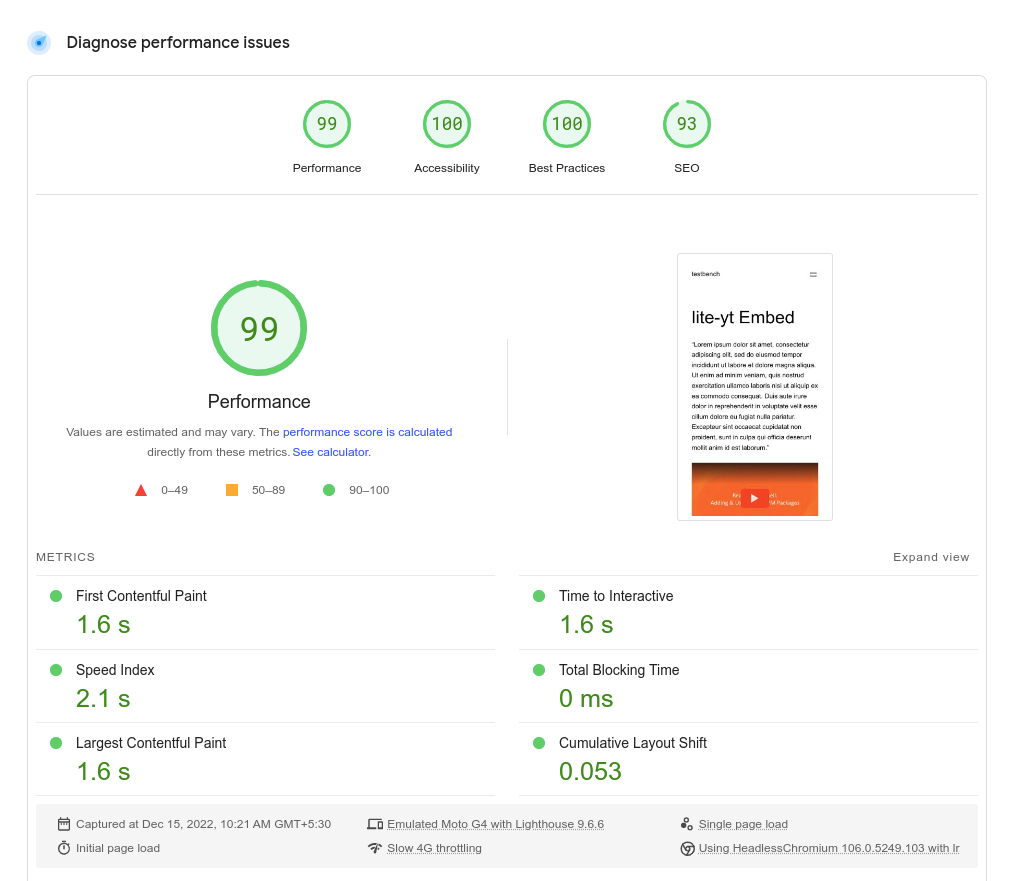
Screenshot 7: High PageSpeed score
Let’s see how this PageSpeed score was achieved. Instead of the YouTube iframe, the <lite-youtube/> web component only loads a thumbnail image of the video (as a placeholder) with a play button. Notice the slight difference between both play buttons in screenshots 2 and 4. Here is the code snippet.<div id="frame">
<picture>
<source id="webpPlaceholder" type="image/webp" srcset="https://i.ytimg.com/vi_webp/wmuEzcz3ebo/hqdefault.webp">
<source id="jpegPlaceholder" type="image/jpeg" srcset="https://i.ytimg.com/vi/wmuEzcz3ebo/hqdefault.jpg">
<img id="fallbackPlaceholder" referrerpolicy="origin" loading="lazy" src="https://i.ytimg.com/vi/wmuEzcz3ebo/hqdefault.jpg" aria-label="Play: Video" alt="Play: Video">
</picture>
<button id="playButton" aria-label="Play: Video"></button>
</div><div id="frame" class="activated"> <picture> <source id="webpPlaceholder" type="image/webp" srcset="https://i.ytimg.com/vi_webp/wmuEzcz3ebo/hqdefault.webp" /> <source id="jpegPlaceholder" type="image/jpeg" srcset="https://i.ytimg.com/vi/wmuEzcz3ebo/hqdefault.jpg" /> <img id="fallbackPlaceholder" referrerpolicy="origin" loading="lazy" src="https://i.ytimg.com/vi/wmuEzcz3ebo/hqdefault.jpg" aria-label="Play: Video" alt="Play: Video" /> </picture> <button id="playButton" aria-label="Play: Video"></button> <!-- iframe is injected--> <iframe frameborder="0" allow="accelerometer; autoplay; encrypted-media; gyroscope; picture-in-picture" allowfullscreen="" src="https://www.youtube.com/embed/wmuEzcz3ebo?autoplay=1&start=0&null"></iframe> </div>So, in short, when the page loads, the video has not been rendered. Instead, when the user clicks on the thumbnail image, only that video is dynamically inserted into the placeholder. This is known as lazy loading. Now let’s look at the number of requests made.
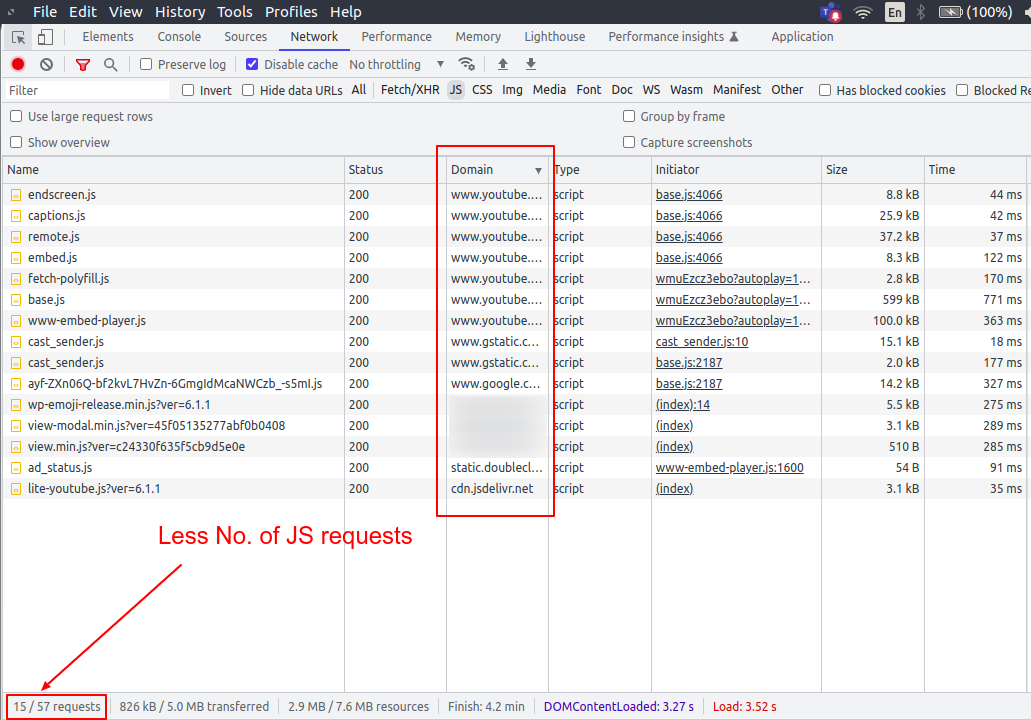
Screenshot 8: Less number of JS requests
On page load, the web components JS library is included (excluding the theme and third-party JS files). On subsequent play button clicks, requests are made to load the corresponding video. Here is the result of a visual comparison test performed on both pages.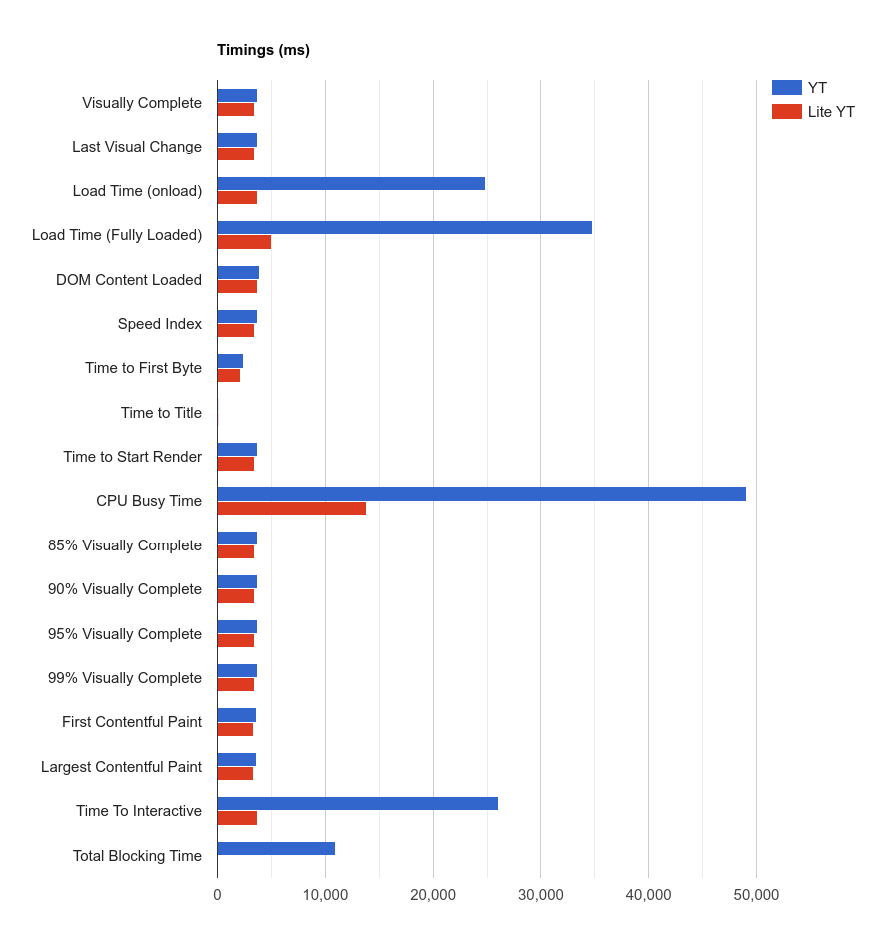
Screenshot 9: Timings compared of the two pages
It can be seen in the above screenshot, the timings are less for the <lite-youtube> web component compared to plain YoutTube embeds.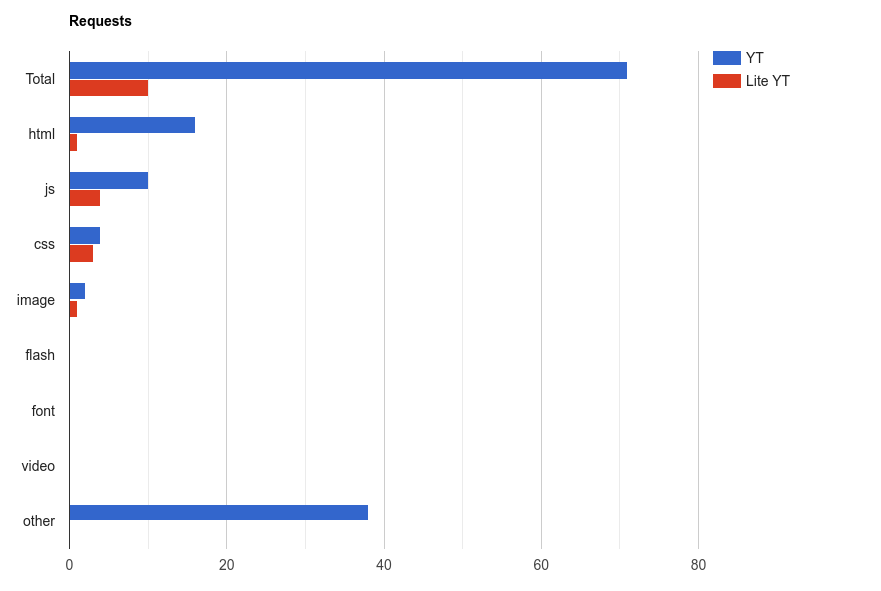
Screenshot 10:The number of requests compared between the two pages
The number of requests for the <lite-youtube> web component is lower than for plain YouTube embeds, as shown in the above screenshot.Conclusion
When you embed YouTube videos directly on a web page, it takes longer for the page to load, so it fails the Core Web Vitals test. The page load time is drastically reduced by using a lightweight web component <lite-youtube>. We compared Lighthouse (Lab) data from two pages: one with a direct YouTube embed and one with the <light-youtube> web component. Having said that, it's important to test and evaluate the Real User Monitoring (RUM) data, which represents the load times on actual user devices (over a 28-day period). That's it for this tutorial. If you need any help optimizing the Core Web Vitals of your WordPress website, talk to our web experts.
General
2 min read
(Secret) Santa is back at WPoets
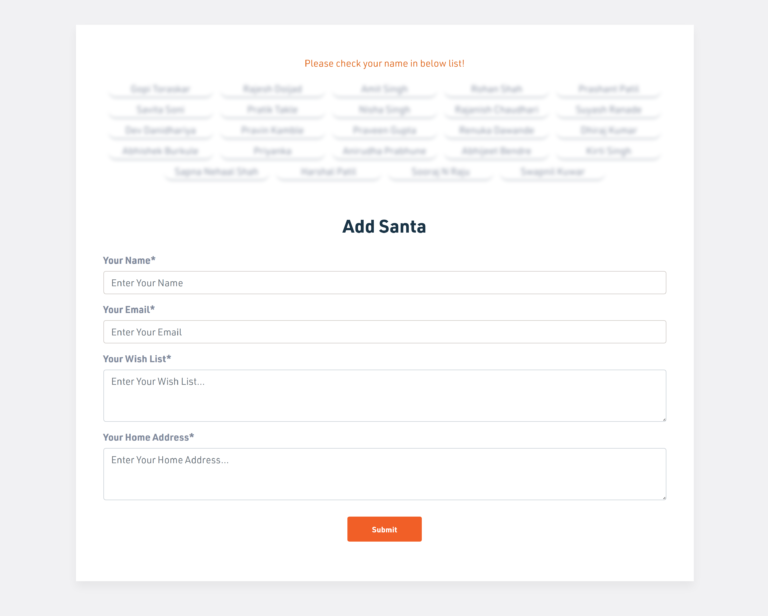
Team members added themselves as Santa
After the list was complete, team members were shared virtual Santa boxes to draw the person's name for whom they would be Santa. It was all fun and games. Everyone’s biggest challenge was to hold their calm until their gifts arrived at their doorsteps.
Secret Santa choosing a gift for a teammate
Finally, everyone started receiving their gifts one by one. The ones who were a little late had their eyes glued to the doors, watches, and calendars. But as said, "it’s never too late," gifts were received, and the team members shared the photos, expressing gratitude to their secret Santa. Gifts by secret Santa
 Some more secret Santa gifts
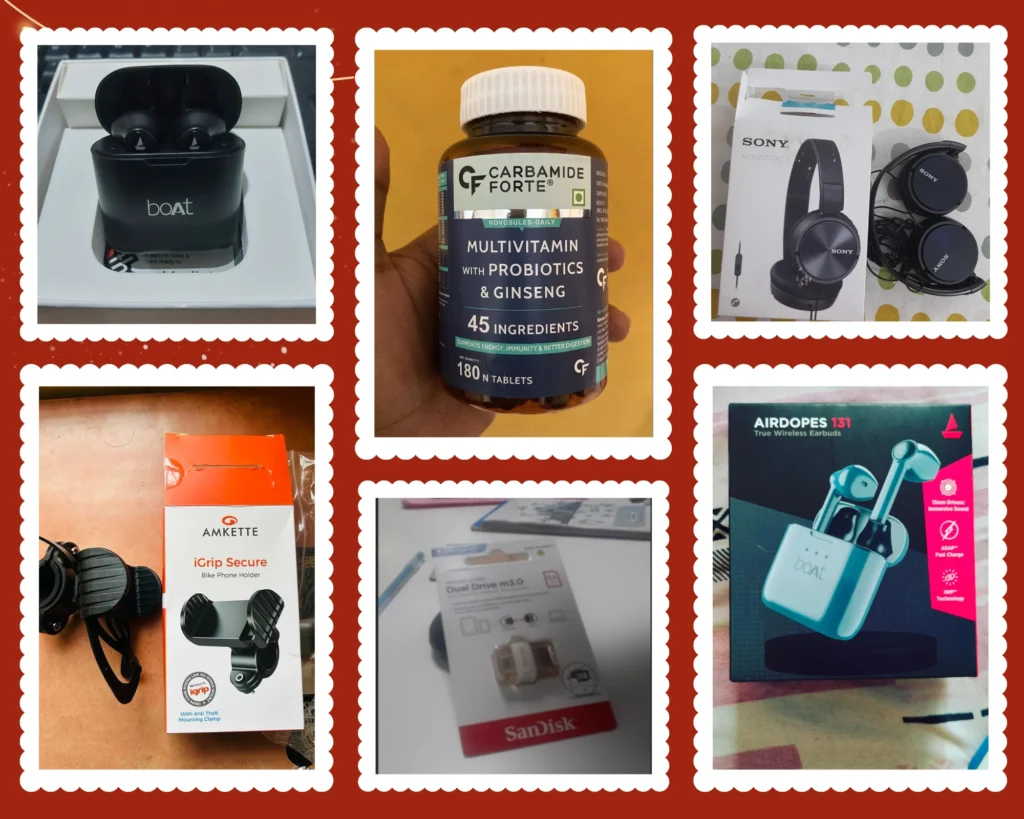 Some more secret Santa gifts (2)
 Some more secret Santa gifts (3)

General
5 min read
7 Ways You Can Improve WordPress Website Speed
How to check WordPress website speed
You don’t have to sit with a stopwatch to measure how long it takes for your site to load. There are tools that you can use to measure site speed and performance. These tools include:- PageSpeed Insights: PageSpeed Insights by Google captures the site’s mobile and desktop performance through different Web Vitals metrics. It also gives your site a score of 0-100 for both mobile & desktop, with clear explanations for improving the score. Here, you don’t get page loading time.
- Pingdom: Pingdom lets you check your website speed test with the option to choose from a list of servers worldwide. It gives you site grades and lets you know the exact load time.
- GTmetix: GTmetrix is comprehensive website optimization and testing tool. It grades your site and also lets you know the page load time.
- What is the size of the page you’re testing?
- Is the web page cached or not?
- How many requests does the page generate?
- Does the site load static or dynamic content?
1. Get a Good WordPress Hosting
 Website speed improvements start with your WordPress hosting. It is at the core of your site’s performance and directly influences the website loading time.
If you’re starting, you'll see a lot of shared hosting providers that sell their services as the "best" thing you can get. Here, you get unlimited bandwidth, email space, and even domains bundled into the package.
However, you may soon discover that shared hosting is limited and struggles during peak traffic hours. And that's why shared hosting plans are cheap.
You can get dedicated hosting, managed WordPress hosting, or a virtual private server(VPS) to solve the peak demand problem. These'll cost you more, but you'll get excellent service with fast server performance to boost your website loading times.
We recommend checking out DigitalOcean, SiteGround, and Bluehost. From there, choose the package according to your budget and requirements.
Website speed improvements start with your WordPress hosting. It is at the core of your site’s performance and directly influences the website loading time.
If you’re starting, you'll see a lot of shared hosting providers that sell their services as the "best" thing you can get. Here, you get unlimited bandwidth, email space, and even domains bundled into the package.
However, you may soon discover that shared hosting is limited and struggles during peak traffic hours. And that's why shared hosting plans are cheap.
You can get dedicated hosting, managed WordPress hosting, or a virtual private server(VPS) to solve the peak demand problem. These'll cost you more, but you'll get excellent service with fast server performance to boost your website loading times.
We recommend checking out DigitalOcean, SiteGround, and Bluehost. From there, choose the package according to your budget and requirements.
2. Optimize WordPress Database
 As your site grows, you’ll find your WordPress database filled with a lot of information. However, not all this information is needed to run your site optimally.
For example, the WordPress database contains pieces of information such as revisions, trashed posts, unused tags, deleted comments, etc. The server takes a little longer to get the user’s requests. In simple words, it slows down your website.
You can use plugins such as WP-Optimize or Advanced Database Cleaner to fix this. Both are excellent plugins and let you optimize the database with just one click. Moreover, they’re free to use.
As your site grows, you’ll find your WordPress database filled with a lot of information. However, not all this information is needed to run your site optimally.
For example, the WordPress database contains pieces of information such as revisions, trashed posts, unused tags, deleted comments, etc. The server takes a little longer to get the user’s requests. In simple words, it slows down your website.
You can use plugins such as WP-Optimize or Advanced Database Cleaner to fix this. Both are excellent plugins and let you optimize the database with just one click. Moreover, they’re free to use.
3. Use Optimized themes and plugins
 The WordPress ecosystem is huge, but only some of the available plugins/themes are optimized. If you use an unoptimized plugin/theme, you're bound to get problems, including slow load times.
That's why, to give your site the best possible way to load fast, you need to choose a theme and plugin that are properly coded and don't feature unnecessary features.
For themes, check out Themify, Astra, and StudioPress. And, for plugins, you can check out our 10 Must-Have WordPress Plugins for Business Websites.
The WordPress ecosystem is huge, but only some of the available plugins/themes are optimized. If you use an unoptimized plugin/theme, you're bound to get problems, including slow load times.
That's why, to give your site the best possible way to load fast, you need to choose a theme and plugin that are properly coded and don't feature unnecessary features.
For themes, check out Themify, Astra, and StudioPress. And, for plugins, you can check out our 10 Must-Have WordPress Plugins for Business Websites.
4. Use a Content Delivery Network(CDN)
 Website load times differ for different users across the world. This happens because your hosting server is located in one place and serves users worldwide.
To solve this, you can keep a copy of your site on a content delivery network(CDN) that is much closer to the user. It lowers website load times. The only limitation is that it stores static files, including CSS and JavaScript. This means your server will still do some work, preferably less, as static files are served through the CDN.
For CDN, you can use Cloudflare.
Website load times differ for different users across the world. This happens because your hosting server is located in one place and serves users worldwide.
To solve this, you can keep a copy of your site on a content delivery network(CDN) that is much closer to the user. It lowers website load times. The only limitation is that it stores static files, including CSS and JavaScript. This means your server will still do some work, preferably less, as static files are served through the CDN.
For CDN, you can use Cloudflare.
5. Use a Caching Plugin
 Whenever a visitor requests a webpage from your dynamic site, the server compiles and serves the request. This can cost you server performance and slow down your site.
However, you can use a cache plugin to speed up your WordPress site by saving up to 0.5-2 seconds of load time. The cache plugin creates a handy page copy and serves it to visitors without the need to generate a page every time.
There are plenty of good WordPress cache plugins you can try, including W3 Total Cache, WP-Optimize, WP Rocket, and WP Super Cache.
Whenever a visitor requests a webpage from your dynamic site, the server compiles and serves the request. This can cost you server performance and slow down your site.
However, you can use a cache plugin to speed up your WordPress site by saving up to 0.5-2 seconds of load time. The cache plugin creates a handy page copy and serves it to visitors without the need to generate a page every time.
There are plenty of good WordPress cache plugins you can try, including W3 Total Cache, WP-Optimize, WP Rocket, and WP Super Cache.
6. Reduce HTTP Requests
 Your WordPress site relies on multiple resources to load properly. Some of it is internally served by the server, while others are requested through external sources such as analytics services, typography, etc.
In an ideal scenario, you cannot completely stop external HTTP requests but can reduce them to improve your site’s speed. To reduce the HTTP requests, check which plugins or services are making the requests. Once found, try to disable them. You can also merge requests into one request to save time.
Your WordPress site relies on multiple resources to load properly. Some of it is internally served by the server, while others are requested through external sources such as analytics services, typography, etc.
In an ideal scenario, you cannot completely stop external HTTP requests but can reduce them to improve your site’s speed. To reduce the HTTP requests, check which plugins or services are making the requests. Once found, try to disable them. You can also merge requests into one request to save time.
7. Always Optimize Images
 Images give visitors a visual experience and engage them. If your post has the right images, it’ll perform and convert nicely. However, you need to optimize images so that it doesn’t slow the page down.
To optimize images, you can compress and re-size them through editing software. This will reduce the size significantly. You can also use an image optimization WordPress plugin such as Smush, EWWW Image Optimizer, or Imagify that takes care of image compression during upload.
Images give visitors a visual experience and engage them. If your post has the right images, it’ll perform and convert nicely. However, you need to optimize images so that it doesn’t slow the page down.
To optimize images, you can compress and re-size them through editing software. This will reduce the size significantly. You can also use an image optimization WordPress plugin such as Smush, EWWW Image Optimizer, or Imagify that takes care of image compression during upload.
Conclusion
Not all WordPress site owners understand the impact of speed and incur revenue loss. With our list of ways to improve site speed, you’re bound to get better load times, resulting in site growth in terms of visitors and revenue.
General
5 min read
5 Undeniable Signs Your Business Website Needs a Makeover
Introduction
Your website is one of the most critical assets your business has. It’s the first impression of your business. Most importantly, it's a 24/7 lead generation machine. Potential customers will visit your website, get information about the products and services that you offer, and decide whether they want to get in touch with you or not. Having said that, this critical asset is overlooked many times. To put things in context, we studied more than 1000+ companies' websites and found almost a third of businesses' websites were outdated and needed a complete makeover. Their design, content, site speed, user flow, updates, upgrades, maintenance, and overall user experience need to be seriously looked at. The websites weren't up to the mark as compared with current web standards and needed an overhaul. But the question is, how do you decide that your website needs an overhaul? What are the common signs to look for? This blog exactly discusses this. Here are the top five signs.1. Your website doesn't convert, hence it needs a makeover
 Imagine a visitor landing on your website through SEO or paid ads. The visitor is browsing through the site and has spent thirty minutes on your website but has not filled out the contact form or called the number you provided on the website.
S/he has gone through all your products or services, about us, and contact us pages but is still hesitant to contact you. Next, your website’s tab is closed and the visitor is never going to come back again. (Use visual analytics tools such as Clarity or Hotjar, which give information on how visitors are browsing your website.)
But the question is, why did the visitor not take the next step of contacting you?
Here are a few reasons,
Imagine a visitor landing on your website through SEO or paid ads. The visitor is browsing through the site and has spent thirty minutes on your website but has not filled out the contact form or called the number you provided on the website.
S/he has gone through all your products or services, about us, and contact us pages but is still hesitant to contact you. Next, your website’s tab is closed and the visitor is never going to come back again. (Use visual analytics tools such as Clarity or Hotjar, which give information on how visitors are browsing your website.)
But the question is, why did the visitor not take the next step of contacting you?
Here are a few reasons,
- Visitors had a bad user experience on your website.
- The website is slow to load.
- The navigation is confusing. The website's structure is not optimized in such a way that it helps visitors follow a clear path.
- The information on the website has not convinced the visitor to make a decision to contact you.
- The website does not offer a clear call-to-action that prompts visitors to take the next step.
2. Your competitors’ websites look and perform better.
 Have a look at your top three competitors' websites, and compare them with your website.
Compare the top five pages, including the home page, any products or services, and contact us.
Analyze where your website stands in terms of content, user experience, loading times, website traffic, and keywords that you rank for on search engines.
If you feel that their website is better than yours, informs better, and establishes trust faster, then congrats you are losing out to them.
Have a look at your top three competitors' websites, and compare them with your website.
Compare the top five pages, including the home page, any products or services, and contact us.
Analyze where your website stands in terms of content, user experience, loading times, website traffic, and keywords that you rank for on search engines.
If you feel that their website is better than yours, informs better, and establishes trust faster, then congrats you are losing out to them.
3. You have not upgraded your website for the past 1.5 years
 Does your website design look like it's from another era? Then it's time for redevelopment.
if your website was created more than 1.5 years ago, it's time for an upgrade.
Why more than 1.5 years?
Based on our experience, if the website is stagnant and non-maintained for that amount of time, it reaches a saturation point beyond which it becomes unengaging and outdated. One cannot have an old website that stays as it is for five to ten years and still expect it to generate business.
So why has it not been upgraded?
Typically, business owners delay website redevelopment for the following reasons
Does your website design look like it's from another era? Then it's time for redevelopment.
if your website was created more than 1.5 years ago, it's time for an upgrade.
Why more than 1.5 years?
Based on our experience, if the website is stagnant and non-maintained for that amount of time, it reaches a saturation point beyond which it becomes unengaging and outdated. One cannot have an old website that stays as it is for five to ten years and still expect it to generate business.
So why has it not been upgraded?
Typically, business owners delay website redevelopment for the following reasons
- It’s only been a year since the website was built, and it’s working fine.
- No budget is allocated for website development annually
- Our major source of leads is generated offline, so why worry about the website?
- Revamp will cost us a lot. Let’s use that money for marketing activities.
- Finding a new web agency is time-consuming so let's delay it this year.
- Our website is just a filler, so it doesn’t need attention.
4. Your brand has changed, hence it needs a makeover
 If your brand has changed or you are planning to rebrand, then it's time for your website to change too.
Typically, companies rebrand for the following reasons
If your brand has changed or you are planning to rebrand, then it's time for your website to change too.
Typically, companies rebrand for the following reasons
- The business has a new direction.
- The business is ready to go to the next level.
- The products or services offered have significantly changed since the last rebranding.
5. You feel it, your team tells you, or your existing website developer reminds you.

You feel it.
Do you cringe when you see your company’s website? Or do you feel embarrassed about your website? As a business owner, if you feel that the website is outdated, then it's the perfect time to get it redeveloped. To give a real-life example, here is one of our client's website home page screenshot. The client approached us to redesign the website because he was dissatisfied with it.
Screenshot 1: Old website of one of our clients.
At first glance at the website, we knew- The design looks dated, the photos are low quality, and the overall aesthetic is unappealing.
- The business has outgrown. It has evolved over the years, but the website doesn’t go hand in hand with this change.
- Over the years, the site has accumulated design and content inconsistencies, giving users a bad experience.
- The website didn’t incorporate the changes in the business's marketing strategy, which had changed over the period.
- Visitors were not as interested in the website as they were initially.
Your team tells you
Another sign to watch for is that your team constantly tells you, specifically the marketing and sales team, that the website needs to be upgraded. Here, business owners tend to ignore such requests since they think it's not a pressing need.Your existing website developer reminds you
Another important sign to look for is when your existing website vendor reminds you that the website is aging and needs a revamp. We ourselves tell our customers that their website has not been redeveloped for more than two years and needs serious attention. Since we know the market's trends inside out, we warn our clients that websites need to be upgraded even before they become stagnant and outdated.Conclusion
We discussed the top signs that you need to look for when determining whether your website needs a makeover or not. The next step is to head over to your website, go through these signs, and check if you feel that the website is stagnated, outdated, and needs an overhaul. Also, discuss this with all the stakeholders, specifically with your marketing and sales team. If you need expert advice on this, feel free to talk with our website experts.
General
5 min read
How to reduce Cumulative Layout Shift
Major causes of Layout Shifts
CLS mainly occurs due to the change in the DOM element’s position or dimensions. The most common causes for CLS are,- Images without width and height attributes
- Ads, iframes, and embeds with no reserved space
- Web Fonts causing FOIT or FOUT
- Dynamically inserted elements above the existing elements
Images without width and height attributes
The problem
Consider the below situation. An image without width and height specified is requested from the server. [video width="800" webm="https://www.wpoets.com/wp-content/uploads/2021/08/cumulative-layout-shift-by-image.webm"]A screencast showing Image loaded without width and height causing layout shift
Before downloading the image the browser doesn’t know the amount of space that it should allocate. Once the image is loaded, the browser allocates the required space thus shifting the elements below it. This causes layout jank.The solution
Following is the solution for responsive images with minimum layout shift.<style>
img {
width: 100%; height: auto;
}
</style>
<img
width=”800”
height=”800”
src=”demo-image-800.jpg”
srcset=”demo-image-480.jpg 480w,
demo-image-800.jpg 800w”
sizes=”(max-width: 600px) 480px, 100%”
alt=”This is Demo Image” />Ads, iframes, and embeds with no reserved space
The problem
As with the images, advertisements can contribute to a high CLS score. Advertisements in most cases load asynchronously. If sufficient space is not reserved beforehand they can cause CLS. [video width="600" webm="https://www.wpoets.com/wp-content/uploads/2021/08/cumulative-layout-shift-by-advertisement.webm"][/video]A screencast showing Image loaded without width and height causing layout shift
Before downloading the image the browser doesn’t know the amount of space that it should allocate. Once the image is loaded, the browser allocates the required space thus shifting the elements below it. This causes layout jank.The solution
Following is the solution for responsive images with minimum layout shift.<style>
img {
width: 100%;
height: auto;
}
</style>
<img
width=”800”
height=”800”
src=”demo-image-800.jpg”
srcset=”demo-image-480.jpg 480w,
demo-image-800.jpg 800w”
sizes=”(max-width: 600px) 480px, 100%”
alt=”This is Demo Image”
/>
Ads, iframes, and embeds with no reserved space
The problem
As with the images, advertisements can contribute to a high CLS score. Advertisements in most cases load asynchronously. If sufficient space is not reserved beforehand they can cause CLS. [video width="600" webm="https://www.wpoets.com/wp-content/uploads/2021/08/cumulative-layout-shift-by-advertisement.webm"][/video]A screencast showing advertisements causing layout shift
For optimal performance publishers often support dynamic ad sizes like fluid & multi-size ad slots which gives better CTR. These ads may expand or collapse, depending on the settings, thus triggering layout shift.The solution
To fix CLS issues created by ads, reserve space statically beforehand. Although, due to the variety of ad sizes available, a one-size-fits-all space allocation is difficult. Instead, make adjustments to size allocation until its layout shifts free. The size to be allocated can be determined by historical data reports from the publisher. For e.g, there are two ads of sizes 300x240 & 320x60 which are delivered. Allocating a height of 240 px can avoid layout shift. The bare minimum code for a multi-size ad slot could be,<div
id="publisher-ad-slot"
style="min-width: 300px; min-height: 250px;">
</div>
Dynamically inserting elements above the existing elements
The problem
As with images and ads, dynamic content is also responsible for CLS. The new content is dynamically added on top of the existing content. Following are some examples of dynamically injected content,- Newsletter signups
- Register for a webinar or conference
- Campaigns and special offers
- Install mobile apps
- Download whitepaper or ebook
Custom web fonts causing FOUT or FOIT
The problem
Another common cause of Cumulative Layout Shift is custom fonts. As compared to the other causes, custom fonts have a smaller impact but still, the layout shift is visible. Custom fonts have to be downloaded and rendered. Till the fonts are loaded two problems can occur depending on the font-display CSS property set. FOUT (Flash of Unstyled Text) occurs when the custom font is downloaded and is swapped with the fallback font. Until the font is being downloaded the fallback font is displayed. [video width="600" webm="https://www.wpoets.com/wp-content/uploads/2021/08/cumulative-layout-shift-by-fout.webm"][/video]A screencast showing Flash of Unstyled Text (FOUT)
FOIT (Flash of Invisible Text) is when the browser doesn’t display any font, not even fallback font. It shows invisible text till the custom fonts are loaded. [video width="600" webm="https://www.wpoets.com/wp-content/uploads/2021/08/cumulative-layout-shift-by-foit.webm"][/video]A screencast showing Flash of Invisible Text (FOIT)
In both cases any font that renders smaller or larger than its fallback causes layout shift.The solution
As of now to avoid CLS caused by fonts, there is only one solution. The idea is to use <link rel="preload"> along with CSS property font-display: optional. This will load fonts without layout jank when rendering custom fonts. Here is the code, <link
rel="preload"
href="/assets/Pacifico-Bold.woff2"
crossorigin as="font"
type="font/woff2" >Closing thoughts
Minimizing CLS score should be on high priority for website owners since layout shift leads to a poor user experience. The common solution to fix Layout shifts is to reserve space. Reaching a CLS score of 0 should be an ideal target. Here is a screenshot of Gtmetrix for a web page that we optimized for a CLS score of 0.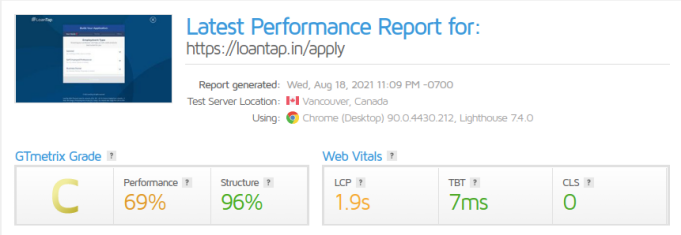
A web page optimized for CLS score of 0
CLS metric is the first step to make websites more visually stable. It’s evolving and in the coming years, based on data analysis it would tell us more about its impact on User Experience.


