


You’ve worked hard to get your website where it is today.
The traffic didn’t come overnight. The rankings took months, or sometimes years of consistent effort. And now you’re considering a move to WordPress.
But something’s holding you back – What if the migration wipes out all of that?
You’re not the only one to think so…
Most businesses that come to us with migration plans have the same worries:
- What happens to all my URLs? Will Google lose track of my pages?
- My top-ranking pages took forever to get there. What if they disappear from search results?
- I have no idea if my metadata and page structure will carry over.
- I’ve heard of websites losing more than half their traffic after a migration. What if that happens to me?
These are real risks because we can’t deny they’ve tripped up businesses before.
The truth is, most SEO losses during a migration come down to a few avoidable mistakes.
- Missing redirects.
- High-value pages accidentally removed during a redesign.
- A site structure that search engines can no longer read properly.
Here’s the other truth: none of that has to happen to you.
When a migration is planned carefully with SEO at the center of every decision, search engines can follow along without losing a beat. Your rankings, authority, and traffic don’t have to go anywhere.
In fact, a well-executed WordPress migration often ends up improving SEO performance most of the time
Better site structure. Faster load times. More control over your content.
So how do you make sure a migration goes the right way?
We’ll walk you through every phase to show you what we do before the migration, during it, and after your new WordPress site goes live. And at the end, we’ll share our simple checklist that makes sure nothing gets missed
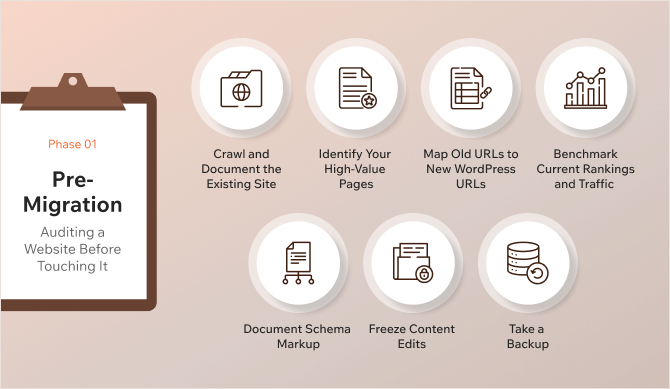
Phase 1: Pre-Migration – Auditing a Website Before Touching It
People often jump straight into building the new WordPress site.
Pages get restructured. URLs get changed. Old content gets left behind. And by the time the new site goes live, there’s no record of what the old one looked like.
That’s how rankings disappear.
Therefore, it’s important to have a clear picture of what you have in the beginning – what’s live, what’s ranking, and what Google is paying attention to on your current site.
Here’s what to do.
Crawl and Document the Existing Site
Every page that exists today needs to be accounted for in the new site.
Therefore, saving up a complete list of every URL along with the data attached to each one, like the title tags, meta descriptions, heading structures, internal links, canonical tags, and status codes is a good idea.
This can be done using tools like Screaming Frog or Sitebulb that crawl every page.
Other things that can be covered up here are:
Recording all on-page SEO elements
Every page on a website has SEO signals like Title tags, Meta descriptions, Headings, Image alt text, and Canonical tags attached to it. Google uses these to understand what each page is about and how to rank it.
It is important to carry them over so Google doesn’t have to start figuring things out from scratch again. It’ll save time and avoid drastic drops in rankings.
This also means going through the high-value pages and recording every element is important. The crawl data export we mentioned above will help here.
Taking stock of the content
Not everything on your current website will need to be moved. Therefore, it’s important to go through the existing content with fresh eyes.
You won’t want to move the following:
- Old blog posts with outdated information.
- Landing pages for campaigns that ended two years ago.
- Thin pages that were never bringing in traffic.
When you decide you don’t need them, pages can’t just be removed. We will need to check if a page has backlinks pointing to it or any organic traffic that comes over. Removing it without a redirect means losing that SEO value entirely.
For every page you decide to remove, you need a plan – either redirect it to the most relevant page on the new site, or serve a proper 410 (gone) status to tell Google the page no longer exists.
Managing the Hreflang tags for multilingual websites
If your current website serves visitors in more than one language, you likely have hreflang tags that tell Google which version of a page to show to users in different countries or languages.
Before migrating to WordPress, these tags need to be documented carefully and rebuilt correctly on the new WordPress site. If they break during the migration, Google may start showing the wrong language version of your pages to the wrong users, and that affects rankings.
Identify Your High-Value Pages
Not all pages on the website are equally important.
Some pages bring in most of your traffic, some rank for the keywords, some have earned backlinks from other websites. Those links carry real authority.
Therefore, it is important to sort and prioritize pages you cannot afford to lose during migration.
This is where we can pull data from Google Search Console and Google Analytics and look for
- Pages with the highest organic traffic
- Pages ranking for your most important keywords, pages with the strongest backlink profiles
- Pages that drive enquiries or sales
Map Old URLs to New WordPress URLs
You don’t want broken links confusing crawlers, resulting in low rankings. Mapping URLs is one step that prevents more SEO damage than the rest.
Every migration comes with a few, if not many, URL changes. It is important to know which old URL maps to which new one.
That’s why building a simple spreadsheet listing the Old URL, New URL, and Priority will help.
This document drives your redirect setup. Without it, URLs are most likely to get missed.
While everyone focuses on pages here, URLs pointing to images, PDF files, media files, etc. also have to be considered. You won’t want to lose your position if images from your website are ranking.
Benchmark Current Rankings and Traffic
Before the migration, it is important to make a note of the current position of the website. To do so, we need to:
- Export keyword rankings and performance data from Google Search Console, Ahrefs, or Semrush.
- Note monthly organic traffic.
- Record where the top pages sit in search results today.
This gives a measurable reference to be compared with that of the new site. If anything drops after the migration, it’ll be easier to respond quickly, as this data will help track what went wrong.
Document Schema Markup
Schema markup helps Google display rich results in search, like star ratings, FAQs, or article details. These are easy to overlook during a migration, and losing them can affect how pages appear in search results even if rankings stay the same.
If a current site uses structured data like Organization, Service, Author Review, FAQ schema, breadcrumb schema, or review schema, these have to be noted down and rebuilt on WordPress.
Google’s Rich Results Test helps check which pages have schema in place and what type.
Freeze Content Edits
New pages, updated copy, or restructured navigation can create discrepancies between the audit data and the actual site by the time migration begins.
Any changes to the live site have to be paused once the pre-migration audit is underway.
A content freeze keeps the reference data accurate. It also means there’s less chance of something slipping through the gaps during the move.
Take a Backup
If something goes wrong during the migration, a clean backup means the old site can be restored to start over again without losing anything.
Therefore, it is important to take a full backup of the current site before anything changes on the technical side. This means – the database, files, .htaccess configuration, etc.
You can read more about the best backup and restore WordPress plugins.
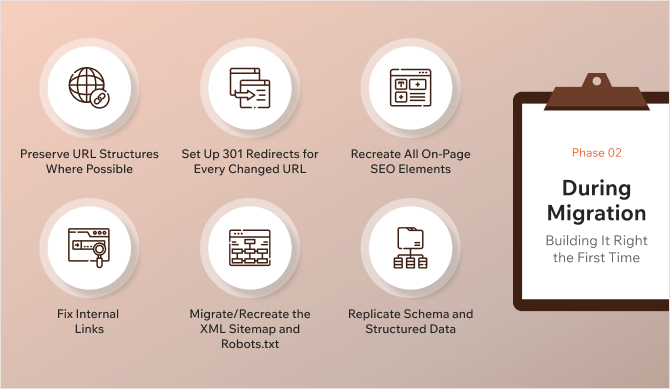
Phase 2: During Migration – Building It Right the First Time
The audit is done. The groundwork is in place.
Now comes the part where most SEO damage can actually happen. That’s because most often people get busy focusing on the look and feel rather than the technical details.
The second phase is about making sure everything that’s documented in Phase 1 makes it across to the new WordPress site.
Preserve URL Structures Where Possible
A URL that already works, ranks, has backlinks, and brings in traffic is best left as it is.
WordPress lets us set custom permalink structures. So in many cases we can match what was there before.
The fewer URLs are changed, the fewer redirects need to be set up. And the fewer redirects, the less room there is for something to go wrong.
URLs should only be changed if there’s a good reason to do so. If it does not need to change, it should be added to the URL mapping document before the new site goes live.
Set Up 301 Redirects for Every Changed URL
A 301 redirect tells Google that a page has permanently moved to a new address. It passes the ranking authority from the old URL to the new one. Without it, anyone or any search engine visiting the old URL hits a dead end.
Therefore, it’s important to go through the URL mapping document and set up a redirect for every single URL (including pages, images, media files, etc.) that has changed.
While in this step, there’ll be a couple of instances to watch out for:
- Redirect chains: This is when Page A redirects to Page B, which redirects to Page C. Each redirect dilutes the SEO value being passed. Such instances need to collapse so the old URL points directly to the final destination.
- Redirect loops: This is when Page A redirects to Page B, which redirects back to Page A. It breaks the page entirely. These have to be identified before the site goes live.
Redirects can be managed through the .htaccess file or a WordPress plugin like Redirection.
Recreate All On-Page SEO Elements
The best way to recreate on-page SEO elements on a WordPress website is to use an SEO plugin like Yoast SEO or Rank Math.
Once the plugin is installed, every title tag, meta description, heading structure, and image alt text needs to be in place on the new site before it goes live. This might require a manual check to ensure everything is in place—especially for the high-value pages on the website.
Some page builders and WordPress themes generate their own headings automatically sometimes. This can conflict with or override what is being set. Therefore, a manual check will also help in identifying pages with duplicate H1s (if at all).
Fix Internal Links
Internal links on a website ease navigation. Every link inside the website that points to an old URL needs to be updated.
If there are 301 redirects, visitors will still get to the right place. But internal links going through redirects put unnecessary load on the server and weaken the flow of SEO value through the site. Google also prefers to follow direct links, not chains.
The cleanest way to fix this is a database-level search and replace. A plugin like WP Migrate or Better Search Replace helps to swap out old URLs for new ones across the entire WordPress database in one go.
After that, it’s important to run a crawl of the new site and check that no internal links are returning errors or going through redirects. Every internal link should point directly to a live page.
Migrate/Recreate the XML Sitemap and Robots.txt
The XML Sitemap and Robot.txt files tell search engines where to go and where not to.
- XML Sitemap: The sitemap is a list of all the pages Google should index. Once the WordPress site is built, a fresh sitemap can be generated using the SEO plugin. It’s important to make sure it only lists pages that actually need to be indexed, and that no old URLs have crept in. The XML Sitemap has to be submitted to Google Search Console once the site goes live.
- Robots.txt: This file tells search engines which parts of the site they’re allowed to crawl. During development and testing, it’s common practice to block search engines from crawling the staging site. If that block doesn’t get removed before the site goes live, Google can’t crawl any of it. Rankings drop fast. It’s important to double-check the robots.txt file before launch. There should be no Disallow: / rule sitting in there.
Replicate Schema and Structured Data
If the old website has some schema markup implemented, it is important to bring it over to the new WordPress website.
Without schema markups, it becomes difficult for search engines to understand the context of the website, and the site will lose its visual enhancements in search results (like Organization, Person, Service, Professional service, star ratings, or FAQs), which drastically decreases click-through rates.
Schema markup is easy to overlook during a migration because it doesn’t change how the site looks. But it changes how Google reads it.
Most SEO plugins handle common schema types. For more specific or custom schema, adding a JSON-LD code manually to the relevant pages helps. Schema Validator and Google’s Rich Results Test help confirm everything is valid and being picked up correctly once the schema is implemented on the new website.
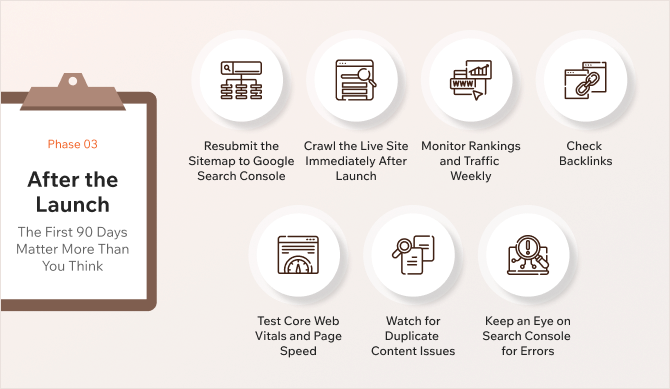
Phase 3: After the Launch – The First 90 Days Matter More Than You Think
By the time you reach here, the new WordPress site is live. The hard work is done.
But the first 30 to 90 days after a migration could see some problems surface.
Google is re-crawling the site, re-evaluating pages, and deciding how to treat the new URL structure. If something went wrong during the migration, this is when it’ll be highlighted.
The good news: if issues are caught early, they can be fixed before they do the real damage.
Here’s what to stay on top of…
Resubmit the Sitemap to Google Search Console
The first thing to do after the new site goes live is to resubmit the sitemap to the Google Search Console.
This can be done by logging in to the Google Search Console, going to the Sitemaps section, and submitting a new XML sitemap. This tells Google exactly where the pages are and prompts it to start crawling the new site.
If the domain changed during the migration, the new domain has to be added and verified as a property in the Search Console before submitting anything.
Crawl the Live Site Immediately After Launch
To ensure problems (if any) are caught before Google does, it is important to run a full crawl of the new site as soon as it goes live.
Things to look for in this crawl are:
- Pages returning 404 errors that Google will try to visit and find nothing at.
- Redirect chains that need to be collapsed.
- No pages should be accidentally blocked in the robots.txt.
- Missing title tags, duplicate meta descriptions, or pages without H1 headings.
- Pages showing up in Crawled – currently not indexed
Compare this crawl against the one in Phase 1. Every page that existed before should either be live on the new site or have a redirect in place. If something is missing, it needs to be fixed now.
Monitor Rankings and Traffic Weekly
In the first few weeks after migration, small fluctuations are normal. Google takes time to process the changes and re-index pages.
This is where it is important to pull up the benchmark data recorded before the migration and start comparing.
A minor dip in traffic or a few positions lost on certain keywords is okay. If a high-value page that was sitting on page one has disappeared from the first three pages, that’s a signal something went wrong.
Things to be checked in this case are:
- Whether the redirects are in place
- Whether the on-page SEO elements are there
- Whether Google has indexed the new URL
The faster a problem is found, the faster things can be fixed. This is why monitoring rankings is important.
Check Backlinks
Backlinks pointing to old URLs are only useful if those URLs redirect correctly to the new ones. That’s why the steps to map URLs and set up 301 redirects are important.
Tools like Ahrefs, SEMrush, or Google Search Console’s Links report help to check which external sites are linking to the website and where those links are landing. If any of these are hitting 404 pages, it means a redirect was missed.
Every backlink that lands on a dead page is a loss. So, it is important to fix them.
Test Core Web Vitals and Page Speed
Moving to a new WordPress setup can change how quickly the pages load.
Testing core vitals can be done using the Search Console and the page speed can be checked using the Google PageSpeed Insights.
If performance has dropped, understanding what’s causing it will help fix it soon. A heavy theme, too many plugins, unoptimized images, or a lack of caching can all slow a WordPress site. These are fixable but need to be caught early because page speed is a ranking factor.
Watch for Duplicate Content Issues
WordPress, by default, can create multiple versions of the same content. Pages like Category pages, tag archives, author pages, and pagination can all generate URLs that contain similar or identical content.
If Google indexes multiple versions of the same page, it has to decide which one to rank. It often gets this wrong or splits the ranking value between them. It’s important to keep an eye on the Search Console coverage report for pages being indexed.
Canonical tags can be used to point Google to the preferred version of each page, and no-index settings can be applied to archive pages or thin content that shouldn’t be shown in search results.
Keep an Eye on Search Console for Errors
Search Console will show how Google sees the site in real time. This needs to be looked at at least once a week for the first three months.
- The Coverage report will flag pages that couldn’t be indexed and tell why.
- The Performance report will show whether the clicks and impressions are trending in the right direction.
- The Enhancements section will highlight any issues with the schema markup or Core Web Vitals.
An early fix here will help maintain and manage the website rankings.
Most post-migration issues are fixable. The ones that cause lasting damage are the ones that go unnoticed for weeks or months.
The Upside: What WordPress Now Makes Possible
If you are still having second thoughts about moving to WordPress, here’s something worth stepping back to appreciate: After moving to WordPress, you’re not just in the same position you were before. You’re in a better one.
WordPress gives a level of control over SEO that most other platforms don’t. And once the website is on it, here’s what can be put to use:
- SEO plugins that do the heavy lifting: Plugins like Yoast SEO and Rank Math give real-time SEO feedback, like flagging missing meta descriptions, weak titles, and keyword issues before anything goes live.
- Schema markup without the headaches: Most SEO plugins handle structured data like articles, FAQs, breadcrumbs, and more without touching a line of code.
- Full control over the site structure: WordPress gives full control over the site structure – the navigation, category hierarchy, and internal linking. This makes sure Google always knows which pages matter most.
- Page speed that can actually improve: Caching plugins like WP Rocket and W3 Total Cache can significantly reduce load times. A faster site means better rankings.
- A content system built for growth: WordPress makes it easy to organize, publish, and maintain content consistently.
Moving to WordPress need not just be a survival but an upgrade if done the right way!
In the Closing – Migrate With a Plan, Not With Hope
A WordPress migration is not a threat to your SEO. An unplanned one is.
The difference between businesses that come out of a migration with rankings intact and those that don’t most of the time comes down to one thing – the preparation.
The consequences of getting it wrong are real.
In October 2024, Beroe Inc. migrated their website to a new platform expecting better traffic, more leads, and stronger performance. The outcome was the opposite. A poorly handled migration led to an approximately 80% drop in website traffic and lead generation. Years of organic growth, gone in weeks.
That’s not a worst-case scenario. That’s what happens when a migration is treated as a design project instead of an SEO-critical one.
This shouldn’t always be the case.
Every step listed above will help prevent that outcome. When each of the phases, like the audit, the redirects, the on-page checks, and the post-launch monitoring, is followed carefully, search engines move with the site instead of losing track of it, things fall in place.
Done right, a WordPress migration doesn’t just protect your SEO. It gives you a better foundation to grow from.
Need a seamless SEO-safe WordPress migration? Get in touch with our team to plan your move the right way.
Published on Jun 9, 2026 | Updated on Jul 16, 2026