

Insights, ideas and inspiration. A go to wisdom hub right here.
Featured Posts
Tutorials
7 Min Read
Latest Posts
WordPress
12 min read
The Ultimate Guide for WordPress Website Maintenance
Introduction
Developing a WordPress website is not the end of the task. Maintaining the developed site is crucial as it enhances the website's performance, ensures website security, maintains SEO rankings, and much more. A maintained website is a healthy website! In this blog post, you will get to know how to maintain your website and, at the same time, why you should do it.Crucial WordPress maintenance tasks to perform regularly
The following points describe each task in detail that is to be performed to maintain a website:1. Regular Backups
Whether your WordPress website is a small blog or a large eCommerce site, having a backup is essential. A backup is a saved copy of your website's data, including all the files and database. With regular backups, you can restore your site quickly if anything goes wrong.Importance of backing up your website
Backups are like insurance for your website. Here's why they are crucial:- Protection Against Data Loss: From server crashes to hacking attempts to simple human errors, various events can lead to data loss. Regular backups ensure that you can restore all your data, minimizing the impact of these events.
- Ease of Recovery: Backups allow you to recover quickly from any problem, whether it's a simple issue like a deleted post or a major one like a site crash. With a recent backup, you can get your website back to normal in no time.
- Protection Against Updates: Sometimes, updates to WordPress, themes, or plugins can lead to conflicts or errors. Having a backup means you can revert your website to its previous state if needed.
Tools and Plugins for Backups
There are several tools and plugins available that make backing up your WordPress website straightforward and convenient. Refer to our article about the best backup and restore plugins to know which backup plugin to choose for your website.Recommended Backup Frequency
The frequency of backups should align with how often you update your website. If you post daily, you should backup daily. If you update weekly, a weekly backup should suffice. However, for critical websites like eCommerce sites, where transactions occur continuously, real-time backups are recommended. Moreover, it's crucial to store your backups in multiple locations. For example, you could keep one copy on your local system and another in cloud storage. This redundancy adds an extra layer of protection.2. WordPress Updates
Developers frequently issue updates to the WordPress core, themes, and plugins. Updates like this are essential to keeping your website running smoothly and securely since they solve bugs, boost performance, and address security concerns. The importance of keeping your WordPress ecosystem updated cannot be overstated:- Security: Each new update patches vulnerabilities that could potentially be exploited by hackers. With roughly 90% of WordPress vulnerabilities attributed to plugins and themes, keeping them updated is crucial.
- Bug Fixes: Updates often fix bugs or glitches in previous versions, improving your site's performance and stability.
- New Features: Updates usually come with new features or enhancements that can boost your site's functionality and user experience.
- Compatibility: Updates ensure that the WordPress core, your themes, and plugins all work harmoniously together. This compatibility is key to preventing errors and site crashes.
Safely Updating WordPress, Themes and Plugins
While updates are essential, they should be performed correctly to avoid potential conflicts or issues:- Backup Your Website: Before updating anything, ensure you have a recent backup of your site. This gives you a safety net to revert to if something goes wrong.
- Update in Stages: Begin with updating your plugins, followed by your themes, and finally the WordPress core. This order helps avoid compatibility issues.
- Read the Changelog: Before updating, check the changelog for any significant changes that might affect your site.
Importance of Staging Environment while Updating
A staging environment is a clone of your live website where you can test updates without affecting your live site. This can be crucial for preventing update-induced issues on your website:- Test Compatibility: You can test updates in the staging environment to ensure they don't conflict with other elements of your site.
- Debugging: If there are issues post-update, you can identify and resolve them in the staging environment without affecting your live site.
- Experiment Without Fear: In a staging environment, you can freely explore and understand updates without the fear of breaking your site.
Frequency of Updates
The frequency of WordPress updates largely depends on when the updates are released by the WordPress team or the creators of the plugins and themes. WordPress Core Updates: Major WordPress core updates are typically released every few months. It's recommended to apply these updates soon after they are released, as they often include important features, enhancements, and security patches. Theme and Plugin Updates: These can happen more frequently, depending on the developers. It's also recommended to apply these updates soon after their release, as they can include security fixes and new features.3. Security Checks
A security check is like a health check-up for your website. It helps identify potential vulnerabilities, malware, and signs of unauthorized access or tampering. By regularly performing security checks, you can take prompt action to mitigate threats and protect your website. Regular security scans offer several advantages:- Identifying Vulnerabilities: Regular scans can detect security vulnerabilities before they are exploited, allowing you to fix them proactively.
- Detecting Malware: Scans can identify hidden malware that could be siphoning off your data or disrupting your site.
- Maintaining User Trust: By ensuring your site is secure, you can maintain the trust of your users and protect their data.
Plugins for Security Check
Security checks can be easily done by certain plugins. Yes, it is that easy! Refer to our article on the best WordPress Security Plugins to understand how to choose the best security plugins for your website.Understanding and Managing Security Reports
The results of security scans are often documented in reports generated by security software. Data on vulnerabilities, viruses, and suspicious activity may be included in these reports. Understanding these reports is crucial for taking appropriate action. It's advisable to familiarize yourself with the terminology and formats used in these reports and consult an expert if needed.What to do when a security issue is Detected
If your security scans detect an issue, take the following steps:- Verify the Issue: False positives can occur. Verify the issue independently or consult an expert.
- Isolate the Affected Component: If possible, isolate the affected part of your site to prevent the issue from spreading.
- Resolve the Issue: Use the security tool’s remediation suggestions, or work with a security expert to resolve the issue.
- Update and Strengthen Security: Update your WordPress core, themes, and plugins, and strengthen your security measures to prevent future issues.
Frequency of Security Checks
The frequency of security checks can depend on various factors, such as the nature of your website, the volume of traffic, and the sensitivity of the data you handle. However, a good rule of thumb is to conduct a security check at least once a week. For high-risk environments, real-time monitoring may be more appropriate.4. Database Optimization
A WordPress database stores everything that makes up your website. This includes posts, pages, comments, settings, and plugin data. Over time, this data becomes bloated with unnecessary information, slowing down your site.Optimizing Database
Optimizing your database involves removing unnecessary data, and here are the key steps to achieve this:- Deleting Revisions: WordPress saves every draft and revision of your posts. While this feature is useful, it can generate a lot of data that bloats your database. Regularly deleting old revisions can keep your database lean.
- Cleaning Transient Data: Transient data is temporary data stored by WordPress to speed up your website. However, not all transient data gets deleted when it's no longer needed, leading to unnecessary data in your database. Regularly cleaning up this data can help optimize your database.
Plugins for Database Optimization
There are numerous plugins that can assist you in database optimization. Some of them include: WP-DBManager, WPOptimize, Advanced Database Cleaner, and much more. These plugins automate database cleaning tasks, saving time while ensuring regular optimization. Additionally, they manage storage space effectively, contribute to site stability, and simplify site migration. Always remember to back up your database before running an optimization to avoid irreversible changes.Frequency of Database Optimization
The frequency of database optimization can depend on how often you update your site. If you frequently add or update content, you may want to optimize your database once a month. If your site is not updated regularly, a quarterly optimization might suffice. However, these are general guidelines, and the optimal frequency can vary based on your specific website's needs.5. Broken Link Check
Broken links are links that, when clicked, lead nowhere or display a 404 error page. This could be due to the linked page being moved, deleted, or the URL being updated.Identifying and Fixing Broken Links
Identifying broken links can be a manual or automated process. Manually, you would click on each link on your site to see if it led to a valid page. To fix a broken link, you either need to update the URL if it's incorrect, replace it with a new, relevant link, or remove it entirely. However, manually checking every link can be time-consuming for larger websites. That's where automated tools come in.Plugins and Tools for Checking Broken Links
Broken Link checking can be simplified by the use of various available plugins, such as Broken Link Checker and Screaming Frog (tool). These tools not only save you time, but they can also detect broken links that might not be immediately visible or accessible.Frequency of Checking Broken Link
The frequency of checking for broken links largely depends on how often you update your site and the size of your website. If you regularly add new content or modify existing content, bi-weekly checks may be advisable. For smaller, more static sites, monthly checks might be sufficient.6. Performance Monitoring
The performance of a website is measured by how quickly pages load, how quickly the site navigates, and whether or not all of the site's elements work as they should. Problems including poor load times, page problems, and unresponsive functionality can be identified with regular monitoring.Tools & Plugins For Performance Monitoring
There are several tools and plugins that can help you monitor the performance of your website. These include GTMetrix, Google PageSpeed Insights, and others. These tools provide comprehensive reports on various aspects of your site's performance, allowing you to target areas for improvement.Analyzing Performance Reports and Taking Action
At first, performance reviews can seem hard to understand, but with experience, they become easier to understand. They generally give a performance score and explain what is affecting that number. For instance, if your server takes a long time to respond, it could mean that you need better hosting. Large pictures might slow down page loads, so you might want to compress the images on your site. Once you know what problems are slowing down your site, you can take steps to fix them or ask for help if you need to.Frequency of Performance Monitoring
The frequency of performance monitoring depends on the nature of your website. High-traffic websites or websites that are frequently updated with new content should ideally monitor performance monthly. Smaller or more static websites can get by with monthly checks. However, any significant change or update to your site should be followed by a performance check to ensure everything is running smoothly.7. SEO Audit
An SEO audit is a thorough examination of your website from an SEO perspective. It identifies strengths, weaknesses, and potential enhancements to improve search engine rankings. An SEO audit is crucial because it:- Point out technical glitches affecting your visibility on search engines.
- Help you understand if your site isn’t getting the attention it deserves and why.
- Offer you insights to tweak your SEO game, helping your website rank better and attract more visitors.
Key Components of SEO Audit
An SEO audit has a few key parts:- Site Structure: This looks at whether search engines can easily understand and navigate your site.
- On-page SEO: Here you check things like title tags, meta descriptions, keyword use, the quality of your content, and how you're linking between pages on your site.
- Backlinks: You’ll also want to see who’s linking back to your site and ensure these links are of high quality.
Plugins for SEO Audit
There are various plugins that will help you perform an SEO Audit. Refer to our article on the Best SEO Plugins to understand and choose the plugins that suit your needs.Frequency of SEO Audit
How often should you do an audit of your SEO? That depends. If your website is always growing and changing, you should do an audit once every three months. If you don't post much content on your website, or don’t have a stable SEO strategy in place, you might only need a check-up once a year. And if you've made big changes to your site, you should do an SEO check right away to make sure everything is still in order.8. Regular Content Review and Update
Keeping your website's content up to date is a continuous job. It's a process that you do over and over again. It means making sure that what you have to offer is still useful to your audience and is up to date. Keeping your website's content fresh and relevant is essential because:- It improves SEO: Search engines love fresh content. Regularly updating your website can help improve your rankings.
- It increases user engagement: Users are more likely to return to your website if they find new and interesting content.
- It strengthens your brand’s credibility: Keeping your content current and relevant showcases your brand as a trusted and authoritative source of information in your field.
How to Keep your Content Fresh?
Here are some ways you can keep your content fresh:- Regularly review your content: Set aside time each month to review and refresh your content.
- Update statistics and data: Make sure that all your facts and figures are current.
- Refresh your images and multimedia: Visual content can become dated too. Regularly update your images, videos, and graphics.
Tracking Content Performance
To make informed decisions about updating content, you need to track its performance. Tools like Google Analytics can provide insights into which pages are performing well and which ones need improvement. Look for pages with high bounce rates or low time-on-page metrics; these are likely candidates for an update.Frequency of Content Update
The frequency of content updates depends on your industry, the nature of your content, and how often you publish new material. As a rule of thumb, you should review your content at least once a quarter, but high-traffic pages may need monthly reviews.Conclusion
We hope you have understood the importance of maintaining your website. Consider it a to do list for the success of your website. Each of these tasks mentioned in the blog are contributing factors for a safe, secure, and successfully running website.
WordPress
9 min read
Your WordPress website needs a retainer. Here is why!
Introduction
Starting and running a small or medium-sized business can be quite challenging. In today's digital age, having a WordPress website is essential for showcasing your products and services to your target audience. However, once the website is up and running, what's next? This is where WordPress retainers come in. WPoets WordPress retainers are an effective solution that provides SMEs with ongoing WordPress website support. With customized website solutions and regular security updates, it ensures the long-term success of your website. In this blog, we'll talk about how important WordPress Retainers are and how they can help you be successful in the long run.What are WordPress Retainers?
With WordPress retainers, you will have access to an expert WordPress team, ensuring continuous assistance ranging from regular updates to immediate troubleshooting during emergencies. WordPress is a powerful CMS, but it can be open to security breaches, downtime, and other problems if it isn't taken care of properly. The services offered typically range from maintenance (such as regular backups, updates, and security scans) to technical support (which involves troubleshooting and fixing any problems that may arise) to custom functionality development. The following are the key components that are typically included in a WordPress retainer:1. Development hours
 A key part of retainers is the number of hours spent on custom development. These hours are dedicated to adding custom features to the website that go above and beyond what WordPress already offers. It means building features on top of the website as per the business's needs.
The Wordpress Retainers offered by us include custom development hours that can be used for the following activities:
A key part of retainers is the number of hours spent on custom development. These hours are dedicated to adding custom features to the website that go above and beyond what WordPress already offers. It means building features on top of the website as per the business's needs.
The Wordpress Retainers offered by us include custom development hours that can be used for the following activities:
For custom functionality on the website
Custom functionality means features and functions that are made just for a website and aren't offered in standard WordPress themes or plugins. These unique features can differ based on what the website needs and what the business wants to achieve. The customization may include developing a custom CRM or RFQ system, a job portal, or maybe a portal to streamline your business processes.Third-party integrations
Third-party integrations of payment gateways, social media platforms, marketing automation tools, CRM systems, and other external services can be integrated with the WordPress website. The custom development hours will be used to integrate these services into your website.Creation of landing pages
The expert team here will design and develop landing pages that match your brand guidelines, which improves the user experience and thus boosts conversions. These landing pages could be for your social media campaigns on Facebook, Twitter, LinkedIn, and Instagram, or for your email marketing campaigns, or for your next tradeshow, conference, product launch, workshop, or seminar.Internal Web Page Development
Internal web pages for products, services, awards, and achievements, or any custom webpage for that matter, can be developed and optimized using development hours.Newsletters Development
Development hours can be used to create email templates that match the website's branding and are responsive across devices and email clients.2. UI/UX design
 UI/UX design is an important part of WordPress retainers. It involves creating interfaces that are both visually appealing and easy to use in order to improve the total user experience. It's the first phase before developing the website, where we create low-fidelity wireframes and then high-fidelity web page concepts using tools like Figma, Adobe XD, and many others.
Homepage Design
The homepage sets the tone for the entire website. An effective homepage design has a clear navigation menu, compelling imagery, concise content, and critical call-to-action features. It attracts visitors, makes relevant information easy to find, and guides them through the website. Based on the feedback from users, website analytics tools, user journey tools, and heatmap tools, the homepage should be continuously improved so that it is best optimized for conversions.Internal Landing Page Designs
Landing pages' main purpose is lead generation. A focused, campaign-aligned landing page maximizes conversions. The design engages visitors, communicates the value proposition, and motivates action. A Retainer plan takes care of everything on your website’s landing page.Any Web Page Design Concept
Website design involves coordinating text, color, graphics, and layout. A consistent design approach keeps the website professional, boosts brand recognition, and improves the user experience. This includes creating attractive, easy-to-use headers, banners, footers, navigation menus, sidebars, and content layouts for a web page.3. Graphics Design
 While WordPress Retainers do most of your job, graphic design is often left out. Don’t fret! We got you covered! Most WordPress retainer offerings don’t include graphics design, but we do.
The following graphic design activities can be done as per your needs,
While WordPress Retainers do most of your job, graphic design is often left out. Don’t fret! We got you covered! Most WordPress retainer offerings don’t include graphics design, but we do.
The following graphic design activities can be done as per your needs,
Images for Social Media Ads
Visually attractive creatives for advertising campaigns are vital for attracting and engaging the target audience. Images for social media platforms such as Facebook, Instagram, LinkedIn, and Twitter can be created to effectively communicate the intended message and encourage user interaction.Images for Social Media
SMEs often need images created to share them on social media. Images required for festivals, events, company updates, or any image for the social media calendar are included in the WordPress retainers. These images should be carefully crafted to fit the requirements.Icons for website
A well-designed set of icons may do wonders for the usability of a website or app. Custom icons can match the website's branding, aid navigation, or emphasize crucial features. These design icons should be visually uniform, instantly recognizable, and aesthetically pleasing.Images for website
Images play an important role in web design because of their ability to convey information, inspire emotion, and improve a website's aesthetics. We will create or find high-quality images that fit the site's design, content, and audience. Images will be carefully selected and edited for optimized web performance, reduced load times, and consistent appearances. These images could be featured images for blog posts, post content images, images for the homepage, landing pages, internal web pages, images for banners and sliders, or any images that are required for the website.Landing Page Graphics
Landing pages need eye-catching images to increase conversions. These graphics should match the content and goals. All the images required for the landing pages—banners, CTAs, infographics, or any other images—are covered. These images will convey the value offered and boost conversions.Email Newsletter Templates
Email marketing is a powerful tool for engaging with subscribers and driving conversions. Retainers include the design of brand-appropriate email newsletter templates. The newsletters will be designed as per your requirements. It could be for sending out weekly, or monthly newsletters, sending company updates to your team, or running any marketing campaigns for your products and services. These templates are optimized for email clients and devices, ensuring consistent branding and a visually appealing experience for subscribers.4. Technical Support and Maintenance
 Technical support and monthly maintenance are included in a WordPress retainer. This includes troubleshooting, bug fixes, software upgrades, security patches, plugin, and theme updates (to keep the website secure, reliable, and compliant with the newest WordPress version), and much more.
Plugin Management
WordPress plugins enhance website functionality and design. Updates can conflict and make managing these components difficult. Our WordPress experts will update or upgrade plugins regularly for performance and security.Security and Backup Solutions
It is a priority for any business to secure their website. Ongoing security measures protect the website from various possible threats. Implementing security plugins, monitoring for vulnerabilities, and fixing any issues quickly are all provided by our WordPress experts. Regular website data backups provide a recovery point in case of data loss or unexpected events.Performance Optimization
A website's speed and performance are crucial factors that define the user experience, and they also have an impact on search engine rankings. Specialists will analyze the website's performance, suggest areas for improvement, and apply ways to improve speed and performance. Optimizing code, implementing caching, image optimization, minimizing server response speed, and various other techniques are implemented for performance optimizations.Content Updates and Publishing
Websites need regular content updates to be fresh and engaging. The team will publish blogs or articles, case studies, success stories, or whitepapers and will update them as needed. Also, any content changes to the website pages such as the homepage, about us, products, and services, or any pages including landing pages are covered. Managing all the content on the website will be done by our team. The SMEs can focus on developing valuable content while experts handle content management.The Need for WordPress Retainers for

Continual Improvement of your Website
Any business website has a scope of work that is always changing and expanding. Your site will be updated and upgraded as per your needs on a regular basis, keeping it current and in step with your business's development. Your website's success and user satisfaction will both increase thanks to its continuous enhancements.Regular Maintenance of the Website
Regular maintenance checks, security scans, and updates protect the health and safety of your website. This proactive method can prevent problems, giving your company’s digital presence a strong line of defense.Eases your Financial Planning
Uncertainty about finances can be a big problem for any business. Unexpected costs can be a problem, especially if they are for important tasks like managing a website. A WordPress retainer gives you a set monthly cost for website services. Our pricing is transparent. This makes it easier for SMEs to budget, eliminates unexpected costs, and makes your finances more stable.Priority of Service
Most of the time, SME clients that opt for a WordPress Retainer will get priority service. This means that your requests are dealt with quickly, which cuts down on downtime and possible losses. In a business world where competition is high, the speed and ease of priority service can be a big advantage.Enhanced Security Services
Regular security updates are crucial for businesses, as they are more susceptible to cyber threats. It helps strengthen the website's security by providing regular patches and timely updates. It includes malware scanning and removal, SSL certificate installation, and backup and restore services. You can prioritize security without worrying about the technical aspects.Helps Focus on the core business
With a reliable partner taking care of your WordPress site, your team can focus on what it does best: brainstorming new ideas, building new strategies, and growing the business. For businesses, outsourcing website management can be a game-changer in terms of operational efficiency.Expert Support
One of the best things about WordPress retainers is that they give you access to a team of experts. These experts offer advice, help with problems, and solutions that are made to fit the needs of your SME. Their knowledge helps you improve the speed, functionality, and user experience of your website.Conclusion
WordPress retainers are a key part of making sure that SME websites keep getting better and doing well. SMEs can now focus on their core business activities while getting expert help and reliable website management. WPoets WordPress retainers give you the peace of mind you need to thrive in the digital world, from regular updates and maintenance to better protection and priority support. To discuss more about our retainer plans, please connect with our WordPress expert team.
WordPress
8 min read
Happy Birthday, WordPress! Celebrating the 20th anniversary and WPoets Town Hall 2.0
Pre-planning
Almost one month before the date, HR announced to the entire WPoets team in the weekly meeting that we are celebrating big this year. She asked the team members to volunteer for the event preparations. The organizing team was decided, and HR, along with a few senior team members, started to plan the flow for the event.Hashtag competition
With the trending era of hashtags on social media, we decided to craft a hashtag for our event too. We circulated among the team that there would be a hashtag competition. Whoever comes up with the best hashtag will be used for the event. The team started to contemplate various combinations of hashtags and gradually started submitting their word fusions to HR. The organizing team decided to announce the winner a couple of weeks before the event. So that everyone would start trending the hashtag on social media.WordPress milestones gallery
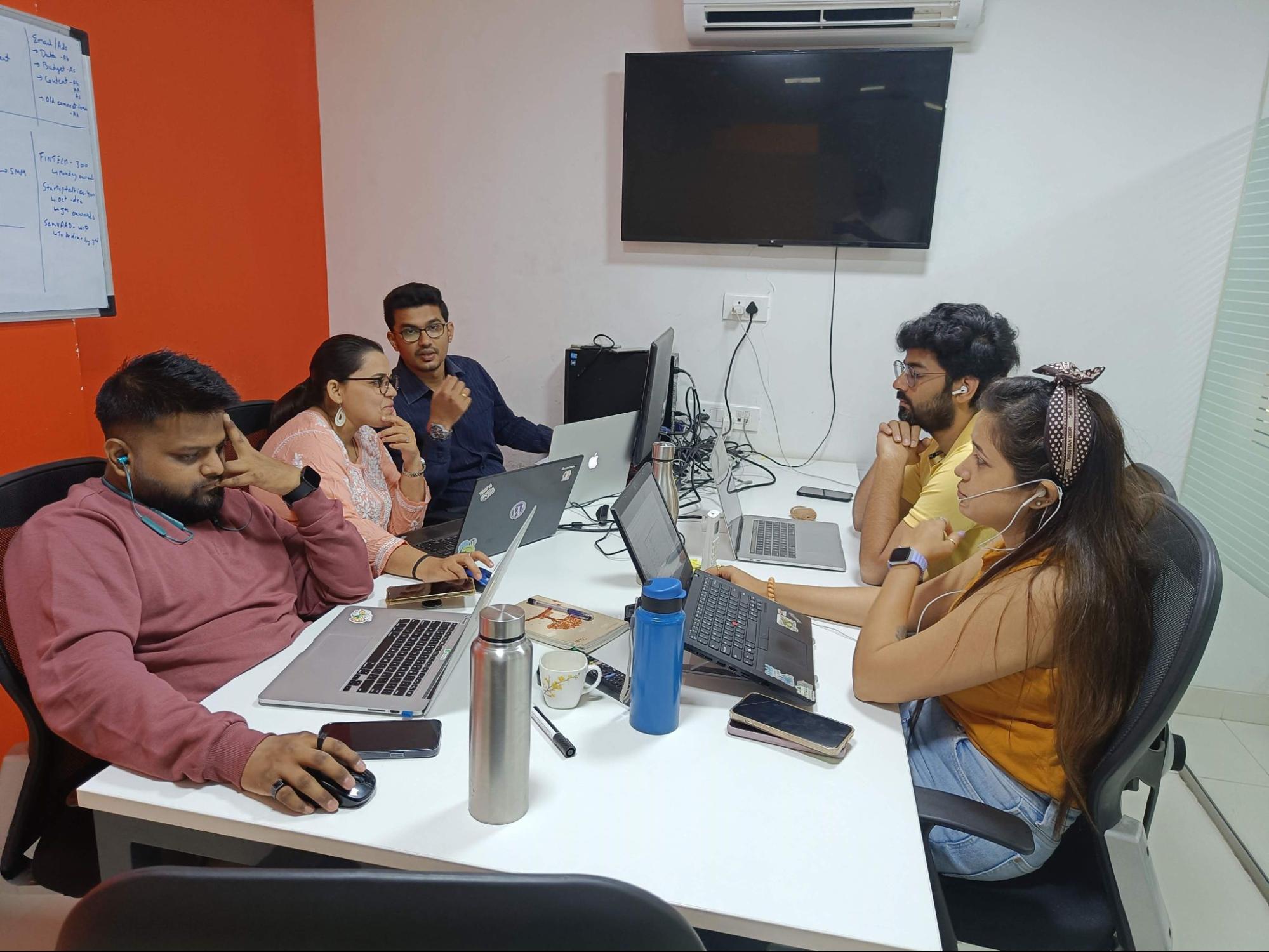
Team brainstorming ideas for the event
As it was going to be the 20th anniversary of WordPress, we decided to showcase the evolution of WordPress over these 20 years in the form of a gallery. We have also been using WordPress since the inception of WPoets, so we also planned to show how WPoets has evolved over that period of time. What energizing brainstorming days we spent sharing ideas with each other! As you can see in the picture above, the time and dedication spent on preparing the event to make it successful were quite distinguished. After a lot of discussions and meetings, images and storylines for the journey of WordPress and WPoets were finalized.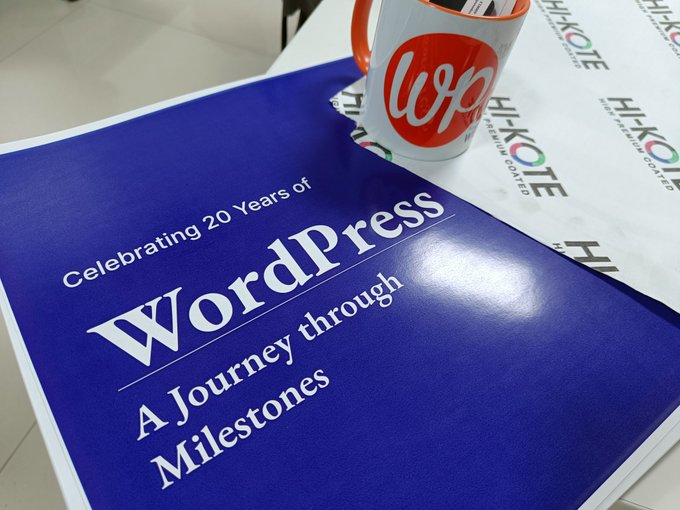
All set to celebrate the 20th anniversary of WordPress
Awards design
After the milestones gallery was finalized, the event management team moved on to the next step, which was to plan an award ceremony. We decided to give four awards, namely;- Instant Helping hand: The one who is always ready to help— The Madadkaari Award
- Most social in the team: The one who is an extrovert and ready to interact with everyone — The Ghulmil Award
- A good communicator: The one who can communicate and leaves you with no doubts — The Clear-Head Award
- Always ready to teach something: The one who is curious and ready to share knowledge at all times— The Gyaanvardhi Award
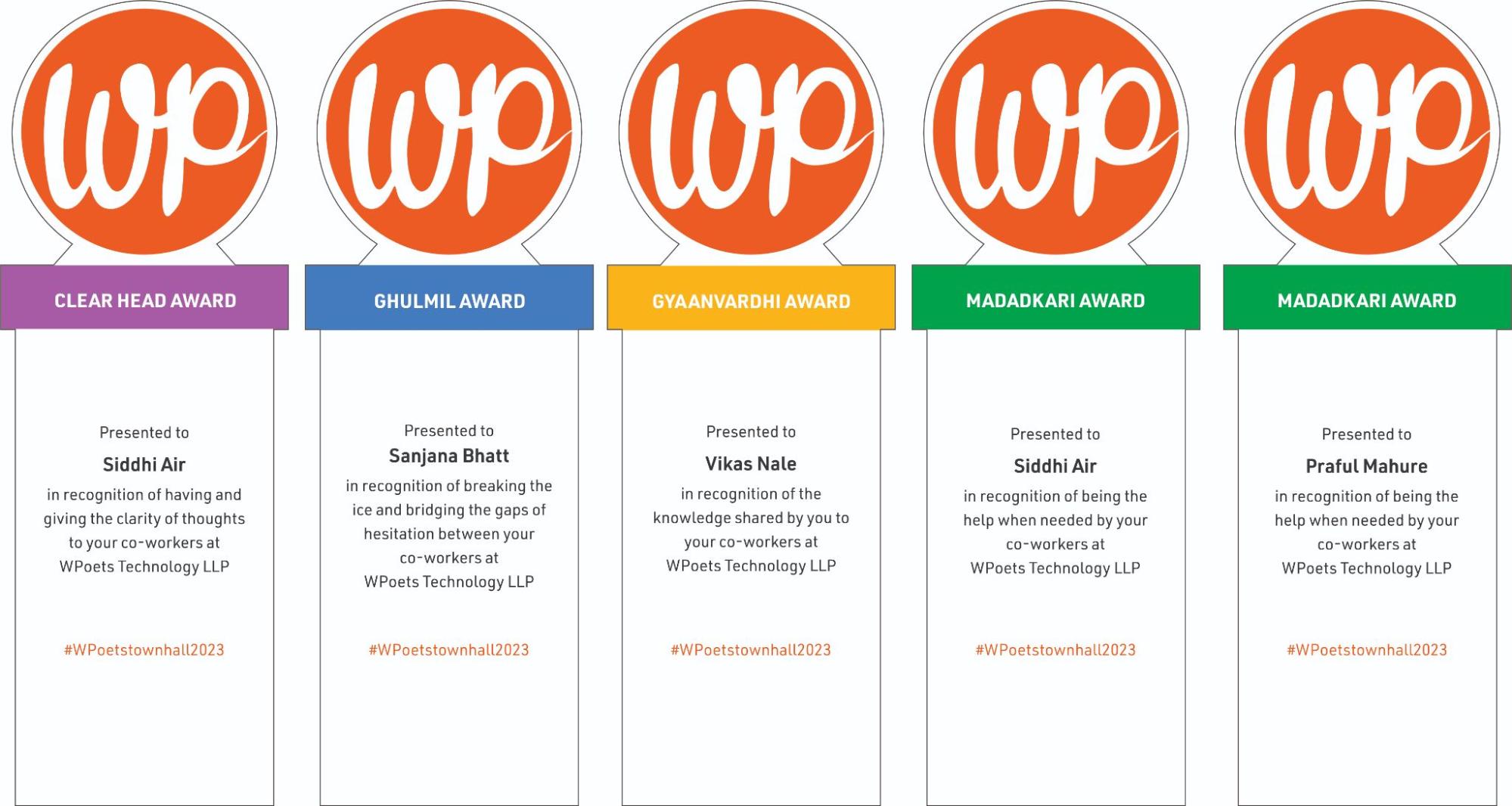
The final design of the awards
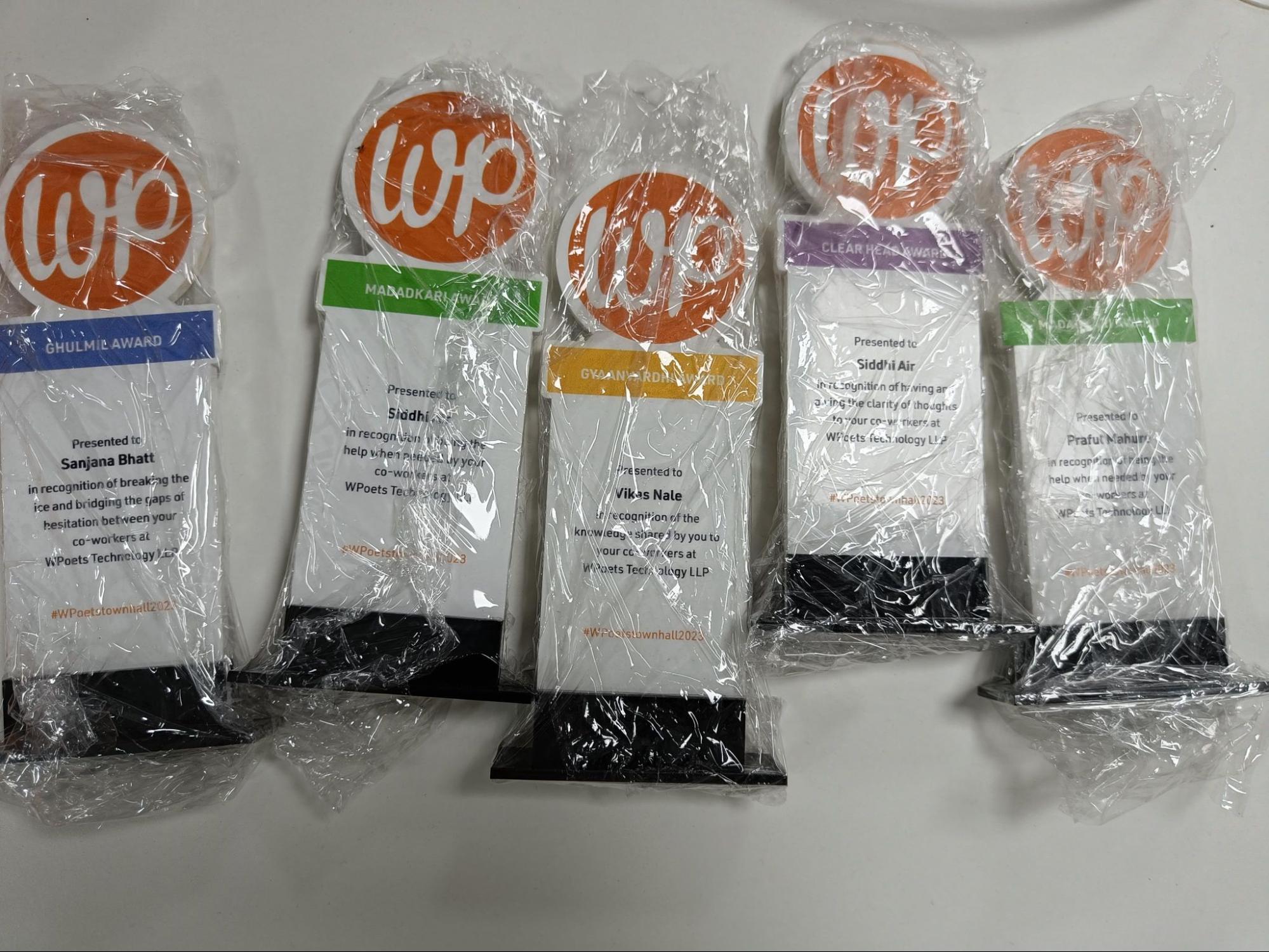
Awesome trophies
WPoets journey documentary
Just like the milestones gallery and awards section were funneled, the team moved forward with yet another captivating addition to the event; The Documentary. It was decided to create a documentary that would highlight the most important events and cover the journey of WPoets so far. Our journey was one big adventure, which was showcased in the documentary in a way that struck a chord with everyone. HR, along with some senior members of the team, sat down to collect all the photographs from the archives to create the documentary. The photos depicted all the events that took place and that WPoets was a part of and had organized. Be it a formal event or an informal team gathering, we had it all. The idiosyncrasy of capturing photos left us with so many memories, which shall continue ahead as well and compel us more to do so. After a lot of going back and forth in time through the photos, Aashish had finally planned the flow of the documentary.Awesome WP20 cake
Since it was WordPress’s 20th anniversary, how can one forget to celebrate without a cake? The team brainstormed a few ideas and designs of the cake before ordering the yummy cake, which you see in the picture below.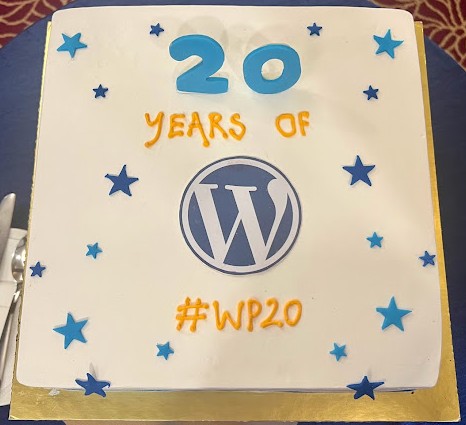
Delicious WP20 cake
WP20 Birthday celebrations & WPoets Townhall 2.0
Now you all know the setup that we went through before our event. In the fullness of time, the most anticipated day for the WPoets team was at the door. So let us take you all on a trip to our big day, which was the WP20 celebrations and Townhall 2.0. Everyone arrived at the venue with a lot of enthusiasm and excitement. Looking at each other's vibrant faces and energies, the atmosphere was completely kindled.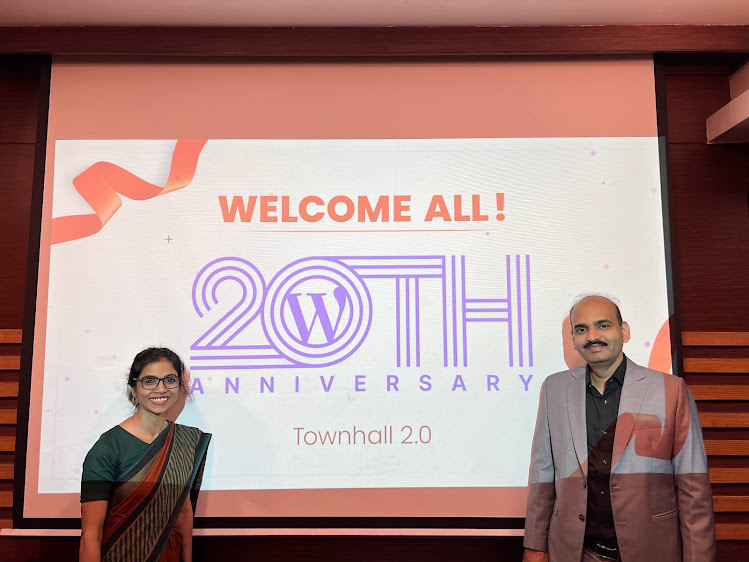
Welcoming the team
WordPress 20-Year Milestones and WPoets Journey gallery on display
The first thing that the team members noticed while entering the venue was the WordPress milestones and WPoets journey gallery. They were surprised and keen to have a look at both galleries. We wrote a detailed blog on WordPress 20-year milestones; you can read it here. Our design team put a lot of effort into creating the galleries. You can see in the pictures below their creativity, which did not miss to apprise everyone who took a glance at the gallery.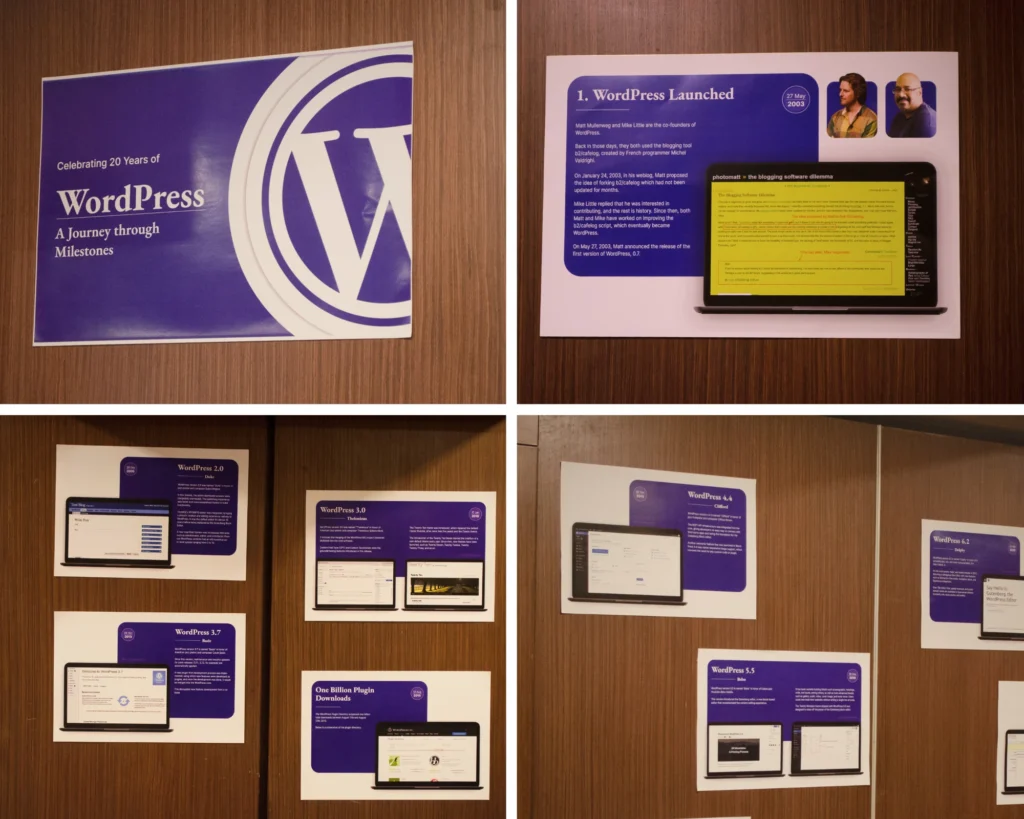
Gallery showing 20 years of WordPress journey through milestones

WPoets Journey Gallery
Screening the documentary
Once everyone was gathered and settled, our hosts began the event. They set the environment with a warm welcome and by starting off “The Documentary.”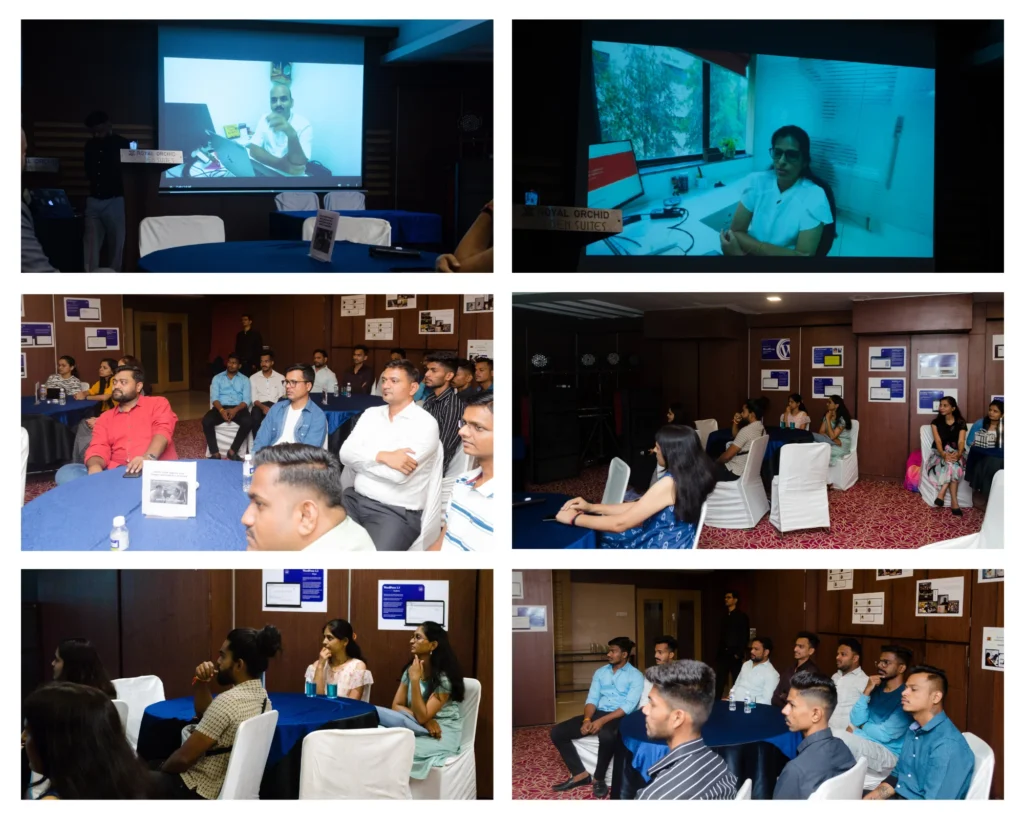
Team members enjoy the WPoets documentary
All the eyes were completely hooked to the screen, and they could not stop praising the brief journey that they had just experienced. How could we not thank the director of this documentary, Mr. Aashish Ladhwe, for giving us such an unforgettable memory. The efforts made by him to illustrate all the milestones were truly admirable.Speech by the CEO
After the screening of the documentary, the team was addressed by our CEO, Mr Amit Singh. He shared his vision and the forthcoming plans that he has set for the organization.
Mr. Amit Singh shares his ambitious plans for WPoets
Quizmania
After the CEO’s speech was completed, everyone thought we would be moving for the cake-cutting. Who knew what surprises the organizing team had planned for everyone? Our hosts announced the quiz competition “Quizmania”, spontaneously to engage everyone and make the event more entertaining. To the team’s surprise, everyone became excited. We asked our project managers to pick up the chits one by one to build their teams to play in the competition. Four teams were created. The quiz revolved around questions about WordPress and the shortcode-based low-code framework, Awesome Enterprise.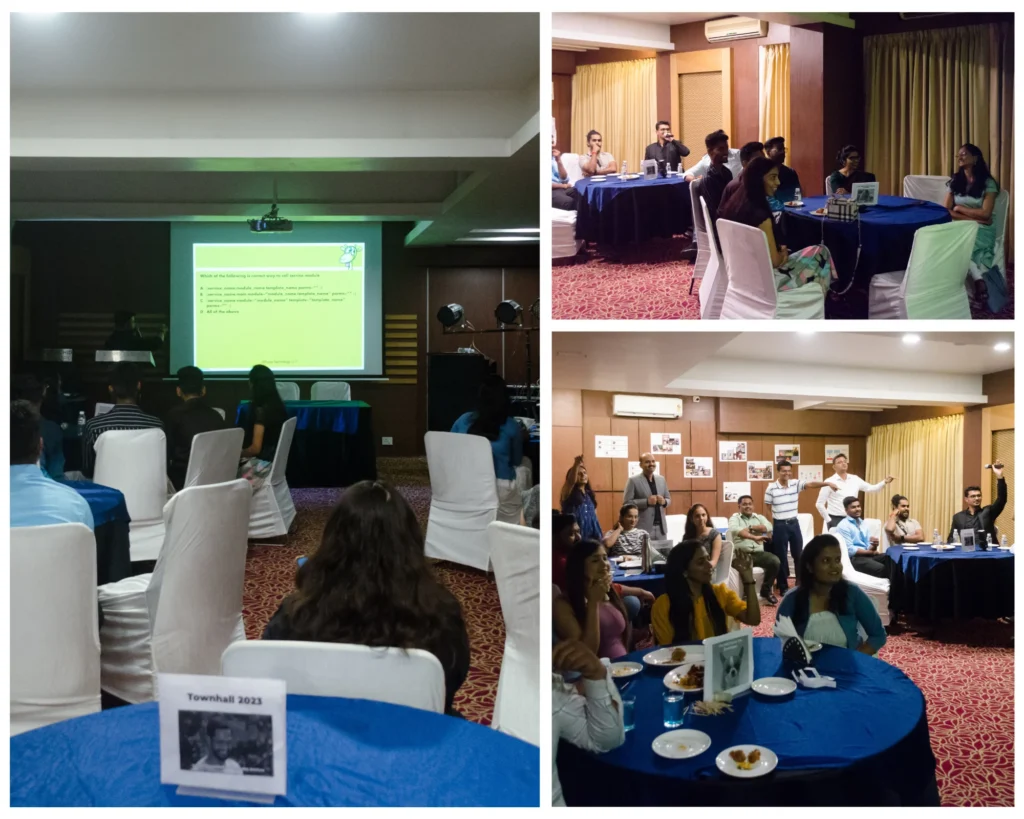
Quiz competition in progress
The quiz session continued for about an hour. The team was relishing the time, along with some munchies and cocktails. While one of the hosts was keeping a record of the score for all four teams. You can see in the above gallery what a pleasant atmosphere it had become. Though it was a tough competition, everyone in the team enjoyed it.Prize distribution
After the quiz was over, we asked the team to wait for the results. Then the hosts announced the winning team of the quiz competition. You can see the happy faces of the winning team in the picture below.
Quiz competition winners
After that, the hosts announced the winner of the hashtag competition.
Hashtag competition winner
Awards Ceremony
Next up in the event was the awards ceremony. With no more delay, the host finally started announcing the four awards, The Madakari Award, The Clear Head Award, The Gyanvardhi Award, and The Ghulmil Award. There was a tie for The Madakari Award, so we decided to give both contenders the award.
Awards ceremony
The winners stood as an example for the rest of the team members. They encouraged others to compete in the next award ceremony by improving themselves and ingraining the qualities that helped them win the awards.Cake Cutting
The long-awaited moment that had everyone on the edge of their seats was finally pounding their hearts. Now that we had conducted all the segments of the event successfully as per plan, it was time to celebrate the 20th anniversary of WordPress. The mouth-watering cake was cut by Abhijeet and Sandip.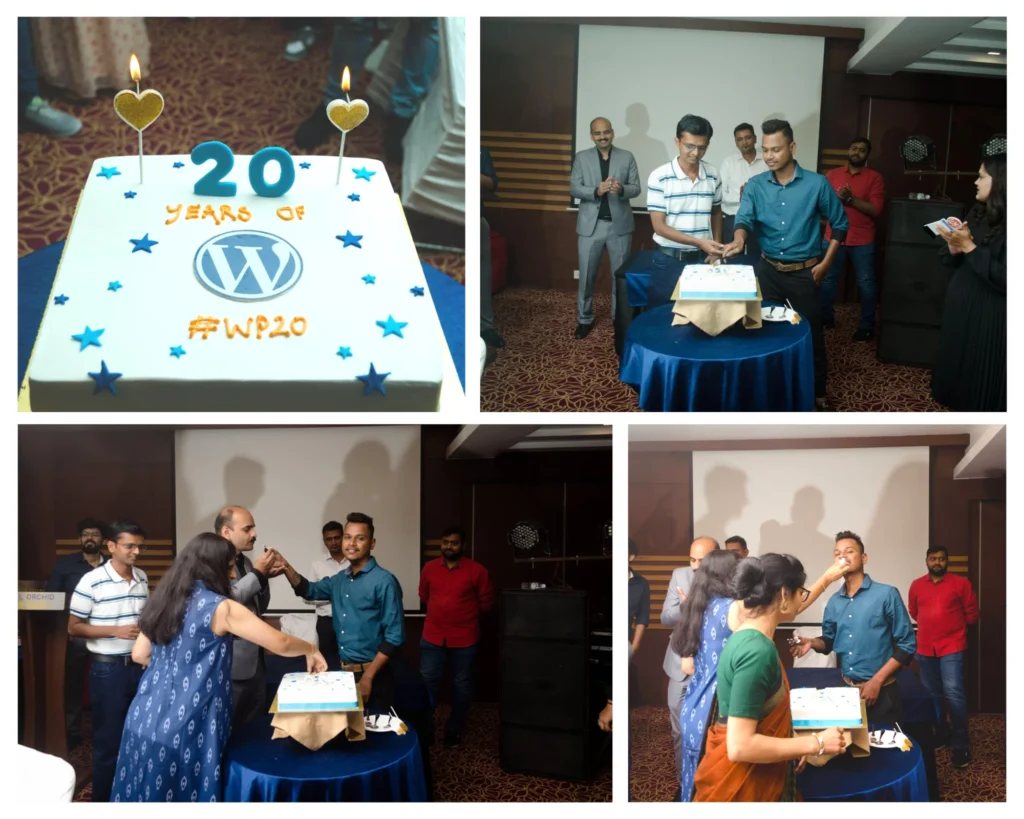
WP20 birthday celebrations
Vote of Thanks
With so many efforts and plans made by the organizing team to carry out the whole event as it was supposed to be executed without any deviations, it couldn’t stop our business head, Mrs. Savita Soni, from showing gratitude to all of them.
Vote of thanks by Mrs. Savita Soni
Last but not least, to motivate the WPoets team, she recited the following poem,
“Koshish Kar Hal Niklega” - written by Anand Param
Dance and Lunch
Last but not least, everyone moved to the buffet to savor the lunch and show a good time to their tummies and taste buds. Some of them could not stop their feet from rushing towards the dance floor to groove to the music of the DJ.
Dance and lunch
 It’s lunchtime
Wrapping it up
That’s how it was at the WP20 celebrations and WPoets Townhall 2.0. It was a fun-filled day with a variety of events. A special thanks to everyone who participated in making this event a hit. Hope you all enjoyed reading this blog. We promise to bring you more such events and their blogs. So stay tuned, and don’t forget to follow our LinkedIn company page, WPoets - WordPress Website Experts. Happy Birthday, WordPress, once again.
General
9 min read
Website Audit: Key Elements to Consider When Creating It
What should the website audit cover?
A website audit should examine all aspects of your website's performance and potential. It should assess your site's search, user experience, conversion optimization, on and off-page SEO, and many other factors. The following are the key areas that the website audit should address:1. Design Audit:
A design audit is an in-depth analysis of a company's visual identity, including but not limited to its website, logo, typography, and color scheme. The purpose of the audit is to make sure that all of a company's design elements are consistent with the brand's goals. It primarily focuses on:- User Interface (UI): Make sure that elements like buttons, icons, forms, and design aspects like colors, fonts, spaces, etc. are all the same. Consistency makes things more comfortable and easy to use.
- User Experience (UX): Check to see if the website's navigation, information hierarchy, and usability make sense to the user. You could try usability testing tools or surveys to learn more.
- Responsive Design: You should check your website on various screen sizes and devices to ensure the design is responsive and provides a consistent experience across all platforms.
- Branding Consistency: Ensure that the look and feel of your website are consistent with your brand's guidelines and successfully convey the brand's message.
Design audit frequency
Design audits should be performed every 6-12 months, however, this number can vary widely depending on the specifics of your company. Based on the findings, you should continuously improve your website.2. SEO Audit:
Evaluating how well your site is optimized for search engines is part of the SEO audit. The purpose of the audit is to identify strengths, weaknesses, and opportunities in order to increase search engine rankings and, hence, traffic. Here are the things to be considered in an SEO audit:Technical SEO
Technical SEO refers to server and website optimizations that affect how well search engines can crawl and index your content. Among these things are:- Crawlability: You can use tools like Google Search Console to find out if search engines can crawl your site correctly.
- XML Sitemap: Keep an accurate and up-to-date XML sitemap that search engines can use to learn about your site's structure.
- Robots.txt file: This file tells search engines not to visit certain pages. Make sure everything is set up right in the file.
- Site Speed: How long it takes for a page to load affects user experience and how search engines rank it. Use tools like Google's PageSpeed Insights to evaluate your site's speed.
- Mobile Optimization: Google uses mobile-first search, so your site should be easy to use on mobile phones.
On-Page SEO
This refers to a page's text and HTML source code:- Meta Tags: Make sure every page has unique and informative meta titles and descriptions.
- Header Tags: Look at how your H1, H2, etc. are used and where your keywords are placed.
- Keyword Optimization: Verify to see if your pages are optimized for important keywords, but avoid overusing keywords.
- URL Structure: URLs should be short, detailed, and include keywords. They should also be search engine friendly.
Off-Page SEO
This refers to ranking factors outside of your site, such as:- Backlinks: Use tools to assess your backlink profile. Check the quantity and quality of backlinks and look for links that could be damaging or of low quality.
Content Analysis
- Duplicate content: Having the same content on your site can hurt your SEO. Use tools to find and eliminate duplicate content.
- Quality of content: The content should be of good quality, relevant, and useful to the user.
- Internal Linking: Check to see if you have the right internal links, which help search engines understand how different pages on your site relate to each other.
Local SEO
If your business has a local presence, make sure your NAP (Name, Address, and Phone number) information is the same everywhere on the web. Also, make sure that your Google My Business page is optimized.Security
Check your site's security (HTTPS) to make sure it's safe. Google gives secure sites a higher score.SEO audit frequency
It is recommended to conduct an SEO audit quarterly. Additionally, you should also consider doing an audit if you notice a sudden drop in rankings or traffic, or after making major changes to your site. If you're interested in learning more about SEO tips, check out this article.3. Content audit
Reviewing the content you’re creating periodically will help you visualize gaps for which new content can be created and also highlight what old content pieces can be repurposed.- Performance Metrics: Analyse the performance of every bit of content. You can look at things like page views, bounce rate, time spent on the page, conversions, and social shares.
- Relevance and accuracy: Check to see if the information on your website is still relevant and accurate. Many times, content in blogs, case studies, and whitepapers, among others, needs to be updated. It's important to make sure the information is regularly updated.
- Consistency: Check to see if the tone, style, and voice of all your content are the same. Consistency helps build a strong brand identity.
- SEO Review: Analyze your content from an SEO point of view. Examine the use of keywords in your content. Meta descriptions and alt tags should be in place and working well. Organize your content properly with the appropriate use of headers.
- User Engagement: Identify if the content is intriguing to your target audience. You can determine this from how many comments, shares, and likes your post gets.
- Content Duplication: Make sure your site doesn't have any duplicate content, which can hurt your SEO. Use tools to look for content that has been copied.
Content audit frequency
It is recommended to perform a content audit every 3-4 months if you post content on your site frequently. If you do not post content regularly on your website, you can perform the audit every six months or once a year.4. Speed/Performance Audit
A website audit includes a look into the page speed and core web vitals that show how well or poorly the page is loading. Addressing website speed issues leads to better UX and a positive impact on SEO. It should cover the following aspects:Page Load Speed
The time needed to download and view the website content is a crucial factor.- Server Response Time: How quickly your site loads depends on how fast your server is. This can be measured with tools like Google's PageSpeed Insights.
- Large Images or Files: If your site has too many large images or other media files, it will move much more slowly. Images need to be optimized for the web.
- Render-blocking JavaScript and CSS: JS scripts and CSS files can slow down the speed at which a page loads. These can be found with the help of tools like PageSpeed Insights.
Website Functionality
- Broken links: These lead to 404 errors, which can be a nuisance for users and bad for SEO.
- Redirects: If your site has too many redirects, it can slow down and affect the user experience. Aim to reduce them as much as possible.
Compatibility with browsers
Your site should load quickly and work well in all of the major browsers. Make sure of this by testing your site on more than one device.Mobile Performance
Since more than half of all internet traffic now comes from mobile devices, it's important that your site works well on them. This means both speed and usefulness.Website Hosting
How fast your site loads depends a lot on how well your web hosting server works and how it is set up. Make sure you have a good host that fits the needs of your website.Plugins and themes
If you use a content management system like WordPress, keep in mind that some plugins or themes can drastically slow down your site. Check your plugins and themes often and update them to make sure they don't negatively impact your site's speed.Website speed audit frequency
Ideally, a thorough performance audit of the entire website should be carried out somewhere between six months and a year. However, using tools like Google Analytics and PageSpeed Insights to track your site's speed and performance monthly could prove beneficial. You should also do a performance audit after making any major changes to your site, including adding new features, media, or plugins, to make sure they haven't slowed it down.5. Security audit
A part of the technical audit of the website involves scanning the website for malware and checking against security best practices. An advanced security audit also includes steps like penetration testing. Consider the following aspects when performing the security audit:- Vulnerability Assessment: Look through your website for vulnerabilities that hackers could use. This includes things like security holes, bugs, and misconfigurations.
- Penetration testing: Simulate an attack on your website online to see how safe it is.
- Access Controls: Evaluate who has access to which website information and functions. Ensure there are appropriate restrictions in place.
- Data Encryption: Check to see if private information like customer information, credit card numbers, etc., is encrypted both in transit (using SSL/TLS) and when it is stored.
- Security Policies: Look over your security policies to make sure they are up-to-date and cover everything you need them to. This could include password policies, data retention policies, incident response plans, etc.
- Software Updates: Make sure that all of your software used to build and manage your website is up-to-date, including your CMS, plugins, third-party apps, and themes. Older versions may have known vulnerabilities that can be used against them.
- Backup and Disaster Recovery: Confirm that your website is being backed up regularly and that a disaster recovery plan is in place.
- Firewalls and Intrusion Detection Systems (IDS): Ensure that there is a good firewall and that intrusion detection systems are active. They should be set up properly to find threats and respond to them.
- Log Analysis: System and security logs should be looked at regularly to find any suspicious behavior.
Security audit frequency
A security audit should be performed three times a year to avoid vulnerabilities and attacks. Depending on your website's size, business, and data sensitivity, vulnerability assessments, software updates, and log analysis should be done more often.Conclusion
A website audit for your B2B establishment is less of an extravagance and more of an imperative. It equips you to discern website shortcomings, refine the user experience, improve traffic and conversion rates, fortify website security, and stay a step ahead of the competition. Optimizing your website's performance can substantially impact client acquisition and loyalty. Do not delay until your website begins to falter. Anticipate the trajectory and seize the advantages brought forth by a website audit. Want to audit your website? Talk to our WordPress experts.
Plugins
6 min read
Best Security Plugins for WordPress to Safeguard Your Site in 2026
Best WordPress Security Plugins in 2026 to Protect Your Site
1. Sucuri Plugin
 When talking about the best free WordPress security plugins, Sucuri surely tops the list. Sucuri Security is a well-known WordPress security plugin that offers website monitoring, malware detection, and blacklist monitoring.
It provides a firewall that blocks harmful traffic from reaching your website.
Sucuri also offers an incident response service, which ensures that any security issues are handled quickly and effectively.
Though most of the features are available in the free version, features like the website firewall, SSL support, and more are provided in the pro version.
Key Features:
When talking about the best free WordPress security plugins, Sucuri surely tops the list. Sucuri Security is a well-known WordPress security plugin that offers website monitoring, malware detection, and blacklist monitoring.
It provides a firewall that blocks harmful traffic from reaching your website.
Sucuri also offers an incident response service, which ensures that any security issues are handled quickly and effectively.
Though most of the features are available in the free version, features like the website firewall, SSL support, and more are provided in the pro version.
Key Features:
- Protection from Brute Force Attacks with Web Application Firewall (WAF)
- The plugin identifies and prevents DDoS attacks
- Monitors blocklist authorities’ security warnings
- e-Commerce malware scanning
- Keeps track of all site activity, including file changes, most recent logins, and unsuccessful login attempts.
- Protection from SQL injection, XSS, and other similar attacks.
2. iThemes Security Plugin
 iThemes Security Plugin focuses on enhancing your site’s security. It provides numerous options in the free version, such as protection against brute force, tracking of file integrity, backups of database files, and two-factor authentication.
The pro version of the plugin offers user activity logging, a WordPress User Security Check, Real-time WordPress Security Dashboard, and many more features.
Key Features:
iThemes Security Plugin focuses on enhancing your site’s security. It provides numerous options in the free version, such as protection against brute force, tracking of file integrity, backups of database files, and two-factor authentication.
The pro version of the plugin offers user activity logging, a WordPress User Security Check, Real-time WordPress Security Dashboard, and many more features.
Key Features:
- Blocks any malicious IP address that attempts to scan your website for vulnerabilities.
- Notifies you through email if any potentially dangerous files have been updated on your site.
- Protection by blocking specific IP addresses and user agents from accessing the site.
- Strong password enforcement
3. All-in-one Security and Firewall
 The All-in-one Security and Firewall plugin offers extensive security features in the free version itself. The features in the free version include hiding the login page from bots by configuring a custom URL for the ‘Admin’ page, user account monitoring, IP filtering, brute force attack prevention by implementing a ‘Login Lockdown’ feature, two-factor authentication, and many more.
The plugin supports best practices, meaning that it prompts users to change their usernames if they have the default "admin" or identical login and display names.
You can add Google reCAPTCHA or simple math CAPTCHA using this plugin.
The pro version of the plugin offers automatic malware scanning, alerts you for the site’s status of blacklisting, reports blocks traffic from specific countries, blocks traffic to specific pages, and many more features.
Key features:
The All-in-one Security and Firewall plugin offers extensive security features in the free version itself. The features in the free version include hiding the login page from bots by configuring a custom URL for the ‘Admin’ page, user account monitoring, IP filtering, brute force attack prevention by implementing a ‘Login Lockdown’ feature, two-factor authentication, and many more.
The plugin supports best practices, meaning that it prompts users to change their usernames if they have the default "admin" or identical login and display names.
You can add Google reCAPTCHA or simple math CAPTCHA using this plugin.
The pro version of the plugin offers automatic malware scanning, alerts you for the site’s status of blacklisting, reports blocks traffic from specific countries, blocks traffic to specific pages, and many more features.
Key features:
- Firewall protection
- Sending an alert if file change is detected
- Password strength tool to force the user to create stronger passwords for their sites.
- Manually blacklist suspicious IP addresses
- Comment spam prevention by automatically blocking the spammer’s IP address.
4. Wordfence
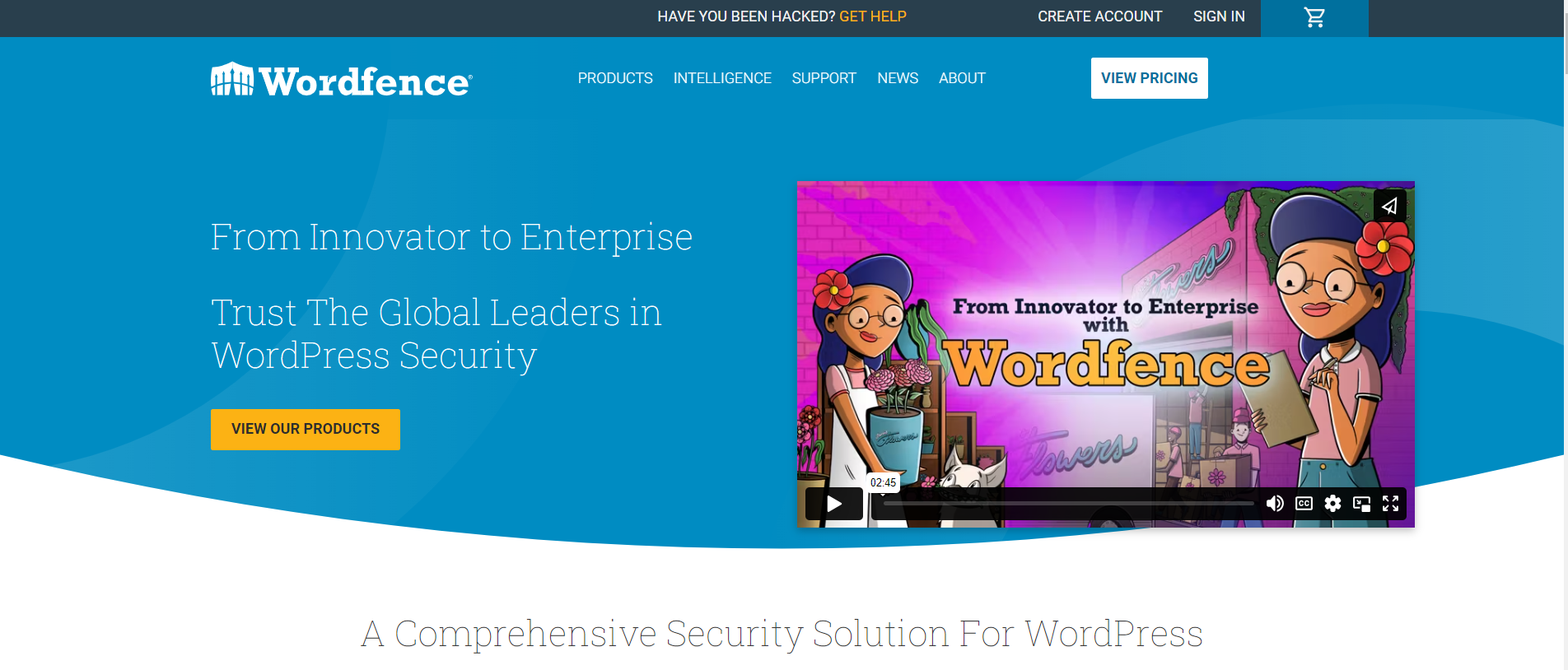 Wordfence Security is an all-inclusive plugin for website protection that includes many useful features. WordPress users widely use it due to its user-friendly interface and consistent upgrades.
A robust firewall, malware detection, and real-time threat intelligence are all part of its extensive security features.
The free version includes two-factor authentication, brute force attack protection, basic firewall protection, a malware scanner, and others.
While the free version of Wordfence covers most of the security issues, the premium version enables the user to get real-time updates on malware scanning and firewall, blocking traffic from specific countries (geoblocking), and support.
Key features:
Wordfence Security is an all-inclusive plugin for website protection that includes many useful features. WordPress users widely use it due to its user-friendly interface and consistent upgrades.
A robust firewall, malware detection, and real-time threat intelligence are all part of its extensive security features.
The free version includes two-factor authentication, brute force attack protection, basic firewall protection, a malware scanner, and others.
While the free version of Wordfence covers most of the security issues, the premium version enables the user to get real-time updates on malware scanning and firewall, blocking traffic from specific countries (geoblocking), and support.
Key features:
- The free version allows users to secure unlimited sites.
- Monitors and notifies you of any security breaches in your password, allowing you to quickly generate a new and secure password.
- The free and premium versions include ‘Wordfence Central’ allowing users to administrate various sites' security from a single dashboard.
5. WPScan
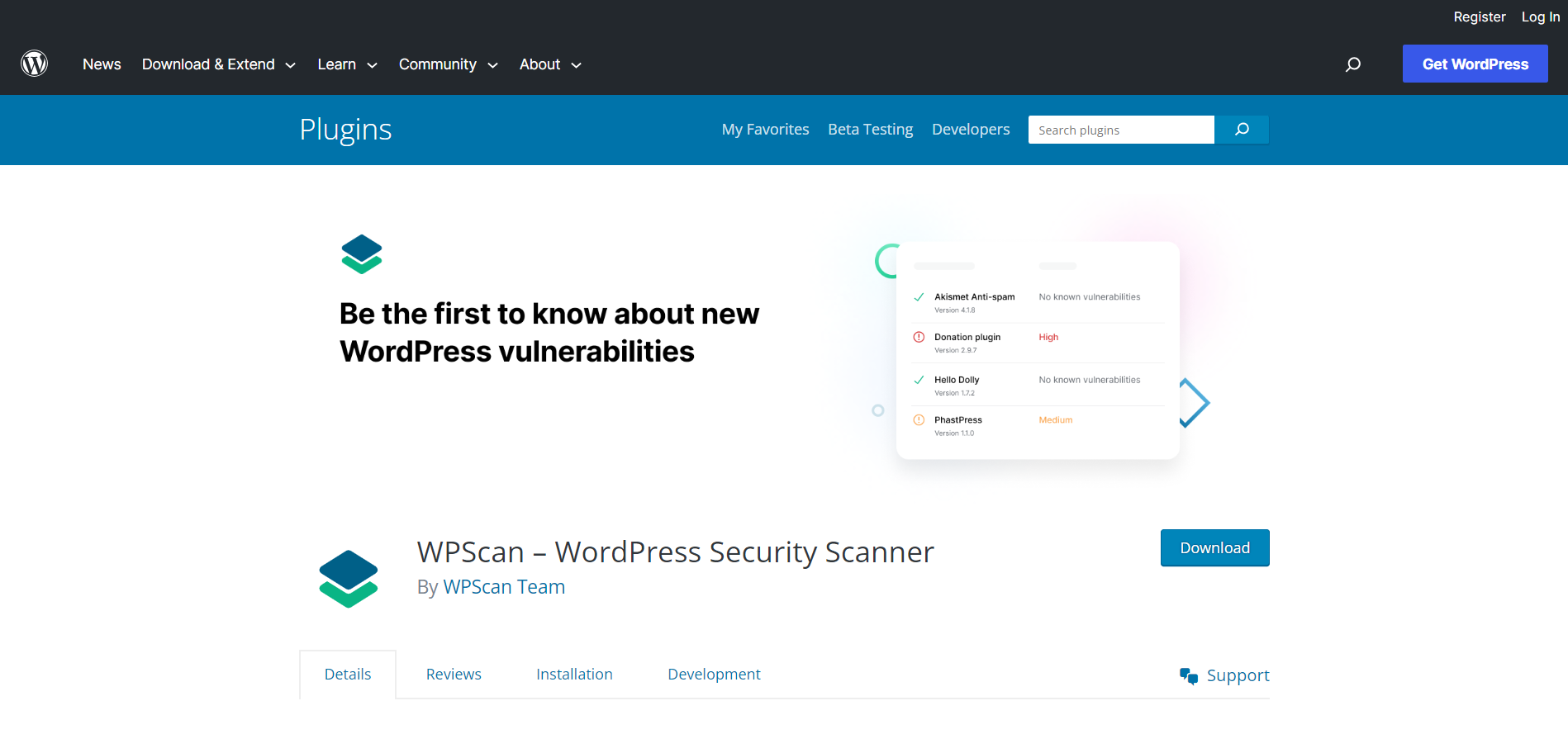 WPScan is a WordPress security plugin that utilizes the WPScan vulnerability database, which is a continually updated list of WordPress core, plugin, and theme vulnerabilities.
WPScan, the company, is renowned for its open-source WordPress security scanner, and the WPScan plugin brings that same level of scanning to your WordPress site's dashboard.
The plugin is able to scan around 21,000 vulnerabilities in your site, including plugins, themes, and the core software.
The plugin not only identifies vulnerabilities but also provides suggestions and guidelines on how to fix them and improve your site's overall security.
Key features:
WPScan is a WordPress security plugin that utilizes the WPScan vulnerability database, which is a continually updated list of WordPress core, plugin, and theme vulnerabilities.
WPScan, the company, is renowned for its open-source WordPress security scanner, and the WPScan plugin brings that same level of scanning to your WordPress site's dashboard.
The plugin is able to scan around 21,000 vulnerabilities in your site, including plugins, themes, and the core software.
The plugin not only identifies vulnerabilities but also provides suggestions and guidelines on how to fix them and improve your site's overall security.
Key features:
- Scheduled scanning and get the reports of scanning by email.
- Get risk scores to see how vulnerable your site really is.
- See how hackers attack your site with the security scanner.
6. Bulletproof Security
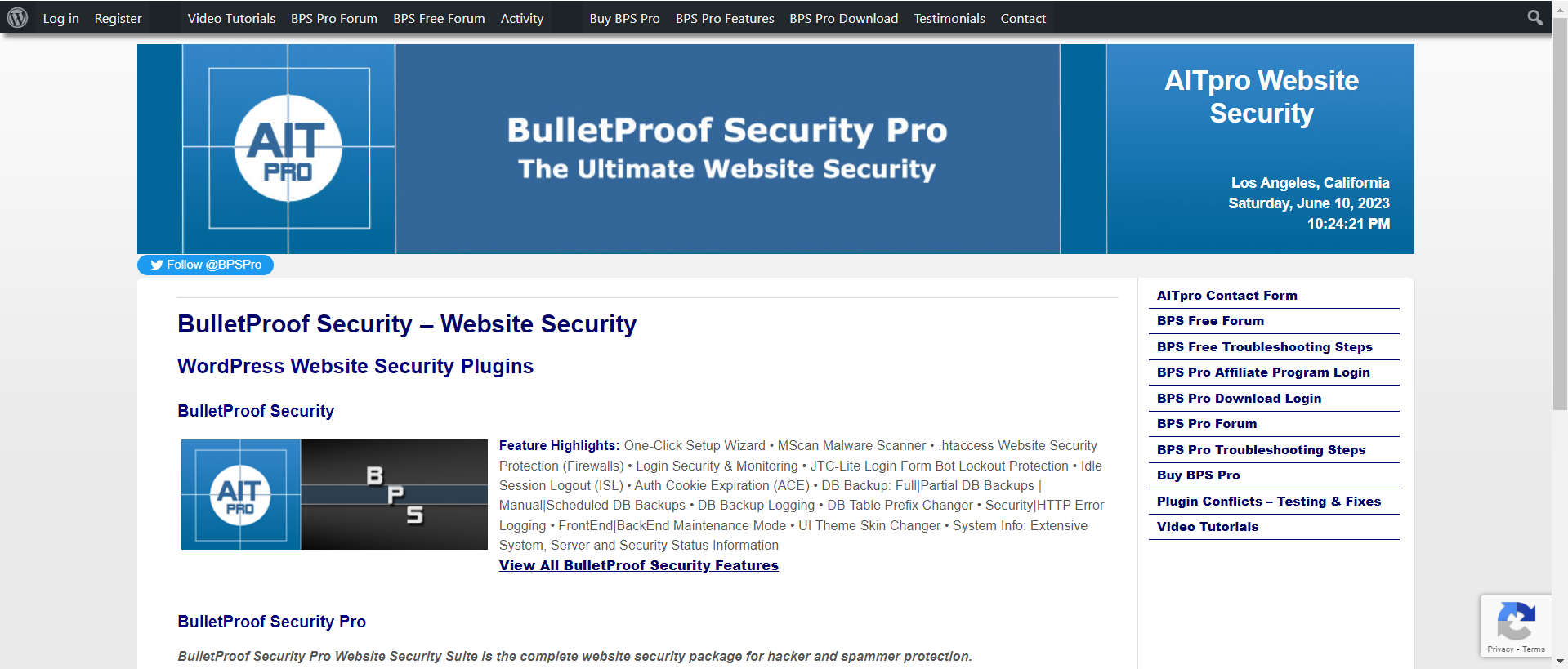 If you need a more robust, hands-on security plugin, BulletProof Security is a good option. Along with database security and login security, the plugin also offers firewall protection, but in a pro version.
This plugin comes with anti-spam, auto-restore, monitoring, the Mscan malware scanner, automatic and manual lockout options, and many more.
While the free features cover most of the security parameters, upgrading to the pro version will enhance the security of your site.
It offers advanced features such as quarantine, monitoring of the database and sending an alert if there is any change, an IP firewall that protects the WordPress Plugins folder, allowing only valid image file extensions through Upload Anti-Exploit Guard (UAEG) mode, and much more.
Key features:
If you need a more robust, hands-on security plugin, BulletProof Security is a good option. Along with database security and login security, the plugin also offers firewall protection, but in a pro version.
This plugin comes with anti-spam, auto-restore, monitoring, the Mscan malware scanner, automatic and manual lockout options, and many more.
While the free features cover most of the security parameters, upgrading to the pro version will enhance the security of your site.
It offers advanced features such as quarantine, monitoring of the database and sending an alert if there is any change, an IP firewall that protects the WordPress Plugins folder, allowing only valid image file extensions through Upload Anti-Exploit Guard (UAEG) mode, and much more.
Key features:
- Automatic logout idle sessions
- Provides BPS Pro ARQ Intrusion Detection and Prevention System
- Security logging of hackers, spammers, or any kind of attackers
- The pro version comes with 16 mini plugins that provide advanced security
7. Malcare Security
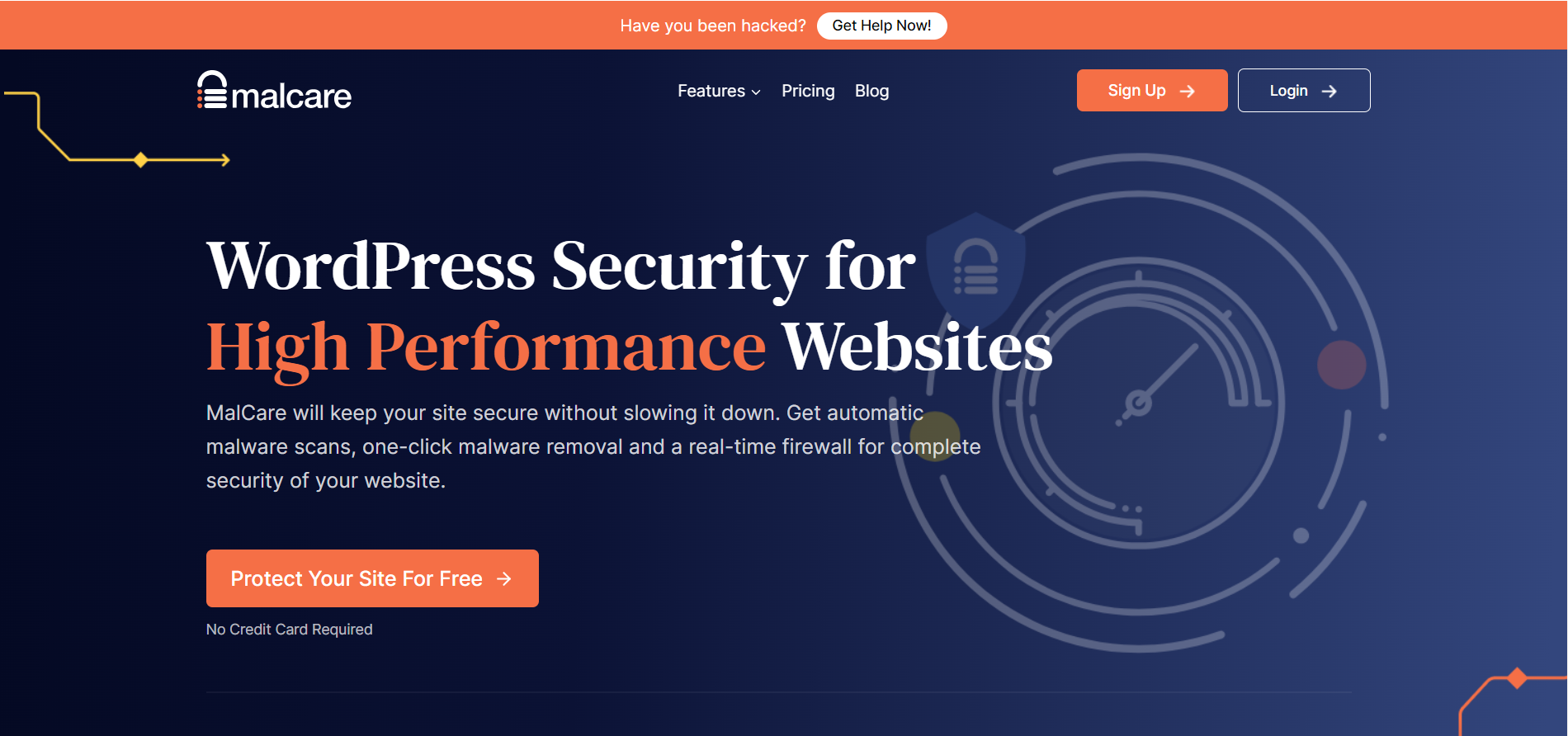 Developed by BlogVault, Malcare Security comes with a cloud-based malware scanner that scans your entire website for thefts and fixes them. The plugin helps you to clean your website with the help of a one-click removal tool, even before the search engine detects any problems with your site.
When you install MalCare's firewall, you'll notice a speed boost right away. The reason is that MalCare keeps attacks from getting to your site, which makes it less busy. Failed attacks can drain the site once they reach it.
Based on WordPress hardening measures, MalCare provides various levels of protection, including disabling file editing, blocking PHP execution in untrusted folders, and changing security keys.
Key Features:
Developed by BlogVault, Malcare Security comes with a cloud-based malware scanner that scans your entire website for thefts and fixes them. The plugin helps you to clean your website with the help of a one-click removal tool, even before the search engine detects any problems with your site.
When you install MalCare's firewall, you'll notice a speed boost right away. The reason is that MalCare keeps attacks from getting to your site, which makes it less busy. Failed attacks can drain the site once they reach it.
Based on WordPress hardening measures, MalCare provides various levels of protection, including disabling file editing, blocking PHP execution in untrusted folders, and changing security keys.
Key Features:
- Identifies and blocks bots
- An intelligent tracking system for plugins and a firewall to keep intruders out.
- CAPTCHA for login page
- Activity log for all changes happening on your website
Conclusion
While all the above-mentioned plugins are best in their own way, the use of these plugins depends on the needs of your website. From the robust features of Wordfence Security and Sucuri Security to the user-friendly interface of iThemes Security and All In One WP Security & Firewall, each of these WordPress security plugins offers unique functionalities that can drastically enhance the security profile of your website. These plugins can improve site security, but no technology is perfect. Maintaining a secure WordPress site requires updating the WordPress core, themes, and plugins, using strong passwords, and taking other web security precautions.
WordPress
8 min read
Schemas that Digital Marketers Must Use on their Website in 2026
Role of Schema in SEO
Here’s how schemas help in SEO: 1. Enhanced Visibility in Search Results: Schema markup allows websites to give search engines detailed content information. This data is displayed in search results as rich snippets, knowledge panels, and other enhanced SERP features. To get more attention and clicks, websites can utilize these visually beautiful and informative snippets to differentiate themselves from the competition. 2. Improved Click Through Rates (CTR): Schema markup's rich snippets commonly include ratings, reviews, pricing, event details, and many more in search results. These characteristics make the search listing more appealing and relevant, increasing the likelihood of a click. A higher CTR indicates to search engines that the website is offering valuable and relevant content, which can positively impact its ranking. 3. Voice Search Optimization: Schema markup optimizes material for voice searches as voice assistants and voice searches grow. Schema tags like FAQ and Q&A enable search engines to extract and offer direct responses to voice search queries, boosting their likelihood of showing up in voice search results. 4. Structured Data Understanding: Algorithms interpret online material for search engines. Schema markup helps search engines understand your content better. It also helps search engines categorize and display your material, improving your ranking for relevant search queries. 5. Competitive Advantage: Implementing schema markup sets you apart from competitors who may not be utilizing it effectively. Rich snippets and better search results make your website more appealing and trustworthy than your competitors. Visibility and credibility can boost rankings, organic traffic, and conversions.Schemas That Digital Marketers Should Use
The following are the schemas that digital marketers must use:1. Organization Schema:
Organization Schema markup helps brands show that they are credible and authoritative. It tells about the organization, such as its name, logo, contact information, and social media accounts. By using Organization Schema, digital marketers can increase the exposure of their brand, get it into knowledge graphs, and make users trust the brand more. Best practices for implementing Organization Schema include using verified profiles and providing comprehensive and consistent information across various online platforms. Below is a screenshot of the organization schema in action for the search term WPoets. It shows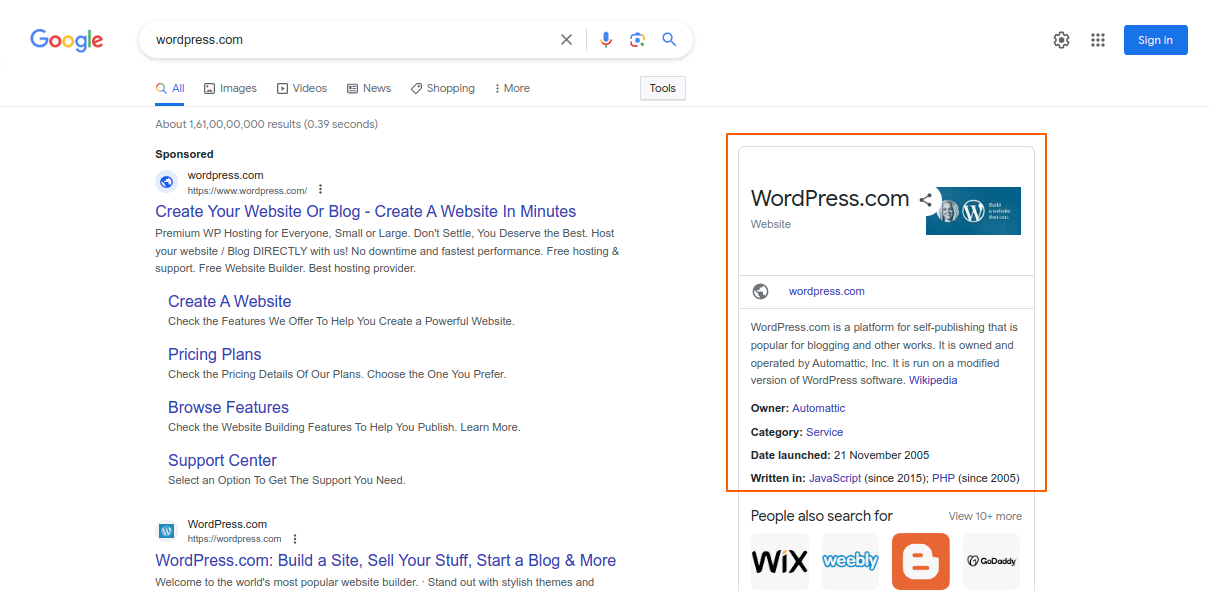
Screenshot 1: Organization Schema in action
Organization Schema should be added to the following web pages- Homepage
- About Us
- Our Work or a similar page,
- What We Do or a similar page,
- And other pages.
2. BreadCrumb Schema
The BreadcrumbList Schema allows you to specify the hierarchical structure of your website's pages using a list of breadcrumbs. Each item represents a step in the navigation path and typically includes the page title and URL. The order of the items in the list reflects the hierarchy of the pages. By implementing the BreadcrumbList Schema on your website, you provide search engines with structured data that can be used to enhance search results. When search engines recognize the schema markup, they may display the breadcrumb navigation in the search results, making it easier for users to understand the website's structure and navigate directly to specific pages. Below is a sample of breadcrumbs displayed in SERPs.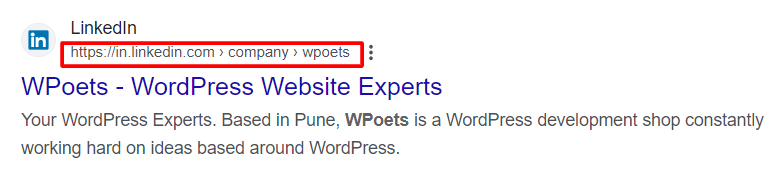
Screenshot 2: BreadcrumbList Schema in action
BreadcrumbList Schema should be implemented on all the website pages.3. Article Schema
Article schema markup is important for websites that are based on their content. It helps search engines figure out how articles are put together and what they're about, including the article body, author, date of publication, word count, keywords, and many more. By using the Article Schema, digital marketers can make their content more visible in search results and increase the chance that it will show up in Google's Top Stories or other rich results. Correctly structuring an Article Schema means using the right headline tags, giving information about the author, and following schema rules. The Article Schema should be used on web pages that give detailed information or content in the form of articles:- Blog Posts
- News Articles
- Documentation Pages
- Editorial Pages
- Magazine or Journal Articles
4. FAQ Schema
FAQ Schema markup makes it easy for websites to answer frequently asked questions directly in search results. It makes your site more visible and makes it more likely that it will show up in featured snippets, especially in voice search results. Digital marketers should use FAQ Schema by finding important questions and answers, organizing the content with the right HTML tags, and making sure it works well with voice search queries.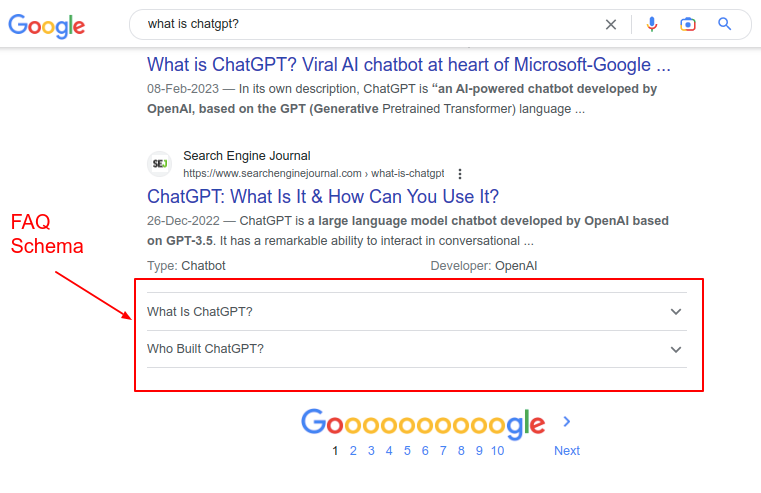
Screenshot 3: FAQ Schema in action
In fact, we have written a comprehensive article on adding FAQ Schema to WordPress with and without plugins. The FAQ schema should be used on websites that list Frequently Asked Questions (FAQs) and the answers to those questions. A few examples could be,- FAQ Pages
- Product Pages
- Service Pages
- Support or Help Pages
5. Local Business Schema
Local Business Schema markup is very important for companies that want to reach people in their area locally. It tells you where the business is, when it's open, how to contact them, their address, and what other customers have said about them (basically, Google reviews). Digital marketers can improve their visibility in local search results, improve their Google My Business listing, and attract possible customers in their area by using the Local Business Schema. Name, address, and phone number (NAP) consistency, getting real customer reviews, and optimizing for mobile devices are all important parts of the Local Business Schema. Below is a screenshot of the Local Business schema in action, showing Opening Hours.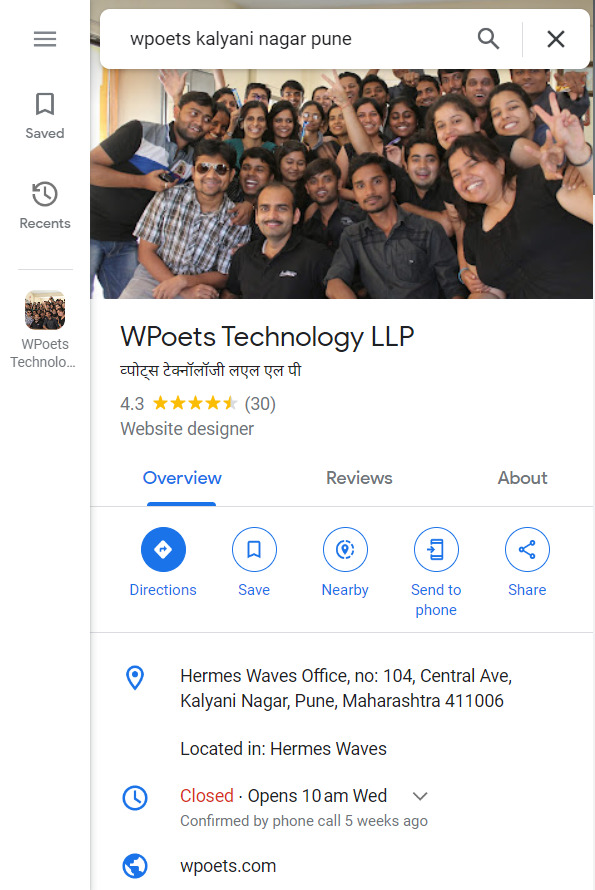 Screenshot 4: Local Business Schema in action
- About Us page
- Contact Us page
- Home page
- Any location or place-specific page
6. Web Page Schema
Web Page Schema is a type of schema markup that provides structured data about a specific web page on your website. It allows search engines to understand the content and context of your web pages more effectively. By implementing the Web Page Schema markup, you can enhance the visibility, accuracy, and presentation of your web page in search engine results pages (SERPs). The Web Page Schema should be implemented on all the individual web pages of your website:- Content Pages
- Landing Pages
- Product and Service Pages
- Category Pages
- Home page
7. Video Schema
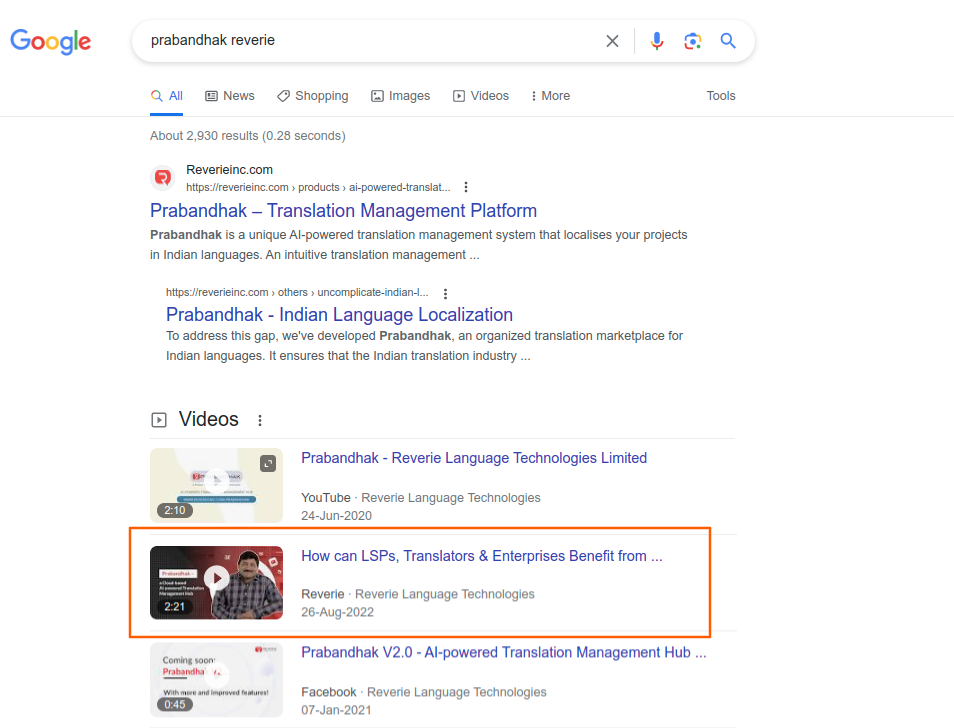
Video schema markup is a type of schema that provides structured data about a video on your website. It allows search engines to understand the video content, its metadata, and other relevant details. By implementing Video Schema markup, you can enhance the visibility and appearance of your video in search engine results pages (SERPs) and potentially increase the chances of it being featured in video-specific search results. The Video Schema should be implemented on web pages that contain videos or provide information about specific videos:- Gallery Pages (if the gallery contains videos)
- Article Pages with embedded videos
- Landing Pages with videos
8. Event Schema
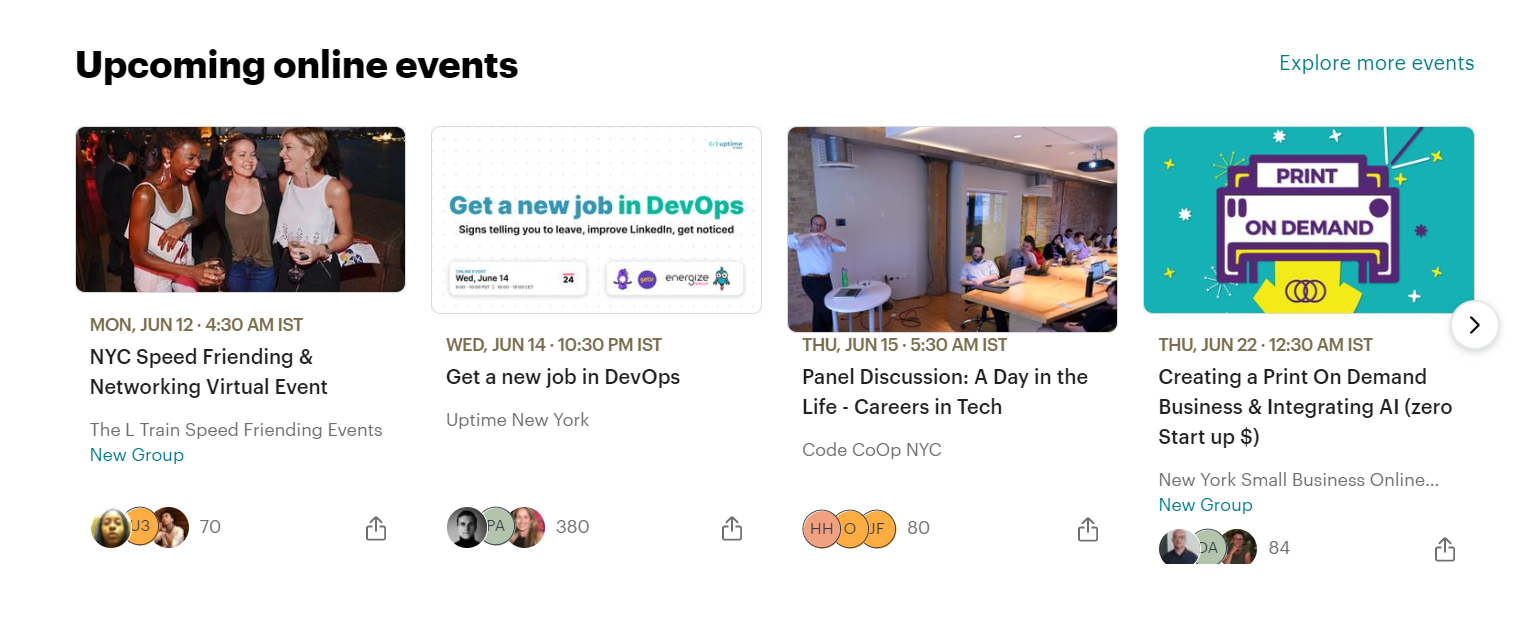
Event schema markup is helpful for businesses that host events or promotions. It has a lot of information about the event, like the date, time, location, organizer, and people who will be performing, among others. Digital marketers can make events more visible in search results and thus get more people to attend by using Event Schema. To optimize the Event Schema, it's important to include correct and up-to-date information and use structured data testing tools to make sure everything is correct. The Event Schema should be implemented on web pages that provide information about specific events:- Event Listing Pages
- Individual Event Pages
- Calendar Pages (if your website has one)
- Landing Pages (created for promoting specific events)
9. Review Schema
Every business, no matter what they do, should implement the Review Schema on their website. This is because reviews are such a big part of how most people decide what to buy. Before buying something, almost 90% of people read reviews. So there's no reason not to show good reviews if you have them. Review snippets will show the number of reviews your product, local business, or software product has gotten, along with the yellow stars. Following is a screenshot of a product search query. Notice that the yellow stars are below the SERPs.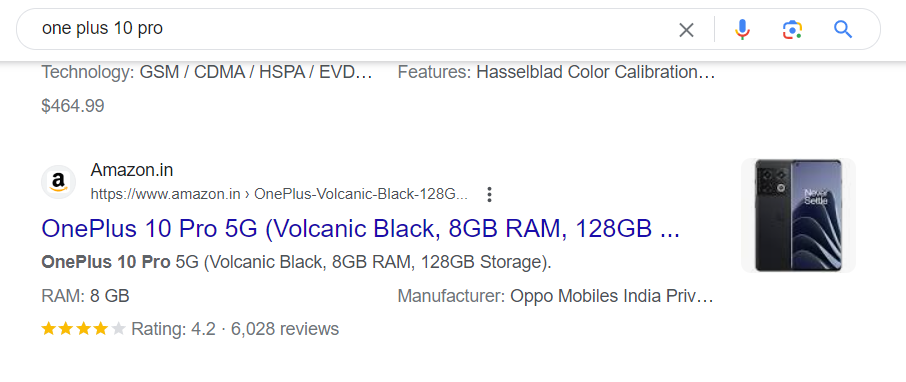
Screenshot 5: Review Schema in action
Web pages with user-generated reviews or testimonials should use the Review Schema:- Product Pages
- Business Listings
- Testimonial Pages
10. Product Schema
Product schema markup tells search engines about a product's name, price, availability, and reviews, among other things. By using Product Schema, digital marketers can make their goods more visible in search results and attract people who might buy them. It can also be used for adding schema for services.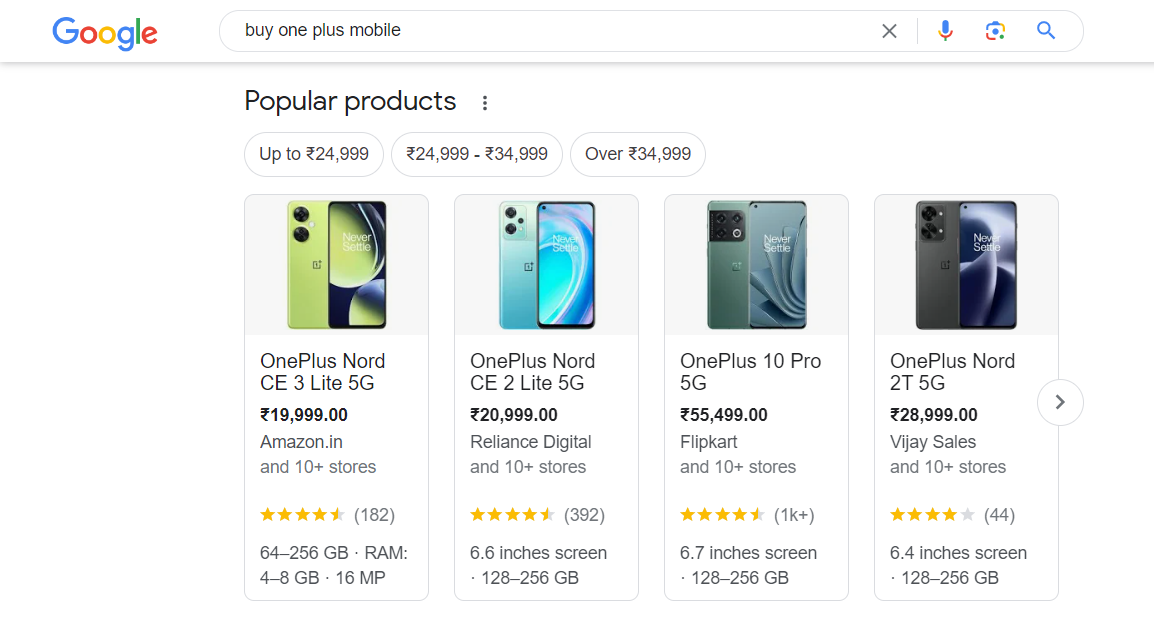
Screenshot 6: Product Schema in action
The Product Schema should be implemented on web pages that provide information about specific products:- Product Details Page
- e-Commerce Category Page
- Featured Product Section
- Review Pages
- Comparison pages
Conclusion
In conclusion, leveraging schema markup on your website is a powerful strategy for digital marketers in 2026. Schemas provide a structured way to communicate essential information about your web pages, videos, and other content to search engines, helping them understand and present your content more effectively to users. By incorporating schema markup, you can potentially enhance your SEO efforts and improve your website's visibility and ranking in search engine results. If you want to know more about how to add these schemas to your WordPress website, get in touch with our web experts.
Plugins
6 min read
Best Backup and Restore WordPress Plugins for 2026
Things to look for before choosing the backup plugin
When choosing a backup and restore plugin, it's essential to consider the following key features to ensure it meets your specific needs: 1. Automatic Scheduling Automatic scheduling allows you to set up regular backups without manual intervention. Instead of remembering to initiate backups manually, the plugin will handle the process for you based on your preferred schedule. With this feature, your time and effort are saved without having to initiate the backups manually. It also facilitates a consistent data backup routine and reduces human error. 2. Incremental Backups Incremental backups are a method of storing only the changes made since the last backup, rather than creating a full backup every time. This improves site performance and eliminates dozens of backup files on your server. Thus, your backup plugin should analyze the latest file and avoid the next backup if no changes have been made. This leads to a faster backup process, reduced storage space, and efficient storage utilization. 3. Real-time backup for high-traffic sites Real-time backups refer to the ability of a backup plugin to capture and save changes to your website's files and database as they occur, ensuring that your backup is always up to date. High-traffic sites such as e-commerce and membership sites often experience frequent content updates, user interactions, and database modifications. In the event of a disaster or site failure, relying solely on scheduled backups could result in data loss since the most recent changes may not be captured. Real-time backups help minimize data loss by continuously saving updates as they happen, ensuring that even the latest changes are backed up. Real-time backups let you quickly restore your site after a hacking attempt, data corruption, or critical error. In the event of a failed transaction or interaction, you may easily revert back to the state before the interruption with the help of real-time backups. This is a must-have for e-commerce and membership sites so that users can connect with them easily.Best Backup and Restore Plugins
1. BlogVault
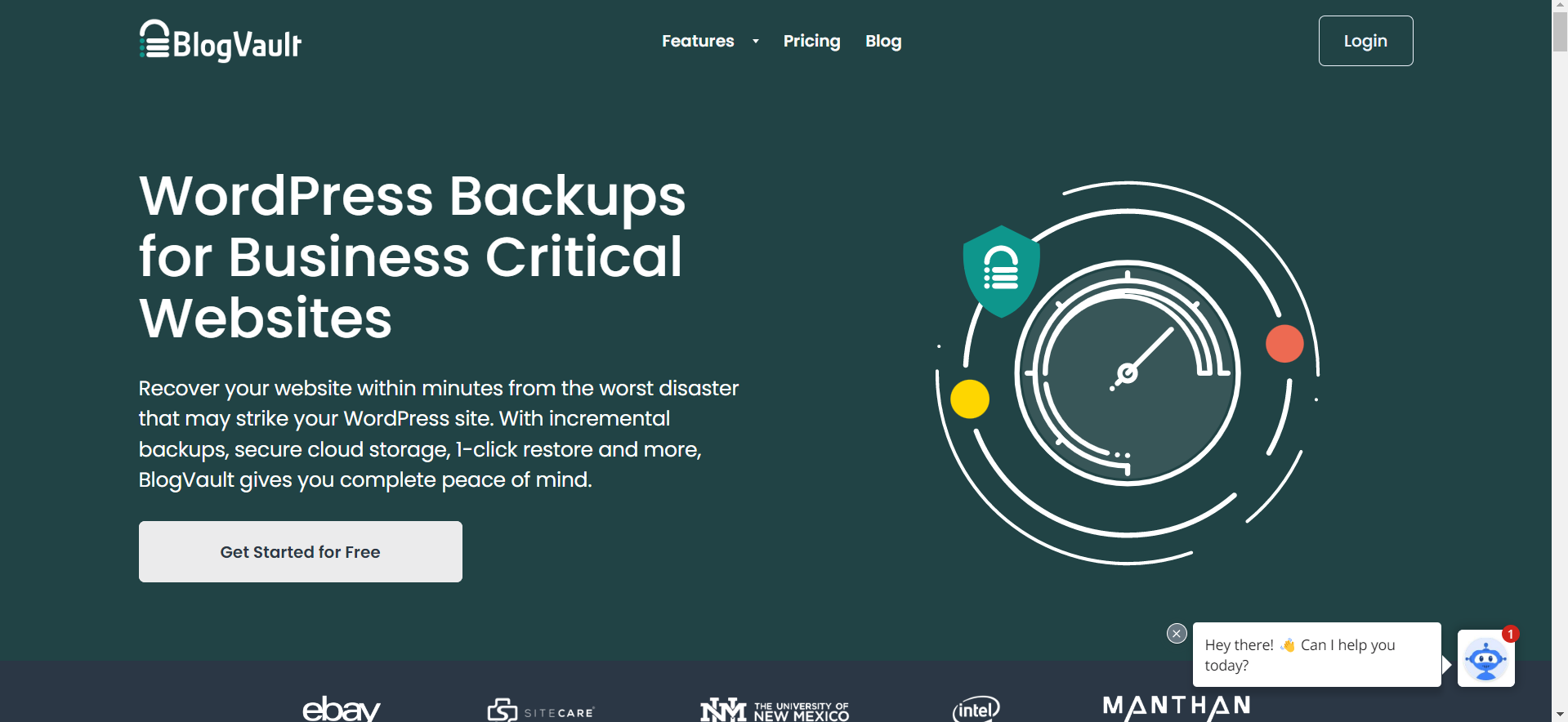 BlogVault is a comprehensive backup and restores solution designed specifically for WordPress websites. It provides users with a reliable and user-friendly platform to safeguard their valuable website data and easily recover from any potential disasters or issues.
In addition to backups, BlogVault offers a range of website management features that enhance its value. These include one-click staging environments for testing site changes, malware scanning and removal, and a site management dashboard to oversee multiple websites from a single location.
This comprehensive set of features makes BlogVault a versatile tool for managing and protecting your WordPress sites.
Key Features:
BlogVault is a comprehensive backup and restores solution designed specifically for WordPress websites. It provides users with a reliable and user-friendly platform to safeguard their valuable website data and easily recover from any potential disasters or issues.
In addition to backups, BlogVault offers a range of website management features that enhance its value. These include one-click staging environments for testing site changes, malware scanning and removal, and a site management dashboard to oversee multiple websites from a single location.
This comprehensive set of features makes BlogVault a versatile tool for managing and protecting your WordPress sites.
Key Features:
- Real-Time Backup: BlogVault offers real-time backups, guaranteeing that every update made to your website is quickly captured and safely preserved.
- Incremental Backup: BlogVault comes with an incremental backup which reduces unnecessary multiple backups thus reducing storage space.
- Restores fully crashed sites: With BlogVault’s Emergency Connector, you can completely restore your crashed sites.
2. Jetpack
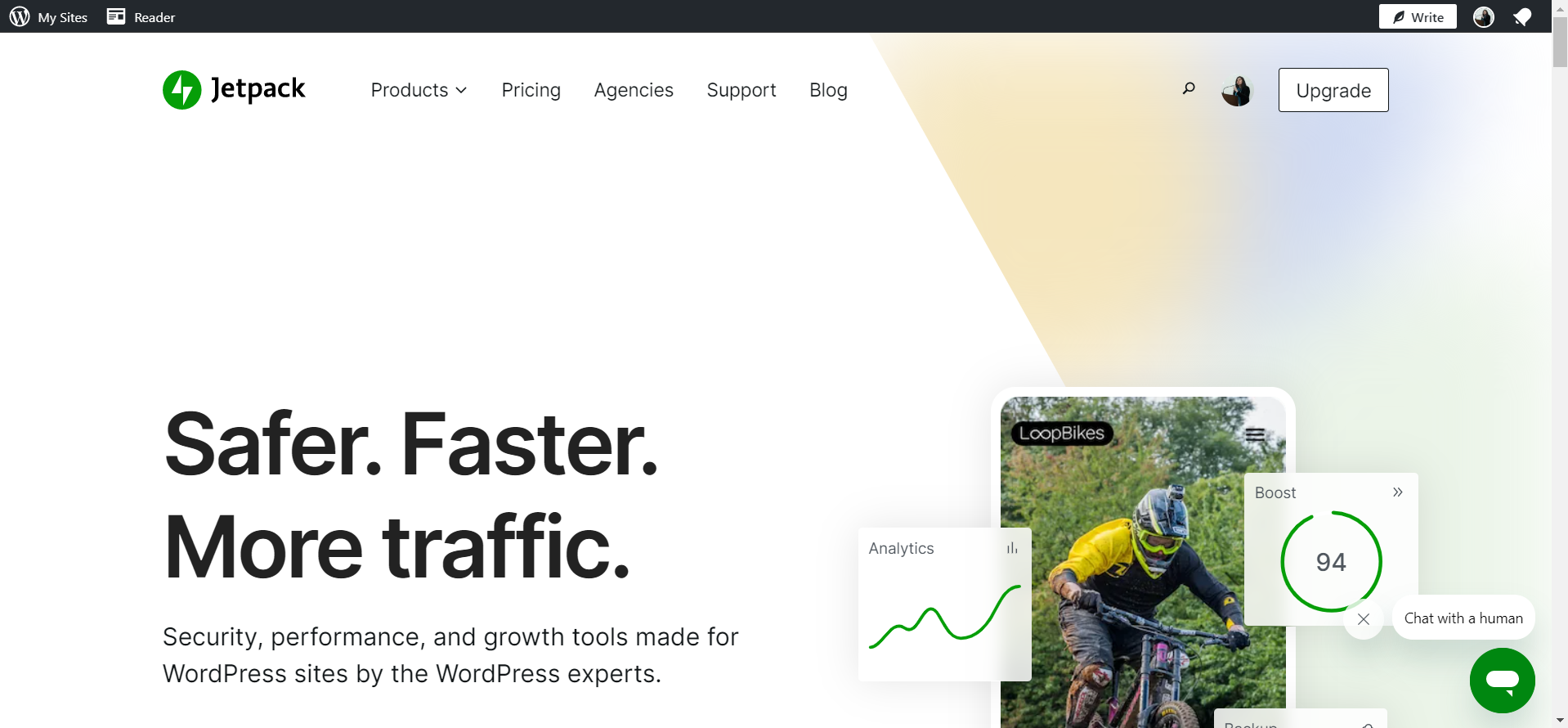 Automattic has released a premium feature for their Jetpack plugin called VaultPress Backups. With this helpful WordPress plugin, restoring to a prior backup of your site is quick and painless.
Jetpack offers a suite of powerful features to enhance the functionality, security, and performance of WordPress websites. The beauty of Jetpack is that it doesn't require you to download and install a bunch of extra plugins.
Thus, you'll only need to use a single plugin, reducing the overall number of plugins that slow down your website.
While it comes with various tools for website management, we'll focus specifically on its backup-related features.
Key Features:
Automattic has released a premium feature for their Jetpack plugin called VaultPress Backups. With this helpful WordPress plugin, restoring to a prior backup of your site is quick and painless.
Jetpack offers a suite of powerful features to enhance the functionality, security, and performance of WordPress websites. The beauty of Jetpack is that it doesn't require you to download and install a bunch of extra plugins.
Thus, you'll only need to use a single plugin, reducing the overall number of plugins that slow down your website.
While it comes with various tools for website management, we'll focus specifically on its backup-related features.
Key Features:
- Automated and Incremental Backups: Jetpack offers daily automatic scheduling of backups along with incremental backups. Thus there is less human intervention and reduced storage space.
- Real-Time Backups: Backups happen in real-time preventing loss of data when the website crashes.
- Protection from Brute Force Attacks.
- Automated security fixes for vulnerabilities.
- Secured off-site backup storage.
- One-click restoration.
3. UpdraftPlus
 UpdraftPlus will allow you to back up your entire WordPress site to the cloud or download it locally. The plugin supports automated and scheduled backups. You can also choose which parts you want to back up, like themes, plugins, or data.
UpdraftPlus offers more remote storage options than any other WordPress plugin. The free version of the plugin supports cloud backup to Amazon S3, Rackspace Cloud Files, Dropbox, Google Drive, Microsoft OneDrive, Microsoft Azure, FTP/ SFTP servers, and many more.
The premium edition adds incremental backups, site migration to a new domain, and extensive safety reports.
Key features:
UpdraftPlus will allow you to back up your entire WordPress site to the cloud or download it locally. The plugin supports automated and scheduled backups. You can also choose which parts you want to back up, like themes, plugins, or data.
UpdraftPlus offers more remote storage options than any other WordPress plugin. The free version of the plugin supports cloud backup to Amazon S3, Rackspace Cloud Files, Dropbox, Google Drive, Microsoft OneDrive, Microsoft Azure, FTP/ SFTP servers, and many more.
The premium edition adds incremental backups, site migration to a new domain, and extensive safety reports.
Key features:
- Easy modular backup and restoration of your WordPress website.
- Encrypting database backups for security in the pro version.
- Compatible with multisite WordPress installations.
- Off-site backup storage
4. BackWPup
 Full backups, database backups, and selective file and directory backups are the backup options that BackWPup provides. This feature lets customers personalize their backup plan to meet their unique requirements.
Similar to others, scheduled and automated backups are provided in this plugin.
The plugin supports backup destinations like Google Drive, Dropbox, Microsoft Azure, Amazon S3, and more. Users can store backups offsite to reduce data loss.
Key Features:
Full backups, database backups, and selective file and directory backups are the backup options that BackWPup provides. This feature lets customers personalize their backup plan to meet their unique requirements.
Similar to others, scheduled and automated backups are provided in this plugin.
The plugin supports backup destinations like Google Drive, Dropbox, Microsoft Azure, Amazon S3, and more. Users can store backups offsite to reduce data loss.
Key Features:
- The users are notified about the status and results of backup operations through email.
- The plugin supports database optimization and maintenance tools. This feature reduces database size and fixes bugs to improve website performance.
- Automated and scheduled backups.
- BackWPup provides restoration and migration capabilities.
5. All-in-one WP Migration
 This plugin has been developed for non-technical people to migrate their websites from one server or hosting provider to another. The plugin makes it easy for you to back up your site's data (posts, plugins, media, and themes) and upload it to the cloud or local storage with just one click.
The plugin also supports incremental and scheduled backups. The backup frequency can be customized in accordance with your needs: daily, weekly, or monthly.
Key features:
This plugin has been developed for non-technical people to migrate their websites from one server or hosting provider to another. The plugin makes it easy for you to back up your site's data (posts, plugins, media, and themes) and upload it to the cloud or local storage with just one click.
The plugin also supports incremental and scheduled backups. The backup frequency can be customized in accordance with your needs: daily, weekly, or monthly.
Key features:
- All-in-One WP Migration lets you make several versions of backup copies at different times. This lets you choose from which backup you want to restore.
- All-in-One WP Migration has extensions for Google Drive, Dropbox, Amazon S3, and more, thus helping you with off-site storage.
6. Duplicator
 Anyone with minimal experience may quickly and easily create backups, move, and clone their WordPress sites using the Duplicator plugin.
The duplicator plugin provides automated and scheduled backups, and cloud backup storage (OneDrive, Google Drive, FTP, Dropbox, Amazon S3, or any S3 Compatible service).
The one-click migration feature of Duplicator simplifies the process of transferring your website to a new location. There is no other WordPress backup plugin like Duplicator, that allows you to back up a brand-new site. With Duplicator, setting up WordPress and configuring your site takes a few minutes.
Key Features:
Anyone with minimal experience may quickly and easily create backups, move, and clone their WordPress sites using the Duplicator plugin.
The duplicator plugin provides automated and scheduled backups, and cloud backup storage (OneDrive, Google Drive, FTP, Dropbox, Amazon S3, or any S3 Compatible service).
The one-click migration feature of Duplicator simplifies the process of transferring your website to a new location. There is no other WordPress backup plugin like Duplicator, that allows you to back up a brand-new site. With Duplicator, setting up WordPress and configuring your site takes a few minutes.
Key Features:
- Supports backup of large sizes of sites even in the free version. The plugin also creates a zip file of the backup in storage.
- Get quick notifications through email whenever Duplicator fails to complete a backup, takes too long, or requires manual intervention.
- Duplicator may generate new databases and execute search and replace operations during migration, improving its efficiency and versatility.
- Multisite support.
Conclusion
WordPress site owners need reliable backup and recovery solutions. The plugins mentioned in this blog are the ones that can protect your website from calamities and restore it quickly. Consider automatic scheduling, remote storage, migration, and convenience of use when choosing a backup and restoration plugin. Choosing the proper plugin and following best practices will protect and restore your WordPress website, letting you focus on content and business goals.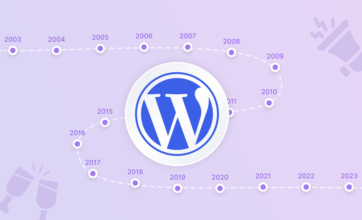
WordPress
14 min read
Celebrating 20 Years of WordPress: A Journey through Milestones
Introduction
On May 27th, 2023 WordPress will turn 20 years old! WordPress has grown exponentially over the last two decades. From its humble beginnings as a simple blogging platform to its transformation into a versatile content management system (CMS) that powers millions of websites worldwide. Many CMSs were launched, and gone but WordPress thrived like no other. Let's look back at some of the significant milestones of WordPress from the past 20 years.WordPress launched (May 27, 2003)
Matt Mullenweg, at the age of 18 (from Houston, Texas), used to weblog on his website, photmatt.net, where he wrote about technology, economics, politics, and his passion for jazz music and photography. Mike Little (from Stockport, England), on his weblog, wrote about books he read, and blogging technology. They both used the blogging tool b2/cafelog, which French programmer Michel Valdrighi created. On January 24, 2003, Matt posted a blog titled “The Blogging Software Dilemma,” where he expressed his concern that the then-famous blogging tool b2/cafelog had not been updated for months. The lead developer, Michel of b2/cafelog had disappeared for some unknown reasons. Matt’s blog was growing. At that time, his blog had passed twenty thousand unique visitors in 2003. He was looking for b2/cafelog alternatives. He tried the Textpattern and Movable Type weblog tools but due to licensing restrictions, he was not willing to use them. b2/cafelog was GPL, so Matt on his weblog proposed the idea of forking it since nobody was actively working on improving it.“Fortunately, b2/cafelog is GPL, which means that I could use the existing codebase to create a fork, integrating all the cool stuff that Michel would be working on right now if only he was around. The work would never be lost, as if I fell of the face of the planet a year from now, whatever code I made would be free to the world, and if someone else wanted to pick it up they could. I’ve decided that this the course of action I’d like to go in, now all I need is a name.”To which Mike Little replied back (the first comment).
“Matt, If you’re serious about forking b2 I would be interested in contributing. I’m sure there are one or two others in the community who would be too. Perhaps a post to the B2 forum, suggesting a fork would be a good starting point.”This conversation was the starting point for WordPress. That's the power of a single comment, and the rest is history. Here is a screenshot of the blog with the comment.
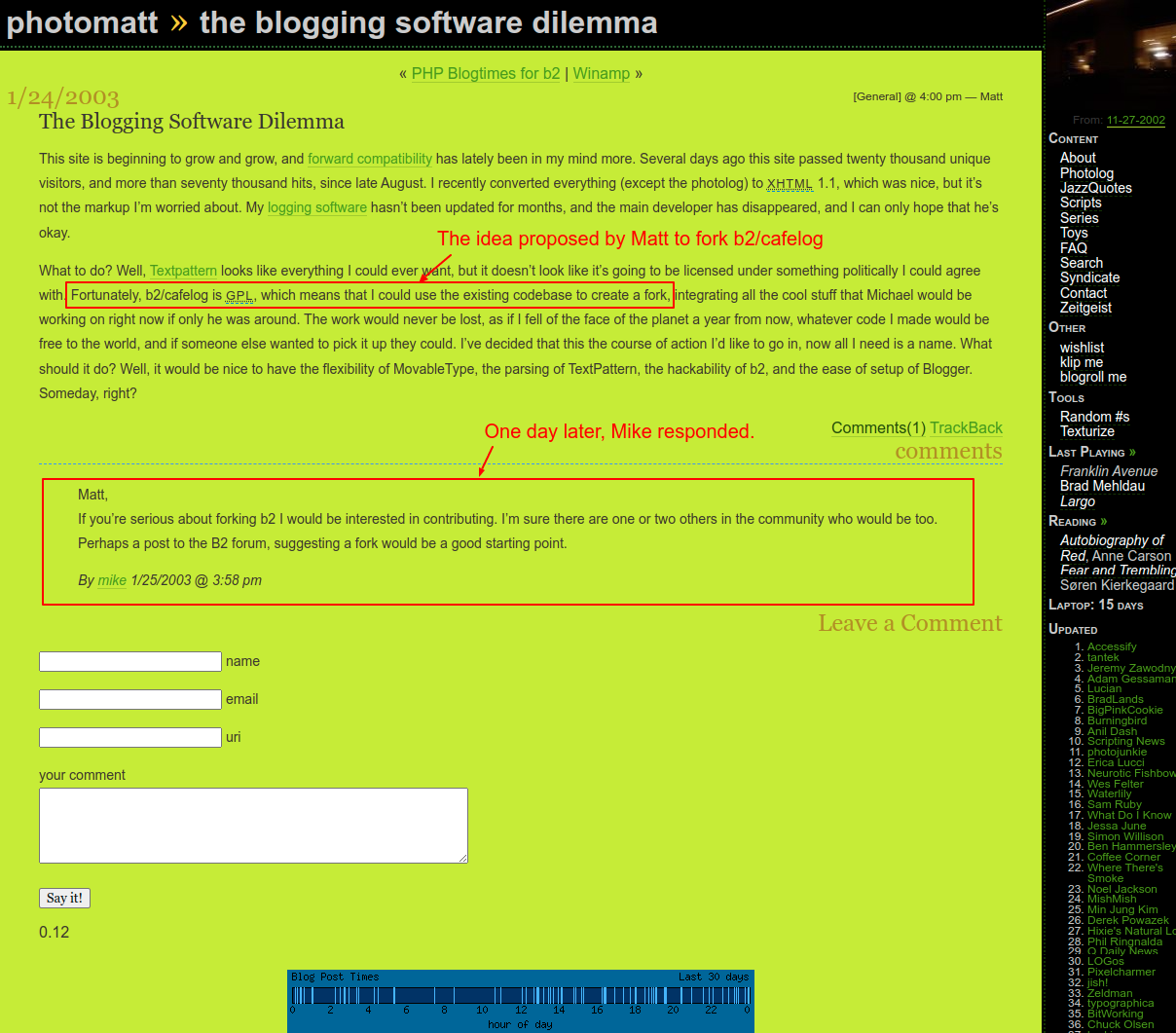
Matt proposed the idea of forking b2/cafelog on his weblog to which Mike responded.
Since then both Matt and Mike, from their homes started working on improving b2/cafelog script which then became WordPress (with the name coined by Matt’s friend Christine Tremoulet) Finally, on May 27, 2003, Matt announced the release of the first version of WordPress, 0.7.WordPress 1.2 "Mingus" (May 22, 2004)
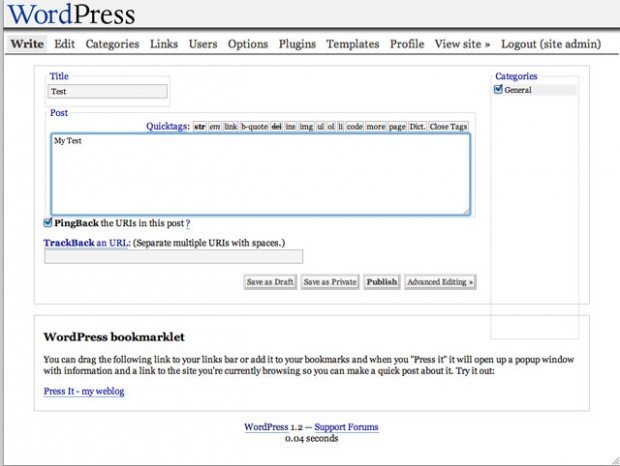
WordPress 1.2 Mingus Write screen Image credit
WordPress version 1.2 is named “Mingus” in honor of jazz upright bassist, pianist, and composer Charles Mingus Jr.New Plugin Architecture
WordPress version 1.2 was the first major release since its launch, which included the addition of plugin support. This release was significant because WordPress became a fully mature product as compared to the weblog tools available back then. Ryan Boren invented the plugin system. In his 2013 interview, he recalled the idea behind the plugin system,“The 80/20 is like, is this useful to the 80 percent of our user's. If not, try it in a plugin. And it allowed us to do things like, you know, all these taxonomy plugins that did their own thing that kind of paved the way and then we later adopted. That was nice.”The new plugin architecture made it easy to modify or extend WordPress’ features. It uses hooks (actions and filters) that developers could use to extend WordPress functionality without having to edit core PHP files. The WordPress community loved this feature.
The luck of timing
Back in those days, the Moveable Type (MT) blogging tool was a top competitor to WordPress. Six Apart, the company behind the Movable Type weblog on May 13th, 2004, made changes to the licensing and, most importantly, the pricing structure for the version 3.0 launch. The users had to pay for personal or commercial licenses based on the maximum number of authors and active weblogs. The free version had only one author and three active weblogs. Nine days later, on May 22, 2004, the WordPress 1.2 version was released. Dissatisfied MT users migrate to WordPress, which is flexible and has no restrictions. WordPress downloads increased from 8,670 in April 2004 to 19,400 in May 2004 on the SourceForge website, which was more than doubled.WordPress 1.5 "Strayhorn" (February 17, 2005)
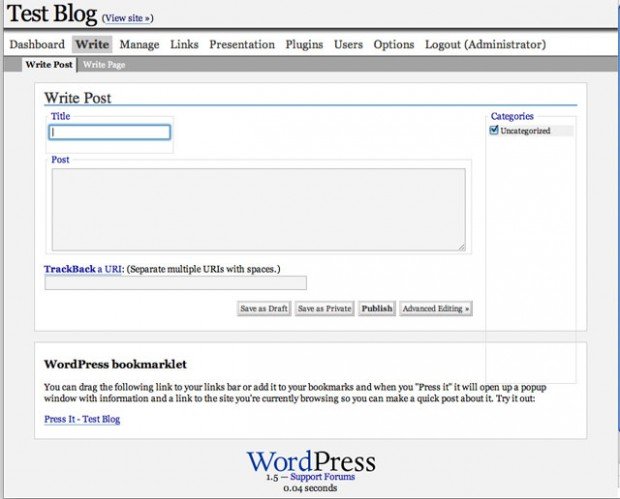
WordPress 1.5 Write Post screenshot
WordPress version 1.5 is named “Strayhorn” in honor of jazz composer, pianist, and lyricist Billy Strayhorn. This was another milestone event where WordPress version 1.5 was released with a Pages feature, better comment moderation tools, and a new theme system (on which the entire theme ecosystem that we see today was built)WordPress Pages
The Pages feature was first introduced so that, apart from traditional weblogs, users could create websites with custom pages such as About Us, and Contact Us, among others.Streamlined comment management Tools
To fight spam better, the comment management process was streamlined. For example, when someone comments on a blog, they are automatically held in moderation (called automatic whitelisting) unless the site owner has approved something from them before. Also, it was easy to deal with hundreds or thousands of comments, pingbacks, and trackbacks at once. Additionally, an option to blacklist spammers was added so that one does not need to monitor comments added to the list. And lastly, an option to allow comments only from visitors who verified their email and registered on the site.Flexible Theme System
WordPress Presentation Panel Image Source.
The introduction of the theme system allowed users to modify their blogs' look and feel. Common site elements were divided into sections like headers, footers, and sidebars, each with its own file. The theme system was so flexible that individual pages, posts, or even categories could have their own template design. Also, multiple theme support was implemented so that users could switch the entire look and feel of the site with a single click.New Default Theme Kubrick
This was the first time in WordPress history that a default (adapted version of the Kubrick theme) was bundled with a release. This theme was WordPress’ default theme (also in a sub-folder named “default” in the themes folder) until 2010. From 2010 onward, yearly themes such as Twenty-Ten, Twenty-Eleven, and so on were launched.
The Kubrick Theme was WordPress’ default theme until 2010.
WordPress 2.0 "Duke" (December 26, 2005)
WordPress version 2.0 is named “Duke” in honor of jazz pianist and composer Duke Ellington.
WordPress 2.0 Write Post screenshot Image Credit
New backend dashboard
WordPress 2.0 was released with a complete overhaul of the admin dashboard screens. Along with the User Interface (UI) facelift, the User Experience (UX) was also reimagined. For example, bloggers could add categories or tags without having to leave the post editor screen or delete comments or categories which will fade out without reloading the screen. Ability to drag and drop dialogs to rearrange and customize the admins' screens easily. In short, the publishing experience was faster and more streamlined thanks to AJAX functionality.New User Role System
Previous versions of WordPress had an old numerical user-level system ranging from 0 to 10. User Level 0 had the lowest privileges and User Level 10 had the highest level of access (basically administrator). The numbered access level was confusing and was not a direct indicator of how these levels (ranging from 0 to 10) were mapped to capabilities. In the new system, roles such as administrator, editor, and contributor were created, which made it easier to understand what capabilities the users had.New TinyMCE WYSIWYG Editor
In this version of WordPress, TinyMCE's WYSIWYG editor was integrated. This “What you see is what you get” (WYSIWYG) editor brought a smooth creating and editing experience natively to WordPress. TinyMCE remained the default editor from WordPress version 2.0 (December 26, 2005) to version 5.0 (December 6, 2018) for almost 13 years, which was then replaced by the Gutenberg Block Editor.WordPress 3.0 "Thelonious" (June 17, 2010)
Introducing WordPress 3.0 Video (CC-BY-SA-4.0)
WordPress version 3.0 is named “Thelonious” in honor of American jazz pianist and composer Thelonious Sphere Monk. It was the thirteenth major release and the culmination of 218 contributors' work over a half-year period.WordPress MU merged in the Core
3.0 release was bundled with lots of features that made WordPress a true CMS. One of the main features included the merging of the WordPress MU project (renamed to Multisite) into the core software. WordPress MU project was about creating the new multi-site functionality which makes it possible to run a single or multiple blogs (two or more) on the same WordPress installation.Custom Post Types and Taxonomies
Custom post type (CPT) was a groundbreaking feature in this release. It was one of the features that transformed WordPress from a simple blogging tool to a full-fledged CMS. Before 3.0 the default content types were Post, Page, Attachment, Revisions, Nav Menus (and two more). The introduction of CPTs allowed the creation of new types of content for users, CPTs such as events, testimonials, books, portfolios, case studies, e-books, and staff, among others could be created. This helped users organize their content beyond the default Post and Page post types. Prior to 3.0, WordPress had categories and tags as default taxonomies. Users could create custom taxonomies from 3.0 (similar to CPTs) thus helping to organize content in better ways.Default Theme every year
Twenty Ten theme was included in the WordPress 3.0 distribution
Along with WordPress 3.0, the Twenty Ten theme was launched, which replaced the Default (Kubrick) and Classic theme. Until then, Kubrick was the default theme from version 1.5 (February 17, 2005) to version 3.0 (June 17, 2010) for more than 5 years. The introduction of the Twenty Ten theme started the tradition of a new default theme every year. Since then, every year a new theme has been launched, such as Twenty Eleven, Twenty-Twelve, Twenty Twenty-Three, and so on.WordPress 3.7 “Basie" (October 24, 2013)
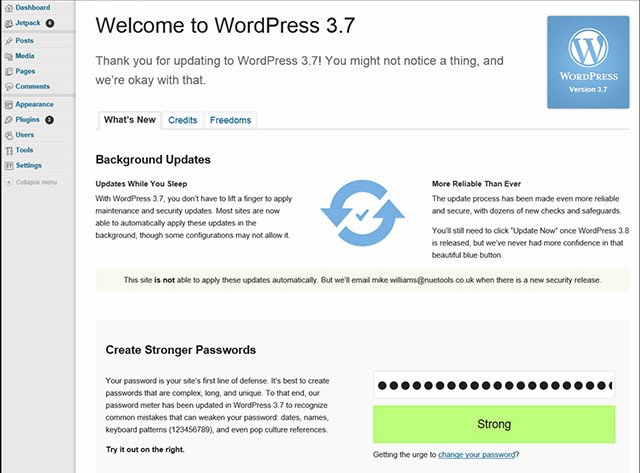
WordPress 3.7 Dashboard screen
WordPress version 3.7 is named “Basie” in honor of American jazz pianist and composer Count Basie. 211 volunteer contributors' worked on this release.Automatic maintenance and security updates.
With WordPress 3.7, maintenance and security updates were automatically applied. The update process happens in the background and is more reliable and secure than ever before. Minor point releases of WordPress (3.7.1, 3.7.2, for example) were automatically updated. Updates for major releases such as 3.7 and 3.8 were not applied automatically. Many users in the WordPress community didn't like this feature, as they felt it took away control from them since, without their permission, WordPress was updated in the background.A new plugin-first development process
WordPress 3.7 was launched with the new plugin-first development process. Using this process, the new features were developed as plugins, and once the development was complete, they would be merged into the core. This process helped the core development team release updates in a much shorter timeframe and decouple feature development from a release.One billion total plugin downloads (August 12, 2015)
WordPress Plugin Directory surpassed one billion total downloads between the 11th to 12th of August 2015. Below is a screenshot of the plugin directory.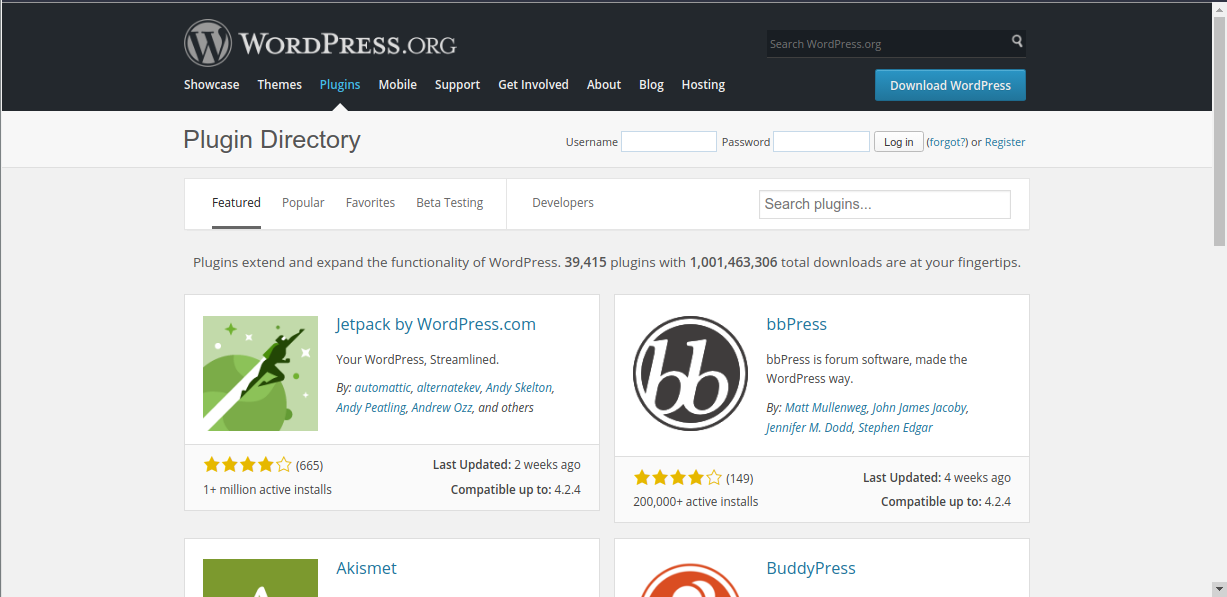
One billion total plugins downloads
WordPress 4.4 “Clifford” (December 8, 2015)
Introducing WordPress 4.4 video (CC-BY-SA-4.0)
WordPress version 4.4 is named “Clifford” in honor of jazz trumpeter and composer Clifford Brown. 471 contributors helped develop version 4.4.REST API infrastructure.
In WordPress 4.4, the REST API infrastructure was integrated into the core. It was the first phase of the multi-stage rollout of the REST API integration. This was marking the dawn of a new era in developing with WordPress and it was one step closer to becoming a fully-fledged application framework. The REST API gave developers an easy way to connect WordPress with third-party applications. Most importantly it laid out the foundation for the Gutenberg Block editor, the future of publishing.In-built responsive images
Another awesome feature that was launched in WordPress 4.4 was native responsive image support. This removes the need for any custom code or plugin. WordPress smartly displayed responsive images on any device (based on the srcset and sizes attributes on the image tag.)WordPress 5.0 "Bebo" (December 6, 2018)
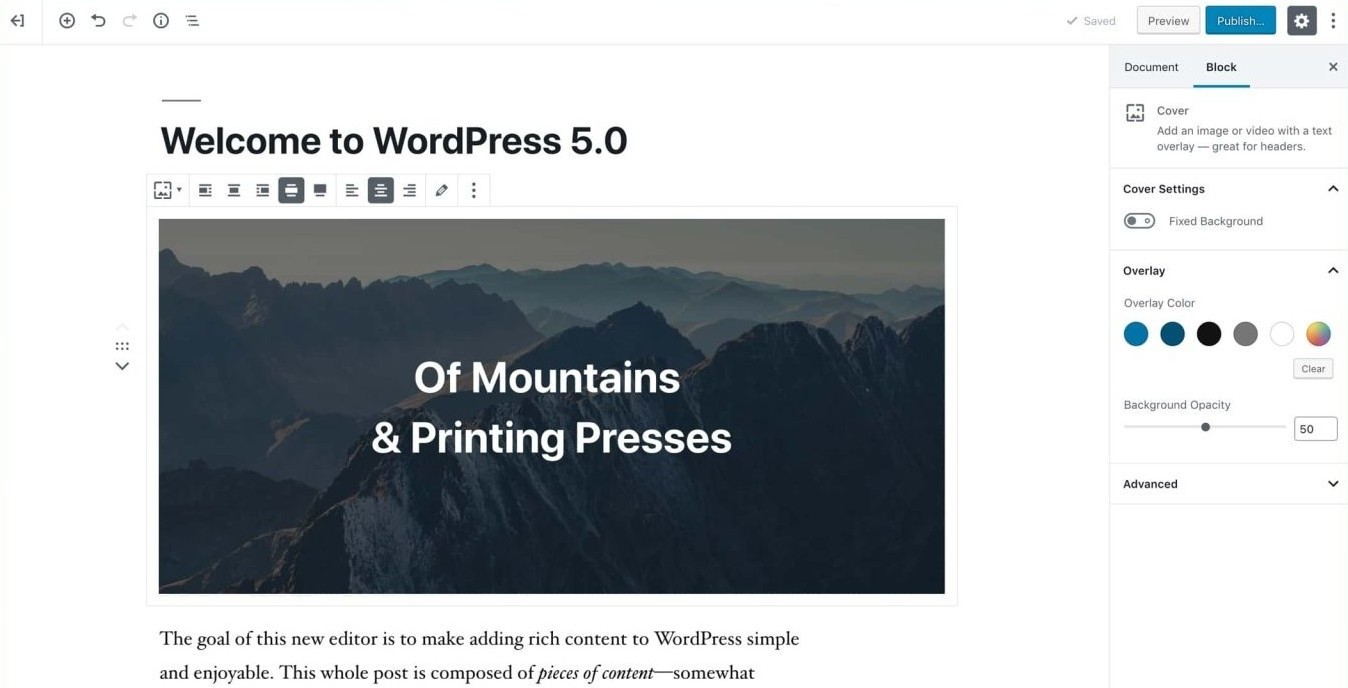
WordPress 5.0 screenshot
WordPress version 5.0 is named “Bebo” in honor of Cuban jazz musician Bebo Valdés. This release had 423 contributors with props.Say Hello to Gutenberg Editor
“What is Gutenberg?” video (CC-BY-SA-4.0)
WordPress 5.0 revolutionized the content editing experience with the introduction of a new block editor Gutenberg. The new block-based editor was a game-changer and the first step toward a next-level content editing experience. The Classic TinyMCE WYSIWYG editor (launched on December 26, 2005) was replaced by the Gutenberg editor (December 6, 2018) after almost 13 years. The classic editor was available as a plugin in the WordPress repository for users who wanted a legacy editing experience.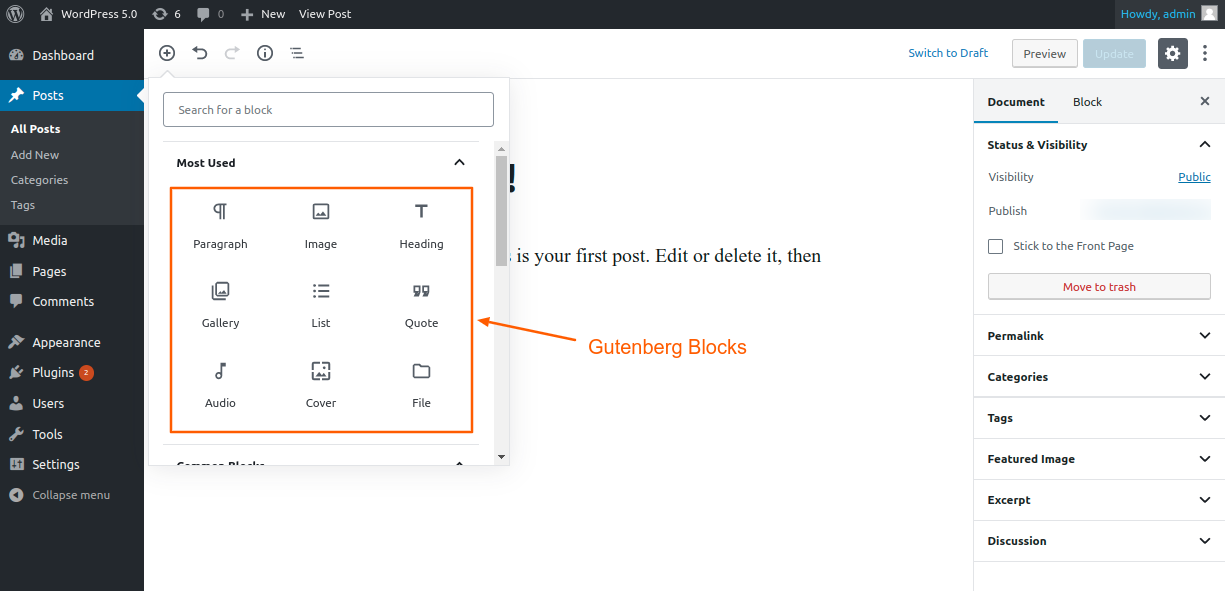
Native Gutenberg Blocks in WordPress 5.0
Gutenberg editor has basic website building blocks such as paragraphs, headings, code, and quote, among others, as well as more advanced blocks such as gallery, audio, video, cover image, and many more to build custom layouts. Using these blocks, users can build their websites without writing a single line of code.Introducing Twenty Nineteen theme
Twenty Nineteen theme Desktop and Mobile view.
Twenty Nineteen theme which has full Gutenberg support was launched with WordPress 5.0. It showcased the power of building websites using blocks. It’s a first-of-its-kind new generation theme where the layouts designed in the Gutenberg editor will be displayed exactly in the front end of the website.WordPress 5.9 "Josephine" (January 25, 2022)
WordPress version 5.9 is named “Josephine” in honor of dancer, singer, and actress Josephine Baker. 624 generous volunteer contributors contributed to WordPress 5.9.Introducing WordPress 5.9
Full Site Editing
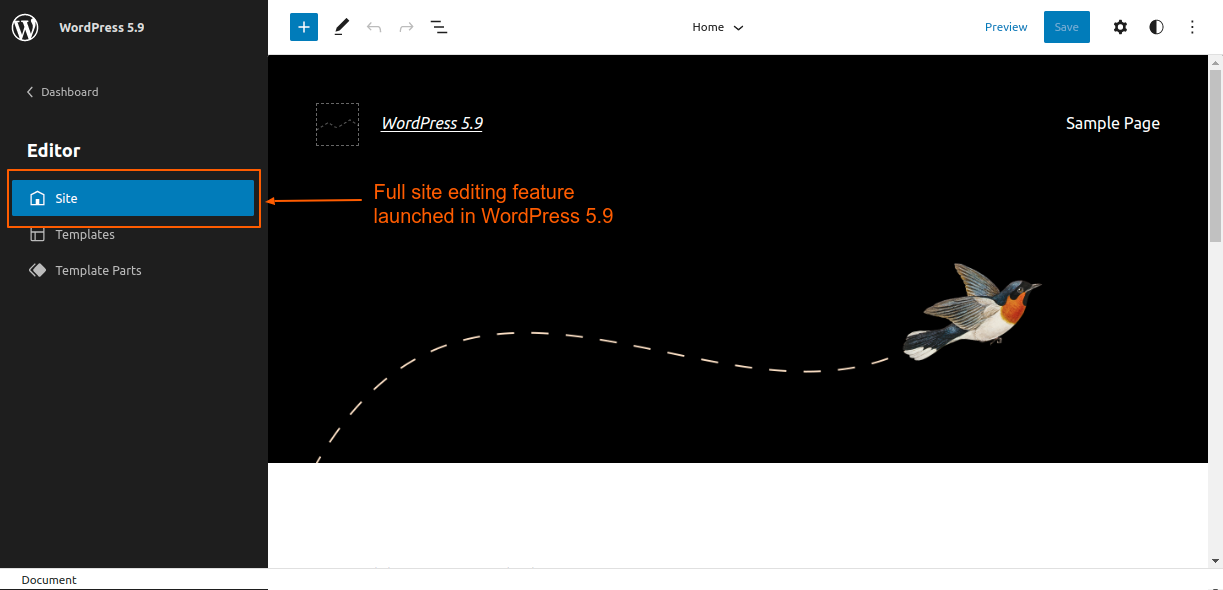
Full Site Editing experience right in WordPress admin
WordPress 5.9 introduced Full Site Editing (FSE). In simple terms, in FSE, one can build and customize the entire website in the Site Editor. All the parts of the website, such as the header, footer, sidebar, pages, and posts in short, every section of the website can be built and customized using the Site Editor.Twenty Twenty-Two Theme
Twenty Twenty-Two, the first default block theme in the history of WordPress, was shipped with version 5.9. It's a perfect example of how block-based themes should be built, and how Full Site Editing works. It's also an excellent reference for theme and plugin developers to learn from by looking at the source code.Templates customization
WordPress 5.9 introduced various native block-based templates such as Home, Search, Single Post, and many others.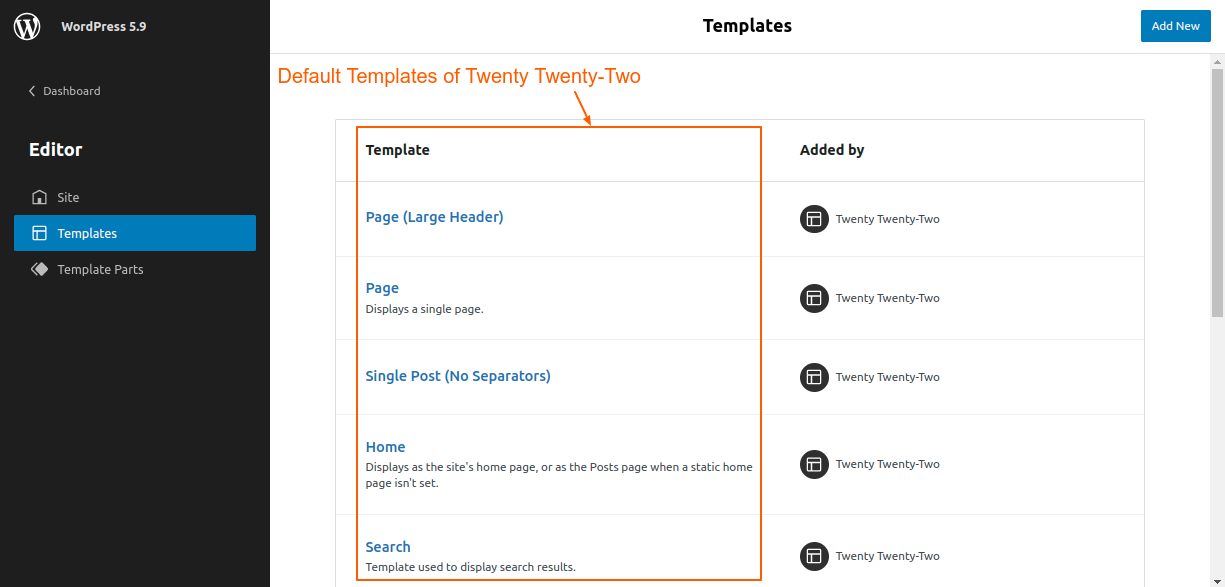
Templates of Twenty Twenty-Two Theme in Full Site Editing
In classic themes, these templates are PHP files such as home.php, single.php, and search.php, among others stored in the theme directory. In block-based themes such as Twenty Twenty-Two, there are HTML files stored in the “templates” directory. The best part about Full Site Editing is that these templates can be customized directly in the Site Editor without writing a single line of code. Below is a screenshot of editing the “Page” template right in the WordPress admin. All the layout changes in the site editor are stored in the database (instead of directly editing HTML files in the template folder of the Twenty Twenty-Two theme.)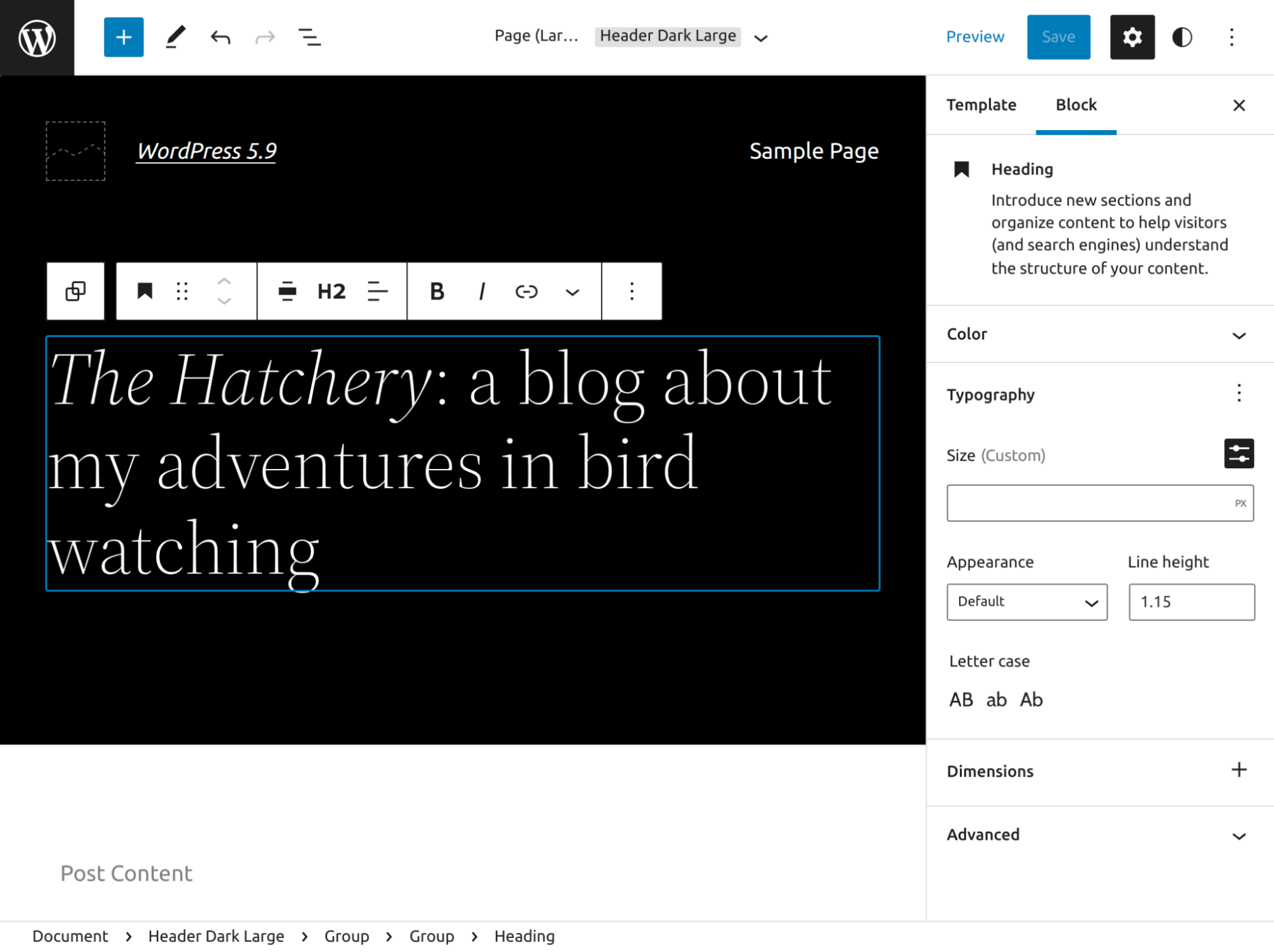
Editing the “Page (Large Header)” template of the Twenty Twenty-two theme
Template Parts Customization
WordPress 5.9 also introduced the customization of template parts which are smaller reusable structural parts commonly used for site headers and footers. Again, one can customize the header and footer Template Parts in the Site Editor.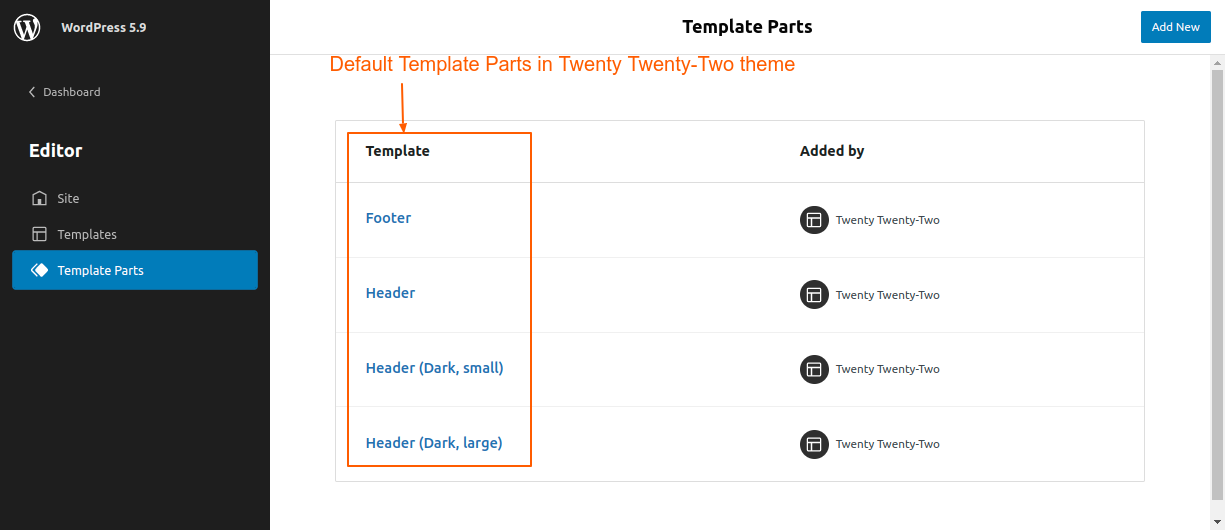
Template Parts in FSE
WordPress 6.2 "Dolphy" (March 29, 2023)
WordPress version 6.2 is named “Dolphy” in honor of e woodwind jazz wiz, and multi-instrumentalist, Eric Allan Dolphy Jr. Over 600 contributors have contributed to this release. Out of which 178 were new contributors.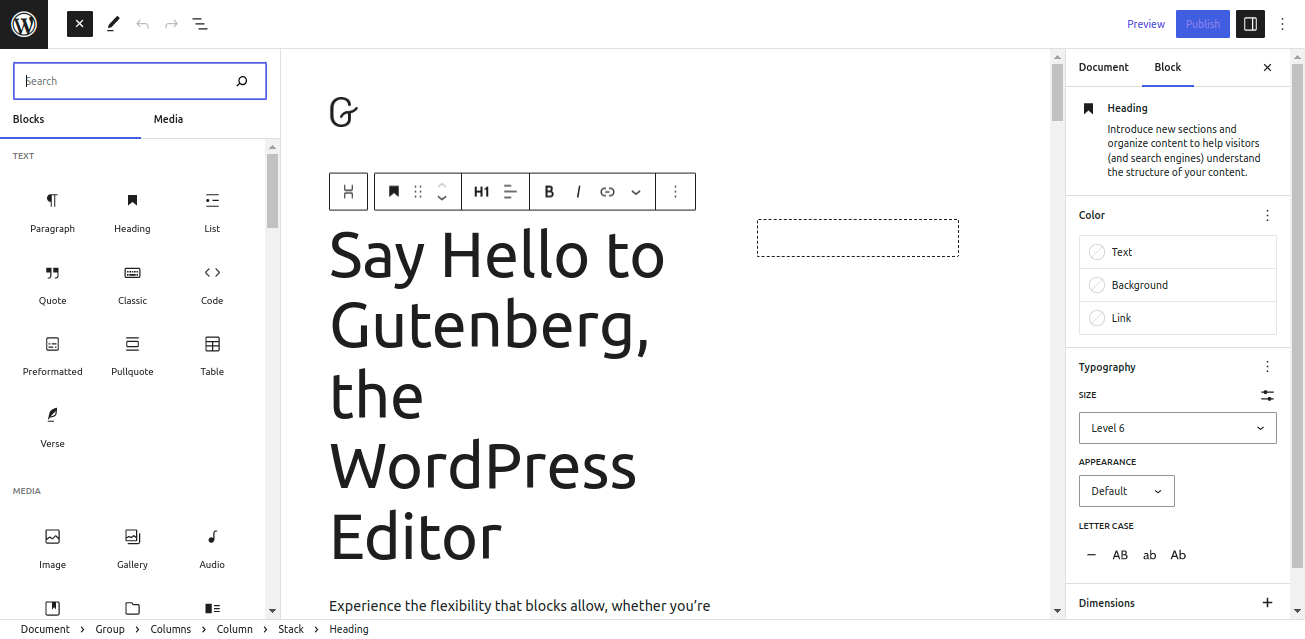
The new Gutenberg editing experience
Reimagined Site Editor
WordPress 6.2 is the most recent, major, and stable release in 2023. The Site Editor is just getting better and better with every major release. The Site Editor has been completely reimagined and is now out of beta. Awesome new features were introduced, such as distraction-free mode, an easier-to-use navigation block, the ability to copy and paste styles between blocks, and many more.Openverse integration
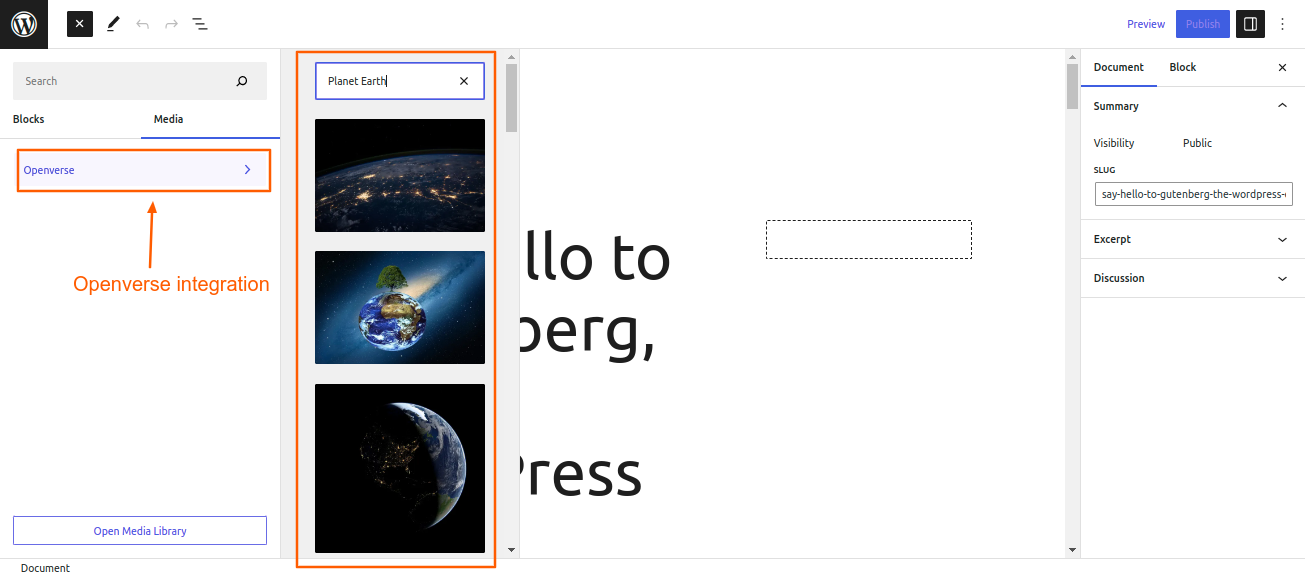 Over 700 million free, openly licensed, and public domain works are available in Openverse's library (currently only stock photos and audio).
Users can search the Openverse catalog right in the media tab of the block inserter. Once the image is selected, it gets uploaded and inserted in the content with the correct attribution.
Over 700 million free, openly licensed, and public domain works are available in Openverse's library (currently only stock photos and audio).
Users can search the Openverse catalog right in the media tab of the block inserter. Once the image is selected, it gets uploaded and inserted in the content with the correct attribution.
WordPress Powers 43.1% of The Web (May 27, 2023)
On May 27th, May 2023, WordPress Powers 43.1% of the top 10 million websites. The below screenshot shows yearly trends in the CMS usage statistics since January 2012.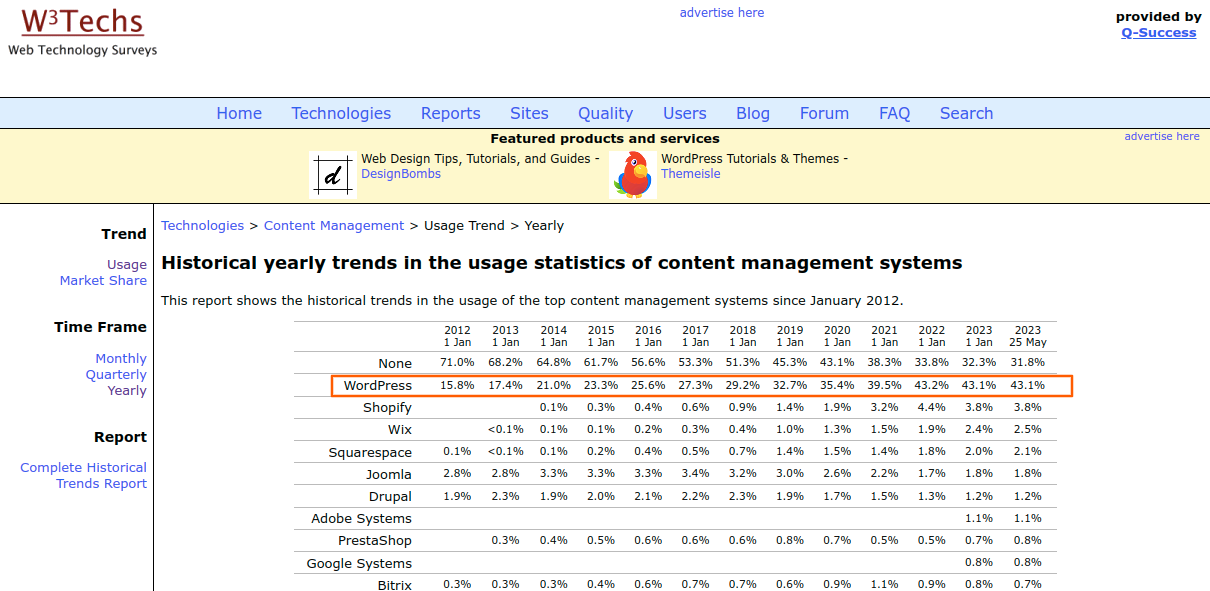
Wrapping up
Over the past two decades, WordPress has achieved remarkable milestones. Since its initial release on May 27th, 2003, it has come a long way. It now powers more than 40% of the web. It’s been an awesome journey so far, and one that won’t stop any time soon. Here is a video that shows how WordPress has grown. [video src="https://w3techs.com/pictures/cms-bcr-202209.mp4" /]The evolution of CMS usage statistics, 2014-2022, Video Source
That’s it for this article. Signing off for now. Happy birthday, WordPress, from the bottom of our hearts.
Plugins
5 min read
Best WordPress SEO Plugins for 2026
1. Yoast SEO
 Yoast SEO is one of the best WordPress SEO plugins. The free version provides multiple features, such as analyzing the content of your post or page, XML Sitemaps, social media integration, and many more.
The Yoast SEO Premium provides more sophisticated features like advanced language analysis that helps to write naturally, the use of synonyms and keyphrases that help to make text richer, adding schema markup, optimizing a page for up to five keywords, previewing your page appearance on Twitter and Facebook, and suggesting internal links to guide users to other areas of your site.
Furthermore, Yoast SEO boasts its own website, offering premium support options, a vibrant community in its forum section, an educational blog for SEO insights, and courses catering to beginners, intermediates, and advanced users.
Nevertheless, budget-conscious users can still take advantage of the free version, which outperforms most other WordPress SEO plugins by a significant margin.
Key features:
Yoast SEO is one of the best WordPress SEO plugins. The free version provides multiple features, such as analyzing the content of your post or page, XML Sitemaps, social media integration, and many more.
The Yoast SEO Premium provides more sophisticated features like advanced language analysis that helps to write naturally, the use of synonyms and keyphrases that help to make text richer, adding schema markup, optimizing a page for up to five keywords, previewing your page appearance on Twitter and Facebook, and suggesting internal links to guide users to other areas of your site.
Furthermore, Yoast SEO boasts its own website, offering premium support options, a vibrant community in its forum section, an educational blog for SEO insights, and courses catering to beginners, intermediates, and advanced users.
Nevertheless, budget-conscious users can still take advantage of the free version, which outperforms most other WordPress SEO plugins by a significant margin.
Key features:
- Preview your exact appearance in Google search results, allowing you to tweak the meta description and title for improved appeal and keyword usage.
- Yoast SEO allows you to add schema markup to your website, enhancing the visibility and appearance of your pages in search engine results.
- It enables you to use focus keywords, thus helping you to optimize content with targeted keywords.
- It comes with a Redirect manager, so you don’t have to install another plugin to handle your 301 redirects.
2. Rank Math
 Rank Math SEO is a multipurpose plugin for your WordPress website. It provides complete on-page SEO management at your fingertips. Rank Math is a lightweight and easy-to-manage SEO plugin for WordPress that consolidates the functionality of several other plugins.
The free version comes with an XML Sitemap, SEO Titles and Meta Descriptions, schema markup, focus keyword analysis to visualize the optimized content with different keywords, and much more.
The premium version provides the user with keyword rank tracking, local SEO integration, Google News, and Video Sitemap, to name a few.
Key features:
Rank Math SEO is a multipurpose plugin for your WordPress website. It provides complete on-page SEO management at your fingertips. Rank Math is a lightweight and easy-to-manage SEO plugin for WordPress that consolidates the functionality of several other plugins.
The free version comes with an XML Sitemap, SEO Titles and Meta Descriptions, schema markup, focus keyword analysis to visualize the optimized content with different keywords, and much more.
The premium version provides the user with keyword rank tracking, local SEO integration, Google News, and Video Sitemap, to name a few.
Key features:
- Each post, page, or product undergoes an SEO analysis based on 40 criteria.
- It allows automatically adding alt or title tags to images that lack them.
- Rich Snippets support is built-in, with a choice of six different snippets, such as Article, Product, Recipes, Events, Video, and Local Business.
- The plugin also features a Redirection module, allowing you to direct 404 errors to more relevant content on your website.
- Breadcrumbs are incorporated within the plugin, eliminating the need for an additional plugin.
- Open Graph and Twitter Card support are also included.
3. All-in-One SEO (AIOSEO)
 The most effective SEO plugin for WordPress is All in One SEO for WordPress (AIOSEO). It helps you improve your search results without learning complicated SEO terms.
XML sitemaps, SEO title and meta tags, schema markup, and social media integration are some of the features available in the free version. The premium features come with more extensions, such as advanced WooCommerce support, local SEO integration, and an advanced robots.txt editor that offers an intuitive interface for editing and managing the robots.txt file of your website, thus controlling search engine crawlers' access to specific areas of your site.
Key features:
The most effective SEO plugin for WordPress is All in One SEO for WordPress (AIOSEO). It helps you improve your search results without learning complicated SEO terms.
XML sitemaps, SEO title and meta tags, schema markup, and social media integration are some of the features available in the free version. The premium features come with more extensions, such as advanced WooCommerce support, local SEO integration, and an advanced robots.txt editor that offers an intuitive interface for editing and managing the robots.txt file of your website, thus controlling search engine crawlers' access to specific areas of your site.
Key features:
- Open Graph metadata is easily manageable with the built-in social media integration.
- SEO Audit Checklist.
- Faster Indexing with RSS sitemaps.
- 404 Error detection and redirection.
- It provides a Link Assistant, which completely revolutionizes the practice of internal linking.
- It offers the best features from different plugins, which eliminates the need for multiple plugins.
4. SEOPress
 SEOPress is an ad-free, premium WordPress SEO plugin. Even the free version is 100% white-labeled and leaves no trace. It's easy, quick, and powerful, and it lets you control the title and meta descriptions for all of your pages, posts, and post types.
It has a simple setup for new users and more complicated controls for those with more experience. As far as capabilities and customization go, it's on pace with the best WordPress SEO plugins available today.
Optimizing tags (Open Graph and Twitter Cards) for sharing on social media; generating sitemaps in XML and HTML; and monitoring site traffic using Google Analytics are a few of the features of SEOPress.
The free edition also includes a content analyzer for site administrators to use while writing articles. More than seventy-five hooks are available to developers for configuring the plugin. The paid version of the plugin comes with additional features such as breadcrumbs optimization, Google structured data types, and many more.
Key features:
SEOPress is an ad-free, premium WordPress SEO plugin. Even the free version is 100% white-labeled and leaves no trace. It's easy, quick, and powerful, and it lets you control the title and meta descriptions for all of your pages, posts, and post types.
It has a simple setup for new users and more complicated controls for those with more experience. As far as capabilities and customization go, it's on pace with the best WordPress SEO plugins available today.
Optimizing tags (Open Graph and Twitter Cards) for sharing on social media; generating sitemaps in XML and HTML; and monitoring site traffic using Google Analytics are a few of the features of SEOPress.
The free edition also includes a content analyzer for site administrators to use while writing articles. More than seventy-five hooks are available to developers for configuring the plugin. The paid version of the plugin comes with additional features such as breadcrumbs optimization, Google structured data types, and many more.
Key features:
- WooCommerce optimization for enhanced SEO support to eCommerce websites.
- Local SEO integration.
- The premium feature Backlink Integration helps to monitor and analyze your website's backlinks to understand your link profile and improve your SEO strategy.
- Modify and optimize your website's URLs for better readability and SEO with URL rewriting.
5. Squirrly SEO
 Squirrly SEO is one of the finest WordPress plugins for large, unique-content websites with high traffic. To help you improve your WordPress site in all aspects, from its backlink profile to its domain authority, it employs artificial intelligence and has an easy-to-use interface.
The full keyword tracking and data tools make Squirrly SEO stand out. This WordPress plugin is also useful for regional search engine optimization thanks to features like local business schema and Google Earth integration.
Squirrly's SEO recommendations differ from those of the other plugins. To begin, enter the topic you want to write about. You then proceed to compose your piece while the green lights respond to the inputted term.
Key features:
Squirrly SEO is one of the finest WordPress plugins for large, unique-content websites with high traffic. To help you improve your WordPress site in all aspects, from its backlink profile to its domain authority, it employs artificial intelligence and has an easy-to-use interface.
The full keyword tracking and data tools make Squirrly SEO stand out. This WordPress plugin is also useful for regional search engine optimization thanks to features like local business schema and Google Earth integration.
Squirrly's SEO recommendations differ from those of the other plugins. To begin, enter the topic you want to write about. You then proceed to compose your piece while the green lights respond to the inputted term.
Key features:
- Optimization of keywords happens in real time as you write.
- If you're replacing another WordPress SEO plugin with Squirrly, your current settings will remain intact.
- You can share content reports created using Squirrly with colleagues.
- Analyze your competitor’s SEO strategies to gain insights and stay ahead of them.


