

Insights, ideas and inspiration. A go to wisdom hub right here.
Featured Posts


Tutorials
7 Min Read

Latest Posts
WordPress
7 min read
How to Create a Multilingual Enterprise WordPress Website Using Weglot
Introduction
It is now essential for enterprise-level organizations to have a multilingual web presence in today's interconnected business ecosystem. This step goes beyond just accommodating; it shows that we are actively trying to reach more diverse audiences and grow your market.
Think about this situation: A website run by a multinational firm only supports one language. Because their language preferences differ from the site's preferred language, many potential customers are unintentionally left out of this setup.
There are several important reasons why multilingual websites are important:
- Broadened Audience Reach: Embracing linguistic variety allows organizations to engage with a broader spectrum of global consumers, broadening their audience reach. Companies may promote inclusion and accessibility by making their platforms multilingual.
- Fostering Trust and Relatability: Users feel more comfortable and at ease when they can consume the content in their local language, which in turn increases trust and relatability. This language resonance greatly enhances credibility and long-term relationships with customers.
- Strategic Competitive Advantage: In today's highly competitive industry, having a website that is available in multiple languages gives you a clear advantage. It enhances a company's brand appeal and relevance by portraying it as culturally sensitive and aware of global market trends.
- Elevated SEO Performance: Websites that are available in more than one language improve SEO performance by increasing their visibility in more geographic areas. Search engine rankings, the amount of organic traffic, and overall online presence can all be improved with locally optimized content.
Choosing the Right Translation Plugin
Selecting the perfect multilingual plugin for your enterprise website is crucial. Imagine it as the bridge that connects your website content to a global audience, and you want a sturdy, reliable bridge! Here's a breakdown of key factors to consider when choosing a plugin that can handle your business needs:
1. Scalability: Can it Scale?
Enterprise websites tend to deal with a lot of content and traffic. The last thing you want is a plugin that buckles under pressure. Look for a plugin that boasts scalability, meaning it can handle your website's growth as you add more languages and content.
2. Feature Feast: Does it Have the Right Tools?
Multilingual plugins come with a variety of features, and for an enterprise website, you'll likely need a well-equipped toolbox. Here are some must-have features to consider:
- Number of Languages Supported: Does the plugin offer enough languages to reach your target audience? Enterprise needs might be broader, so a plugin supporting a vast array of languages is ideal.
- Translation Method: Choose a plugin that offers flexibility in translation methods. Automatic translation can be a good starting point, but there must be an option for self-editing for a more polished final product.
- Content Management: Managing translated content across multiple languages can get tricky. Look for a plugin with a user-friendly interface that allows you to easily edit, review, and approve translations.
3. SEO Savvy: Can it Help You Get Found?
Search Engine Optimization (SEO) is crucial for any website, and a multilingual website is no exception. Ensure the plugin you choose is SEO-compatible. This means it should allow you to optimize your translated content for search engines in each language. The goal is to make sure your website shows up in search results, no matter what language someone uses.
4. Multisite vs. Subfolder Structure URLs
This might seem like a technical detail, but it can impact your website's structure and SEO. Here's a simplified breakdown:
- Multisite: In essence, you create separate websites for each language version of your website. This offers more control and flexibility but can be more complex to manage.
- Subfolder Structure: Here, you add a language code to your existing website URL (e.g., [invalid URL removed] for French). This is a simpler setup but offers less flexibility in managing each language version as a separate entity.
Ultimately, the best choice depends on your specific needs and priorities. Keeping the above points in mind, we have selected the Weglot Plugin for translation for this blog.
Step-by-Step Guide on How to Create Multilingual Enterprise Website Using Weglot
Step 1: Getting the API Key.
- Head over to Weglot: https://weglot.com/ and sign up for a free trial.
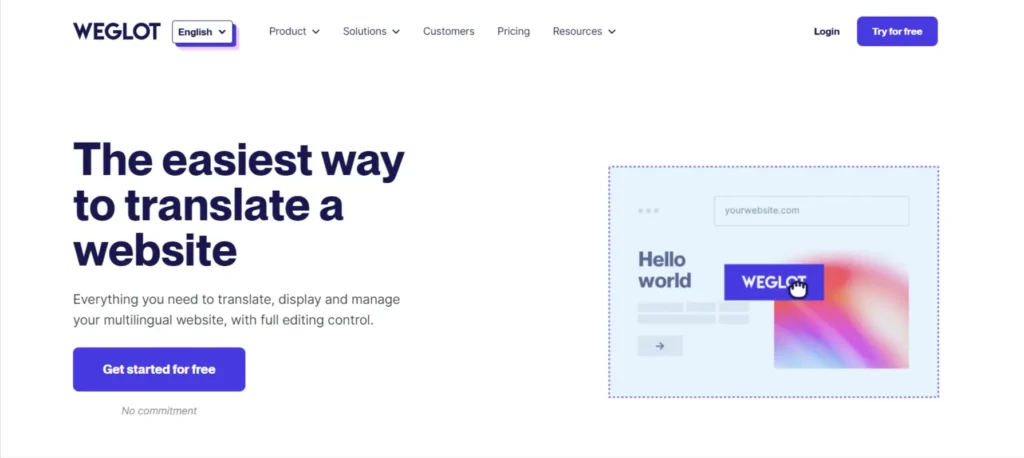
Screenshot 1: Register to get the “API Key”
- Once you register for the site, create a project by entering its name and selecting a technology.
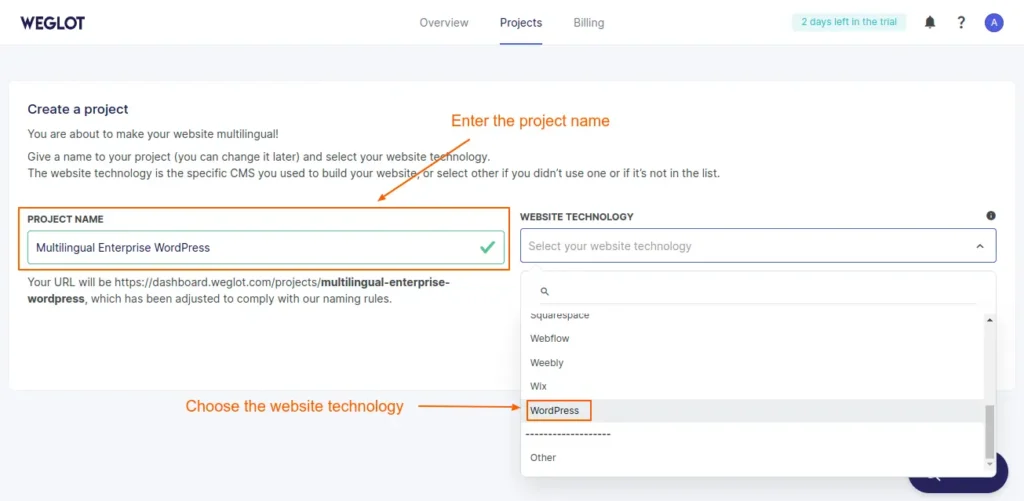
Screenshot 2: Create a Project and choose website technology as "WordPress.”
- Once that is done, copy the generated Weglot API key.
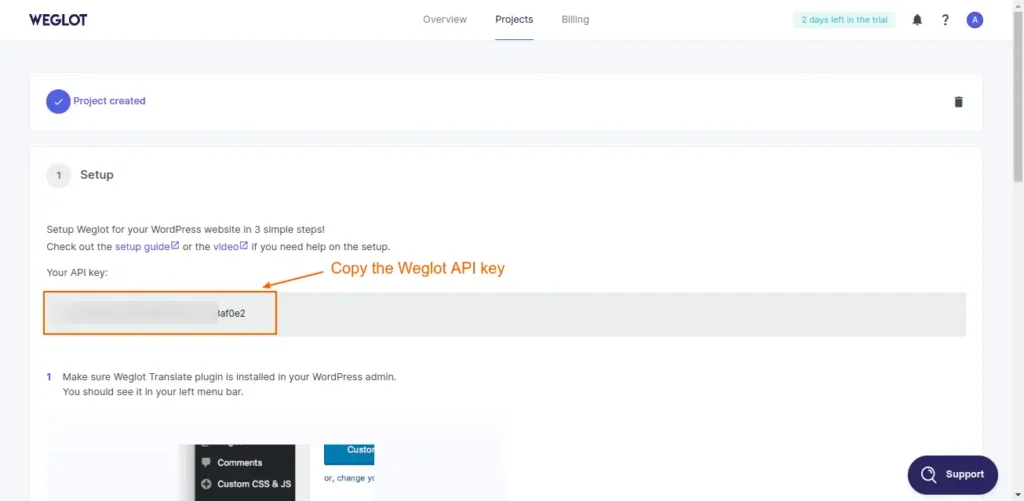
Screenshot 3: Copy the Weglot API key
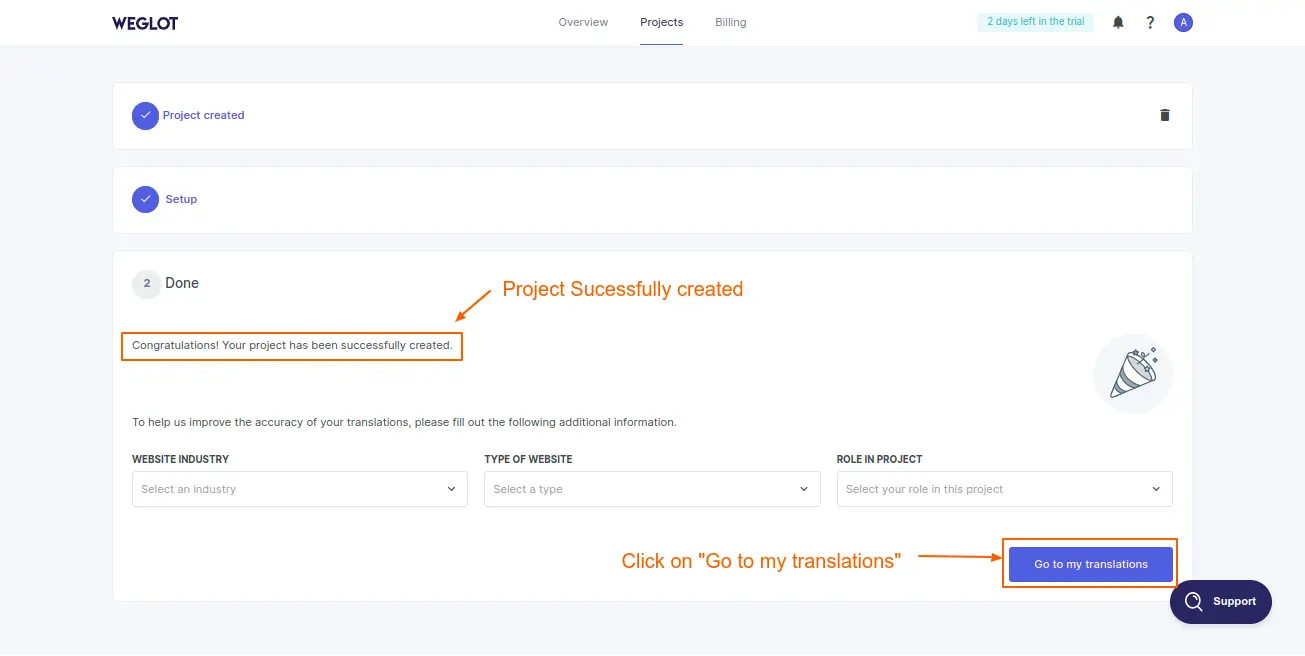
Screenshot 4: Project successfully created
Step 2: Install and Activate WeGlot Plugin
- Go to Plugins on your website’s dashboard.
- Go to Add New Plugin.
- Search for Weglot Plugin.
- Install and Activate the plugin.
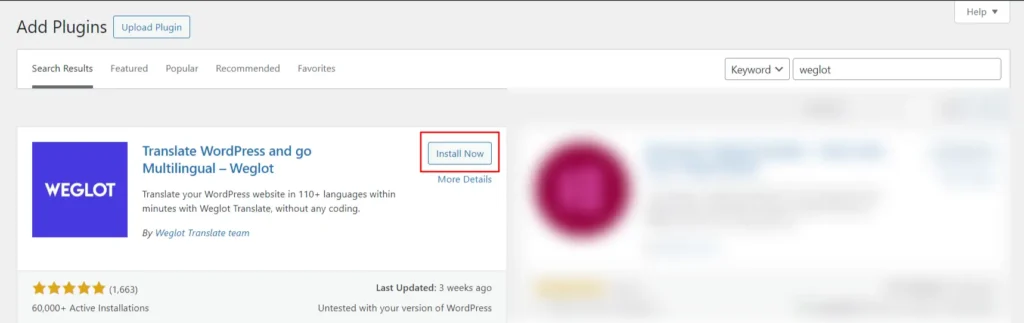
Screenshot 5: Install and Activate the plugin
Step 3: Weglot Plugin Settings
- After you activate the plugin, go to the Weglot plugin from your dashboard.
- Enter the API key that you received when you registered at the WeGlot website in Step 1.
- Configure the required settings, like choosing the original language and choosing the destination language. For this blog, we have added Hindi as the destination language.
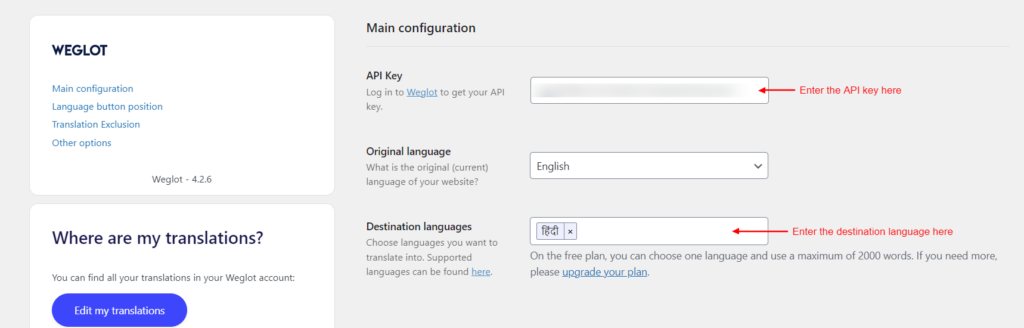
Screenshot 6: Main Configuration Settings
Step 4: Language button design
- The language button design settings allow you to customize how your language switch button will look on the website.
- The settings include whether to display the language button as a dropdown or side by side, whether to display a flag in the language button, how the flag would look (rectangle, circular, or square), or whether you want a full language name or only the language code.
- You can also customize the language button settings by overriding the CSS code.
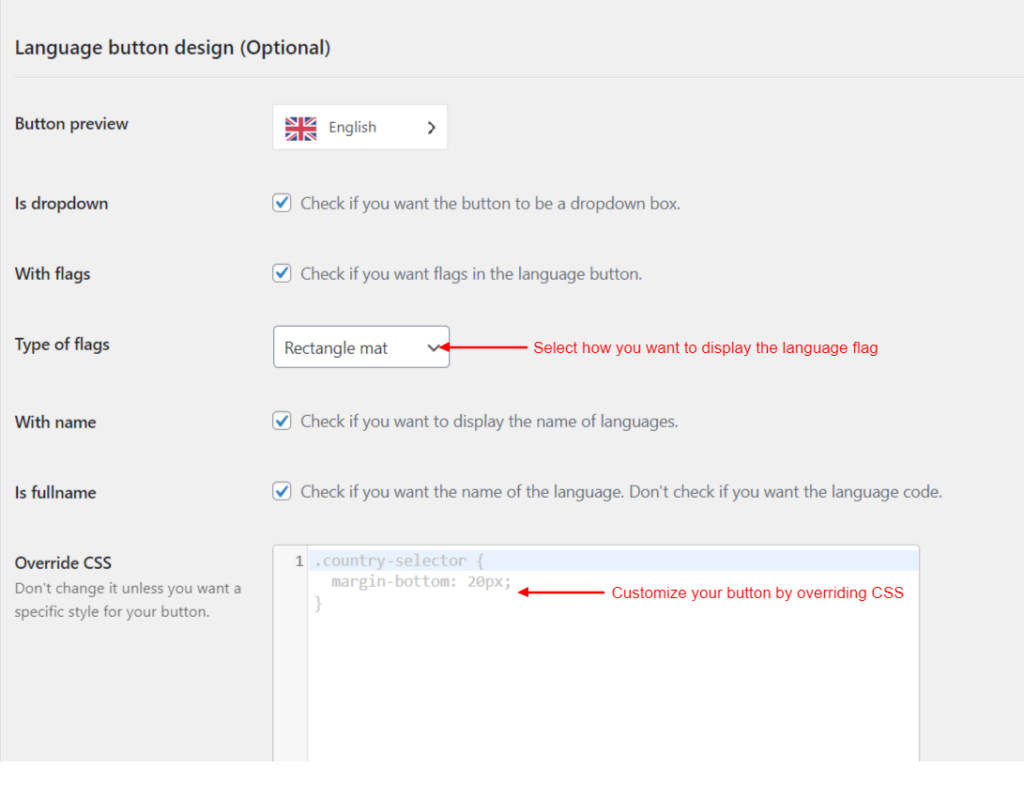
Screenshot 7: Language Button Settings
Step 5: Language Button Position
- These settings define where the language button will be positioned, which would help the user locate it easily.
- Choose from various options to place the language button in the menu, as a widget, with a shortcode, in the source code, or even in a custom position.
- To select these positions, go to Appearance > Menus or Appearance > Widgets.
- To select a custom position, you can go to the Switch editor.
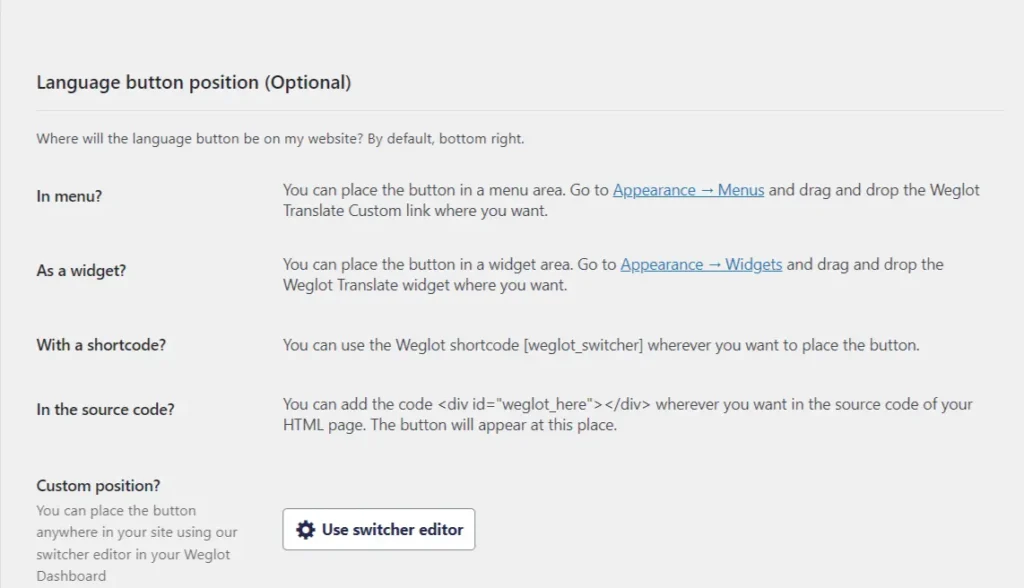
Screenshot 8: Language Button Position
Step 6: Translation Exclusion
- These settings allow you to specifically exclude any URL or blocks that you do not wish to translate on your website.
- Note that these settings are optional and not mandatory.
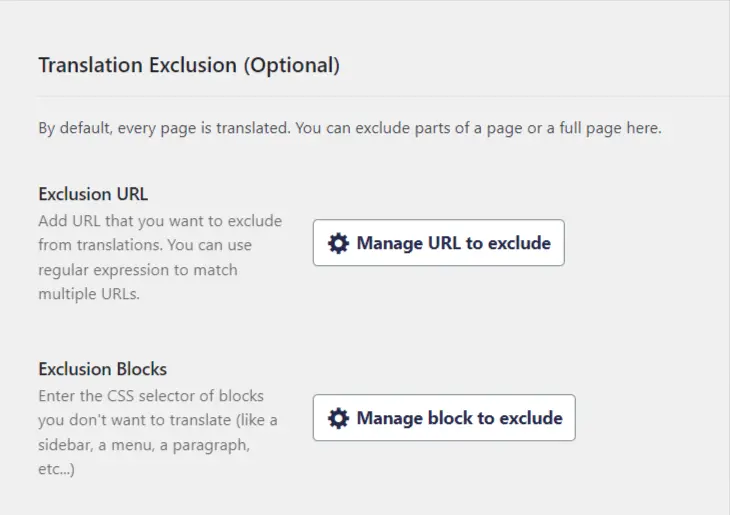
Screenshot 9: Translation Exclusion Settings
Step 7: Other Settings
- These settings include auto redirection for users, auto email translation, Translate AMP pages, and allowing users to search in their languages.
- Note that these settings are optional and not mandatory.
- Click on Save Changes.
- Your website is ready to be translated.
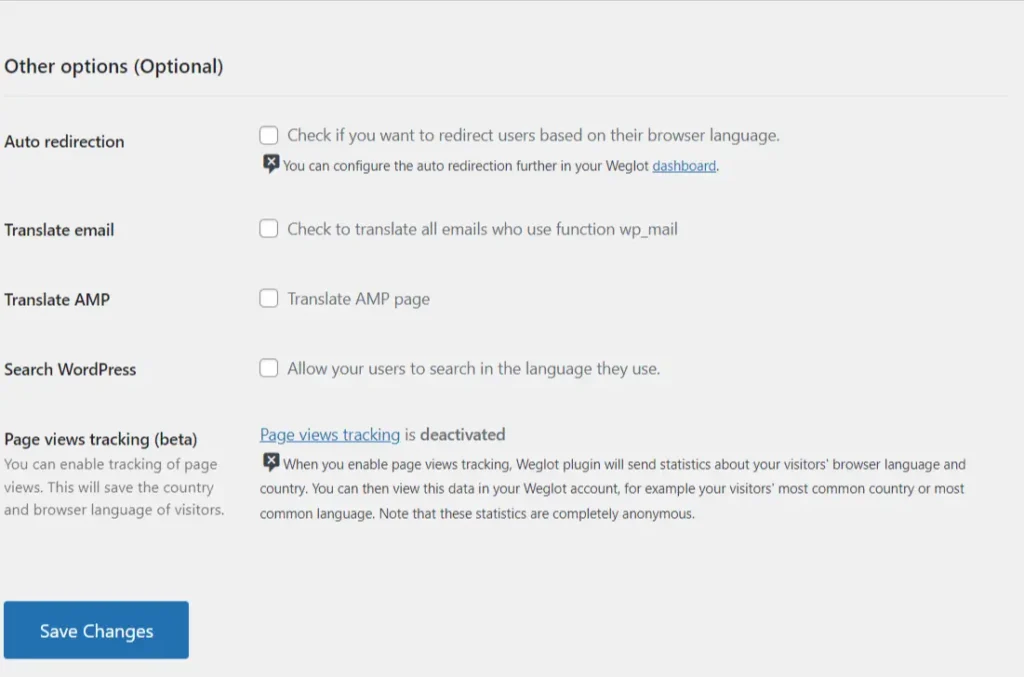
Screenshot 10: Other Options
- Once you have configured the settings, head over to the front end of the website to see the automated language translation in action.
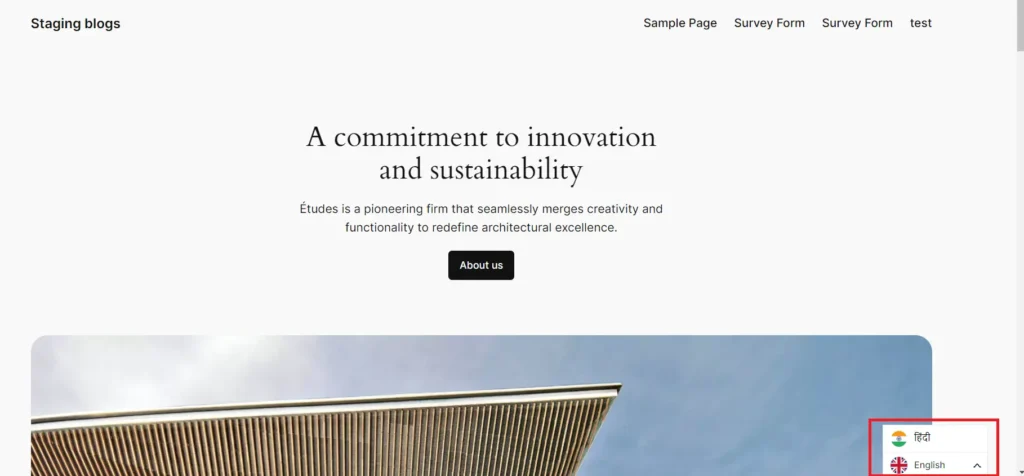
Screenshot 11: Output of Language Selection
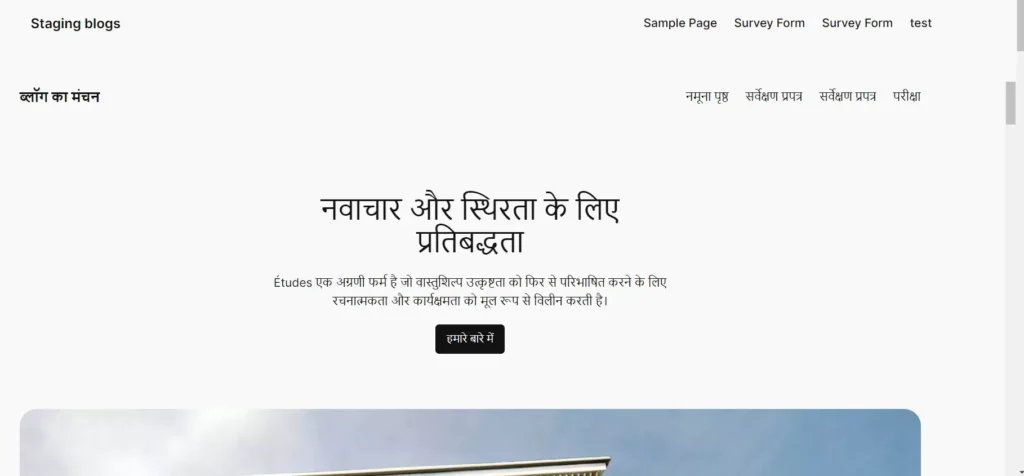
Screenshot 12: Output of Translated Website in Hindi
Step 8: Editing Translations
- Once the plugin is configured, click the language switcher on the front end of the website. The Weglot plugin then automatically translates all the text on the website into the destination language selected.
- Sometimes it's required to edit those translations manually. To do that, click on “Edit my translations” button, it will take you to the Weglot dashboard, as shown in the below screenshot (number).
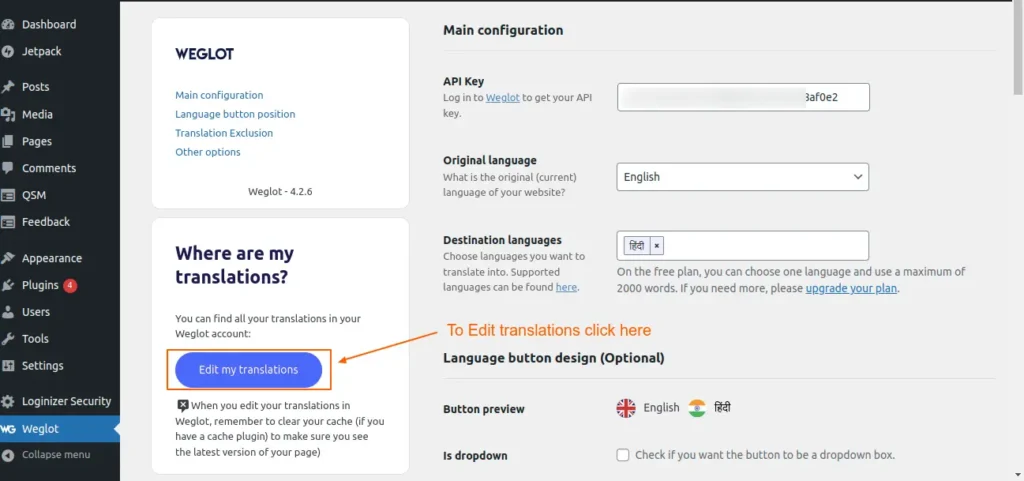
Screenshot 13: Edit translations
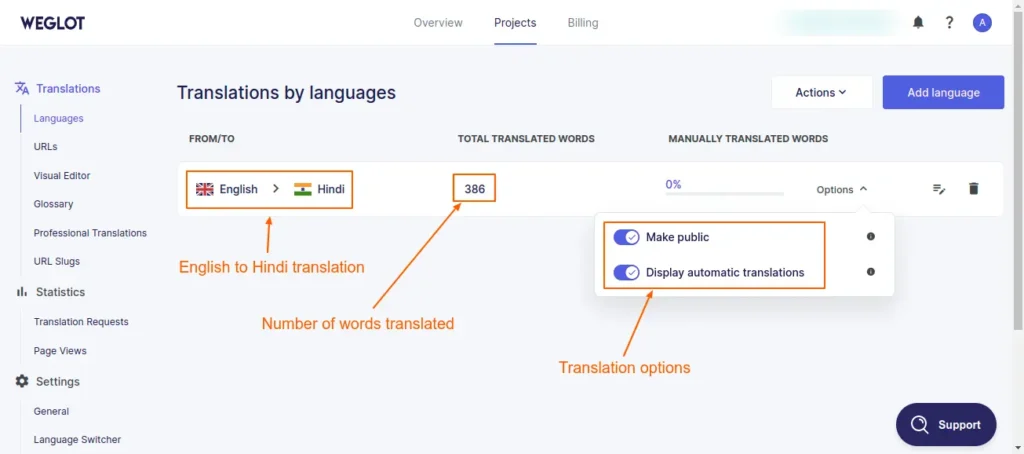
Screenshot 14: Translation by languages (English to Hindi)
- On the Weglot dashboard’s “Translations by languages” screen, we can see the “Total translated words” and “Manually translated words” columns.
- Also, there are two options available, as seen in the above screenshot number. First, we can make the translations public or private. This is helpful if you want the language translations to be private so that only you and your team can view them (by appending “?weglot-private=1” at the end of the URL). This means it won't be visible to search engines or visitors.
- The second option is “Display automatic translations.” If you prefer to show only manual translations on your website rather than automatic translations, switch on this option.
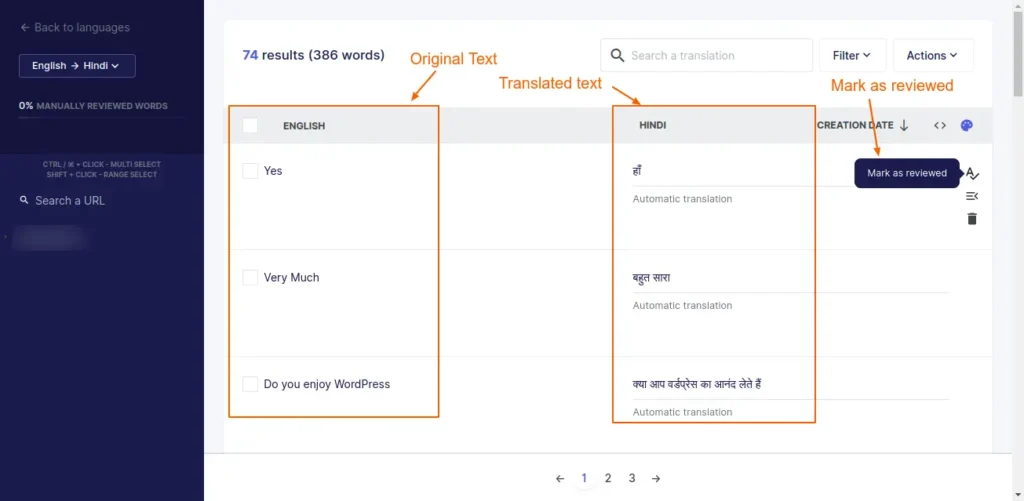
Screenshot 15: Manually edit the translation and mark it as reviewed
Note: All the translations (automated and manual) are stored on the Weglot platform. Only the Weglot plugin settings are stored in the WordPress database.
Conclusion
Making a website that supports multiple languages doesn't have to be complicated when you have Weglot by your side. With this intuitive plugin, you can expand your reach to new markets and engage with people all over the world—without ever having to touch a line of code.
If you want to build a multilingual enterprise WordPress website, connect with us.
WordPress
10 min read
How to choose the best Enterprise WordPress agency for your business
Choosing the best enterprise WordPress agency is crucial for companies looking to make a big online impact in the fast-paced digital world of today. Making decisions might be overwhelming because there are so many organizations fighting for your attention. On the other hand, making the time and effort to locate the ideal fit can pay off well in the end.
Finding a strategic partner who understands your business goals & brand identity and has the competence to execute your vision is key.
The decision to choose an enterprise WordPress firm is a strategic investment in your company's future. To boost your brand's online presence, start by digging deep into your requirements, communicating clearly and openly, and focusing on your research. This way, teaming up becomes a game-changer, making your digital stand out.
Understanding Enterprise WordPress Agency
So, you're diving into the world of enterprise WordPress agencies – it's like stepping into a whole new ball game, isn't it? Let's explore what defines these agencies, how they differ from standard WordPress agencies, and the critical factors to consider when embarking on enterprise-level projects.
What is an enterprise WordPress agency?
Enterprise WordPress agencies are specialized firms equipped to handle large-scale, complex projects for established businesses and organizations. They possess a deep understanding of enterprise-level requirements, including scalability, security, and customization, to accommodate the diverse needs of their clientele.
Characteristic features of enterprise WordPress agencies include:
- Expertise in WordPress development: These agencies boast seasoned developers proficient in leveraging WordPress's extensive capabilities to create highly customized solutions tailored to enterprise clients.
- Robust infrastructure: They employ advanced tools, frameworks, and methodologies to build scalable, high-performance websites capable of handling significant traffic loads without compromising on speed or reliability.
- Focus on security and compliance: Enterprise WordPress agencies prioritize security measures and adhere to industry best practices to safeguard sensitive data and ensure compliance with regulatory standards.
- Strategic consulting: Beyond technical execution, these agencies offer strategic guidance and consulting services to help enterprises maximize their online presence, enhance user engagement, and achieve their business objectives.
Distinction from Regular WordPress Agencies
While both regular and enterprise WordPress agencies share a foundation in WordPress development, they cater to distinct clientele and project scopes.
Regular WordPress agencies primarily serve small to medium-sized businesses and startups, focusing on building foundational websites, blogs, and e-commerce platforms. They may lack the resources, expertise, and infrastructure necessary to tackle enterprise-level projects effectively.
In contrast, enterprise WordPress agencies specialize in addressing the multifaceted requirements of larger organizations with diverse stakeholder needs, intricate workflows, and rigorous security protocols. They possess the scalability, technical prowess, and industry-specific insights required to execute projects of considerable scale and complexity.
Factors To Consider While Choosing An Enterprise WordPress Agency
1. Experience and Expertise
Proven Track Record
An enterprise WordPress agency's track record stands as a testament to its capability and reliability in delivering exceptional results. Businesses can gain valuable insights into an agency's capabilities by looking at past projects and client feedback. This helps them understand how well the agency can handle challenging tasks, meet deadlines, and go beyond what's expected.
A track record of successful implementations demonstrates the agency's proficiency in navigating challenges, adapting to evolving requirements, and delivering tangible value to clients. This history of accomplishment instills confidence and reassures enterprises that their projects are in capable hands.
Portfolio Assessment
A comprehensive portfolio serves as a window into the agency's capabilities, showcasing a diverse range of projects, industries served, and creative solutions implemented. When evaluating an Enterprise WordPress Agency, businesses should scrutinize its portfolio to assess compatibility with their objectives and vision.
A strong portfolio shows off what the enterprise WordPress development company can do – it's all about their range, their knack for coming up with fresh ideas, and how they customize their work to fit what every client needs.
It gives you a peek into their design style, how savvy they are with tech, and just how good they are at using WordPress to get the results they want.
Custom Development and Complex Functionalities
Enterprise-level projects often necessitate custom development and the integration of complex functionalities to address specific business requirements. An adept enterprise WordPress agency should possess the expertise and technical acumen to execute these tasks seamlessly.
Whether it involves integrating curated plugins, third-party systems, or implementing intricate workflows, the agency's proficiency in custom enterprise WordPress development is paramount. By leveraging WordPress's extensibility and flexibility, the agency can create tailored WordPress enterprise solutions that aligns precisely with the enterprise's objectives and operational workflows.
2. Technical Proficiency
Understanding of WordPress Core, Themes, and Plugins
A reputable enterprise WordPress agency must possess a comprehensive understanding of the WordPress ecosystem, including its core architecture, themes, and plugins. The agency excels at utilizing all the features that WordPress provides. They have the ability to develop personalized solutions that perfectly align with the requirements and preferences of enterprises.
From building themes to extending functionality through plugins, the agency's mastery of WordPress empowers them to create visually stunning, user-friendly websites that meet the highest standards of excellence. A thorough grasp of WordPress core ensures that the agency can navigate technical challenges adeptly, implement best practices, and optimize the platform to achieve desired outcomes.
Scalability and Performance Capabilities
Enterprises require websites that can scale seamlessly to accommodate growth, handle increasing traffic volumes, and deliver optimal performance under any circumstances. An enterprise WordPress agency must demonstrate the ability to architect scalable solutions that meet evolving business needs while maintaining exceptional performance standards.
This involves optimizing the codebase, leveraging caching mechanisms, and employing content delivery networks (CDNs) to minimize load times and enhance the user experience.
By keeping scalability and performance in mind from the initial stage, the agency can make sure the website is adapting to the new requirements and changes. This way, users always get a smooth, high-quality experience.
Security Best Practices
For anyone investing in WordPress development for enterprise, security's not just important—it's at the top of the list. Implementing security practices isn't optional, it's a must. An Enterprise WordPress Agency must employ robust security measures to safeguard against cyber threats, data breaches, unauthorized access, and much more.
This entails implementing industry-standard security protocols, regular software updates, encryption techniques, and proactive monitoring to mitigate risks effectively. Starting with security in mind right from the development process itself, the agency puts its clients at ease. It's all about safeguarding those precious assets and keeping enterprise clients’ online identities solid and secure.
3. Scalability
Ability to Handle Large Databases
Dealing with a large amount of data is a common challenge for enterprises. Therefore, they require robust systems and efficient information management solutions at scale. An Enterprise WordPress Agency must demonstrate proficiency in handling large databases efficiently, ensuring optimal performance, data integrity, and scalability.
The performance and speed optimization of the database is our primary concern in this context. To accomplish this, intelligent strategies need to be implemented, including database optimization, efficient query execution, and the utilization of caching mechanisms.
We maintain optimal database configuration and management practices, enabling us to process increasing volumes of data for our clients without impeding operations. Thus, everything operates efficiently and promptly.
Experience with High-Traffic Websites
Websites that get a ton of visitors have their own set of challenges. We're talking performance, reliability, and making sure they can grow without a hitch. An experienced Enterprise WordPress Agency should have a proven track record of managing websites that attract substantial traffic volumes without compromising speed, uptime, or user experience.
By using a mix of caching, CDN (content delivery network), and load balancing, the traffic on the website can be handled more efficiently. The enterprise agency should be an expert at creating systems that can handle loads of traffic without breaking a sweat. So, even when the site gets super busy, users can still navigate smoothly and enjoy their experience.
Handling Complex Integrations
Enterprises rely on various systems, applications, and third-party services to streamline their operations, enhance productivity, and deliver value to customers. An adept Enterprise WordPress Agency should possess the expertise to integrate WordPress seamlessly with these complex ecosystems, ensuring interoperability, data synchronization, and workflow automation.
When it comes to connecting different systems like CRM platforms, online stores, payment gateways, or tools for automated marketing, the agency must be good at handling these complex integrations.
By leveraging APIs, web services, and custom integration solutions, enterprises can facilitate seamless data exchange and streamline business processes for enhanced efficiency and productivity.
4. Support and Maintenance
Post Launch Support Services
After the grand unveiling of your enterprise website, the journey doesn't end there; it's just getting started. A top-notch agency understands this and extends a reassuring hand of post-launch enterprise support for WordPress services.
Whether it's minor tweaks to enhance performance or guidance on utilizing new features effectively, having an expert team ready to assist ensures your digital presence remains dynamic and robust.
Ongoing Updates and Security Patches
Technology evolves, and so do the tactics of those with malicious intent. This is why ongoing updates and the application of security patches are a must.
A reputable agency makes it a top priority to keep your website up-to-date and secure from potential risks. This proactive strategy not only strengthens your website's defenses but also guarantees that it takes advantage of the newest advancements and enhancements, helping you stay ahead in the competitive online landscape.
Prompt Issue Resolution
In today's world, things move quickly, and everyone's time is crucial. The perfect WordPress Enterprise agency understands this well—they don't just talk about it; they live it.
With a committed team ready to assist you, problems get spotted and fixed promptly. This helps keep your online activities running smoothly, with minimal interruptions. Such quick responses not only make your website more dependable but also reassure you that your online presence is being taken care of by WordPress experts.
5. Communication and Project Management
Transparent communication
Imagine working with a team that makes you feel like you're part of the process every step of the way. That's the hallmark of transparent communication. It's about open dialogues, where your ideas, concerns, and feedback are not just welcomed but are considered pivotal.
A standout Enterprise WordPress development agency practices clarity from the get-go, setting the tone for a collaborative partnership. Being transparent builds trust, thus ensuring that you're never left guessing about your project's status.
Regular Progress Updates
Staying informed is critical in the project development process. You must constantly monitor the status of your project. Regular updates provide a snapshot of your website's evolution, keeping you current on its state.
The right agency doesn't keep you waiting or wondering; instead, they proactively share updates, celebrate milestones, and discuss the next steps. These updates aren't just to keep you in the loop; they're also an invitation for your thoughts and feedback.
Agile Project Management Processes
When you're selecting a WordPress Enterprise Agency, make sure their team maintains effective communication and follows an agile project management process.
Here's a breakdown of the project management process,
- Initiation: This is where the project kicks off. You discuss your goals, requirements, and expectations with the agency. They gather information to fully understand the scope of the project.
- Adaptive Planning: Agile projects embrace change; hence, agile teams prioritize delivering the highest value features first and adjust their plans based on feedback and changing priorities. The project is broken down into small, manageable tasks organized into sprints or iterations, timelines are set, roles and responsibilities are defined and resources are allocated.
- Execution: This is the hands-on phase. The agency starts developing your WordPress site, implementing designs, writing code, and integrating functionalities. Regular communication is key here to ensure everything stays on track.
- Monitoring and Controlling: Throughout the project, the agency keeps a close eye on the progress made. They track milestones, conduct regular reviews, and address any issues that arise promptly. Agile methodologies emphasize continuous improvement and flexibility, allowing for adjustments as needed.
- Project Deployment: Once the WordPress site is developed and tested, it is ready to go live. The agency ensures all deliverables meet your requirements, conducts final testing, and prepares for deployment.
- Post-Project Review: After the site is launched, there's still work to be done. The agency gathers feedback, evaluates the project's success, and identifies areas for improvement, if any. This assists in shaping future projects and maintaining continuous client satisfaction.
Conclusion
As you embark on the pivotal decision of choosing the right WordPress EnterPrise Agency, remember that the best partnerships are built on transparency, collaboration, and a shared commitment to excellence.
Choosing an agency that resonates with your organization's values and goals is integral to not just meeting but exceeding the expectations of your digital initiatives. The right WordPress Enterprise agency becomes an extension of your team, a collaborator who is as invested in your success as you are.
If you are looking for enterprise WordPress development services then look no further Connect with our experts.
Tutorials
8 min read
How to Create a Survey in WordPress Using Quiz and Survey Master Plugin
Capturing the attention of your target demographic while simultaneously collecting useful data is a must in the modern digital era. Any content producer or business owner's toolbox should include surveys since they provide a direct route to understanding your audience's preferences, wants, and opinions.
You can engage your audience on a deeper level and empower them to make well-informed decisions by adding surveys to your WordPress site. Using the powerful capabilities of the Quiz and Survey Master plugin, this tutorial will show you how to implement surveys in WordPress.
Note: The Quiz and Survey Master plugin as the name suggests, can be configured for conducting quizzes and surveys. This article discusses the configuration of surveys only.
Step 1: Install and Activate the Plugin
- Log in to your WordPress dashboard.
- Navigate to Plugins > Add New.
- In the search bar, type “Quiz and Survey Master”.
- Once you find the plugin, click on Install Now.
- After installation, click Activate to enable the plugin on your WordPress site.
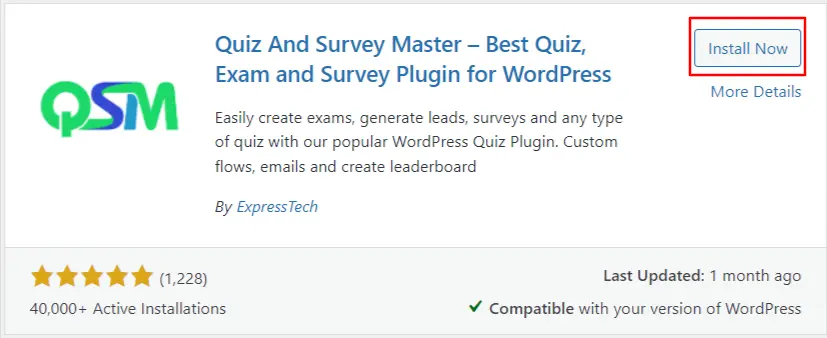
Screenshot 1: Install the Quiz and Survey Master Plugin
Step 2: Create a New Survey
- Go to QSM > Quizzes/Surveys in your WordPress dashboard.
- Click on the Create New Quiz/Survey button.
- Enter a name for your survey in the Quiz Name/Survey Name field.
- Optionally, you can add a description of your survey.
- Click Create Quiz/Survey to proceed.
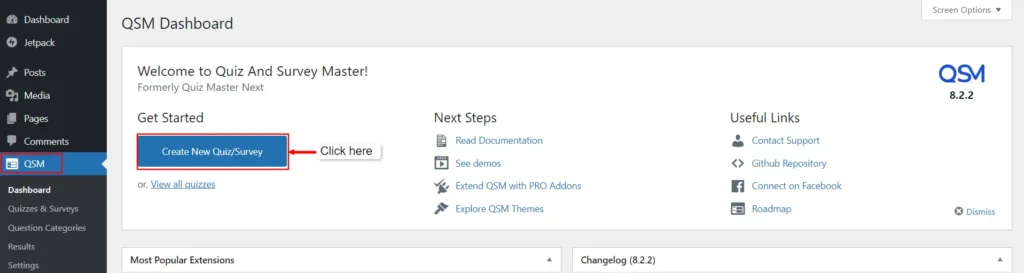
Screenshot 2: Click on ‘Create New Quiz/ Survey’
- Select the theme for which you want to create your quiz/ survey. There are also paid themes available to choose from.
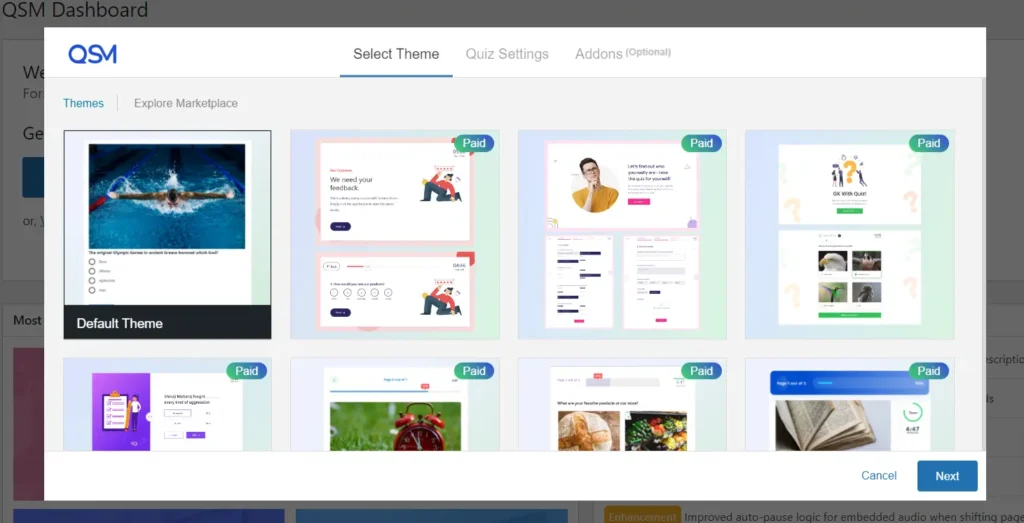
Screenshot 3: Select Theme
- After selecting your theme, you must enter Quiz Settings' details.
- Select the form type Survey to create a survey. This is an important step for creating and configuring surveys
- Further options, such as enabling a contact form, setting a Time Limit, requiring user login, enabling a comment box, and others, are set to “No” by default. You can choose “Yes” or options that fit your requirements.
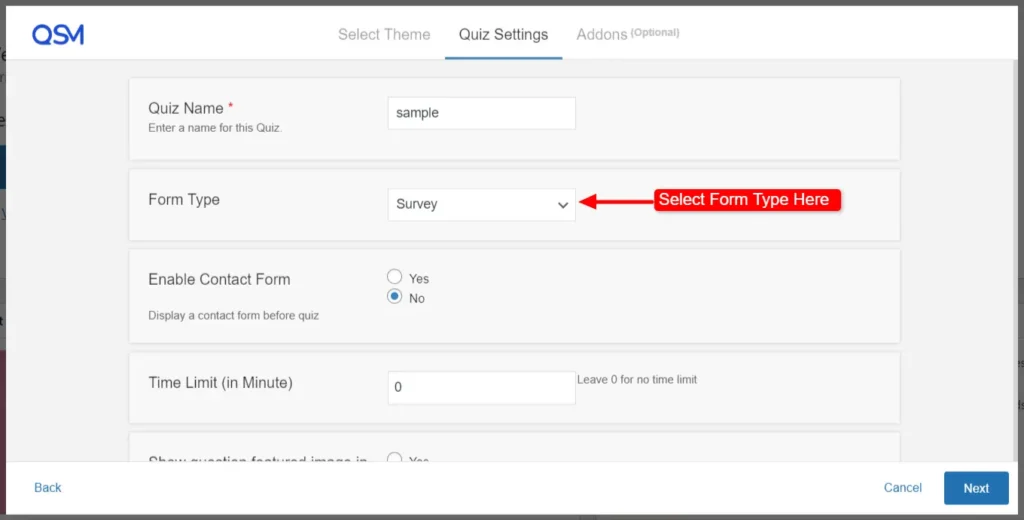
Screenshot 4: Enter the Quiz Settings Details
- You can choose other add-ons such as Quiz Navigator, Quiz Protector, Advanced Question Types, and many more. These add-ons come with an additional price, which can be viewed by clicking on View Details.
- Click on Create Quiz to proceed further.
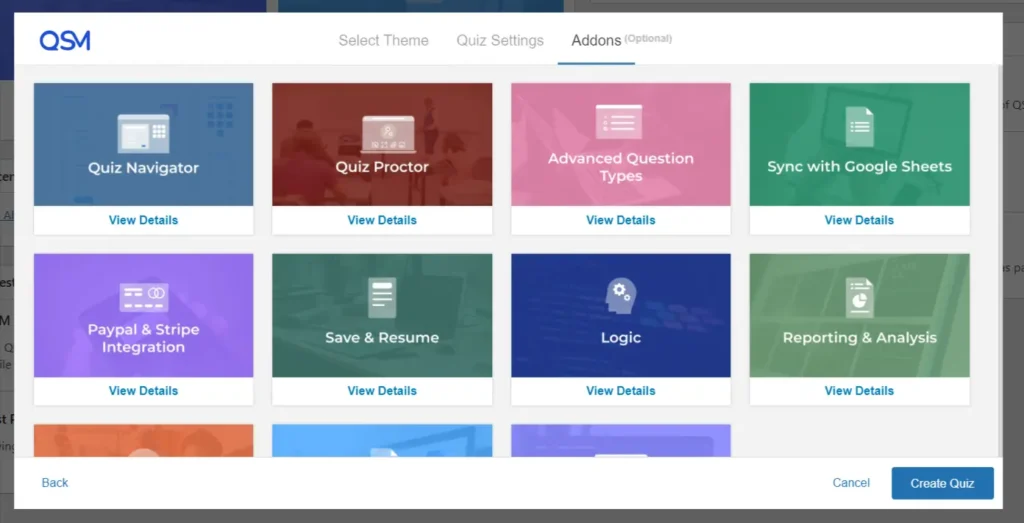
Screenshot 5: Choose add-ons (optional)
Step 3: Add Questions to Your Survey
- After creating your survey, you'll be redirected to the Questions tab.
- Click on ‘Type Your Question Here’.
- Code tags in question descriptions can display HTML, CSS, and JS code snippets. Using code snippets prevents the system from executing the code and interfering with the website's code.
- The WordPress Visual editor lets you add photos, audio, video, documents, spreadsheets, and more from your Media Library and customize the Question using formatting options. Click the Text tab on the editor to add your question in HTML.
- Choose the question type from the dropdown menu on the right side (e.g., Multiple Choice, True/False, Open Answer).
- Enter the question in the Question text area.
- Feed the answers to your questions. Answers depend entirely on the Question Type.
- Set additional parameters for the question, such as required answers or hints.
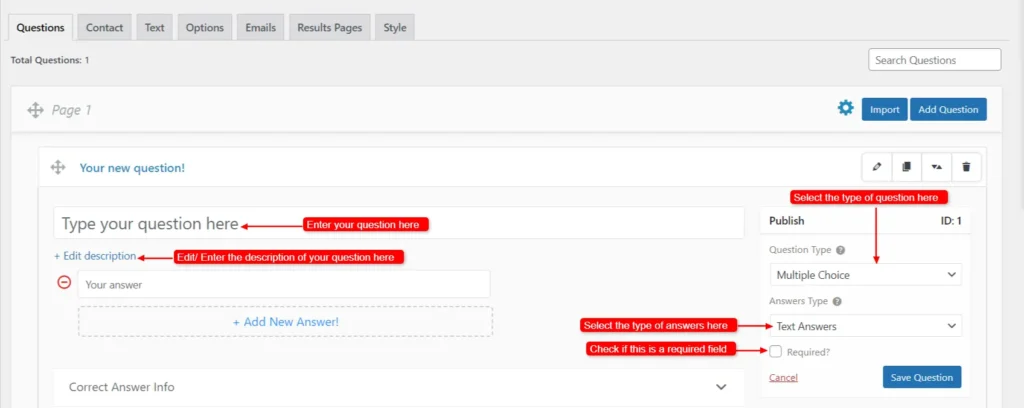
Screenshot 6: Questions Tab: Enter your Questions
- You can also feed information for correct answer info, the type of comment box you want, and add a Hint if you want. At the end of the quiz, the user can receive a thorough explanation of the correct answer through the correct answer info block. The results page shows the right answer.
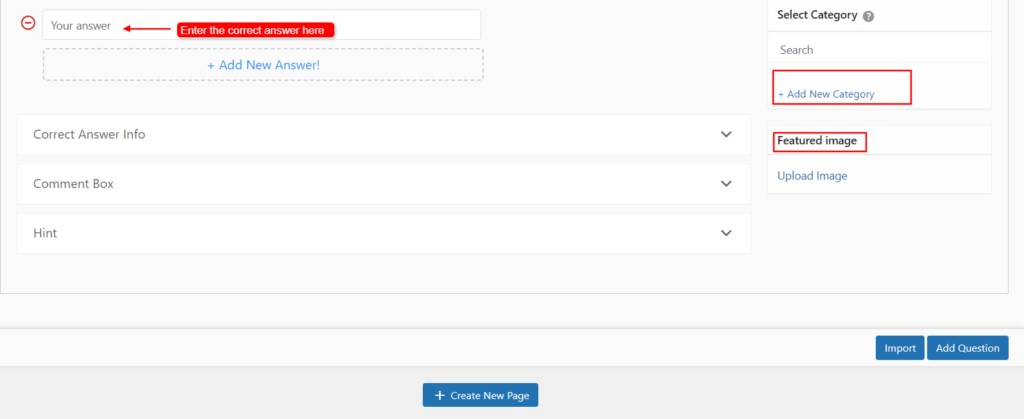
Screenshot 7: Select various fields
- Set the featured image if you require it.
- You can Add a new category for your questions too.
- Click Save Question to add it to your survey.
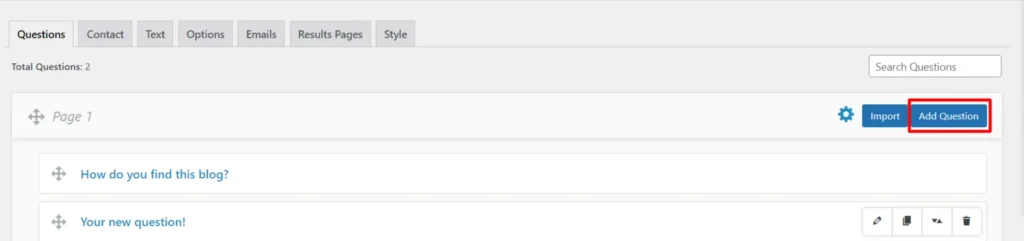
Screenshot 8: Click on Add New Question
- Click on Add Questions and repeat these steps to add more questions to your survey.
- Clicking the “Create New Page” option at the bottom of the question tab generates a new page for questions and responses. A quiz/survey with numerous question pages will show Next & Previous buttons to switch between pages.
Step 4: Gathering User Information
- After setting up the questions and answers, create a contact form to collect user contact information or other details before or after taking the quiz/survey.
- Go to the Contact tab.
- Enable the field and enter the Label Name.
- Choose the Form Options according to when you want to display the form.
- Click on Save Form.
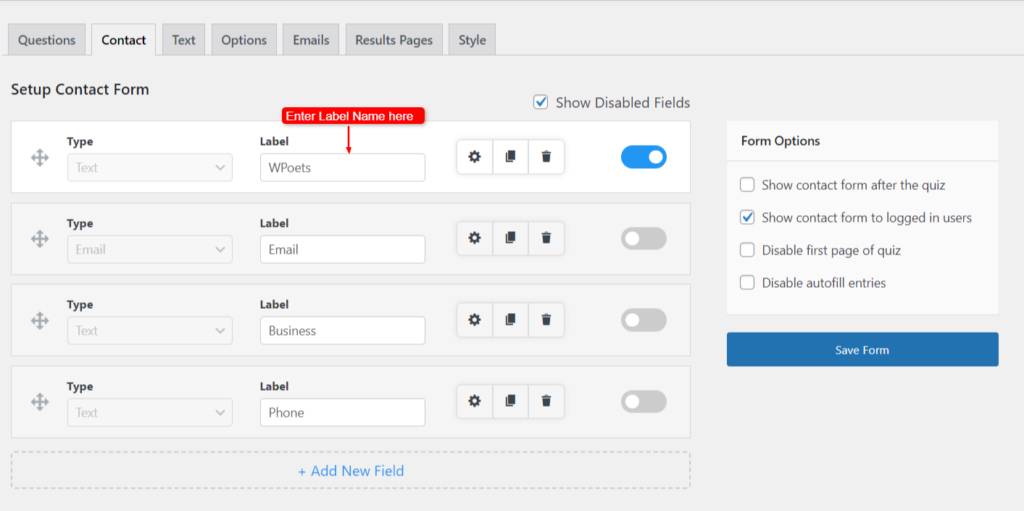
Screenshot 9: Gather User Information Through Contact Form
Step 5: Editing Text Sections
- Once we have some quiz questions, we can alter some of the text users will see and interact with.
- Go to Text tab.
- The text tab is divided into 3 subtabs:
- General: You can choose from several different messages in this drop-down menu.
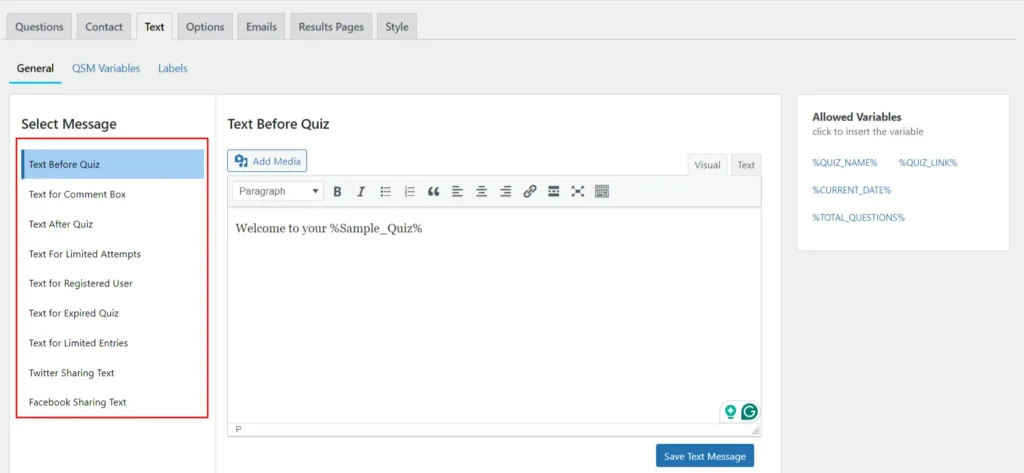
Screenshot 10: Text > General Tab
- QSM Variables: This includes factors that have already been set for the Results Page and Email Pages.
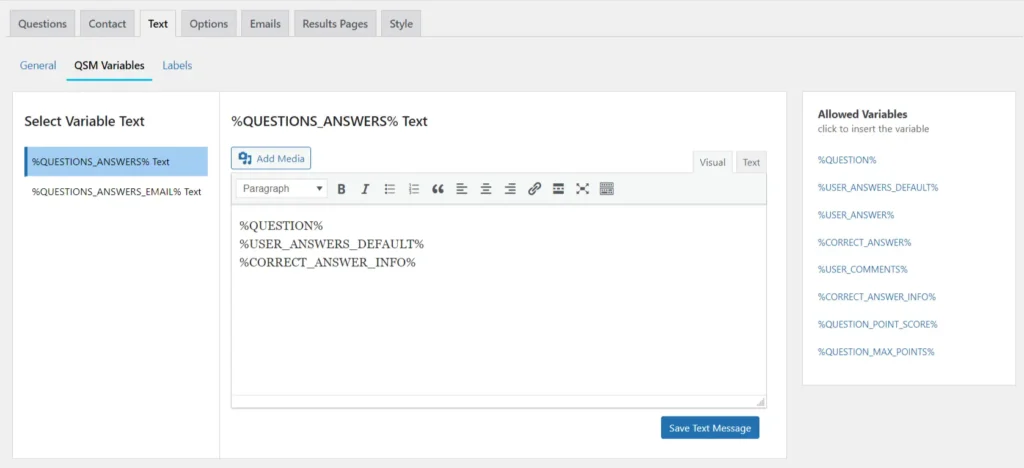
Screenshot 11: Text > QSM Variables Tab
- Labels: Some Label options let you change things like the “Validation Messages” and the “Default Text” shown on the Quiz Navigation Buttons.
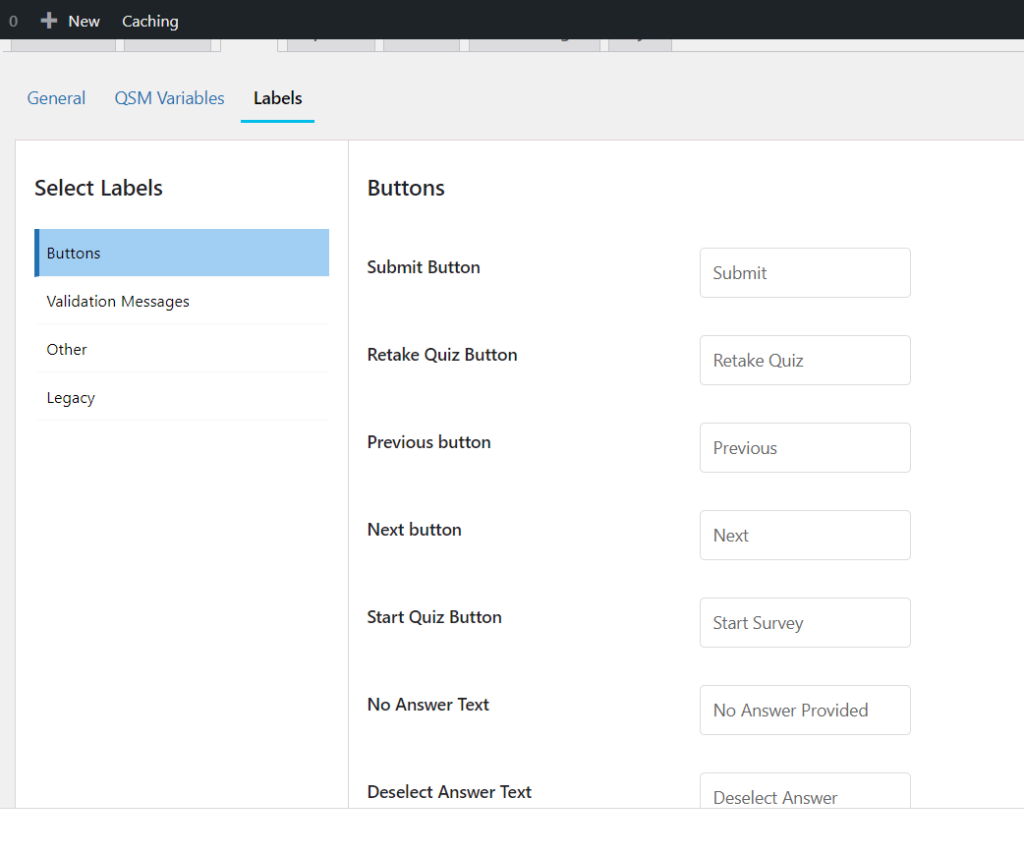
Screenshot 12: Text > Labels Tab
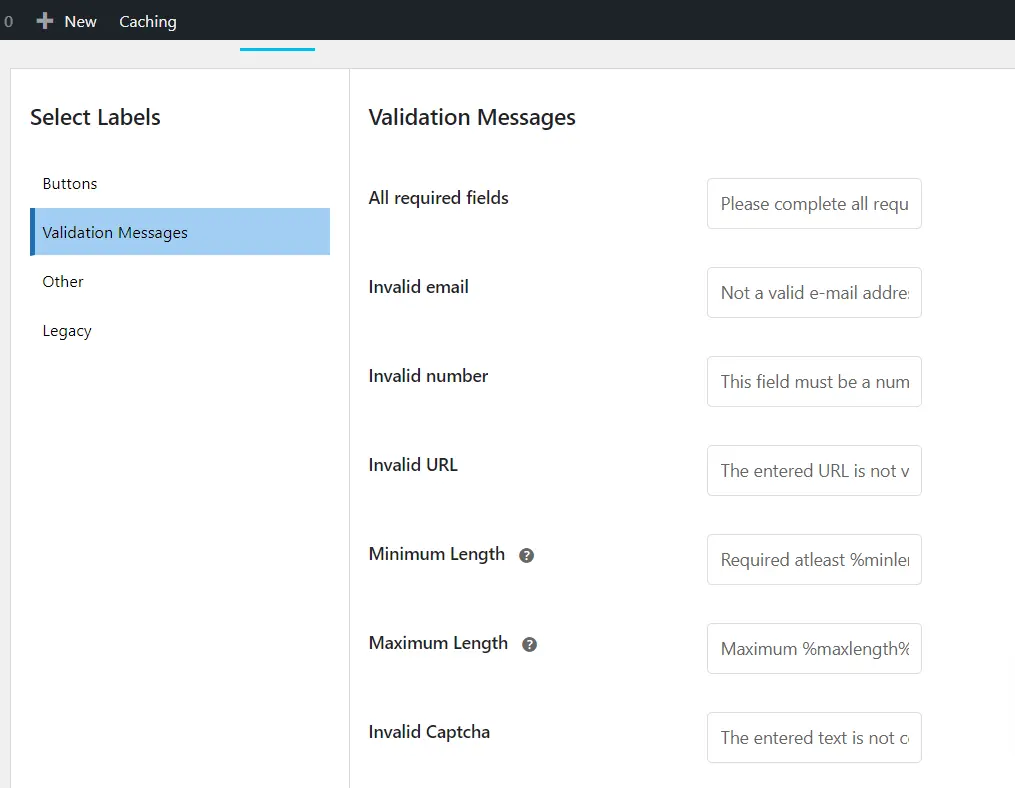
Screenshot 13: Text > Validation messages Tab
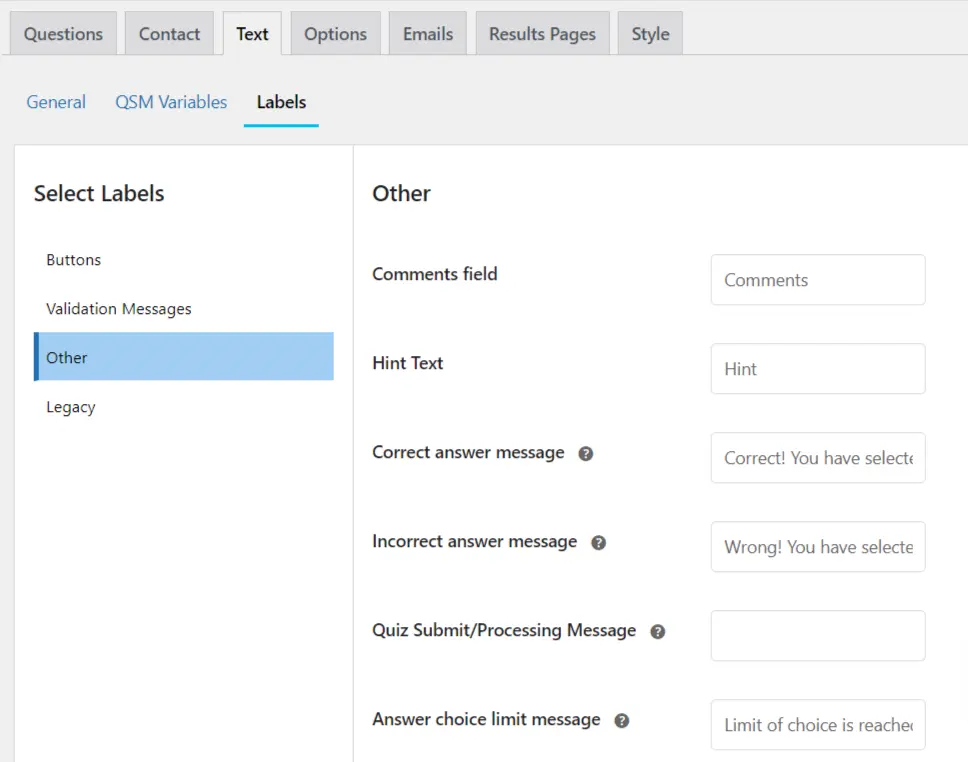
Screenshot 14: Text > Other Tab
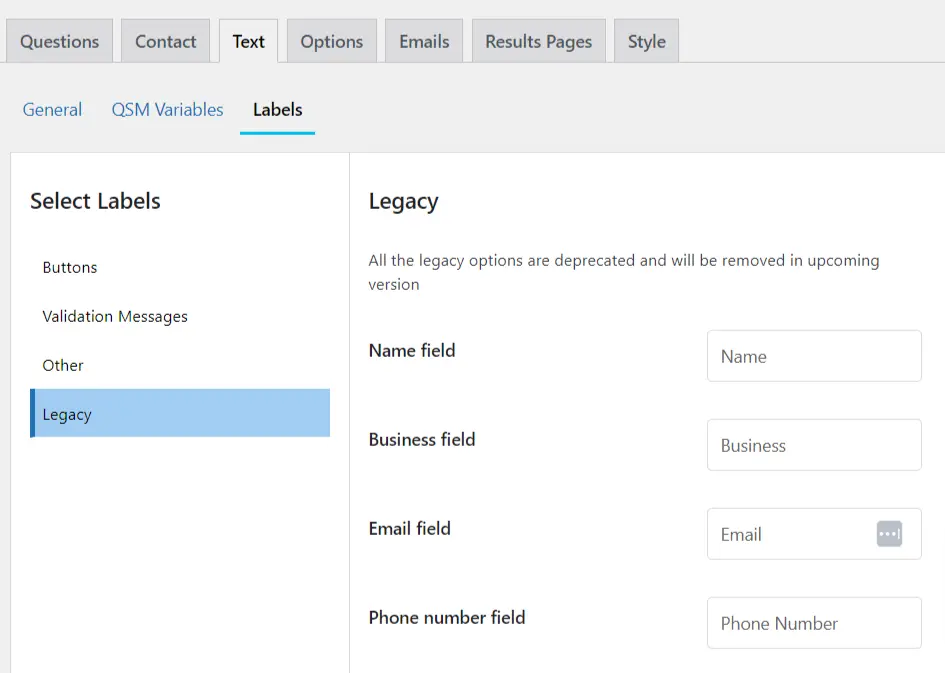
Screenshot 15: Text > Legacy Fields Tab
Step 6: Basic Settings in the Options Tab
- It's time to change the choices now that we've added our questions and written some text.
- Go to the Options Tab.
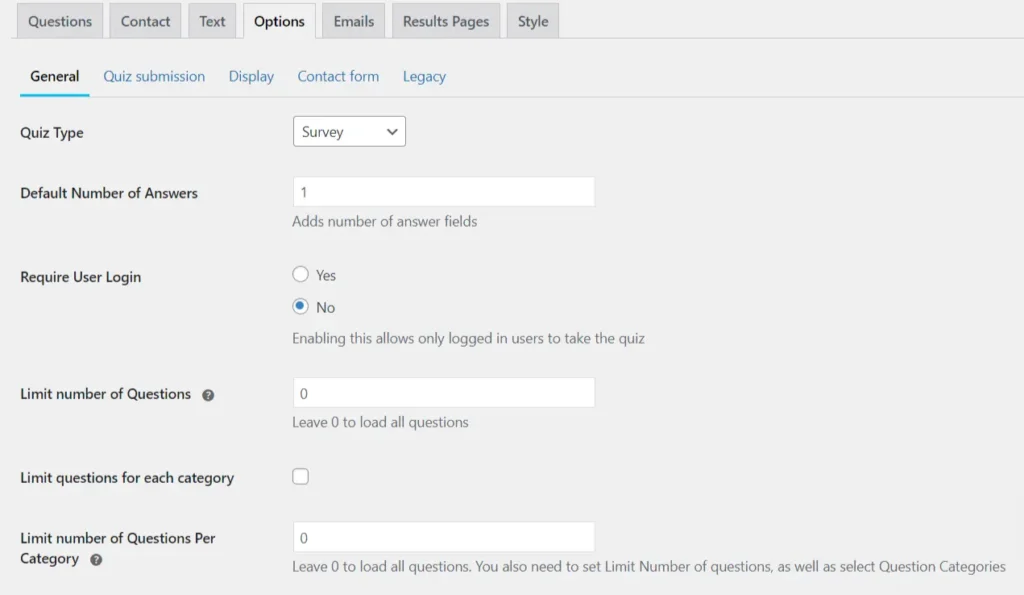
Screenshot 16: Options > General Settings Tab
- This tab involves various settings that fall under the categories as follows: General, Quiz Submission, Display, Contact Form, and Legacy.
- These are basic settings that allow you to select quiz type, set how to display results, set the position of the contact form, set what information to gather from users, etc.
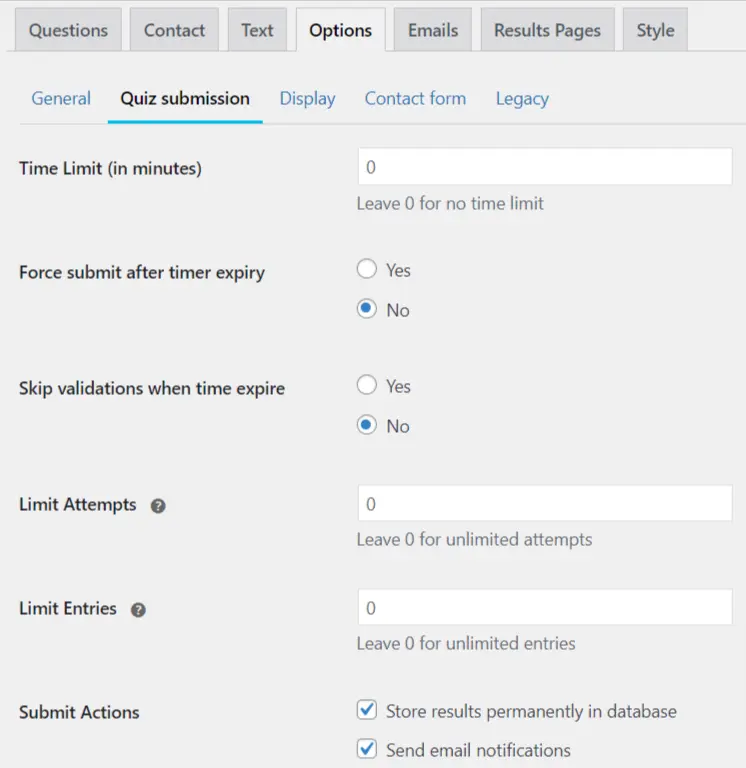
Screenshot 17: Options > Quiz Submission Settings
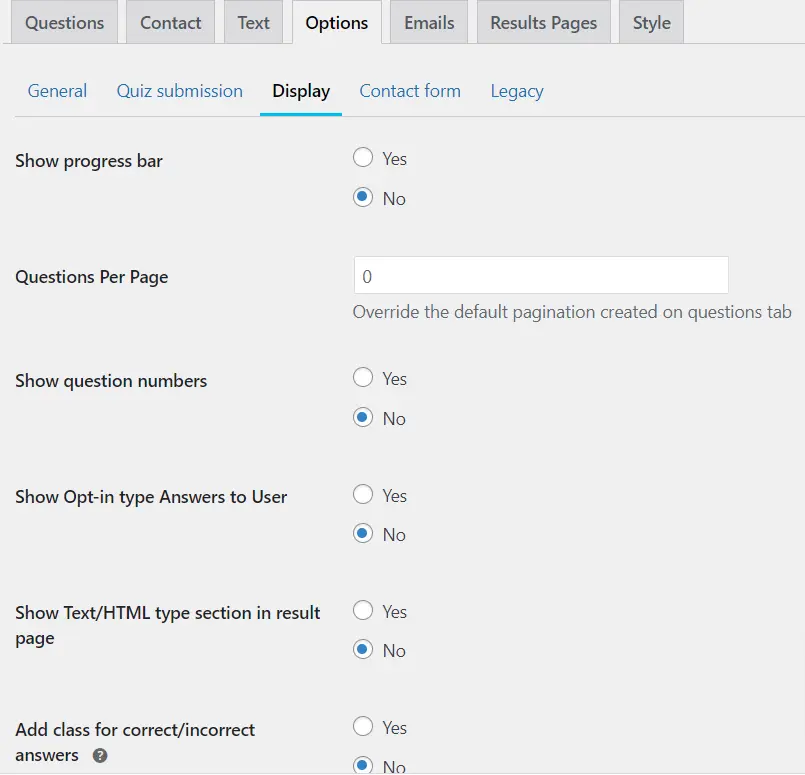
Screenshot 18: Options>Display Settings
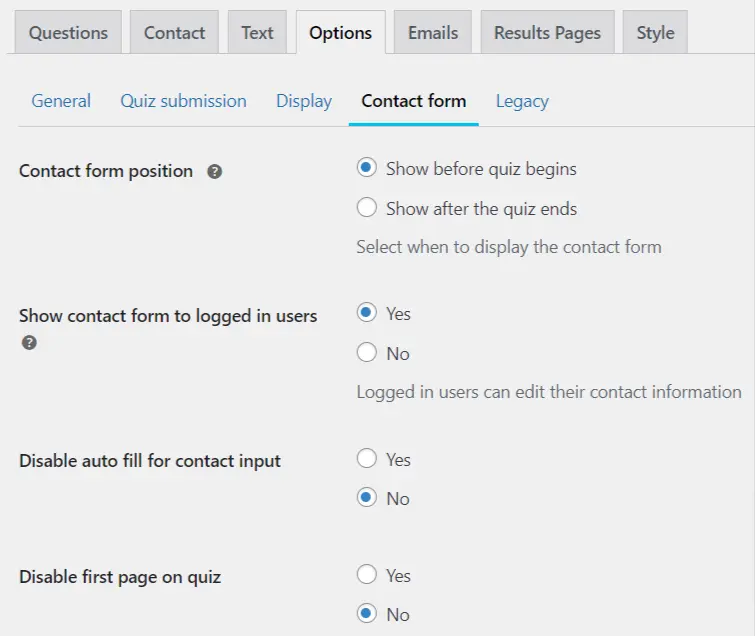
Screenshot 19: Options> Contact Form
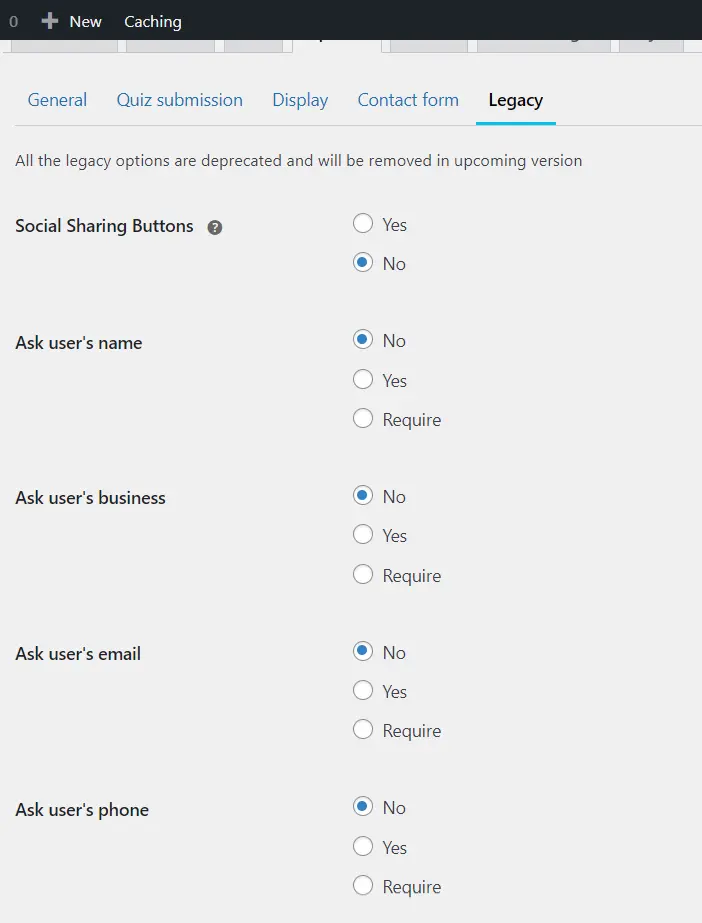
Screenshot 20: Options> Legacy Settings
Step 7: Setting up Emails
- After users submit the surveys, you may need to send them emails with their answers.
- Go to the Emails Tab.
- We can run a function with Template Variables.
- Click on Insert Template Variables at the bottom-right.
- Clicking the button opens a window with all the Template Variables you can use to send emails. These variables start a task when used.
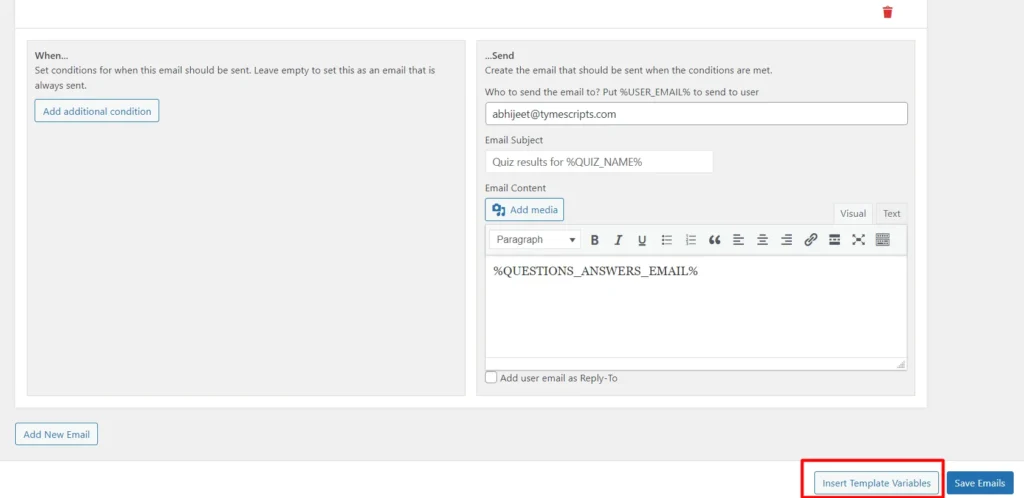
Screenshot 21: Click on Insert Template Variables
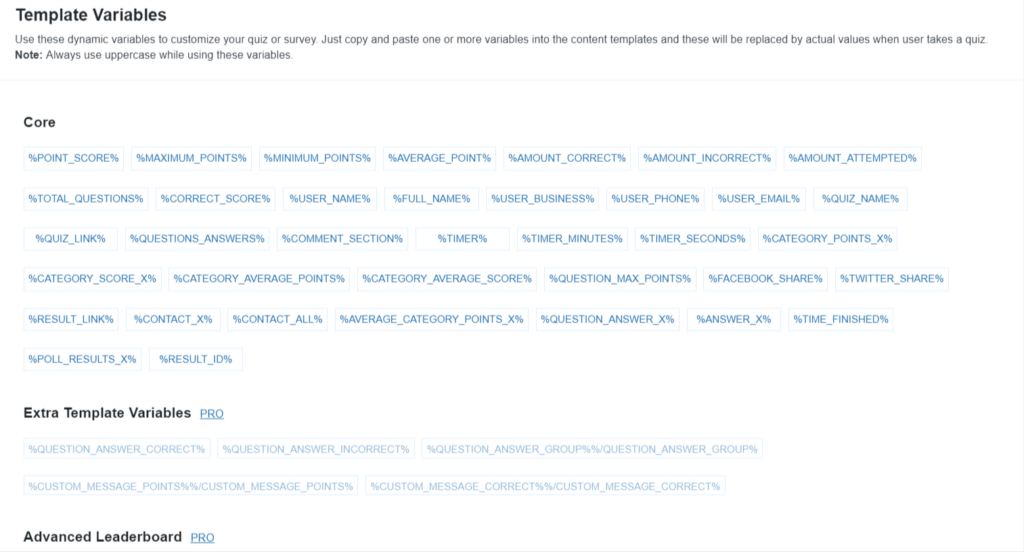
Screenshot 22: Email Template Variables
- Click on the Variable you need. It gets copied automatically, and you can paste it into the email text section. Customise and add variables to improve the email experience. %QUESTIONS_ANSWERS_EMAIL% is set by default.
- To add extra content, use template variables in the Email Body to include Amount Correct, User Name, Points Scored, Average Category Points, Correct Score, Category Points, Category Average Points, Quiz Name, and more.
- Click on Add Additional Condition to add more conditions to your email.
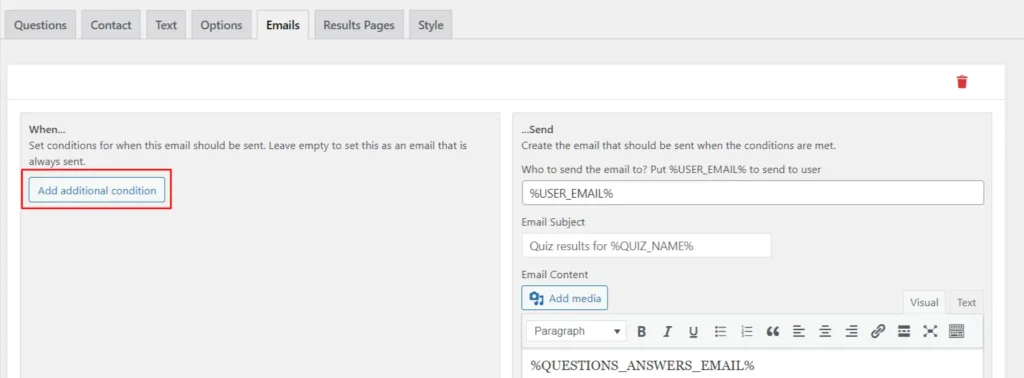
Screenshot 23: Additional Condition for Email
Step 8: Result Page Settings
- This page is shown after the user submits the survey.
- This is quite similar to the Emails page we’ve seen earlier.
- Go to the Results tab.
- We can run a function with Template Variables.
- Opening the Results Tab, the Insert Template Variables button appears in the bottom-right corner.
- Once you click the button, a new window appears with all the Template Variables you may use to configure quiz results. These variables start a task when used.
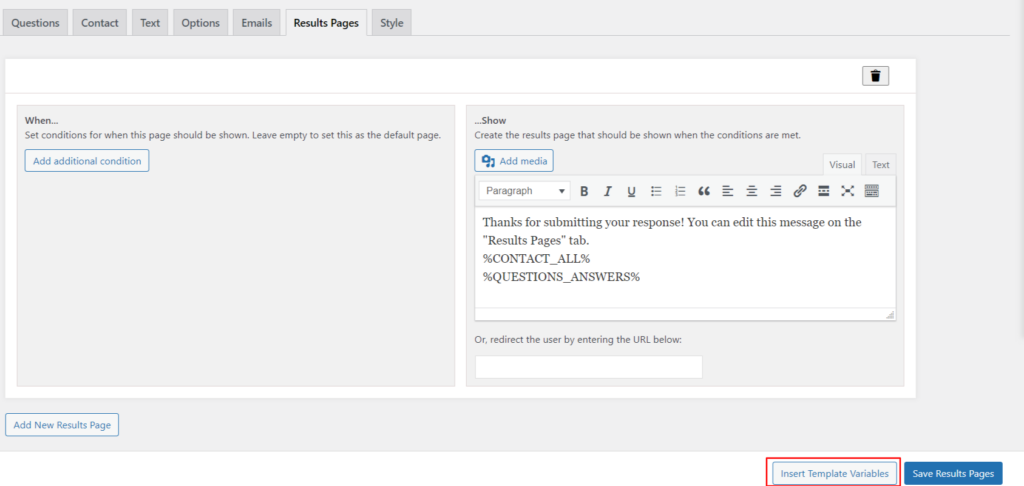
Screenshot 24: Insert Template Variables for Results Page
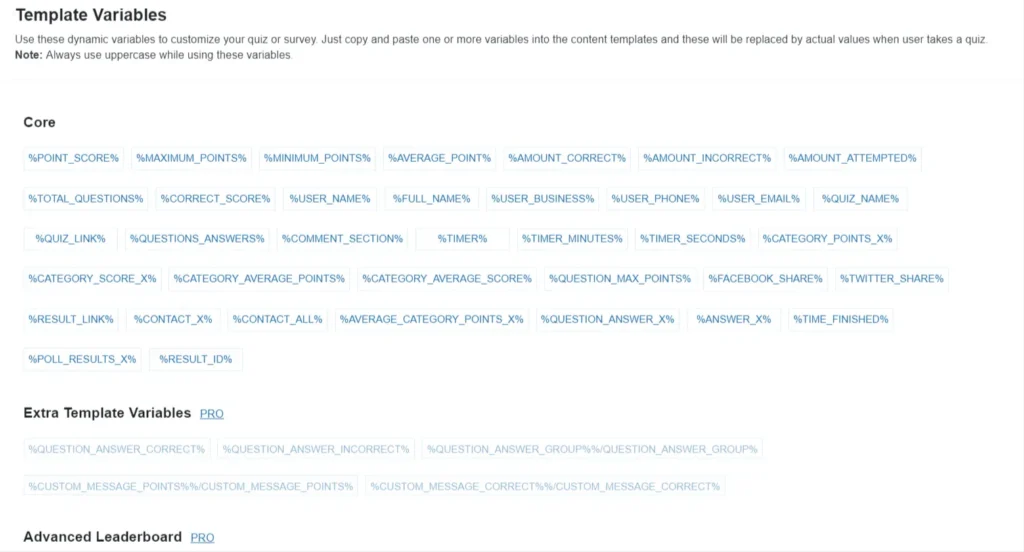
Screenshot 25: Template Variables in Results Page
- Navigate to the Conditions section on the QSM Results Page.
- Click on the "Category Name" drop-down menu.
- Select the desired category from the options listed.
- Choose between "Total points earned" or "Correct score percentage" from the available options.
- Select a condition to apply to the output display.
- This allows you to showcase various outputs tailored to users whose results meet the specified category criteria.
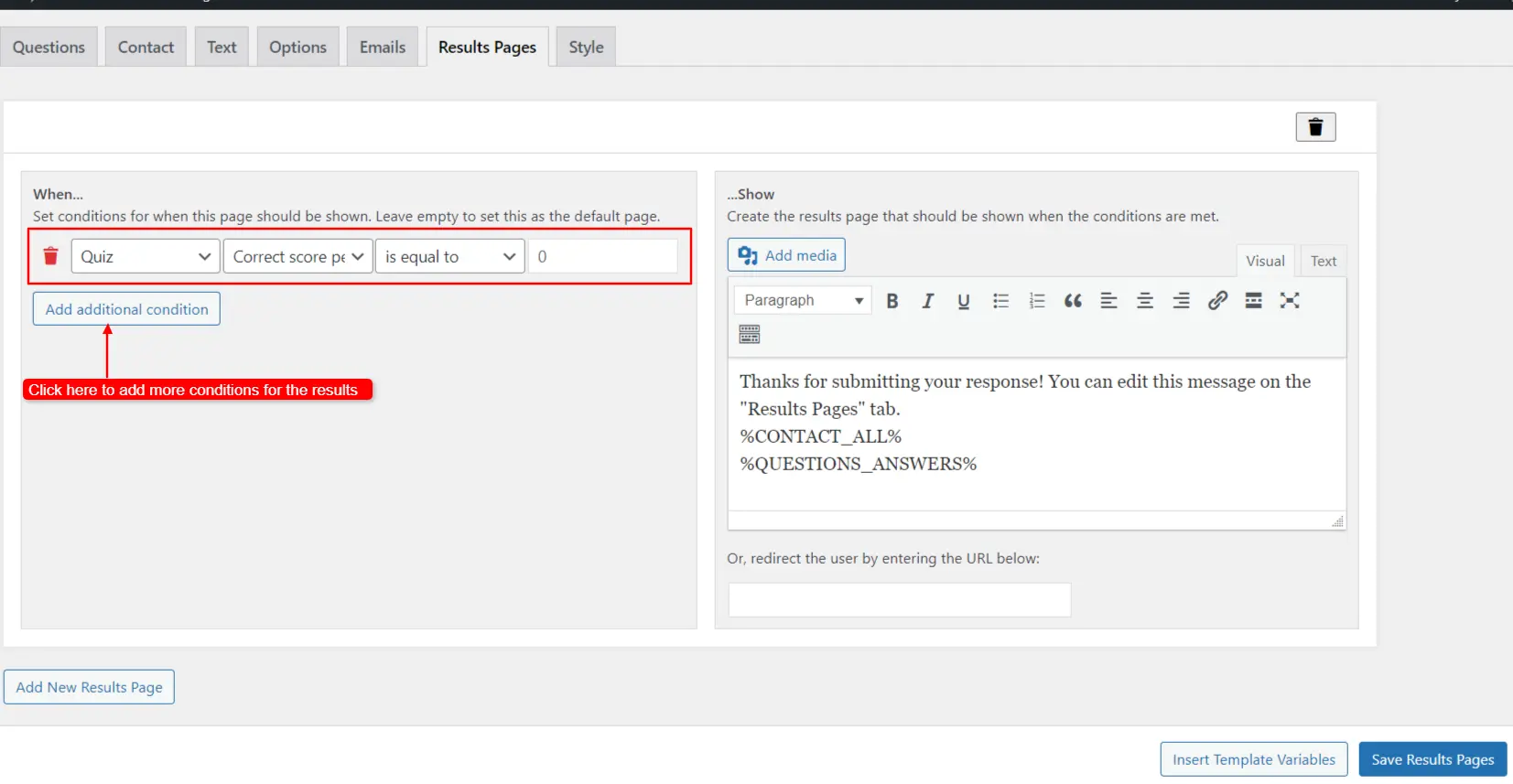
Screenshot 26: Adding Additional Condition in the Results Page
Step 9: Styling Your Survey
- The Style tab is designed to help users customize the appearance of their quizzes and surveys.
- Select the Theme you want for your survey from the Themes section.
- You can add Custom CSS to customize your survey.
- The Legacy section will soon be removed from the plugin as specified in the screenshot below.
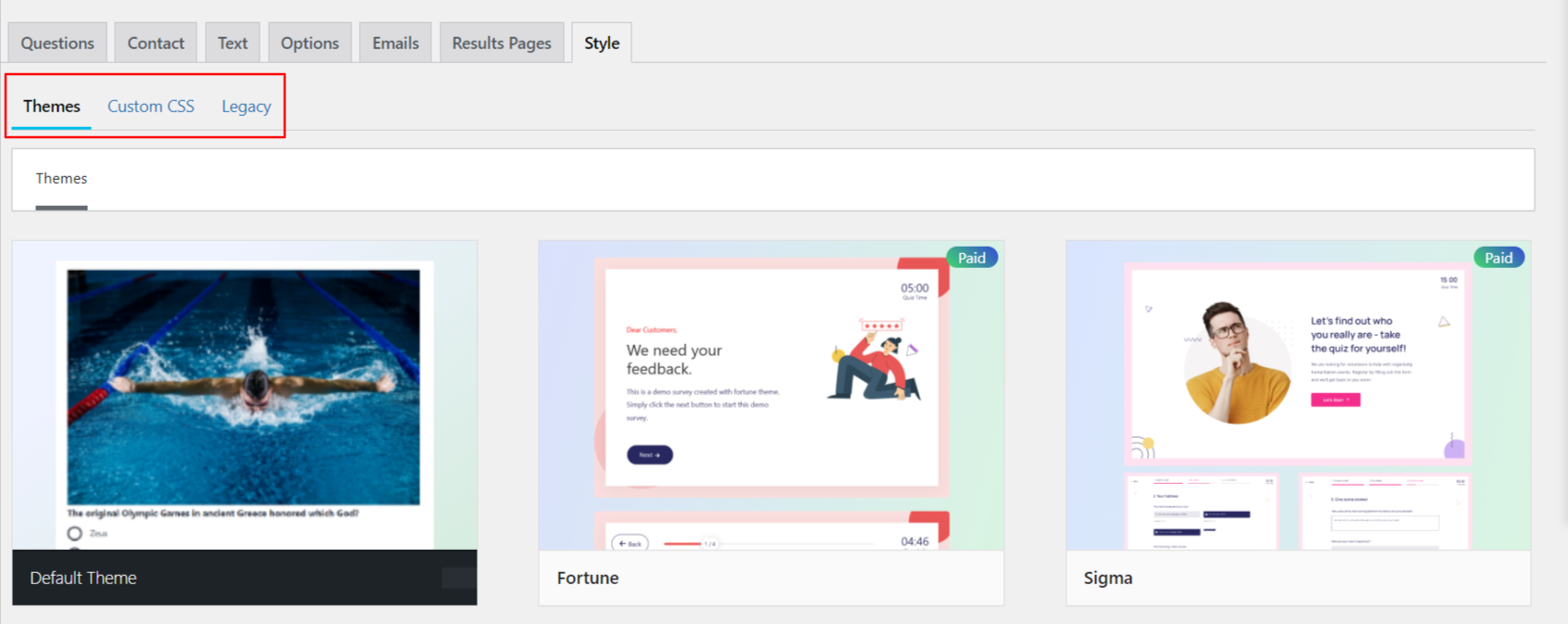
Screenshot 27: Styling Your Survey>Selecting Theme
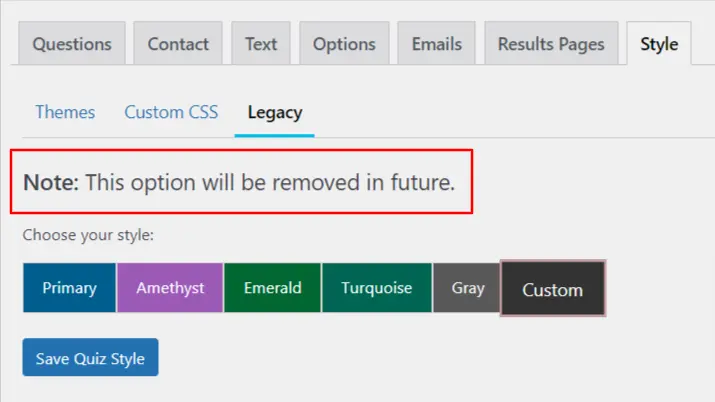
Screenshot 28: Legacy Section to be Removed
Step 10: Adding Survey to your Website
There are three ways to add a survey to your website:
- By Pasting Shortcode on Page/Post
- Copy the shortcode from QSM > Quizzes/Surveys > Shortcode. Paste it into your page or post. The shortcode displays the survey or provides a link to it.
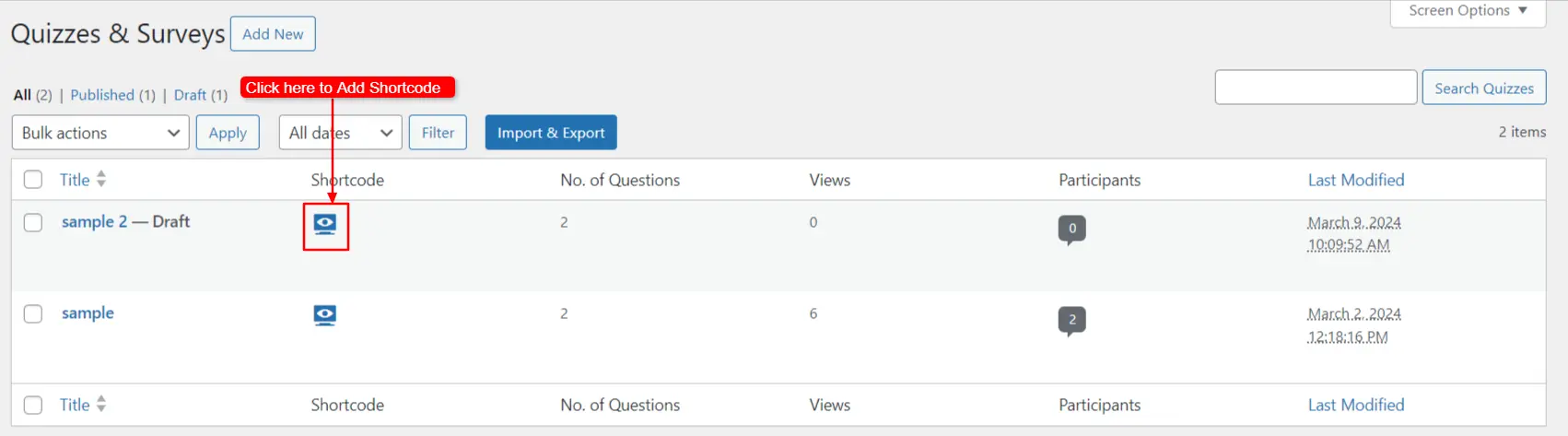
Screenshot 29: Click to Add Shortcode
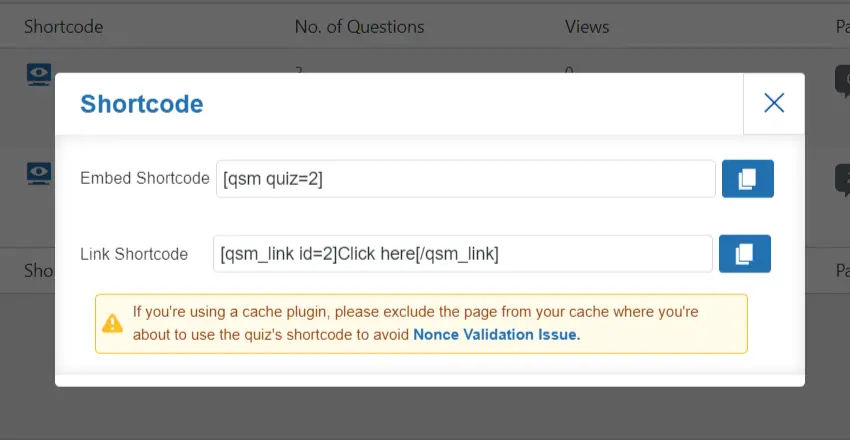
Screenshot 30: Embed the Shortcode
- By Using Gutenberg Block
- Insert the quiz or survey on a page or post with the Gutenberg editor by searching for the “QSM Block”. Select your Quiz/Survey ID from the dropdown in block settings and update.
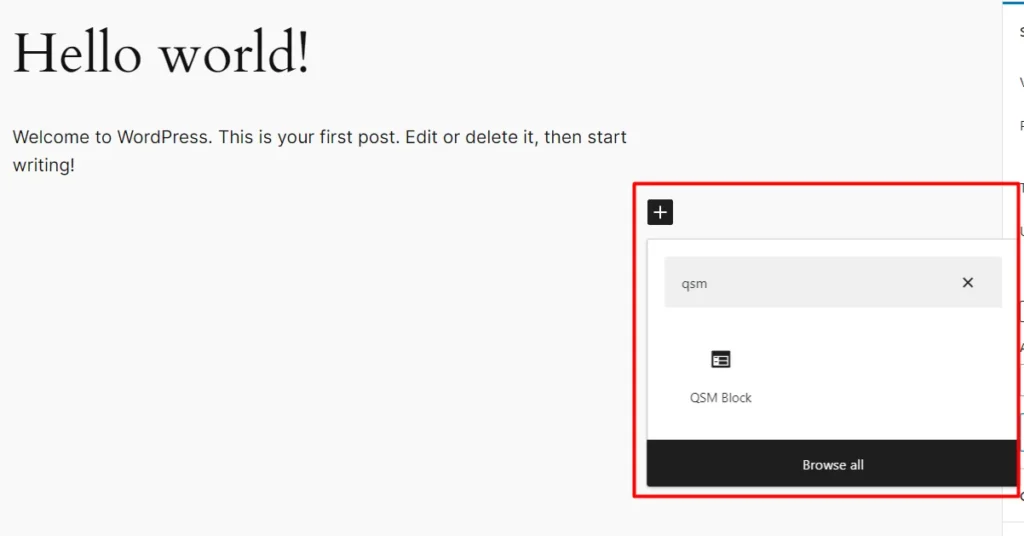
Screenshot 31: Add Survey Through Gutenberg Block
- Now, you can select the survey to be added from block settings.
- Click on Update to add the survey to your website.
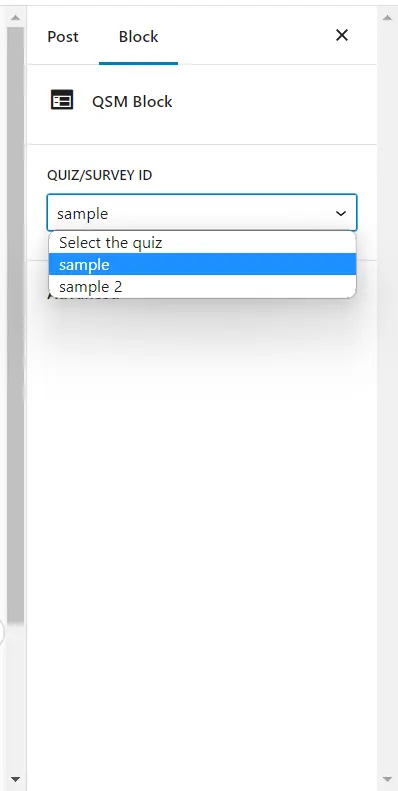
Screenshot 32: Selecting Survey from Block settings
- Click on View Post to view the survey embedded in your post.
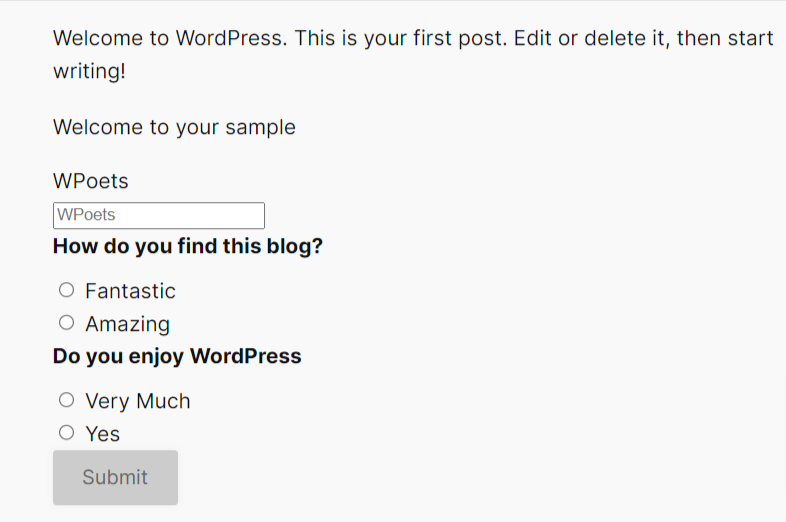
Screenshot 33: Survey Embedded in Website
Conclusion
Crafting surveys in WordPress using the Quiz and Survey Master plugin is a streamlined process that empowers you to engage deeply with your audience and gather vital insights. This guide explored the steps necessary to design, customize, and deploy your surveys effectively. By leveraging this powerful tool, you can enhance your connection with your audience, make data-driven decisions, and ultimately drive your WordPress site's success forward.
Tutorials
6 min read
How to Use GTmetrix WordPress plugin to Improve your Site Speed
Introduction
Is your WordPress website running slowly, thus affecting the user experience? Are you losing visitors and potential customers because of slow loading times?
It's time to take action and optimize your website's performance with the help of the GTmetrix tool. This tutorial will guide you through setting up and utilizing the GTmetrix WordPress plugin.
What Is GTmetrix Speed Test Tool?
GTmetrix is a tool to easily test the performance of webpages. Just enter the URL that you want to analyze performance, and within a few seconds, it will generate a detailed report providing recommendations for optimization.
One can easily identify performance bottlenecks and take appropriate actions to enhance your website's loading speed.
You can measure your website's loading times from different locations around the world. Currently, there are 7 free test locations and 15 premium test locations, for a total of 22 different global test locations. This allows you to understand how your web pages perform for users from different geographic locations around the world.
We can also test page loads on different mobile devices. As of this writing, GTmetrix supports testing on a real Android device or over 30 different simulated device options in its premium plan.
Installing and setting up the GTmetrix Plugin in WordPress
Step 1: Install and activate the “GTmetrix for WordPress” Plugin
The first step is to install and activate the “GTmetrix for WordPress” plugin on your WordPress website.
Begin by clicking on the “Plugins” menu and then clicking the “Add New Plugin” button, as shown in the screenshot below.
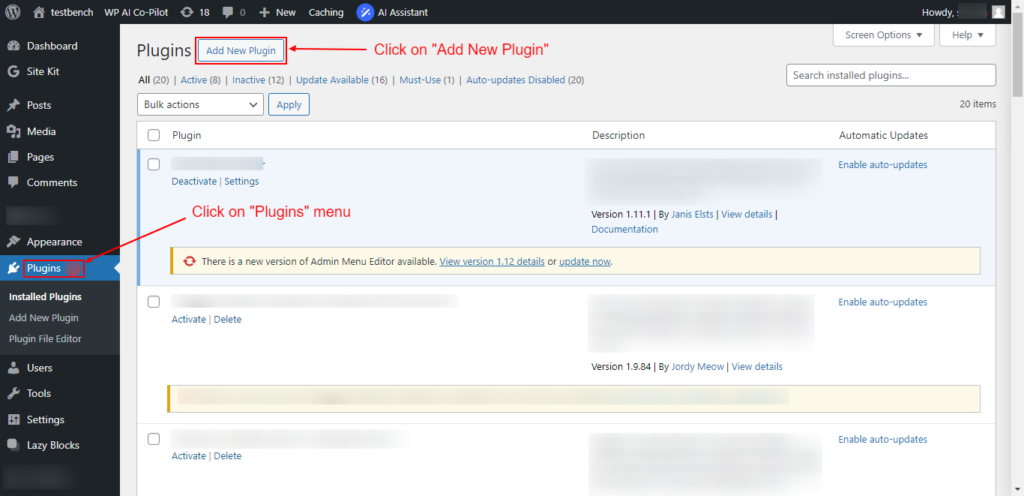
Screenshot 1: Click on the “Plugins” menu and select the “Add New Plugin” option.
Next, search for the “GTmetrix” plugin and install it, or download it from here, upload it, and install it on your website.
If you have already installed the plugin on your website, you can skip this step and go to step 2
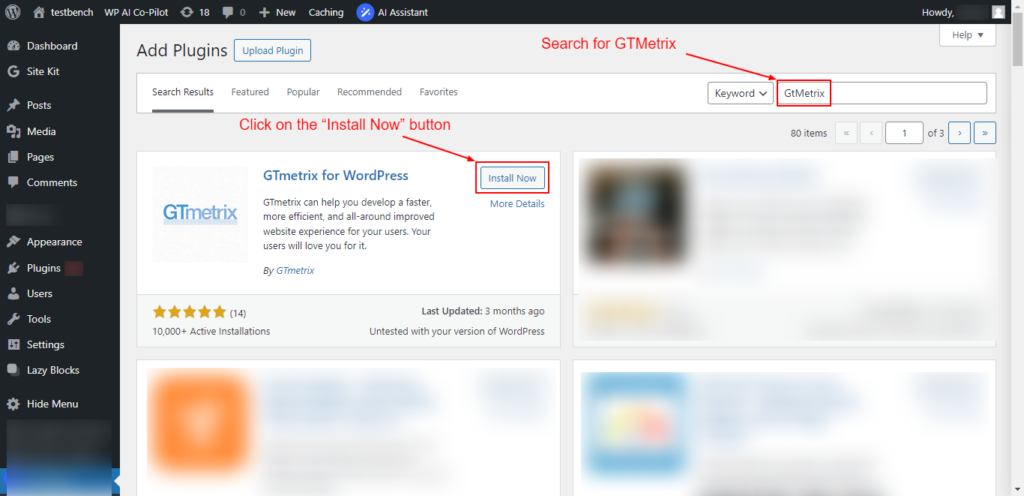
Screenshot 2: Search for “GTMetrix” in the available search box and click on the "Install Now” button.
Once activated, you will see the new menu option “GTmetrix” in your WordPress dashboard. Click on it, which will take you to the “GTmetrix for WordPress Settings” page.
Screenshot 3: Click on the “Register for a GTmetrix account now” link.
To use the GTMetrix plugin, you need to create a GTMetrix account and generate its API key.
For that, simply click the “Register for a GTmetrix account now” link to go to the GTmetrix website, where you can sign up for an account, as shown in the below screenshot 4.
Step 2: Create a GTmetrix Account and log in to it
Once you are on the GTmetrix website, click on the “Get Started for Free” button to create an account. Skip this step if you already have an account and go to step 3.
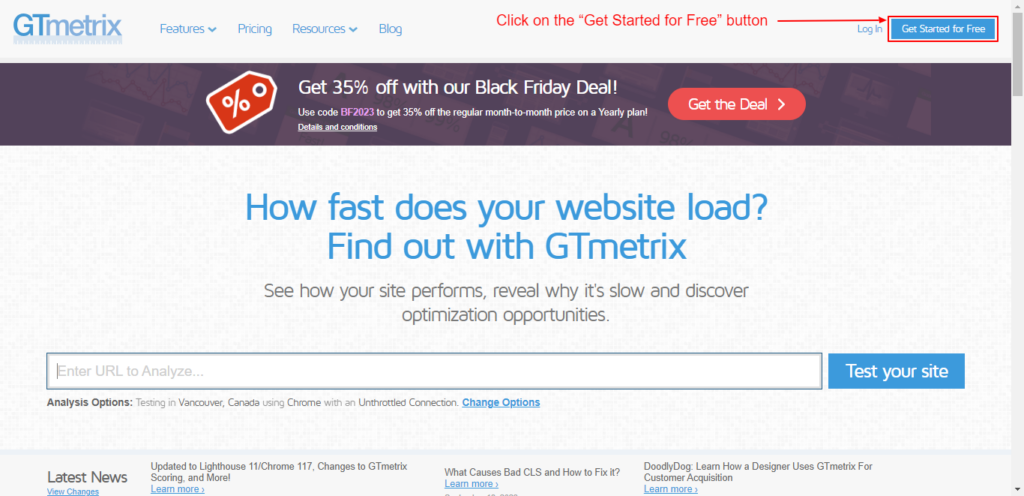
Screenshot 4: Click on the “Get Started for Free” button.
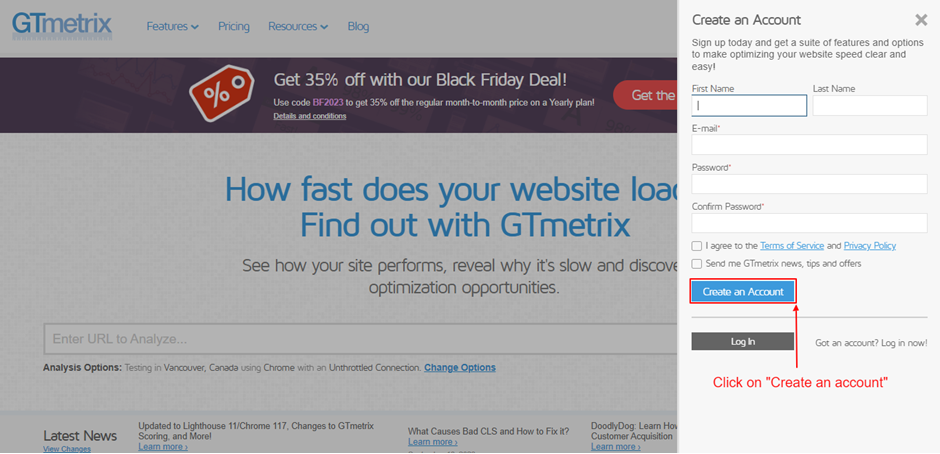
Fill in your information and agree to the terms, then just click on the “Create an Account” button as shown in below screenshot 5.
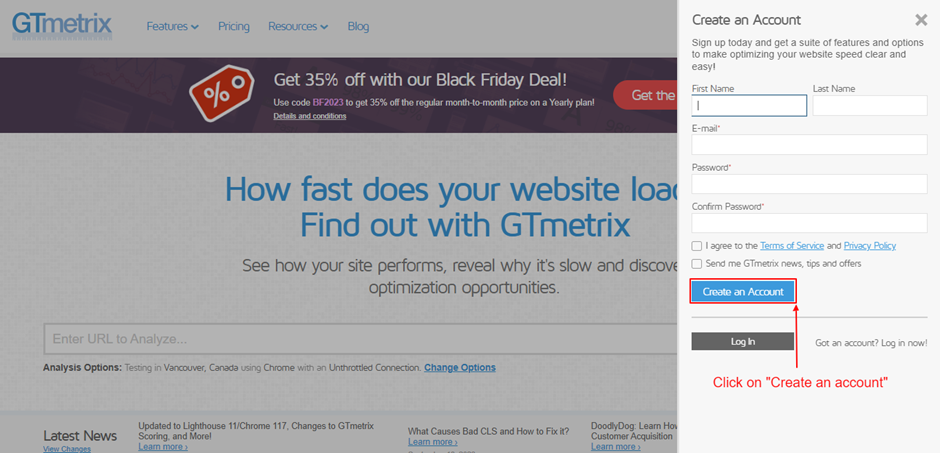
Screenshot 5: Fill in your information and click on the “Create an Account” button.
Next, you need to validate your email address to complete the account creation process. You will receive an email to verify your GTmetrix account.
Once you have created your account, Enter your email address and password, and click “Log in," as shown in the below screenshot 6.
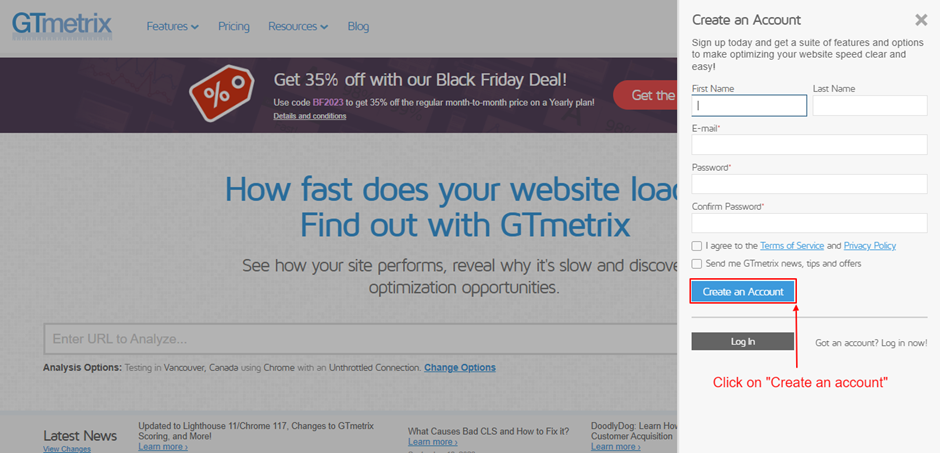
Screenshot 6: Log in with your email ID and password and click on “Log in.”
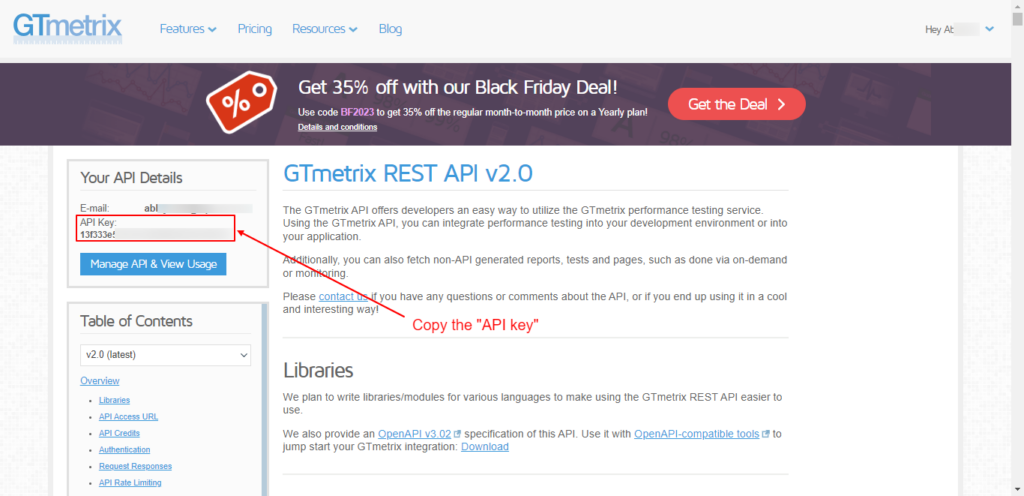
Screenshot 7: Get the “GTmetrix Rest API Key”
Note: If you are directly logging in to Gtmetrix.com instead of clicking the link from its plugin settings, you have to scroll to the bottom of the homepage and then click on "GTmetrix Rest API,” as shown in screenshot 8.
This would take you to the https://gtmetrix.com/api/docs/2.0/ webpage. As shown in the above screenshot 7.
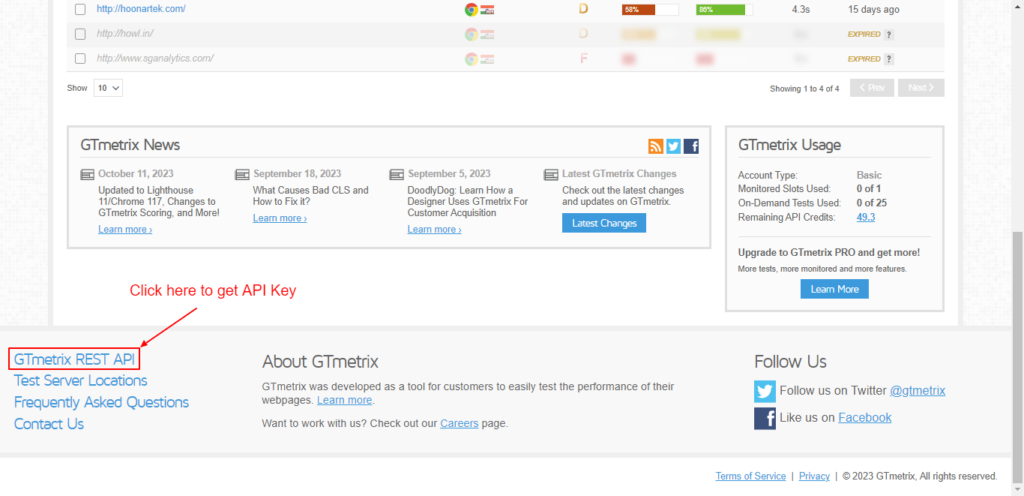
Screenshot 8: Click on “GTmetrix REST API” to get the API Key
Step 3: Generate a Gtmetrix API Key
Next, simply click on the ‘Generate API key’ button. Copy the API key, which is on the left-hand side of your screen.
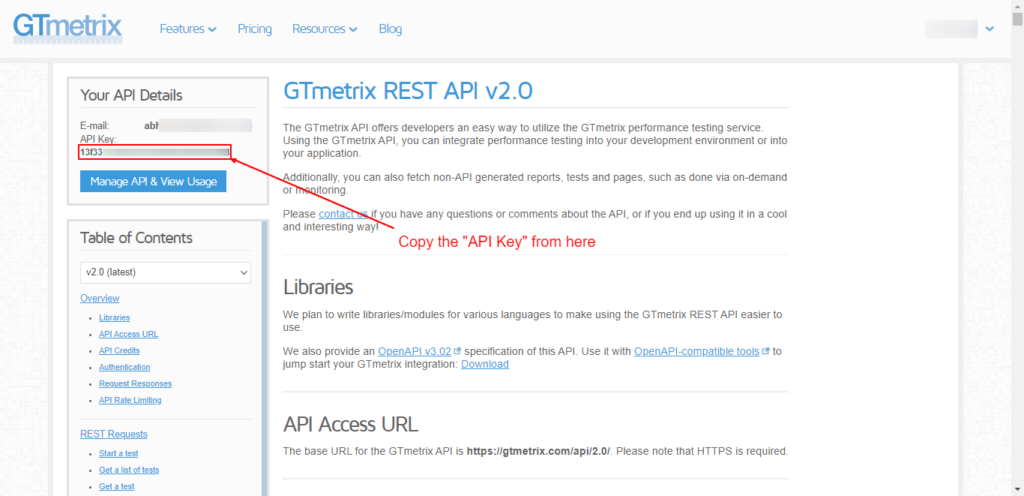
Screenshot 9: Click on “Generate API Key” and then “Copy the API Key.”
Now, switch back to the ‘GTmetrix’ settings page in your WordPress dashboard. Go ahead and enter your GTmetrix account email address and the API key you copied earlier (as shown in screenshot no. 7).
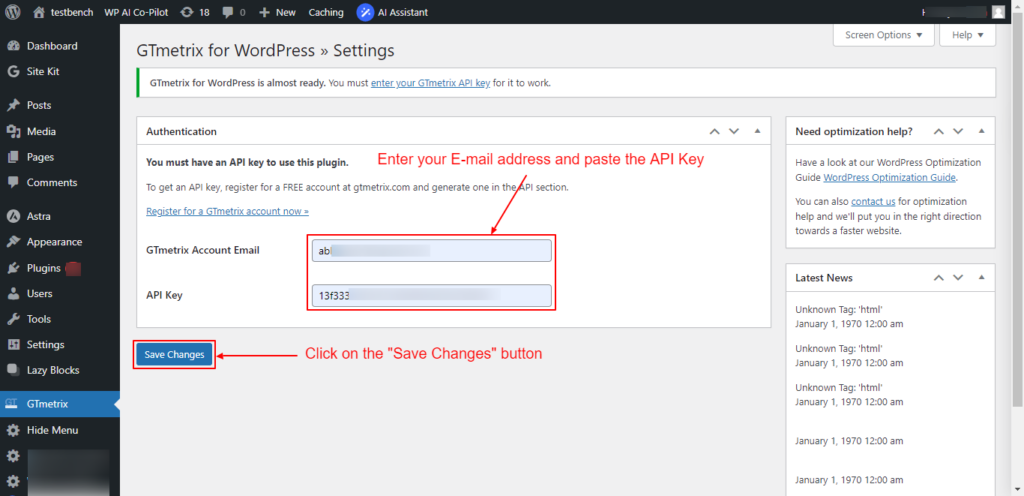
Screenshot 10: Enter your E-mail address and paste the GTmetrix API key
Don’t forget to click on the ‘Save Changes’ button to save your settings.
Step 5: Set Default options
Head over to the GTmetrix > Settings page, scroll down to the “Options” meta box, set the “Default location” drop-down to the Test Server location (region) that is closest to your hosting, and then again save the changes.
For this tutorial, we have selected Mumbai, India, as the default Test Server Region.
That’s it! You have successfully integrated GTmetrix with your WordPress site.
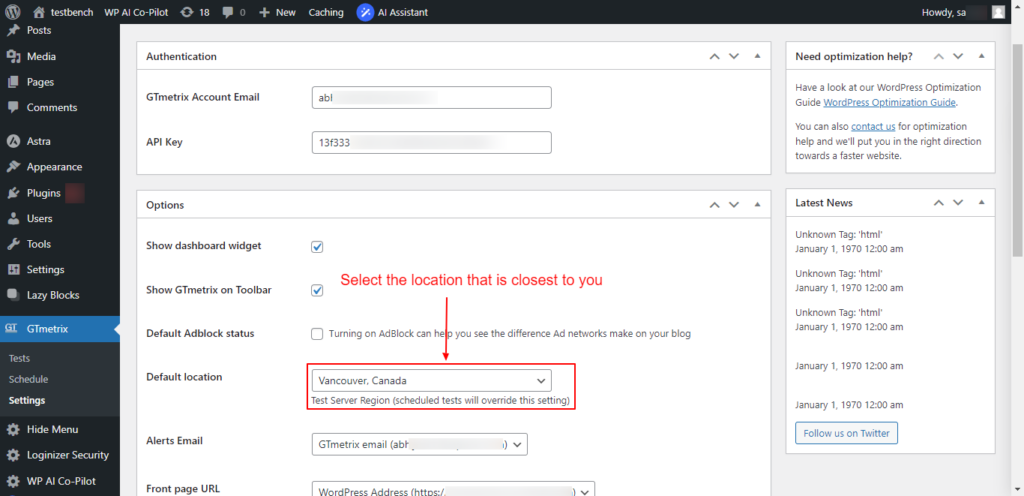
Screenshot 11: Select the Test Server location that is closest to your hosting
Step 6: Test the Web Pages
On the left-hand admin panel, click on the Tests sub-menu. Enter the page URL that you want to test the page load speed for.
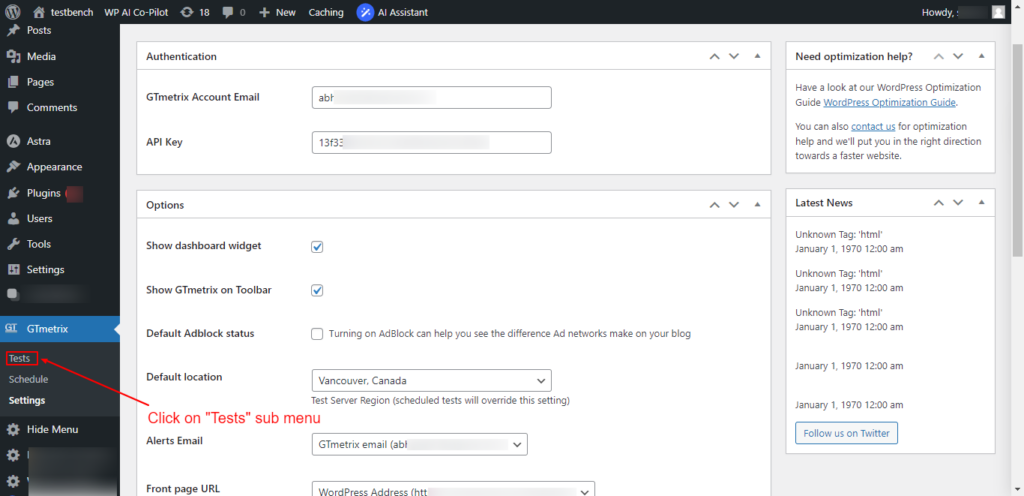
Screenshot 12: Click on “Tests” to perform tests on any page of your website.
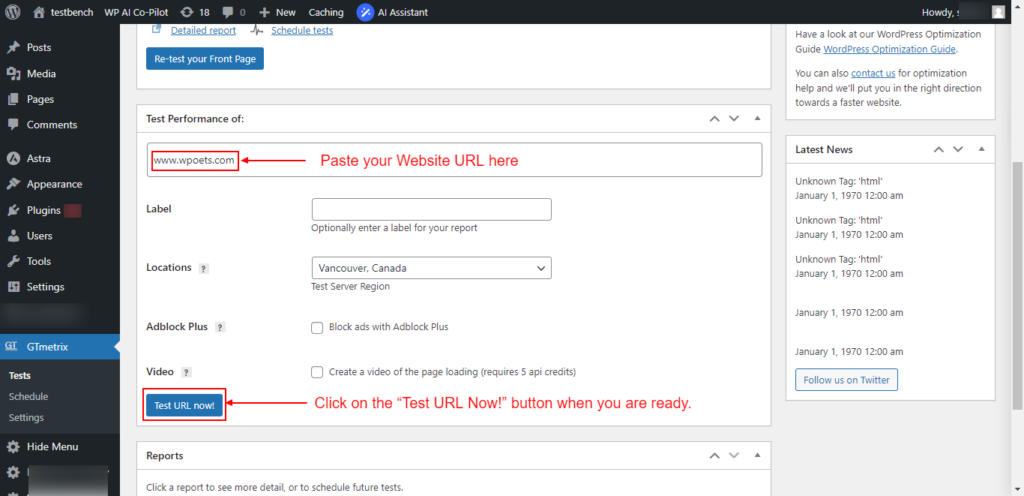
Screenshot 13: Paste your “Website” URL and Click on “Test URL Now!”
GTmetrix will take a few seconds to scan your whole page. Once the scan is finished, you will see your site's detailed reports, along with the top issues that you can fix to improve the user experience.
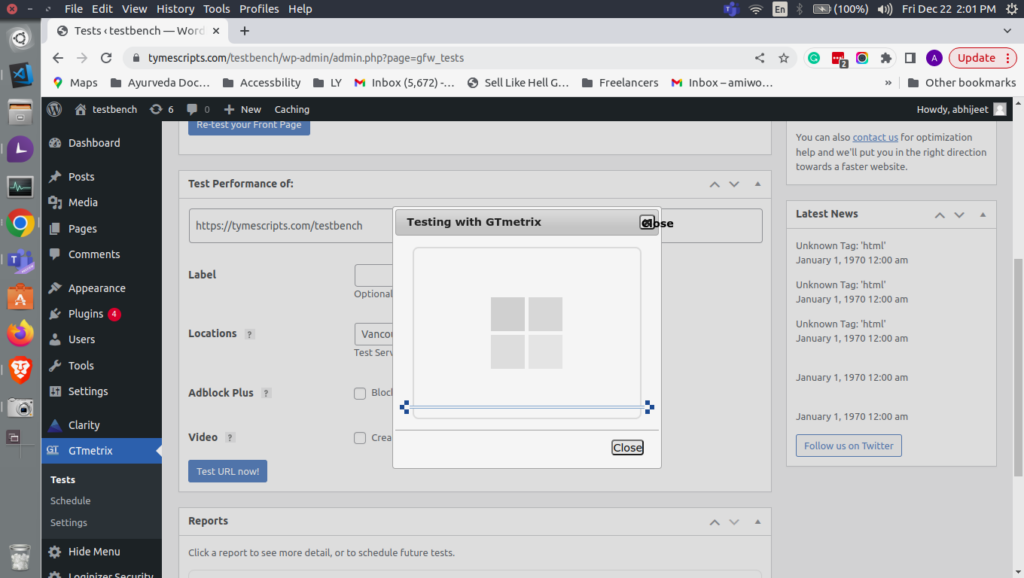
Screenshot 14: "GTmetrix" scan in progress.
This report generated gives you a detailed breakdown of your PageSpeed score, YSlow score, and a list of recommendations on what you can change to improve your page load time. Anything below a Performance score of “A” means there is room for improvement.
All the reports that have been completed are available under the “Reports” section (meta box) as shown in the below screenshot.
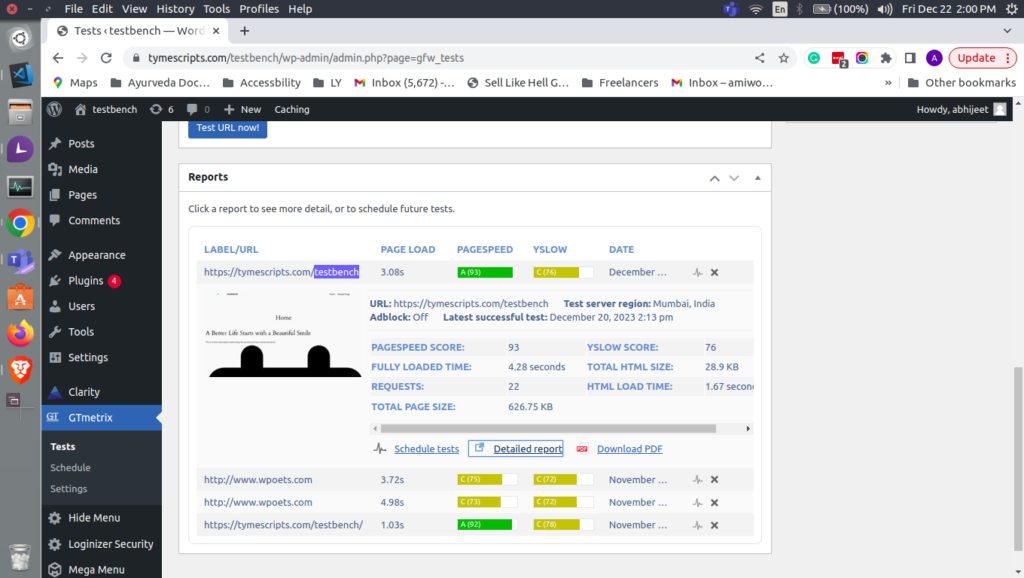
Screenshot 15: List of all reports. Click on Label/URL to expand/collapse
Individual reports can be expanded to view the summary of page speed scores, Yslow scores, load times, and other details, as shown in the above screenshot. Below the individual summary of the report, there are links to pages for scheduling future page load tests, viewing detailed reports, and even a link to download a PDF report.
For a detailed report, click on its link; it will take you to the GTmetrix web page, where you can view it in-depth. A sample report can be seen in below screenshot 15.
The detailed report is divided into different tabs. First, you will see your PageSpeed score, with different ranking items listed with their score.
Green items are good and don’t need your attention. Red items are slowing down your website and require further investigation.
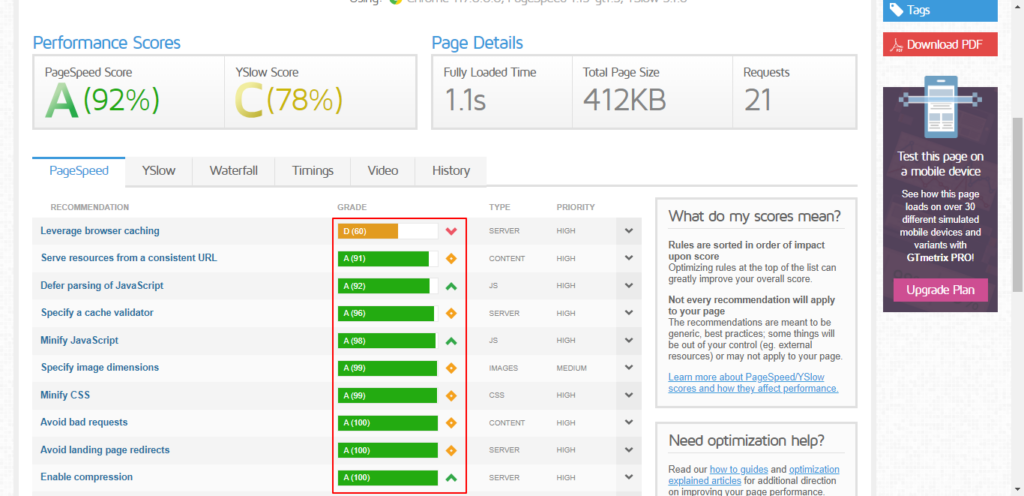
Screenshot 16: PageSpeed score with different ranking items listed with their individual scores.
The best part is that when you click on the suggestions, it tells you exactly what needs to be fixed.
Step 7: Schedule Tests (Optional)
You can also schedule the page load tests to run hourly, daily, weekly, or monthly. By default, scheduled tests always use the Vancouver, Canada, test server region.
The test will automatically run at the frequency you choose. The admin will be notified when the test completes and one of the following conditions is met:
- Page Speed score is less than A, B, C, D, E, or F
- YSlow score is less than A, B, C, D, E, or F
- Page load time is greater than 1, 2, 3, 4, or 5 seconds
- Page size is greater than 100 KB, 200 KB, 300 KB, 400 KB, 500 KB, or 1MB
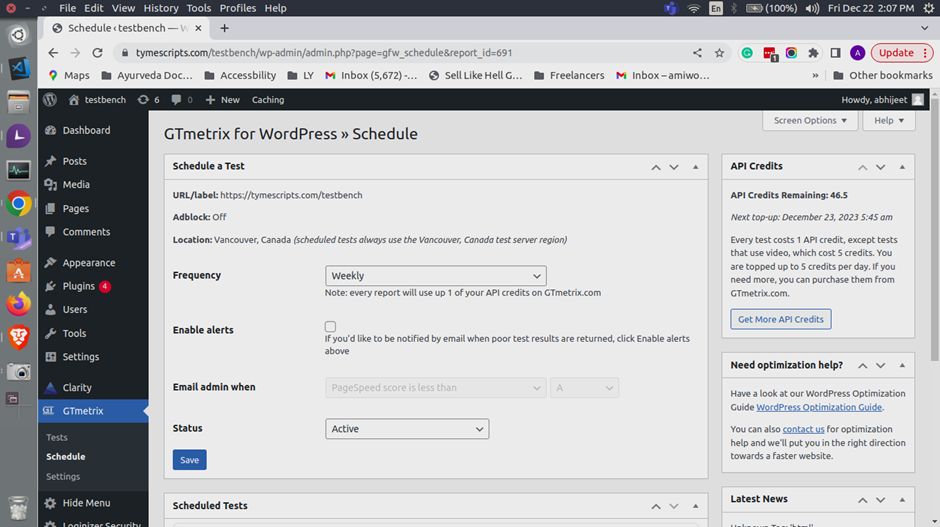
Screenshot 17: Choose a frequency to run the test automatically
Conclusion
In this tutorial, we saw how to install and use the GTmetrix plugin step by step. We also learned how to run and schedule page load tests to keep a check on your website's performance score.
The reports generated help you easily identify performance bottlenecks, such as large image sizes, excessive HTTP requests, slow server response times, and much more. With this crucial information, you can make the necessary changes to your website to optimize it, thus improving its loading speed.
That’s it for this tutorial. If you want your website to load blazing fast, connect with our Page Speed experts.
Tutorials
8 min read
How to optimize Interaction To Next Paint (INP) Core Web Vital in WordPress
Introduction
We all know how vital web performance is in today's digital world. Thanks to Google's Core Web Vitals, we know what to do to keep the performance of our website up! These metrics are designed to capture the most critical aspects of web performance that directly impact user satisfaction.
Google recently announced that Interaction to Next Paint (INP) will replace the First Input Delay (FID) as a core web vital starting in March 2024. Interaction to Next Paint is all about taking web experiences to the next level by optimizing user interaction and improving performance. In this blog post, we are going to cover everything about INP.
Importance of User Interaction
When we talk about websites, we're essentially discussing a digital space where users engage with content and perform actions. Simple activities include clicking a link, touching a mobile device button, or typing into a search field. User engagement makes a website live.
Imagine navigating the web without user interactions. It would be like reading a book where you can only view one page at a time, and you have to wait for someone to turn the page for you. The ability to interact with websites sets them apart from static documents. User interactions are the essence of the web, allowing us to explore, learn, shop, and communicate.
Whether you're booking a flight, scrolling through social media, or reading a news article, every action you take on a website is a form of interaction. These interactions drive the user experience and shape how we perceive a website's functionality.
Importance of Responsive Websites
Imagine clicking a "Buy Now" button on an e-commerce site and nothing happening for several seconds. Annoying, right? The latency between your activity and the website's response can make or break your experience.
However, responsive websites give instant feedback. After clicking that button, you expect the next page, the shopping basket, or confirmation of your activity. User happiness increases when websites respond quickly to user activities, creating a sense of seamlessness and control.
Slow-loading websites can make users confused, impatient, and even leave. Here comes Interaction to Next Paint (INP).
The Need for Interaction to Next Paint (INP)
As discussed earlier, as of March 2024, Google will switch from the FID to the INP metric as a Core Web Vital. INP will be used to measure the responsiveness of the webpage for the interactions by a user on a page. The lower the INP score, the higher the responsiveness of the webpage.
To put it in simple words, imagine you're eagerly waiting for a website to load, and you finally decide to click a button or link on the page. And guess what? Your action isn't instantly registered, leaving you hanging in the abyss of the digital universe.
Frustrating, right? That's where Interaction to Next Paint (INP) comes into play. INP measures the delay between your input and the page's response.
An example of poor versus good responsiveness (source: https://web.dev/inp/)
You must be wondering why Google is replacing FID with INP. While FID measures the delay between the user's first interaction with the page (such as clicking a button or a link) and the browser's response to that interaction, INP looks at the bigger picture and considers all the interactions from loading to exit.
This ensures a thorough evaluation of responsiveness throughout the entire lifecycle of a page. Google wants us to go beyond just measuring the first interaction and dive deeper into the complete user journey. With INP, you get a more comprehensive perspective on your page's responsiveness.
Factors that Affect INP Scores
INP measures how responsive a webpage is to user interactions, so it's critical to have a good score if you want to keep visitors on your site and boost your search engine ranking. Let’s take a look at factors that contribute to low INP scores.
1. Large and Complex JavaScript
If you have a lot of JavaScript on your site that takes a long time to load, it can cause significant delays when users try to interact with elements on the page. This can result in a poor user experience and decrease your score.
2. Heavy CSS Animations
Animations can make a website look more interesting, but they can also make pages take longer to load and lower the INP scores. To get better INP scores, you might want to make your animations simpler or get rid of some of them altogether.
3. Media Overload
If your site has a lot of images, videos, or other multimedia, it can bog down page speeds and cause delays. To combat this, try compressing images and using lazy loading to defer the loading of certain resources until they're needed.
4. Not Fixing Rendering Issues
If your site has trouble rendering and showing information, it could take longer for people to interact with the page. Make sure you test your pages carefully to find and fix any layout issues that might cause problems.
Effects of Low INP Scores on SEO
If your website's Interaction to Next Paint (INP) score is low, it can have negative effects on your SEO performance. Google considers page speed as one of the ranking factors, and a website's speed is directly correlated with its INP score. A low INP score can lead to decreased ranking, which ultimately results in decreased traffic.
Moreover, user experience is crucial for the success of any website. If your website is slow, visitors are likely to leave your site leading to a high bounce rate. This again negatively affects your website's ranking and traffic. In addition, a website with a poor user experience due to a low INP score is a sure way to drive away potential customers. Frustrated customers may never want to engage with your brand again, which can lead to a loss in revenue.
So, if you are serious about growing your business and improving your website's SEO performance, it is essential to pay attention to your page speed and INP score.
The importance of Monitoring INP Metrics continuously
It’s not enough to just improve INP scores; monitoring them is equally important. By regularly monitoring your INP scores, you can keep track of whether or not your improvements are working and continue to make necessary changes.
You can access Google’s official INP metrics to see how your website’s INP scores compare to others in your industry. With this information, you can set realistic goals and continuously work towards improving your website’s overall performance.
Advantages of INP
If you are still wondering why you should consider INP metric to measure your website’s performance score, take a look at its advantages:
Measures Complete User Interaction
Unlike FID, INP measures the input delay for all user interactions on a web page. This gives a more comprehensive picture of the website's responsiveness and performance.
Reliable Indicator of Page Responsiveness
INP not only measures the first input delay but also the delay in presenting subsequent frames and running event handlers. This makes it a more reliable indicator of page responsiveness than FID.
How to Measure INP
To understand how to measure INP, let us first understand what kind of user interactions INP focuses on.
- Mouse Clicks
- Touchscreen taps
- Key Presses
Every action taken by the user initiates a sequence of activities that result in a visual response on the page. This is known as ‘next paint’.
Knowing the definition and assessment procedure of INP is vital, but so is knowing what makes a good score and the consequences of a low result.
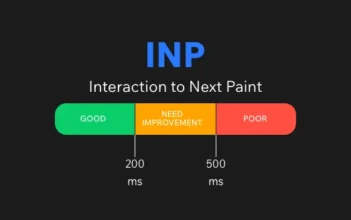
- Good: 200 ms or less is the optimum INP. This ensures that the visual reaction to user contact feels instantaneous, creating a seamless and gratifying user experience.
- Needs Improvement: An INP between 200 and 500 milliseconds suggests improvement. While not disastrous, these latencies may impair users' experiences.
- Poor: INP over 500 ms is poor. The latency between interaction and visual reaction may be visible and annoying for users.
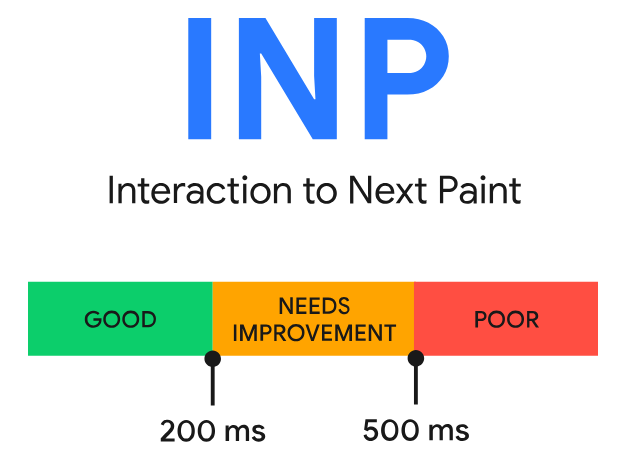
Thresholds for good and poor INP (source: web.dev/vitals)
Tools to Measure INP
You can use the following tools to measure the INP score as well as other Core Web Vitals:
PageSpeed Insights
You can measure the INP score on Google PageSpeed Insights. Just enter your site's URL and click on Analyze.
Under the Core Web Vitals Assessment section, you will see the newly added INP Core Web Vital (CWV).
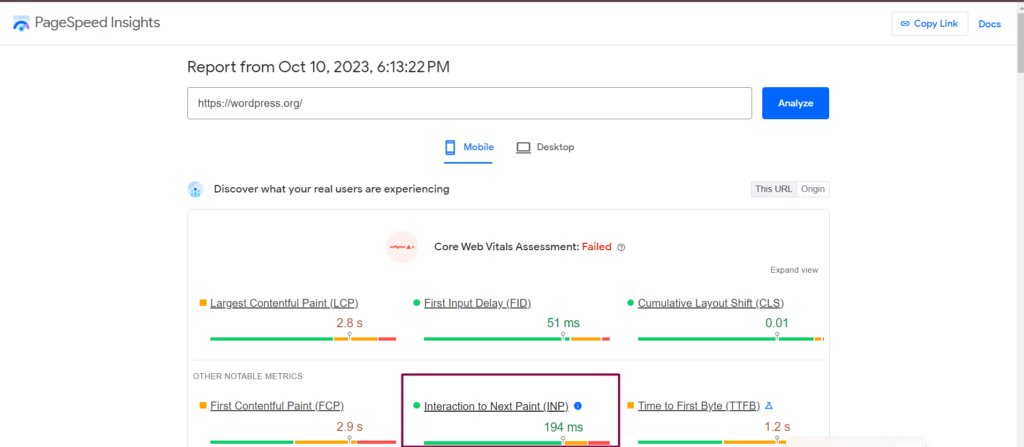
Screenshot 1: Pagespeed Insights INP Core Web Vital
DebugBear
Enter the URL of your site on DebugBear and click on Start Test. Click on Web Vitals to view the details about core web vitals, including INP.
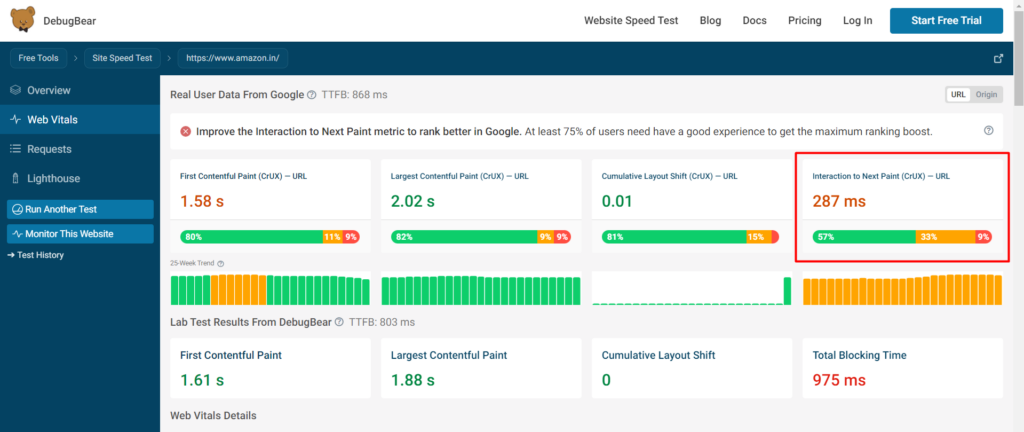
Screenshot 2: Debugbar INP Core Web Vital
How to Optimize INP
To improve your website’s INP scores, here are some ways to optimize it:
1. Minimize Input Delay
The first step to reducing input delay is to identify tasks that block the main thread. Optimize images and videos and defer non-critical JavaScript, which will speed up page loading time. Using a Content Delivery Network (CDN) to serve static assets can also help minimize input delay.
2. Reduce Process Time
Minimize the amount of time it takes for JavaScript to run. The main thread can be blocked by heavy JavaScript operations, delaying the response to user interaction.
3. Optimize Presentation Delay
Presentation delay can be optimized by reducing animations or queuing requests in the correct sequence. Compress photos, minimize CSS, and use contemporary image formats like WebP to reduce file size without compromising quality.
4. Breakup Long Task
Splitting Javascript tasks into several smaller tasks keeps the main thread free, thus reducing input delay.
5. Lightweight Event Handlers
If possible, keep the event handler code simple, as the computational load increases processing time and INP.
6. Web Workers
Using Web Workers, you can execute JavaScript on a different thread. Freeing up the main thread reduces processing time.
Conclusion
In conclusion, optimizing Interaction to Next Paint (INP) means making your website respond fast to user activities. Fast site speed makes users happy, and happy people are more likely to return.
Check your website's INP, implement techniques to improve its score, and monitor its performance. By doing that, you'll create a better experience for your visitors and set your website up for success in the online world.
WordPress
10 min read
Best Drag-and-Drop WordPress Page Builders in 2026
Introduction
Drag-and-drop page builders are becoming more and more important in the world of web design, which is always changing. With its easy-to-use interface, both experienced developers and complete newbies can make websites that look professional without having to write code by hand. In an era where online presence is paramount for businesses, personal brands, and virtually anyone looking to reach an audience, the ability to create an effective website is crucial. This blog explores the best drag-and-drop page builders for your WordPress website.Best Drag and Drop Page Builders of 2026
1. Elementor
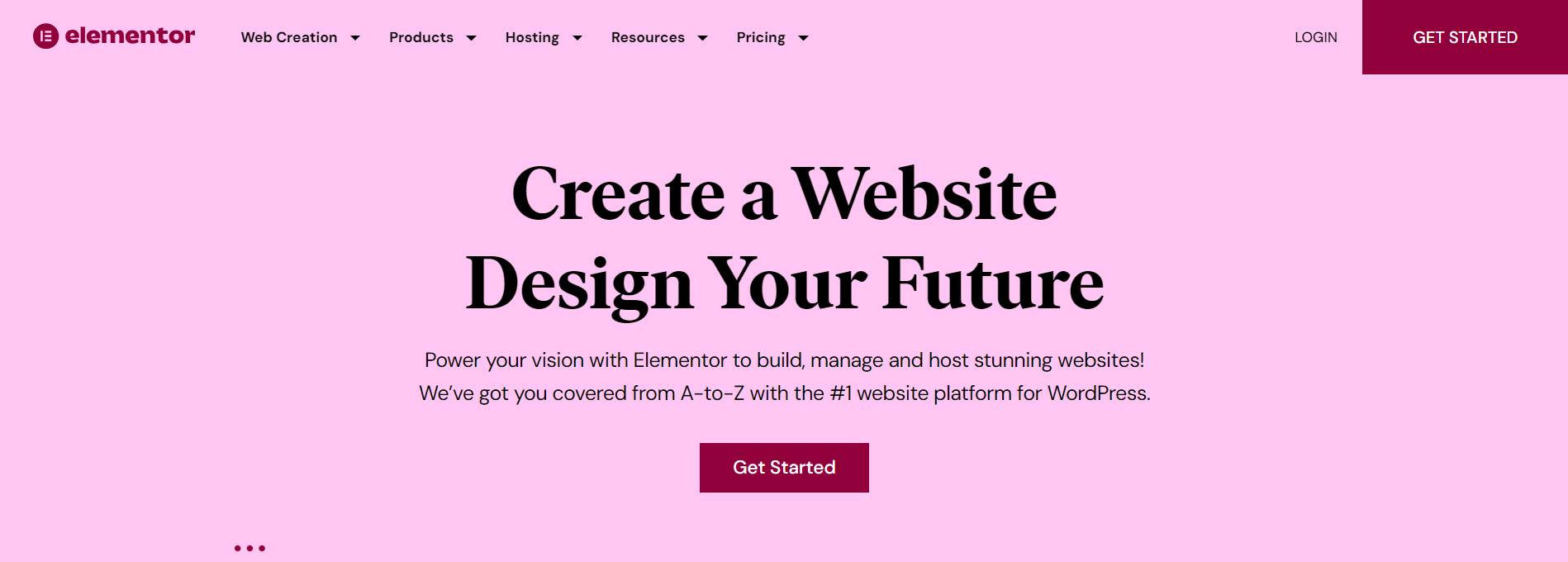 With its robust capabilities. flexible design options, and an easy-to-use interface, Elementor comes as a boon for both experienced and newbie web developers. Let's get to know more about Elementor.
Key Features
- Live Editing Interface: Elementor’s real-time design capabilities mean you can see changes as you make them, streamlining the design process and enhancing accuracy.
- Wide Range of Widgets and Templates: Elementor offers an extensive library of pre-made design elements and templates, allowing for quick yet customized builds.
- Responsive Design Controls: Create mobile-friendly designs effortlessly with specific controls for different devices.
- Integration with Popular Tools: Elementor integrates seamlessly with popular marketing and social media tools, enhancing its usability.
- Multilingual and RTL Support: Design websites in various languages with right-to-left text support, making it globally appealing.
Pricing
Check out the pricing plans for DiviBuilder here.Security and Reliability
When it comes to security, Elementor understands how important the safety and integrity of a website are to users. Using strict coding standards and best practices for web security, Elementor ensures that the user's website is safe and secure. And if you're the type who likes to add a little extra protection, Elementor plays nicely with a lot of the security plugins out there. So you can build up your site's defenses just how you like. Got a question or hit a snag? Elementor's support team has got your back. They've got loads of guides online, and there's a community of users who are always ready to lend a hand.Customization
Customization is where Elementor really feels like a playground for anyone wanting to create a unique website. Starting with the interface, it is a drag and drop thus allowing you to play with layouts, select colors, adjust fonts, and more. For those with more technical skills, Elementor opens up the possibility to explore custom CSS and JavaScript.In addition to these hands-on design features, Elementor also offers a rich library of pre-made templates. You can choose a template that closely matches your vision, and then tweak it to perfection.Flexibility
Imagine you're building a blog today, an online store tomorrow, and maybe even a portfolio site the week after that. This could mean learning three different methods with some tools, but not with Elementor. Elementor can be used for many different kinds of projects, irrespective of the requirements. Elementor's built-in features act like tools in a toolkit, and the third-party extensions act as specialty tools that can be added. There exists a vast ecosystem of modules and add-ons ready to extend Elementor's capabilities.SEO Impact
You don't just put together a website with Elementor; you craft it in a way that search engines can understand. This is essential because if search engines can readily read your website, they will be able to show it to more people. Elementor helps you build a search engine-friendly site.2. Divi Builder
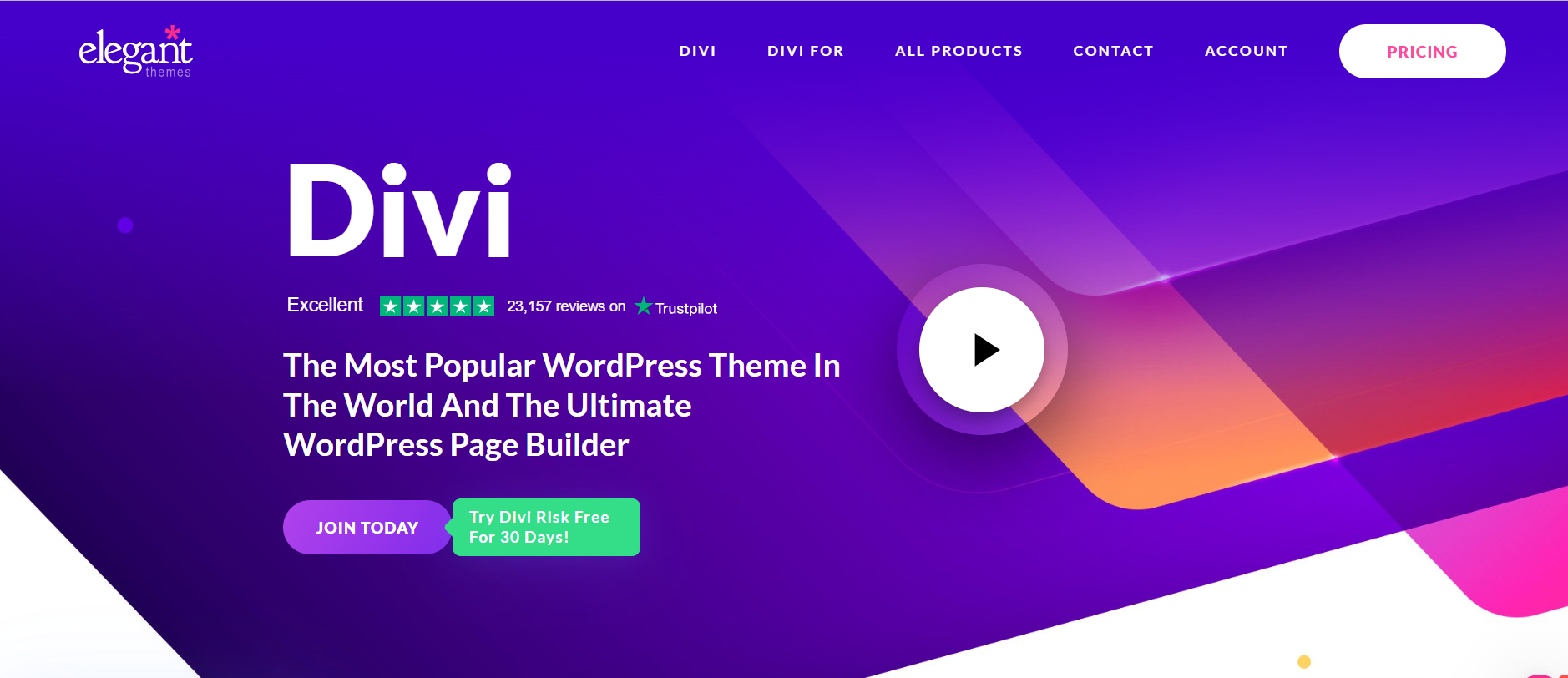 Divi Builder developed by Elegant Themes, is quickly becoming a favorite among WordPress users. Divi Builder has gained popularity due to its ease of use, vast customization, and varied design features it has. Let's dig in more:
Key Features
- Visual Builder Technology: Divi Builder offers a real-time design interface, allowing designers to see changes instantly without page refreshing.
- Modules and Layouts Library: A vast collection of customizable modules and layouts, catering to all design needs.
- Global Elements & Styles: Create global elements that can be used across the site, saving time and ensuring consistency.
- Split Testing: Test different design options to see what works best with built-in split testing tools.
Pricing
Check out the pricing plans for DiviBuilder here.Performance
Divi Builder is fast, which means you're not sitting around waiting for things to load. You can move things around, tweak them to your liking, and see the changes right away. Divi Builder's performance can vary depending on factors such as hosting, the complexity of your design, and the number of plugins you use.Security and Reliability
With frequent updates, Divi Builder maintains a secure platform. Moreover, Elegant Themes offers round-the-clock support, ensuring assistance when needed. Divi Builder provides an extensive library of tutorials and documents to help users navigate any challenges.Customization
Instead of abstract menus and settings, designers can click on any part of their website and modify it directly. Whether it's adjusting the typography of a headline, changing the color palette of a section, or adding interactive elements, Divi Builder lets users tinker and refine to their heart's content. While Divi Builder does come packed with a myriad of beautiful templates, each of them can be dissected, modified, and reassembled to create something entirely new.Flexibility
The digital world thrives on collaboration and interconnected tools, and Divi Builder embraces this wholeheartedly. By allowing and often facilitating integrations with a plethora of external tools, Divi Builder ensures that its users always have the right tool for the job, even if it's not native to the platform.SEO Impact
The very foundation of Divi Builder is built upon SEO-friendly principles. The generated markup is clean and streamlined, adhering to modern web standards. This clean code ensures that search engine bots can easily crawl and index the content. When these bots can efficiently understand the structure and content of a site, it naturally leads to better rankings on search engine results pages.3. Beaver Builder
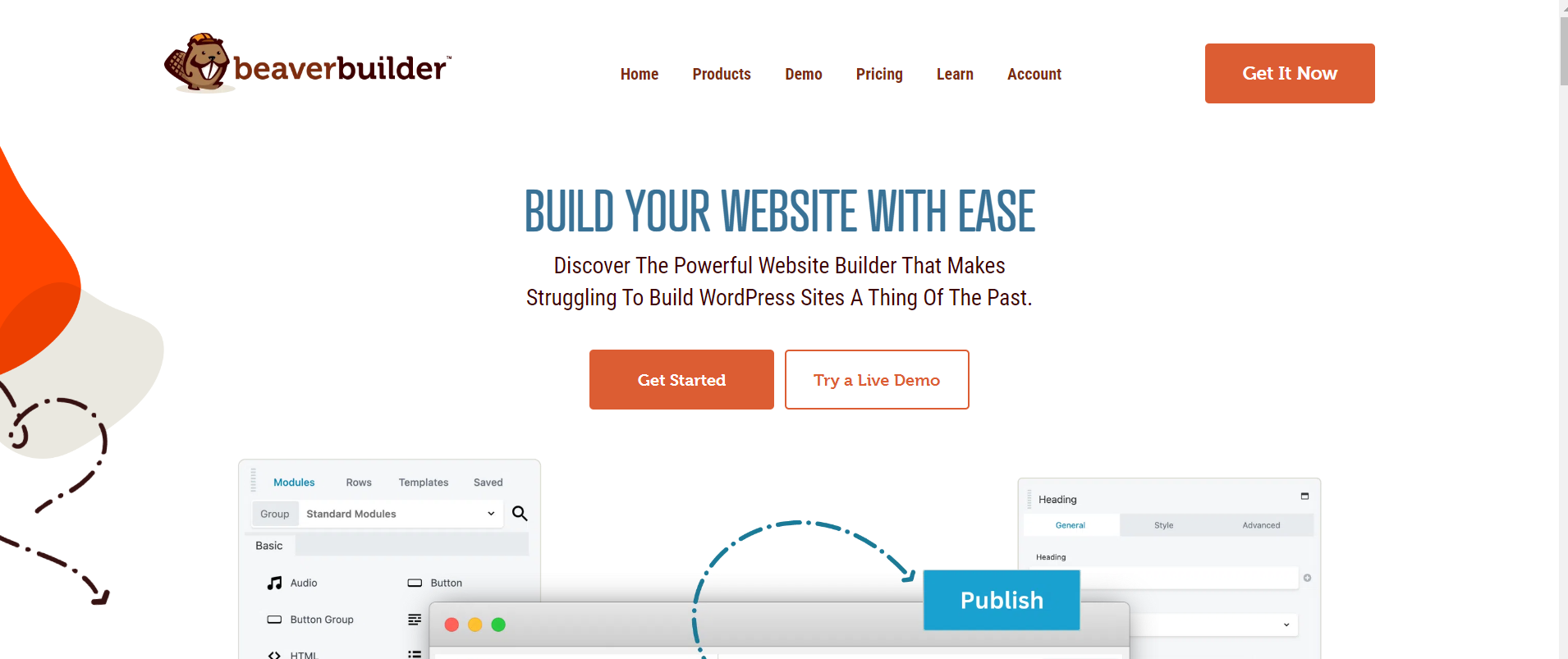 Beaver Builder has made a name for itself in the WordPress community as one of the best drag-and-drop page makers. It makes it easy for both new and experienced developers to create sites that look like professionals made them. Here's a more detailed look:
Key Features
- Live Front-End Editing: See changes as you make them with the real-time design interface.
- Module Variety: Various content modules like photos, text, and even maps can be dragged and dropped with ease.
- Page Templates: Access to pre-made layouts that help to quickly start the design process.
- White Labeling: Ideal for agencies, it allows you to replace the Beaver Builder name with your branding.
Performance
Professionals who value efficiency above all else will find Beaver Builder to be an excellent option because of its fast loading times, excellent responsiveness, and user-friendly interface for designing websites.Security and Reliability
Beaver Builder prioritizes data and browsing session security. Regular security audits find and resolve issues quickly. Open communication with the WordPress community has enhanced Beaver Builder's security posture. Feedback is quickly integrated, and concerns are addressed promptly. It is also known for its responsive support team that’s there to help with any issues. Beaver Builder's commitment to regular updates ensures compatibility with evolving web technologies and changing WordPress frameworks.Customization
From typography to column configurations, precise adjustments are feasible, ensuring a customized design outcome. Those who desire further customization and functionality modifications can use their own custom CSS and JavaScript in Beaver Builder. It enables the saving and reusing of design elements across multiple pages or websites, thereby promoting consistency and efficiency.Flexibility
Beaver Builder is always compatible with the latest WordPress releases and integrates well with various plugins. This ensures that users can blend multiple tools without compatibility concerns. The drag-and-drop mechanics appeal to beginners, while experienced coders are able to embed custom code. Global settings provide design uniformity and help users create site-wide design rules. SEO Impact Beaver Builder effortlessly collaborates with top-tier SEO plugins like Yoast SEO, enabling users to finely tune their SEO efforts without hitches. A crucial yet sometimes overlooked SEO factor is site speed. Beaver Builder's lightweight design ensures faster loading times, crucial for both user satisfaction and SEO optimization. A very important feature is that it offers clean code—essential for making sure search engines can efficiently crawl and index content, which, in turn, boosts website rankings.4. Visual Composer
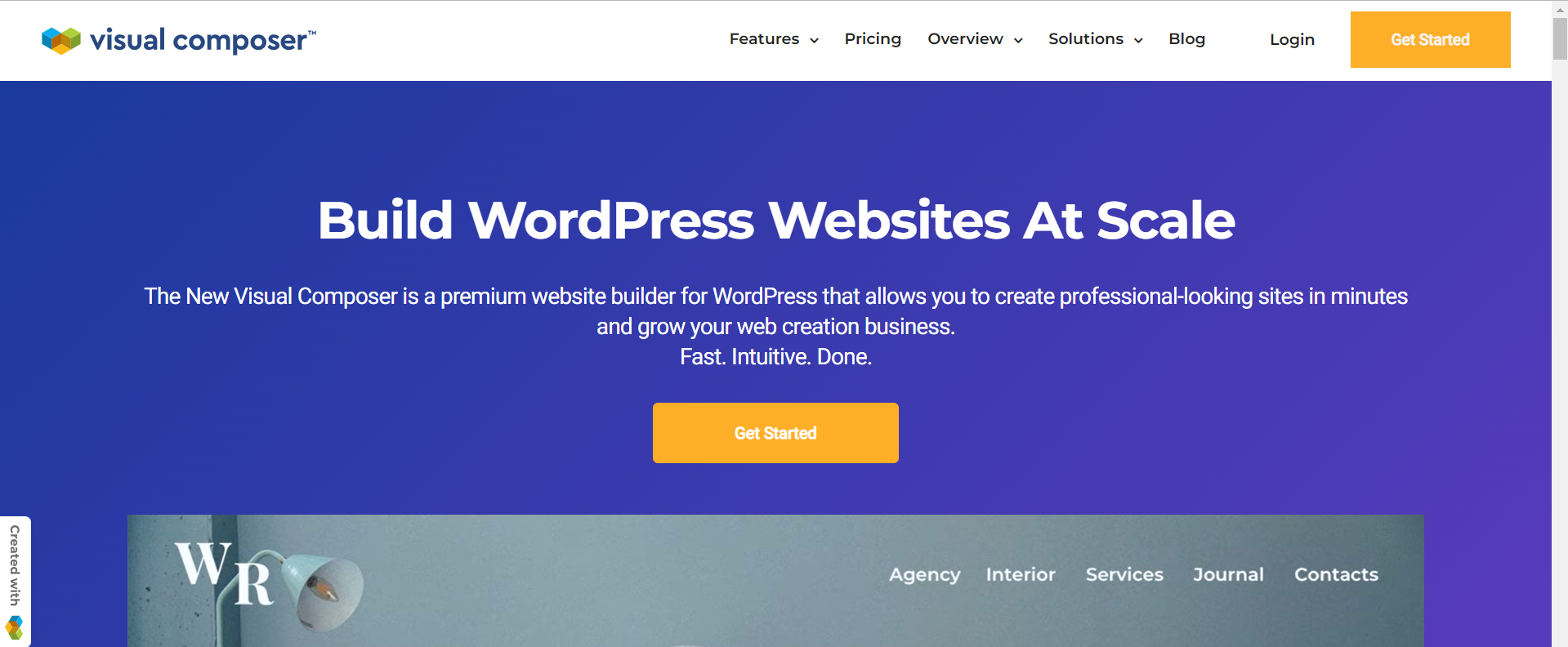 Visual Composer is a website builder with backend and front-end editing capabilities. Of course, like other page builders, this one also helps non-technical people to easily build websites.
While there are many excellent page builders out there, Visual Composer stands out due to its comprehensive features, dual editing modes, and extensibility. It's both beginner-friendly and robust enough for seasoned developers, making it a versatile choice for a wide range of WordPress users.
Visual Composer is a website builder with backend and front-end editing capabilities. Of course, like other page builders, this one also helps non-technical people to easily build websites.
While there are many excellent page builders out there, Visual Composer stands out due to its comprehensive features, dual editing modes, and extensibility. It's both beginner-friendly and robust enough for seasoned developers, making it a versatile choice for a wide range of WordPress users.
Key Features
- Dual Editing Modes: Offers frontend and backend editing capabilities.
- Wide Range of Elements: Basic to advanced elements, including post grids, slideshows, and interactive features.
- Templates: Comes with a variety of pre-designed templates to fast-track the design process.
- Extension Ecosystem: Supports a range of third-party extensions to extend its functionality.
- Integration Capabilities: Seamlessly integrates with many other WordPress plugins.
- Cloud Marketplace: This is a premium feature by Visual Composer which is an in-app marketplace for you to buy elements, extensions, and templates. This feature lets you build your website from the cloud.
- Unsplash Stock Images: Adding images to your website is made easy by this premium feature. From the Visual Composer Hub, you can get high-quality stock photos from Unsplash and add them to your site.
Pricing
You can check out the pricing plans for Visual Composer here.Performance
Websites created with Visual Composer generally maintain good loading times, but this also depends on other factors like hosting, image optimization, and overall website content. Visual Composer has clean code and is as optimized as possible. Still, like any tool, its performance can be impacted by how it's used. Overstuffing a page with too many elements or animations can naturally slow it down. Additionally, the plugin works with popular caching and optimization plugins. This collaboration allows for better loading times and performance with the appropriate setup.Security and Reliability
The Visual Composer is updated regularly to add new features, fix bugs if any, and also to add security patches. Thus, the tool wants to stay one step ahead of any possible threats. Visual Composer is known for its stability and reliability, even with WordPress updates. The Visual Composer staff provides excellent service. An active support system fixes difficulties and functions as a feedback loop to improve the tool based on user demands.Customization
A large library of elements and widgets of Visual Composer allows you to choose from simple text blocks to advanced sliders and social media feeds. This wide range lets you add functionality to your requirements without third-party plugins. When it comes to brand consistency or saving time, the templating features of Visual Composer are incredible. Design a layout, save it as a template, and use it on other pages or websites. This streamlines workflow and guarantees consistency without duplication.Flexibility
Visual Composer is flexible enough to accommodate a variety of project types, ranging from blogs and e-commerce websites to portfolio websites. This page builder not only offers a service, but a solution to your requirements. It easily integrates with the third-party plugins you require for your website without any hassle. You can customize designs with custom CSS, HTML, or JavaScript. Developers who are willing to push the tool's limits in designing can benefit greatly from this freedom.SEO Impact
Visual Composer uses SEO-friendly HTML markup, which is the basis for any search-optimized site. A good HTML structure helps search engines read your content, and this tool does that. Headings, meta descriptions, and picture alt texts are integrated characteristics that promote rankings. Since Visual Composer is flexible enough, it is easy to integrate SEO plugins, thus further helping in boosting your site’s visibility. The builder doesn’t add unnecessary bulk to your web pages, making sure they load quickly, thereby bettering your SEO score.Conclusion
We examined the most powerful and versatile drag-and-drop page builders for WordPress in 2026: Elementor, Divi Builder, Beaver Builder, and Visual Composer. Each has unique strengths and features that make it suited for various projects. The right page builder depends on performance, customization, adaptability, security, and SEO. A bad page builder can slow down your website, complicate design, and cause security problems. However, a good one may make your website quick, safe, and easy to use, improving user experience and SEO ranking. We hope our blog post will help you choose the right page builder according to your needs. If you are looking to build your website, look no further and connect with our WordPress experts.
Plugins
8 min read
Best WordPress Migration Plugins of 2026
Introduction
Website migration is essential for anyone who owns a website. It's like moving your entire digital identity from one place to another. Website migration is the bridge that lets you switch hosting providers, migrate from a development or staging environment to a live server, or revamp your site with a new name. Databases, themes, plugins, hundreds of files, and content elements are interconnected; therefore, one must migrate them without losing data or functionality. Manually doing this is time-consuming and risky. With the right WordPress plugins, migrating the website becomes easy. But how do you choose the right plugin? Worry not; read on to learn about the best plugins for migrating your website.Criteria for Choosing the Best Migration Plugin
Reliability and Accuracy of Data Transfer
When migrating your WordPress website, data integrity is critical. Choose a migration plugin with a track record of reliable and accurate data transfer. This implies that it must move all of your content without errors or omissions, including posts, pages, photos, databases, and configurations. A good plugin will ensure that the structure and content of your website remain intact during and after migration, preventing data loss or corruption.Ease of Use
Not everyone is a tech specialist, and an overly difficult migration can prove to be a nightmare. Choose a migration plugin with an easy-to-use interface and clear, step-by-step instructions. It should be simple enough for beginners to use while still providing extensive options for advanced users. A plugin with an easy-to-use interface can save you time and lessen the likelihood of costly mistakes during migration.Support for Different Migration Scenarios
Websites come in all forms and sizes, and your migration requirements may differ from those of others. Ensure that the plugin you select supports various migration scenarios. This covers both the standard single-site to single-site migration as well as more complex migrations, including going from a multisite network to a single site. The ability to handle a variety of scenarios provides you with flexibility and ensures that the plugin can adapt to your individual needs.Speed and Efficiency of the Migration Process
When it comes to website migration, time is of the importance. The migration plugin should be effective and quick in its process. Slow migrations might cause downtime and provide your visitors with a poor user experience. Look for a plugin that optimizes the migration process, reducing the amount of time required to accomplish the move.Compatibility with Different Hosting Environments
WordPress websites use many hosting providers and environments. Your migration plugin should work with shared, VPS, and dedicated servers. It should connect easily with your hosting environment, regardless of technical specifications, permitting a smooth migration regardless of hosting provider.Additional Features and Customization Options
While a migration plugin's main function is to migrate your website, extra features can be helpful. You can move or omit specific items with plugins that allow customization. Some plugins offer URL redirection, backups, and testing staging environments. These added features can improve migration and your WordPress management toolkit.Best Migration Plugins of 2026
Let’s take a look at the best migration plugins of 2026.1. WP Migrate DB
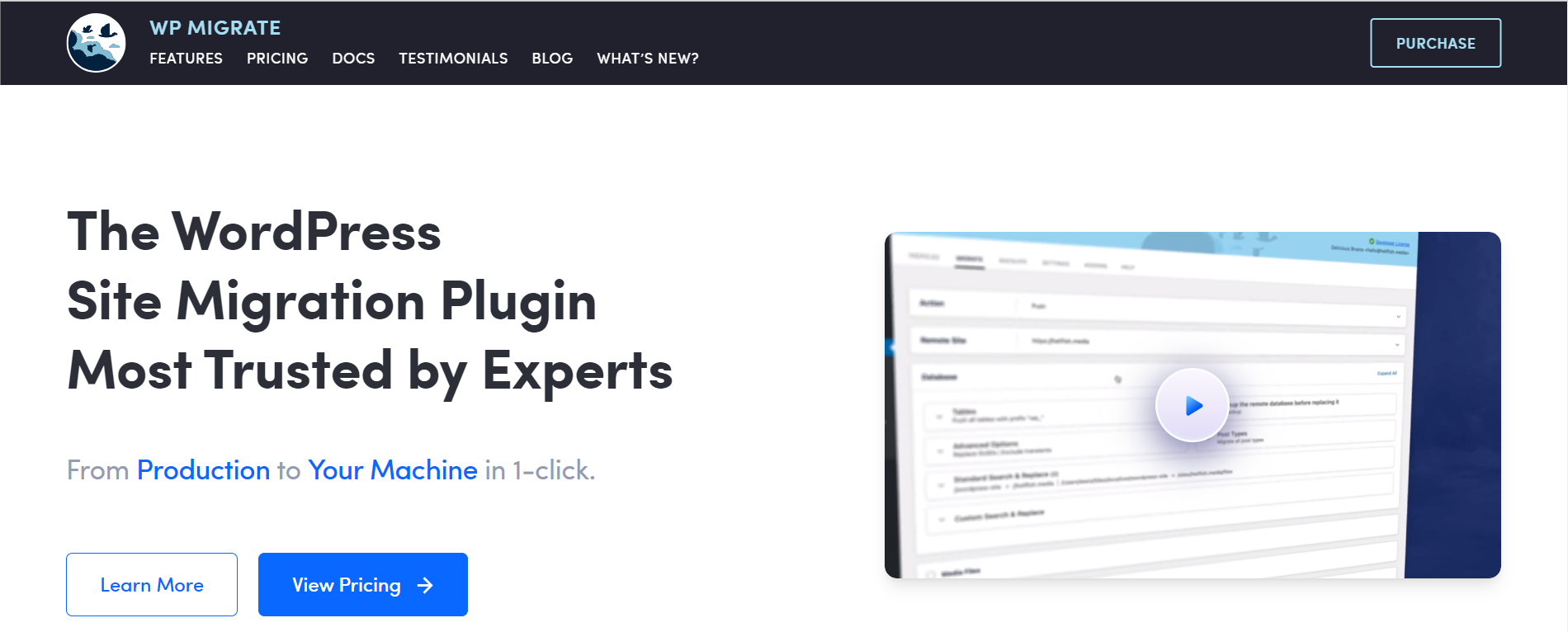 WP Migrate DB is primarily focused on database migration. It plays a crucial role in ensuring that your site's data is transferred accurately and efficiently during a migration.
Features:
WP Migrate DB is primarily focused on database migration. It plays a crucial role in ensuring that your site's data is transferred accurately and efficiently during a migration.
Features:
- WP Migrate DB focuses on WordPress database migration, including posts, pages, comments, custom post types, settings, etc.
- WP Migrate DB's "Find and Replace" feature is unique. This functionality searches your database for particular strings or URLs and replaces them. This helps with migrating domain names, directory structures, and other site-specific information.
- WP Migrate DB intelligently handles serialized data, ensuring that it remains consistent and functional after migration.
- You can use WP Migrate DB to export your database as an SQL file, which can then be quickly imported into the database of the new site. This strategy ensures data consistency and minimal data loss during migration.
- WP Migrate DB integrates with WP-CLI for advanced users and developers who prefer command-line interfaces. More automatic and scriptable migrations make it a flexible tool for varied use cases.
2. All-in-One WP Migration
 All-in-One WP Migration is famous among WordPress users for its simplicity and reliability. Its simplicity makes it a favorite among beginners and experts. The plugin's simple UI lets you migrate a website in a few clicks. Despite your lack of website development experience, the simple layout makes transfer easy.
Features:
All-in-One WP Migration is famous among WordPress users for its simplicity and reliability. Its simplicity makes it a favorite among beginners and experts. The plugin's simple UI lets you migrate a website in a few clicks. Despite your lack of website development experience, the simple layout makes transfer easy.
Features:
- The plugin, as the name suggests, offers a single-click migration.
- All-in-One WP migrations can handle PHP memory constraints better than other migrating plugins.
- The plugin handles large websites well, making it suited for content-heavy platforms.
- It works with many hosting providers and environments, making it a versatile WordPress plugin.
3. UpDraftPlus
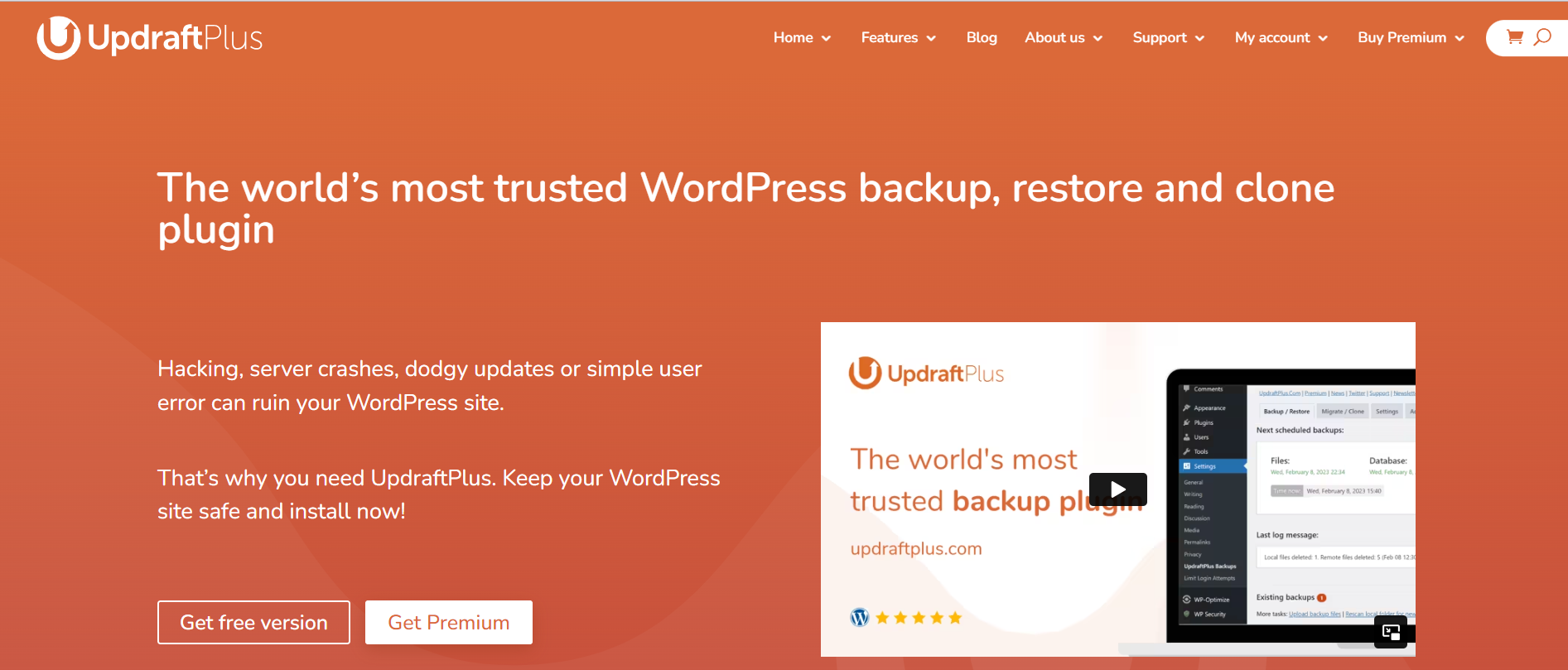 You can duplicate or clone your current website using UpdraftPlus. When switching to a new host or domain, this feature is really helpful. You can make an exact duplicate of your website using the clone tool without having any impact on the live site. This guarantees that there won't be any downtime or disruptions for your visitors while the migration is taking place.
It's essential to have a reliable way to recover your website during migration in case something goes wrong. UpdraftPlus is excellent at this. With only a few clicks, you can quickly restore your website from a backup. This implies that you can quickly return to a prior state during migration if anything doesn't go as planned without losing data or jeopardizing the integrity of your site.
Features:
You can duplicate or clone your current website using UpdraftPlus. When switching to a new host or domain, this feature is really helpful. You can make an exact duplicate of your website using the clone tool without having any impact on the live site. This guarantees that there won't be any downtime or disruptions for your visitors while the migration is taking place.
It's essential to have a reliable way to recover your website during migration in case something goes wrong. UpdraftPlus is excellent at this. With only a few clicks, you can quickly restore your website from a backup. This implies that you can quickly return to a prior state during migration if anything doesn't go as planned without losing data or jeopardizing the integrity of your site.
Features:
- Easy cloning and restoration of the website
- Compatibility with various hosting environments
- The plugin offers remote storage options such as Google Drive, Dropbox, Amazon S3, and many more
4. Migrate Guru
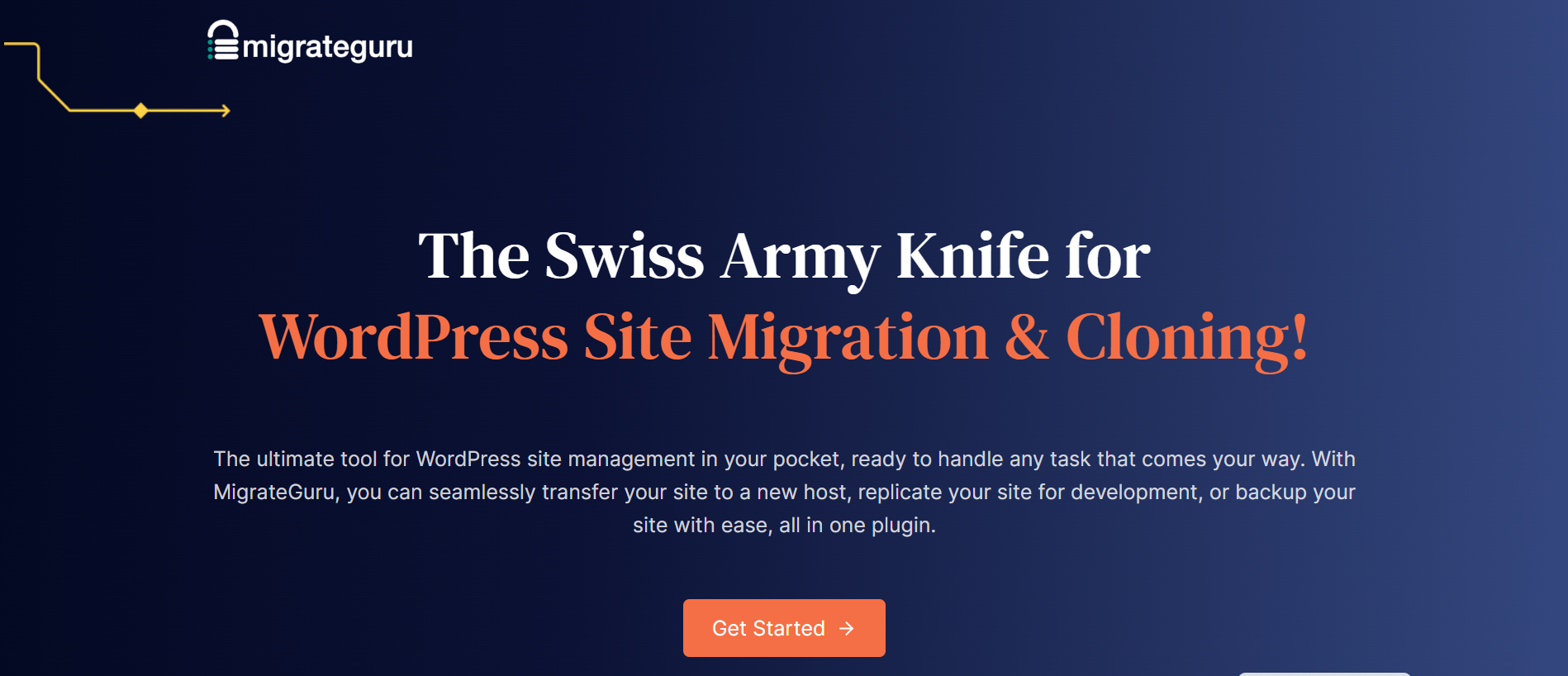 Migrate Guru stands out for its amazing speed and efficiency, especially when it comes to large-scale migrations. Migrate Guru has been designed to easily manage a multisite network with several sub-sites, an e-commerce site with thousands of products, or a blog with a lot of content.
Migrate Guru does not export your site to a file and import it on the new server. It uses a real-time transfer method to transport website data from your old server to the new one without making backup files. This direct transfer approach cuts migration time dramatically.
Features:
Migrate Guru stands out for its amazing speed and efficiency, especially when it comes to large-scale migrations. Migrate Guru has been designed to easily manage a multisite network with several sub-sites, an e-commerce site with thousands of products, or a blog with a lot of content.
Migrate Guru does not export your site to a file and import it on the new server. It uses a real-time transfer method to transport website data from your old server to the new one without making backup files. This direct transfer approach cuts migration time dramatically.
Features:
- This plugin is 80% faster, meaning you can clone 1GB of site in less than 30 minutes.
- The migration process takes place on Migrate Guru’s server, so there is no overload on the website
- Since the cloned copy of your site is on Migrate Guru’s server, no storage space is required. After the migration is completed, the copy is erased.
- Moving multiple sites or sites with serialized data doesn't require add-ons.
5. BlogVault
 Though it is known for its backup abilities, BlogVault is also renowned for migrating websites easily and efficiently. BlogVault makes migrating your WordPress website to a new host, domain, or server easy in a few minutes.
Features:
Though it is known for its backup abilities, BlogVault is also renowned for migrating websites easily and efficiently. BlogVault makes migrating your WordPress website to a new host, domain, or server easy in a few minutes.
Features:
- BlogVault has zero migration downtime, meaning your website is accessible and functional to users during migration.
- Migration is streamlined by automating file transfers and database exports. It handles everything from backing up to restoring your site on the new server or host.
- BlogVault uses incremental backups for migration efficiency. After the first backup, only website modifications are stored. This decreases the backup size and speeds migration, making it suitable for large websites with heavy content.
- BlogVault offers staging environments for testing migrated websites before going live.
- It provides real-time monitoring and notifications during migration.
6. Duplicator
 Duplicator's ability to efficiently clone and migrate WordPress websites makes it a top contender among migration plugins. Let’s see why Duplicator remains among the best migration plugins.
Features:
Duplicator's ability to efficiently clone and migrate WordPress websites makes it a top contender among migration plugins. Let’s see why Duplicator remains among the best migration plugins.
Features:
- Migration using Duplicator is reliable as it creates small packages of files, databases, themes, plugins, and settings during migration. This not only simplifies the migration process but also ensures that nothing is left behind.
- Its interface walks you through the migration process step by step, thus making it suitable for everyone.
- Duplicator automates database configuration during deployment, ensuring that your website functions correctly on the new server.
7. WPVivid
 WPVivid offers a comprehensive set of features designed to simplify website migration while maintaining data integrity. It offers an easy user interface, making it usable for people with non-tech experience.
Features:
WPVivid offers a comprehensive set of features designed to simplify website migration while maintaining data integrity. It offers an easy user interface, making it usable for people with non-tech experience.
Features:
- It comes with a simple migration procedure that saves developers time when building WP sites and migrating them from dev whether local or remote, to live or new web hosting.
- The snapshot feature is built into the plugin, so even if the restoration fails for some reason, your current site won't be affected.
- It is important for WordPress transfers to replace site URLs in a safe way. The plugin has been tested a lot and works with most of the best page builders and themes out there.
- WordPress migration is easier with separate export and import operations. Websites can be exported to a web server, external storage, or target site (auto migration). Restore the site by importing from places.
Conclusion
We discussed the top WordPress migration plugins. Each plugin has its own benefits, including user-friendly interfaces, rapid cloning, extensive capabilities, versatility, and simplicity. Your plugin choice depends on your website's complexity and migration experience. We hope that this blog has helped you choose the right migration plugin for your needs.
WordPress
9 min read
WordPress 6.3: Exploring the Exciting Features and Enhancements
Introduction
WordPress 6.3 “Lionel” roared its way into the WordPress ecosystem on August 8, 2023. This major release includes many new upgrades that make creating and managing content all the more exciting. Among the features that come with WordPress 6.3, the Site Editor is perhaps the most notable addition, allowing users to handle everything from content to templates in one place. Block themes also enable users to preview new designs and customize them with greater ease. With the Command Palette, users can access expanded functionality with just a few keyboard strokes. At the same time, improved style revisions and annotations, as well as faster performance and improved accessibility, all make it even easier to manage and create content online.
Exploring WordPress 6.3
Here is a quick video exploring the new features of WordPress 6.3.1. Block Pattern System Changes
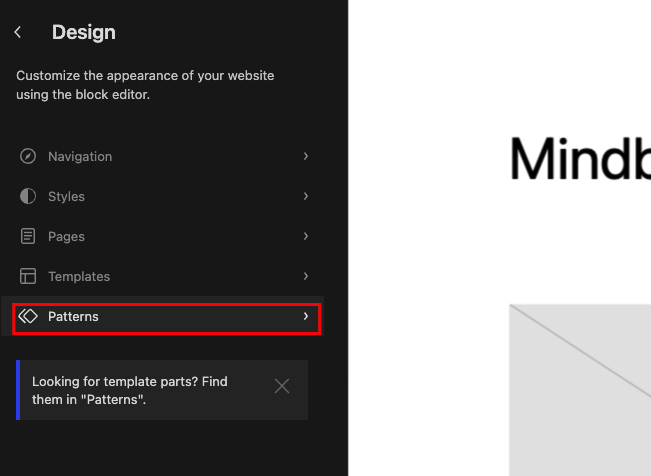
Screenshot 1: Pattern Tab
The Block Pattern System update in WordPress 6.3 has unlocked a new level of customization for pro-level editing. With new improvements and additions, it's now easier to create custom block patterns and apply them instantly to your content.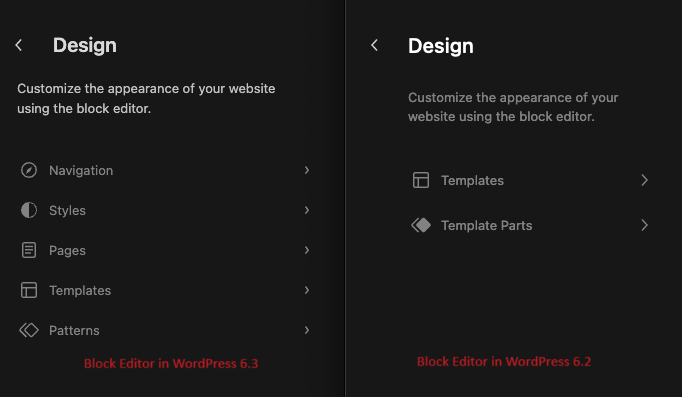
Screenshot 2: Comparison of Block Editor in WordPress 6.3 and 6.2
- Synced patterns, previously known as Reusable Blocks, are groups of blocks that can be saved and applied instantly without having to add the blocks repeatedly. Moreover, changes made to a synced pattern will apply globally on the website. Synced patterns can be used for elements like headers, footers, or sidebars that appear across the website.
- Non-Synced Patterns, previously known as Regular Block Patterns, allow you to customize. Any changes made to a non-synced pattern will only affect that particular pattern and not other places where it's used. Non-Synced Patterns can be used for page or post-specific content.
- The wp_block custom post type has been extended to support custom fields.
- The wp_block_sync_status field has been added to store the sync status of a pattern. This field indicates whether a synced pattern has been updated or not and whether those changes are reflected throughout your website.
- The block pattern design now has a source property to tell the difference between core patterns and user patterns.
- The REST API has been extended with a new endpoint for global styles revisions and it can be accessed at /wp/v2/global-styles/revisions.
2. New Gutenberg Blocks
WordPress 6.3 has added two new blocks, Detail and Footnotes.
Detail Block
The addition of the Detail Block allows you to hide content until the reader is ready to see it. You can now add extra information without cluttering your main text. With just a click, readers can reveal hidden information like event details, fine print notices, or even spoilers. It's like a secret hideout for your content!
Screenshot 3: Add the Details block while creating the post

Screenshot 4: Details block hiding the content

Screenshot 5: Details Block showing the content when expanded
With the addition of this feature, you now have two separate elements: a summary and hidden content. By default, the content is hidden, but readers can easily expand it by clicking on the drop-down arrow.Footnotes Block
Managing long texts is now easy with the Footnotes Block. With this new block, it's as easy as a couple of clicks. Just place your cursor where you want to add the link, click on the Footnote button, and done! A footnote appears at the bottom of the page. The Footnotes Block automatically adds, removes, and reorders footnotes as you edit your text. With this addition, you can effortlessly add context, source your work, or provide references right within your content.
Screenshot 6: Addition of Footnotes Block
Screenshot 7: Display of Footnotes Block
3. Block Improvements
WordPress 6.3 has made some improvements to the existing Gutenberg blocks. Let's take a look at them. With the Cover Block enhancements, you can have more control over the layout of your cover. Various layout options, design options (text colour), and border options have made this block more useful and handy. The Duotone filter has surprised WordPress users with its improved functionality. You can set a global duotone filter from the Style panel of the Site Editor. It is no longer required to navigate theme.json for the Duotone filter application. And don't even think about using colour values for duotone. WordPress 6.3 raises the bar by employing colour prefixes instead.
Screenshot 8: Duotone Filter
There are many other additional block improvements, a few of which are listed below:- The Button block now supports border color, style, and width.
- The Post Excerpt block now allows you to control the length of the excerpt
- For the Post Featured Image block, you can now adjust the aspect ratio.
- The Global Styles interface now includes controls for color and typography for the Caption element.
- A new variation has been added to the Post Date block - the Post Modified Date variation. This is particularly useful if you frequently update your posts and want to showcase when they were last modified.
4. Addition of the Command Palette
WordPress 6.3 introduces a new feature called the Command Palette, which has everyone buzzing with excitement.
Screenshot 9: Command Palette
The Command Palette streamlines several tasks for developers and site managers. With this feature, you can quickly access tasks like resetting or deleting a template or a template part. You can also register your custom commands and even view design options for specific posts or pages. The Command Palette can also be used for core commands such as navigating the site editor, toggling UI elements, and creating new pages and posts. Using the Command Palette is easy, too. All you have to do is press the keyboard shortcut Command+Shift+P on macOS or Ctrl+Shift+P on Windows to open it. You can then start typing in the command you need, and the Command Palette will automatically suggest possible commands. Different commands are available depending on your needs. The command list includes dynamic results based on the user's query in the command palette input field, and a few commands are only available under certain conditions. When changing a template, contextual commands take precedence and show automatically. Developers can register custom static commands using wp.data.dispatch(wp.commands.store).registerCommand or wp.data.useCommand React hook. It also offers an API. Here is an introductory article about the command pallet API. In short, the Command Palette has undoubtedly eased the work of developers and site managers. Its easy design and ease of usage will make it a staple feature in future versions.5. Enhancements in Site Editor
The Site Editor now has a more intuitive interface, making it easier to navigate. A few other changes include:Enhanced Navigation
A fresh, clean interface that organizes everything improves navigation. Navigation, Styles, Pages, Templates, and Patterns are all in one place, making them easy to find. It's ideal for finding a page or template part and making quick modifications. You may now reach any WordPress page in the navigation menu with a few clicks without reading through interminable lists. The Command Palette holds all your favorite WordPress tools, ready to use! You can find the item you want instantly using the new search button. The search button includes Template Parts, providing you with additional content and design versatility.Improved Pattern Management
The Site Editor navigation has now been updated to include patterns as one of the main navigation items. You can see all your reusable blocks in the “My Patterns tab” by clicking on the Patterns icon.
Screenshot 10: Pattern Management
Creating a new pattern or template part is just as easy as selecting the add (+) button. At the bottom of the navigation column, you will find links to manage all your patterns and template parts. With this feature, you can easily locate, edit, and create new patterns or templates to enhance your website navigation and overall design.Style Revisions
The Site Editor now provides revision history so you can browse and restore changes. This panel lists timeline revisions. It additionally tooltips each revision's author, date, and time. You may preview, restore, and navigate revisions in Global Styles at any time.Additional Improvements and Features
A new theme_preview parameter in WordPress 6.3 lets the Site Editor preview every block theme before activation. This update also improves the editor's loading state to prevent user interaction before loading. The WordPress 6.3 site editor has a distraction-free mode. This functionality has been in the post editor since WordPress 6.2. Distraction-free mode removes sidebars and toolbars, allowing you to focus only on editing.6. Changes and Performance Enhancements for Developers
WordPress 6.3 brings a wave of performance boosts and developer updates that will leave you in awe. The client-side performance has seen a remarkable 40% improvement for block themes and 31% for classic themes. On the server side, optimizations have made server response times 19% faster for block themes. And let's not forget the database performance improvements. Lazy-loading metadata and caching query results have made WordPress 6.3 more efficient than ever. But that's not all; there are exciting developer updates too! Script-loading strategies, lazy-loading images, low-level logic optimizations, and much more Among the numerous additions, we enlisted the following:- Image performance enhancements to improve page load speeds
- Improved emoji loader to reduce the time spent loading the emoji script. (#58472)
- Defer and async support added to the WP Scripts API. (#12009)
- Fetch priority support was added for images. (#58235)
- Skipping lazy loading for images outside the loop in classic themes. (#58211)
- Attempt rollback for failed plugin and theme updates. (#51857)
- Merge get_posts() and get_pages(). (#12821)
- Dropping Support for PHP 5
- Command Palette API
- Caching Improvements
7. External Library Updates
External library updates are an important feature of WordPress that take care of certain of your website's functionalities. These updates ensure that your site utilizes the most recent software available, with models regularly updated, and these upgrades may include new features, patches, or bug fixes. The WordPress 6.3 update includes modifications to various external libraries, which ensure that your website runs more efficiently and securely. Some of the updates are mentioned below:- PHPMailer is being updated to v6.8.0 (#57873)
- Requests library is being updated to v2.0.6 (#58079)
- jQuery is being updated to v3.7.0 (#58083)
- Sodium Compat is being updated v1.20.0 (#58224)
- jQuery Migrate is being updated to v3.4.1 (#58451)
- npm packages are being updated to the latest version (#58623)
8. Improvements in Accessibility
Accessibility Enhancements in WordPress 6.3 make it easier for users with assistive technologies to navigate, thanks to features like tab and arrow-key navigation and revised heading hierarchy. The new controls in the admin image editor ensure a better experience for users with disabilities. Here are a few major improvements in accessibility:- Improve accessibility of custom field UI
- Improved labeling, description, and focus style of block transform to pattern previews
- Fixed constrained tabbing failures with Safari and Firefox
- Fixed URL Input combobox to use the ARIA 1.0 pattern
- Fixed accessibility of the classic block modal dialog
- Improved Navigable Toolbar
- Multiple Tooltips from Focus Toolbar Shortcut on Widget Editor
- Support for aria content attributes in formatting
- Snackbar now has improved color contrast on hover for better readability
- Keyboard navigation has been enhanced for specific input types in the Writing Flow
- More details about the Accessibility Improvements in WordPress 6.3 can be found here.


