

Insights, ideas and inspiration. A go to wisdom hub right here.
Featured Posts
Tutorials
7 Min Read
Latest Posts
Tutorials
9 min read
How to Set Up Custom Events Tracking in Google Analytics 4 in WordPress (without Google Tag Manager)
Introduction
Google Analytics 4 (GA4) gives marketers and developers the flexibility to go beyond standard tracking by creating custom events tailored to business goals.
In GA4, everything is an event, but there are four distinct types of events.
Automatically Collected Events
Automatically collected events are the interactions GA4 tracks right out of the box. The moment you set up GA4 on your site or app, it begins recording these events without any additional work from your side.
Here are some examples of automatically collected events:
- first_visit: when a user visits your site or app for the first time
- session_start: when a new session begins
- user_engagement: when users focus on your site or app for a measurable time
These built-in events help you understand basic user activity without adding code.
Enhanced Measurement Events
Enhanced measurement events are also collected automatically, but only if the enhanced measurement feature is enabled in your GA4 property settings.
With enhanced measurement turned on, GA4 can track additional interactions like
- Scroll tracking
- Outbound link clicks
- Video engagement (play, pause, progress)
- File downloads
- Site searches
These events provide deeper insights without needing custom implementation.
Recommended Events
Recommended events are actions that you manually implement on your website or app. Google provides predefined names and parameters for these events, which align with common needs such as:
- For All Businesses - login, sign_up, search, share, etc
- For Online Sales - add_to_cart, begin_checkout, add_payment_info, purchase, etc
- For Lead Generation - generate_lead, qualify_lead, working_lead, etc
- For Games - level_start, level_end, level_up, earn_virtual_currency, etc
Custom Events
Custom events are entirely defined by you. These are useful when the automatically collected, enhanced measurement, or recommended events do not fit your specific use case.
Since custom events are not part of GA4’s standard reports, you will need to create custom reports or use the Explorations feature to analyze them. It’s best to use custom events only when no other option meets your tracking requirements.
This blog discusses the process for setting up custom event tracking in Google Analytics 4 without Google Tag Manager (GTM)
Step-by-Step Guide to Configuring Custom Events in GA4
Configuring events in GA4 is easier than it seems. Below, we’ve outlined clear steps to help you set up, edit, and manage events, allowing you to track the interactions that matter most.
Method 1: Create Custom Events Without Code (using the GA4 interface only)
Best For:
- Page-based tracking scenarios where events are triggered by URL changes or existing GA4 events
- Quick setup requirements with minimal technical resources
- Small teams or organizations with limited development capacity
- Simple conversion tracking, like thank you page visits or specific URL patterns
- Marketing teams that need independence from development cycles
What You Can Track Without Code
Page-Based Events:
- Thank you for page visits
- Specific URL patterns (pricing pages, product pages)
- Form completion confirmation pages
- Download completion pages
Modifying Existing Events:
- Adding parameters to automatically collected events
- Creating variations of enhanced measurement events
- Combining multiple existing events into new custom events
What cannot be tracked:
- Custom user interactions like specific button clicks, hover events, or form field interactions
- Dynamic content interactions, such as AJAX form submissions or single-page application events
- Complex conditional logic where events should fire based on multiple criteria
- Real-time user behavior, like scroll depth percentage, time spent on specific sections
- Cross-domain tracking with custom parameters
- Events that occur before page load or during page transitions
Steps for custom events tracking without code
- Click the Admin gear icon in the bottom left.
- Under the Data column (or Data Display), choose Events.
- Click Create Event (top right)
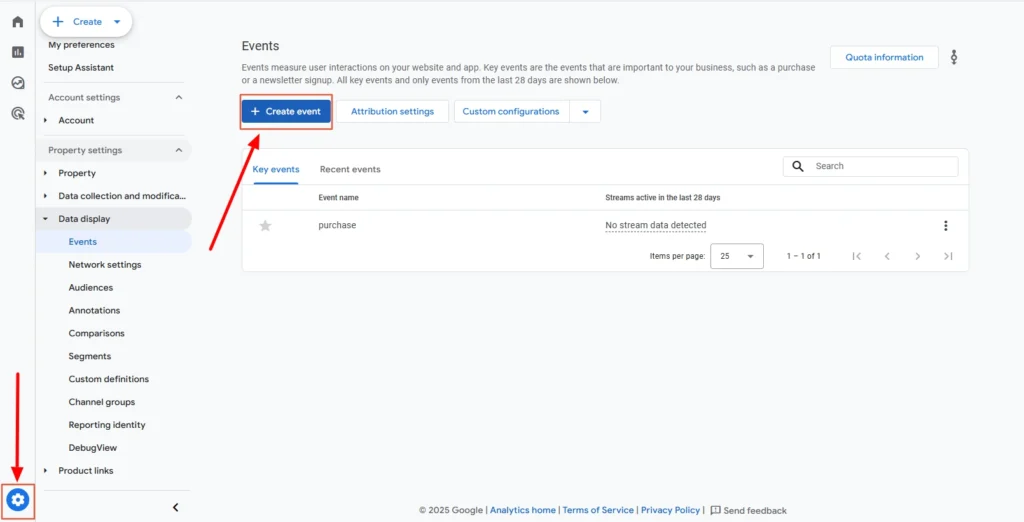
Screenshot 1: GA4 Events Create
- The Create an Event pop-up will appear. Click on the View More Options button under the Create without Code Section, as shown in the screenshot below.
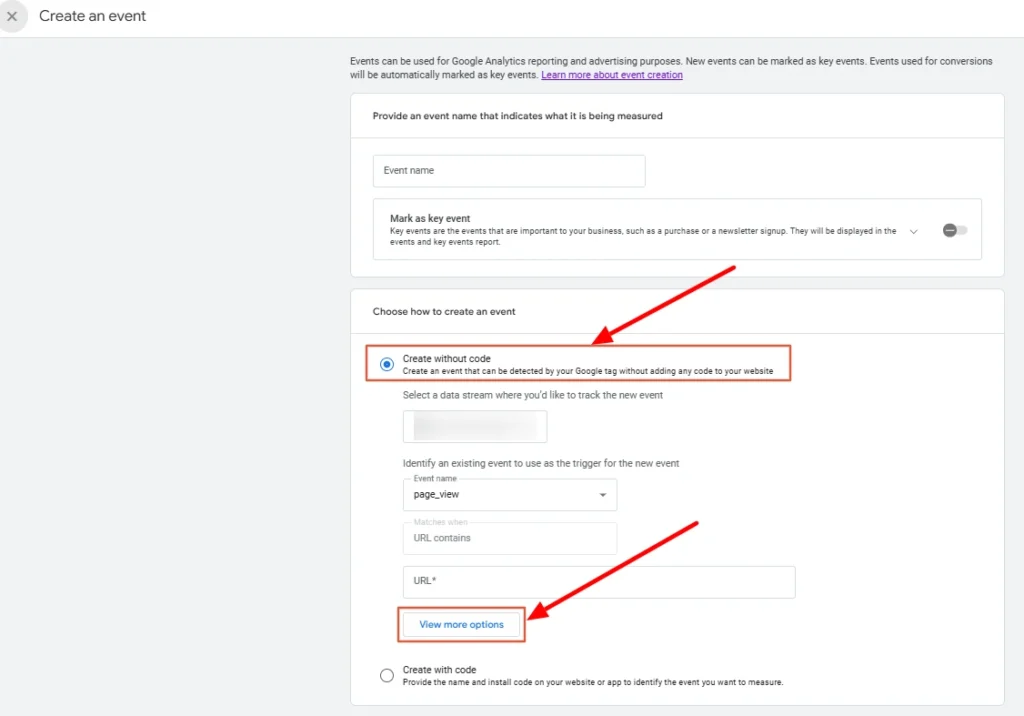
Screenshot 2: Create without Code Section
- Another Create Events panel will appear.
- Name your custom event by using lowercase letters, with underscores to separate words, for example, 'contact_us_button_click'.
- Note: We will debug this custom event later using debug tools
- GA4 limits names to 40 characters; avoid spaces or uppercase letters.
- Then, we need to move on to the Matching Conditions section, which specifies when the event should fire using conditions based on an existing event and its parameters. Typical setup includes:
- event_name equals page_view
- link_text equals Contact Us
- The following parameters are available for creating custom events :
| event_name | affiliation |
| content_id | content_type |
| coupon | creative_slot |
| currency | discount |
| group_id | index |
| item_brand | item_category |
| item_id | item_list_id |
| item_list_name | item_name |
| item_variant | items |
| language | location_id |
| method | page_location |
| page_referrer | page_title |
| payment_type | price |
| promotion_id | promotion_name |
| score | search_term |
| shipping | shipping_tier |
| success | tax |
| transaction_id | value |
| virtual_currency_name |
- When creating or editing an event in GA4, tick the checkbox of Copy parameters from the source event to pull in all details like URL, button text, and page info from the original event. This ensures your custom event is complete for reporting purposes.
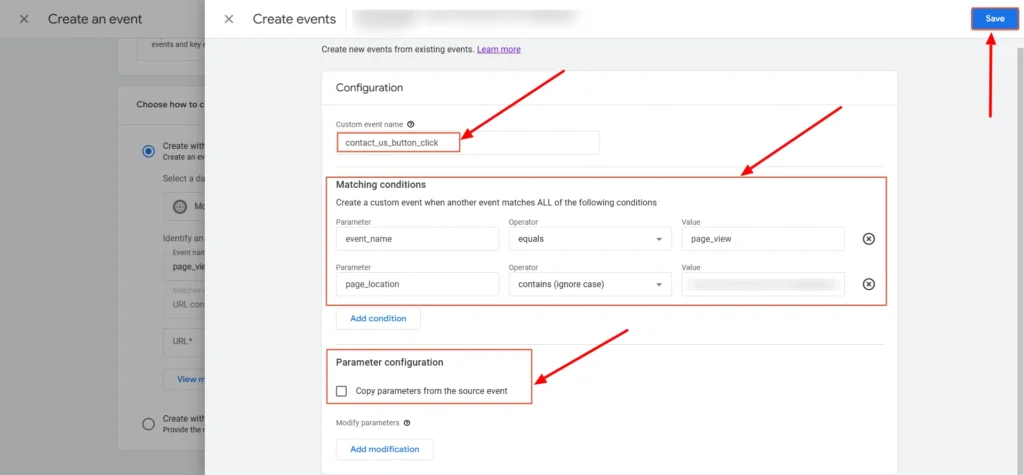
Screenshot 3: Custom Event Config
- Once you hit Save>Create, GA4 starts tracking the custom event in the background.
- Your event will now start triggering when the matching conditions are met (no code needed).
- It may take a few hours for the data to appear in reports and up to 24–48 hours to show in standard reporting.
Method 2: Create Custom Events With Code (Manual Implementation)
Creating custom events with code is most suitable for the following situations:
- Complex user interaction tracking requiring precise control over when events fire
- E-commerce implementations with detailed product tracking and custom parameters
- Single-page applications or dynamic websites where standard page view tracking isn't sufficient
- Advanced debugging requirements where you need detailed control over event timing and parameters
- High-accuracy tracking scenarios where you cannot afford to miss events
Steps for custom events tracking using code
Let’s track a button click (such as a "Contact Us" submit button) in GA4 using a custom event.
Create the Event in the GA4 Interface
- Click the Admin gear icon in the bottom left.
- Under the Data column (or Data Display), choose Events.
- Click Create Event (top right)
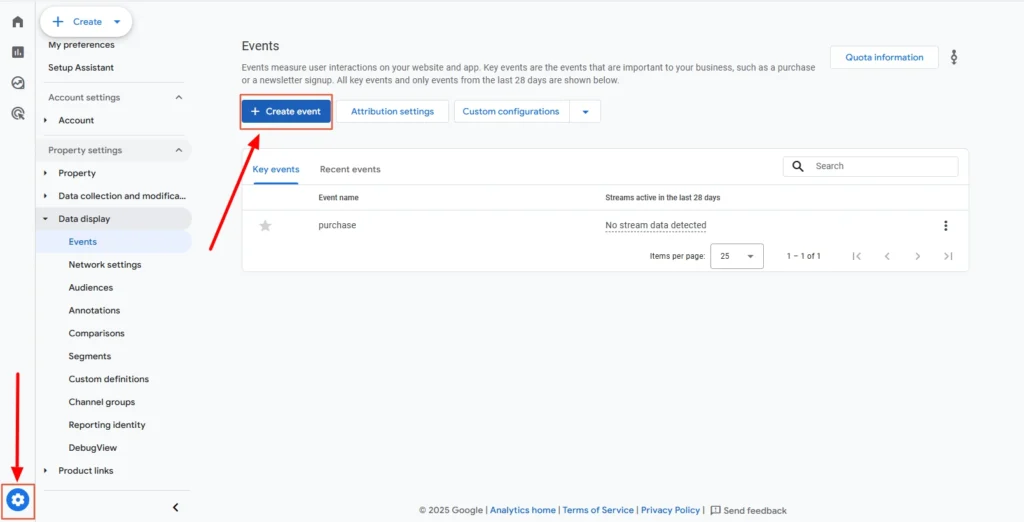
Screenshot 4: Create Event
- The Create an Event panel will appear.
- In the Event name field, enter the name, e.g., contact_us_form_submit_using_code.
- Note: According to the official documentation, marking an event as a key event is optional when creating custom events. However, when creating an event using the code, some reason “Create event” button click is not working unless the “Mark as key event” toggle is turned on. This appears to be a bug at the time of writing this blog.
- In contrast, when creating a custom event without code, you can create the event even when the “Mark as key event” toggle is off.
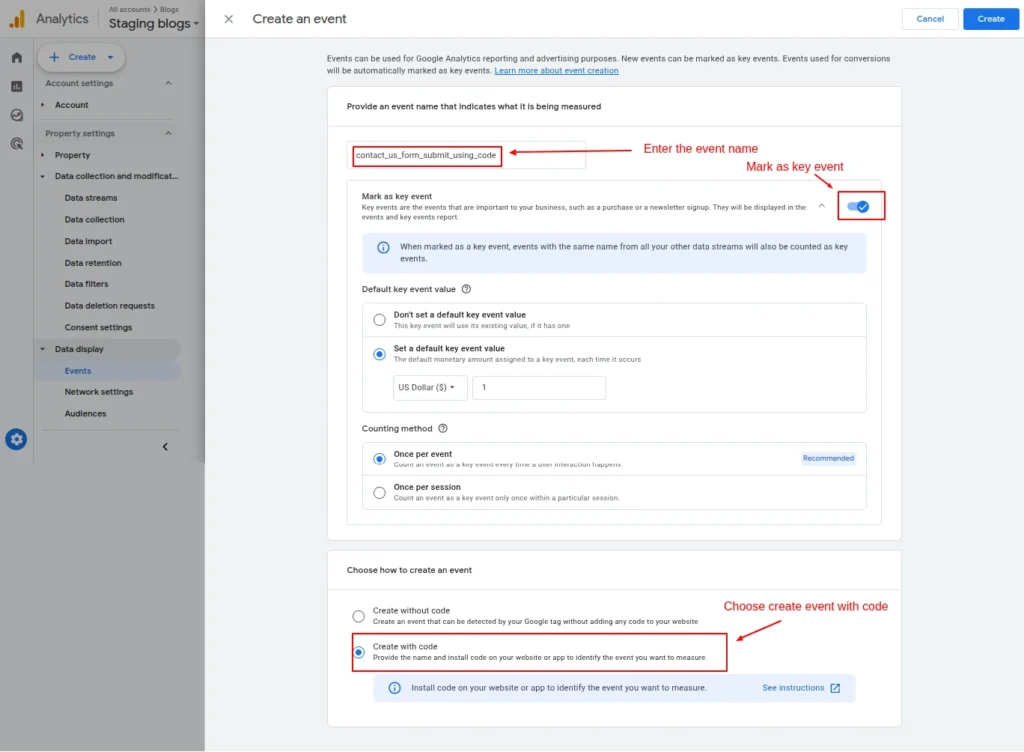
Screenshot 5: Create an event with custom code
- Then, select Create with code. This means the event would be fired from your website and doesn’t need extra conditions here.
- Finally, click on Create.
Add the Code to Your Website
- You’ll be adding the custom events code to the functions.php file of your WordPress child theme. Using a child theme is recommended so your changes aren't lost when updating the parent theme.
- Paste the following code into the functions.php file of your active child theme:
| <?php function my_custom_ga4_contactus_submit_event_script() { ?> <script> document.addEventListener('DOMContentLoaded', function() { var form = document.querySelector('#contact-us form'); // Adjust selector to your form container if (form) { form.addEventListener('submit', function(event) { if (typeof gtag === 'function') { gtag('event', 'contact_us_form_submit_using_code', { event_category: 'form', event_label: 'Contact Us Form', value: 1 }); } }); } }); </script> <?php } add_action('wp_footer', 'my_custom_ga4_contactus_submit_event_script'); |
- The above code adds custom JavaScript to your WordPress child theme that listens for a form submission event and then fires a GA4 custom event (e.g., contact_us_form_submit_using_code). This approach ensures the event is recorded only after the form is successfully submitted.
- Note: The code provided is a sample and may need adjustments to match your specific form’s HTML structure or WordPress form implementation.
That’s it; your new custom event is now ready to be tracked. Now, let’s see methods to debug custom events.
Testing and Debugging Custom Events
The first step is to enable debug_mode so that events appear in GA4’s DebugView for testing.
To do that, there are two options
- Google Analytics Debugger (Chrome Extension)
- Manually setting debug_mode to true in the code
Google Analytics Debugger (Chrome Extension)
- Go to the Google Analytics Debugger extension page on the Chrome Web Store.
- Click "Add to Chrome."
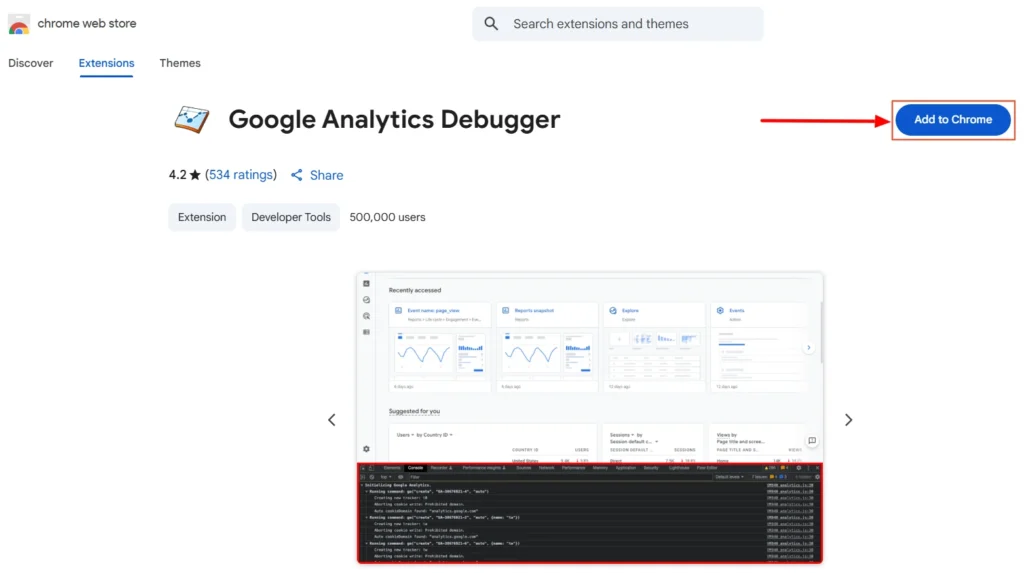
Screenshot 6: GA Debugger Extension
- Click "Add Extension" in the pop-up to confirm.
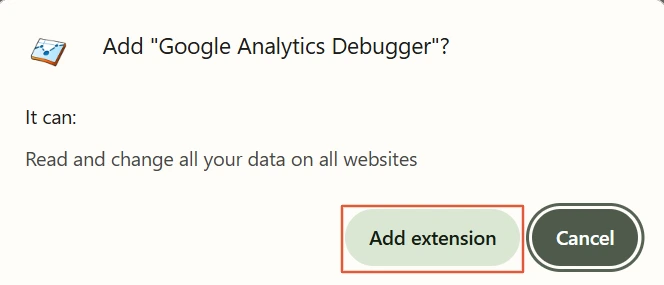
Screenshot 7: Add Extension
- After installing, click the extension icon (puzzle piece) in the Chrome toolbar.
- Find “Google Analytics Debugger” and click the pin icon to keep it visible.
- Click the extension to enable it; you should see an “ON” icon when the extension is on.

- Now refresh your website page where the event code is triggered (e.g., where your contact_us_button_click_code runs) and click.
- Right-click anywhere on the webpage and select Inspect, or press Ctrl + Shift + I (Windows) or Cmd + Option + I (Mac).
- Go to the Console tab.
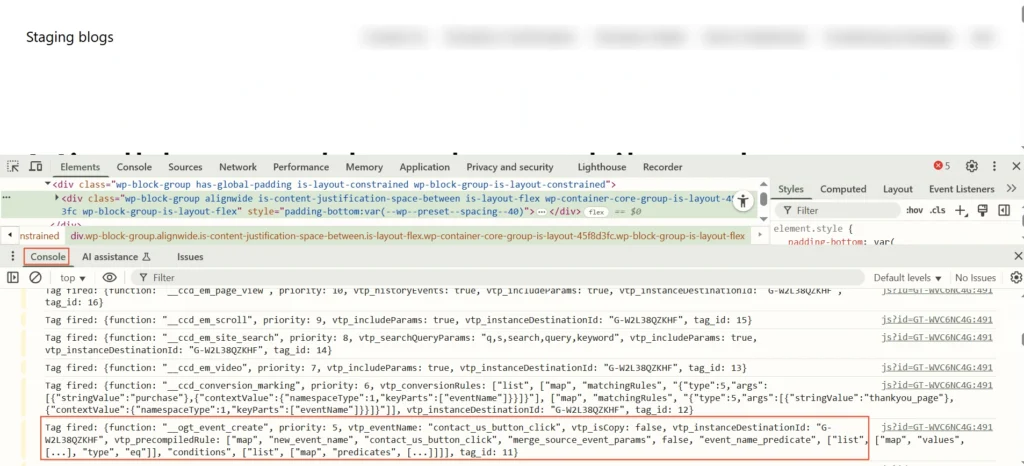
Screenshot 8: GTM Tag Fired Console
- You’ll now see detailed logs from GA4, including:
- Page view events
- Custom events like contact_us_button_click_wc
- Configuration info
- Any event parameters being passed
Manually setting debug_mode to true
The following code will make the custom events appear in DebugView immediately, allowing you to test and verify your tracking in real time.
| <script> gtag('event', 'contact_us_form_submit_using_code', { // Add other parameters that need to be passed debug_mode: true // activate the debug mode }); </script> |
DebugView in GA4
- Once the debug mode is enabled using the Chrome extension or the manual code, go to Google Analytics GA4 > Admin > DebugView (under the Property column).
- Act on your site (e.g., click the Contact Us button).
- In DebugView, you should see the custom events appear on the timeline.
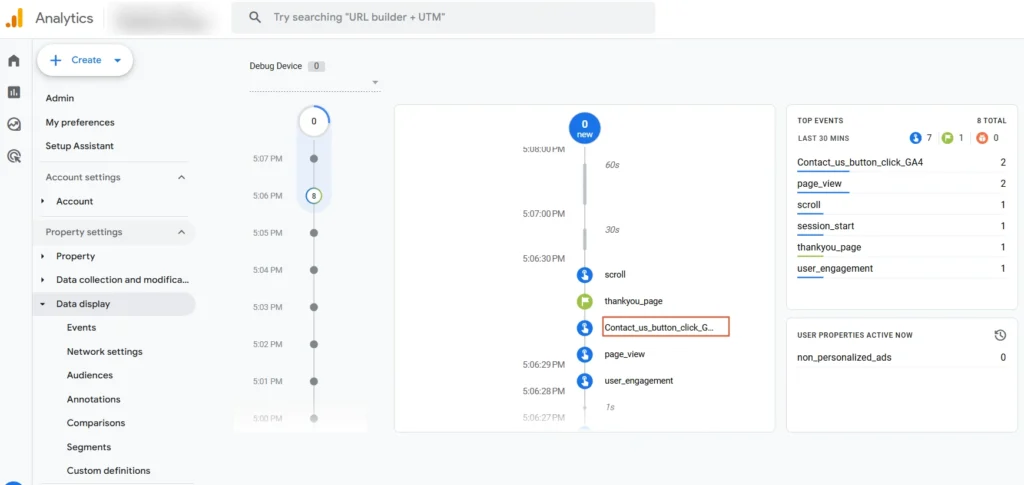
Screenshot 9: GA4 DebugView Event
Conclusion
With GA4's custom events, you can keep track of the interactions that are most important to your business, whether it’s lead form submissions, key button clicks, or advanced e-commerce actions.
The option to create custom events in GA4 without using code is quick and easy to use for simple needs. But for dynamic websites, single-page applications, or scenarios where accuracy is critical, implementing custom events via code gives you the precision and control you need.
That’s it for this blog; now you know how to create custom events in GA4, when to use the without code option, and when to rely on code for more accurate tracking.

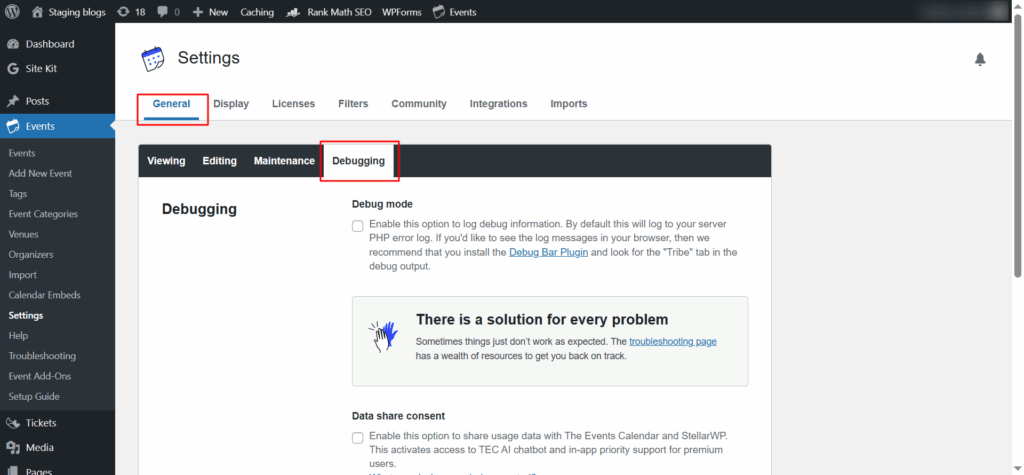
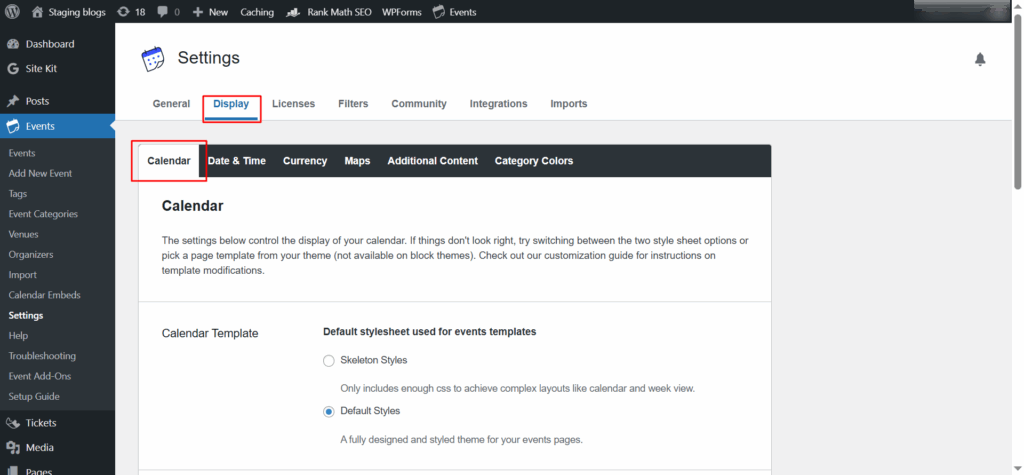
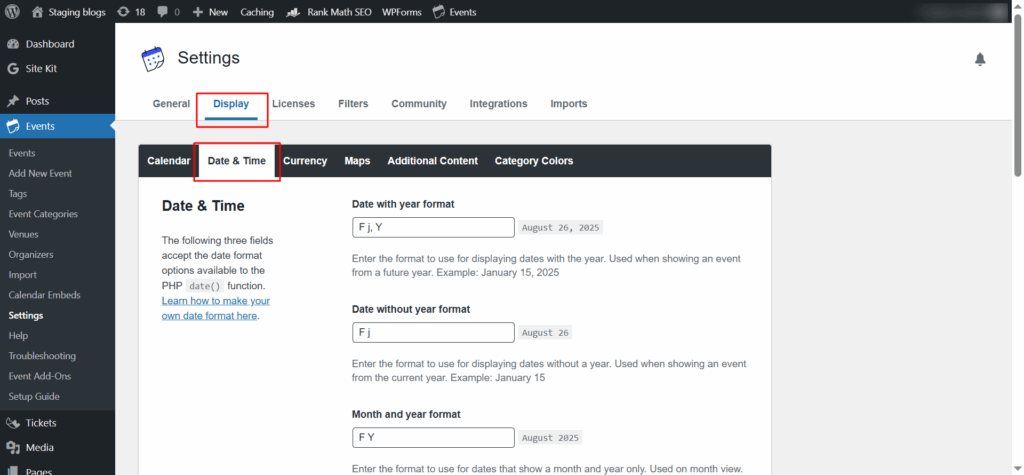
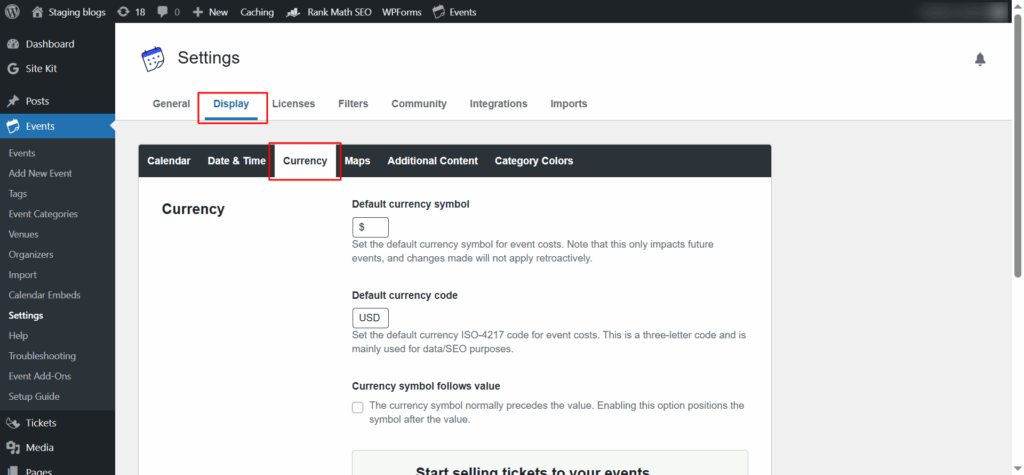
General
13 min read
The Ultimate Enterprise WordPress SEO Checklist 2026 (Part 3)
Introduction
In the Part 1 and Part 2 of this series, we laid a solid SEO foundation and implemented advanced on-site strategies to make your enterprise WordPress site more visible, engaging, and technically sound.
Now it’s time to take your SEO efforts beyond your website. In this final part, we’ll cover the
- Adding structured data (schema markup) to enhance search visibility and click-through rates
- Continuously optimizing performance to keep your site fast and secure
- Building authority with a sustainable off-page SEO strategy and high-quality backlinks
- Implementing international and multilingual SEO to reach a global audience
1. Add Structured Data (Schema Markup)
Structured data (also known as schema markup) helps search engines like Google understand what your page is really about. It enhances listings with rich snippets like FAQs, reviews, and product prices and often improves click-through rates by 20–30%.
Types of Structured Data to Use
- Article: Use for blogs or news. Shows the author and publication date.
- Product: Ideal for eCommerce—adds price, stock, and rating.
- FAQ: For pages with question-answer formats.
- Breadcrumb: Helps show site hierarchy in search.
- Review: Adds customer ratings or testimonials.
- Schema.org offers many more types of structured data suited to different content types. You can explore the full list here: https://schema.org.
Tools for Implementation & Testing
Schema Markup Validator
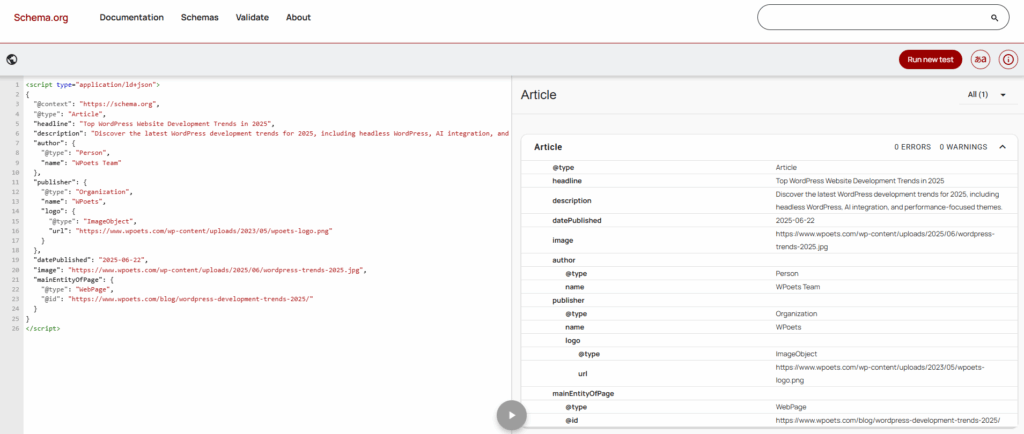
Screenshot: Schema Markup Validator
This tool helps you validate your structured data to ensure it’s formatted correctly in JSON-LD or Microdata formats. It detects missing or wrongly applied properties.
Rich Results Test
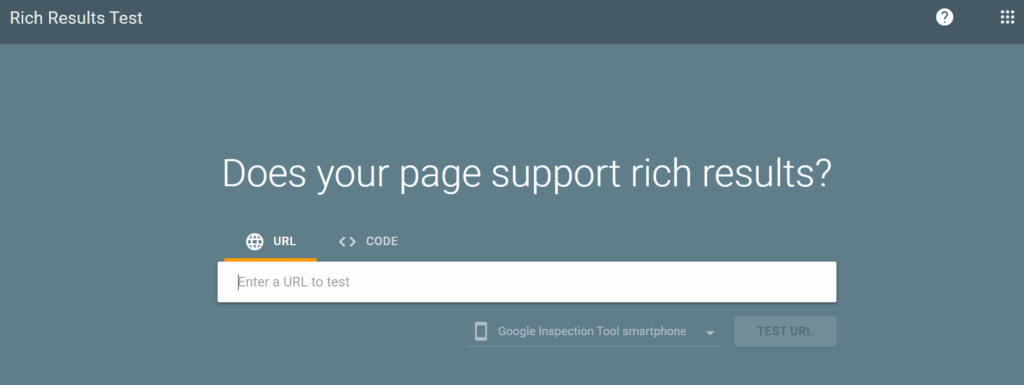
Screenshot: Rich Results Test
This is Google’s official tool that checks if your structured data can generate rich snippets in search results.
2. Continuous Performance Optimization & Maintenance
A fast and well-maintained WordPress site keeps visitors engaged and helps your content get discovered more easily. Let’s look at some key points that we need to keep in mind to keep your site running at its best.
Host Website on a High-Speed, Scalable Server
Choose a hosting provider known for speed and reliability. These services automatically scale your resources during traffic surges, which means your site remains fast even during high-demand periods like major campaigns or product launches.
Use a CDN to Deliver Assets Worldwide
A Content Delivery Network (CDN) stores copies of your site’s files across global servers. When a visitor loads your page, they receive content from the server closest to them.
Ongoing Speed Optimizations to pass core web vitals
- Optimize Site Load Time: To keep your website fast and user-friendly, regularly monitor Core Web Vitals—Google’s key performance metrics:
- LCP (Largest Contentful Paint): Measures how fast the main content loads.
- CLS (Cumulative Layout Shift): Tracks layout stability while loading.
- INP (Interaction to Next Paint): Replaces FID in 2024 to measure how quickly your site responds to clicks or taps.
- Improving these helps with both SEO and user experience. Common fixes include compressing images, reducing unused code, and limiting third-party scripts.
- Use WordPress caching plugins: Caching plugins like FlyingPress, W3 Total Cache, or WP Rocket help by storing a static version of webpages. Because the server doesn’t generate the page afresh on every visit, load times can be dramatically reduced, sometimes by more than 50%.
- Minimize CSS and JS: Reducing the size of your CSS and JavaScript files helps your website load faster and perform better. This is done by removing unnecessary characters like spaces, comments, and formatting without changing how the code works.
- Key benefits of minifying include
- Speeds up page load time
- Improves Core Web Vitals scores
- Lowers data usage for users
- Boosts user experience and engagement
- Key benefits of minifying include
- Optimize Images (use WebP, compress with TinyPNG): Switching to formats like WebP or AVIF can reduce image files by around 25–40 percent. Tools such as TinyPNG can further compress images without noticeable quality loss. Properly sized images are critical for fast, responsive pages.
- Enable Gzip and HTTP/2 for Faster Transfers: Gzip compression reduces the size of text-based files, while HTTP/2 enables servers to deliver multiple files simultaneously. Together, these technologies speed up file delivery and improve overall performance.
- Lazy Load All Non-Essential Elements: Lazy loading defers the loading of images, videos, and iframes until they become necessary, speeding up initial page rendering. Modern browsers support loading="lazy" natively. This approach significantly improves perceived performance without compromising experience.
- Keep All Plugins, Themes & WordPress Core Up-to-Date: Outdated or unsupported software can slow your site and increase vulnerability to hacking. Regular updates ensure smooth performance, stronger security, and compatibility with optimization tools and technologies.
- Optimize WordPress Database Regularly: Over time, databases accumulate clutter, like post revisions, spam comments, and transients. Plugins like WP-Optimize clean out this digital debris, improving database speed and overall site performance.
Tools to Monitor and Improve Page Speed & Core Web Vitals
- PageSpeed Insights: Real-user performance data
- Google Search Console: Tracks site-wide Core Web Vitals
- Chrome Lighthouse & Web Vitals Extension: Built directly into the Chrome browser and can be accessed through DevTools (the Inspect panel). Which evaluates performance accessibility, SEO, etc.
- GTmetrix: Speed and visual performance audits
3. Building Authority Beyond Your Website
Off-page SEO focuses on building your site’s reputation and authority beyond its content, primarily through backlinks.
Strategic off-page SEO is essential for standing out in search and earning trust from both users and search engines.
Performing Competitive Analysis to Spot Link Opportunities
Before you build links, you need to know where to get them. This starts with analyzing your competitors' backlink profiles to spot opportunities you might be missing.
Use tools like
- Ahrefs
- SEMrush
- Ubersuggest
These tools allow you to
- Discover niche-specific websites that link to your competitors (ideal for guest posting or partnerships)
- Uncover broken backlinks for which you can offer better content to replace those dead links.
- Learn what content formats (e.g., blogs, infographics, guides) earn the most links in your industry.
Develop a Link Strategy That Matches Your Goals
Not all links serve the same purpose. Whether you want to boost product visibility, improve domain authority, or increase overall rankings, your link-building strategy should align with specific business objectives.
Ask yourself:
- Do I want to rank a particular page?
- Am I trying to build authority in a niche?
- Is my goal to improve referral traffic or brand awareness?
Choose your approach wisely.
Build Foundational Backlinks (Directories, Citations)
Before chasing high-authority publications, lock down the basic opportunities. Foundational backlinks are the “low-hanging fruit” that establish credibility.
These help Google confirm your business is legitimate and connected to a real location or niche.
Try getting a backlink from
- Business Directories: Register your site on reputable business directories such as:
- Google Business Profile
- Yelp
- Clutch
- Crunchbase
These platforms help verify your business identity, increase online visibility, and even generate customer leads.
- Local Citations
If your business serves specific cities or regions, submit your details to local business citation sites and chamber of commerce directories. Consistent name, address, and phone number (NAP) across listings helps improve local SEO. Examples: - Industry-Specific Listings
Choose directories relevant to your niche:- For design or marketing agencies: DesignRush
- For medical professionals: Healthgrades or Practo
These listings not only give you valuable backlinks but also help potential customers find you in targeted searches.
Launch Guest Blogging Campaigns on Niche Sites
Guest blogging remains one of the safest and most sustainable link-building methods in 2025, when done right. These:
- Target relevant niche blogs with engaged audiences
- Personalize your pitch, showing familiarity with their tone and past content
- Link back naturally to useful content on your site (not just your homepage)
Create linkable assets that naturally attract links
You can’t earn good links without creating great content. Linkable assets are content pieces designed to attract natural backlinks due to their quality, originality, or usefulness.
Examples include:
- Data-driven industry reports
- Ultimate guides
- Infographics or interactive visuals
- Templates, checklists, and calculators
According to Backlinko's 2024 Content Study, long-form, data-backed content gets 77.2% more links on average.
Build Campaigns Around Existing High-Value Content
Instead of starting from scratch, focus on content that's already performing well. These pages have proven value, so giving them an extra push with backlinks can lead to even better rankings and traffic.
Use tools like Google Search Console or GA4 to:
- Identify high-performing pages; look for those with strong traffic or impressions.
- Check their keyword rankings. Understand which terms they’re showing up for in search results.
- Spot link gaps; prioritize pages that rank well but have few backlinks. These are often easier to boost with strategic outreach.
Example: If a blog post on your site ranks on page 2 for a valuable keyword, building a few strong backlinks to it might push it to page 1.
Create Infographics to earn backlinks.
Infographics are still an underrated way to build backlinks, especially when paired with manual outreach.
How to run a campaign:
- Design a stunning, data-rich infographic
- Reach out to relevant blogs in your niche.
- Offer to write a short post to go with the infographic on their site.
- Get a backlink in return.
Tools like Canva can help you create professional visuals in minutes.
Turn Brand Mentions into Backlinks
Sometimes, websites mention your brand but don’t link back. Reclaim these mentions with a friendly outreach email.
Use tools like:
Politely ask for a backlink where your brand name is mentioned. Most site owners are happy to oblige if your brand is already included.
Leverage Digital PR to Earn High-Quality Backlinks and Brand Mentions
Digital PR blends traditional media outreach with SEO strategy. Instead of just asking for links, you're offering valuable insights, research, or stories that journalists genuinely want to feature.
By contributing expert commentary or unique data, you can earn links from major publications like Forbes, TechCrunch, or Business Insider—all of which carry high authority in Google’s eyes.
Useful platforms to connect with journalists:
- HARO (Help a Reporter Out) – Respond to real journalist queries.
- Quoted – Share expert quotes with reporters on deadline.
- Terkel – Contribute answers that get featured in articles.
Develop a Free Tool to Attract Natural Backlinks
One of the most effective ways to earn backlinks passively is by offering a free, helpful tool that others in your industry want to share. Tools that simplify tasks, solve a common problem, or help users get quick results are highly linkable.
People naturally link to resources that save time or add value, especially when they’re easy to use and reliable.
Examples of Free Tools That Earn Backlinks:
- Mortgage calculator – Popular on finance and real estate blogs.
- ROI calculator – Ideal for SaaS and marketing websites.
- Keyword clustering tool – Valuable for SEO professionals and digital marketers.
To make the most of your tool:
- Keep it user-friendly and mobile-friendly.
- Add a lead capture form or email opt-in to grow your mailing list while offering value.
- Promote it through blog posts, guest posts, and social media for initial visibility.
Tracking and Managing Backlinks to Protect Your Site
Getting backlinks is important, but keeping your backlink profile clean is just as crucial. Over time, websites naturally collect links from all kinds of sources, and not all of them are good for your site.
Some may even hurt your SEO if they come from spammy or untrustworthy domains.
How to Track and Maintain Link Health:
- Monitor Backlink Profile Health Regularly
- Run regular audits using tools like Ahrefs, Ubersuggest, or SEMrush. These show which sites are linking to you and flag suspicious domains.
- Audit Backlinks for Spam or Toxic Domains
- Look out for sudden spikes in backlinks, especially if many come from unrelated or low-quality websites. This could indicate negative SEO or bot spam.
- Google’s Disavow Tool is used to remove harmful links:
- Use Google’s Disavow Tool (with caution) to tell Google to ignore harmful links pointing to your site. This should only be done if you’re sure the links are affecting your rankings and you can’t get them removed manually.
4. Optimize for a Global Reach using International and Multilingual SEO
If you're expanding your website to target users in different countries or languages, it's essential to optimize for international and multilingual SEO.
This helps search engines serve the right version of your content to the right audience and improves visibility across different regions.
Here’s how to approach it step by step:
1. Choose Target Locations Through Data and Research: Before making your website multilingual, use tools like Google Analytics and Google Search Console to find out:
- Which countries drive the most traffic to your site?
- What languages do your visitors speak?
- Which pages are popular in which regions?
This data will help you prioritize the right language and country combinations for targeting.
- Define Target Countries and Languages: After gathering data, decide whether your goal is to reach
- Different countries (e.g., Canada vs. India)
- Different languages (e.g., Spanish in Mexico vs. Spain)
This step helps shape everything from keyword selection to content formatting and URL structures.
- Choose a URL Structure for International Targeting: Your website should differentiate versions for each language or country. Google recommends one of the following structures:
- Country Code Top-Level Domains (ccTLDs): Ideal for strong local targeting, but harder to scale. E.g.: example.fr, example.de
- Subdomains: Useful for separating different language versions, but may require more effort to build SEO equity. E.g: fr.example.com or en.example.com
- Subdirectories: Easy to manage and maintain authority from one domain. E.g: example.com/fr/ or example.com/en-us/
- Localized slugs: Great for creating keyword-rich, location-specific content. E.g: /mejores-hoteles-en-madrid/ or /best-restaurants-in-italy/.
- Conduct Multilingual Keyword Research: Translation is not enough. People in different countries search differently, even for the same topic. Use localized keyword tools like:
- SEMrush’s Keyword Magic Tool
- Ahrefs Keywords Explorer
- Google Keyword Planner (location/language targeting)
Target queries that people use in their language and location.
- Implement Hreflang Tags Correctly: Add hreflang attributes to your pages to tell Google which language and region each version of a page is meant for. This avoids duplicate content issues and ensures the correct version is served to users.
Example: <link rel="alternate" hreflang="fr" href="https://example.com/fr/" />
- Translate Content Properly: There are three key strategies when translating content:
- Translation: Word-for-word conversion (okay for technical content)
- Transliteration: Adjusts how words sound or are written (e.g., names)
- Transcreation: Creative adaptation of content, tone, and context to suit local culture (best for marketing content)
Avoid machine translation without review, as poor-quality translation hurts SEO and user trust.
- Use Canonical Tags to Prevent Duplicate Content: If different language versions of a page are similar, add canonical tags to indicate the primary version. This prevents search engines from indexing multiple versions of nearly identical content.
Example: <link rel="canonical" href="https://example.com/en/product-page" />
- Build Local Backlinks: Backlinks from websites based in your target country strengthen your site’s visibility in that region. Look for:
- Local Directories
- Country-specific forums or media
- Partnerships with local bloggers
Example: If targeting Spain, backlinks from .es domains or Spanish-language news sites boost credibility with Google’s local algorithms.
Conclusion
Enterprise WordPress SEO isn’t a one-time task; it’s an ongoing process. It starts with getting your site technically sound, well-structured, and filled with useful content. But once your site goes live, the real work begins.
You’ll need to regularly optimize pages, build quality backlinks, and focus on giving users the best experience possible. With constant changes in search algorithms and user behavior, staying visible means tracking results, testing new approaches, and adjusting your strategy as needed.
With all three parts of this checklist, you now have a comprehensive roadmap to scale your SEO efforts and keep your enterprise WordPress site ahead of the curve in 2026 and beyond.
General
11 min read
The Ultimate Enterprise WordPress SEO Checklist 2026 (Part 2)
Introduction
In Part 1 of this blog series, we laid the groundwork for enterprise WordPress SEO. We looked at the setup of tracking tools, chose an SEO-friendly theme, planned a keyword strategy, and resolved keyword cannibalization to keep your content focused and effective.
Now it’s time to build on that foundation. In this second part, we’ll dive into:
- On-page SEO techniques to help your content rank higher and connect with your audience
- Internal linking strategies that guide visitors naturally and distribute SEO authority
- User experience improvements to keep people engaged and exploring your site
- Technical SEO fixes to ensure your site is crawlable, secure, and ready for search engines
1. On-Page SEO Best Practices
Applying modern on-page SEO techniques to web pages on your website is crucial to improving your site's visibility, user experience, and overall search performance.
Here's how to approach it:
Optimize Your Content for Both Users and Search Engines
Creating content that serves both people and search engines leads to sustainable SEO growth.
- Write for humans first, and then optimize for SEO: Make sure your content reads naturally, addresses user intent, and includes keywords in a meaningful way rather than forcefully.
- Place keywords strategically: Add your primary keywords thoughtfully in the URL, page title, H1 tag, and within the opening paragraph of your content to maximize relevance and crawlability.
- Use a single, well-defined H1 tag: Each page should have only one H1 tag that clearly describes the main topic, helping both readers and search engines understand the page structure.
- Craft unique meta titles and descriptions: Write clear and descriptive titles and meta descriptions for every page to improve click-through rates from search results.
- Structure content using proper formatting. Use headings (H2 to H6), short paragraphs, lists, and bullet points to make your content scannable and easy to digest.
- Add multimedia to support engagement: Include images, charts, videos, and infographics to help explain complex topics and reduce bounce rates.
- Use semantically related keywords: Incorporate supporting terms (also known as LSI keywords) to provide search engines with more context and relevance.
- Add descriptive alt text to all images: Make images accessible to all users and improve search indexing with meaningful alt descriptions.
- Include FAQ sections where relevant: Answer frequently asked questions at the end of the content to improve user satisfaction and win featured snippets.
- Use schema markup wherever relevant: Mark up content types like articles, FAQs, or how-to pages to enable rich results in search listings.
2. Interlinking Strategy
Google relies on internal links to understand the hierarchy and importance of your site’s pages. By strategically linking to these high-value areas, you improve their visibility in search results and help users discover your most impactful content.
Strong internal linking guides both users and search engines through relevant content, helping increase session duration and improve page rankings. According to SEO experts, a well-executed internal link structure can lead to double-digit improvements in organic traffic and conversions.
Not all pages on your website carry the same weight in SEO. Some are far more critical for driving results, especially when it comes to revenue and conversions. That’s why your internal linking strategy should intentionally support and guide users (and search engines) toward your highest-value pages.
These key pages often include:
- Product or service pages, where your offerings are clearly outlined.
- Pillar content: in-depth, evergreen resources that demonstrate authority on a topic.
- Gated assets, like white papers or webinars, capture leads.
An important point to consider for internal linking
- Ensure Links Are Placed in the Main Content: Placing internal links near the top of a page enhances their impact. Google prioritizes links that appear early in the body because they are often more relevant.
- Use Varied and Descriptive Anchor Text: Anchor text should accurately reflect what the linked page offers. Mixing phrasing avoids repetitive, unnatural-sounding content and helps search engines understand your content's depth and relevance.
- Keep Internal Links Balanced: Too many internal links can clutter your content and hurt readability. Aim for 2–5 links per 1,000 words to keep things clean and useful. Add links only where they genuinely help guide readers to important pages.
- Fix Orphaned Pages: Pages without any internal links, known as orphaned pages, are difficult for search engines and users to find. Each important page must be linked to at least once from another part of your site. Regular site audits will uncover these pages and ensure they are incorporated properly.
- Avoid Over-Optimisation: While internal links benefit SEO, excessive linking or keyword-heavy anchor text can feel manipulative and harm user experience. Guidelines suggest maintaining a balanced, natural linking pattern with both internal and external references to preserve trust and readability.
3. Implement User Experience Best Practices
Exceptional user experience is foundational to both SEO performance and audience satisfaction.
It helps you streamline site navigation, optimize for mobile, and use behavioral insights to improve engagement.
Ensure Mobile Responsiveness Across All Devices
With Google’s mobile-first indexing, the mobile version of your website is now the primary version used for crawling and ranking.
For enterprise WordPress websites, which often include custom post types, complex page builders, multi-level navigation, and large volumes of dynamic content, ensuring full mobile responsiveness is crucial for SEO, UX, and conversions. Don’t assume your content automatically adapts; test and optimize.
Use mega menus for multi-level navigation that collapse elegantly into mobile-friendly dropdowns or hamburger menus, ensuring usability and crawlability without overwhelming the mobile user.
Enterprise users often engage on mobile first (research) and convert on a desktop. Ensure that content, CTAs, and structured data remain visible and functional across all devices to support the full buyer journey.
Add a search feature for easy content discovery.
The website should include a search bar, either global or content-specific (like resources, blogs, or case studies), so users can quickly locate specific information.
Ideally, it should be placed in the header of the website so it's globally available, and content-specific search features should be on their respective pages.
For example, placing a search field labeled “Search resources…” improves navigation on content-heavy sites.
Implement a Mega Menu for Clear Site Structure
For enterprise websites with complex structures, mega menus improve navigation by displaying a full panel of links at a glance.
If your company offers many products or services across multiple industries, along with extensive resources like case studies, white papers, and guides, A
A well-designed mega menu can help users find exactly what they need quickly and intuitively.
Understand User Behavior Using Heatmaps and Session Recording Tools
- Microsoft Clarity: Use Microsoft Clarity’s free session recordings and heatmaps to observe how users interact with your site. Clarity reveals the why behind user behavior.
- Hotjar: Hotjar offers scroll heatmaps, session replays, and on-site surveys that highlight user interaction trends. For instance, a scroll map may show users never reach your call-to-action section, prompting a redesign. Avoid launching changes without user feedback; Hotjar’s surveys reveal why users drop off or hesitate.
4. Technical SEO Optimization
Technical SEO is the foundation of your website’s ability to rank in search engines. In simple terms, it ensures that your website is easy for search engines to access, understand, and trust.
Even the best content won’t perform well if your site has technical issues. This section guides you through each critical area, from crawl settings to security and architecture.
Crawlability & Indexing
Search engines like Google need to "crawl" your site to understand your content. If your pages aren't crawlable or indexed correctly, they won’t appear in search results.
Set Up and Submit Your Sitemap.XML
- Create and submit an XML sitemap to search engines. A sitemap tells Google which pages to crawl. Use plugins like Yoast SEO or Rank Math to automatically generate an XML sitemap and submit it to Google Search Console.
- Ensure the Site is Crawlable and Indexed:
- After that, confirm that Google can access all the pages. Using the GSC Page indexing report, you can identify which URLs are indexed and which are blocked.
- A study revealed that 25% of websites experience crawlability issues due to misconfigured robots.txt or broken internal links.
- You can also check if important pages are being indexed by searching on Google with the command site:yourdomain.com. If your pages don’t show up, Google may be having trouble accessing them.
- Fixing these ensures that search engines can follow and index the right pages.
- Maintain a correct list of sitemap: Your sitemap is like a roadmap for search engines. It tells them which pages on your site are important and should be crawled and indexed.
- To keep it effective, only include pages that offer real value to users, such as:
- Main service or product pages
- Case studies, Events,
- Press Releases, White Papers
- E-books
- Blog posts
- Key landing pages
- Avoid including:
- Placeholder or coming soon pages
- Thin pages with very little useful content
- Pages that are purposely blocked via robots.txt or have a noindex directive.
- URLs that result in 301/302 redirects or 404 errors.
- Pages with query parameters
- Backend URLs
- Pages with empty or no content
- To keep it effective, only include pages that offer real value to users, such as:
Identify & Fix Crawl Errors in Search Console:
- Use Google Search Console (GSC) to monitor crawl issues like 404 errors or server errors.
- Go to the "Pages" report in GSC and fix any listed errors to improve your site’s visibility. Resolve these quickly after identifying them.
- Here are a few reasons why pages aren’t indexed
- Page with redirect
- Not found (404)
- Alternate page with proper canonical tag
- Excluded by ‘no index’ tag
- Duplicate without user-selected canonical
- Crawled - currently not indexed
- Discovered - currently not indexed
- Duplicate, Google chose a different canonical than the user
Avoid Duplicate Versions (HTTP vs HTTPS, www vs non-www):
- Your website can be accessed in different ways, like:
- http://yourwebsite.com
- https://yourwebsite.com
- http://www.yourwebsite.com
- https://www.yourwebsite.com
- Search engines treat these as separate versions, which can hurt your SEO by splitting authority and causing duplicate content issues.
- To fix this, choose one preferred version ( HTTPS with or without "www") and set up 301 redirects to point all other versions to it. This ensures:
- Search engines index only one version
- SEO strength is consolidated
- Users always land on the secure, correct version
- Use your server settings or tools like Cloudflare, .htaccess, or WordPress plugins to manage these redirects.
Optimize robots.txt
The robots.txt file gives instructions to search engine bots about which parts of your website they’re allowed to crawl. It helps control visibility without removing pages entirely.
For example, you might want to:
- Allow bots to crawl public pages like blog posts or product listings
- Block access to admin pages, login URLs, or internal tracking scripts
However, this file must be used carefully. Blocking the wrong folder (like your main content directory) could stop Google from indexing important pages.
Make Your Site Secure
Web security isn't just for safety; it directly impacts SEO performance.
- Ensure HTTPS Site-Wide: Google considers HTTPS a ranking signal. Ensure all pages are served securely with an SSL certificate. Chrome now labels non-HTTPS pages as "Not Secure," which can drive visitors away.
- Secure Site with Malware Monitoring Tools: Security issues like malware and spam can cause your site to be removed from search results. Use tools like Sucuri or Wordfence to scan for threats regularly and clean them immediately.
Optimize for Website Architecture
Site architecture is the way your pages and links are structured across your website. A well-organized layout helps users browse smoothly and makes it easier for search engines to crawl and index your content.
- Use Clear URL Structures:
- Keep your URLs short, clean, and descriptive. For example, use /seo-checklist instead of /page?id=1234.
- Readable URLs give users a better idea of what the page is about and help search engines understand the topic quickly.
- Maintain Clean Navigation Hierarchies:
- Group-related content using proper categories and subcategories. Important pages should be accessible within three clicks from the homepage. This helps both users and search engines find key content easily.
- Find and fix Broken Links:
- Broken links can frustrate users and send negative signals to search engines. A website with too many 404 errors can lower user trust.
- Regularly scan your site using tools like Dead Link Checker, Ahrefs, or Ubersuggest to spot and fix 404 errors.
- Check Redirects:
- Whenever you remove a page or change its URL, make sure you set up a redirect to send users and search engines to a similar, updated page.
- This helps visitors avoid broken links and ensures your site doesn’t lose the search value that old pages had.
- Use a 301 redirect to show that the change is permanent and to pass on SEO strength to the new page. Avoid using temporary (302) redirects unless the move is only short-term.
- Use Breadcrumbs for Easier Navigation: Implement breadcrumb trails such as “Home › Blog › SEO › Best Practices” so users can easily understand their location and navigate back. Avoid overly complex breadcrumbs like “Home › 2025 › Blog › SEO › Guides › Checklist,” which can overwhelm and confuse visitors.
Conclusion
By refining on-page SEO, strengthening internal links, enhancing user experience, and addressing technical SEO, your site is now built for both performance and growth.
In Part 3, we’ll focus on off-page SEO and scaling strategies to help you build authority and sustain long-term results.
General
10 min read
The Ultimate Enterprise WordPress SEO Checklist 2026 (Part 1)
Introduction
If you're running an enterprise website on WordPress, mastering SEO in 2026 isn’t optional; it’s essential.
As Google’s algorithms evolve and user expectations rise, enterprise websites require a streamlined, scalable SEO approach.
This is a three-part blog series created to help enterprise websites running on WordPress take their SEO to the next level.
In Part 1, we’re focusing on the essential groundwork every enterprise site needs to get right. Here’s what we’ll cover:
- How to set up key tracking and analytics tools like GA4, Google Search Console, GTM, and Site Kit
- What to look for in an SEO-friendly WordPress theme that won’t slow you down
- How to carry out enterprise-level keyword research and map keywords to your customer journey
- Ways to avoid keyword cannibalization so your pages don’t compete with each other
Checklist for Enterprise WordPress SEO Setup
Laying the groundwork is the first and most important step in any SEO strategy. Here’s how to configure your enterprise WordPress setup to support long-term growth and scalability.
1. Set Up Tracking & Analytics Tools
Data is the foundation of every successful SEO strategy. Without proper tracking, you're making guesses, not decisions.
In 2026, data helps you understand what’s working, what needs improvement, and how users are engaging with your website.
Install Google Tag Manager (GTM)
Screenshot 1: Google Tag Manager Platform
Google Tag Manager is a free tool that lets you manage all your tracking codes from one place. Whether you’re adding Google Analytics, heatmaps, or advertising pixels, GTM gives you control without touching your site’s core files each time.
Start by installing the GTM code. If you're using WordPress, a plugin like GTM4WP simplifies the process.
For other platforms, you can manually insert the container snippets into your site’s header and body sections. Once installed, GTM becomes the central location to manage all your tracking tags.
Key Benefits:
- Centralizes all tracking and marketing tags in one place
- Allows non-developers to deploy or update tags without touching code
- Reduces errors caused by manual tag insertion
- Speeds up implementation for marketing and analytics teams
- Makes ongoing SEO campaigns easier to scale and test
Set Up Google Analytics 4 (GA4) for WordPress
Screenshot 2: Setting Up Google Analytics 4 (GA4) for WordPress
Google Analytics 4 is Google’s latest analytics platform that offers event-based tracking, user-centric data, and advanced reporting capabilities designed for modern SEO and privacy standards.
You can create a GA4 property through your Google Analytics account. Setup can be done using the Google Site Kit plugin for WordPress or by adding the GA4 Measurement ID within Google Tag Manager.
Key Benefits:
- Provides deeper insights into user behavior across devices and platforms
- Tracks custom events such as scroll depth, video views, or clicks
- Supports privacy-friendly measurement aligned with 2025 standards
- Offers predictive metrics and enhanced engagement reports
- Helps identify high-performing pages and drop-off points
Configure Google Search Console (GSC)
Screenshot 3: Configure Google Search Console (GSC)
Google Search Console provides visibility into how your website appears in Google Search, including performance metrics, indexing status, mobile usability, and technical SEO reports.
To access Search Console data, you must verify site ownership. This can be done using a DNS record, an HTML tag placed in your website header, or by uploading a verification file. Once verified, submit your XML sitemap to assist Google in indexing your pages efficiently.
Key Benefits:
- Shows which search queries drive traffic to your website
- Tracks clicks, impressions, and average keyword positions
- Identifies crawl errors, broken links, and mobile issues
- Helps you improve technical SEO and indexing accuracy
- Keeps your website aligned with Google’s latest guidelines
Link Search Console with Google Analytics 4
When you connect Google Search Console with GA4, you bring together two powerful perspectives. Search Console shows how people find your site through Google, while GA4 reveals what they do once they arrive.
In GA4's Admin settings, you can link your Search Console property. This allows you to view search performance data like top queries, click-through rates, and impressions directly inside your analytics dashboard.
Key Benefits:
- Helps connect keyword performance with on-site behavior
- Allows cross-analysis of impressions, clicks, and engagement
- Improves SEO planning using unified, real-time data
Install and Configure an SEO Plugin
SEO plugins help manage technical and on-page SEO elements such as meta tags, schema, XML sitemaps, content readability, and more, all from your WordPress dashboard.
Yoast
Screenshot 4: Yoast Plugin Website
A widely used plugin for beginners and professionals. It assists with metadata, content analysis, canonical URLs, XML sitemap creation, and breadcrumb configuration.
Key Benefits:
- Gives real-time feedback on SEO and readability as you write content (Paid version)
- Automatically generates XML sitemaps for better indexing
- Manages meta descriptions, canonical tags, and breadcrumbs
- Supports schema markup and integrates with WooCommerce and local SEO modules
- Easy for beginners to use with detailed guides and onboarding
RankMath
Screenshot 5: RankMath Plugin Website
A powerful and lightweight plugin designed for advanced on-page SEO, rich snippets, schema, and automation.
Key Benefits (Free and Paid Version):
- Allows you to optimize for multiple focus keywords in each post
- Includes a powerful schema generator with support for rich results
- Offers automatic image SEO, redirections, and 404 monitoring
- Compatible with WooCommerce and integrates SEO with product listings
- Built-in content AI tools help improve keyword targeting and structure
All-in-One SEO (AIOSEO)
Screenshot 6: All-in-One SEO Plugin Website
AIOSEO is built for users who want more advanced control over technical SEO. It offers strong support for enterprise-level needs, especially for e-commerce and content-heavy websites.
Key Benefits:
- Helps identify SEO issues through a built-in site audit tool
- Supports advanced sitemaps for video, news, and WooCommerce products
- Allows detailed control over robots.txt, meta tags, and canonical settings
- Features local SEO tools for multi-location businesses
- Integrates with social media previews and schema for better sharing
Install and configure the Google Sitekit plugin.
Screenshot 7: Google SiteKit Plugin For Wordpress
Sitekit: Site Kit provides a central dashboard to connect and view data from Google tools like Analytics, Search Console, PageSpeed Insights, and AdSense right from your WordPress admin panel.
Key Benefits:
- Shows real-time performance data for traffic and search visibility
- Helps monitor page speed and Core Web Vitals in one place
- Tracks earnings from Google AdSense without leaving your site
- Makes it easy to set up and verify Google services without code
- Ideal for beginners who want a simple overview of key metrics
2. Choose an SEO-Friendly WordPress Theme
Picking the right theme is more than just about design; it affects your site speed, mobile experience, SEO rankings, and how Google crawls your content.
Here’s what to check:
- Prioritize Site Speed: Select a theme that loads quickly, even before adding plugins, images, or additional design elements.
- Go for a Clean, Lightweight Code:
- Avoid themes that are cluttered with sliders, animations, pop-ups, or unnecessary built-in builders.
- Look for themes that use simple, efficient code with minimal CSS and JavaScript, as this will help Google crawl your site better and keep load times fast.
- Make Sure the Theme is Mobile-Responsive: Your theme should adjust automatically for phones, tablets, and desktops. As Google uses mobile-first indexing, this is non-negotiable.
- Start with a Vanilla theme: If you're technically inclined or have developers on your team, it's best to start with a vanilla, minimalist, and lightweight theme that's optimized for performance. These themes offer a clean slate for custom development without unnecessary bloat.
- Secure & Regularly Updated: Go with a theme that’s actively maintained, updated frequently, and follows WordPress coding standards.
3. Perform Enterprise Keyword Research
If you want your website to rank and bring in the right audience, you need to target keywords that show both search demand and user intent.
Build a database of High-Intent & Long-Tail Keywords.
Start by creating a keyword list that focuses on two things:
- High-Intent Keywords: Terms that show the user is ready to take action (like buy, sign up, or inquire).
- Long-Tail Keywords: Longer search phrases (usually 4 or more words) that are more specific and often less competitive.
Look for keywords that balance volume and difficulty, which have
- Keywords with decent search volume and low-to-medium difficulty
- Terms that show clear search intent (informational, transactional, etc.)
- Niche or long-tail terms that align with your target audience
These keywords are
- Easier to rank due to lower keyword difficulty
- Increases the chance of attracting users farther along the buying journey
- Enables precise targeting for specialized topics
Analyze Competitor Keywords to Find Gaps
If your competitors are ranking for keywords that you’re not, you’re missing out on traffic. Here’s how you can leverage your competitor’s keywords:
- List Your Top Competitors: Start by making a list of your top competitors; these could be websites that consistently outrank you for important search terms in your industry.
- Use Keyword Research Tools: Tools like Ahrefs, SEMrush, or Ubersuggest to see the terms your competitors rank for, but you do not.
- Look for:
- Keywords where your competitor ranks in the top 10 or 20 positions
- Keywords relevant to your business, products, or services
- Long-tail or niche keywords with lower competition
Key benefits of competitor keyword analysis include
- Reveals untapped keyword opportunities
- Helps you target high-value niche terms
- Keeps you competitive in crowded verticals
4. Map keywords to buyer journey stages.
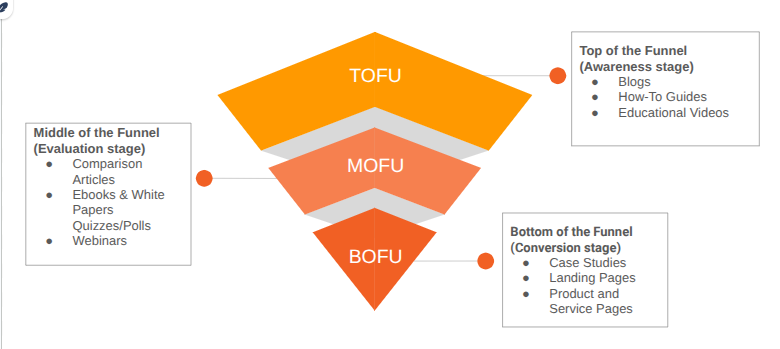
Figure 1: Content Funnel
Create funnel-aligned content
Top of the Funnel (TOFU): Awareness content, such as blogs, articles, how-to guides, and educational videos.
Middle of the Funnel: Comparative or educational content, e-books, white papers, quizzes, polls, or webinars.
Bottom of Funnel (BOFU): Product and service pages, keyword-based landing pages, location pages (to capture local search intent), or case studies.
Few Tips
- Build topic clusters and pillar pages: Organise related articles around a core page to strengthen topical relevance and increase chances of ranking for broader and related search queries.
- Apply Google’s E-E-A-T framework: Showcase expertise, real experience, author credibility, and trustworthiness—especially on product, health, or financial pages.
- Publish content consistently: Keep your site fresh and authoritative by maintaining a steady publishing schedule that aligns with your content strategy.
5. Setting Up Keyword Rank Tracking
Regularly monitor keyword performance in SERPs
Consistently tracking your keyword rankings in search engine results pages (SERPs) is essential for understanding how your content is performing over time.
Track rankings to:
- See which keywords are improving or dropping in rank.
- Spot seasonal changes, new opportunities, or sudden drops that may need attention.
- Measure the impact of your optimizations, content updates, and backlink strategies.
- Facilitates iterative improvements and strategy adjustments
Tools for rank tracking:
6. Avoid Keyword Cannibalization
Keyword cannibalization happens when two or more pages on the same site, including across subdomains, focus on the same or very similar search terms and intent.
When multiple pages compete for the same keyword:
- Google receives mixed signals, making it unclear which page should rank, often resulting in inconsistent SERPs
- SEO authority gets split between pages
- None of the competing pages may perform well because they’re all undercutting each other’s potential.
Here’s how to fix and avoid this problem:
- Map one primary keyword per page: Make sure each important keyword has just one target page.
- Review existing content: Go through your site and check for overlapping topics or duplicate targeting.
- Consolidate pages if needed: If two pages cover the same topic, combine them into one strong, SEO-optimized page.
- Improve internal linking: Link other related pages back to your main target page for that keyword.
Key benefits of avoiding Keyword Cannibalization
- Prevents dilution of page authority:
- When you have multiple pages targeting the same keyword, your internal links and backlinks get split across them.
- This weakens each page because none of them gets enough SEO power to rank well.
- By focusing all your links and authority on one main page, you give it the best chance to rank higher.
- Clarifies search engine signals on the page's purpose:
- When Google sees multiple pages about the same keyword, it gets confused about which one is most relevant.
- By keeping one page per keyword, you send Google a clear signal: “This is the page that should rank for this topic.”
- Supports stronger ranking performance:
- When your SEO signals aren’t divided, your most relevant page performs better, drives more organic traffic, and gives users exactly what they’re looking for.
- This also increases your chances of getting clicks, leads, or conversions from searches.
Conclusion
Setting up your enterprise WordPress site for SEO isn’t about quick wins; it’s about building a strong, scalable foundation. In this first part, we’ve covered how to get your tracking tools in place, pick the right theme, plan your keyword strategy, and avoid pitfalls like keyword cannibalization.
With these basics sorted, your site is already on the right path to outperform competitors and stay aligned with SEO best practices.
Next up in Part 2, we’ll dive into the more advanced strategies like on-page SEO techniques, building a smart internal linking structure, and fine-tuning technical elements to help your site perform at its absolute best.
Plugins
15 min read
Best AI plugins for WordPress in 2026
Introduction
In an era where technology and AI are transforming various fields, it is no surprise that WordPress has adopted this trend. AI plugins and services for WordPress have revolutionized the way website owners and content creators operate. These WordPress tools leverage AI and machine learning to boost productivity, content quality, and user experience.
AI plugins and services for WordPress are made to automate tasks, give data-driven insights, and help with content optimization. Using such AI plugins enables you to work smarter, not harder.
Understanding AI Plugins and Services
Before we begin, let us understand the buzz around AI in WordPress.
WordPress AI plugins and services provide AI-powered features, automate activities, and provide data-driven insights to WordPress websites. These tools boost website performance, content production and management, and user engagement.
WordPress AI plugins and services seamlessly integrate with WordPress websites, usually through the use of APIs (Application Programming Interfaces) or custom plugins.
To use these AI Plugins, just install and activate them. Yes, it’s as easy as installing other plugins!
Why Use AI Plugins on WordPress in 2026?
AI tools help with everyday tasks, enhance your content, and create a smoother, more enjoyable experience for your visitors. Let’s break down how they can practically help your site.
- Enhance the Quality of Your Content: Crafting high-quality content requires time, but AI tools can streamline the process and make it more effective.
- Fix Mistakes Automatically: Plugins like Grammarly help catch typos, grammar issues, and unclear sentences.
- Suggest Better Phrasing: AI can recommend how to improve sentence structure, word choice, and tone.
- Provide Content Ideas: Based on trending topics or keywords, some AI tools suggest what to write about next.
- Save Time on Routine Tasks: Running a website comes with repetitive tasks that eat up your time. AI plugins can help with:
- Generating First Drafts: AI can write basic versions of blog posts, product descriptions, or email replies. You just need to review and refine them.
- Scheduling and Publishing Posts: Some tools allow you to set posts to go live automatically at the best time.
- Finding Relevant Content: AI can search the web and suggest articles, videos, or images to include in your site, saving you hours of manual effort.
- Make Your Website Easier to Find (SEO Help): Getting your content seen on Google or Bing is important, and AI plugins can help with that, too.
- Keyword Suggestions: AI tools help you find the right keywords to target so your content ranks better.
- SEO Recommendations: They suggest ways to improve meta descriptions, headings, and page structure for search engines.
- Content Optimization: You’ll get real-time tips to enhance content readability and keyword use, both of which help with SEO.
- Offer Better User Support, 24/7/: Visitors appreciate fast answers, and AI chatbots make that possible.
- Instant Replies to Common Questions: Chatbots can help users find pages, ask about products, or resolve basic issues—even when you're offline.
- Improved Navigation and Experience: A well-set-up chatbot can guide visitors through your site, making it easier for them to find what they need.
- Grow with Confidence (Scalability): Whether you're starting a small blog or growing an online store, AI tools can scale with your needs:
- Handles More Work as You Grow: As traffic increases, AI helps you manage more content, more interactions, and more data without extra workload.
- Flexible for Different Website Sizes: Whether you're a one-person team or part of a company, AI tools adjust based on how simple or complex your site becomes.
- Cost-Efficient and Budget-Friendly: Hiring writers, editors, developers, and support agents can be expensive. While AI can’t fully replace people, it reduces the need for multiple tools or external help:
- Fewer Tools Needed: Many AI plugins combine multiple features into one solution.
- More Done, Less Spent: With fewer manual tasks to handle, you can focus your time and resources on areas that grow your site faster.
Note: While there are many varied benefits of AI in WordPress, we are focusing only on its benefits for content creation in this blog post.
Must-Try AI Plugins For Content and Image Generation
WP Wand
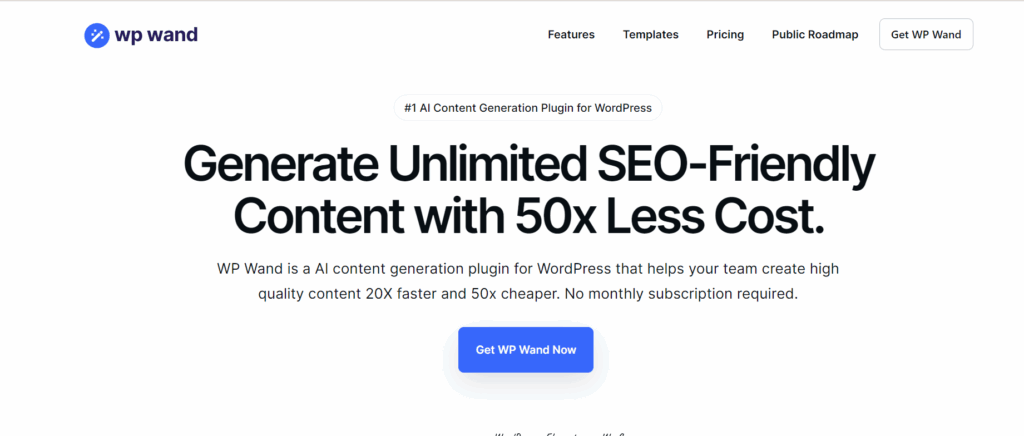
Screenshot 1: WP Wand Website Dashboard
WordPress's powerful AI content-generating and writing assistant plugin is WP Wand. High-quality, engaging content is easily generated without breaking the bank using complex algorithms and OpenAI's popular models like ChatGPT, GPT-3.5, GPT-4, DaVinci, and more.
WPWand integrates with Gutenberg Editor, Classic Editor, Elementor Page Builder, and WooCommerce to improve writing. It's seamless AI writing experience lets you write any content.
Develop a lengthy blog article in under two minutes or produce several posts with our Bulk article Generator.
WP Wand now supports Rank Math and Yoast SEO to boost SEO.
Stop straining to find content ideas, spending hours on research, and gazing at an empty screen. WPWand's technology is there to handle that. WP Wand can help you write articles, blog posts, marketing copy, social media postings, email content, and product descriptions.
Key Features:
- While you can freely use ChatGPT, it comes with its drawbacks of brief and unedited content. WP Wand overcomes this downside by providing long, useful content and ready-to-use formatting.
- With ChatGPT being integrated with Gutenberg, WP Wand makes writing smarter and faster than ever.
- Image generation is also provided in this plugin.
- Comes with 40+ ready-to-use templates for content creation.
- More than 42 languages are supported.
- Create bulk posts at a time in the pro version.
You can learn about the pricing structure of WP Wand here.
Getting Started With WP Wand
- Enter the OpenAPI key to start using the plugin.
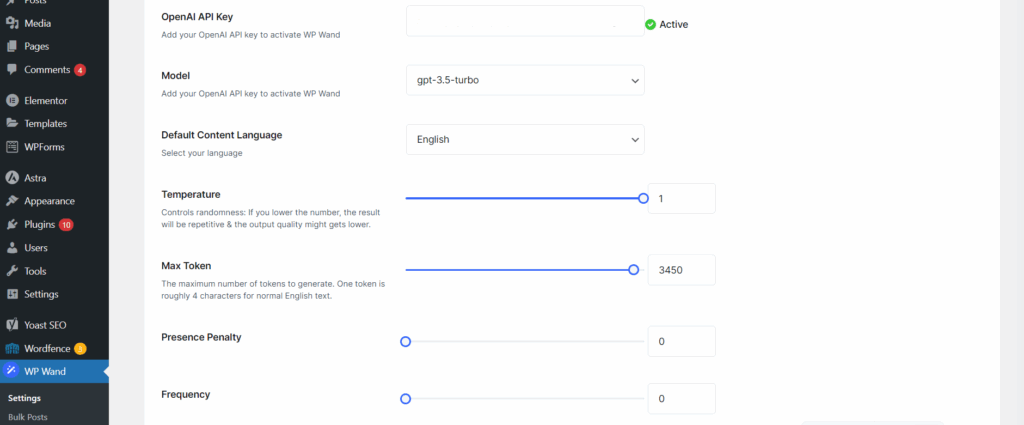
Screenshot 2: Enter the OpenAPI Key
- Once added, WP Wand’s AI features are ready to go, right from your dashboard.
- Once installed, WP Wand blends into your existing editor—whether you’re using Gutenberg, Classic, or Elementor.
- You’ll find the AI Assistant and ready-made templates added right where you work, so you can start generating content without switching between tools or tabs.
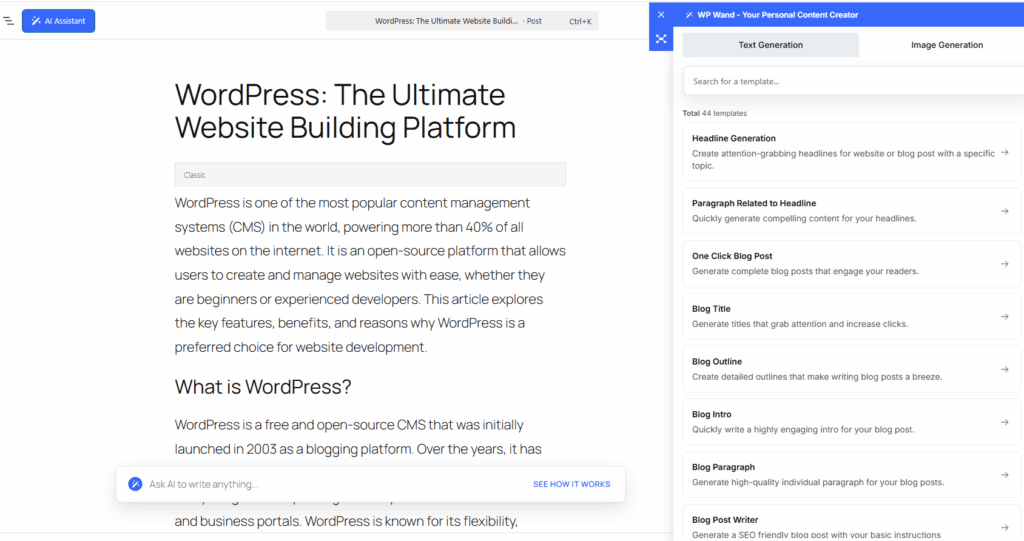
Screenshot 3: WP Wand AI Assistant and Templates Added to Your Integrated
WP AI CoPilot
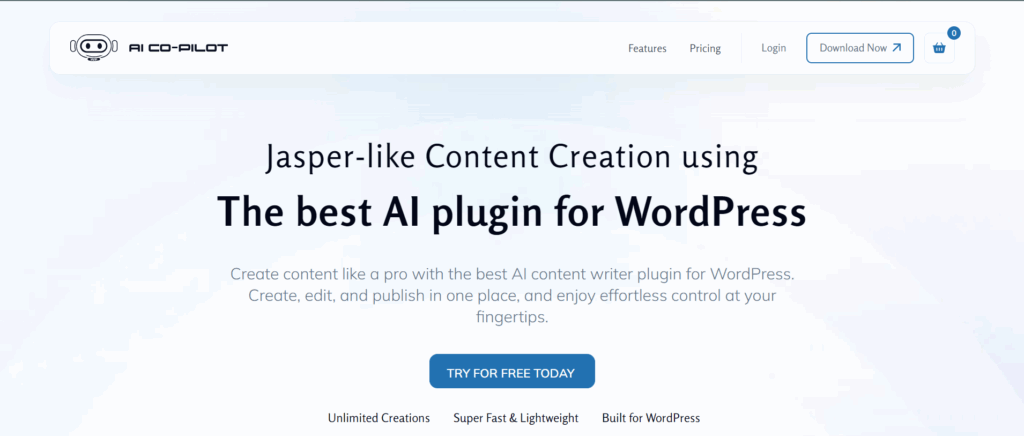
Screenshot 4: WP AI CoPilot Website Dashboard
WP AI Co-Pilot, the most powerful WordPress AI content writer plugin, will transform your content generation and user engagement. A robust plugin that makes use of GPT-3, OpenAI's state-of-the-art language model. This WordPress plugin lets you easily write high-quality articles, eliminating human effort and saving time. This plugin works for OpenAI writers and GPT-3 article generators. AI content Writer for WordPress overcomes writer's block and streamlines article writing.
Key Features:
- The plugin provides personalized prompts according to your needs and interests in your content.
- The plugin is GPT AI-powered.
- Useful for rephrasing content.
- Generate Meta titles, meta descriptions, and SEO-optimized content.
- Useful for generating captions for social media.
- Helpful for drafting an outline for the blog.
To learn about the pricing plan of WP AI Co-Pilot, click here.
Getting Started With AI CoPilot
- Enter the OpenAPI Key to start using the plugin.
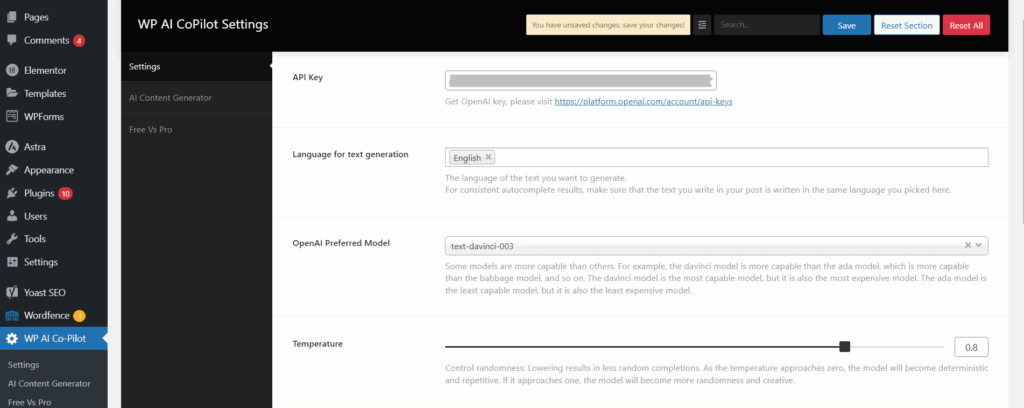
Screenshot 5: Enter the OpenAPI Key
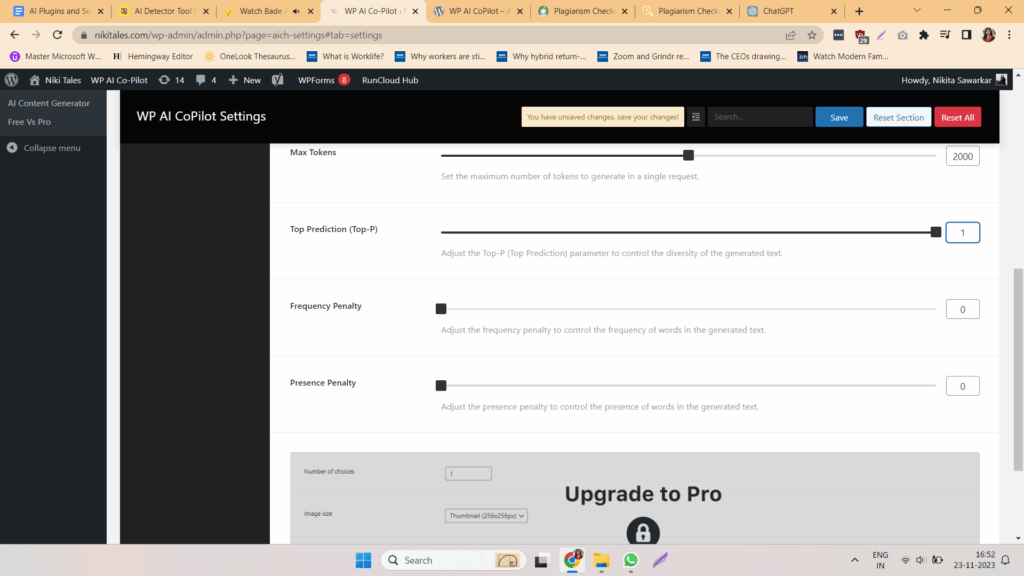
Screenshot 6: WP AI CoPilot Settings
- Next, you can select the prompt language you’d like to work in and perfect if you’re writing for an international audience or managing multilingual content.
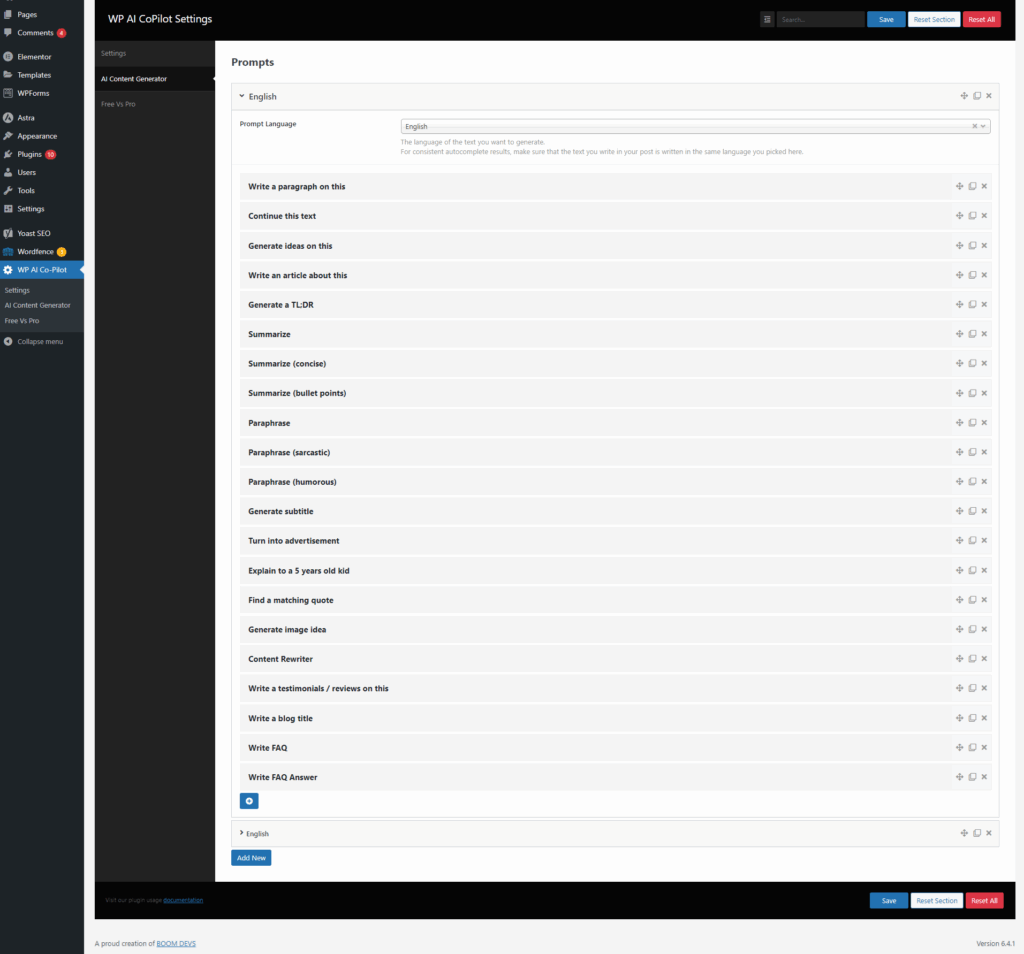
Screenshot 7: Content Generation Options
Let’s explore one of the most popular tools, "Write a Paragraph on this". Simply enter your prompt or title, and CoPilot will generate a meaningful paragraph based on your input.
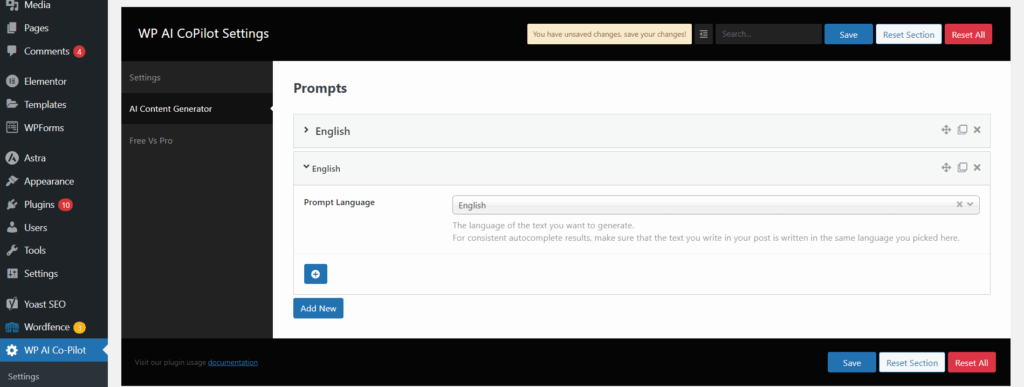
Screenshot 8: Select Prompt Language
- Once set up, you’ll have access to a wide range of content tools right inside your editor. WP AI CoPilot offers options.
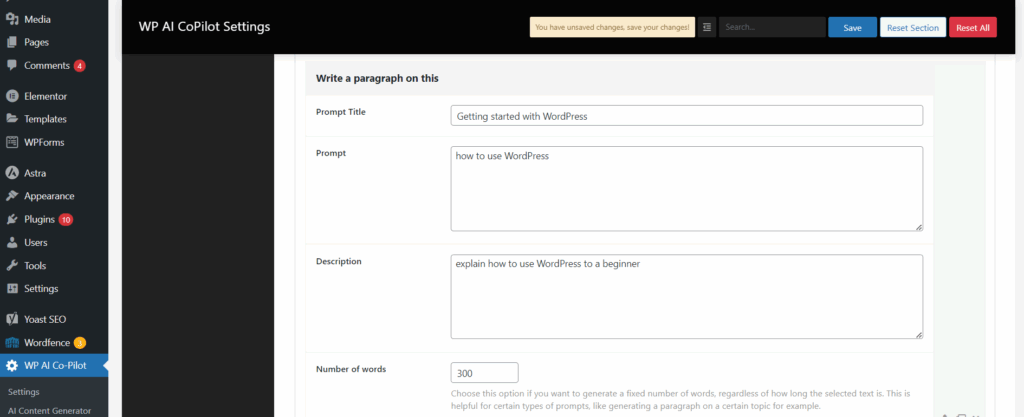
Screenshot 9: Enter prompt title
For advanced features like choosing your tone of voice, defining your audience, adding custom fields, and unlocking more creative control, you can upgrade to the Pro version.
AI Bud WP
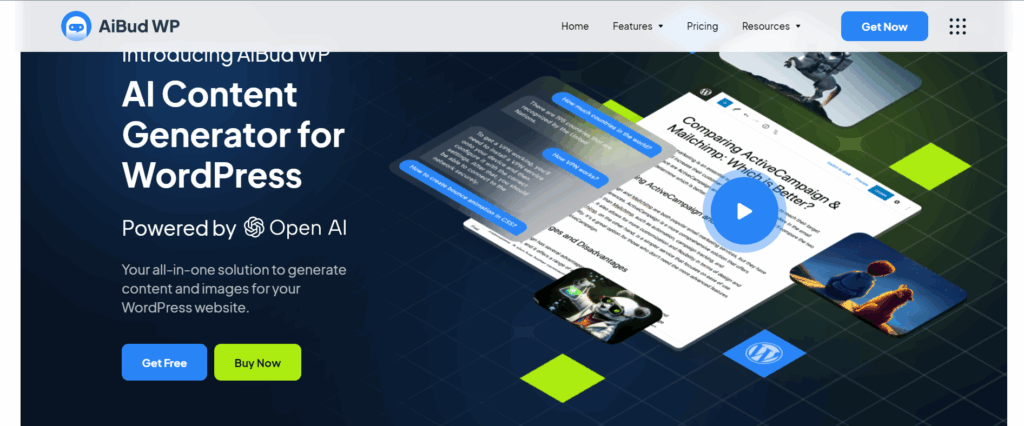
Screenshot 10: AI Bud WP Website Dashboard
AiBud WP WordPress plugin helps you write captivating blog articles with SEO titles and product descriptions, generate AI images, proofread your content, and translate into more than 30 languages. An AI-powered, user-friendly tool simplifies content creation, eliminating the effort involved.
Key Features:
- Quickly generates brief content according to your tone and style.
- You can make a list of topics and then use one click to make multiple posts or pages.
- Virtual Chatbot to help you with everything. To create a customized brand assistant, train your chatbot using datasets and related responses.
- Generate realistic images according to the prompt and type (cartoon, vector, etc)
- The Playground has a prompt section where users can offer AI instructions and learn about its capabilities.
To learn about the pricing plans of AiBud WP, click here.
Getting Started With AI Bud WP:
- Install and Activate the AI Bud WP Plugin.
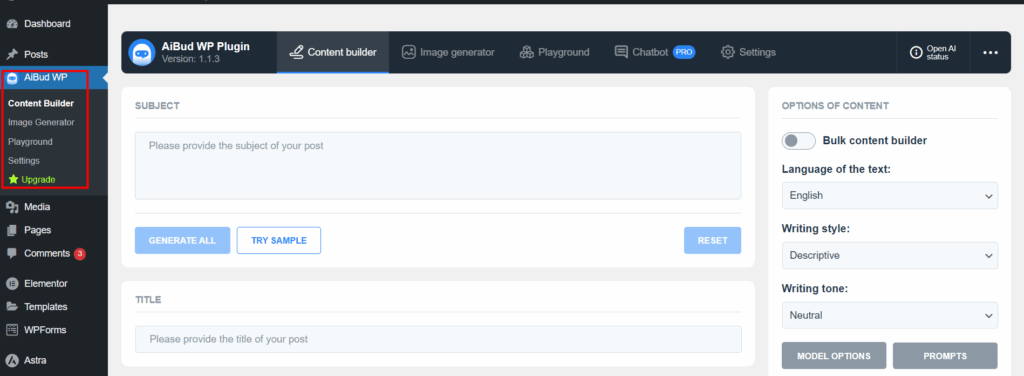
Screenshot 11: AiBud WP Plugin when Activated
- Go to settings and enter the OpenAPI key to use the plugin.
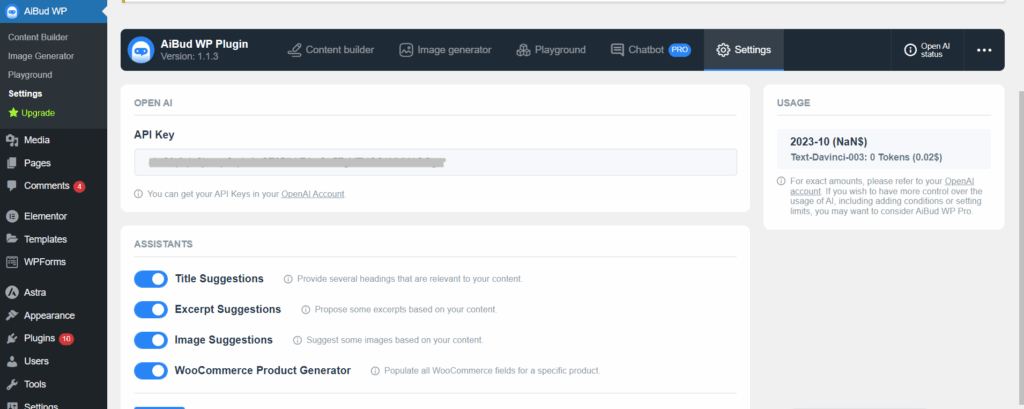
Screenshot 12: Enter API Key
- To generate the content, enter keywords or the subject title of the topic.
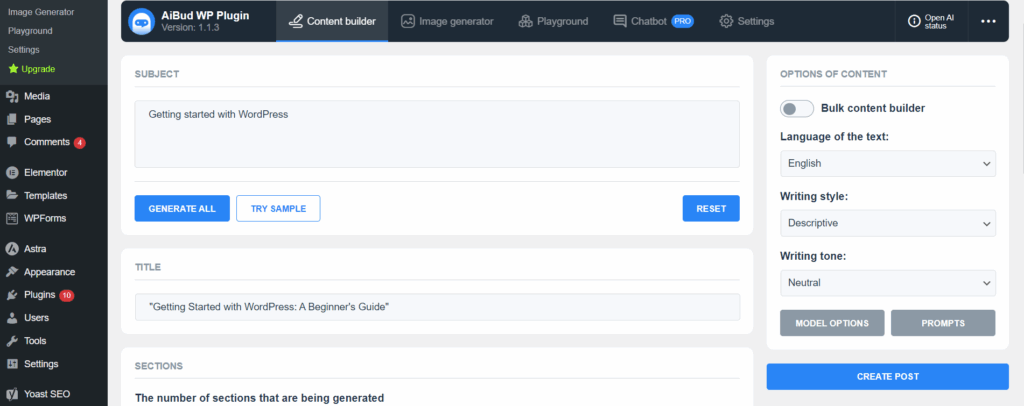
Screenshot 13: Enter Subject Title
- Before generating content, you can control how detailed it is:
- Choose how many sections you want
- Select the number of paragraphs per section
- Automatically generate an excerpt if needed
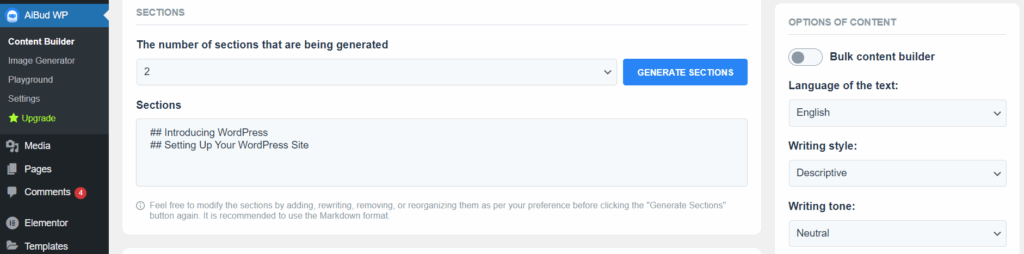
Screenshot 14: Select the number of sections to be generated
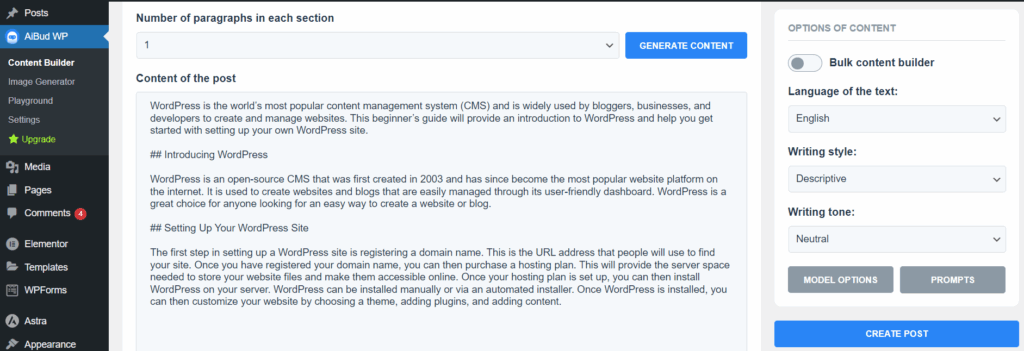
Screenshot 15: Select the number of paragraphs to be generated
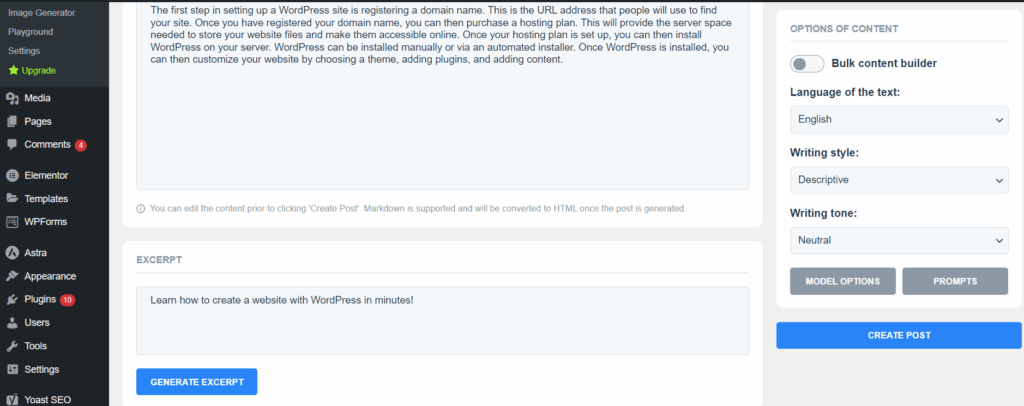
Screenshot 16: Generate Excerpt
- Before finalizing your post, you can fine-tune the output by selecting:
- Preferred language
- Desired writing style
- Tone of voice (formal, casual, informative, etc.)
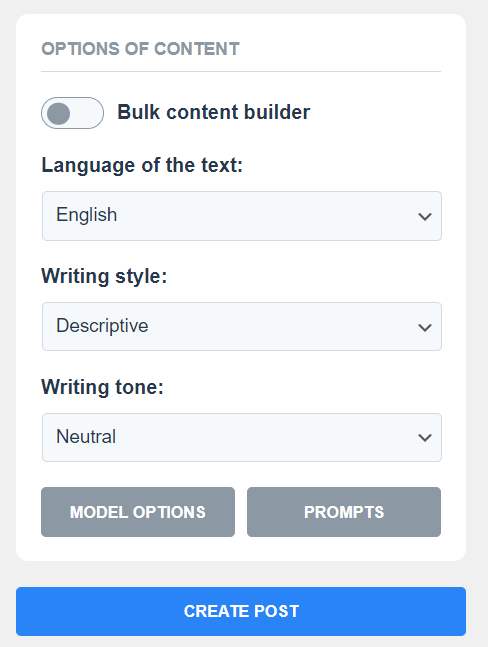
Screenshot 17: Options for Creating a Post
- The plugin also lets you create AI-generated images right from WordPress.
- Head over to the Image Generator tab, and simply describe the kind of image you want to generate. The AI will create visuals based on your prompt.
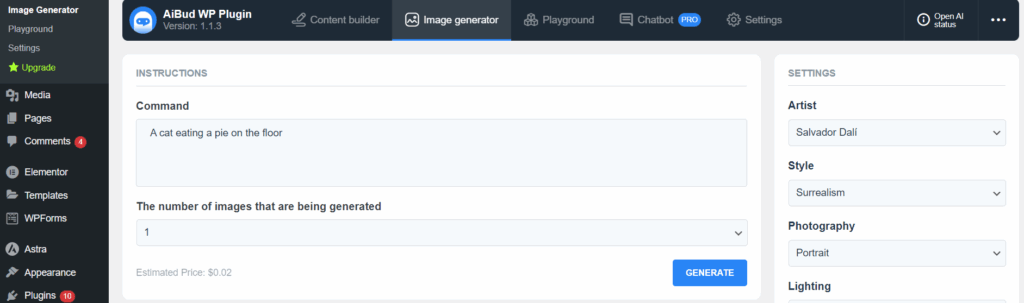
Screenshot 18: Describe the image to be generated in the Command Section
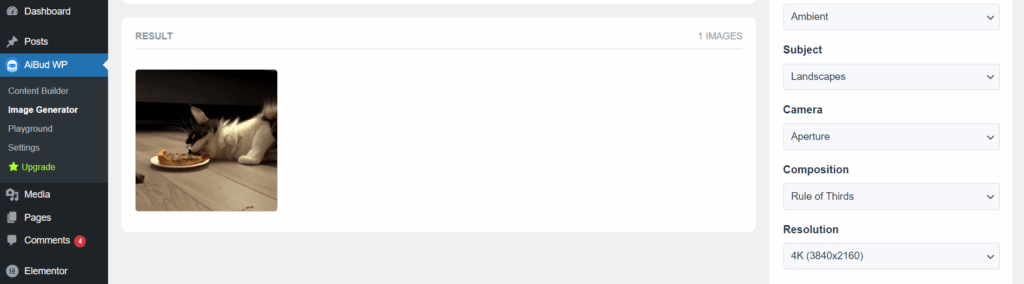
Screenshot 19: Image Generation Result
- You can also customize your images by adjusting options like:
- Camera angle
- Size and aspect ratio
- Lighting
- Resolution
- Composition and more
- With the help of the robust Playground section, you can have live conversations with the AI to learn more about its capabilities.
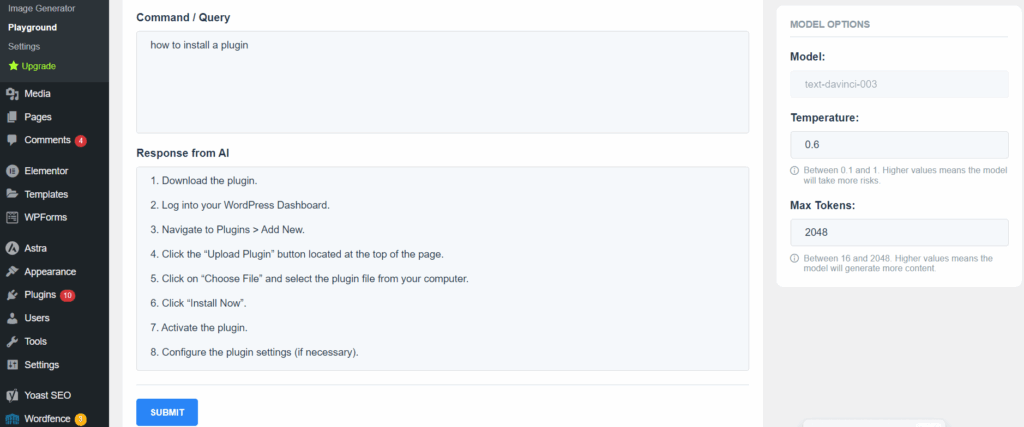
Screenshot 20: Playground Section of the Plugin
- A prompt response will be provided to any inquiry you enter.
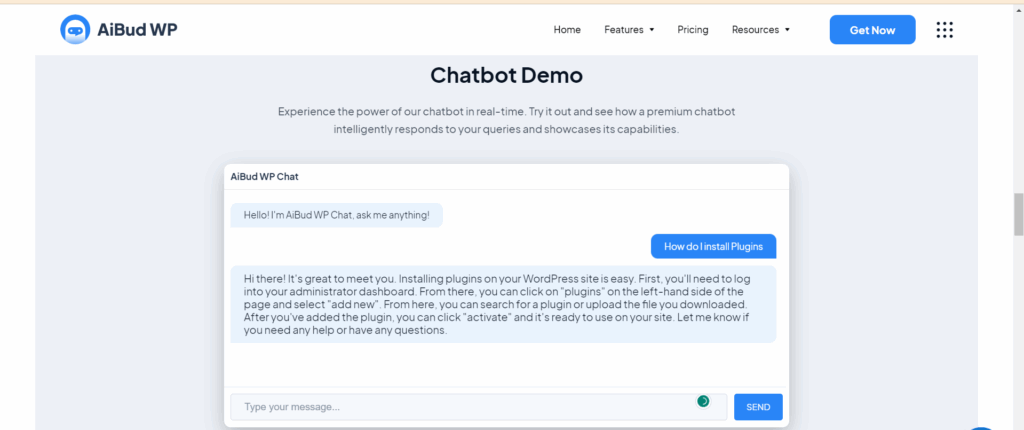
Screenshot 21: ChateBt Demo
Supreme AI
Screenshot 22: Supreme AI Plugin Website
DIVI Supreme AI Writer is a revolutionary plugin that uses AI to transform content creation. It is a plugin developed by Divi Builder. Just a few clicks can produce stunning, engaging content that will leave the readers stunned. All you need to do is provide a brief description or outline of what you want to write about, and the magic begins!
Note: This plugin can only be used if you have Divi Builder.
Key Features:
- More than 20 tones are available to write the content according to the tone you select
- Around 19 styles of writing to choose from
- Provides temperature control settings. It is possible to change the temperature to change how original and novel the result of an AI system is. Lower temperatures produce more predictable outputs, whereas higher temperatures produce more creative and innovative outputs.
- Choose how many words of content you require.
- Integrating with Divi Builder allows you to code through AI.
You can get Supreme AI Writer for $29 per year.
AI Power
Screenshot 23: AI Power Plugin
AI Power is a powerful WordPress plugin that uses OpenAI's GPT language model to generate high-quality website content, pictures, and forms. Content Writer, Auto Content Writer, Image Generator (DALL-E and Stable Diffusion), WooCommerce Product Writer, Audio Converter, hundreds of prompts and forms, and AI Training are included in this plugin.
Key Features:
- Along with content and image generation, this plugin generates smart forms using AI for your website.
- An AI-powered chat widget to engage your customers visiting your site.
- AI-powered WooCommerce integration, which helps you write product descriptions and generate recommendations, reviews, and images.
- Using advanced GPT models, this plugin turns spreadsheet data into engaging, well-structured material.
- Convert audio to text using Whisper.
- More than 40 languages are supported.
To learn about the pricing plans of the AI Power plugin, click here.
To read the documentation about AI Power, click here.
Getting Started With AI Power Plugin:
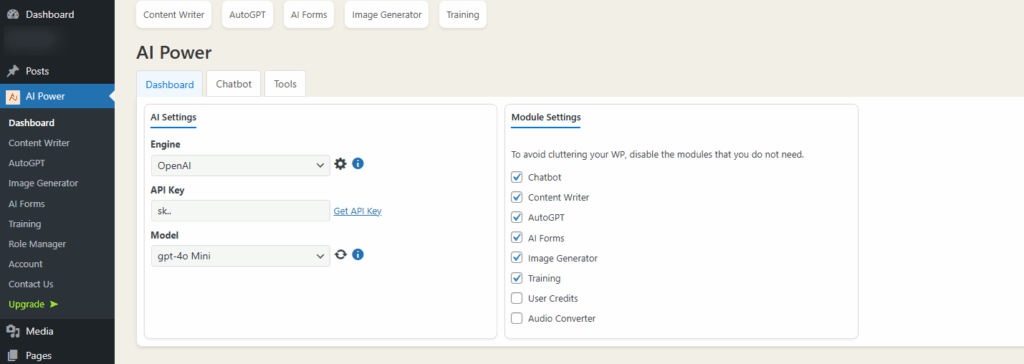
Screenshot 24: AI Power Plugin Dashboard
With this plugin, you can enhance your content writing, image generation, tone and style of writing, and much more!
Once installed and activated, the plugin is integrated into the Post.
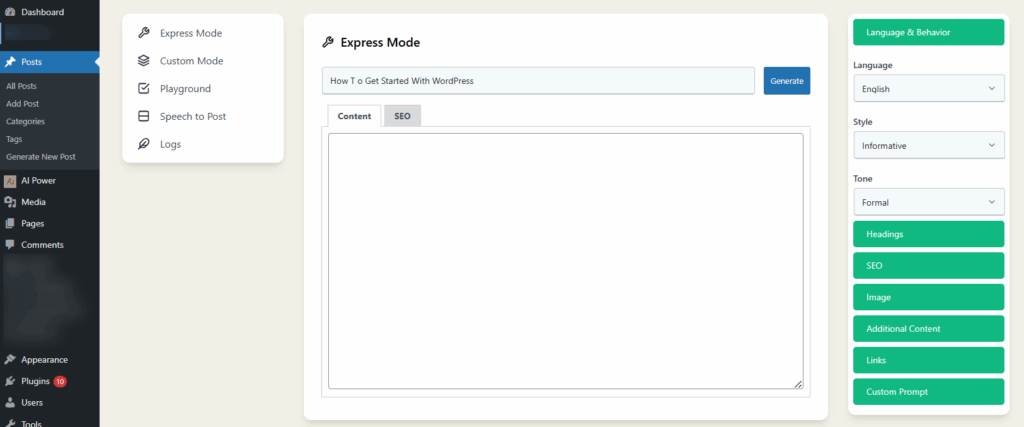
Screenshot 25: AI Power Integrated with the Post to generate automated content by providing keyword/ title
AI Mojo
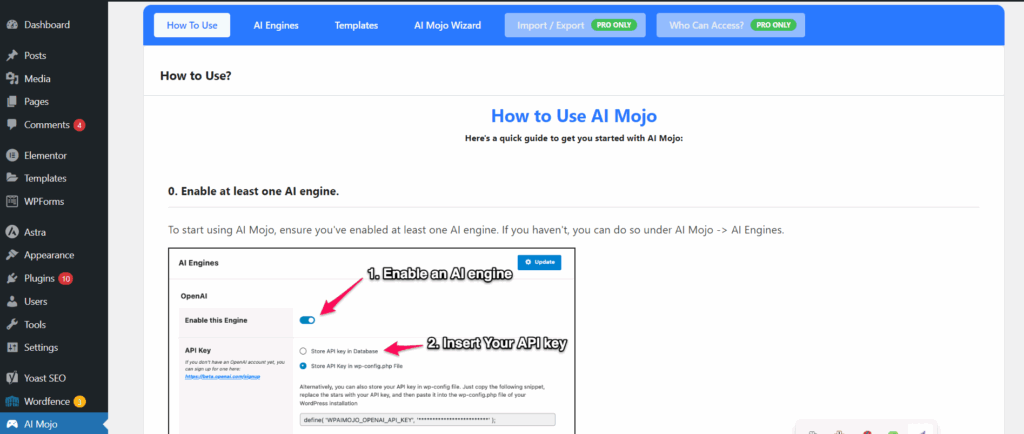
Screenshot 26: AI Mojo Plugin
AI Mojo recognizes itself as a Bring Your Key (BYOK) plugin, meaning you must possess an Open API key or AI21 key to use this plugin.
Key Features:
- Write introductions, conclusions, and more for your articles.
- Rewrite, shorten, or paraphrase existing content matter.
- Utilize the AI Mojo Wizard to produce an entire article.
Currently, this plugin is completely free.
Getting Started With AI Mojo
- Once installed, just enter your OpenAI key, and you’re all set to use the plugin. Yes, AI Mojo is completely free to use!
- Although AI Mojo doesn’t support image generation, it shines when it comes to writing content. It's an intuitive wizard that guides you step-by-step through the content creation process.
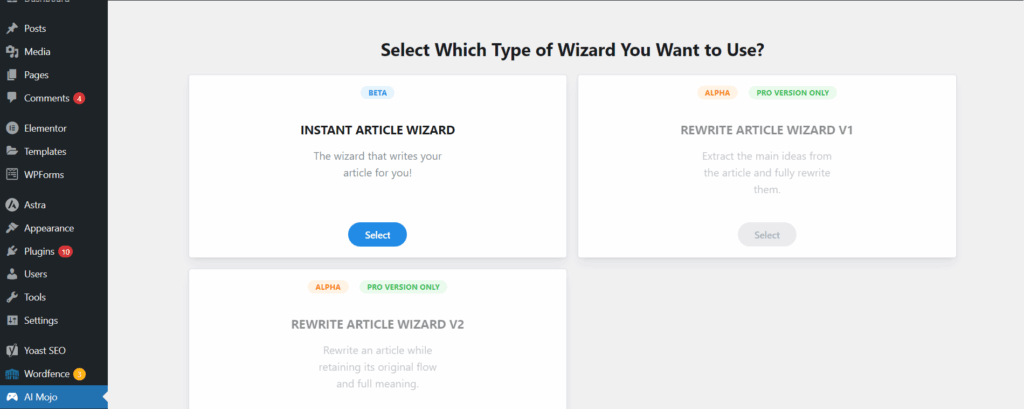
Screenshot 27: AI Mojo Wizard
- Start by entering the topic or subject you want to write about. AI Mojo will take care of the rest.
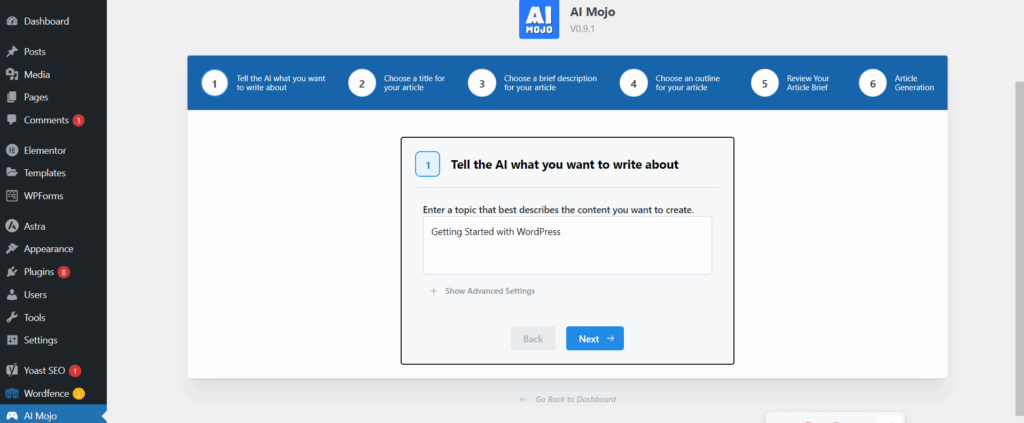
Screenshot 28: Write the topic title you want to write about
- Don’t worry if you are unable to come up with a final title for your blog; AI Mojo can help you with that, too. Just choose which title suits you the best.
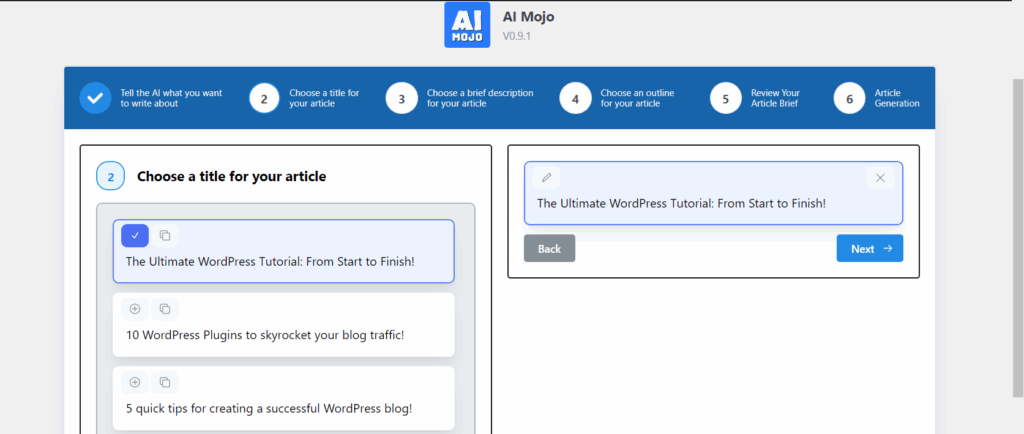
Screenshot 29: Choose a title for your blog
- Next, the plugin will create a few short descriptions for your article. You can select the one that aligns with your content direction.
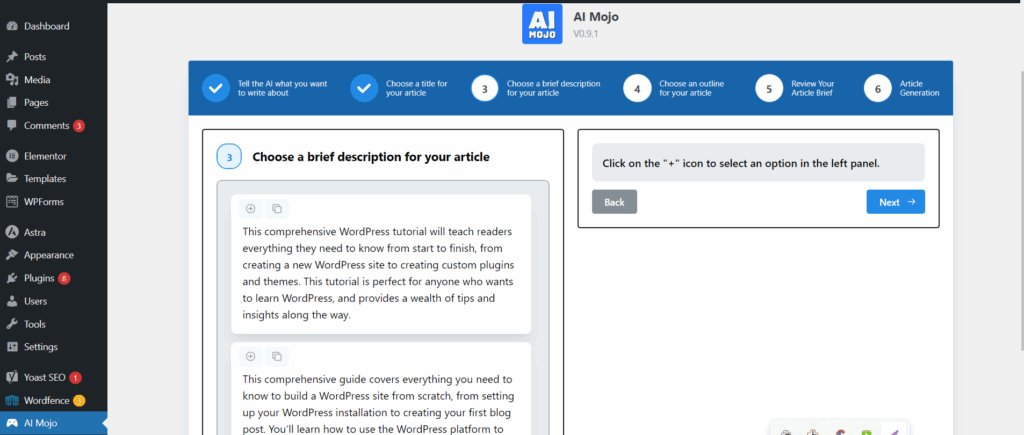
Screenshot 30: Choose Description
- Now, pick an outline that structures your blog post. This helps keep your content organized and easy to read.
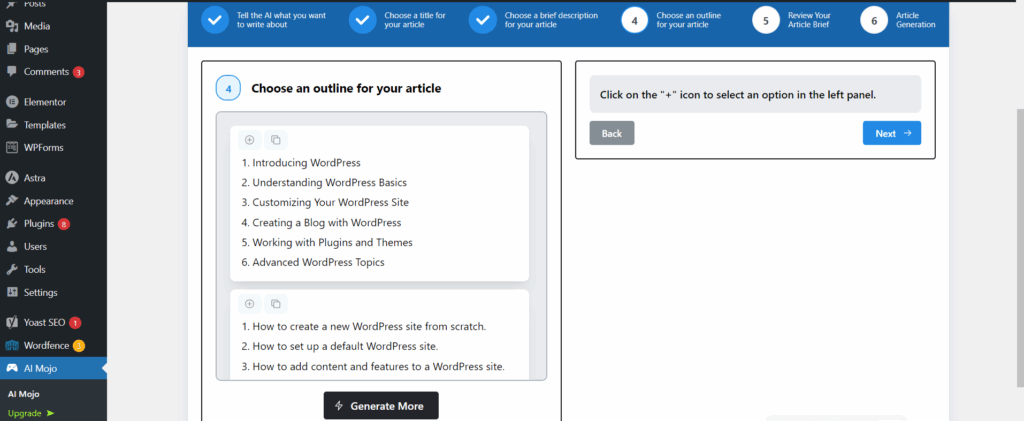
Screenshot 31: Choose Outline
- Before moving forward, you can review the article brief generated so far. It’s a great way to confirm everything is on track.
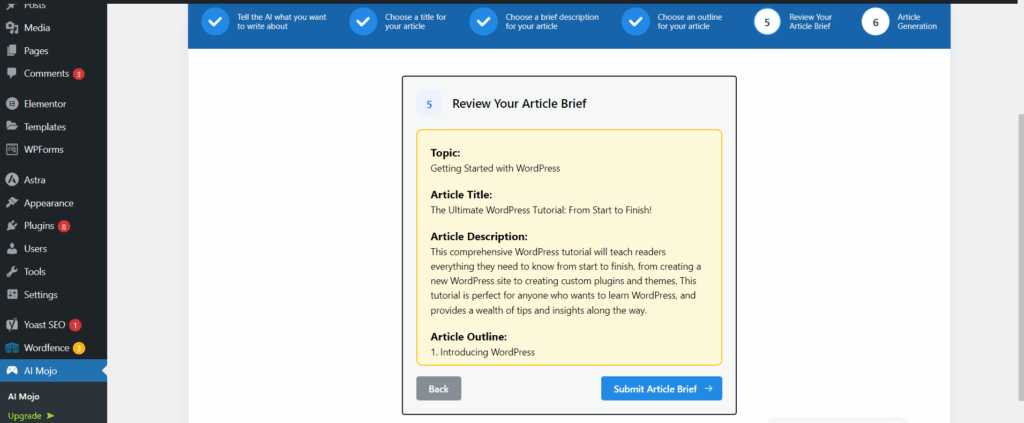
Screenshot 32: Review your article Brief
- AI Mojo will now generate a full draft based on your chosen inputs—ready to edit, polish, and publish!
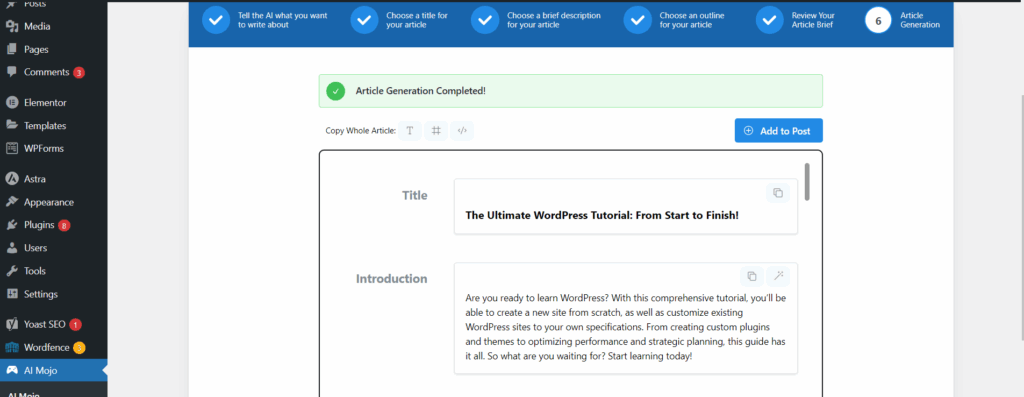
Screenshot 33: Generated Content
- You can also access AI Mojo right inside the WordPress post editor. Just click the AI Mojo icon to launch the writing assistant anytime while creating content.
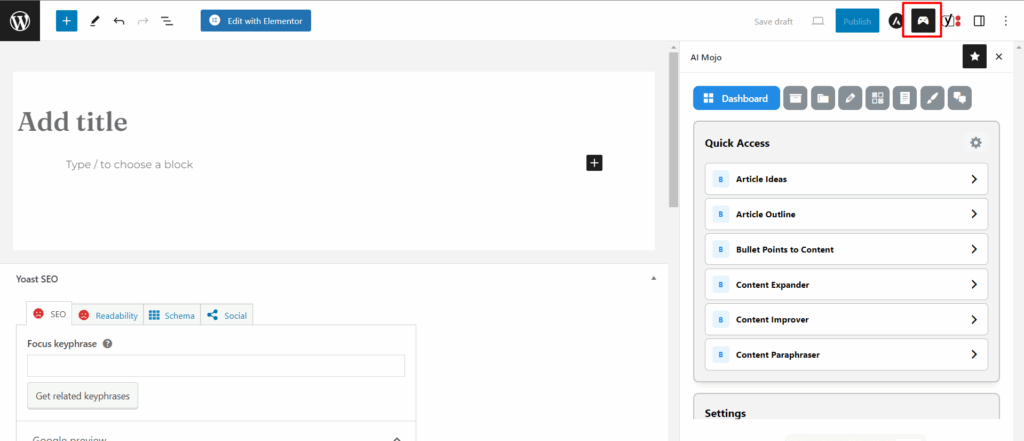
Screenshot 34: Click on the marked icon to open AI Mojo options
AI Writing Assistant
Screenshot 35: AI Content Writing Assistant Plugin Website
AI Content Writing Assistant is here to save you time and effort while helping you create visually beautiful images and engaging content. Its simple interface lets you generate content on any topic and customize graphics.
Before you begin, you need to enter the OpenAPI key to use this plugin. Additionally, you can save the settings of the plugin for API, content, and general settings, such as assigning user roles.
Key Features:
- Content and Image generation
- Scheduling of your content
- SEO Optimizer
- Comes with 16 Content Structures, 20 writing styles, and 41 writing tones
To learn about the pricing of the AI Writing Assistant, click here.
Getting Started With AI Content Writing Assistant:
- Once the plugin is installed, head over to the settings section. You’ll find different tabs like API Settings, Content Settings, and General Settings. These let you control how your content is created and formatted.
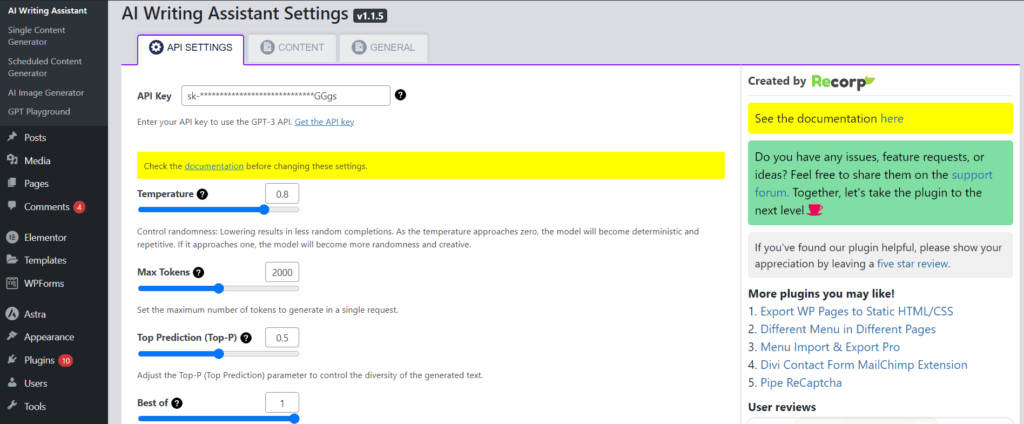
Screenshot 36: API Settings for AI Writing Assistant
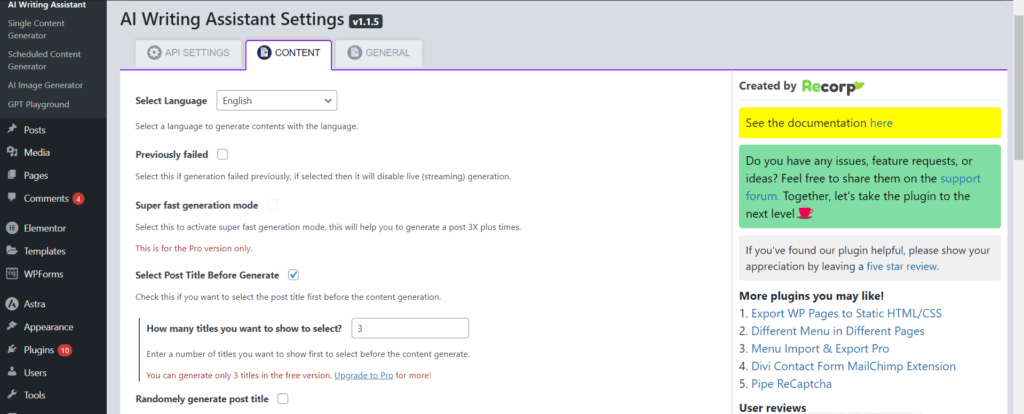
Screenshot 37: Content Settings for AI Writing Assistant
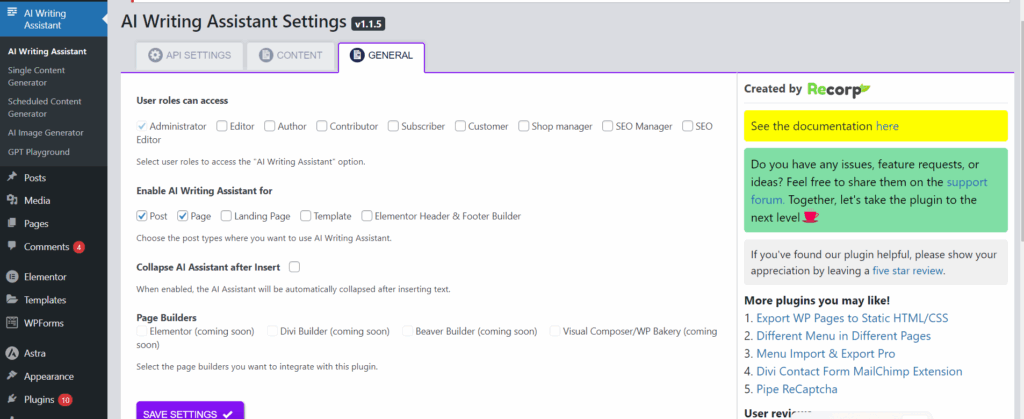
Screenshot 38: General Settings for AI Writing Assistant
- To get started, enter your topic or prompt in the text box and click on Generate. The assistant will quickly create a complete blog draft for you.
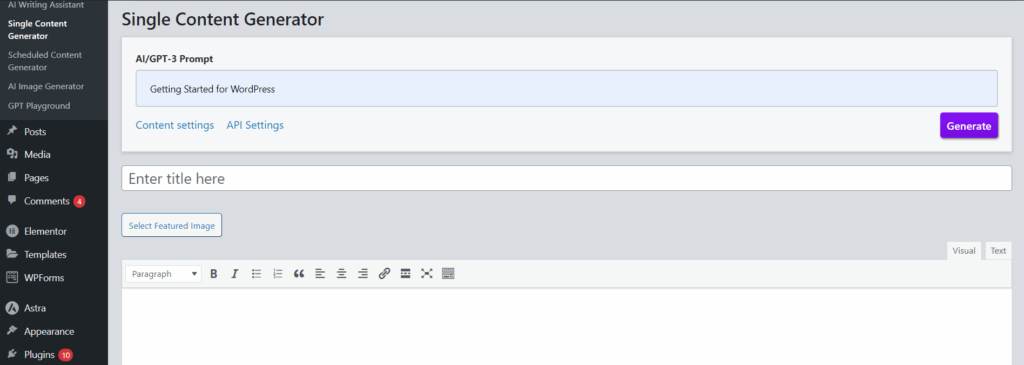
Screenshot 39: Enter the prompt and click on Generate
- You’ll be given a few title suggestions to choose from. Pick the one that best matches your post’s theme.
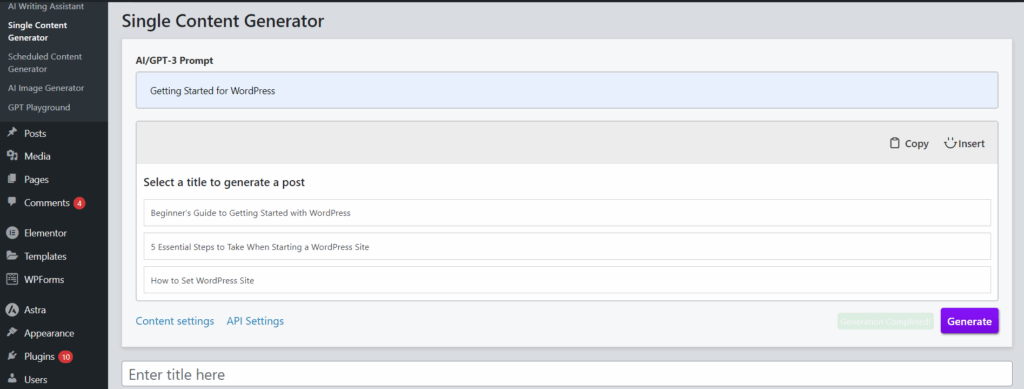
Screenshot 40: Select a Title for Blog Post
- Once the content is ready, you can simply copy and paste the title and body into the post section below, just like creating a regular WordPress post.
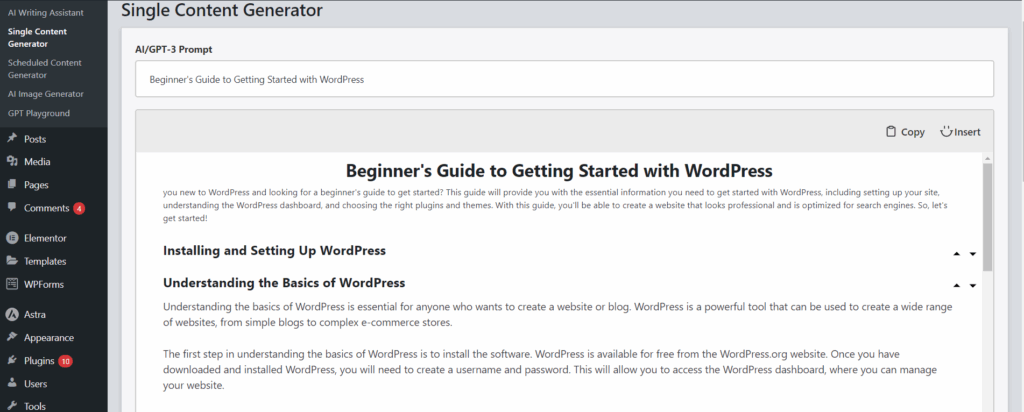
Screenshot 41: Viewing generated content
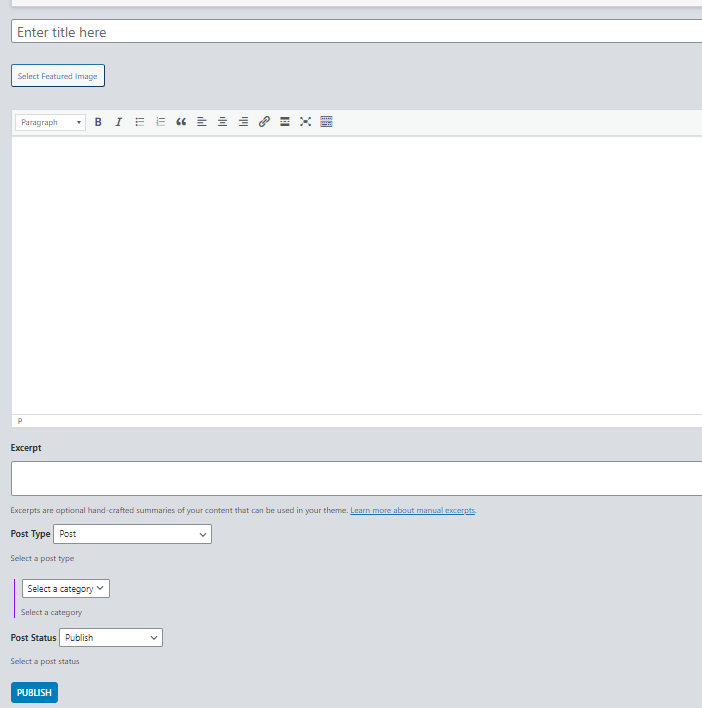
Screenshot 42: Publishing your Post
- Want to publish later? Use the Scheduled Content Generator to set the date and time you want your post to go live.
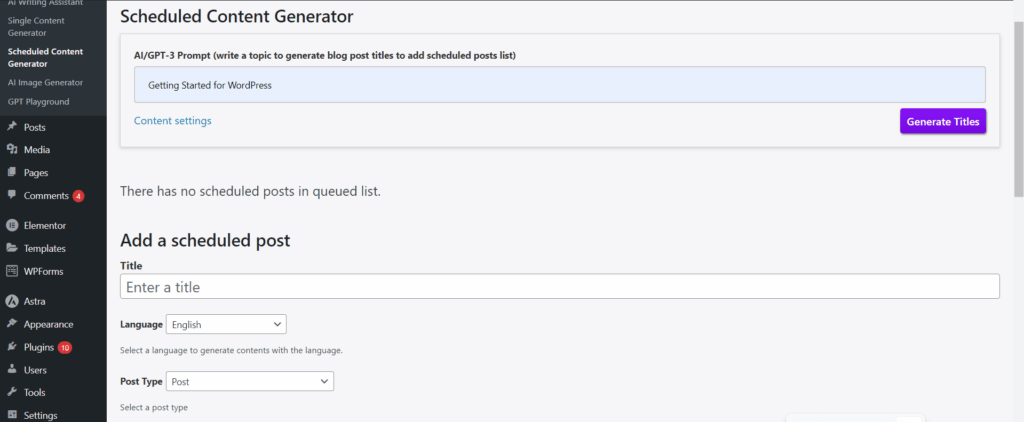
Screenshot 43: Scheduled Content Generator
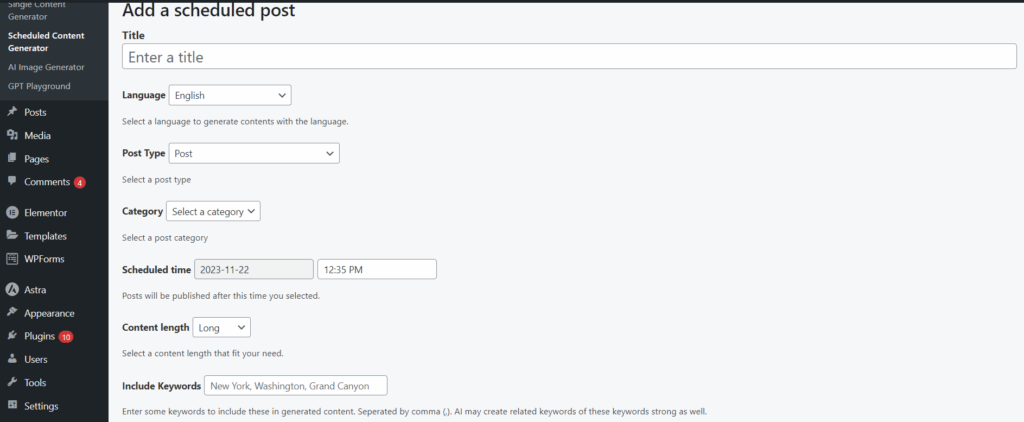
Screenshot 44: Add a Scheduled Post (1)
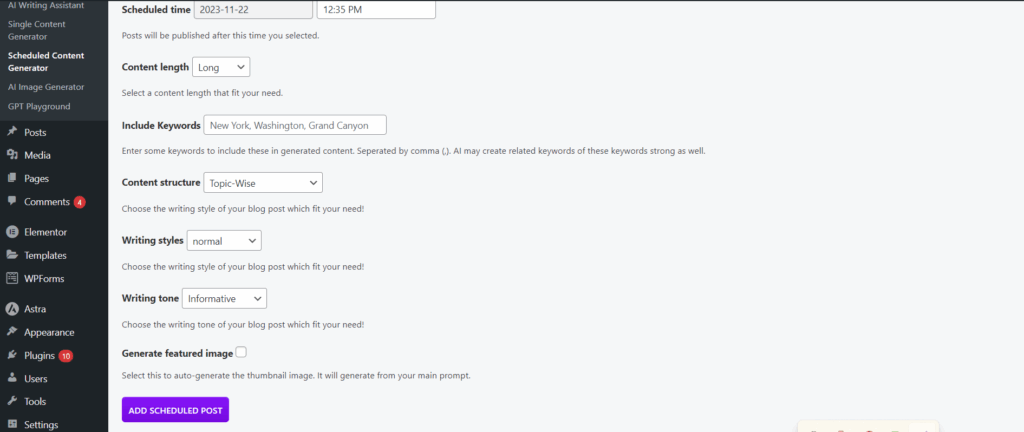
Screenshot 45: Add a Scheduled Post (2)
- The plugin also includes an AI Image Generator. Just enter a short description of the image you want, and the assistant will create it for you.
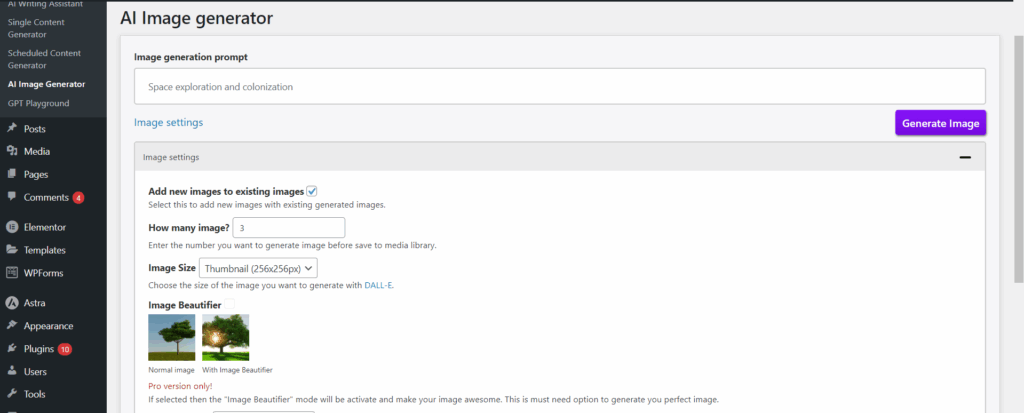
Screenshot 46: AI Image Generator
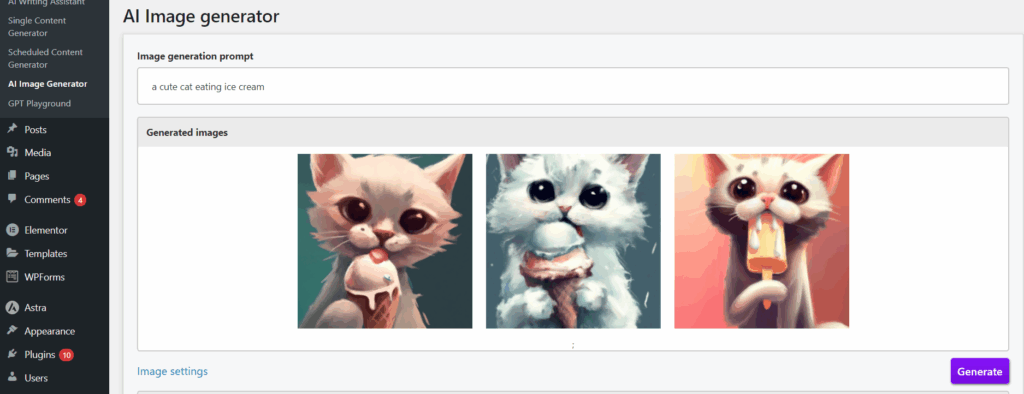
Screenshot 47: Image Generation Result
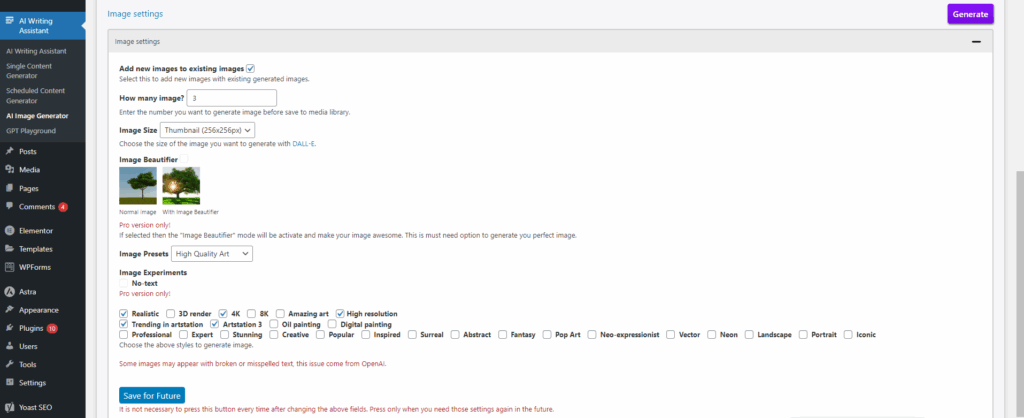
Screenshot 48: Image Generation Settings
Imajinn
Screenshot 49: Imajinn Plugin Website
The Imajinn plugin is used solely for image creation. Imajinn allows you to create visuals for anything using only your imagination, much like Stable Diffusion, DALL-E 3, and Midjourney. Imajinn is capable of creating a stunning picture for you in a matter of seconds based on the prompt you provide.
Key Features:
- Varied options to create an image, such as selecting image style, artist style, and style modifier.
- AI-based facial restoration to improve hues and restore facial details while maintaining a high degree of authenticity and realism.
- For support with any theme maker, you can make images outside of Gutenberg itself.
- Does not require an API Key.
- Use the image freely, without license fees.
- You don't have to worry about licencing problems when you use the generated images.
Currently, the plugin is free.
Getting Started With Imajinn:
- Once the plugin is installed and activated, you’ll find Imajinn conveniently located under the Media section in your WordPress sidebar.
- To begin using the plugin, you’ll need to log in with your Imajinn account or sign up for a new one if you haven’t already.
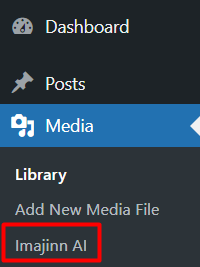
Screenshot 50: Imajinn Plugin In WordPress
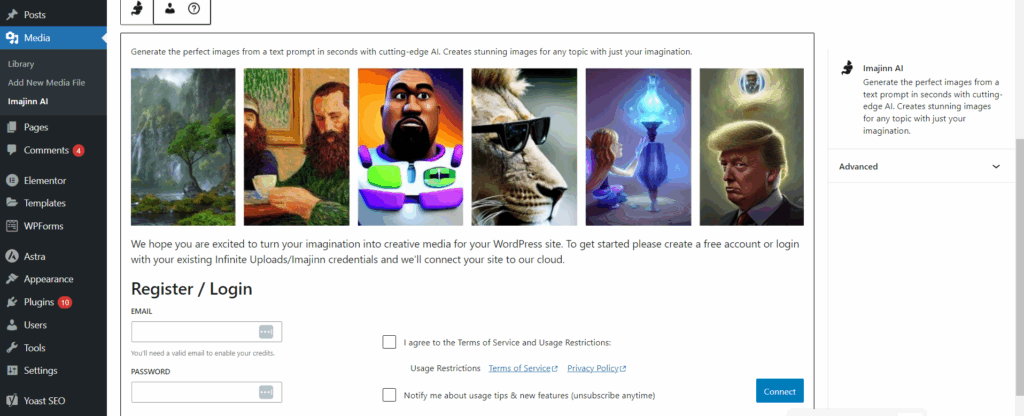
Screenshot 51: Enter the Login details
- You’re all set! In the prompt section, just type a short description of the image you want, like “sunset over mountains with birds flying”, and Imajinn will create it in seconds.
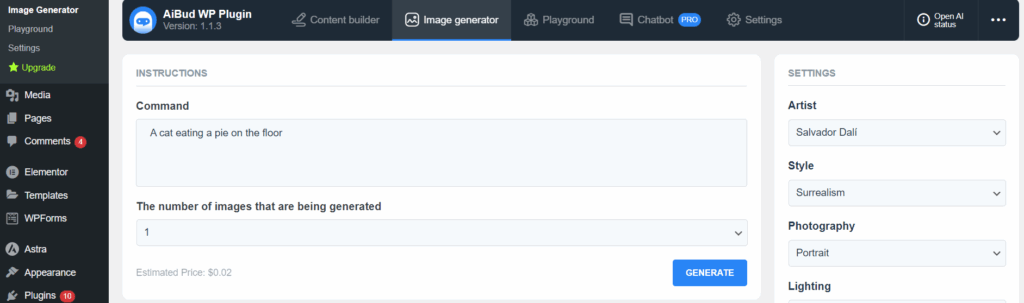
Screenshot 52: Describe the Image
Imajinn is perfect for bloggers, content creators, and marketers who need quick, original visuals without switching between tools. Let the creativity flow, right inside your WordPress dashboard!
Conclusion:
Using AI plugins on WordPress has become one of the easiest ways to work smarter. Whether you're writing blog posts, managing a website, or creating content for clients, these tools can make your work a lot easier.
Tasks that used to take days now take just a few hours, and the quality often turns out even better. You don’t need to be a tech expert to use them; they’re built to make things simple. Let the AI plugins handle the heavy lifting so you can focus on building content that connects with your audience.
Tutorials
16 min read
How to Add a Table of Contents in WordPress with the Easy Table of Contents Plugin
Introduction:
Ever landed on a long blog post and felt lost scrolling through it? That’s where a Table of Contents (ToC) comes in handy. It helps your readers jump straight to the part they’re looking for, making your content easier to read and more user-friendly.
In this guide, we’ll walk you through how to add a Table of Contents to your WordPress posts using a simple plugin, Easy Table of Contents, with no coding required.
Why Should You Add a Table of Contents to Your WordPress Site?
Adding a Table of Contents isn’t just about looks; it comes with real benefits for both readers and search engines:
- Provides Readers with a Quick Overview: Visitors can instantly see what your page covers, without needing to scroll endlessly.
- Improves Navigation: With clickable links, users can easily jump to the section they're interested in. It’s especially helpful on long posts or mobile devices.
- Boosts SEO Potential: A ToC adds internal links and keyword-rich headings, which help search engines understand your content better.
- Can Help You Win Featured Snippets: Google often pulls ToC links into featured results, giving your page more visibility and a higher click-through rate.
- Enhances User Experience: A well-structured page with a ToC feels more professional, keeps users engaged longer, and makes your content easier to scan.
Step 1: Create a Sample Blog Post to Demonstrate ToC
Let’s create a sample blog post so you can see exactly how the Table of Contents works in action. Here’s a post structure we’ll use:
- The main title of the page should use an H1 tag.
- Section headings beneath the title should use H2 tags.
- For sub-points or nested sections under each H2, use H3 or H4 tags as needed to maintain a logical content hierarchy.
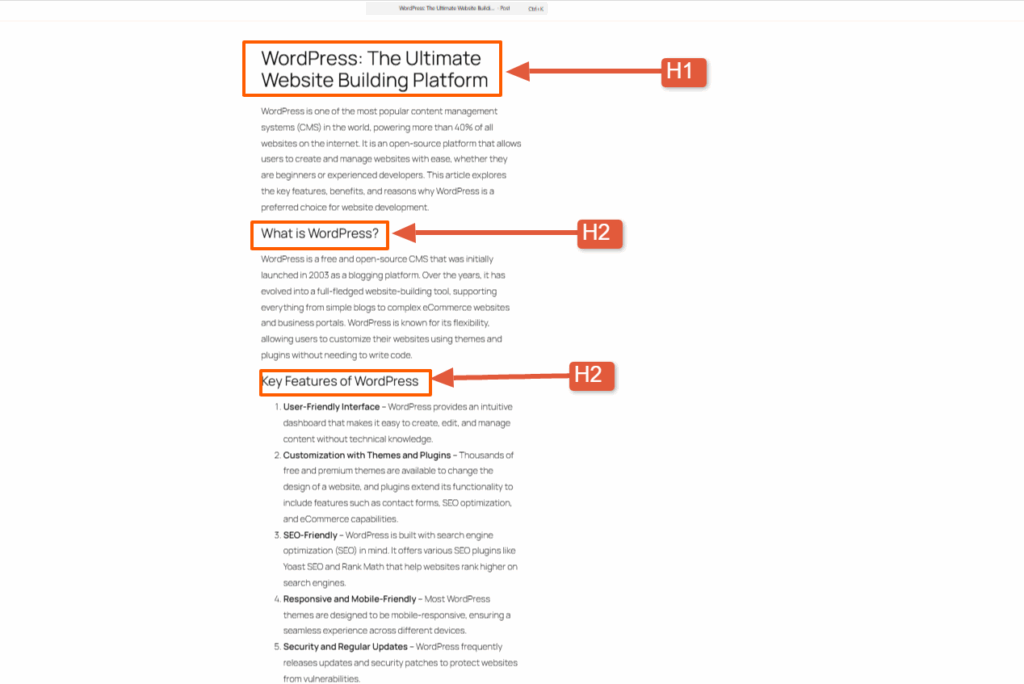
Screenshot 1: Sample Post Created in WordPress
Step 2: Installing the Easy Table of Contents Plugin
Let’s get started by installing the plugin.
- Log in to your WordPress Dashboard
- Navigate to Plugins > Add New
- Type Easy Table of Contents in the search bar.
- Click Install Now next to the plugin name
- After installation, click Activate
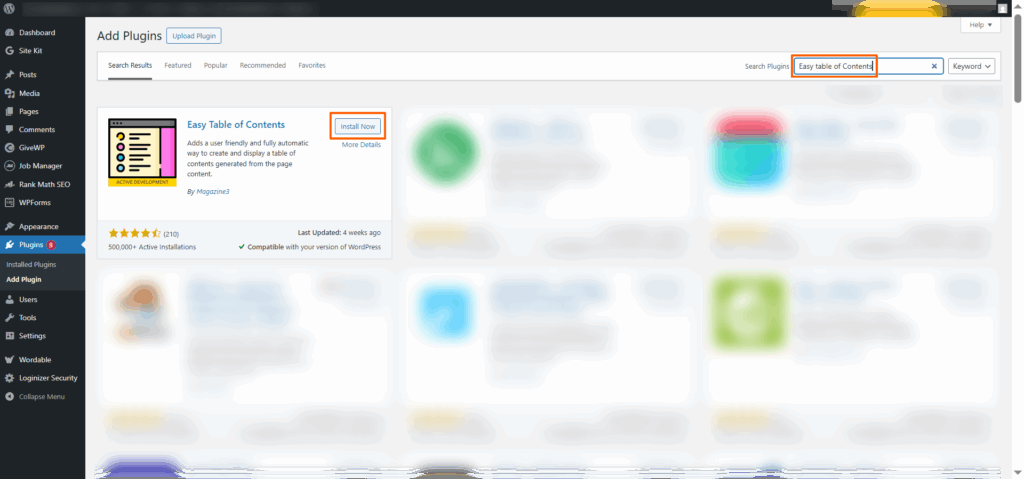
Screenshot 2: Install and Activate the Easy Table of Contents Plugin
Step 3: Navigating to the Plugin Settings
Once you have installed the plugin, navigate to the Settings Section of the Easy Table of Contents plugin. You’ll see multiple sections to customize the appearance of your Table of Contents (ToC).
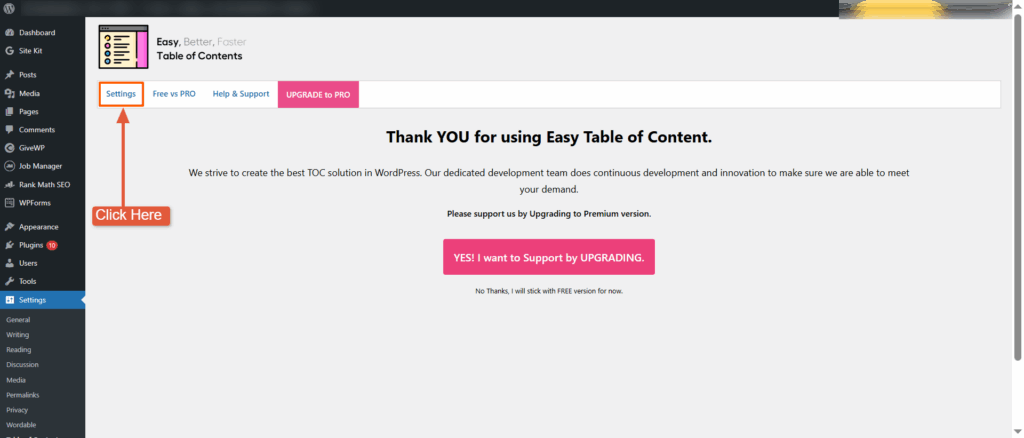
Screenshot 3: Settings Section of Easy Table of Contents Plugin
Step 4: Configuring General Settings
In the general settings, you can configure where and how the Table of Contents (ToC) appears.
- Enable Support:
- With this option, you can choose to display the ToC on:
- Regular blog posts
- Static pages
- Or any custom post types your site may be using
- Just tick the checkboxes that match your needs. For most bloggers, enabling it on posts is a great start. If you’re writing long-form content on pages, too (like guides or case studies), go ahead and enable it there as well.
- With this option, you can choose to display the ToC on:
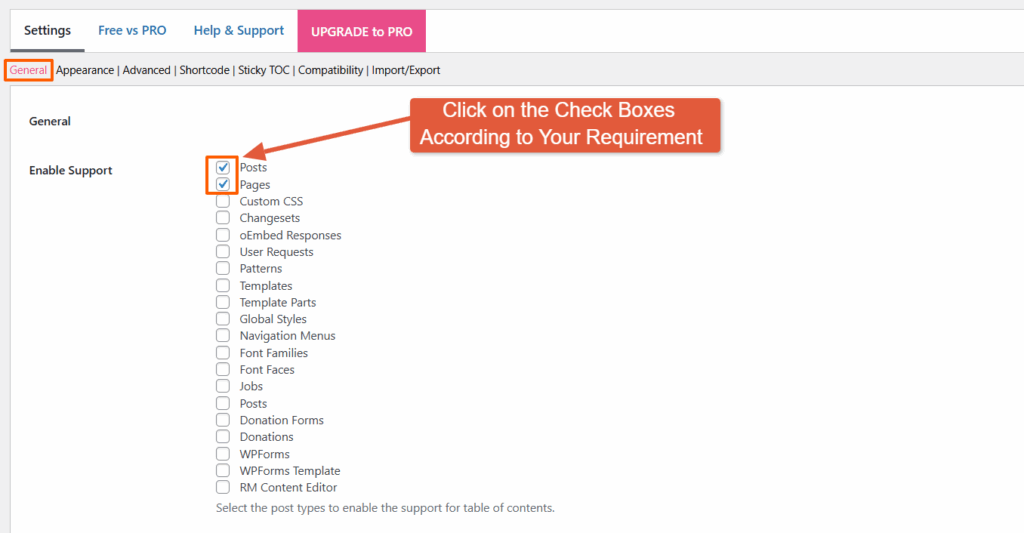
Screenshot 4: General Settings Panel Enable Support Options
- Auto Insert: When Auto Insert is enabled, the plugin automatically adds the Table of Contents to every new post or page that meets the criteria, eliminating the need for manual insertion each time.
- You can choose multiple options to auto-insert the Toc in different post types.
- If you prefer more control and want to decide on a case-by-case basis, you can leave this setting off and insert the ToC manually (we'll cover that later). But if you know you’ll want a ToC in every post, enabling this option is a great set-it-and-forget-it move
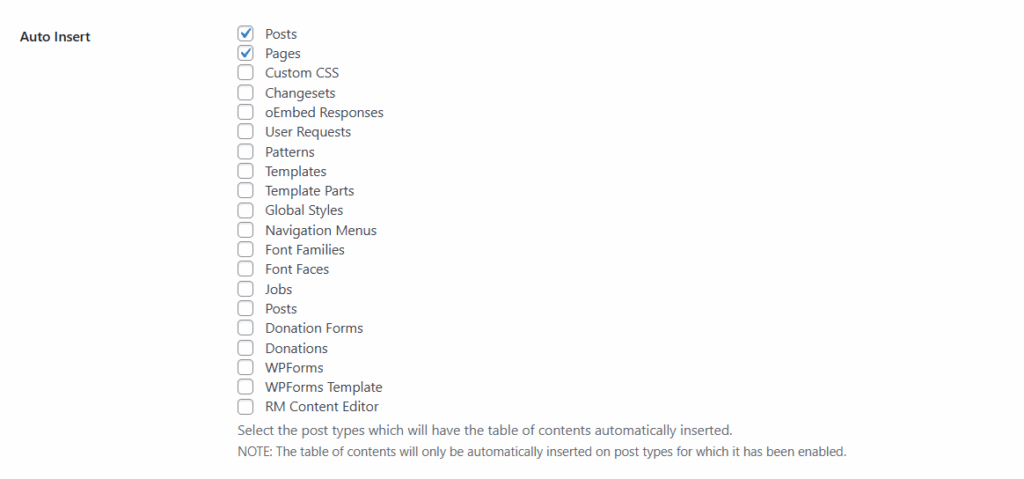
Screenshot 5: General Settings Panel Auto Insert Option
- Position: This setting lets you pick where the Table of Contents appears within your content.
- Here you will find these options:
- Before first heading (Recommended): This places the ToC right before your first H2 heading, which feels natural and helps guide the reader before they dive into your content.
- After the first heading, the ToC appears immediately after your first heading. This is helpful if you want to kick things off with a strong title and then let readers navigate.
- After the first paragraph, insert the ToC after your opening paragraph. It works well when you want to lead with a quick intro and keep things tidy before showing the ToC.
- After image: Ideal for image-heavy posts or tutorials. The ToC won’t interrupt the visual flow and appears only after a specific number of image is displayed.
- After number: If your content uses numbered lists or data early on, this option places the ToC after the numerical item that you have specified, though it’s a bit niche and less commonly used.
- Top: Inserts the ToC right at the top of the post, even before your introduction. It grabs attention but may feel a bit abrupt if your intro is important for context.
- Bottom: Places the ToC at the end of your post. Not very helpful for navigation, but can still be useful as a recap.
- For most blogs, “Before first heading” works best as it provides a nice flow, giving the reader a preview of what's coming without disrupting the intro paragraph.
- Here you will find these options:
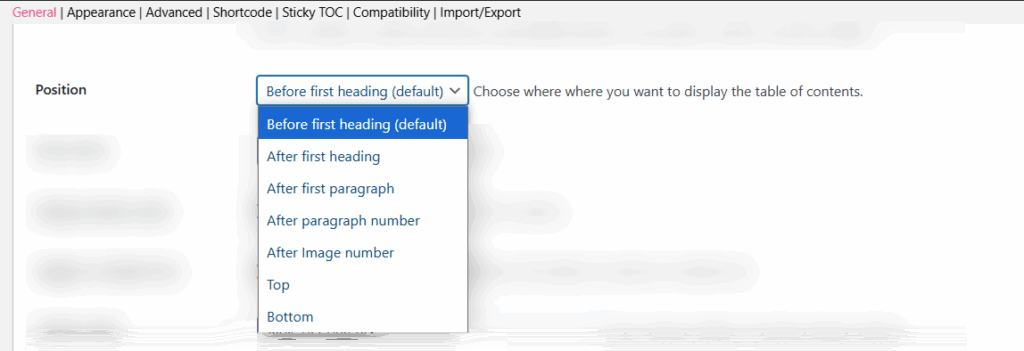
Screenshot 6: General Settings Panel Table of Content Position Options
- Show When [X] Headings Are Present: Displays the ToC after the set number of headings (e.g., 2). Keeps shorter posts clean.
- Display Header Label: Adds a title above the ToC, like “Table of Contents,” which is helpful for clarity.
- Toggle on Header Text: Let users click the header to expand or collapse the ToC, which is useful for long lists.
- Header Label: Customize the ToC title (e.g., “Contents” or “On This Page”) to match your tone.
- Header Label Tag: Choose the HTML tag for the ToC title (like div, h2, etc.), mostly for styling or SEO.
- Toggle View: Enables a Show/Hide button for the entire ToC.
- Initial View – Hide by Default: Starts the ToC in a collapsed state. Great for keeping layouts minimal.
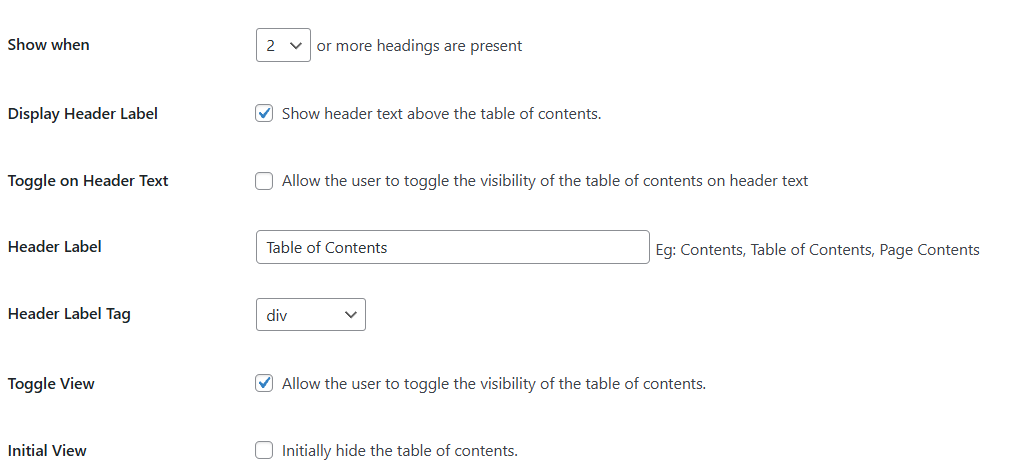
Screenshot 7: General Settings Panel Table Behavior & Display Options
- Show as Hierarchy: Displays nested headings to reflect your content structure.
- Counter: Adds numbering (1.1, 1.2, etc.) in various formats.
Screenshot 8: General Settings Panel Hierarchy and Counter Options
- Counter Position: lets you decide where the numbers appear — inside or outside the ToC items.
- TOC Loading Method: The Default is JavaScript, which loads the ToC smoothly without slowing down your site. Best left unchanged.
- Smooth Scroll: Ensures smooth navigation when clicking ToC links. Recommended to keep ON.
- Exclude href from URL: This prevents the section links from modifying the URL and works only when Smooth Scroll is enabled.
- AMP Page Support: Choose whether you want to show the ToC on AMP (mobile-optimized) pages.
Screenshot 9: General Settings Panel Functionality & Scroll Behavior Settings
Step 5: Configuring Appearance Settings
Customize how the Table of Contents looks to match your site’s style and layout..
- Width: Set the box size to match your preferences.
- Alignment: This option allows you to choose how the ToC aligns within the page. The default is "None", but other options include left, right, and center.
- Heading Text Direction:
- Select the direction your headings appear in.
- Left to Right (LTR) is standard for most languages; Right to Left (RTL) supports languages like Arabic or Hebrew.
- Enable Wrapping: Allows long headings to break into multiple lines instead of overflowing or being cut off.
- Heading Padding: Adjust the space around the Table of Contents by setting padding values for top, bottom, left, and right in pixels.
Screenshot 10: Appearance Settings Panel Width and Alignment Options
- Font Options: Change the font size and weight for the ToC content.
- Title Font Size: Controls the size of the ToC heading (e.g., “Table of Contents”).
- Title Font Weight: Sets how bold the heading appears.
- Font Size: Adjusts the body font of the ToC links.
- Font Weight: Sets the boldness of the regular link text.
- Child Font Size: Adjusts the size of subheading text in the ToC.
Screenshot 11: Appearance Settings Panel Font Options
- Theme Options: Choose from preset themes like Grey, Light Blue, White, Black, Transparent, or Custom. These themes affect only the ToC inserted in your post content, not the widget version.
- Custom Theme Settings: (Only applies if you select "Custom" as your theme.)
- Background Color: Sets the ToC box background.
- Border Color: Adds a border color around the box.
- Title Color: Changes the color of the ToC heading text.
- Link Color: Sets the default link color for ToC items.
- Link Hover Color: Changes the link color when a user hovers over it.
- Link Visited Color: Displays a different color for links that have already been clicked.
Screenshot 12: Appearance Settings Panel, Theme and Custom Theme Options
Step 6: Configuring Advanced Settings
These setting options help you fine-tune how and where your Table of Contents works across different types of pages and devices.
- Lowercase: Converts all anchor links (the clickable section links) to lowercase. This helps maintain consistency and avoid issues with case-sensitive URLs.
- Hyphenate: Replaces underscores (_) with hyphens (-) in anchor links. For better SEO and user experience, use hyphens in your URLs.
- Homepage: Enables the Table of Contents on posts or content displayed on your homepage (if supported).
- Category: Displays the ToC in the description area of category archive pages.
- Tag: Adds the ToC to the description section of tag archive pages.
- Product Category: If you’re using WooCommerce, this setting shows the ToC in product category descriptions.
- Custom Taxonomy: Allows the ToC to appear in the description of any custom taxonomy pages you’ve set up.
- Device Target: Lets you choose which devices the ToC will be shown on (desktop, tablet, mobile, or all). Ideal for controlling visibility based on screen size.
- Load JS In: Specifies where the plugin loads its JavaScript. The default is “Footer” to help improve page load speed.
- CSS: Disables the plugin’s default styles if you want to use your own custom CSS. Keep this unchecked unless you're styling the ToC manually.
- Inline CSS: Helps boost performance by embedding the ToC styles directly into the HTML, reducing extra HTTP requests and improving page load speed.
Screenshot 13: Advanced Settings Panel
- Headings (H1–H6): You can choose which heading levels should be included in the ToC.
- By default, most users include H2 and H3, since H1 is usually the post title and already visible at the top.
- For more detailed posts, you might also include H4–H6.
- Simply check or uncheck the heading levels based on how your content is structured.
- Exclude Headings: Allows you to leave out specific headings from the ToC manually. Just enter the exact heading text or use wildcards to skip similar ones.
Screenshot 14: Advanced Settings for Headings Panel
- SiteNavigation Schema: Adds structured data to your Table of Contents so search engines can better understand your page layout. It can improve how your content appears in Google search results.
- Smooth Scroll Offset (Desktop): If your site has a sticky menu or admin bar at the top, this setting prevents headings from being hidden when users click ToC links. A value of 30px is good for most setups.
- Mobile Smooth Scroll Offset: Works the same as the desktop offset, but for mobile devices. Adjust it if your mobile menu covers content when scrolling to sections.
Screenshot 15: Advanced Settings Panel Site Navigation Schema & Scroll Offset
- Limit Path: This feature helps display the Table of Contents only for specific sections of your site.
- Just enter the path (starting with /) where you want the ToC to appear.
Example: /blog/, /docs/, /resources/guide/ - Great for keeping the ToC limited to certain areas like documentation or blog posts.
- Just enter the path (starting with /) where you want the ToC to appear.
- Exclude by Matching URL/String: This hides the ToC on specific pages based on URL patterns.
- Just enter part of the URL (one per line), and the plugin will skip adding a ToC to any matching pages.

Screenshot 16: Advanced Settings Panel Path Options
- Default Anchor Prefix: If your headings use non-English or special characters, this setting adds a fallback prefix to the anchor links (like i, toc_, or _) so they still work properly.
When left empty, numbers will be used instead. - Default Anchor Prefix For All: Forces the use of the anchor prefix even if your headings use standard characters. Useful for consistent URL structure.
- Widget Affix Selector: This option lets you pin the Table of Contents widget in your sidebar. You’ll need to enter the class or ID of your theme’s sidebar manually, for example, .widget-area or #sidebar. This keeps the ToC visible while scrolling.
- Add Request URI: Adds the current page’s URL before the anchor link (e.g., /post-name#section). Useful for internal navigation consistency.
- Add Self Reference Link: Adds the full URL before anchor links (e.g., https://yourdomain.com/post#section). This is handy for copying or sharing direct links to specific sections.
Screenshot 17: Advanced Settings Panel Anchor & Widget Options
- Remove ‘:’ from TOC Title: Takes out the colon (:) that appears after the Table of Contents title, which is useful if you prefer a cleaner look.
- Show Page Title in TOC: Adds the page or post title as the first item in the Table of Contents. Helpful for long-form content or reports.
- Disable TOC in REST API: Stops the Table of Contents from appearing in REST API responses that are typically useful for developers or headless WordPress setups.
- Generate TOC Link IDs: Turn this on if you’re manually adding the ToC using a shortcode ([ez-toc]) in templates, sidebars, or PHP files. Ensures the anchor links still work.
- Fix Out of Memory / 500 Error: Enables a workaround for memory or server errors that might happen when using page builders like DIVI with the TOC shortcode.

Screenshot 18: Advanced Settings Panel Miscellaneous Settings
- Preserve Line Breaks: Keep the original line breaks from your headings in the Table of Contents, great for keeping formatting consistent.
- Ajax Load More: Ensures the ToC toggle works correctly with infinite scroll or content loaded via Ajax. Helpful for dynamic blogs or news sites.
- Display No Heading Text: Shows a fallback message when a heading is missing, so the ToC still makes sense even if some titles are empty.
- Shorten Heading: (Disabled by default) – If enabled, this would shorten long headings in the ToC to make it more concise.
- Remove TOC Links: Removes clickable anchor links from the Table of Contents, turning it into a plain list, which is ideal if you want a non-clickable overview.
Screenshot 19: Advanced Settings Panel, Additional Functionality Settings
Step 7: Configuring Shortcode Settings
- If you want more control over where the Table of Contents appears, instead of relying on auto-insert, you can manually add it using the shortcode: [ez-toc]. Just paste it anywhere in your post or page where you'd like the ToC to appear.
- Common Shortcode Customizations: You can customize the ToC using these optional attributes:
- [header_label="Contents"] – Set a custom title for your ToC.
- [display_header_label="no"] – Hide the title completely.
- [toggle_view="no"] – Removes the expand/collapse toggle.
- [initial_view="hide"] – Keeps the ToC collapsed when the page loads.
- [display_counter="no"] – Beside each ToC item, it turns off numbering
- [post_types=" post, page"] – Use the ToC on specific content types.
- [post_in="12,45"] – Show the ToC only on certain post/page IDs.
- [device_target="desktop"] – Choose where to show the ToC (desktop or mobile).
- [view_more="5"] (PRO) – Show limited headings at first, expand on click.
- [class="custom_toc"] – Lets you add your own custom CSS class for styling.
- [exclude="Test"] – Exclude headings that contain the word “Test.”
- [heading_levels="2,3"] – Will let you include only h2 and h3 headings in the ToC.
Screenshot 20: Shortcode Settings Panel for Manual Addition of Toc
- Manual ToC Widget Shortcode: If you’d like to display the Table of Contents in your sidebar or widget area, you can use this shortcode:[ez-toc-widget-sticky]. Simply add it into a Text or Shortcode widget in your WordPress sidebar to make the ToC stick and stay visible while users scroll through your content.
- Auto Insert Option (No Shortcode Needed): If you prefer not to use shortcodes at all, the plugin also supports automatic insertion.
- Just go to: WordPress Dashboard > Settings > Table of Contents > General Settings > Auto Insert.
- From there, you can enable the plugin to automatically add the ToC to posts, pages, or custom post types — no shortcode required during editing. This is the easiest option for beginners.

Screenshot 21: Shortcode Settings Panel for Manual Addition of Widget Shortcode and Auto Insert Options
- Add a Sitemap Manually in WordPress: If you prefer adding a sitemap manually, the Easy Table of Contents plugin provides simple shortcodes. These shortcodes let you list all your pages, posts, or categories in an organized format on any WordPress page with no extra tools or coding required.
- Manual Adding Sitemap Shortcode: Use this shortcode [ez-toc-sitemap] that adds a full sitemap with all pages and categories to your WordPress page with no coding needed.
- Manual Adding Sitemap Pages Shortcode: Use this shortcode [ez-toc-sitemap-pages], which creates a sitemap that only includes pages, without categories or posts.
- Manual Adding Sitemap Categories Shortcode: Use this shortcode [ez-toc-sitemap-categories] to create a sitemap listing only categories.
- Manual Adding Sitemap Posts Shortcode: Use this shortcode [ez-toc-sitemap-posts] to generate a sitemap of all posts.
Screenshot 22: Shortcode Settings Panel for Adding a Sitemap Manually in WordPress
Step 8: Enabling Sticky TOC
The Sticky TOC feature keeps the Table of Contents visible on the screen as users scroll down your post or page. It "sticks" to a position usually on the side, so readers can easily jump to any section without scrolling back up.

Screenshot 23: Sticky ToC Settings
Step 9: Compatibility Options
These options ensure the Table of Contents works smoothly with popular third-party plugins and page builders. When enabled, they include special content types in the ToC that might otherwise be skipped.
- Created by Mediavine: If you’re using Mediavine’s Recipe Card plugin, enabling this option will automatically include the recipe headings inside the Table of Contents, which is great for food bloggers!
- GoodLayers Core Builder: If your site uses the GoodLayers page builder, this setting makes sure that all headings added via the builder are detected and shown in the TOC.
- Molongui Authorship: This ensures compatibility with the Molongui Authorship plugin, allowing proper ToC display even when author-specific content is involved.
Screenshot 24: Compatibility Options
Step 10: Configuring Import/Export Settings
This section helps you save, restore, or transfer your Easy Table of Contents (ETOC) settings easily between websites or backups.
- Import/Export Settings: This section helps you save, restore, or transfer your Easy Table of Contents (ETOC) settings between websites or backups.
- Export Settings: Click Export to download your current ETOC settings as a .json file. This is useful for creating backups or applying the same configuration to another website.
- Import Settings: This lets you restore your saved preferences. Just click "Choose File," upload your .json file, and the plugin will automatically apply your previous setup.
- Delete Data on Uninstall: Enable this option to completely remove all plugin data, including settings, when uninstalling Easy TOC.
- Only enable this if you’re sure you won’t need the settings in the future.
Finally, click the "Save Changes" button to apply your settings. Your Table of Contents is now fully configured and ready to appear on your posts or pages.
Screenshot 25: Configuring Import/Export Settings and Saving the Changes
Step 11: Preview the Table of Contents on Your Post
To make sure everything is working:
- Open the sample post you created earlier.
- Scroll to the top of the content section.
- You should see the Table of Contents automatically displayed based on the headings in your post.
If it doesn't appear, double-check that the post type is enabled in the plugin settings and that you have used proper heading tags (H2, H3, etc.).
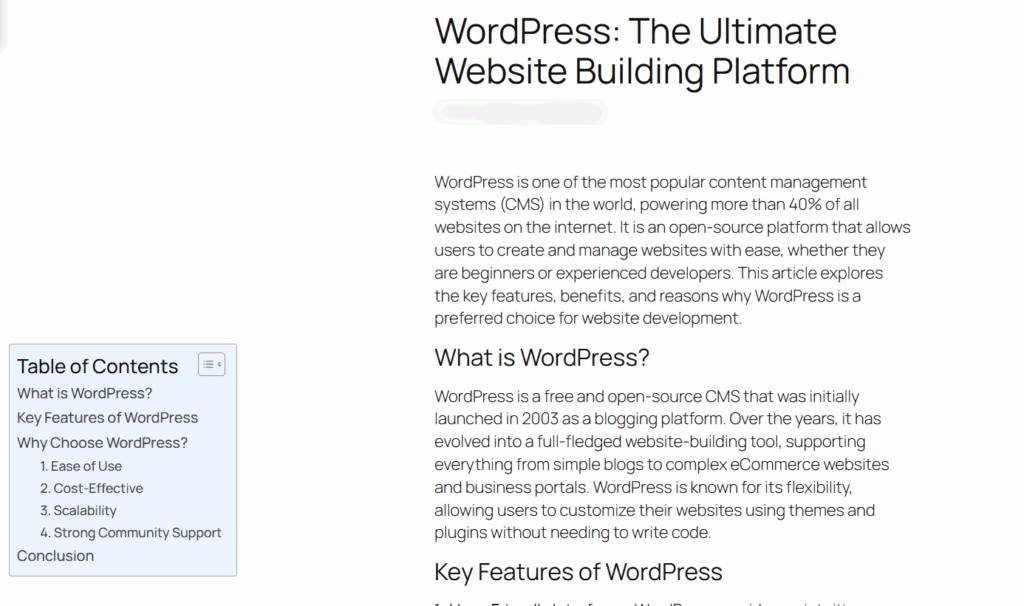
Screenshot 26: Table of Contents Added to the Post
Conclusion
Adding a Table of Contents to your WordPress site doesn’t have to be complicated. With the right plugin and a few easy settings, you can instantly make your content more organized, reader-friendly, and optimized for SEO.
Now that you know how to do it, give it a try! Whether you're writing blog posts, tutorials, or guides, a simple ToC can make a big difference in how your content is experienced.
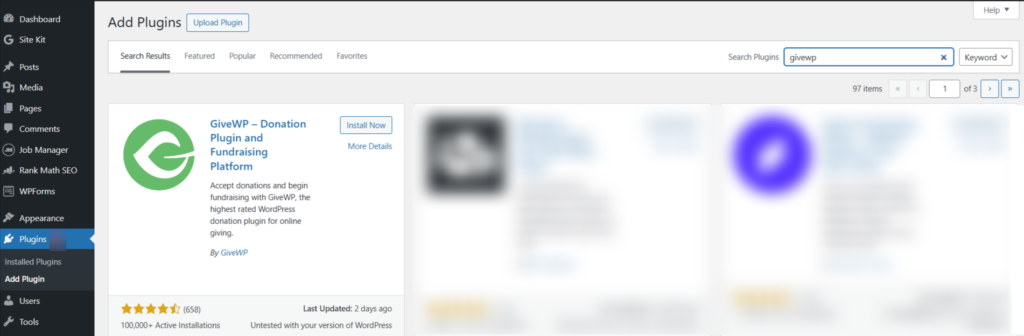

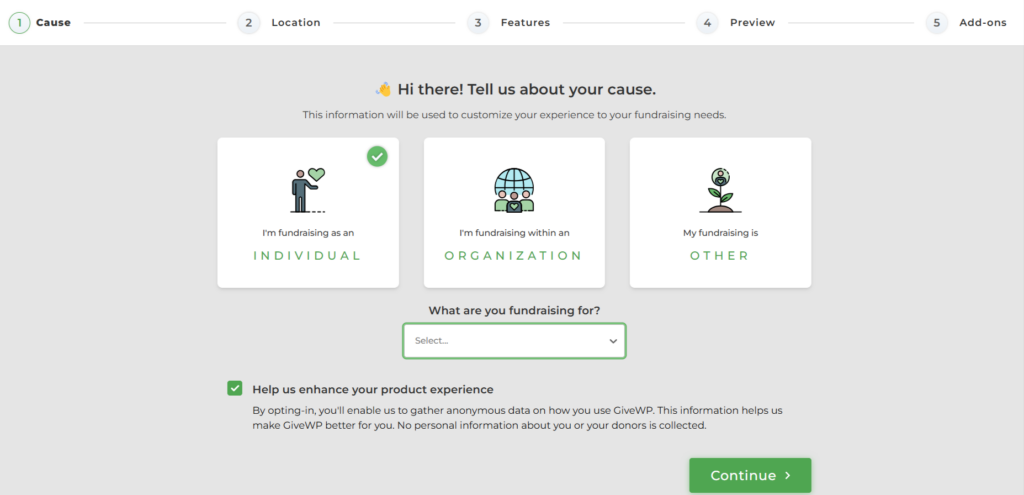
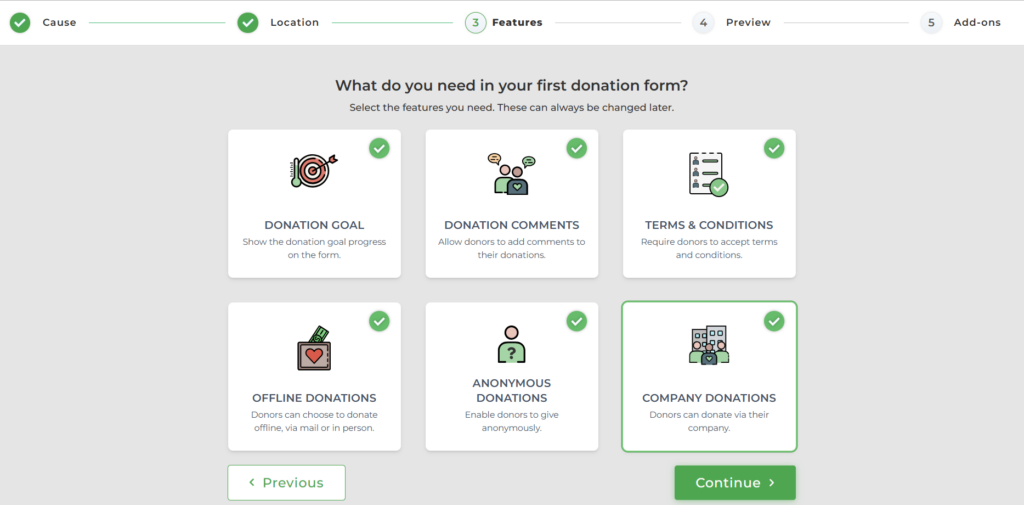
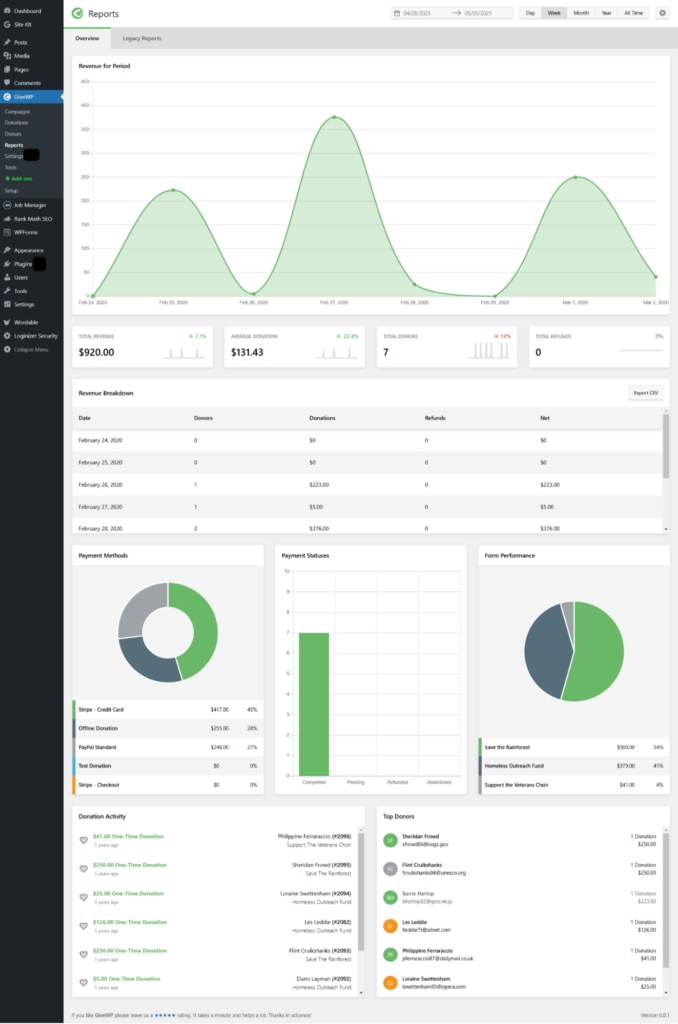


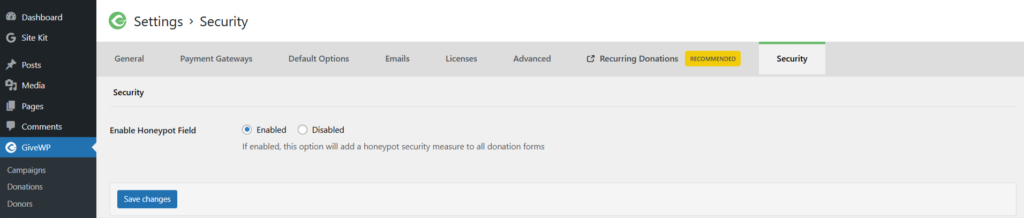
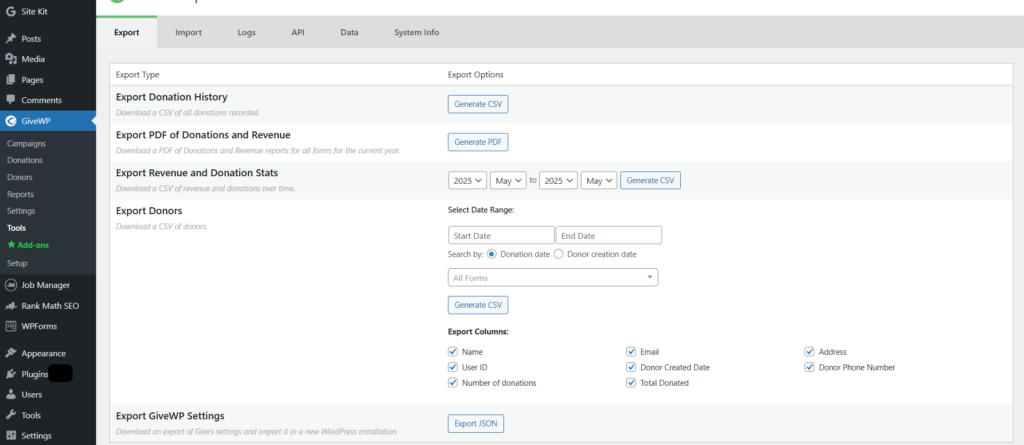

Tutorials
8 min read
How to Create a Job Portal in WordPress Using the WP Job Manager Plugin
Every company today needs a strong careers page. It’s not just about listing open roles, it’s about showing job seekers that your business is growing and worth joining.
But here’s the catch: if your listings aren’t easy to find or don’t show up in search results, you might be missing out on great candidates without even realizing it.
That’s where WP Job Manager can make a real difference.
It’s a simple, lightweight WordPress plugin that lets you add a fully functional job board directly to your website without the need for coding or technical setup. Moreover, job listings get easily noticed by search engines like Google, meaning your openings have a better chance of showing up where candidates are searching.
Ready to get started?
Why WP Job Manager Is Worth Adding to Your Website
If you're running a company website and want to attract real traffic to your job listings, it's not enough to simply post open roles and hope for the best. WP Job Manager helps you turn your careers page into a functional, easy-to-manage job board that people can find and use. Here are some clear reasons why it works so well:
- Search-Friendly Listings: Each job post is structured using Google Job Schema, which makes it easier for Google to index and show in search results, including Google Jobs. That means more visibility without needing to pay for external listings.
- Custom Job Pages That Get Clicks: Every job has its page, making it easier to share and easier for candidates to apply. These pages also help your site rank better over time.
- No-Code Job Posting for HR: Easily manage job applications with a page on your site, no admin access needed. Your team can post and update jobs directly from the front end, without any technical skills required.
- Flexible Fields for Any Role: Whether you’re hiring for tech, design, operations, or remote positions, you can customize each listing to include the exact details you want.
- Built-In Filtering and Search Tools: Candidates can sort by location, category, or type of job, helping them find what fits—and apply faster.
- Easy to Manage and Expand: You get a basic job board out of the box, and can add more features later, like resume uploads, job alerts, or applicant tracking, as your hiring needs grow.
Step 1: Install and Activate the WP Job Manager Plugin
- Go to the WordPress Dashboard.
- Go to Plugins > Add New > WP Job Board Plugin
- Install and Activate
Screenshot: WP Job Manager
Step 2: Run the Setup Wizard
Go to WP Jobs Manager and click on Run Setup Wizard
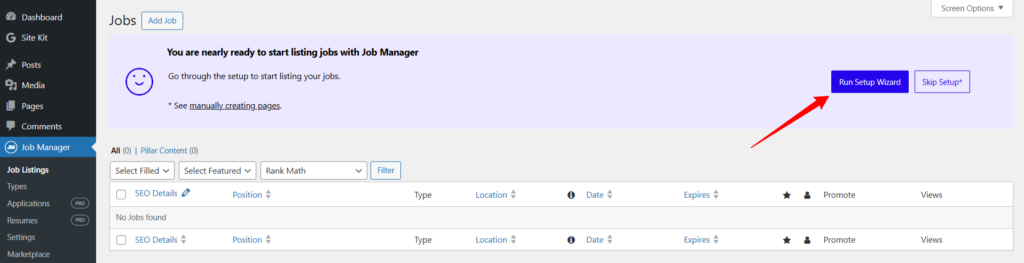
Screenshot: Click on Run Setup Wizard
You’ll see a checkbox asking if you’d like to help improve the plugin by allowing it to collect anonymous usage data. Optional, but it’s a nice way to support the developers behind the scenes.
At this stage, you can either:
- Click “Start Setup” to let the plugin do all the work for you (highly recommended if you're new), or
- Click “Save and Skip Setup” if you prefer to configure everything manually using shortcodes (great for advanced users or custom designs)
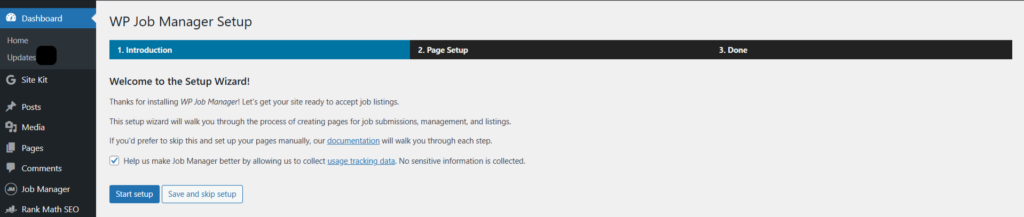
Screenshot: Run Setup Wizard
Once you hit “Start Setup” in the wizard, the next screen brings you to the Page Setup section.
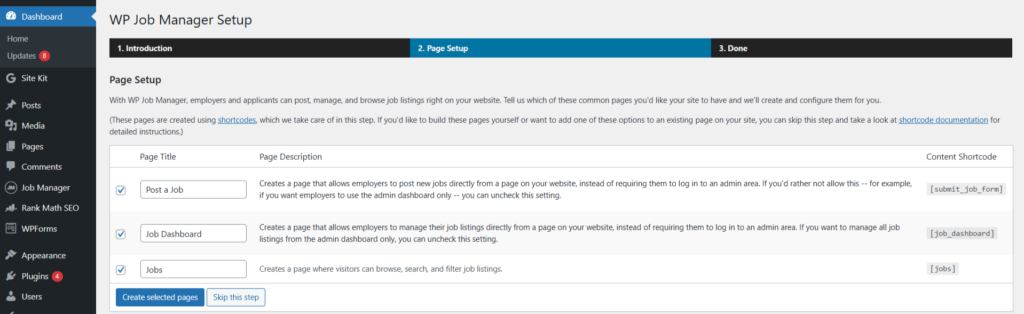
Screenshot: Page Setup
You don't have to make pages and add shortcodes by yourself (unless you want to later). WP Job Manager can automatically create three important job board pages for you.
Post a Job
This page uses the [submit_job_form] shortcode to allow employers to submit job listings directly from the front end of your website. This eliminates the need to give them access to the WordPress admin dashboard.
This is Perfect for multi-employer sites or directories.
Job Dashboard
Adds a [job_dashboard] page where employers can view, edit, and manage their listings again, all from the front end.
This creates a smoother, more polished experience for job posters.
Jobs
This one’s for your site visitors. It shows job listings using the [jobs] shortcode. People can look through jobs, search, and filter them easily.
By default, all three pages are selected. For most people, that’s the best choice. Just click “Create selected pages,” and WP Job Manager will set them up for you right away.
If you want to do it your way (like using a custom layout), you can skip this step and add the shortcodes yourself later.
We are going with all three selected pages.
The next final screen is all about giving you quick access to the next steps so you can hit the ground running.
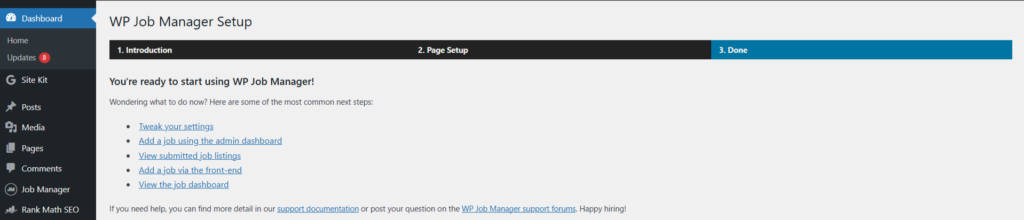
Screenshot: Final Step of Setup
What can you do now?
Tweak your settings: Customize listing behavior, duration, and fields.
Add a job using the admin dashboard: Manually add job listings via the WordPress backend.
View submitted job listings: Check active/pending jobs.
Add a job via the front-end: Test the user job submission form.
View the job dashboard: Preview the front-end employer dashboard.
Step 3: Add a Job
Once you have finished the setup, go to Job Manager> Job Listings> Add New Job.
Screenshot: Select Add Job
You’ll be directed to the new window, the classic editor of WordPress. Here, you have to add a job description.
Screenshot: Add Job Description Here
Next, fill in the job title, location, company details, job description, and other such details. Select the job type and upload a logo if needed. You can also add job tags and job types: Freelance, Full Time, Internship, Part Time, and Temporary.
Once done, click “Publish” to make the job listing live.
Screenshot: Add other Required Details
After publishing, click on the View tab to view your published job listing.
Screenshot: Published Job Listing
You can also see your job listing on the dashboard.
Screenshot: Job Listing Board
Step 4: Add a Job Type
To add a new job type,
- Enter the job type name (e.g., "Contract").
- Add a slug (URL-friendly version, like contract).
- Optionally, add a description or select a parent type.
- Choose the Employment Type from the dropdown.
- Click "Add New Job Type".
These types help organize job listings and let users filter them easily.
Screenshot: Add Job Type
Step 5: Add Applications (Pro Feature)
The Applications Pro feature ($79/year) allows employers to manage job applications directly on their dashboard.
It enables candidates to apply using a built-in form, and lets employers view, save, rate, and comment on applications privately.
This streamlines the hiring process and keeps everything organized within the site.
Screenshot: Add Applications
Step 6: Add Resumes
The Resume Manager feature ($49/year) adds a resume submission form to your site, letting candidates post resumes and apply to jobs using them.
Employers can manage resume listings from the WordPress dashboard, restrict access by user roles, and control who can view candidate contact details.
Screenshot: Resume Manager
Step 7: General Settings
Under settings, go to general settings.
The General Settings tab allows you to configure key plugin options.
You can change the date format (regular or relative), turn on job stats to track visitors, and add a Google Maps API key to show locations.
You can also choose to:
- Delete all data when you uninstall the plugin
- Skip the trash and delete job listings right away
- Turn on usage tracking to help make the plugin better
Screenshot: General Settings
Step 8: Settings > Job Listings
The Job Listings Settings control the appearance and functionality of job listings, including:
- Setting the number of jobs per page, choosing pagination style (load more/page numbers)
- Showing or hiding filled & expired jobs
- Enabling job categories/types (with multi-selection)
- Displaying remote job and salary information
- Showing or hiding location addresses
- and removing shortcodes from descriptions.
Screenshot: Job Listings
Step 9: Settings > Job Submission
The Job Submission Settings control how users submit/manage job listings. Users can be required to log in, create accounts during submission, and schedule listings.
Admins can review/approve submissions and edits, and control user editing permissions.
Other settings include listing duration, renewal options, posting limits, application methods (email/link), and terms & conditions agreements.
Screenshot: Job Submission
Step 10: Settings > Captcha
The CAPTCHA settings configure spam protection for job submissions.
You can customize the field label, choose reCAPTCHA v2 or v3 (requiring separate API keys), input the Site and Secret Keys, and enable CAPTCHA on the job submission form.
Screenshot: Captcha
Step 11: Settings > Pages Tab
The Pages tab links WP Job Manager's functions (job submission, dashboard, listings) to specific WordPress pages using shortcodes. Ensure the correct shortcodes are on their corresponding selected pages for proper functionality.
Screenshot: Pages Settings
Step 12: Settings > Job Visibility
The Job Visibility tab in WP Job Manager controls who can browse the general job list and view the details of individual job postings.
You can set these capabilities to "Everyone (Public)" or restrict access to specific user roles.
Screenshot: Job Visibility
Step 13: Settings > Email Notifications
The "Email Notifications" tab in WP Job Manager lets you configure automated email alerts. Specifically, it allows you to enable notifications to the administrator for new or updated job listings, and also set up notifications regarding expiring job listings.
You can choose the email format (plain text or rich text) for these notifications.
Screenshot: Email Notifications Settings
Step 14: Settings > Marketplace
The Marketplace allows users to manage installed plugins by activating, deactivating, updating, and deleting them. Users can also search for and install new plugins to extend WordPress functionality.
Screenshot: Marketplace
Conclusion
By adding WP Job Manager to your website, you're not just creating a job board—you're transforming your site into a powerful recruitment tool. With an intuitive interface that’s easy for both employers and job seekers to use, it streamlines the hiring process and helps you connect with a wider pool of qualified candidates.
Don't let great talent slip away. Enhance your careers page with WP Job Manager and make your company stand out as a top destination for professionals on the hunt for new opportunities.
Now it's your turn to install the plugin, configure your settings, and watch your job portal come to life!


