Integrating a DAM system with WordPress brings a noticeable boost in performance, organization, and collaboration.
Better Organization: AI-powered tagging, metadata, and smart search filters make it easy to manage and locate assets.
Faster Page Speed: Optimized media is delivered via global CDNs, improving load times across all devices.
Easy Collaboration: Teams can securely access, update, and share assets without the risk of overwriting files.
SEO Benefits: Automatic image optimization and detailed metadata improve search engine visibility.
Scalability: Easily handle large volumes of digital assets without slowing down your WordPress site.
DAM vs. WordPress Media Library: What’s the Difference?
At first glance, the WordPress Media Library and a Digital Asset Management (DAM) system might seem similar as they both store and manage media files.
However, they serve very different purposes. The WordPress Media Library is a basic file storage tool. A DAM system is a fully-featured solution for organizing, optimizing, and distributing digital assets efficiently.
Let's compare!
Features
WordPress Media Library
Digital Asset Management (DAM)
Storage & Organization
Stores media files in a simple folder structure.
Provides advanced organization with metadata, tags, categories, and AI-powered search.
Search & Retrieval
Basic search based on file name and upload date.
AI-powered search with metadata, keywords, file type, and even visual recognition.
Version Control
No version control; overwriting files can cause loss of old versions.
Tracks changes, allows access to previous versions, and prevents accidental overwrites.
File Management
Files are uploaded directly to WordPress and stored in /wp-content/uploads/.
Stores files in a cloud-based or on-premises DAM system and integrates with WordPress.
File Sharing & Collaboration
Limited; files must be manually shared via links.
Built-in sharing, collaboration, and approval workflows.
CDN & Performance
Relies on WordPress caching and third-party plugins for performance.
Often includes a built-in CDN (Content Delivery Network) for faster loading times.
SEO Optimization
Manually add alt text, captions, and descriptions.
Automated SEO-friendly metadata tagging and optimization.
Security & Compliance
Limited security options; media files may be accessible via direct URLs.
Advanced security, DRM (Digital Rights Management), watermarking, and access restrictions.
Automation & AI Features
No AI features.
AI for auto-tagging, facial recognition, smart cropping, and automated workflows.
Which One Should You Use?
If you only need to upload and manage basic media files, the WordPress Media Library is enough.
If you deal with large volumes of digital assets, need better search and collaboration, or want automation, DAM is the better choice.
The ideal setup is integrating DAM with WordPress, which gives you advanced asset management while keeping WordPress lightweight and optimized.
Guide to Integrating DAM with WordPress with Cloudinary
Cloudinary is a powerful Digital Asset Management (DAM) system that helps optimize, store, and deliver media files efficiently.
Step 1: Create a Cloudinary Account
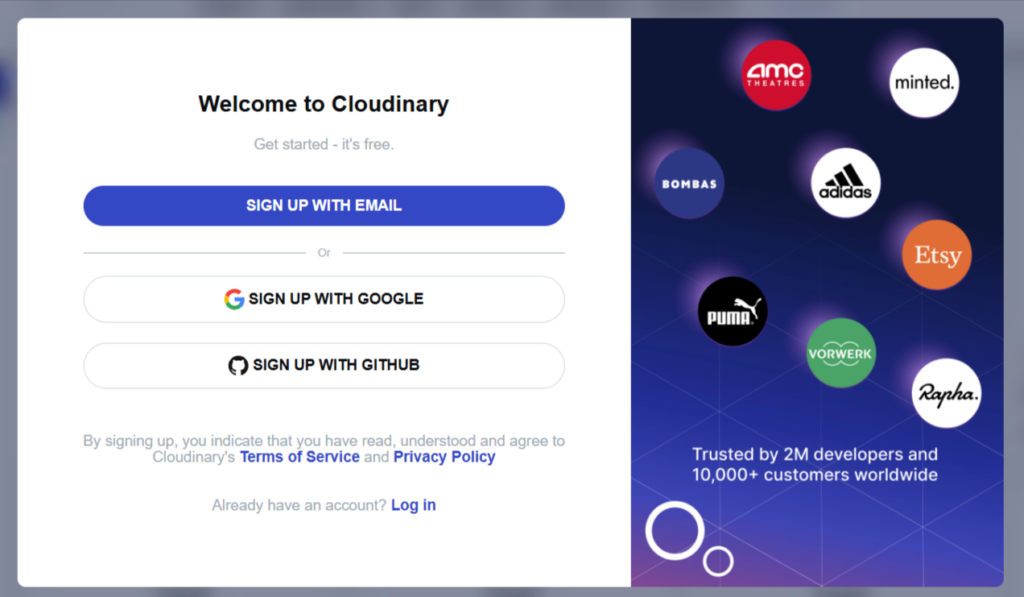
Go to Cloudinary’s Website: Visit Cloudinary and click on Sign Up.
Screenshot: Sign up with Email
Choose your preferences with the usage.
Screenshot: Choose Your Interest
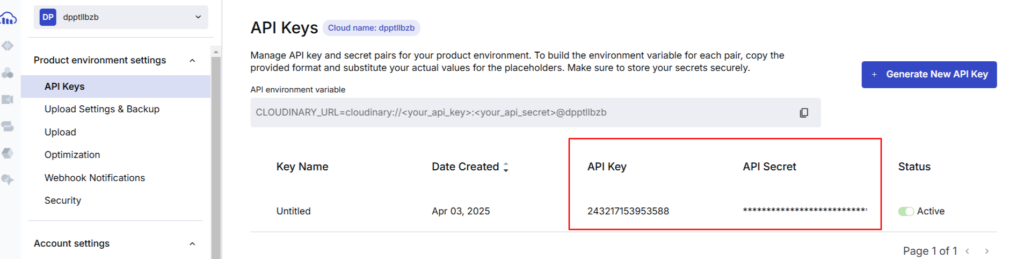
Collect the API key and Secret Key from the Cloudinary Dashboard.
Screenshot: Go to API Keys
Screenshot: API Key Details
Step 2: Install and Configure the Cloudinary WordPress Plugin
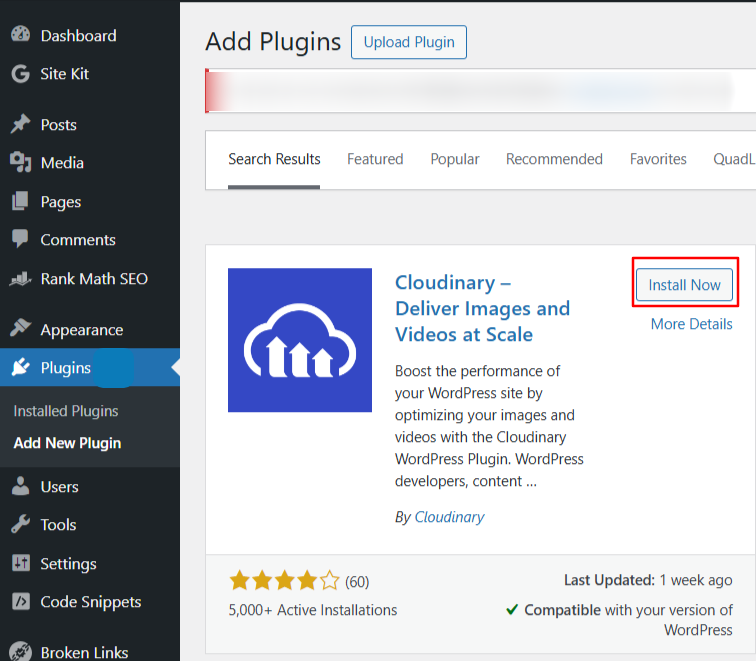
Go to WordPress Dashboard> Plugins> Add New> Cloudinary
Screenshot: Add Cloudinary Plugin
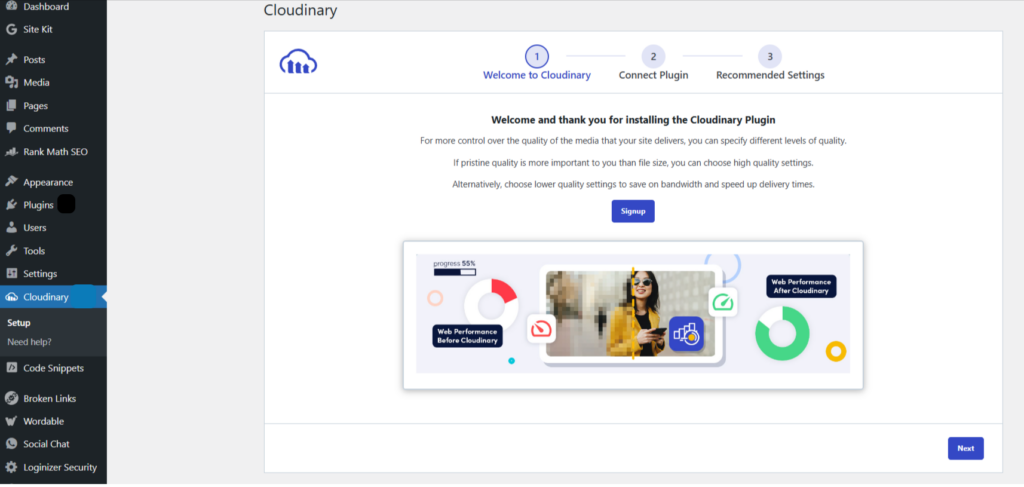
Open Cloudinary Setup.
If you already have an account, go to the Next step. If you don't have an account, you can create one from here, too.
Screenshot: Cloudinary Setup
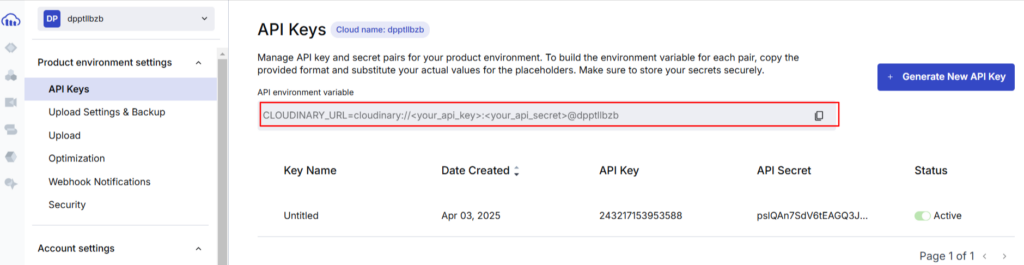
Connect Plugin by entering Cloudinary API environment variable, which you can get from Cloudinary console.
Screenshot: Copy API Environment Variable from Console
Now, to paste this variable, you have to add API key and API secret Key in the variable itself as shown:
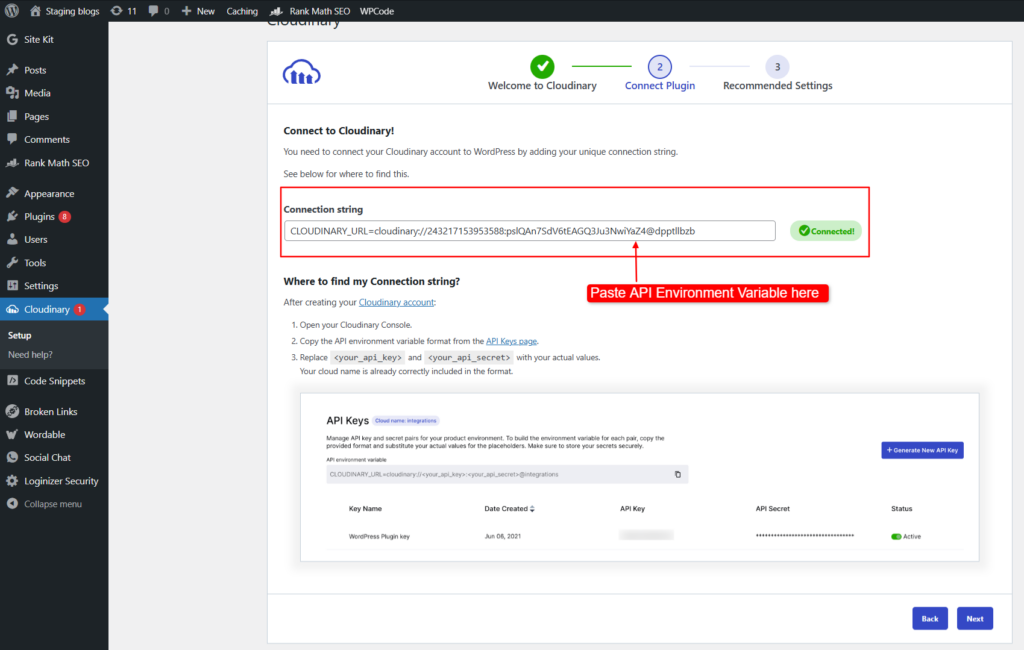
Now replace <your_api_key> with Cloudinary API key and <your_api_secret> with Cloudinary API Secret Key.
Screenshot: Paste API Environment Variable here
Click on Next.
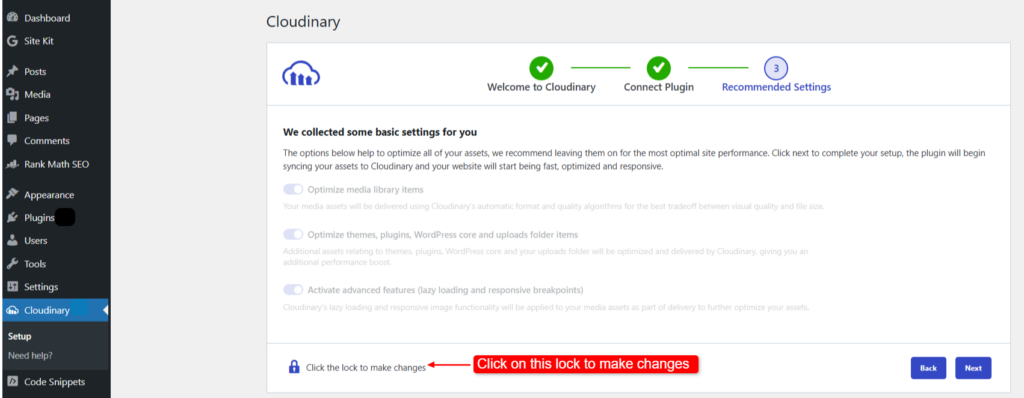
You can now choose the recommended settings of Cloudinary.
To do so, first click on the Lock icon to make the changes.
Screenshot: Recommended Settings
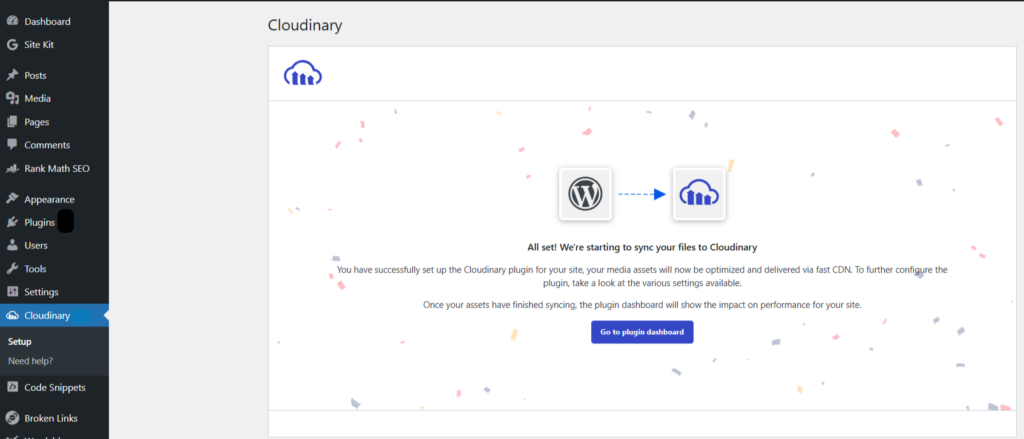
And you are done with the Plugin Settings!
Screenshot: Plugin Settings Complete
Step 3: Cloudinary Settings
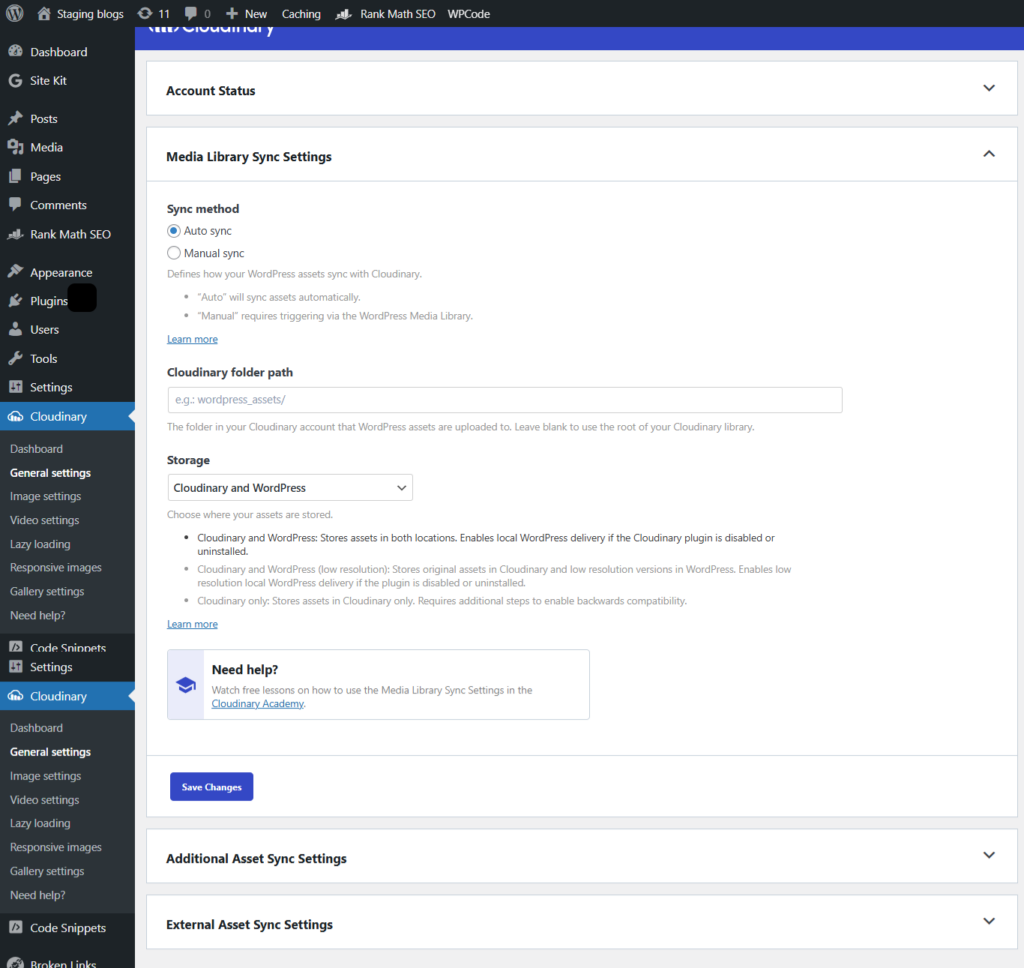
Go to WordPress dashboard> Cloudinary> General settings
General Settings in Cloudinary manage how media assets sync, store, and deliver between WordPress and Cloudinary for optimized performance and flexibility.
Screenshot: General Settings
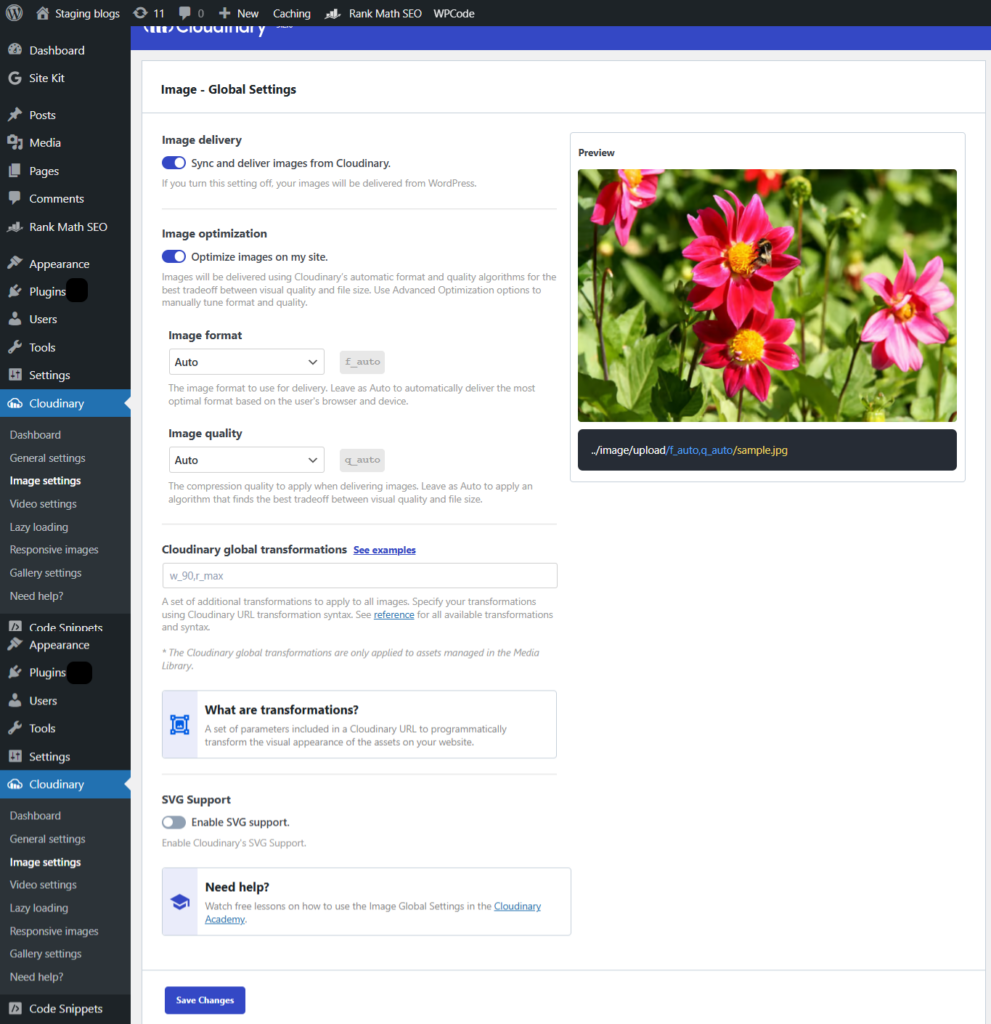
Go to Image Settings to optimize, transform, and deliver images efficiently by adjusting format, quality, and other global transformations for better performance and responsiveness.
Screenshot: Image Settings
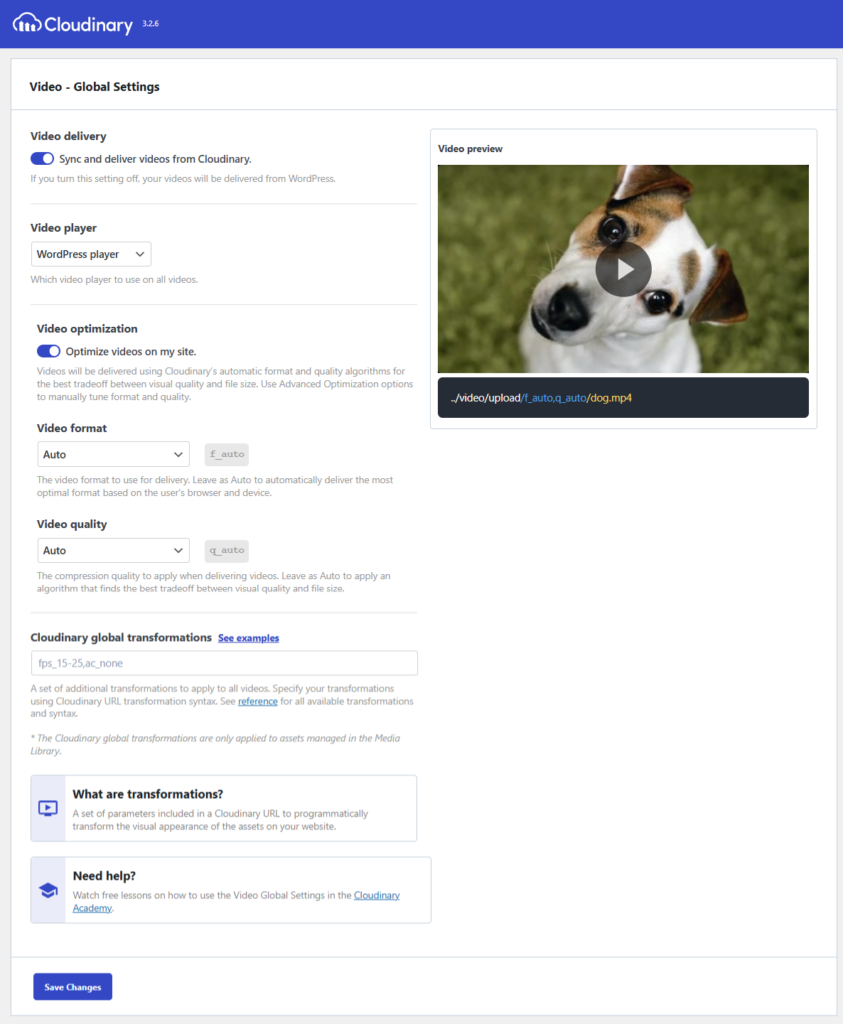
Video Settings in Cloudinary control video delivery, optimization, format, quality, and transformations to enhance performance and playback across devices.
Screenshot: Video Settings
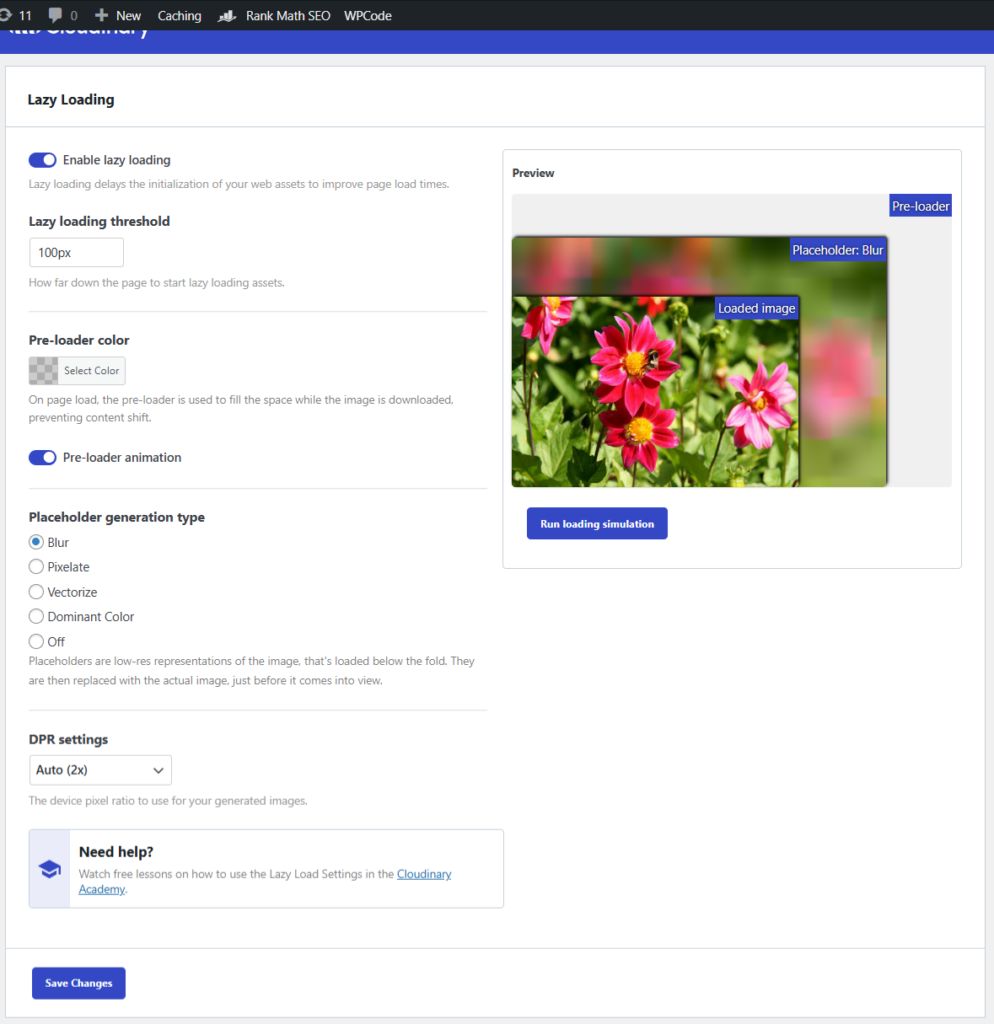
Lazy Loading Settings enable optimized loading of images and videos by deferring their loading until they are needed, improving page speed and performance.
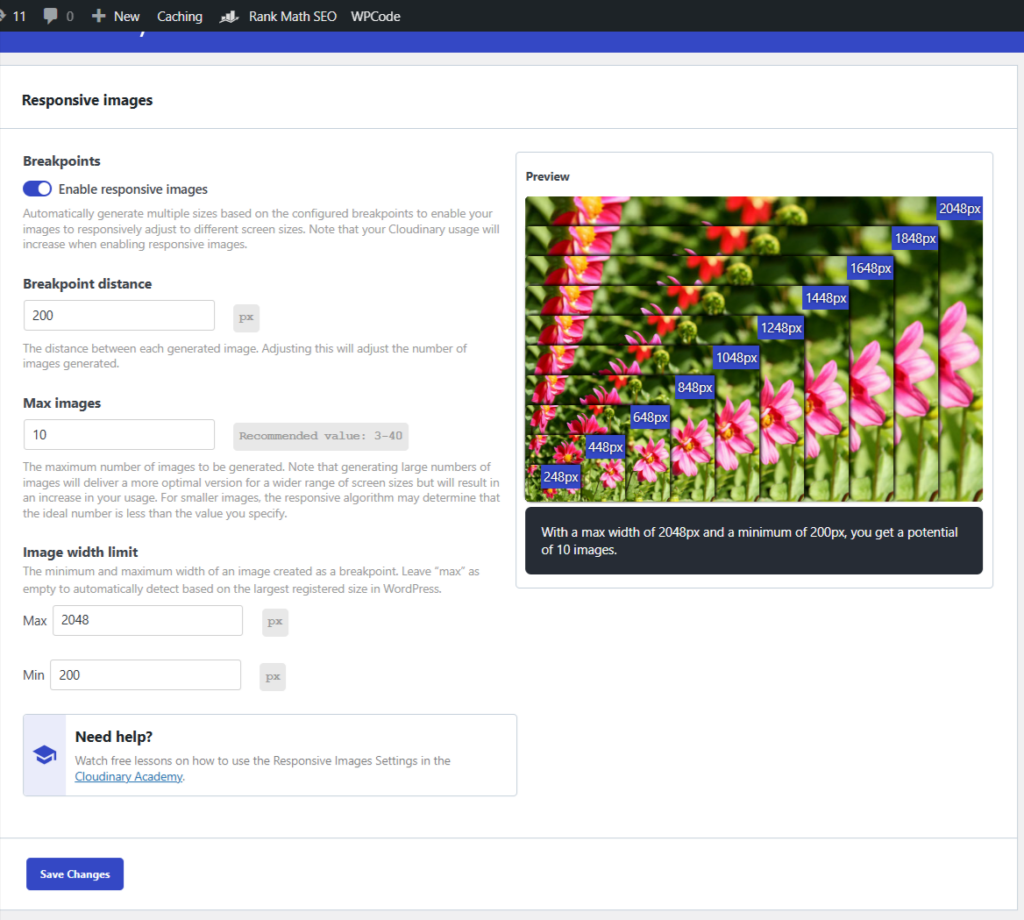
Screenshot: Lazy Loading Responsive Image Settings automatically generate multiple image sizes based on breakpoints to optimize loading across different screen sizes, enhancing performance and user experience.
Screenshot: Responsive Image settings
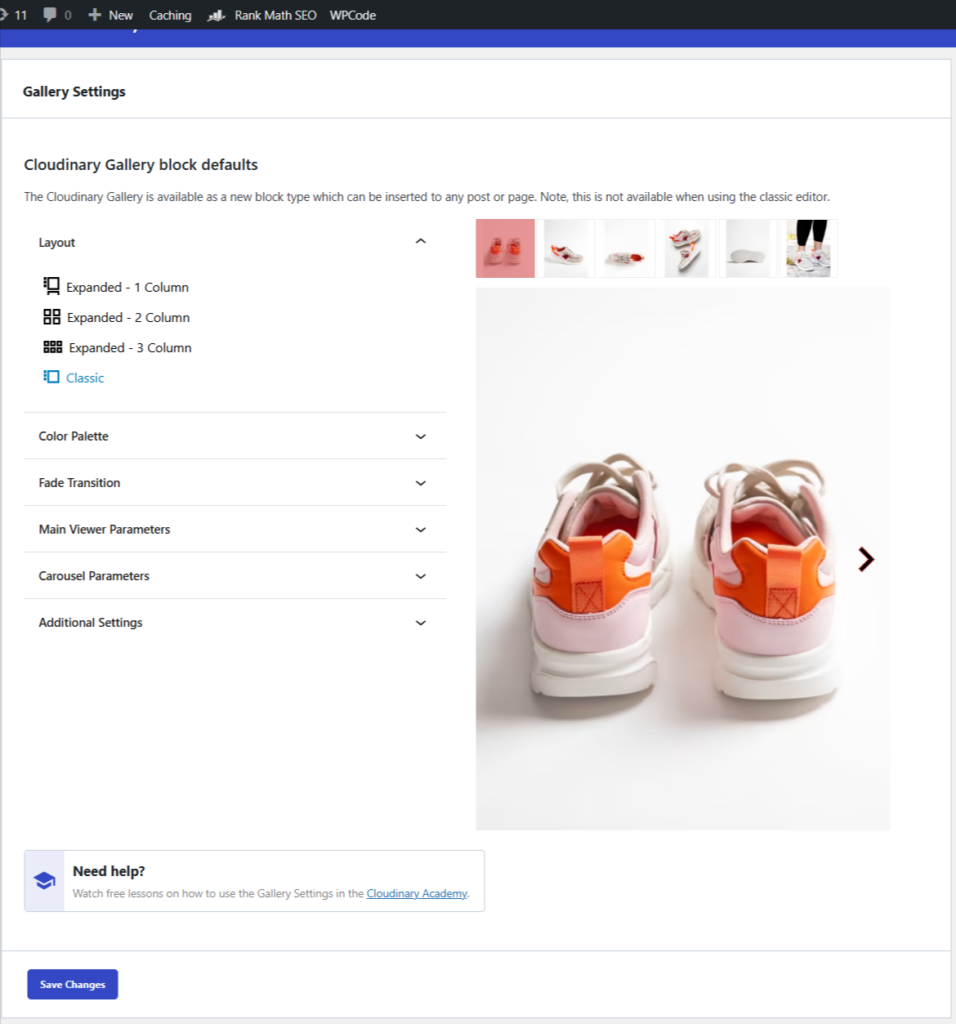
Gallery Settings allow customization of gallery layouts, color palettes, transitions, and display parameters to enhance visual presentation on posts and pages.
Screenshot: Gallery settings
That’s it! You are all set to use Cloudinary DAM!
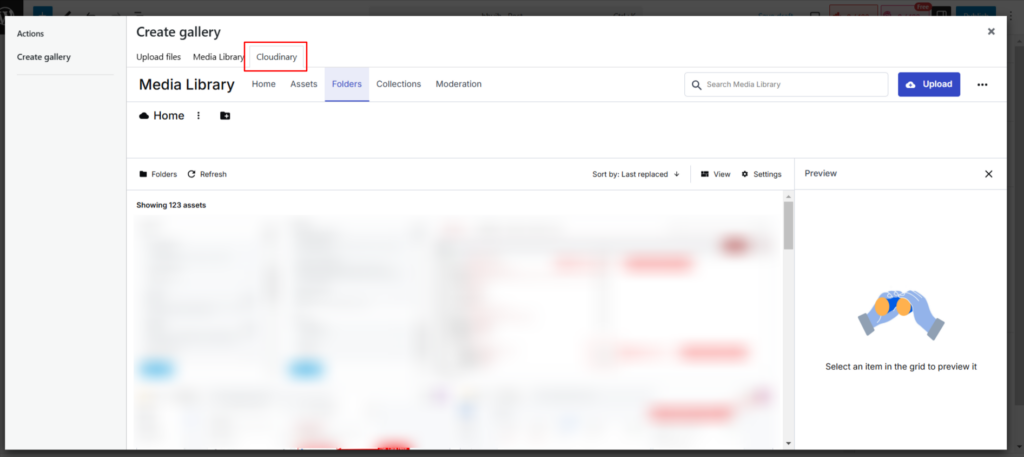
Now, while using the WordPress Editor, when you add an image, you can see the Cloudinary option.
Screenshot: Cloudinary Option While Uploading Media
Conclusion
Integrating Cloudinary with WordPress makes managing media files easier, faster, and more efficient. It keeps your site organized, speeds up loading times, and improves SEO by delivering optimized images and videos through a global CDN.
With your Digital Asset Management (DAM) now in place, you can handle high-quality media without slowing down your website!
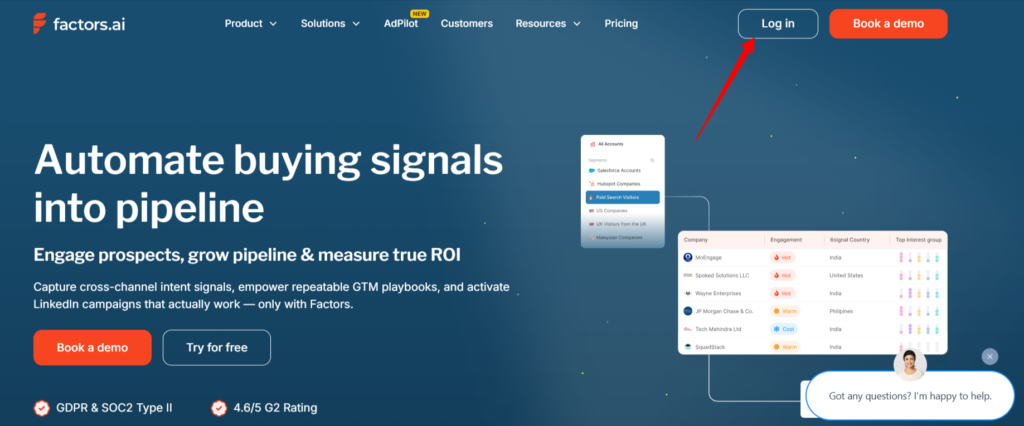
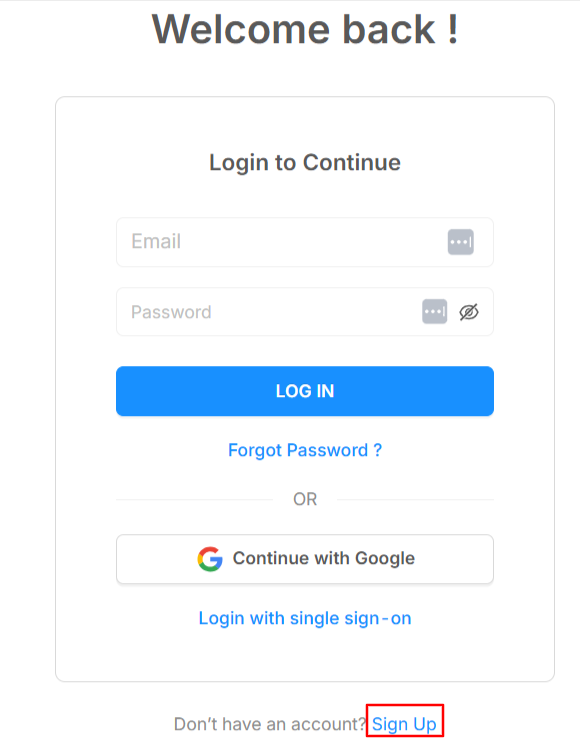
Click the Log in button. If you already have an account, enter your login credentials. If you don’t have an account, click on Sign up.
Screenshot 2: Create an Account at Factors AI
Enter your email address. Make sure you only use your work email, as Factors AI does not accept personal email addresses.
Follow the setup instructions, like filling out your name and phone number to create your account.
Connect Factors AI with Your Website
Next, you have to connect your website to Factors AI.
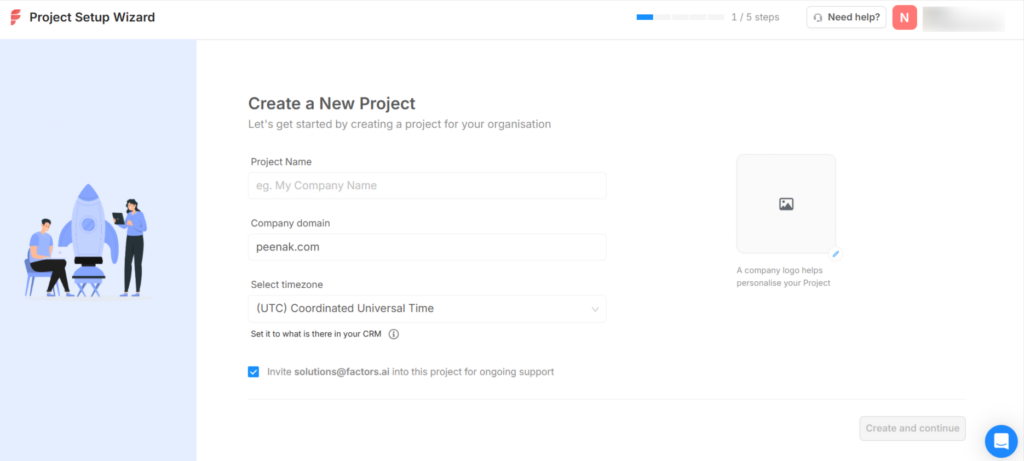
Create a New Project: This tab will gather information about your Project Name, display by default your company’s domain, and your preferred time zone. You can also upload your company’s logo to get a more professional look. Click on Create and continue to proceed.
Screenshot 3: Enter your Company Details
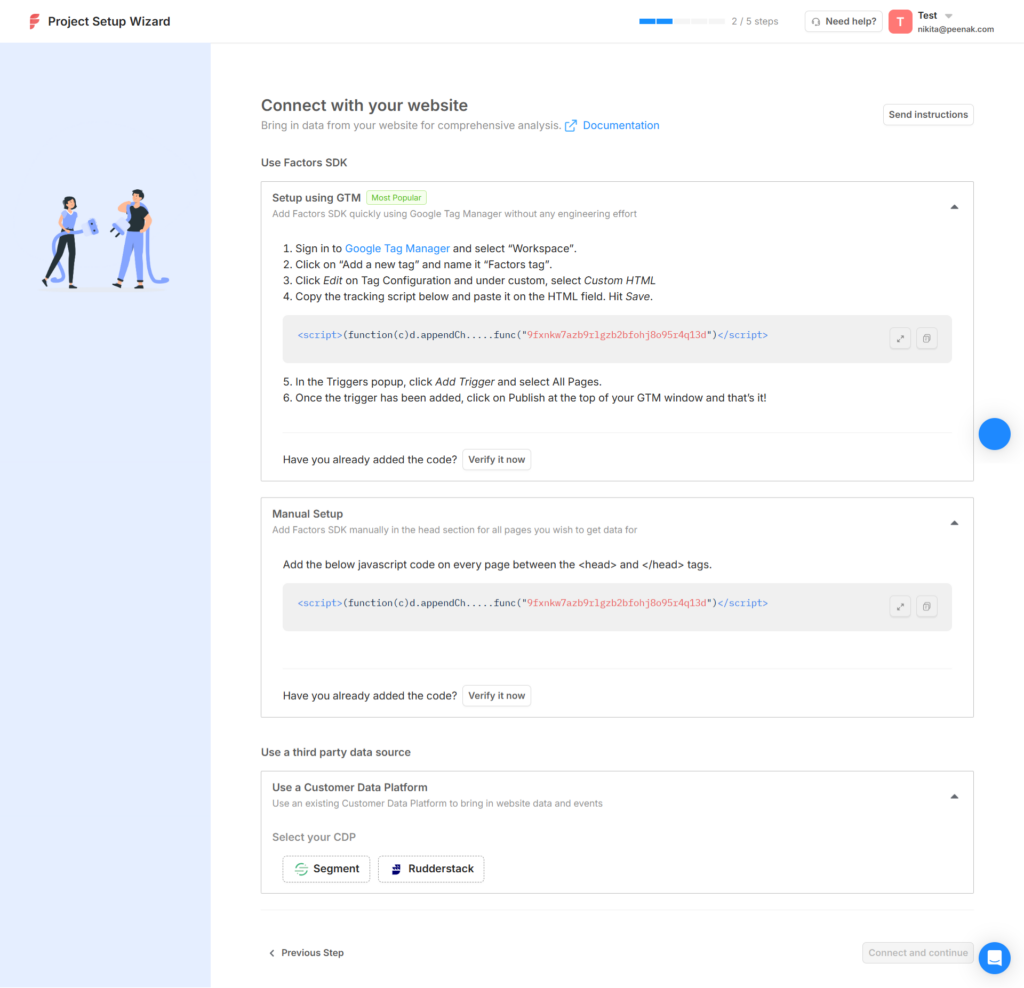
Connect With Your Website: This step is about integrating Factors AI with your website so that it can start tracking visitor activity. You have three ways to do this:
Using Google Tag Manager (GTM): Recommended (Easier)
Manual Setup: Adding the script directly to your site’s code
Using a Customer Data Platform (CDP) like Segment or RudderStack
Screenshot 4: Ways to Connect Factors AI with Your Website
You can select any one option to connect your website.
We’ll cover connecting your website to Factors AI in the coming sections of the blog.
Method 1: Installing Factors AI With WPCode Plugin
For this, go to your WordPress Admin Dashboard.
Install the WPCode plugin, which allows for the insertion of code snippets.
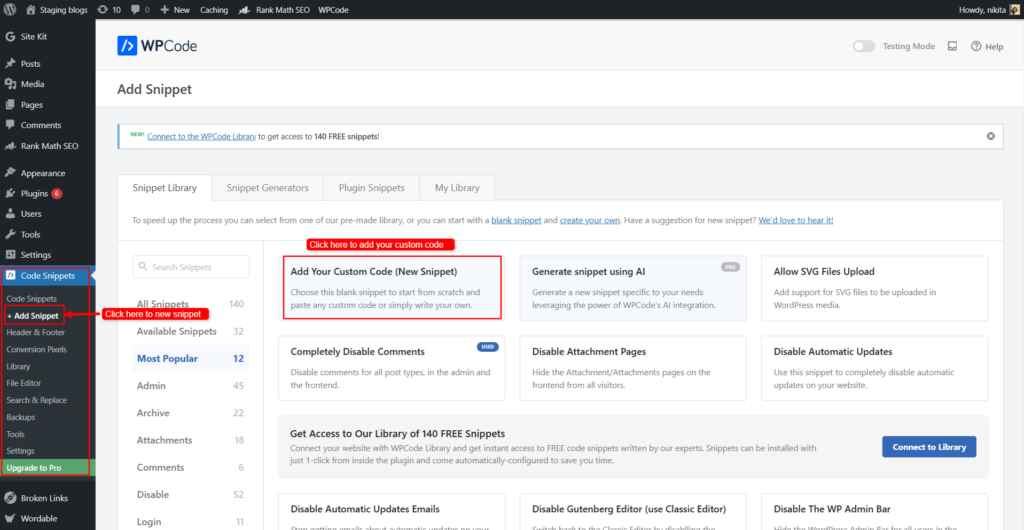
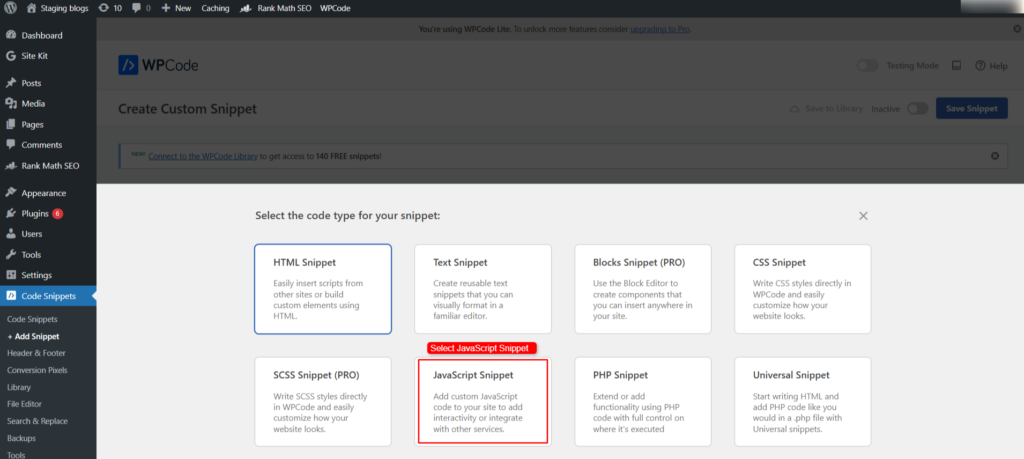
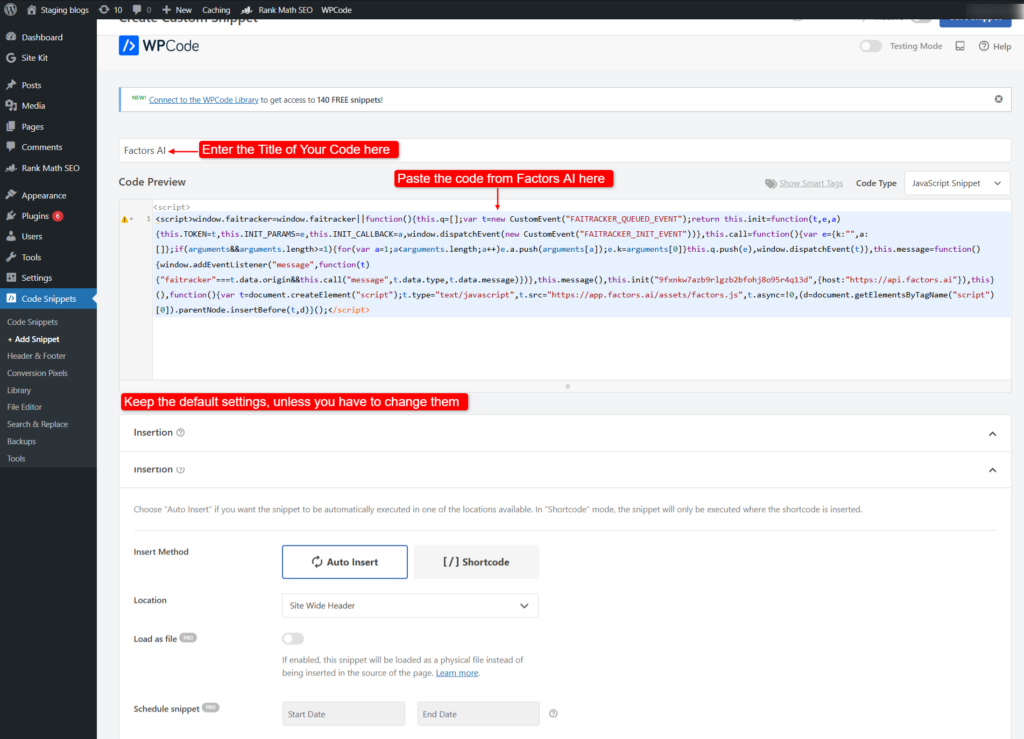
Go to Code Snippets> Add Snippet > Add Your Custom Code (New Snippet) > Select Javascript > Add Factors SDK.
Screenshot 5: Select Add Snippet
Screenshot 6: Select Javascript Snippet
Screenshot 7: Add Factors SDK
Make sure the button is Active.
Screenshot 8: Set the Active Button
Click on Save Snippet.
Go back to the Factors AI website- Connect with Your Website page.
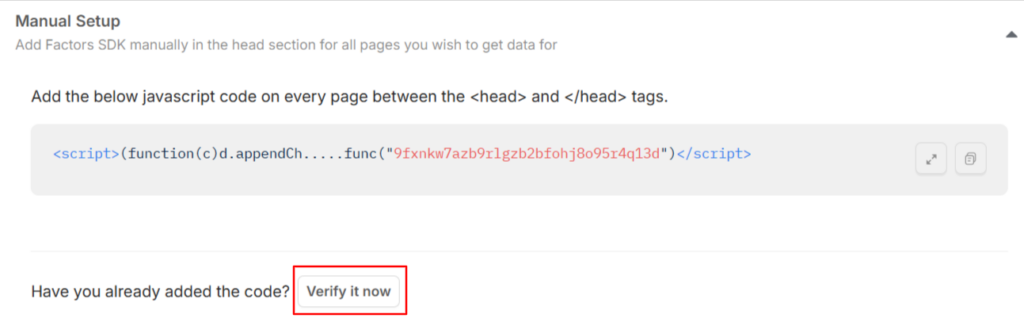
Please click 'Verify Now' to verify the connection of your website to Factors AI, irrespective of the integration method used.
Screenshot 9: Click on Verify it Now
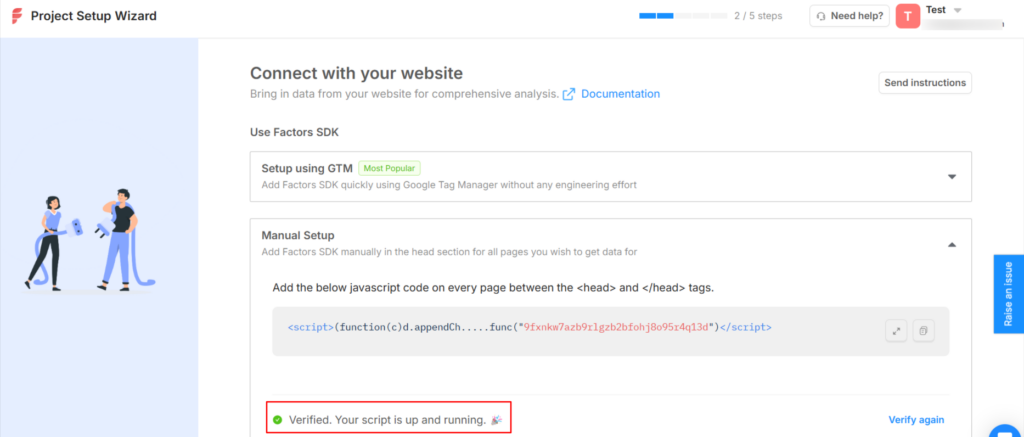
You’ll get the message “Verified. Your script is up and running.”
Screenshot 10: Script is Verified
Click on Connect and Continue.
Method 2: Installing Factors AI on your WordPress Without a Plugin (manually adding code)
You already have the Factors SDK code. Now, just manually place this code in your website’s header section.
Here are a few things to keep in mind when manually adding code:
Use a Child Theme: It's best to add the FActors AI code to your child theme instead of the parent theme. If you don't have a child theme installed, follow this tutorial to create one.
Back Up Your Website: Before making any changes, always back up your site. Check out this blog on how to back up a WordPress website. At a minimum, create a copy of your child theme's header.php or functions.php file since these will be modified. This ensures you can restore your site if anything goes wrong.
Technical Expertise Recommended: Manual code installation is recommended only if you have the necessary technical skills to handle the code.
Option 1) Installing Factors AI by adding SDK to the header.php file (recommended for developers)
Note: This method will work only on Legacy Themes and not on Block Editor Themes.
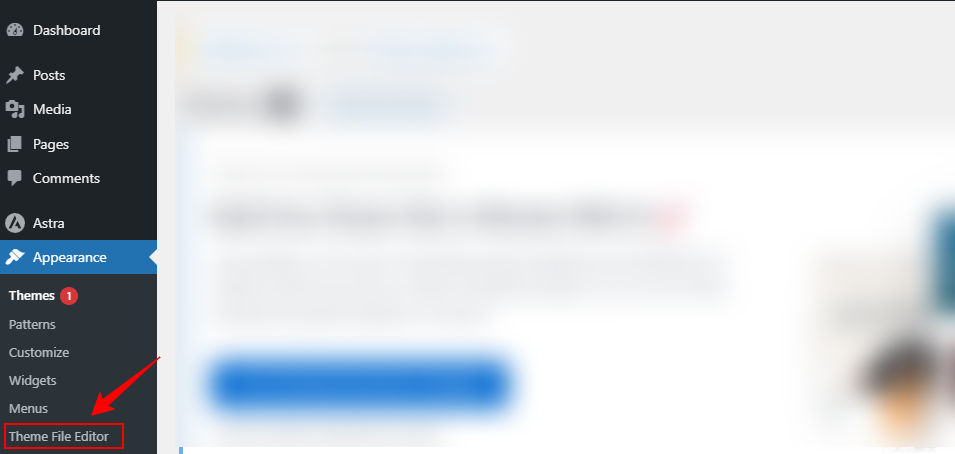
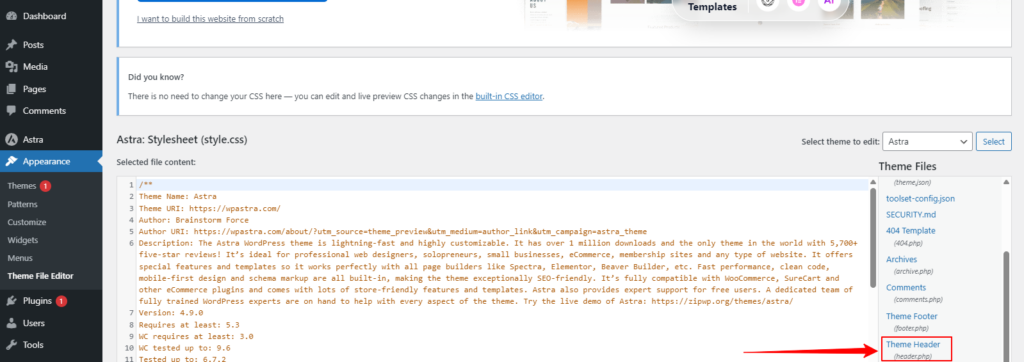
Access your website's WordPress dashboard. Go to Appearences> Theme File Editor.
Screenshot 11: Select Theme File Editor
Locate the header.php file in the right sidebar (choose header.php of the child theme).
Screenshot 12: Locate header.php file
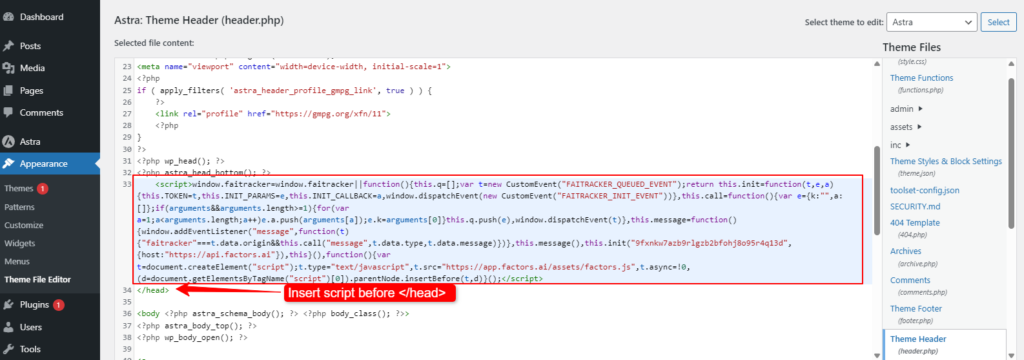
Paste the copied SDK code snippet just before the closing </head> tag.
Screenshot 13: Insert Script
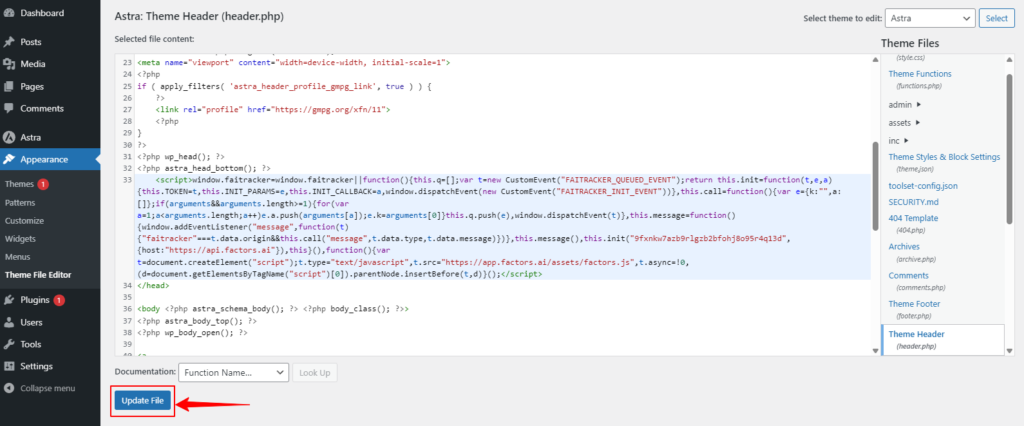
Save the changes and publish or update your website to ensure the SDK is active.
Screenshot 14: Update File
After installation, complete the verification process by following the same procedure as mentioned above.
Option 2) Adding the Factors AI Code via the functions.php File (Best for Developers)
Code snippet: Sample Factors AI code added through functions.php file
Note unique SDK ID is replaced with SAMPLE_UNIQUE_ID.
Save the changes and refresh your webpage.
Option 3) Installing Factors AI With Google Tag Manager
Integrating Factors AI with your website via Google Tag Manager (GTM) is an efficient method that requires minimal coding. Follow these steps to set up the integration:
Access your GTM account associated with your website.
In the GTM dashboard, go to the Tags section.
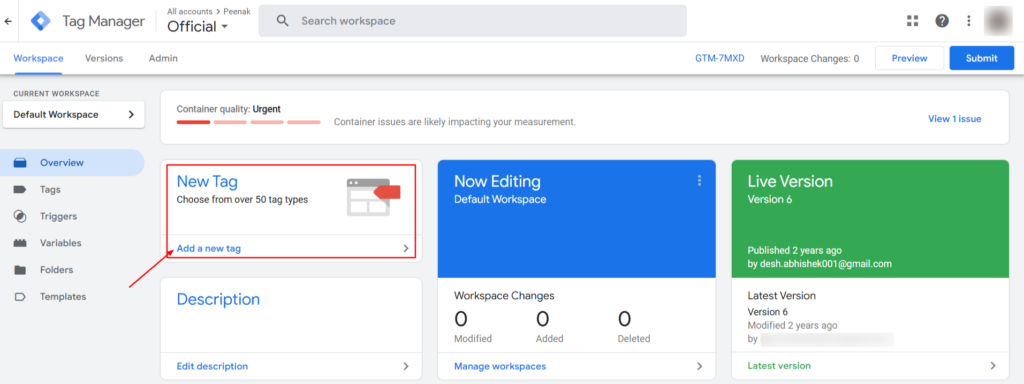
Click on New Tag to create a new tag.
Screenshot 15: Access your GTM
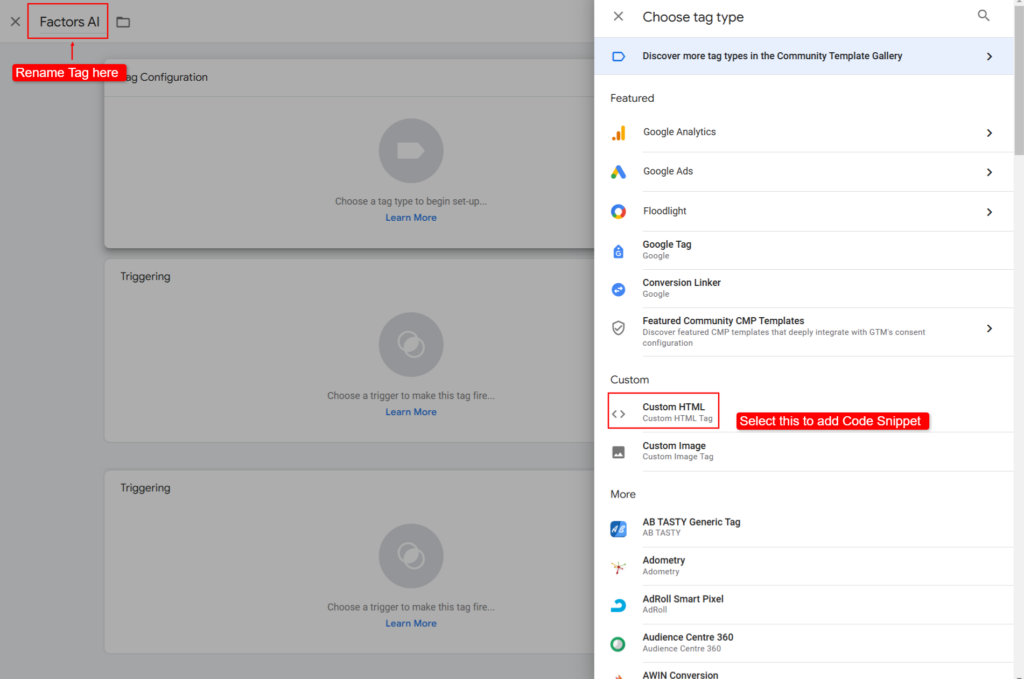
Name the tag (e.g., "Factors AI").
Click on Tag Configuration and choose Custom HTML as the tag type.
Screenshot 16: Name the New Tag and Select Custom HTML
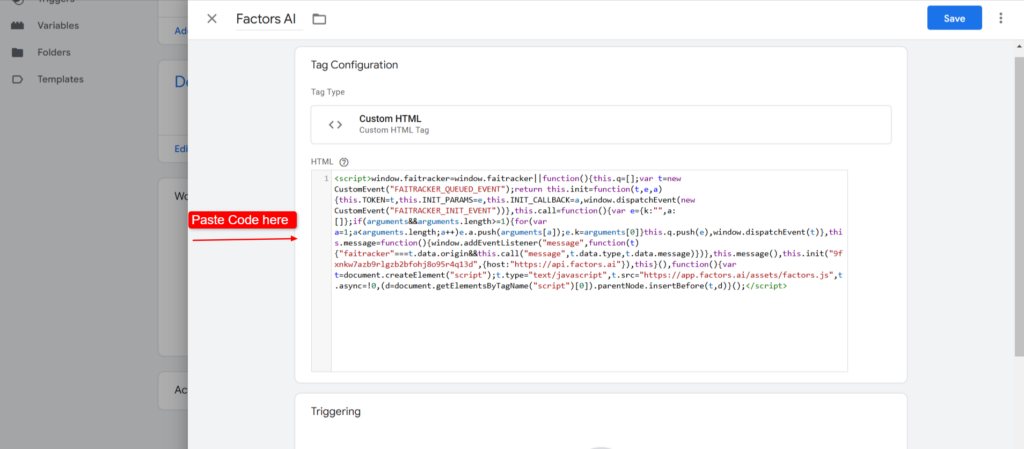
Paste the Factors AI SDK code snippet into the HTML field.
Screenshot 17: Paste Factors AI SDK Code Snippet
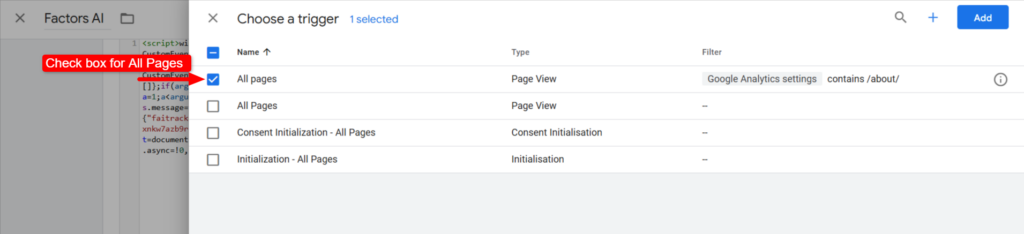
Click on Triggering and select All Pages to ensure the SDK loads on every page of your website.
Screenshot 18: Choose Trigger
Click Save to store the new tag configuration.
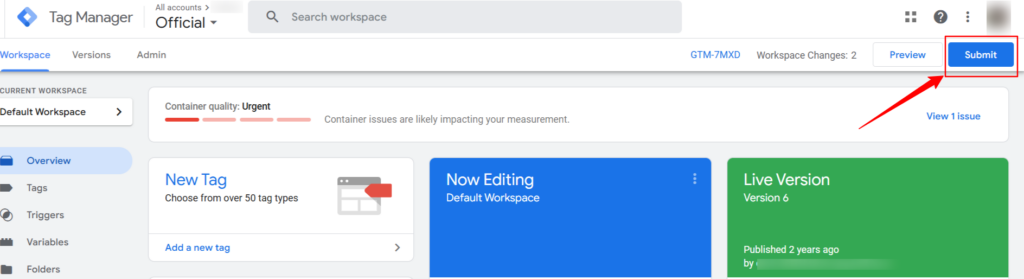
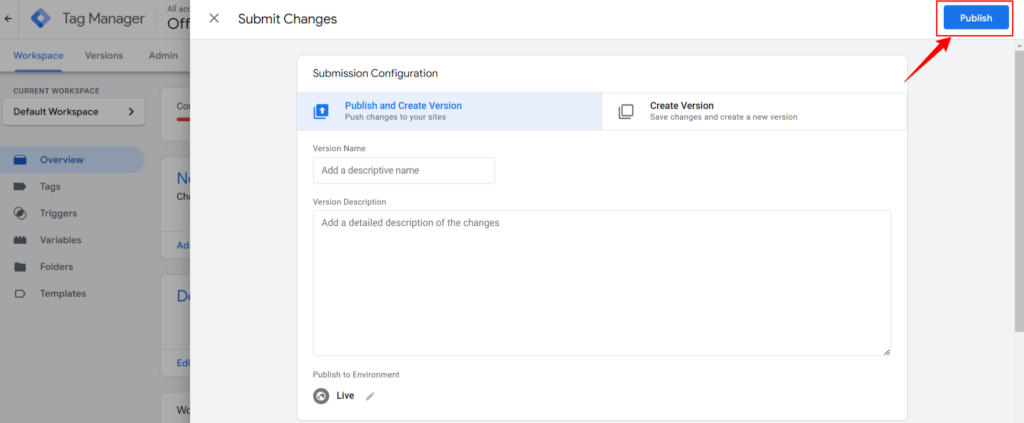
In the GTM workspace, click Submit and then Publish.
Screenshot 19: Click on Submit
Screenshot 20: Click on Publish
Follow the same steps for verification as described in Method 1.
Post Installation Step: Activate Deanonymisation
Visitors coming to your website are usually anonymous—you don’t know which company or account they belong to. Deanonymization helps identify some of these visitors by linking them to known company data.
This step allows you to control how many accounts Factors AI should try to identify, which impacts your monthly quota.
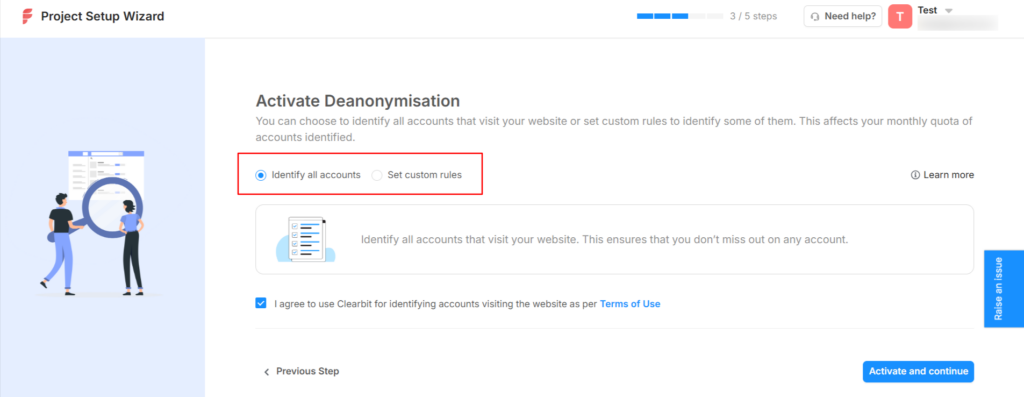
Now, you have two options:
Identify All Accounts: Factors AI will identify all website visitors, providing maximum company data but potentially consuming your monthly quota quickly. This is best suited for businesses needing complete visitor insights.
Set Custom Rules: Choose specific conditions to identify only relevant visitors based on pages or locations, helping you conserve your monthly quota.
Screenshot 21: Select preference for Deanonymisation
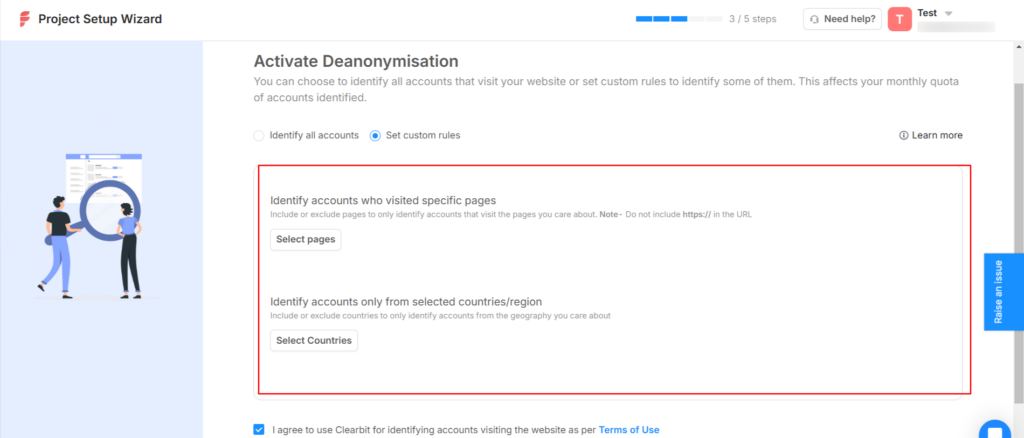
If you select Set Custom Rules, you’ll get two more options:
By Page: Identify visitors who visit key pages (e.g., pricing, signup, or contact pages) to focus on high-intent leads.
By Location: Track visitors from specific countries, ignoring irrelevant regions (e.g., limit to US and UK if your business serves only those markets).
Screenshot 22: Set Custom Rules
Click on Activate and Continue.
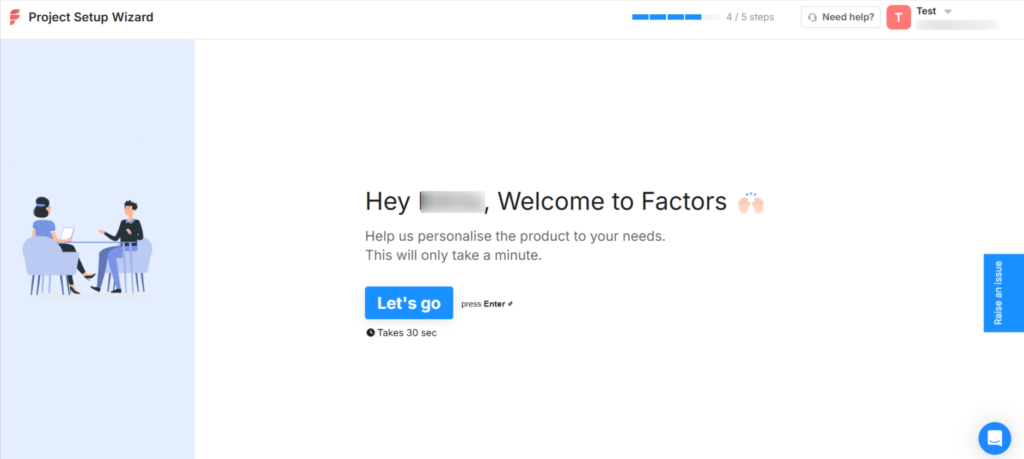
Tada! You are almost done!
Screenshot 23: Welcome to Factors
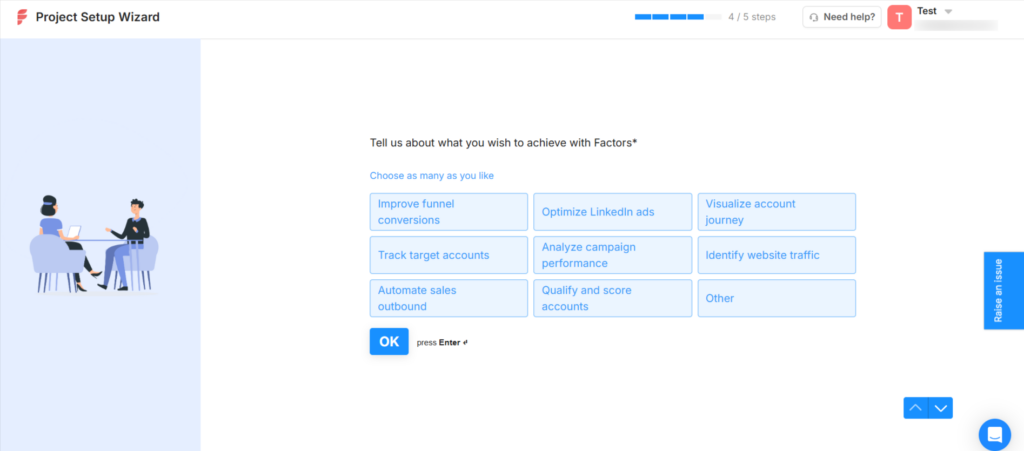
Select what you want to achieve with Factors AI. The options help Factors AI tailor its analytics and insights to match your needs.
Screenshot 24: Choose Options
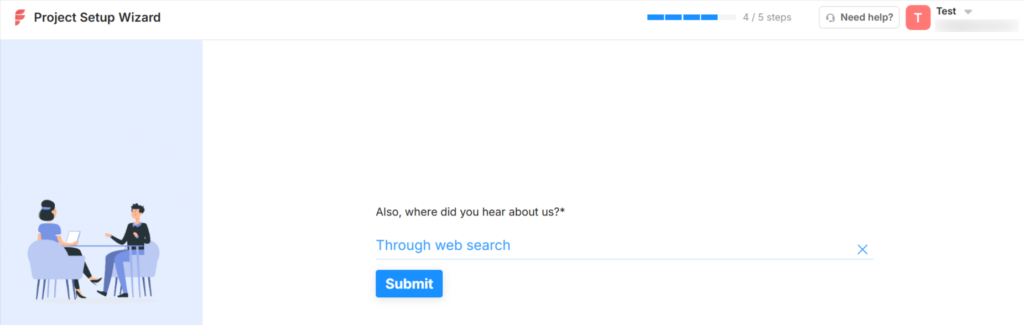
You’ll have to answer a mandatory question: From where did you learn about Factors AI?
Answer the question and click on Submit to complete the process.
Screenshot 25: Click on Submit after Answering the Question
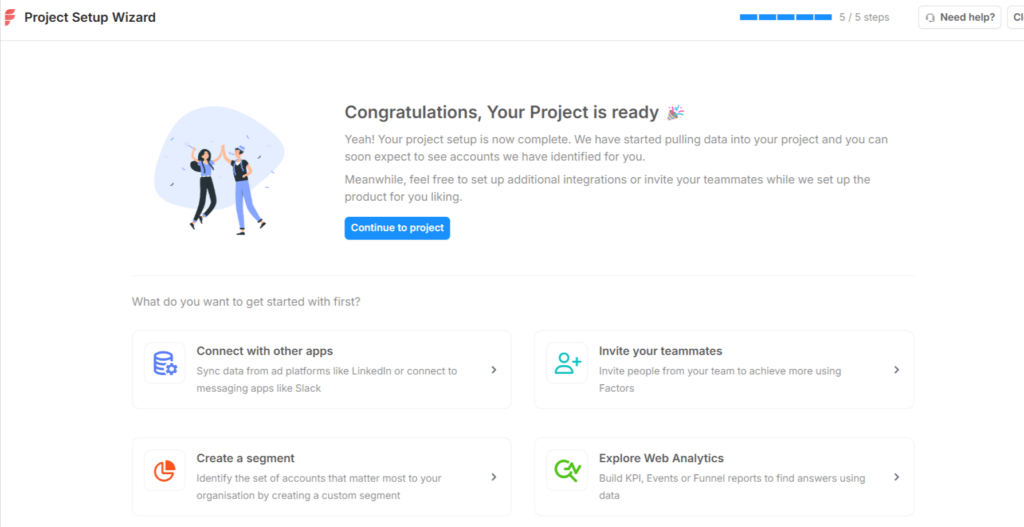
Your Project is Ready!
Click on Continue to Project.
Screenshot 26: Project is Ready
You are all set up to use Factors AI!
Verifying That Factors AI Is Working on Your Site
Once you’ve installed Factors AI on your WordPress website, you’ll want to confirm that it’s working. Here is a simple way to check:
Check if the Script is Running Correctly
The Factors AI script needs to load properly on your website to start tracking visitors.
Visit your WordPress site in the search engine.
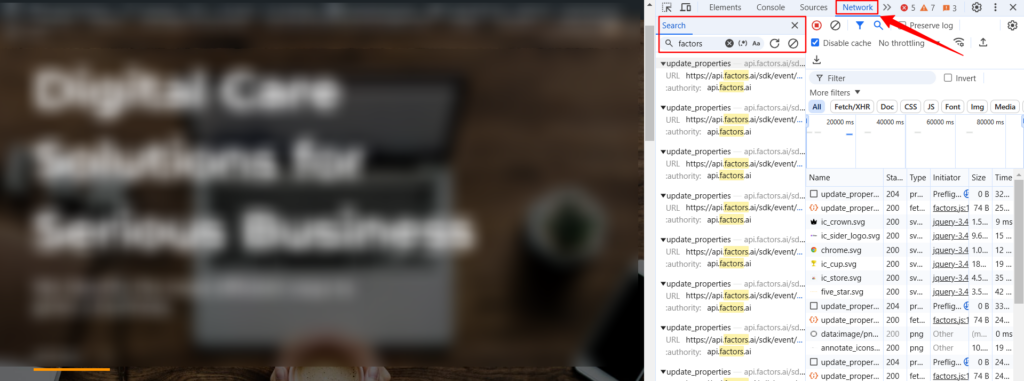
Right-click anywhere on the page and select Inspect.
Go to the “Network” Tab.
If it’s empty, refresh your page.
In the search bar (inside the Network tab), type "factors".
If the script is installed correctly, you’ll see a request loading from Factors AI’s servers.
Click on it to check the details—if it loads with a status like 200, the script is working.
Screenshot 27: Checking if the Script is Running
What if you don’t see the script?
Make sure you’ve pasted the script in the right place (the header section).
Clear your website’s cache and refresh the page.
Try using Incognito Mode to check if caching is the issue.
Conclusion
Congrats! You’ve successfully installed Factors AI on your WordPress site, unlocking powerful insights into visitor behavior.
We hope you have chosen a favorable method of installing Factors AI.
Now it’s time to dive into your dashboard, explore the data, and make smarter marketing decisions.
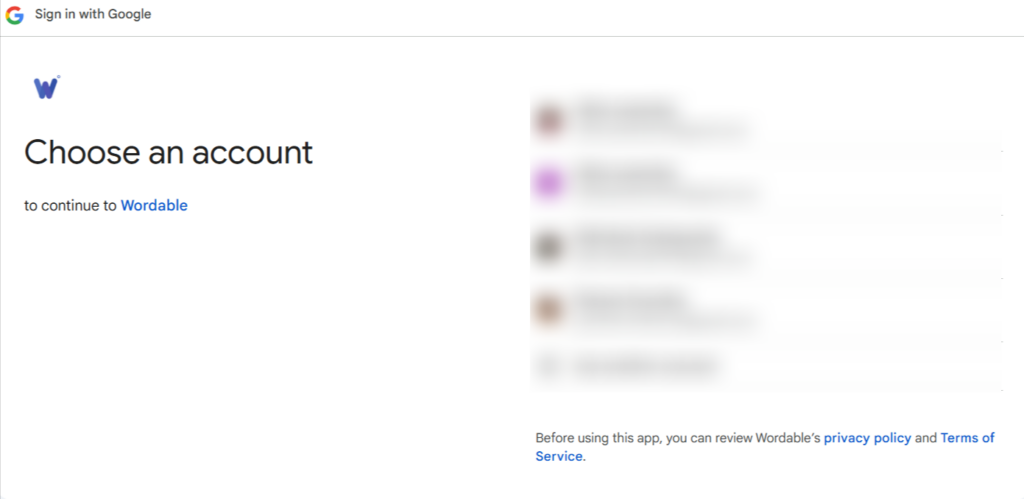
You'll be prompted to choose the Google account that you want to use.
Screenshot 4: Choose Google Account
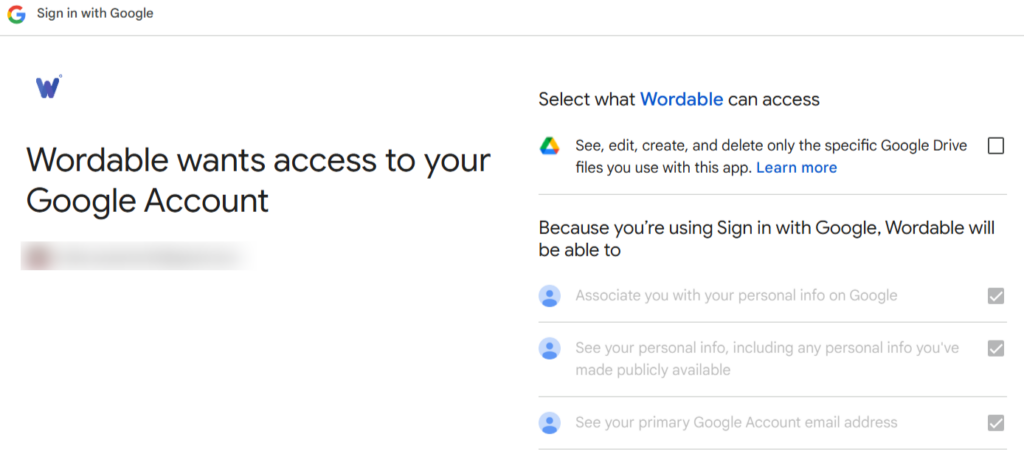
Check the box according to your requirement.
Screenshot 5: Wordable Asks for Permissions
Step 3: Import File
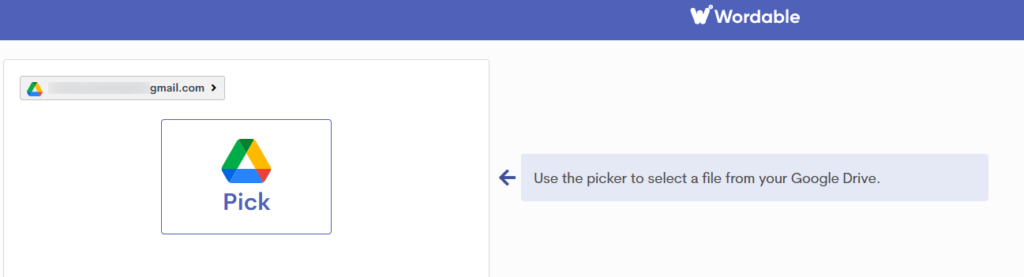
You will then be prompted to import your file from Google Drive.
Screenshot 6: Use the Google Picker
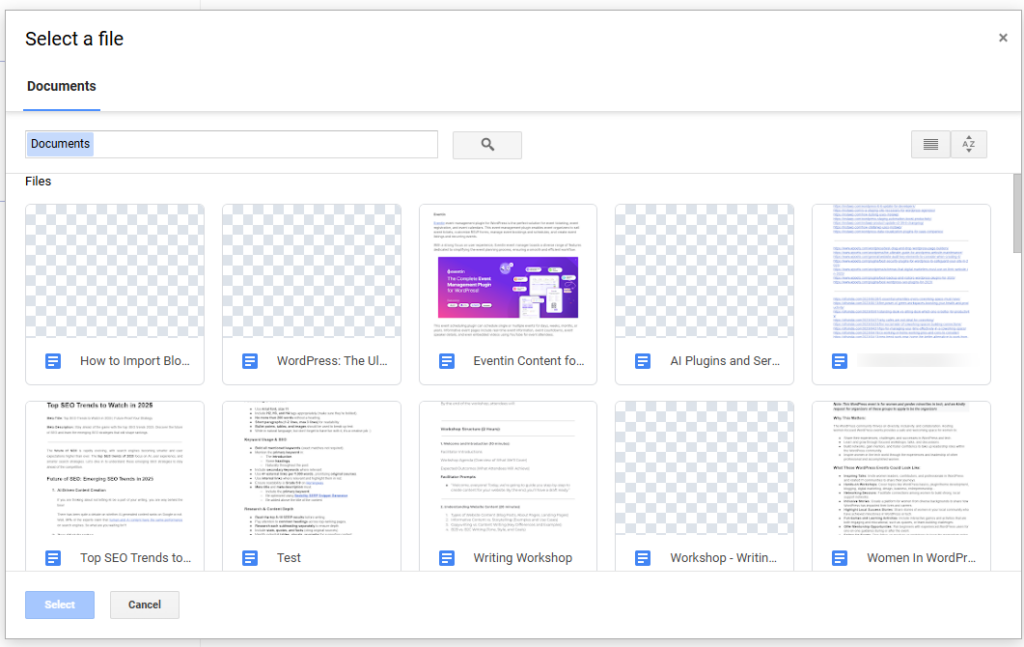
Select the file you want to import.
Screenshot 7: Select the file to Import
Step 4: Export File
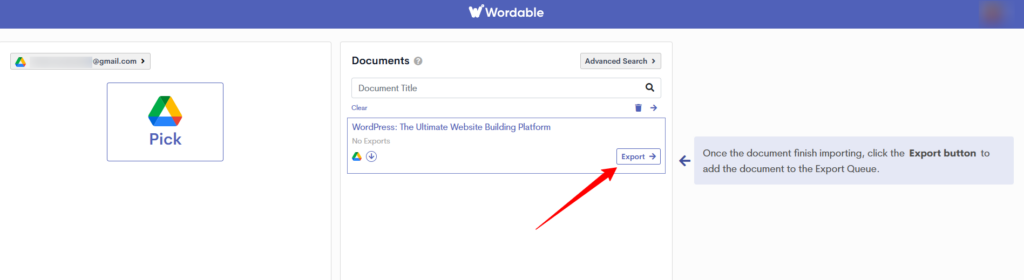
Your selected documents will be added to the export queue. Select the document you want to export. Then, click on Export.
Screenshot 8: Click on Export
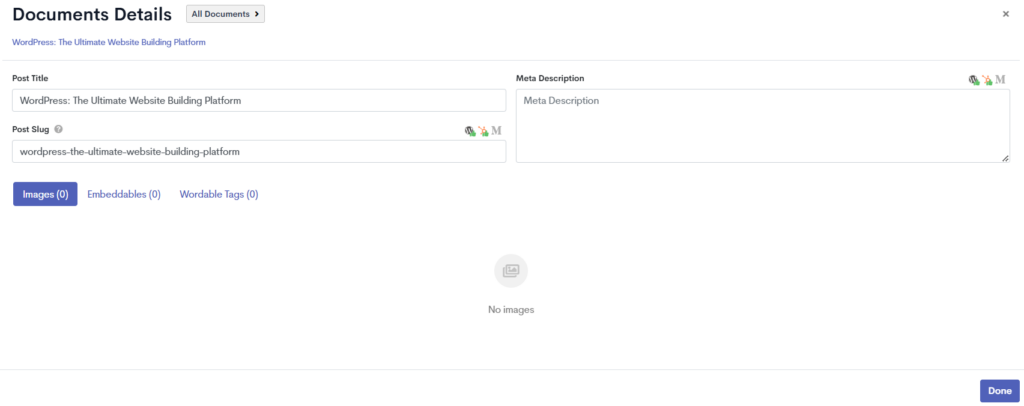
You can also view and change the document settings, such as Post Title, Post Slug, and Meta Description. Click on Done to save the changes.
Screenshot 9: Document Details
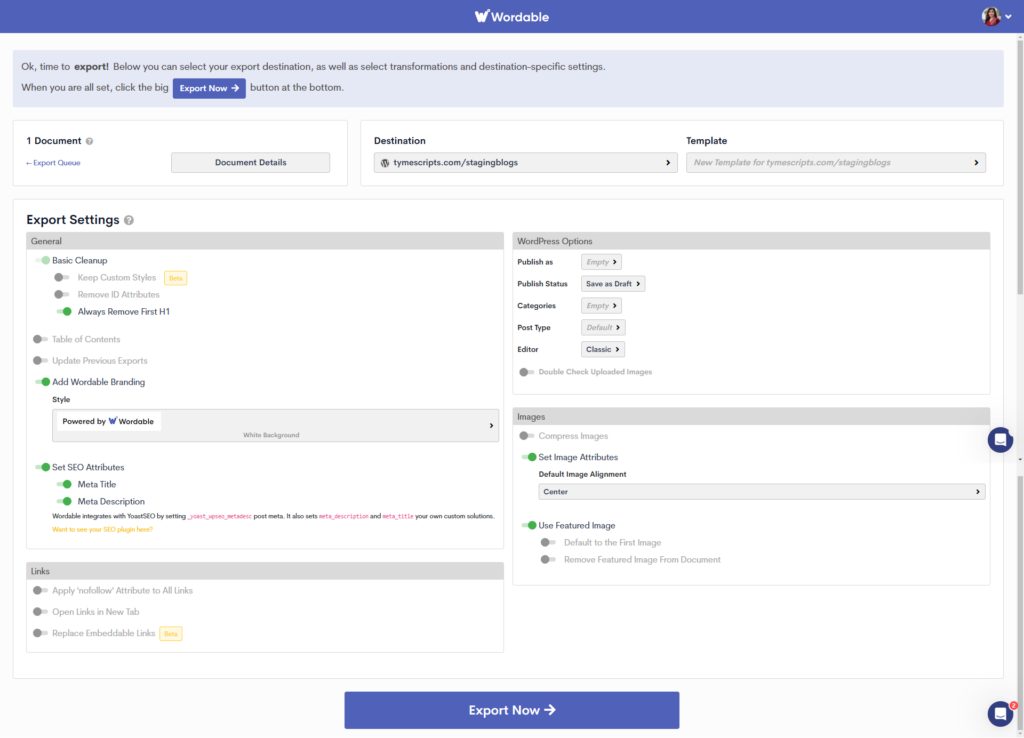
Step 5: Export Settings
Click on Export Options to proceed further.
Screenshot 10: Export Settings
The details of these settings are provided below:
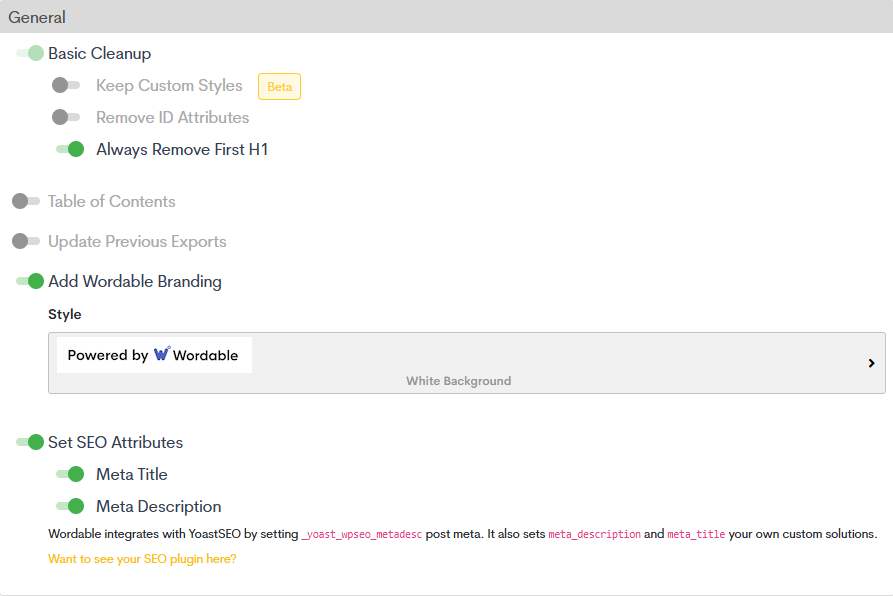
General Settings
This section contains various cleanup and formatting options that help optimize content before exporting.
Screenshot 11: General Settings
Basic Cleanup
Keep Custom Styles (Beta) – This option retains any custom styles applied in Google Docs when exporting to WordPress. Since it is in beta, it may not work perfectly.
Remove ID Attributes – If enabled, this removes ID attributes from HTML elements, which can help clean up unnecessary code.
Always Remove First H1 – This ensures that the first <h1> heading in the document is removed. Many WordPress themes automatically generate an <h1> from the post title, so having another <h1> in the content could negatively affect SEO.
Table of Contents
If enabled, this feature automatically generates a Table of Contents (ToC) based on the headings within the document. This is useful for improving readability and navigation.
Update Previous Exports
If checked, Wordable will update an already exported document instead of creating a new one. This is helpful when making revisions to previously published content.
Add Wordable Branding
Style – If this option is enabled, a "Powered by Wordable" branding will be added to the post.
The branding style is customizable with a white background or a transparent background.
SEO Attributes
This section ensures the exported content is optimized for search engines.
Meta Title: This allows the user to set a custom meta title for the post, which is crucial for SEO.
Meta Description: This lets the user add a meta description, which influences how the page appears in search engine results.
Wordable integrates with the Yoast SEO plugin and automatically sets these attributes using _yoast_wpseo_metadesc post meta. If another SEO plugin is used, Wordable can still apply custom meta titles and descriptions, you just have to put a request for that.
Links
This section provides link management options to improve SEO and user experience.
Screenshot 12: Links Settings
Apply 'nofollow' Attribute to All Links: If enabled, all links in the post will have the rel="nofollow" attribute, preventing search engines from passing link authority.
Open Links in New Tab: Forces all links in the post to open in a new browser tab.
Replace Embeddabble Links (Beta): This option (currently in beta) replaces embeddable content (like YouTube or Twitter links) with their embedded version instead of just a plain URL.
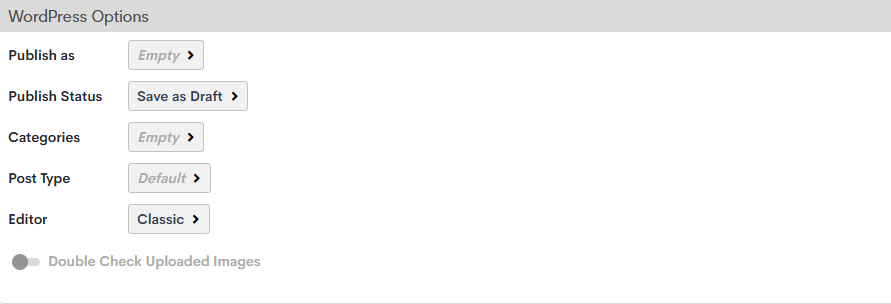
WordPress Options
This section allows customization of how the document will be published on WordPress.
Screenshot 13: WordPress Settings
Publish As: Users can choose whether to export the document as a post, page, or other post type.
Publish Status: Options include Save as Draft, Publish Immediately, or Schedule for Later.
Categories: The user can assign one or more WordPress categories to the post.
Post Type: Defines whether the content should be treated as a blog post, page, or another custom post type.
Editor: Users can select between the Classic and Block (Gutenberg) editor in WordPress.
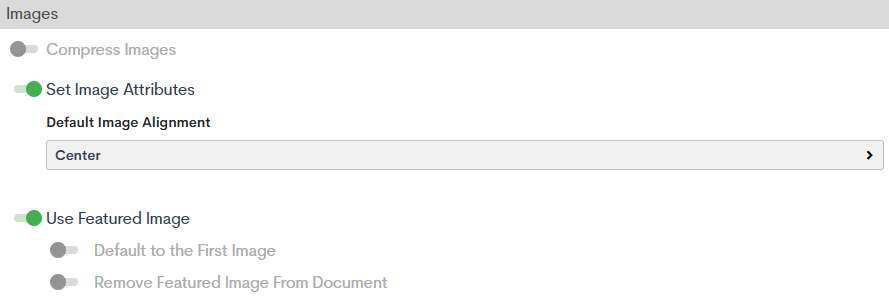
Double Check Uploaded Images: If enabled, this verifies that all images are properly uploaded and formatted before publishing.
Image Settings
This section controls how images in the document are handled when exported.
Set Image Attributes: Allows setting a default image alignment (e.g., Center, Left, or Right) for all images in the post.
Use Featured Image: This determines whether an image from the document will be set as the featured image in WordPress.
Default to the First Image: If enabled, the first image in the document is automatically set as the featured image.
Remove Featured Image from Document: This removes the first image from the body of the post if it has been set as the featured image.
Step 6: Complete Export Process
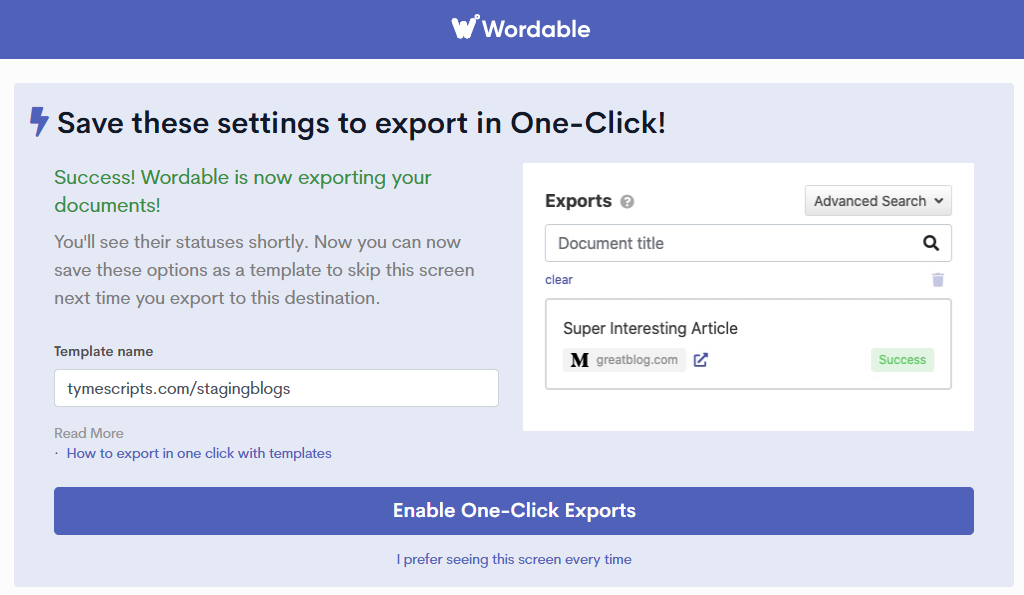
Click on Export Now to continue.
You can save the above settings for future use, or you can check the settings every time.
Screenshot 15: Save Settings
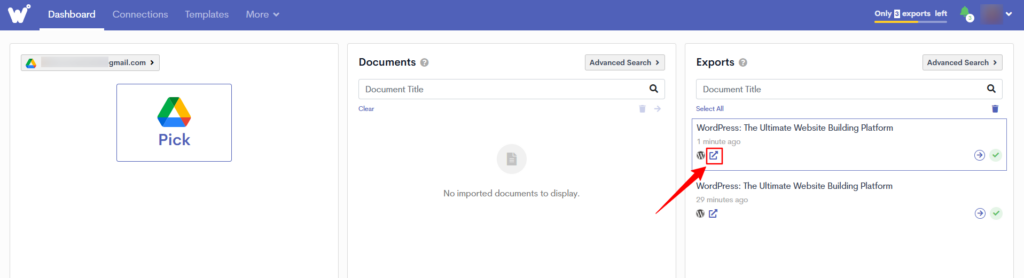
You’ll be redirected to the Wordable dashboard, where you can see your exported documents.
Step 7: Final Step to Export
Click on the icon as shown in the image to open your post in WordPress.
Screenshot 16: Click to Edit Post
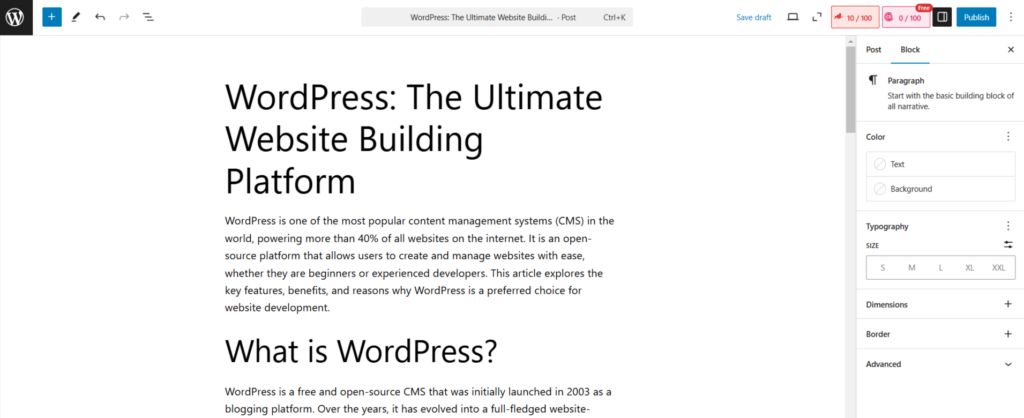
Screenshot 17: Edit Post in WordPress
Voila! You just imported your Google Doc in WordPress in literally one click!
Before hitting Publish, take a few minutes for a final review—formatting, images, links, and SEO details can sometimes go off-track. A quick check ensures your post looks polished, professional, and ready to go live!
Conclusion
Transferring blog posts from Google Docs to WordPress shouldn’t be a hassle. However, with tools like Wordable, you can keep formatting intact, upload images automatically, and save your valuable time. Focus on writing great content—let the one-click import tool Wordable handle the rest!
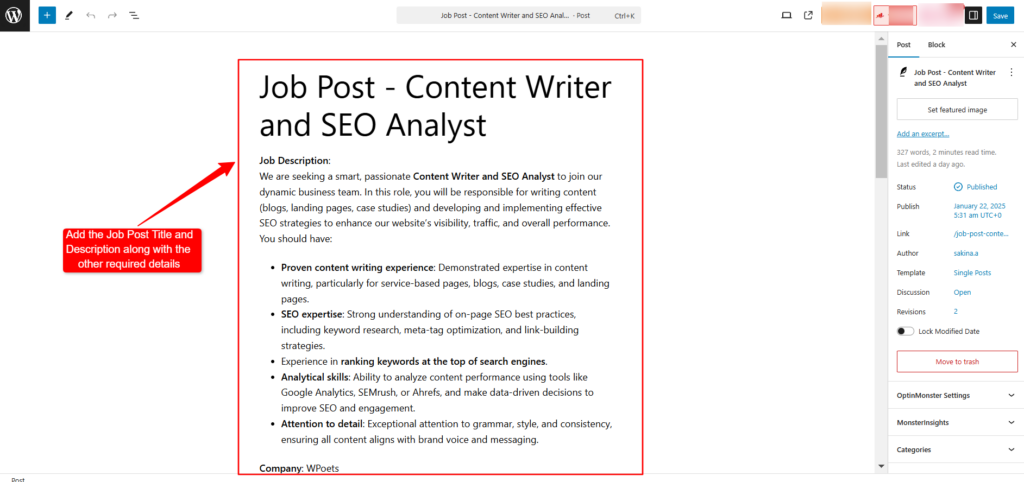
Fill in all the relevant details about the job, such as the title, description, and any additional information job seekers might need.
Screenshot 2: Create a new post on your WordPress Website and add the Job Post details
Step 1.3: Access the Schema Generator from Rank Math Schema Settings
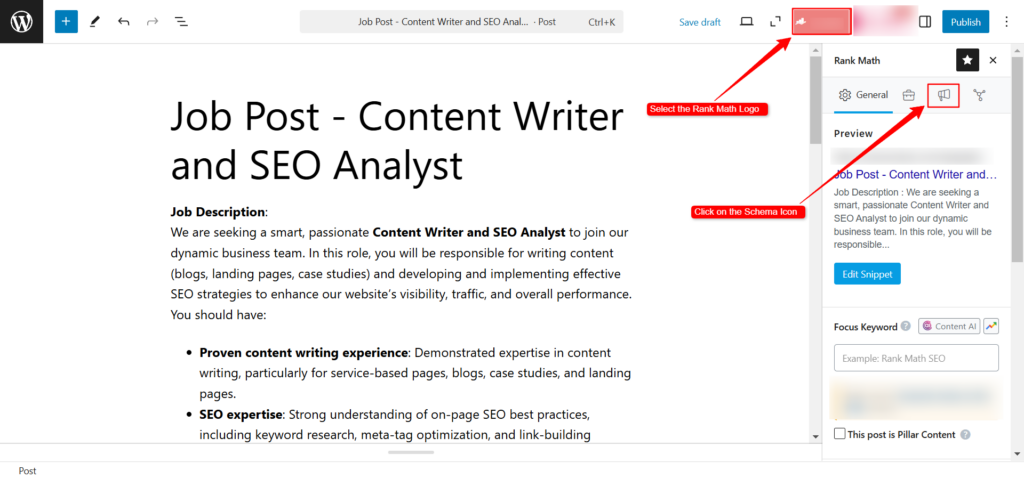
Once you’ve added the job post details, look for the Rank Math button.
Click on it to access the Rank Math options as shown in screenshot 2. A sidebar menu will appear on your screen.
Then, select the Schema Icon from the sidebar menu.
Screenshot 3: Click on the Rank Math logo and select the Schema Icon from the sidebar menu
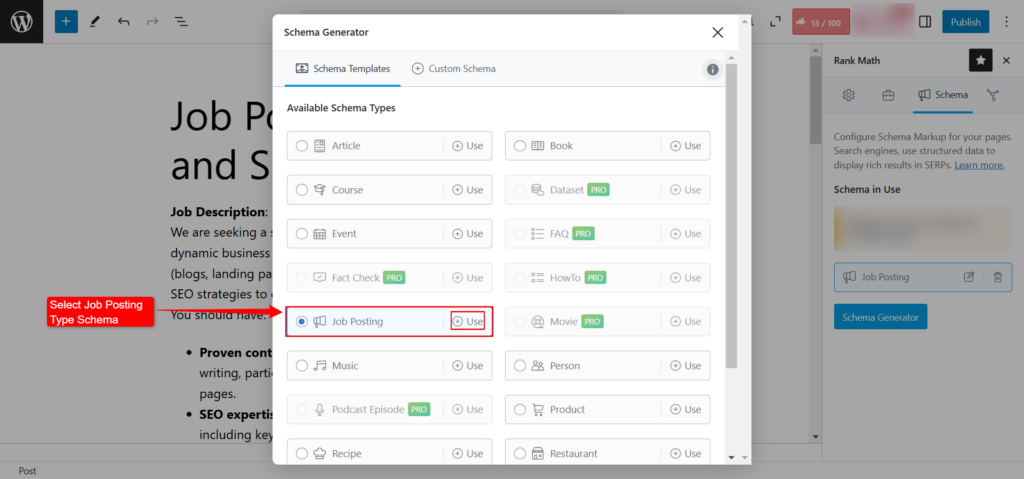
In the Schema Generator menu, locate and click on the Job Posting Schema option to enable the job schema for this post. as shown in screenshot 4.
Screenshot 4: Select the Job Schema option from the Schema Generator Tab of the Rank Math Plugin
Step 1.4 Fill in the Job Posting Schema Fields:
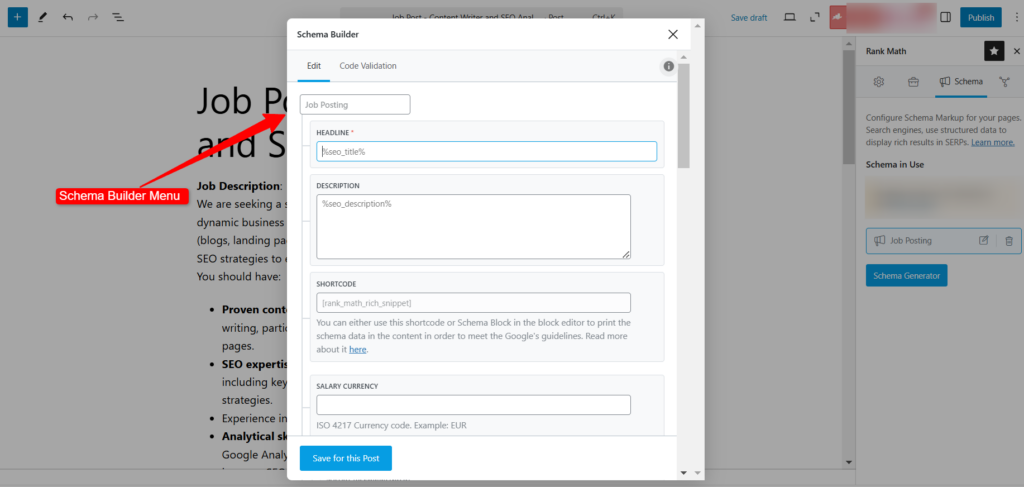
A Schema Builder menu will appear after selecting the Job Posting option.
Screenshot 5: Schema Builder Menu
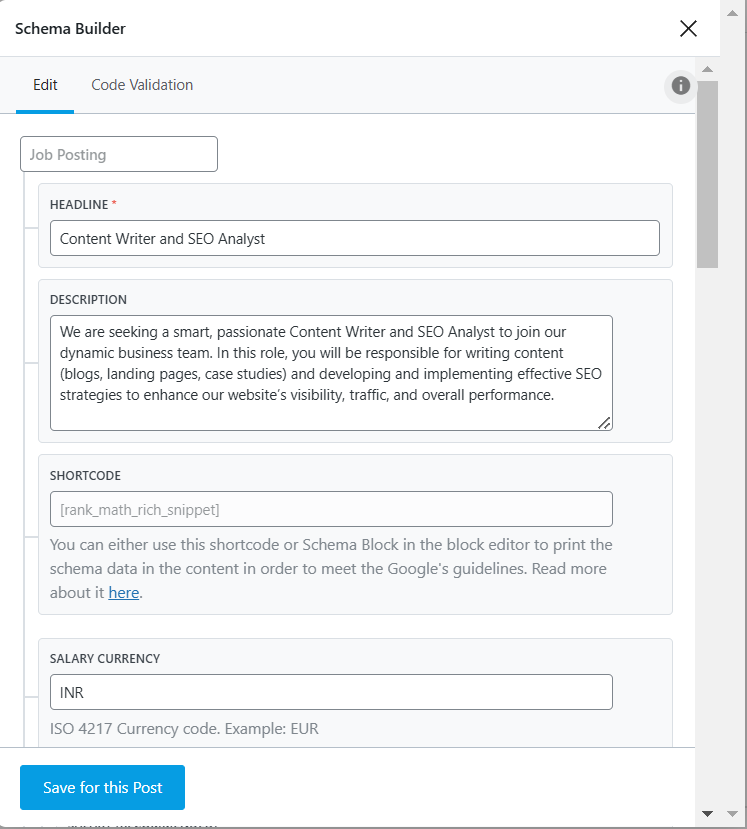
Add Job Posting Details:
Provide the Job Title that reflects the role being advertised.
Include a Job Description that outlines the responsibilities and key qualifications required for the position.
Specify the Salary Currency to ensure clarity for applicants on the expected remuneration.
Screenshot 6: Added Job Posting Details
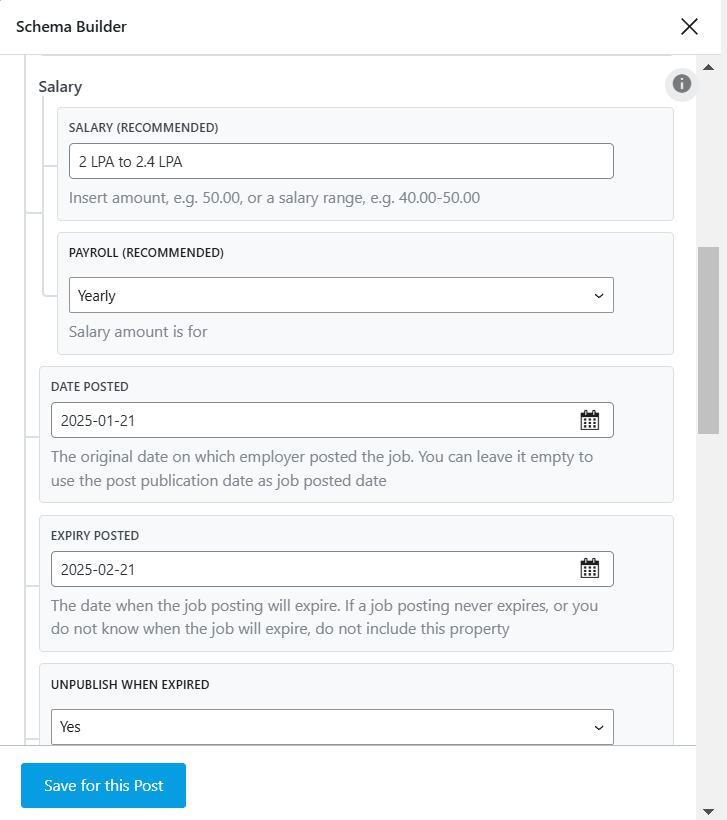
Add Salary Details:
Include the Recommended Salary to give potential candidates an idea of the compensation range for the role.
Specify the Payroll Type to explain how employees will be paid (e.g., hourly, salaried, commission-based).
Add Job Posting Date and Expiry:
Mention the Date Posted, which marks when the job was first made available.
Set an Expiration date for the job post, indicating when the listing will no longer be available to applicants.
Enable the Unpublished When Expired option to automatically remove the job posting after the expiry date. This ensures that applicants are only seeing active opportunities, improving the clarity and relevance of your job listings.
Screenshot 7: Added Salary Details and Job Posting Date and Expiry Date
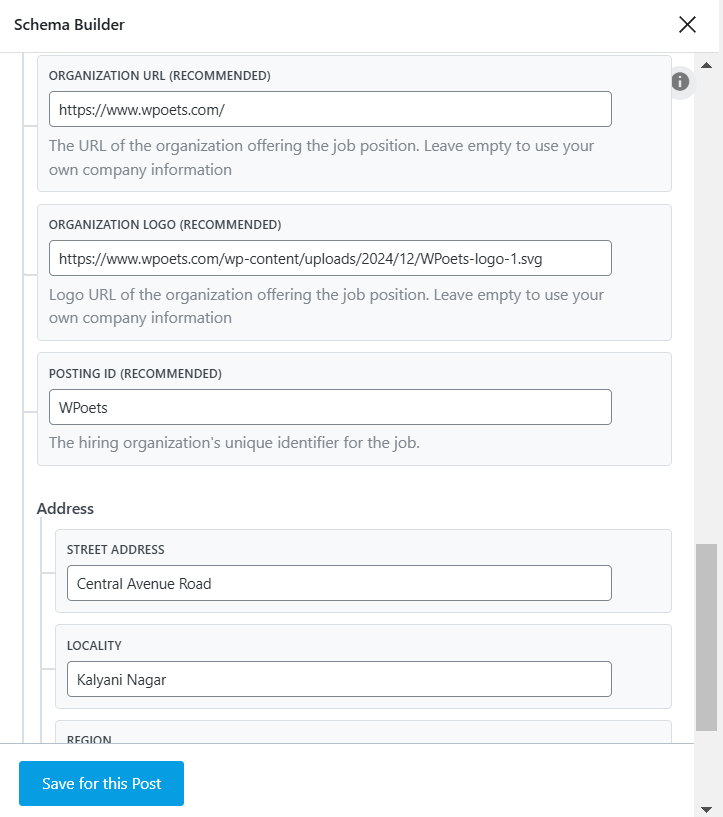
Add Organization Details:
Provide the Organization URL so applicants can easily learn more about your company.
Upload the Organization Logo to create a recognizable and professional brand presence in the job post.
State the Organization Name to identify the company offering the position.
Screenshot 8: Added Organization Details
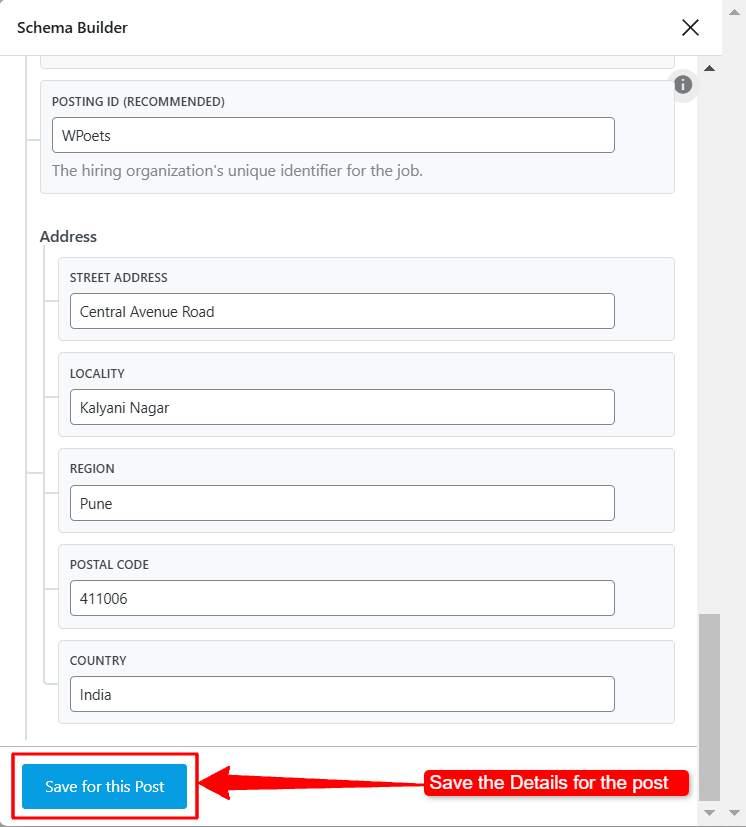
Add Address Details:
Clearly state the Address of the workplace, giving applicants a sense of where the role is based.
Consider adding specific location information or city/region for added context.
Finally, Save the Post.
Screenshot 9: Added Address Details and Save the Job Posting Details
Step1.4: Publishing the Job Post and Job Posting Schema:
Once the Job Posting Schema details, click on the Publish Button. The Rank Math SEO plugin will automatically generate the Job Posting structured data and add it to your post.
The Coding of the Job Post Schema in Rank Math SEO
When you publish a job post using the Rank Math SEO plugin, the system automatically generates a schema markup. You can view this markup by inspecting the source code of the post after it has been published.
This schema helps search engines understand and display job listing details like title, description, salary, and more, enhancing visibility and accuracy on search results pages.
{ "@context": "https://schema.org", "@graph": [ { "@type": "JobPosting", "title": "Content Writer and SEO Analyst", "description": "We are seeking a smart, passionate Content Writer and SEO Analyst to join our dynamic business team. In this role, you will be responsible for writing content (blogs, landing pages, case studies) and developing and implementing effective SEO strategies to enhance our website’s visibility, traffic, and overall performance.", "baseSalary": { "@type": "MonetaryAmount", "currency": "INR", "value": { "@type": "QuantitativeValue", "value": "2 LPA to 2.4 LPA", "unitText": "YEAR" } }, "datePosted": "2025-01-21", "validThrough": "2025-02-21", "employmentType": [ "FULL_TIME" ], "hiringOrganization": { "@type": "Organization", "name": "WPoets", "sameAs": "https://www.wpoets.com/", "logo": "https://www.wpoets.com/wp-content/uploads/2024/12/WPoets-logo-1.svg" }, "id": "WPoets", "jobLocation": { "@type": "Place", "address": { "@type": "PostalAddress", "streetAddress": "Central Avenue Road", "addressLocality": "Kalyani Nagar", "addressRegion": "Pune", "postalCode": "411006", "addressCountry": "India" } }, "@id": "https://tymescripts.com/stagingblogs/2025/01/22/job-post-content-writer-and-seo-analyst/#schema-152", "mainEntityOfPage": { "@id": "https://tymescripts.com/stagingblogs/2025/01/22/job-post-content-writer-and-seo-analyst/#webpage" } } ]}
Code Snippet 1: Sample code generated by rank math
Screenshot 10: Job Posting Schema added by Rank Math SEO Plugin
Method 2: Adding Job Posting Schema Markup Manually Without Plugins
To manually add structured data to your WordPress posts, you can directly insert JSON-LD code into the HTML block of the post template. This structured data serves as a behind-the-scenes guide for search engines like Google, enabling them to understand your content in a better way and display it as rich snippets in search results.
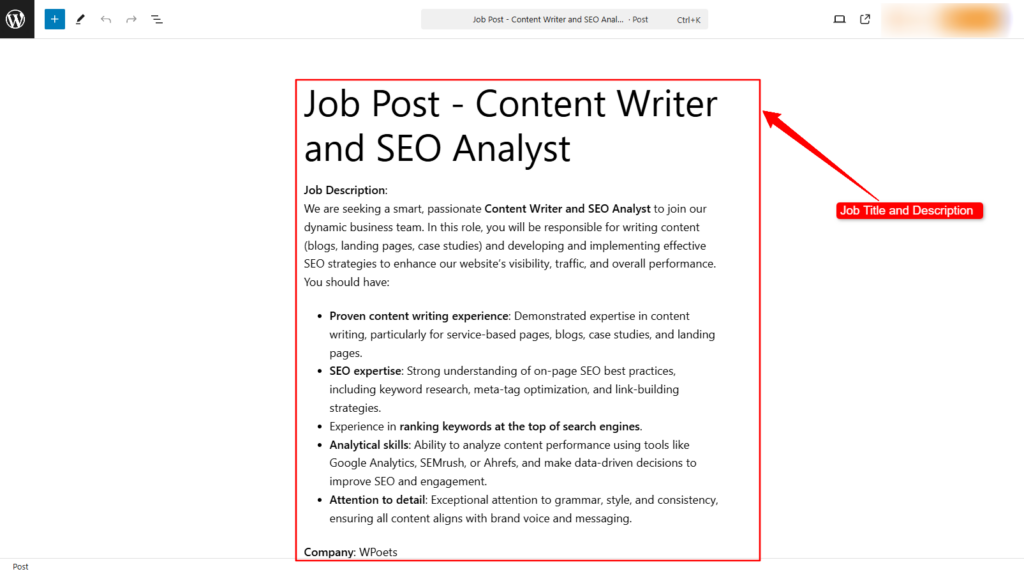
Step 2.1: Creating or Editing a Job Post in WordPress
Go to Posts,then Add New, and create a new post for your job listing in WordPress.
Note: We recommend creating a custom post type of “Jobs” using a plugin. Here is an excellent tutorial that explains how to create a custom post type with and without plugins.
Fill in all the relevant details about the job, such as the title, description, and any additional information job seekers might need.
Screenshot 11: Post created for Job Posting in WordPress
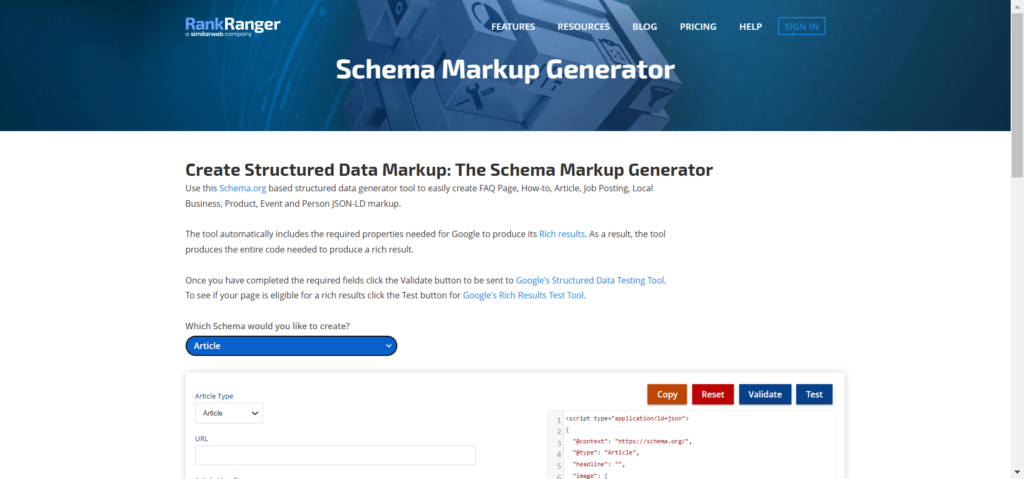
Step 2.2: Open the RankRanger Schema Markup Generator
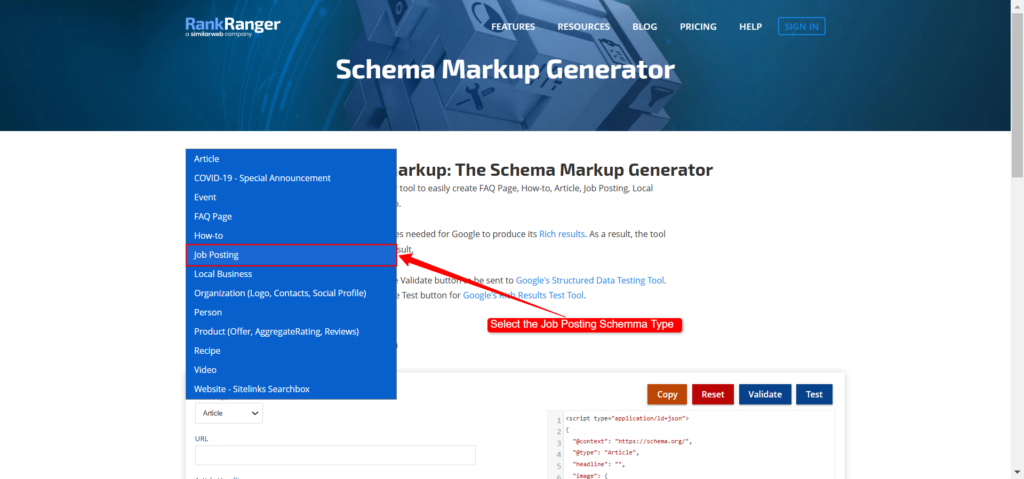
From the available options, select Job Posting Schema to begin creating schema markup specific to job listings as shown in screenshot 13 below.
Screenshot 13: Selecting job Posting Schema in The RankRanger Schema Generator
Step 2.3: Input Your Job Posting Details
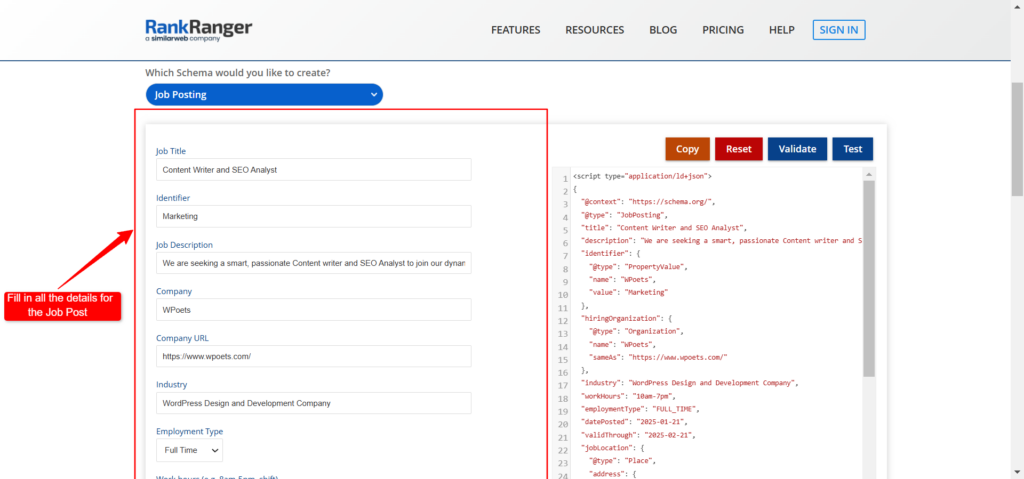
Add in all the job posting details. Examples of the details are provided in the screenshots below.
Job Title: Clearly state the role, like "Marketing Specialist" or "Web Developer," so candidates know exactly what’s being offered.
Job Description: Write a concise summary outlining the main responsibilities, required qualifications, and what the role involves.
Company Name and Website: Include the official name of the company and a link to its website to build trust and credibility.
Employment type: Provide details about the work being full time, part-time, or an internship.
Screenshot 14: Filling details for the Job Post in Schema Generator
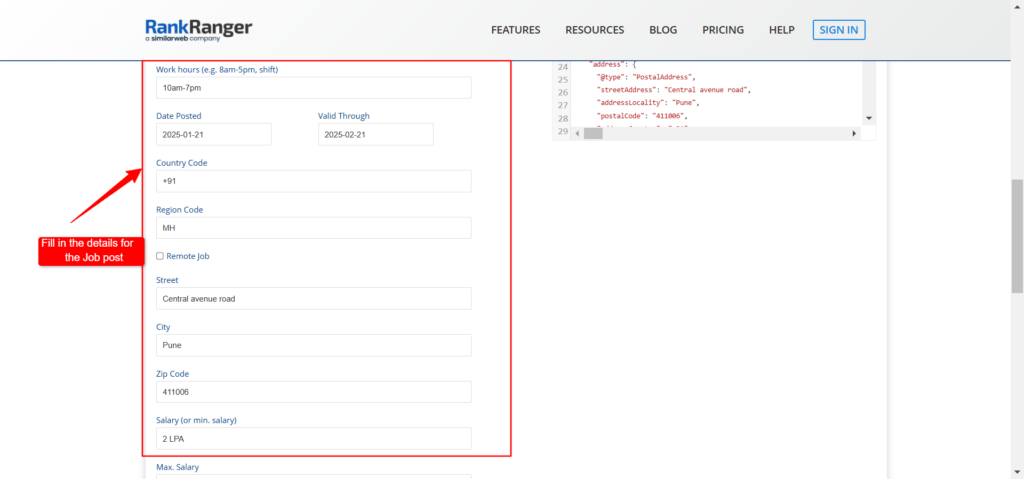
Next, add:
Work Hours: Specify the expected work schedule, such as full-time, part-time, or flexible hours.
Posting Date and Validity: Add the date the job was posted and the deadline for applications to ensure the listing remains relevant.
Location Details: Provide complete location information, including the country, state or region, city, street address, and zip code, to help local candidates find the opportunity.
Salary Range: Mention the minimum and maximum salary for transparency, along with the payment frequency (e.g., monthly, weekly, hourly).
Screenshot 15: Filling details for the Job Post in Schema Generator
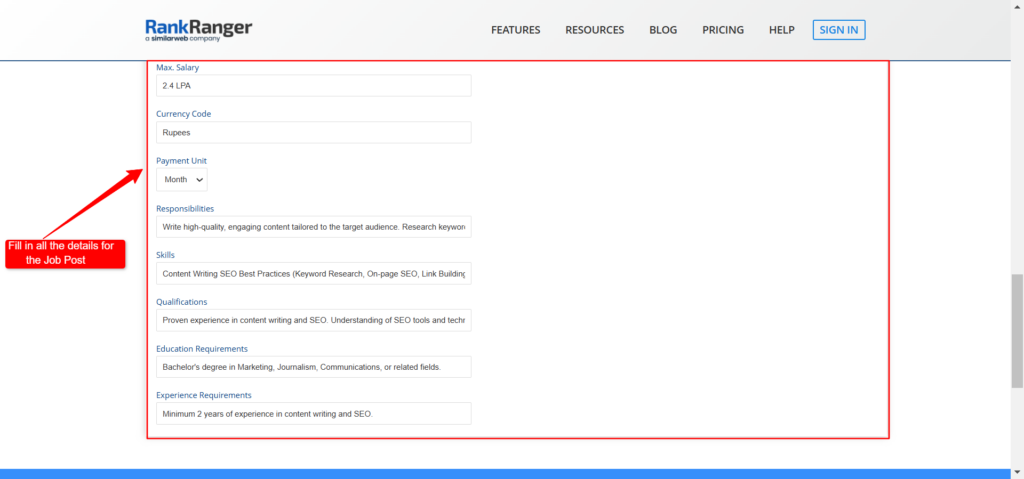
Then, add:
Responsibilities: Highlight the key duties for the role in simple, easy-to-understand terms.
Skills and Qualifications: List the must-have skills and qualifications required for the position.
Education and Experience: Specify the educational background and relevant experience needed to qualify for the job.
Screenshot 16: Filling details for the Job Post in Schema Generator
Step 2.3: Generate the Schema Code
Once all fields are completed, the Schema Code will be generated.
The tool will provide you with a custom JSON-LD schema code tailored to your job posting.
<script type="application/ld+json">{ "@context": "https://schema.org/", "@type": "JobPosting", "title": "Content Writer and SEO Analyst", "description": "We are seeking a smart, passionate Content writer and SEO Analyst to join our dynamic business Team. In this role, you will be responsible for writing content (Blogs, landing pages, case studies) and developing and implementing effective SEO strategies to enhance our website’s visibility, traffic, and overall performance. You should have: Proven content writing Experience: Demonstrated expertise in content writing, particularly for service-based pages, blogs, case studies, and landing pages. SEO expertise: Strong understanding of on-page SEO best practices, including keyword research, meta-tag optimization, and link-building strategies. Have experience in ranking keywords at the top of Search engines Analytical Skills: Ability to analyze content performance using tools like Google Analytics, SEMrush, or Ahrefs, and make data-driven decisions to improve SEO and engagement. Attention to Detail: Exceptional attention to grammar, style, and consistency, ensuring all content aligns with brand voice and messaging.", "identifier": { "@type": "PropertyValue", "name": "WPoets", "value": "Marketing" }, "hiringOrganization": { "@type": "Organization", "name": "WPoets", "sameAs": "https://www.wpoets.com/" }, "industry": "WordPress Design and Development Company", "workHours": "10am-7pm", "employmentType": "FULL_TIME", "datePosted": "2025-01-21", "validThrough": "2025-02-21", "jobLocation": { "@type": "Place", "address": { "@type": "PostalAddress", "streetAddress": "Central avenue road", "addressLocality": "Pune", "postalCode": "411006", "addressCountry": "+91", "addressRegion": "MH" } }, "baseSalary": { "@type": "MonetaryAmount", "currency": "Rupees", "value": { "@type": "QuantitativeValue", "unitText": "MONTH", "minValue": "2 LPA", "maxValue": "2.4 LPA" } }, "responsibilities": "Write high-quality, engaging content tailored to the target audience. Research keywords and optimize content for SEO. Develop SEO strategies to improve search engine rankings and organic traffic. Monitor and report on content performance using analytics tools. Collaborate with marketing teams to align content with business goals.", "skills": "Content Writing SEO Best Practices (Keyword Research, On-page SEO, Link Building) Data Analysis (Google Analytics, SEMrush, Ahrefs) Grammar and Style Expertise Attention to Detail", "qualifications": "Proven experience in content writing and SEO. Understanding of SEO tools and techniques. Ability to meet deadlines and manage multiple tasks efficiently.", "educationRequirements": "Bachelor's degree in Marketing, Journalism, Communications, or related fields.", "experienceRequirements": "Minimum 2 years of experience in content writing and SEO."}</script>
Code snippet 2: Code generated for Job Posting Schema in Rank Ranger Schema Markup Generator
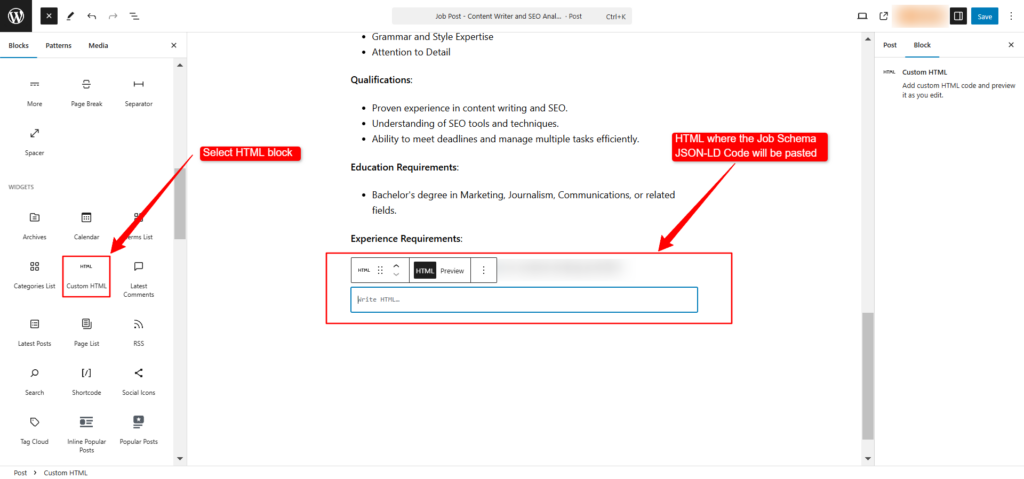
Step 2.4: Add the Job Posting Schema JSON-LD Code to Job Post WordPress
Open the Job Post that we have created in step 2.1.
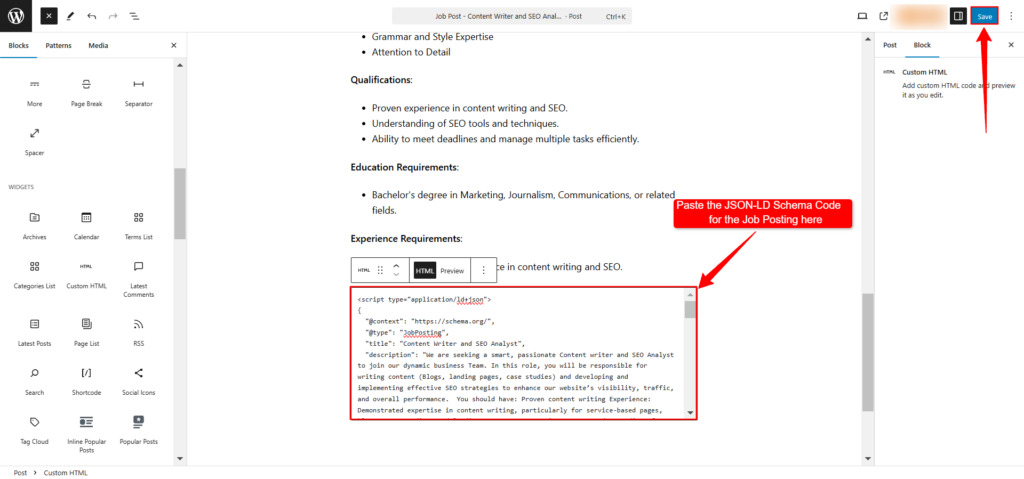
In the post editor, click on the + button to add a new block.
From the block options, select Custom HTML.
Screenshot 17: Adding an HTML Block to the Job Post
Paste the JSON-LD schema code that you copied into the Custom HTML block.
After pasting the code, click the Update button to save the changes to the job post.
Screenshot 18: Pasting the JSON-LD for Job Posting Schema in the HTML Block of Job Post
Validating & Testing Your Job Posting Schema Markup
After adding job schema markup to your WordPress site—whether through a plugin or manual integration—it’s crucial to test it to ensure everything is implemented correctly.
Proper testing helps search engines understand your structured data and display your job postings accurately in search results.
If any issues are detected, addressing them promptly will improve your chances of attracting the right candidates and boosting your visibility in search results. Here’s how you can validate your schema:
Tools to Validate Your Schema
1) Google’s Rich Results Testing Tool:
This tool checks if your structured data is set up correctly and whether your job postings are eligible for rich results.
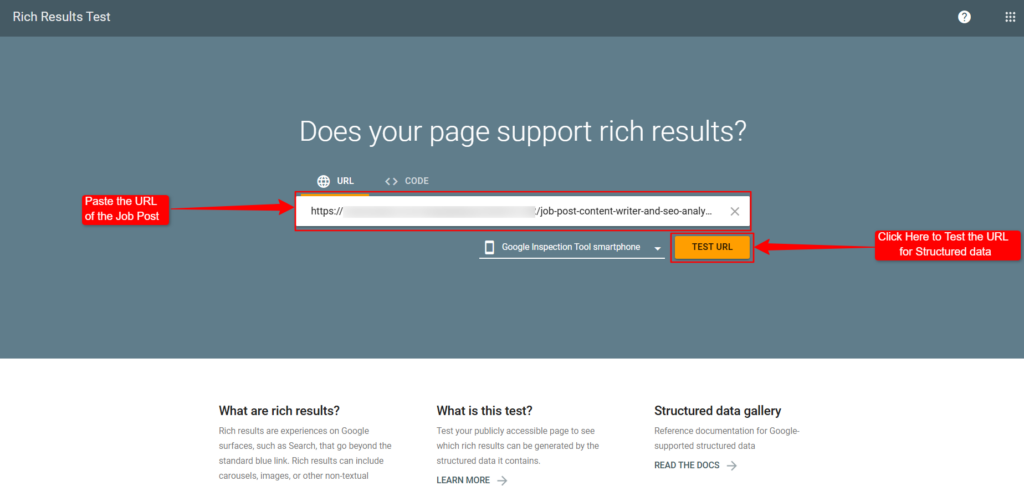
Enter the URL of your job post into the search bar.
Screenshot 19: Pasting the Job Post URL with Schema Markup Code in Google Rich Results Test
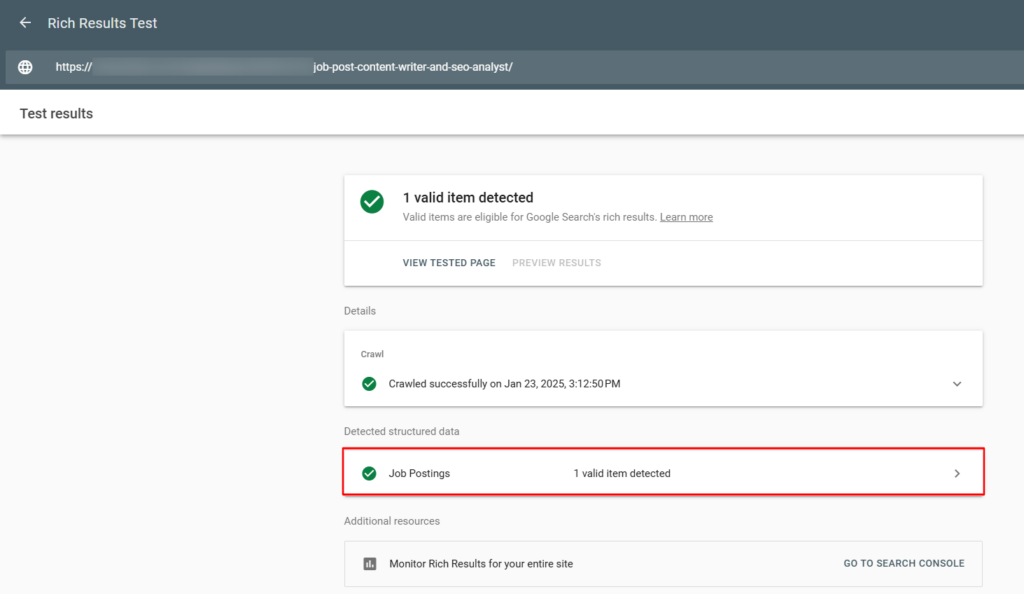
Click the “Test URL” button to start the validation process.
Screenshot 20: Testing the Job Post Schema Markup Code in Google Rich Results Test
Once the test is complete, you’ll see the results. If your job schema is valid, it will display as “Detected”. If there are any errors or warnings, they’ll be highlighted, making it easier for you to resolve them.
2)Schema.org Validator
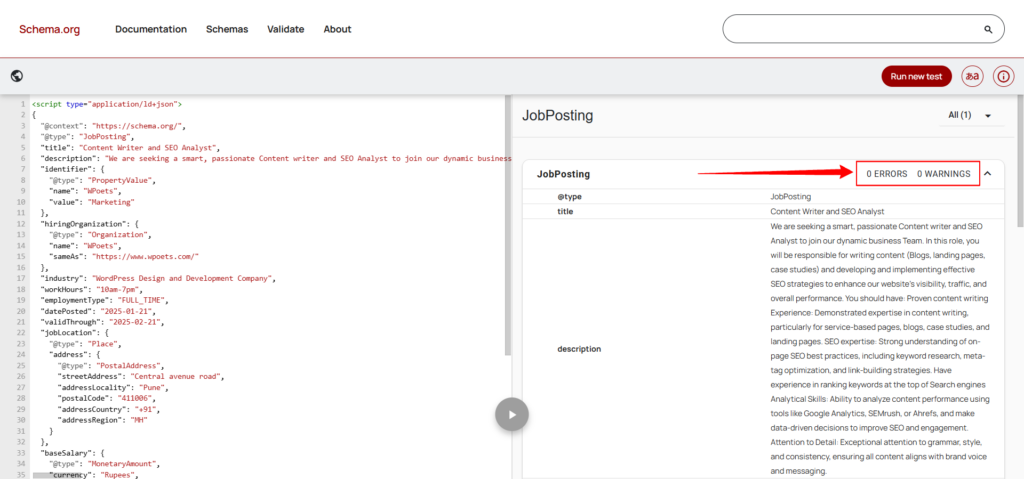
This is another handy tool to verify your job schema. It’s designed to analyze different types of structured data, including job postings, and point out any issues.
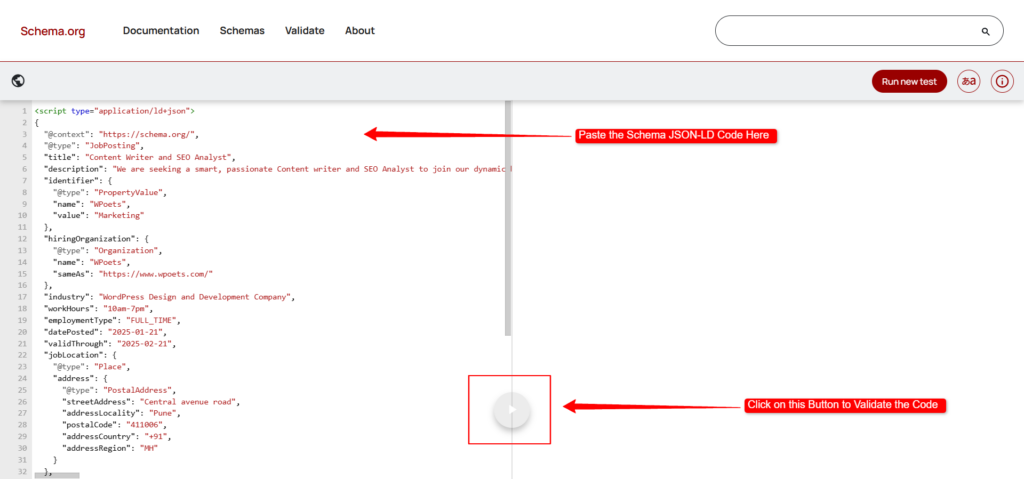
Paste the URL of your job post into the search box.
Screenshot 21: Pasting the Job Posting Schema Markup Code in Schema.org
Click the Validate button (play icon) to analyze your schema markup as shown in screenshot 21.
Screenshot 22: Validating the Job Posting Schema Markup Code in Schema.org
The tool will generate a summary of the structured data on your page. If there are any syntax errors or missing elements, they’ll be listed so you can fix them immediately.
Tips to make your job postings stand out:
Use Clear Job Titles: Include keywords that match what candidates are searching for, making your posting easier to find.
Write Engaging Descriptions: Add relevant keywords and detail key responsibilities to attract the right candidates.
Mention the Location: Include the job’s location and use location-specific keywords to target local candidates.
Optimize URLs: Edit URLs to be clean, easy to read, and include relevant keywords.
Keep It Fresh: Regularly update your job posts and schema data to maintain visibility.
Conclusion
Adding job schema markup to your WordPress site significantly enhances the visibility of your job listings in search results, making it easier to attract the ideal candidates. Whether you use Rank Math for an easy setup of Job schema or manually add JSON-LD code, job schema improves the job-seeking experience.
To maximize the effectiveness of your job listings, be sure to optimize your titles, descriptions, and location information with relevant keywords. Regularly update your schema markup and use tools like Google’s Rich Results Testing Tool to validate it.
Elevate your job postings today by implementing schema markup and attracting more qualified applicants. For additional tips on optimizing your WordPress site, check out our blogs.
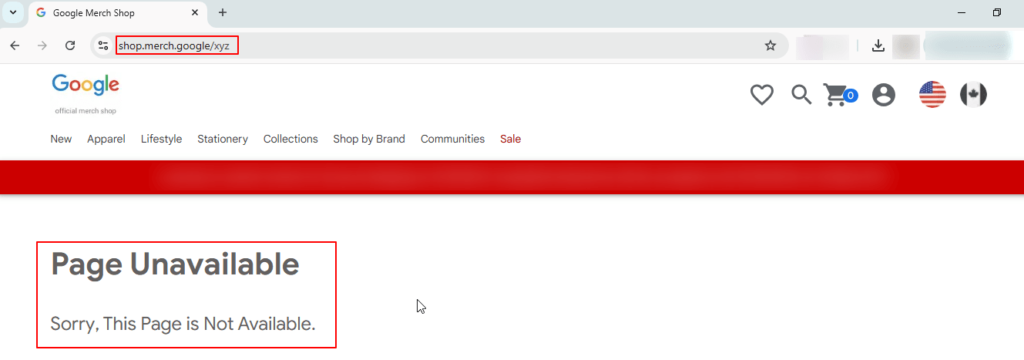
Enter the URL https://shop.merch.google/xyz and note down the 404 Page Title
Screenshot 1: Google Merchandise Store Page Unavailable
The title of the page says Page Unavailable.
Check the page title of your website’s 404 web page. Page not found is a common page title of 404 error pages.
Step 2: Setup and engagement report in Google Analytics 4
Login to Google Analytics 4 GA4
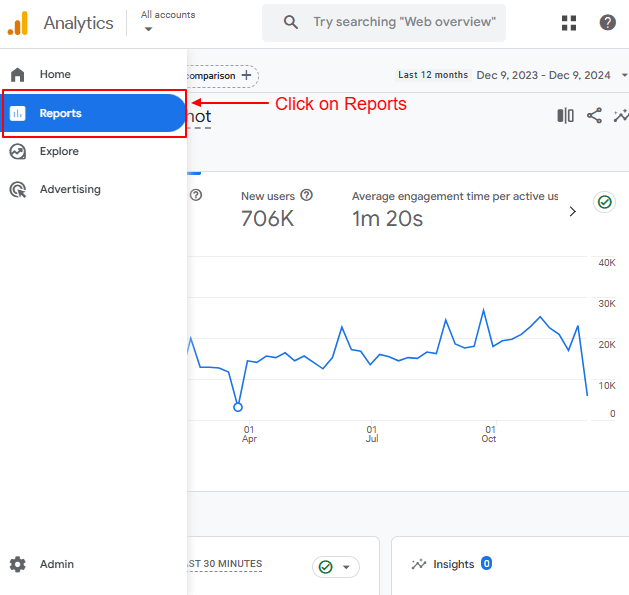
Navigate to Reports.
Screenshot 2: Click on reports
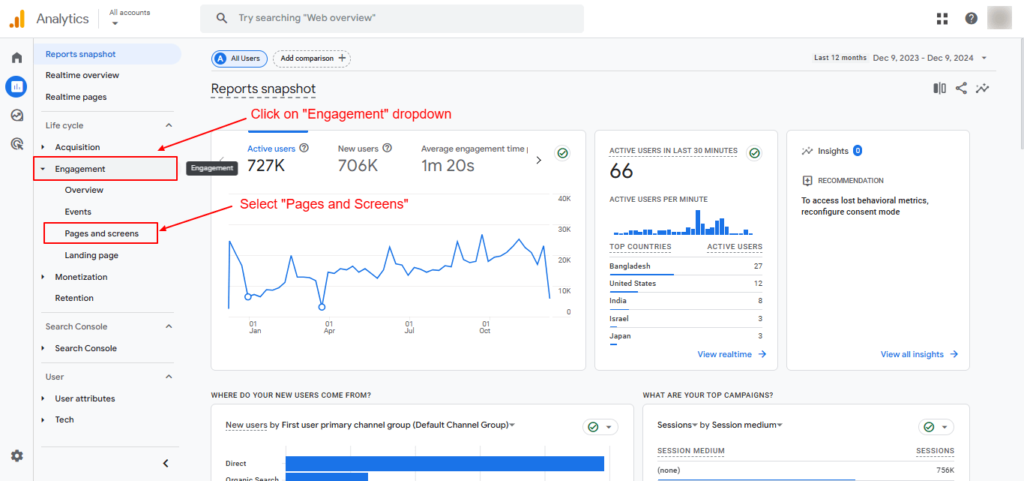
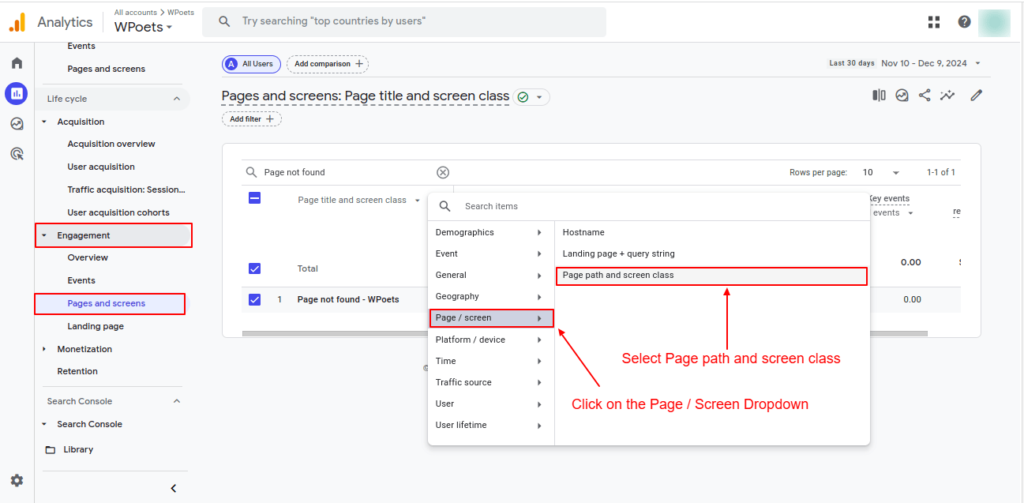
Click on the Engagement dropdown and select Pages and Screens.
Screenshot 3: Select Pages and Screens
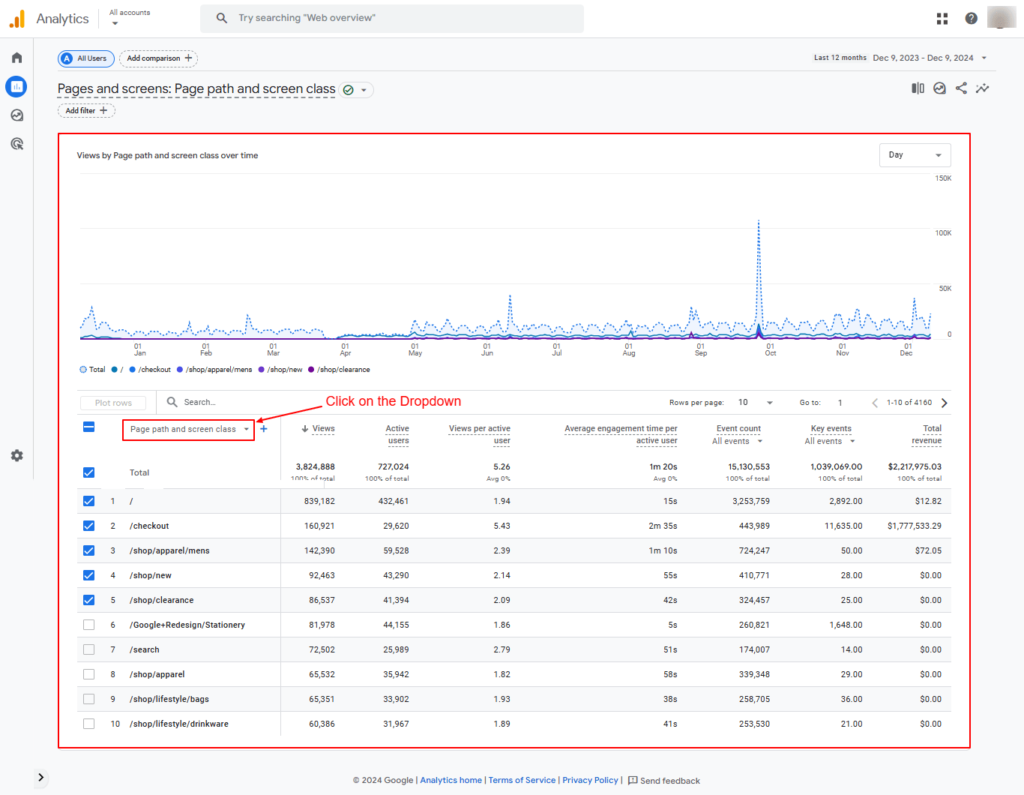
After clicking on Pages and Screens the following report will appear, as shown in the screenshot below.
Screenshot 4: Pages and Screens Report
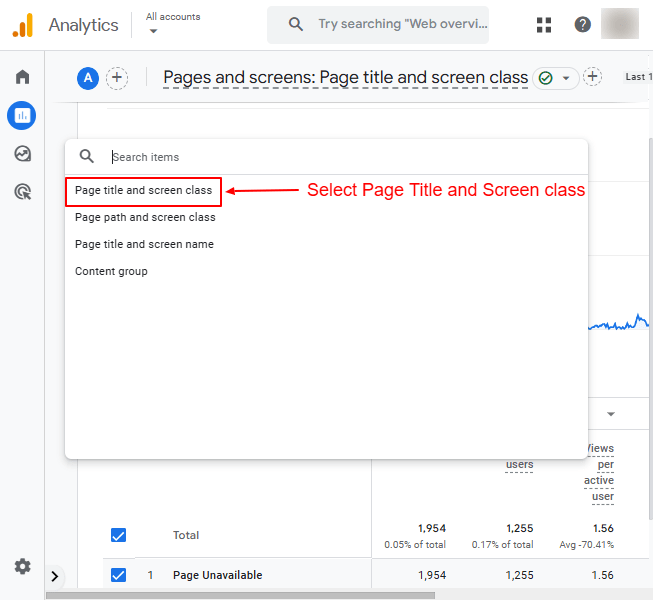
Select the Page title and screen class.
Screenshot 5: Select Page Title and Screen Class
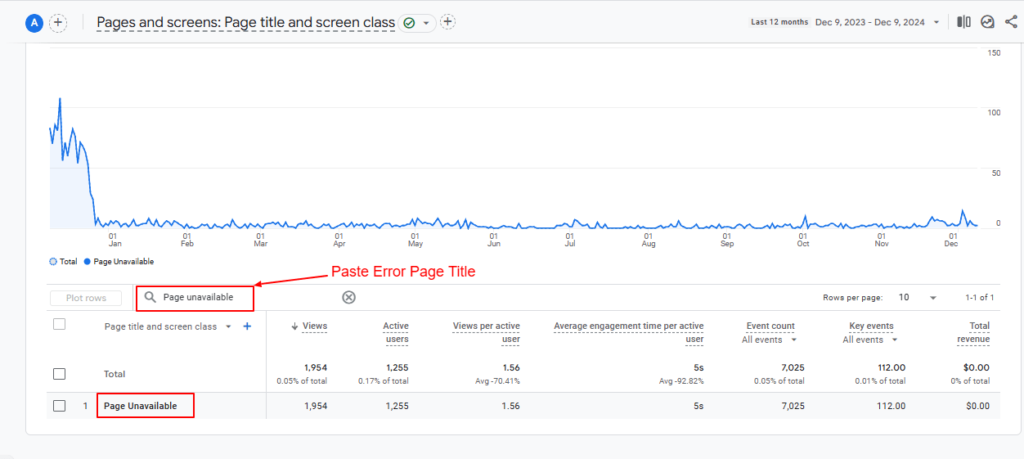
Click on the search bar as shown in the screenshot below.
Type the page title of the 404 page, which is “Page Unavailable,” and press enter.
Screenshot 6: Paste the Page Title of the 404 page
At this step, we got aggregated data of 404 pages.
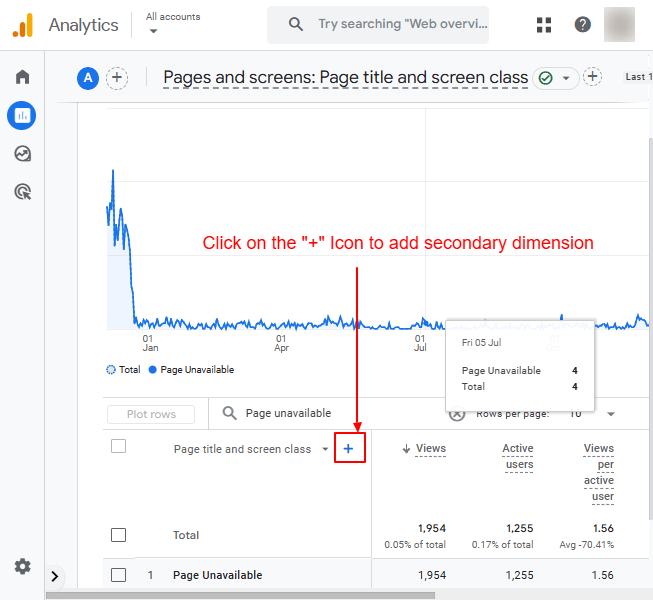
Click on the “+” icon as shown in the screenshot below and add a secondary dimension tothe Page path and screen class.
Screenshot 7: Click on the “+” Icon
Select the Page path and screen class as shown in the screenshot below.
Screenshot 8: Select Page path and screen class
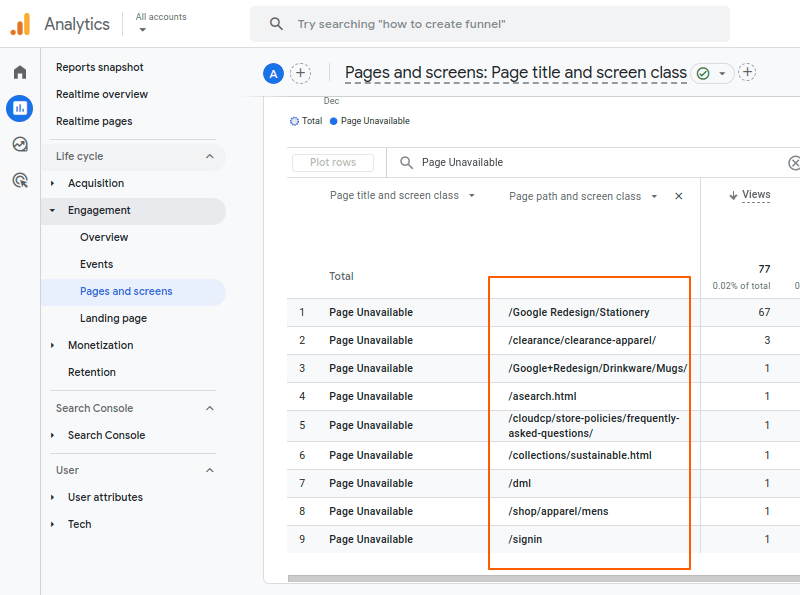
Once it’s done, you will see the list of 404 pages with the URLs shown in the screenshot below.
Screenshot 9: Ga4 engagement report List of 404 Pages with URLs
Method 2: Using GA4 free form exploration technique
In this method, we use the free from exploration report tab under the explore menu.
Step 1: Create a free from exploration
Logging in to your Google Analytics account
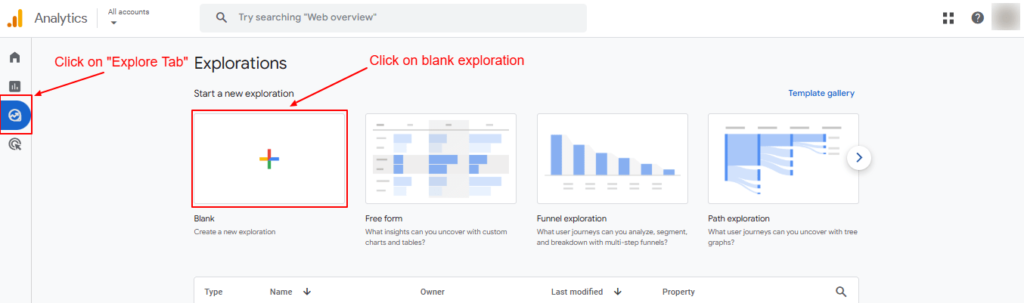
To start a custom report, click on the Exploration tab on the left-hand side
Click on the blank Exploration to start a new exploration.
Screenshot 10: Blank Exploration Report
Step 2: Add Dimensions
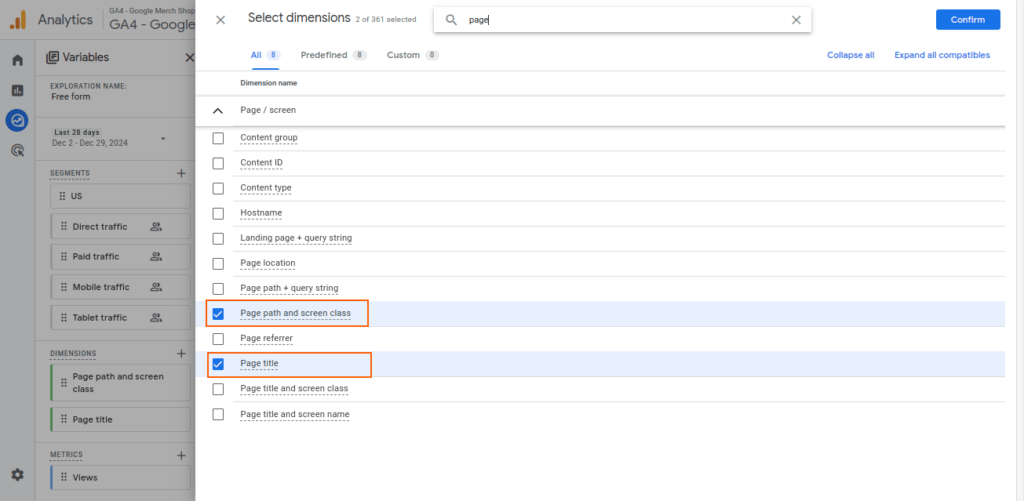
Let’s add Dimensions by clicking on the “+” icon.
On the search bar, type Page.
Select the following Dimensions and add it to Rows
Page path and screen class
Page title
Screenshot 11: Select Dimensions
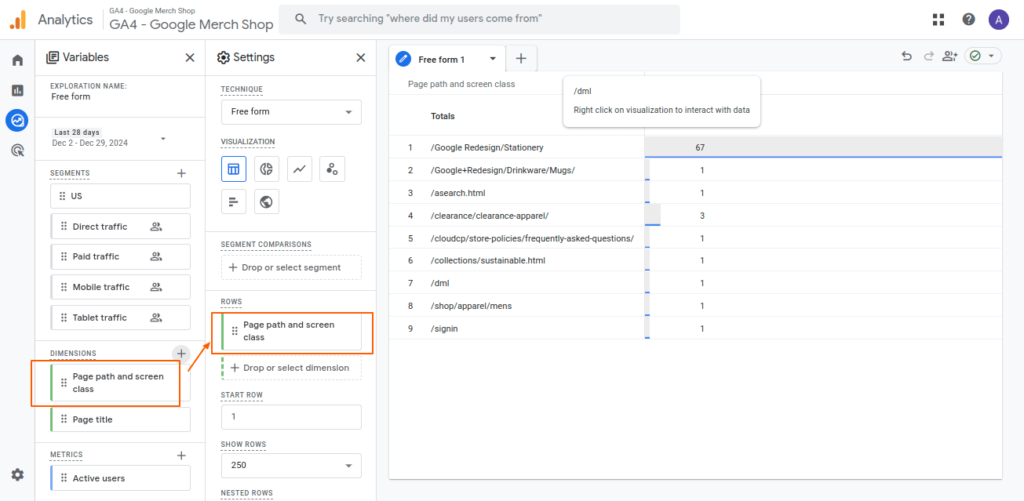
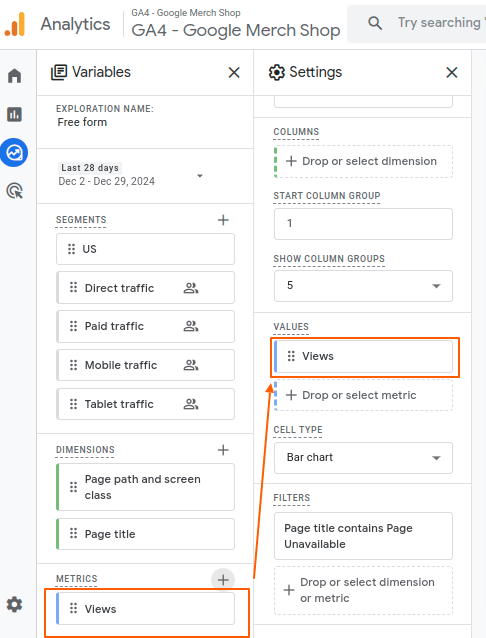
Now drag and drop or select the Dimensions from the Variable Tab to Rows in the Settings Tab.
Screenshot 12: Drop the Dimensions In Rows
Step 3: Add Metrics
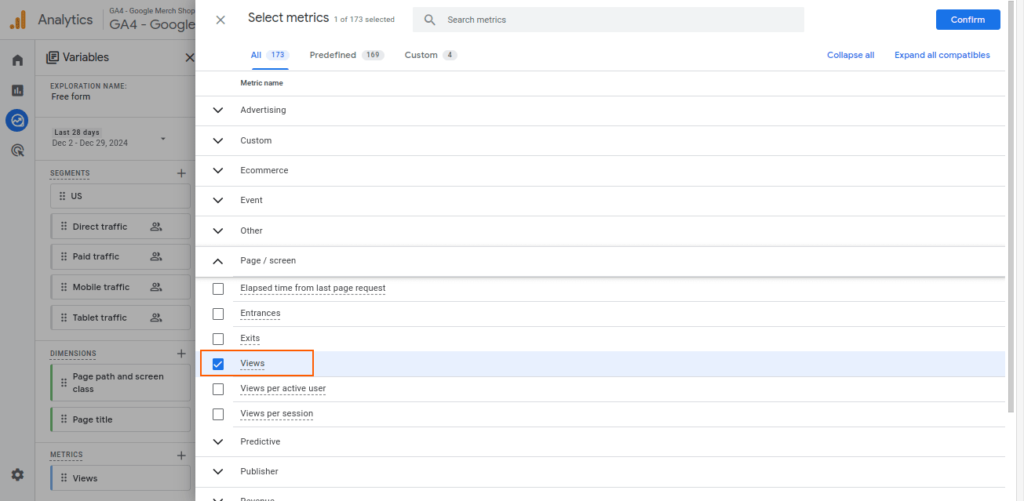
We will now head over to the Metrics, and add the view metric
As we added the Dimensions do the same for the Metrics by clicking the “+” icon and then clicking on Confirm.
Screenshot 13: Select Views Metrics
Screenshot 14: Drop the Views metrics in Values
Step 4: Filter Data
Next, we will filter the report by using Filters.
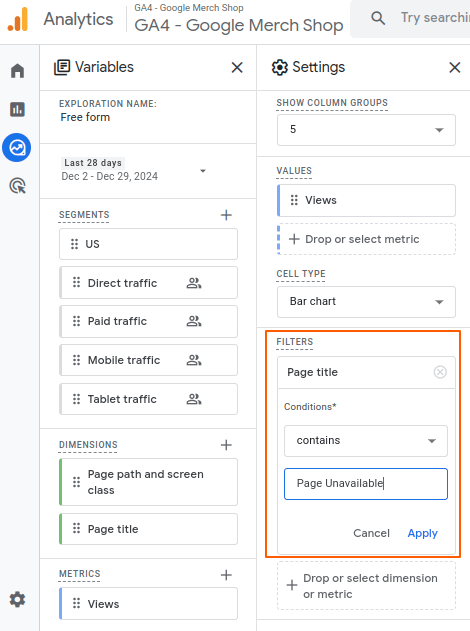
Select the Page Title in Filters. Select match type as contains.
In Enter expression text box, type the error page title. GA4 will autocomplete the text, and you will get a drop-down list of pages.
Select Page unavailable and click Apply.
Screenshot 15: Apply filters
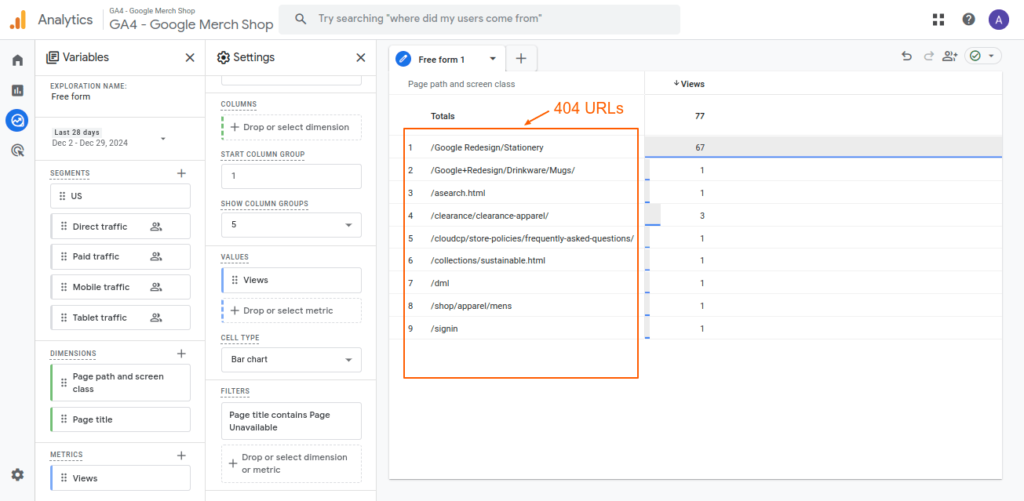
Below we will get the Final Custom Report of the Exploration.
Screenshot 16: 404 URLs in free form reports
Method 3: Using GA4 custom events via Google Tag Manager (GTM)
This method uses the Google Tag Manager data layer to send a custom event to GTM.
A few pre-requirements are that you must have installed GTM on your website and configured it. You can use Google Sitekit WordPress plugin to install GTM.
Step 1: Push a custom 404 event to the Google Tag manager
First, let’s push a custom event to Google Tag Manager (GTM) to track 404 errors.
To do that first, we have to add a custom script to the functions.php file in the WordPress theme. For this tutorial, we are using the WordPress Twenty Twenty-four theme.
A few things to consider when adding custom code to your theme
We recommend adding custom code to the child theme's functions.php file instead of the parent theme’s functions.php.
To know more about creating a child theme, go through the Themes Handbook.
Before making any changes to your site we recommend, that you should always back it up.
At the minimum, you should make a copy of your child theme’s functions.php (if you have already created it and edited it)since we are modifying it. If something goes wrong when you are adding code to it, then you can restore it.
Here is a script to add to your WordPress child theme‘s functions.php
An add_404_custom_event callback function is added to the wp_head hook. The script below will be added to the HTML head tag.
// Code for sending custom event to data layer function add_404_custom_event() {
// Ensure the script runs only on 404 pages if (is_404()) { ?> <script> wiindow.dataLayer = window.dataLayer || []; window.dataLayer.push({ 'event' : 'page_not_found_404' // Name it whatever you like }); </script> <?php } // is_404 check }
Inside the function, we first check if the page is a 404 page. If yes, we push a custom event page_not_found_404 to the data layer of GTM.
Once you have added the above code in the functions.php file, save it and upload it to the child themes folder.
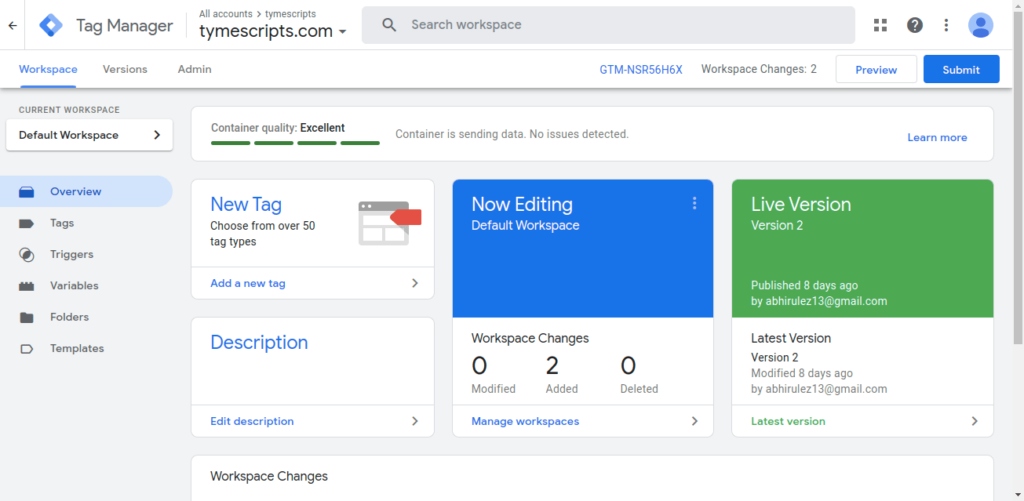
Next, head over to your Google Tag Manager’s Overview tab.
Click on the preview button on the toolbar, as shown in the following screenshot below.
Screenshot 17: Click on the Preview button
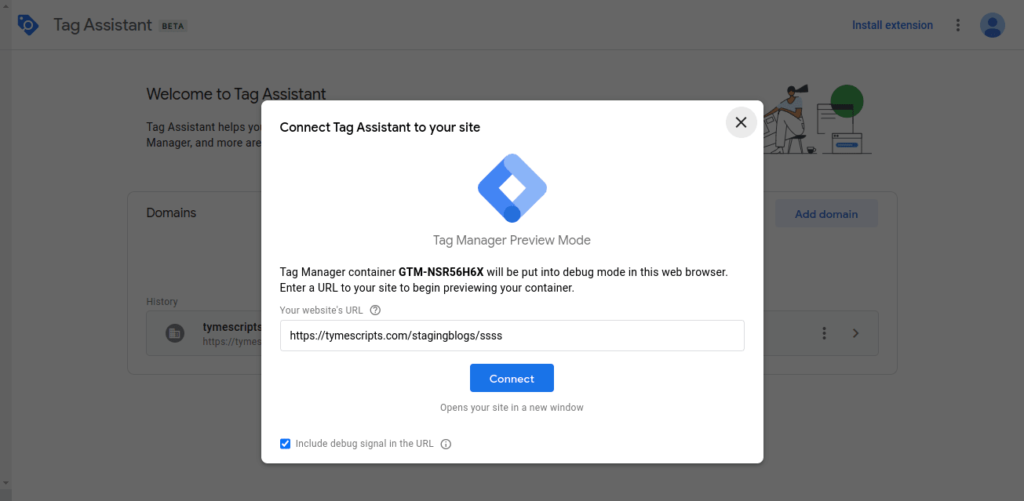
Screenshot 18: Tag Manager Preview Mode
In the Your website's URL textbox, enter the 404 error URL; for example, add ssss to your base URL, for e.g. yourwebsite.com/ssss
Uncheck the checkbox; include a debug signal in the URL.
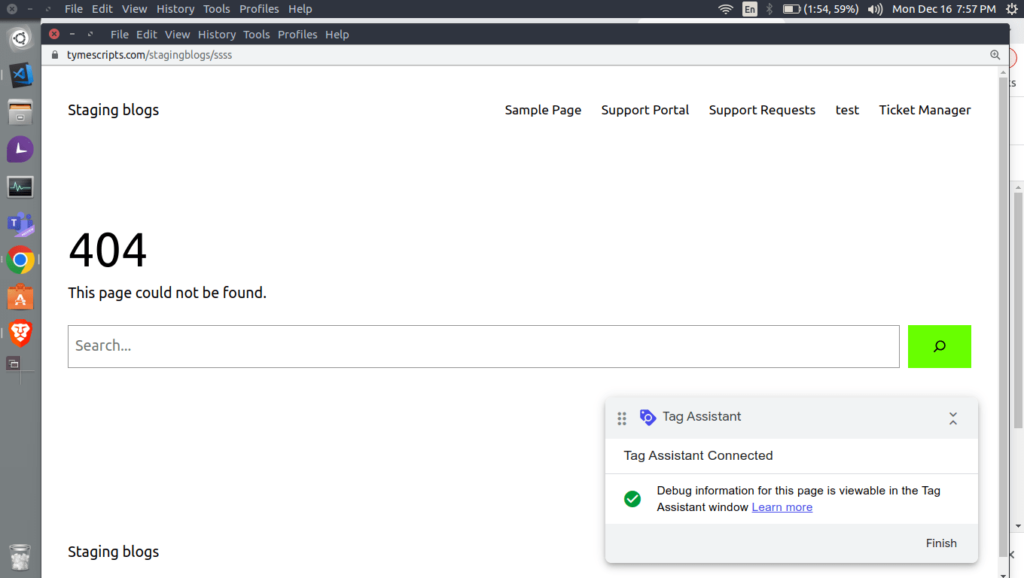
Click on Connect. This will open the entered URL in a new window, as shown in the below screenshot (number)
Note : Ensure you are not logged in as a WordPress user since the Google Sitekit plugin excludes logged-in users from tracking in Google Analytics 4 and GTM. Hence the custom event will not be fired and will not be available in Datalayer.
Screenshot 19: Tag assistant connected page in New Window
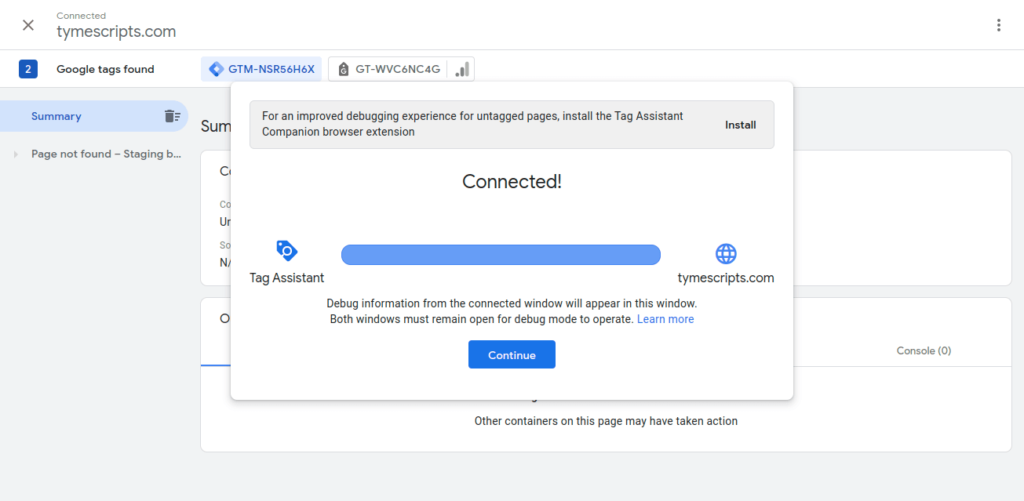
Screenshot 20: Tag manager connected Dialog box
Once Tag assistant is connected, click on the Continue button
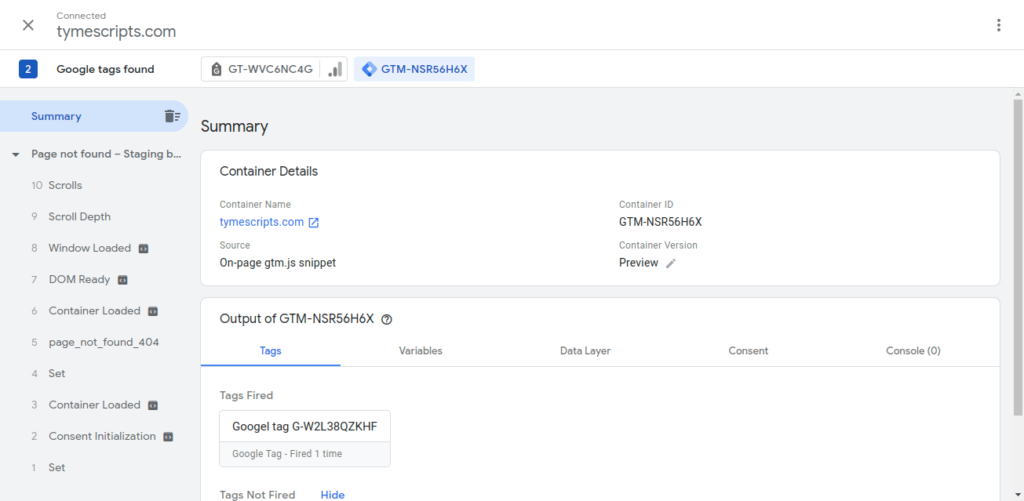
On the summary pane of the tag assistant screen, you will see the custom event fired.
Screenshot 21: page_not_found_404 event
Step 2: Send the 404 custom event to GA4 using the trigger
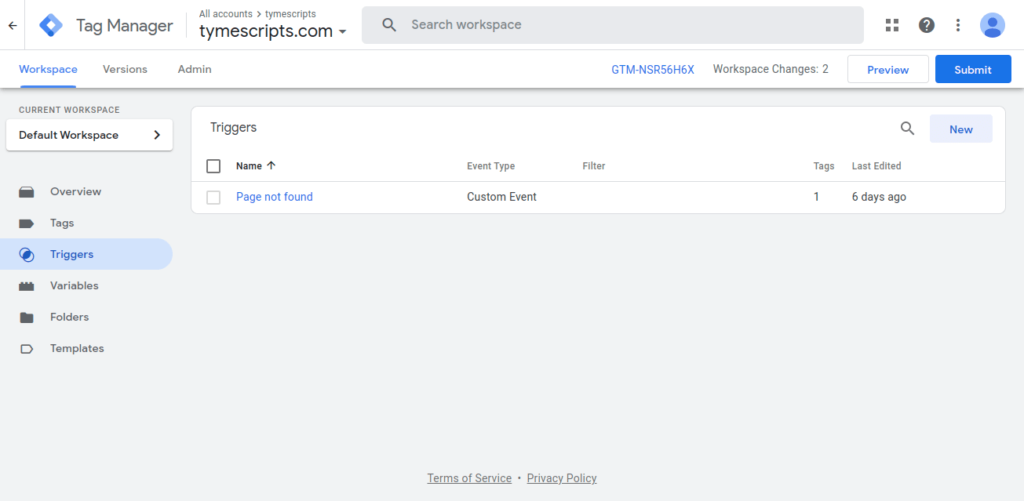
Go to the Trigger menu in the Google Tag Manager
Click on the New Button to create a trigger
Screenshot 22: GTM Workspace Triggers
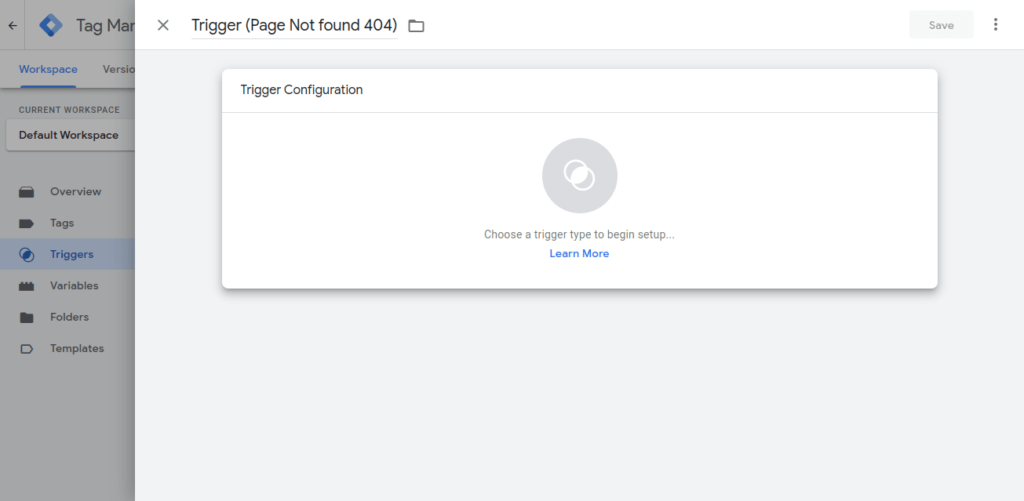
Screenshot 23: Name the Trigger
First, name the Trigger something descriptive. For example, Trigger (Page Not Found 404)
Next, click anywhere on the Trigger Configuration section to enable edit mode.
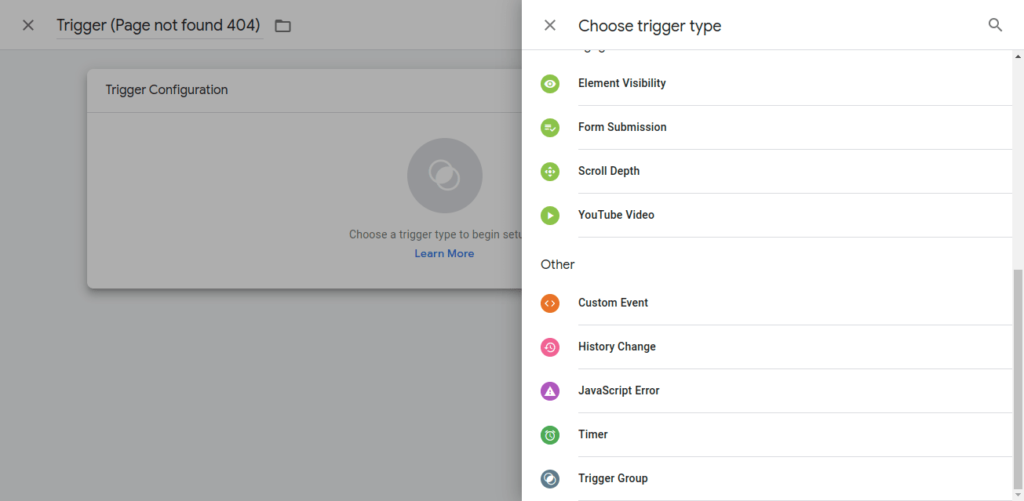
A Choose trigger type overlay panel will open up. Scroll down to the Other event group and select Trigger Type as Custom Event.
Screenshot 24: Set Trigger Type as a custom event
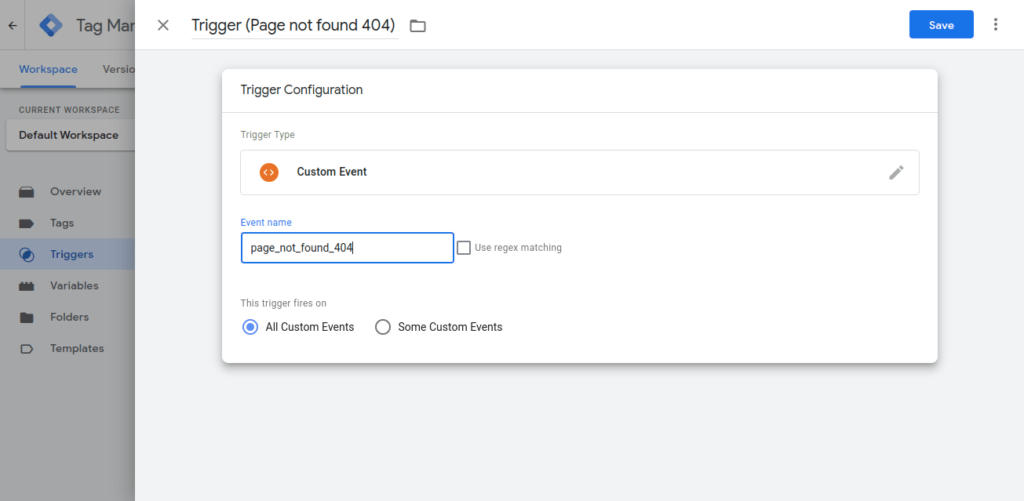
Screenshot 25: Trigger event as page_not_found_404
Enter the event name that you have added in the data layer (page_not_found_404).
Keep the radio selection of trigger fires on to All custom Events.
Click on the Save button.
Note: This step is crucial; make sure the event name you enter here exactly matches the event name that you pushed using the data layer push function.
Step 3: Setup a GA4 Event tag to send the custom event to Google Analytics 4
Head over to the tags sub-menu in the Tag Manager
Click on the new button to create a new tag
Screenshot 26: Create a new Ga4 event Tag
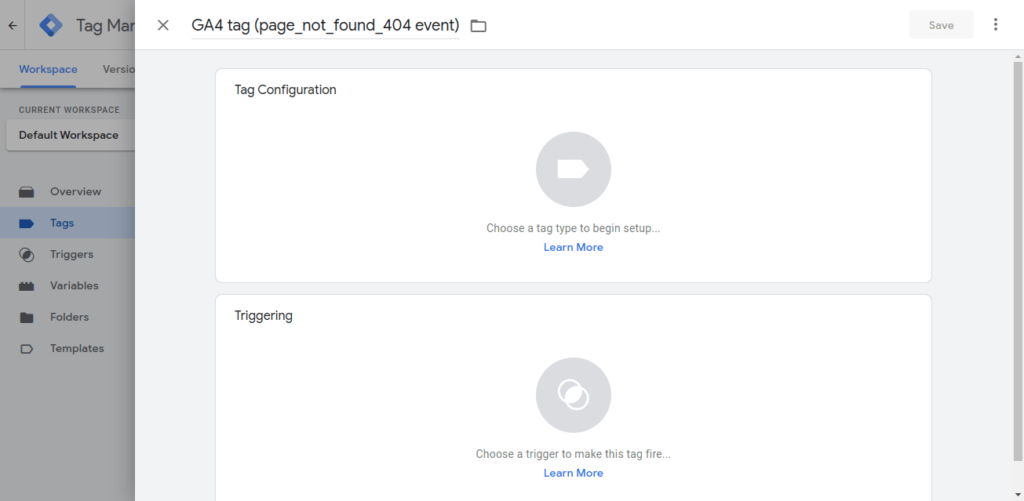
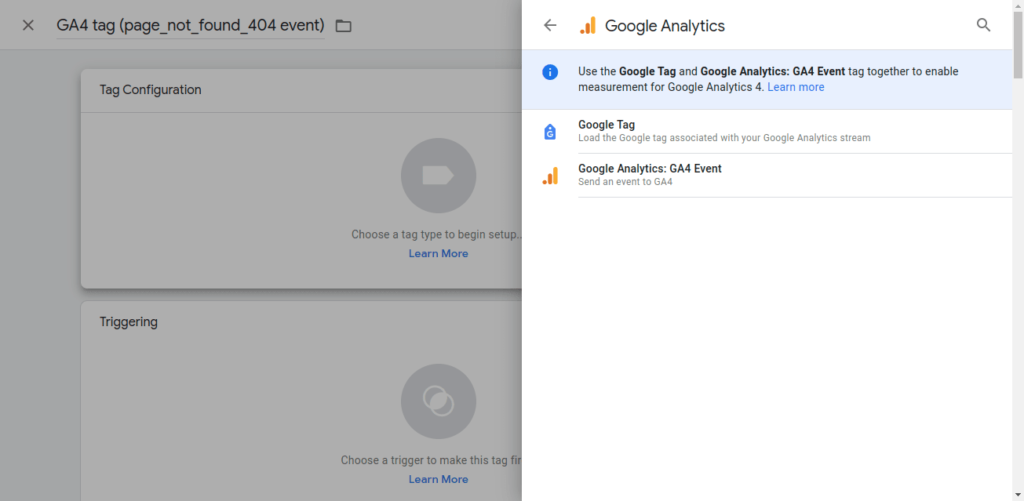
Name the tag to something relevant. For e.g GA4 tag (page_not_found_404 event)
Next, click anywhere on the Tag Configuration section to enable edit mode.
Screenshot 27: Click on the Trigger Configuration section to enable edit mode.
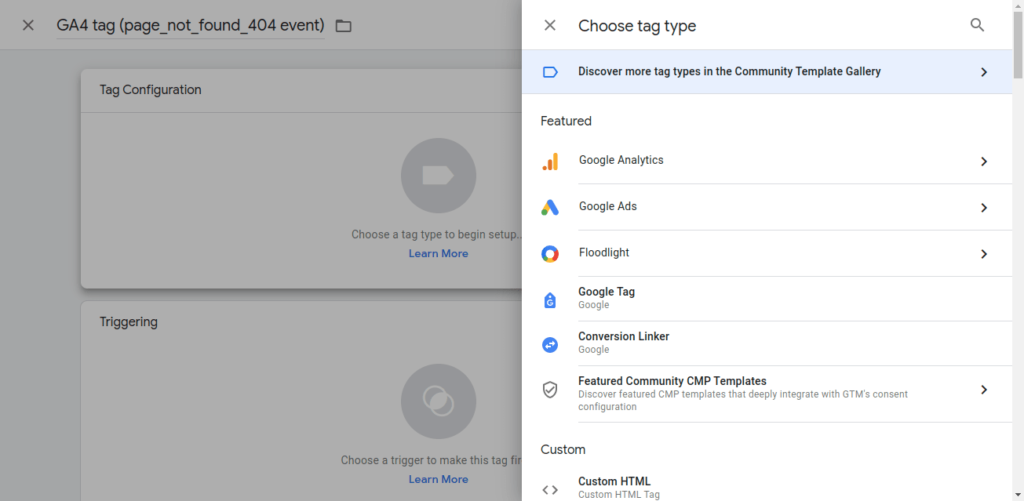
Screenshot 28: Choose tag type Google Analytics
Screenshot 29: Select Google Analytics: GA4 Event tag
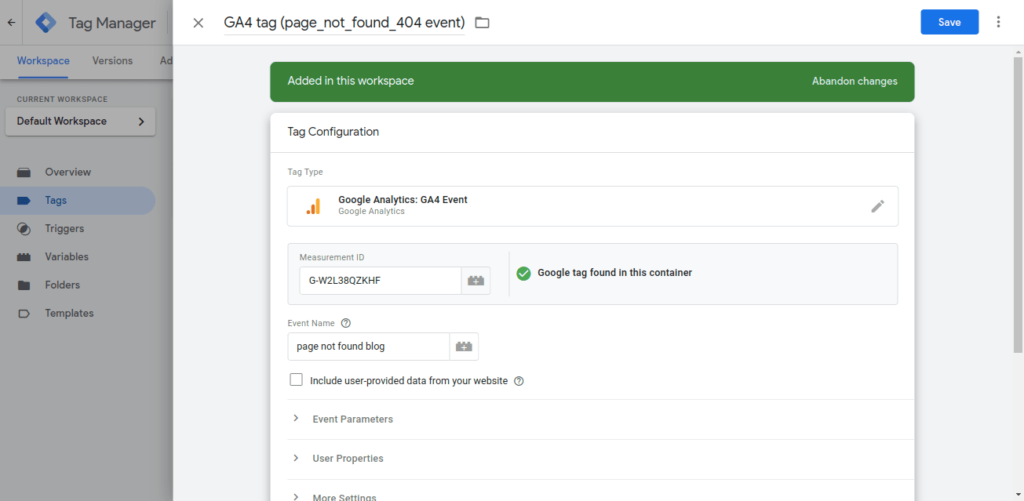
Enter the measurement ID of the Google Analytics Web stream to which you want to send the custom event.
Enter the event name, as page_not_found_404
Screenshot 30: Enter the measurement Id of the GA4 web stream
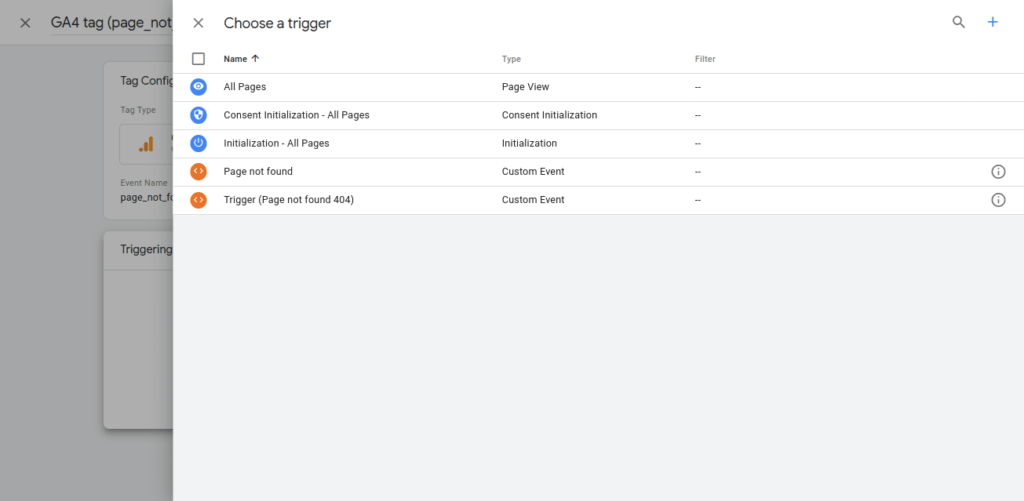
Choose the trigger that we created in Step 2. To do that, click anywhere on the Trigger section to enable edit mode.
Screenshot 31: Choose a trigger
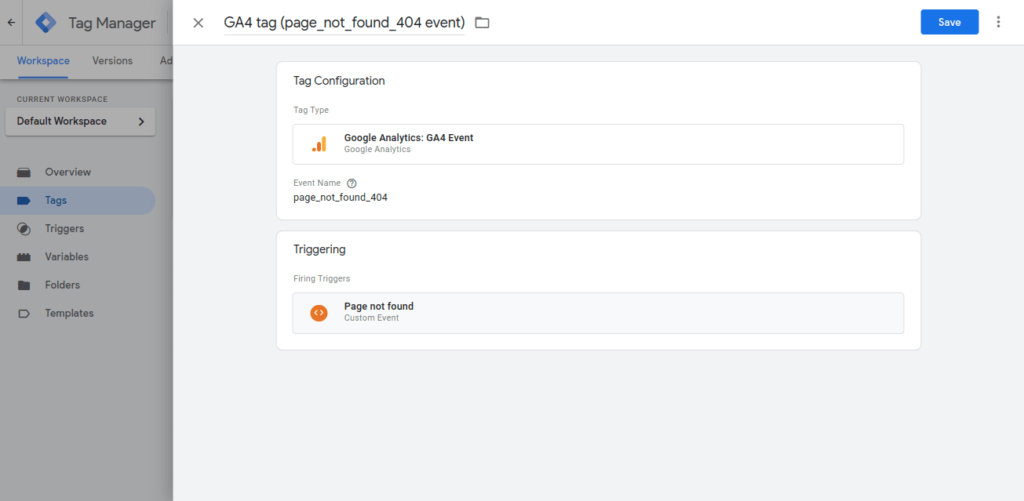
Once the trigger is added, click on the Save button.
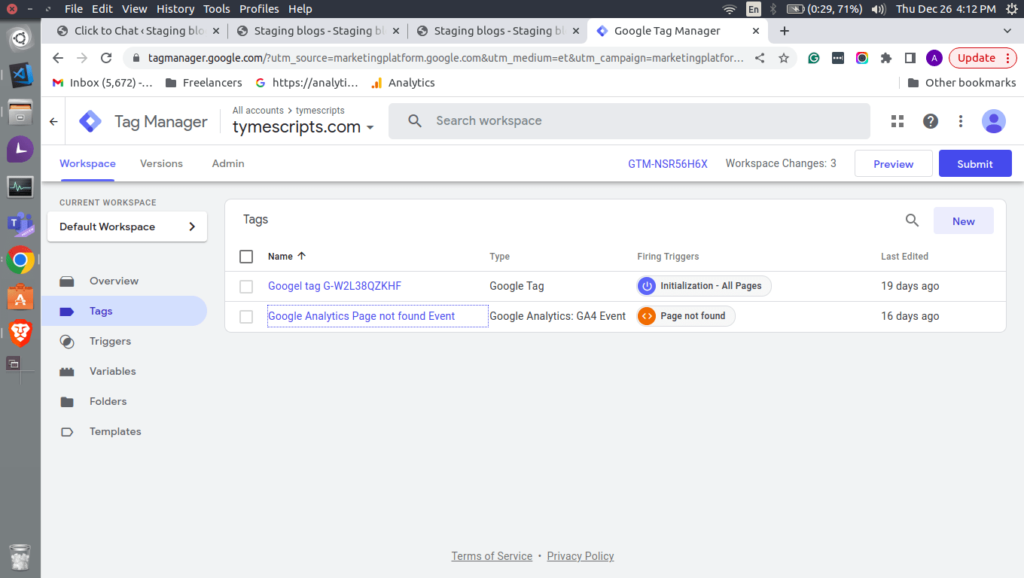
Screenshot 32: Page not Found trigger
Step 4: Test the custom GA4 event tag in the debug view
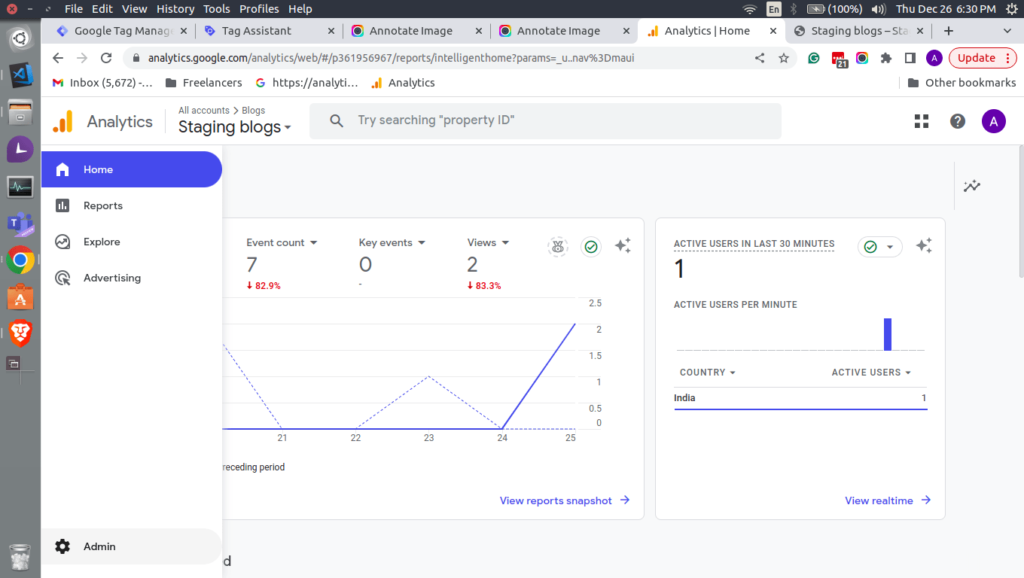
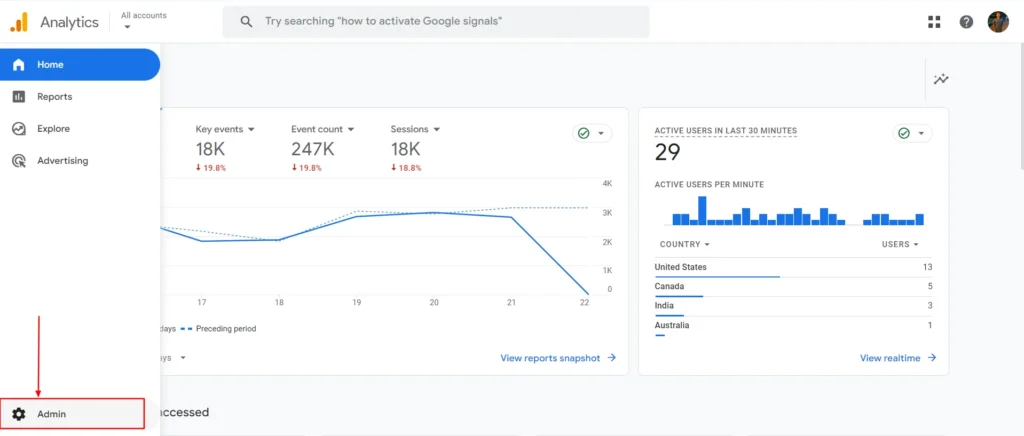
Go to the Admin menu.
Screenshot 33: Admin menu of Google Analytics 4
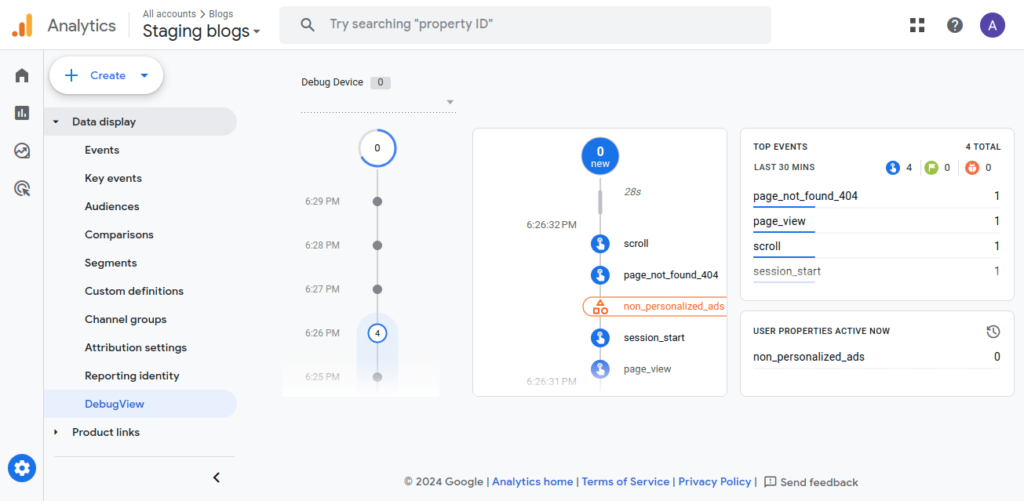
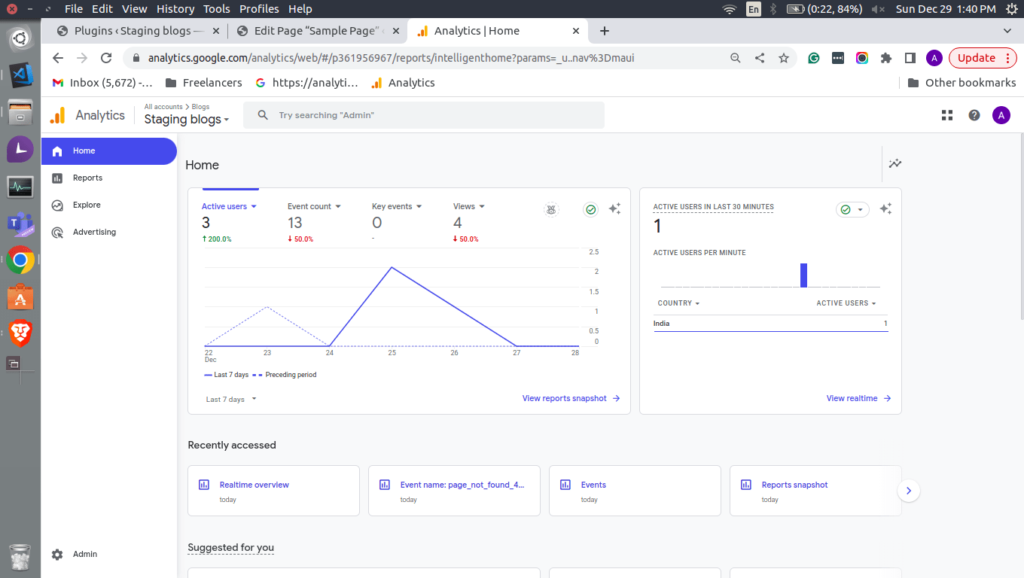
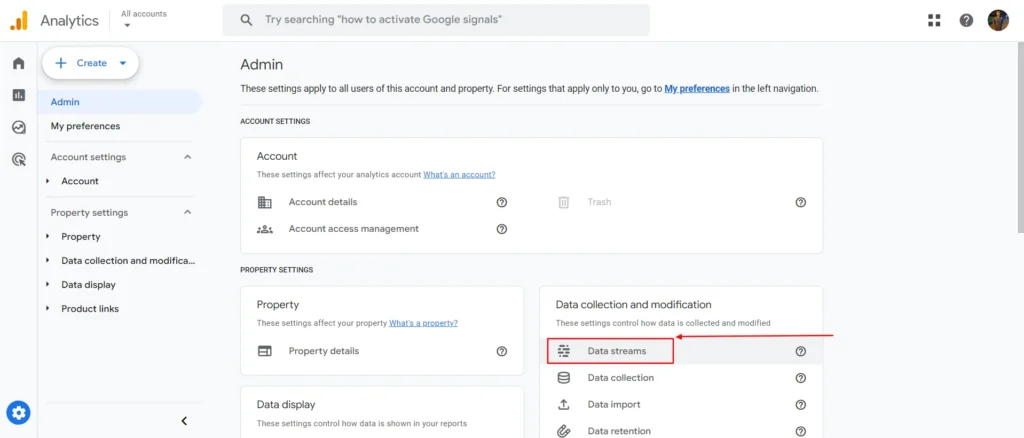
Next, head over to Data Display > DebugView. You will see the newly custom event page_not_found_404.
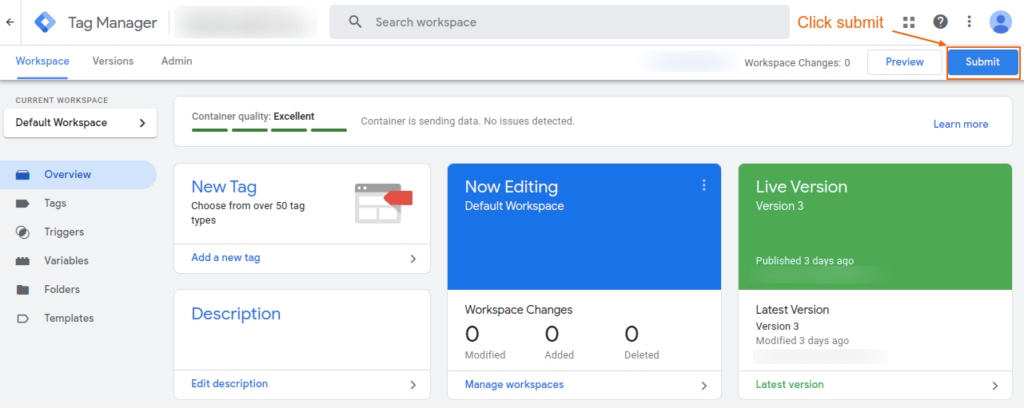
If everything works fine, publish your changes in Google Tag Manager by clicking the Submit button in the top right corner.
Screenshot 35: Submit workspace changes
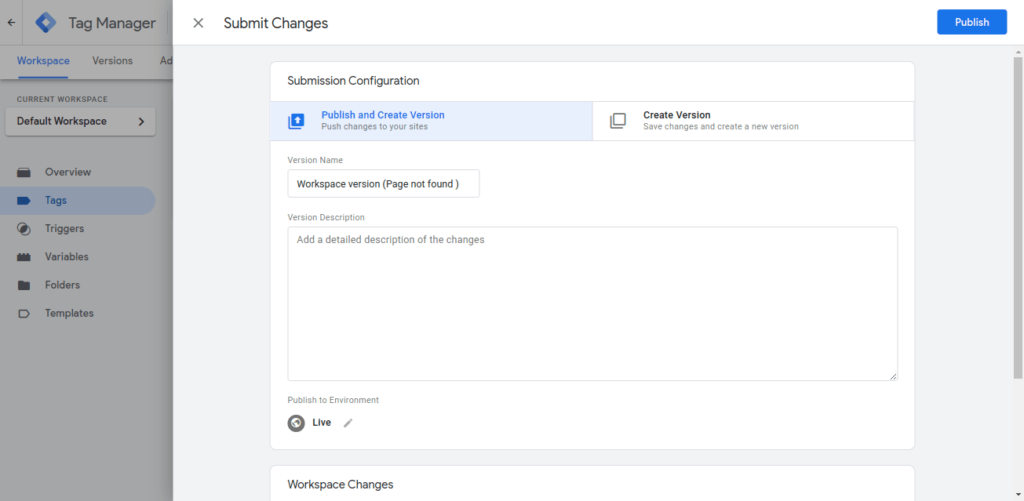
A Submit Changes overlay panel will show up.
Enter the version name for e.g. Workspace version (Page not found) along with the description.
Click on the Publish button.
Screenshot 36: Save Submission configuration
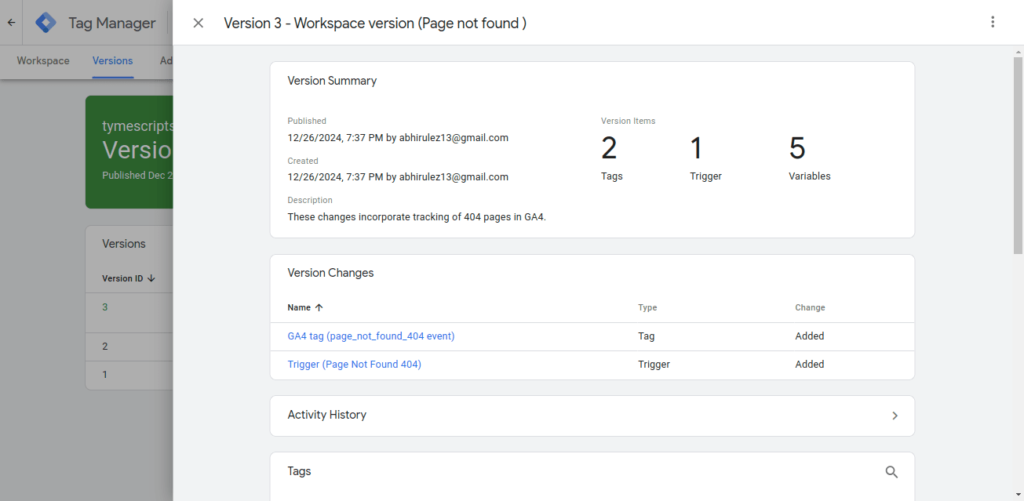
When the changes are submitted, you will see a Version Summary slide over panel, as seen in the screenshot below.
Screenshot 37: Version Summary of Published Workspace changes
That’s it. You have now added a custom event for 404 and sent it to the Google tag manager. Whenever a 404 page is hit, it will send a custom event, and we will use it to create reports for 404 links.
Step 5: Create a free form report in GA4 to view 404 pages
Screenshot 38: Explore menu in Google Analytics 4
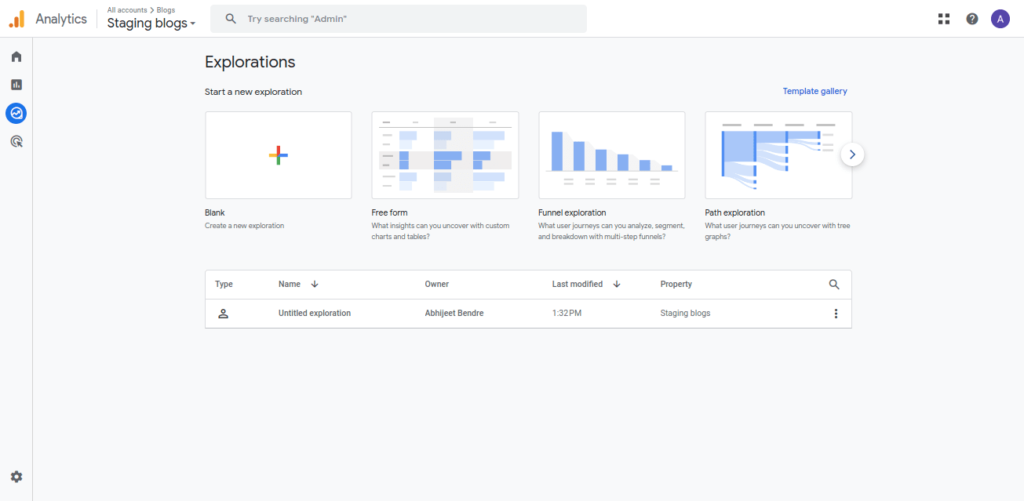
Click on Explore menu in Google Analytics 4.
Choose Free Form Exploration.
Screenshot 38: Free form Exploration
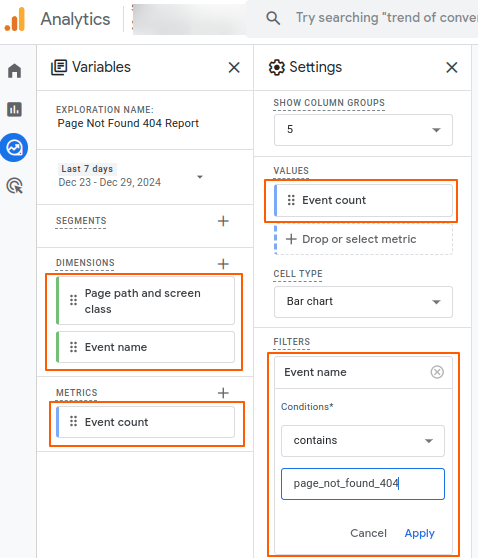
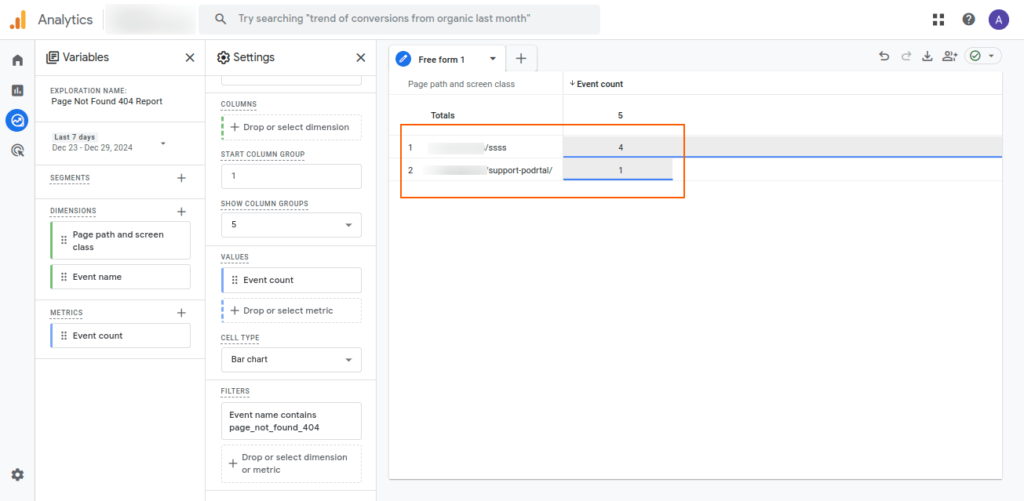
Name the exploration for e.g. Page Not Found 404 Report
Add the Dimension to the Rows
Page path and screen class
Event Name
Add Metrics to the Values
Event Count
Add filter
Dimension: Event Name
Condition: exactly matches
Expression: page_not_found_404
Screenshot 39: GA4 GTM 404 variables and settings URLs
Screenshot 40: Page not found 404 links report
That’s it we can see page not found URLs in the Free Form report.
Conclusion
In Method 1 and Method 2, we found 404 errors using the Page title of the 404 error page, and in Method 3, we pushed a custom event to the Data layer of Google Tag Manager, which is then sent to GA4 using triggers whenever a 404 error page is found.
By regularly monitoring for broken links, you ensure that every visitor enjoys a frustration-free experience. An error-free website isn’t just good for your users—it’s great for your business.
We use cookies to ensure that we give you the best experience on our website. If you continue to use this site we will assume that you are happy with it. Ok, understood