



Introduction
The Gutenberg Block Editor is WordPress’s block-based editing interface, where each element, such as paragraphs, headings, images, buttons, or galleries, is treated as an individual “block.”
Introduced in WordPress 5.0, it provides a visual, modular way to build web pages using structured markup and supports extensibility through custom blocks and the WordPress REST API.
What is a Gutenberg Block?
A Gutenberg block is simply an individual piece of content like text, an image, a video, a button, or any other interactive element that you can add, edit, and move around inside the WordPress Block Editor. Instead of working in the classic WYSIWYG editor, you build pages by stacking these blocks, which makes creating layouts much more visual and no-code.
Blocks are also highly flexible. You can change how they look and behave, reuse them across different pages, or add custom blocks built specifically for your site. This makes it easy for both beginners and experienced editors to create rich, polished content quickly.
List of Gutenberg blocks
The Gutenberg block editor of WordPress provides the capability to design layouts and pages using a simple, intuitive interface. The editor will help to create layouts or templates as per the requirements.
Text Blocks
- Paragraph: Standard block for writing text.
- Heading: Creates titles and subtitles from H1 to H6.
- List: Adds numbered or bulleted lists.
- Quote: Displays quoted text with an optional citation.
- Pullquote: Quote with a more prominent, stylized design.
- Code: Syntax-highlighted code snippets.
- Classic: Uses the old WordPress editor within a block.
- Verse: Ideal for poetry or text that requires special line breaks.
- Preformatted: Preserves formatting and whitespace.
- Table: Inserts data tables with rows and columns.
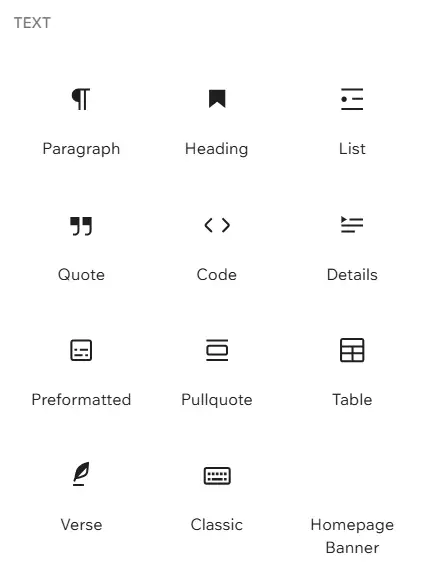
Screenshot 1: Text elements of the Gutenberg block editor
Media Blocks
- Image: Single images with captions and alignments.
- Gallery: Displays multiple images in a grid layout.
- Audio: Embedded audio players.
- Video: Video embeds from files or URLs.
- Media & Text: Side-by-side media and text.
- Cover: Full-width image/video with overlay text.
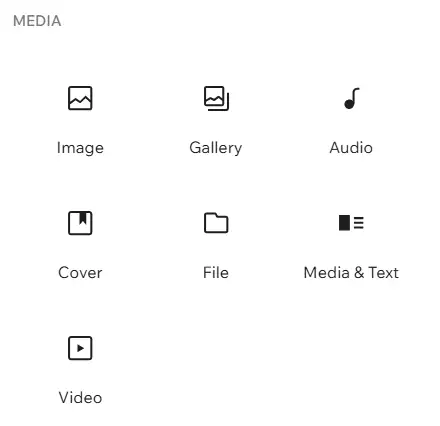
Screenshot 2: Media elements of the Gutenberg block editor
Design Blocks
- Buttons: Call-to-action button groups.
- Columns: Multi-column layouts for structured content.
- Group: Container for nesting blocks.
- Row: Horizontal block layout.
- Stack: Vertical block stacking.
- Grid: Grid-based structure with rows & columns.
- Separator: Horizontal dividers.
- Spacer: Adjustable vertical spacing.
- Page Break: Divide your post or page into multiple pages.
- Separator: Add a horizontal line to visually divide sections.
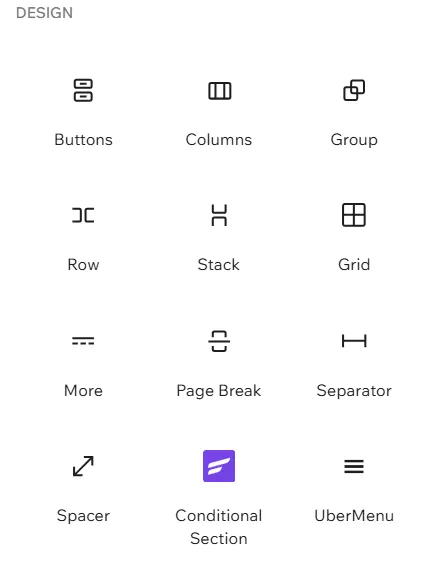
Screenshot 3: Design Blocks of the Gutenberg Block Editor
Widgets Blocks
- Archives: Displays a list of monthly post archives.
- Calendar: Shows a calendar with post dates.
- Categories: Adds a category list or dropdown.
- Latest Comments: Shows recent comments.
- Latest Posts: Lists your most recent posts.
- Page List: Displays a list of all site pages.
- RSS: Shows content from an external RSS feed.
- Search: Inserts a search form.
- Shortcode: Allows embedding shortcodes.
- Social Icons: Adds social media profile links.
- Tag Cloud: Displays tags in a cloud layout.
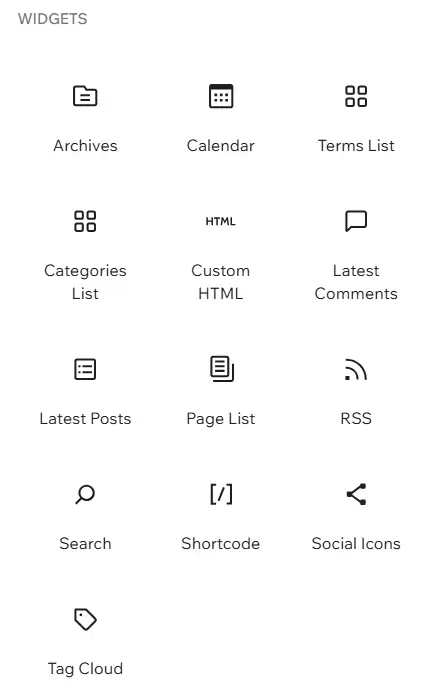
Screenshot 4: Widgets of the Gutenberg Block Editor
Theme Blocks
- Navigation: Adds a site navigation menu.
- Site Logo: Displays the website’s logo.
- Site Title: Shows the site’s main title.
- Site Tagline: Displays the site’s tagline or subtitle.
- Query Loop: Shows posts based on selected criteria.
- Avatar: Displays the author’s profile image.
- Title: Shows the post or page title.
- Excerpt: Displays the post excerpt.
- Featured Image: Inserts the post’s featured image.
- Author: Shows the post author.
- Author Name: Displays the name of the author.
- Date: Shows the post date.
- Modified Date: Displays the last modified date.
- Categories: Shows assigned categories.
- Tags: Shows assigned tags.
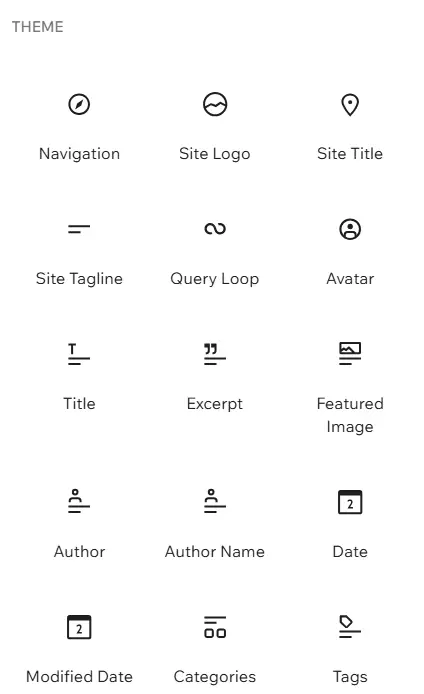
Screenshot 5: Theme Blocks of the Gutenberg Block Editor
Embeds
- Embed: Generic block for embedding supported URLs.
- Most services (like Spotify, Vimeo, Twitter, and YouTube) are handled through the generic Embed block. WordPress handles common URLs automatically, and additional embed options may appear based on plugins or theme support.
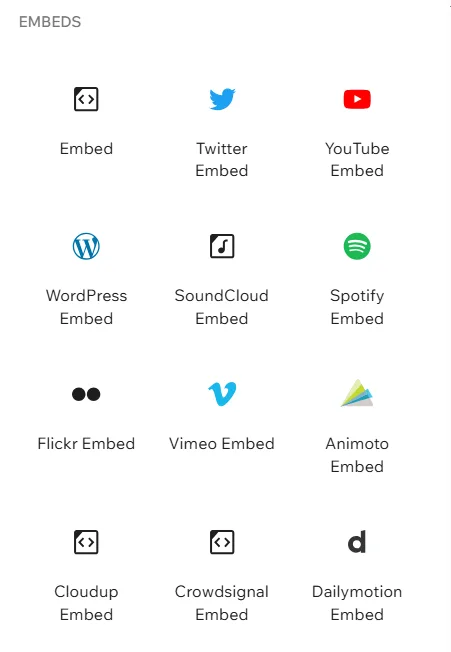
Screenshot 6: Embed blocks of the Gutenberg Block Editor
Why It Matters for Enterprise WordPress?
Custom Gutenberg blocks matter for enterprise WordPress because they add the structure and consistency large teams need to work efficiently. They make it easier to maintain brand standards, handle complex layouts. The result is a cleaner, faster creation of web pages.
For Marketers: Custom blocks reduce reliance on developers, streamline campaign and landing page creation, and enable smooth integration with CRMs, analytics, and automation tools.
For Content Creators: Custom blocks offer ready-to-use, brand-aligned components that make page building easier, faster, and more consistent, allowing creators to publish high-quality content at scale.
Use Cases
Gutenberg allows businesses to make reusable blocks and patterns that keep the design the same across different campaigns, landing pages, promotions, and microsites, helping them launch faster while keeping brand and accessibility standards in check.


