

Insights, ideas and inspiration. A go to wisdom hub right here.
Featured Posts


Tutorials
7 Min Read

Latest Posts
Tutorials
9 min read
How to integrate a Helpdesk and Customer Support Ticket System in WordPress using SupportCandy (Part 3)
Introduction
In Part 2 of this 3 part Blog series, we covered the following sections of the support candy plugin
- Ticket List
- Agent Ticket List
- Customer Ticket List
- Email notification
Now, in Part 3 which is the final part of this blog, we will explore the settings sections of the SupportCandy plugin.
Settings
Step 1: General settings
- Under this tab, you can configure the general settings.
Screenshot 1: Settings → General Tab
- Ticket Status After Customer Reply: You can define the ticket status that will be set when a customer (the ticket creator) submits a reply. If you don't want the status to change, select the "Do not change" option.
- Ticket Status After Agent Reply: You can specify the ticket status that will be applied when an agent submits a reply. To keep the status unchanged, select "Do not change."
- Close Ticket Status: This status is applied when either an agent or a customer closes the ticket.
- Ticket Alice: You can customize the name used for your tickets. For example, you might rename it to "Case," so tickets will be referred to as "Case #" in individual tickets, email notifications, and other communications.
- Allow Close Ticket: You can determine who has permission to close a ticket. Agents from the selected roles must have the necessary access to enable the "Close" button within an individual ticket.
Page settings Tab
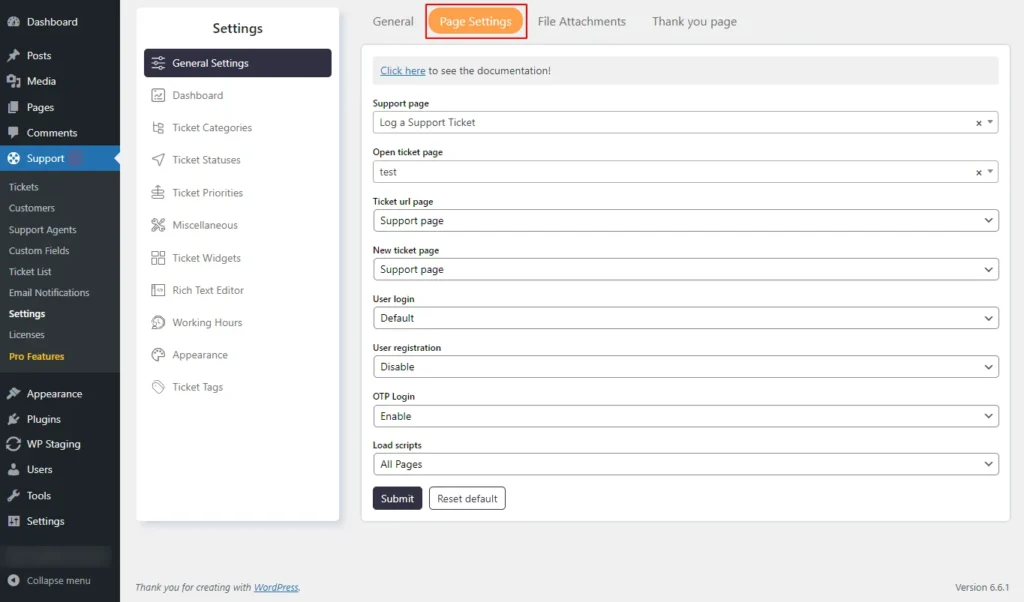
- Here you can set the various pages such as user login and registration screens.
Screenshot 2: Support → Settings → General Settings → Page Settings tab
- Support Page: The support page is where the [supportcandy] shortcode is used on the front end to display the support functionality.
- User Login: This setting determines how users can log in to access the support forum on the front end. You can choose from Default, WP Default, or Custom URL options.
File Attachments
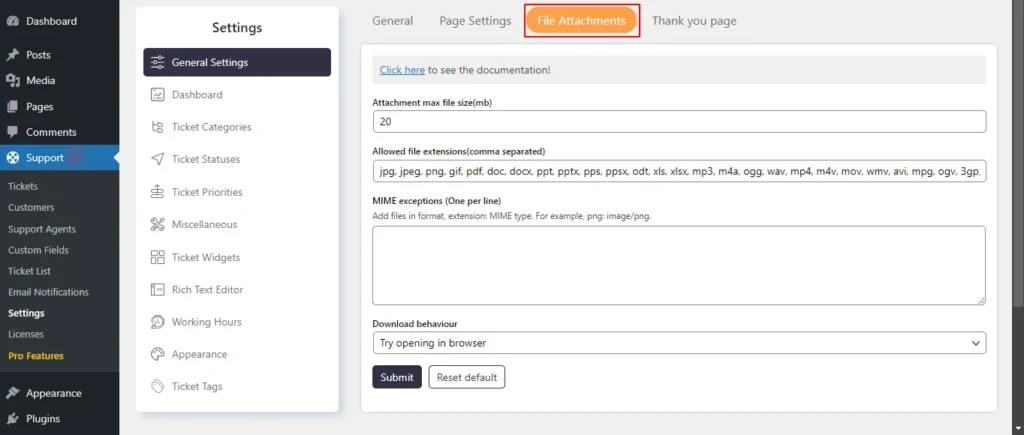
- Go to Support → Settings → General Settings → File Attachments tab
- Here you can set the max file size of the attachment along with its Allowed File Extensions.
Screenshot 3: File Attachments tab
Thank you page
- Here you can define what action should be taken after the customer or agent submits the ticket.
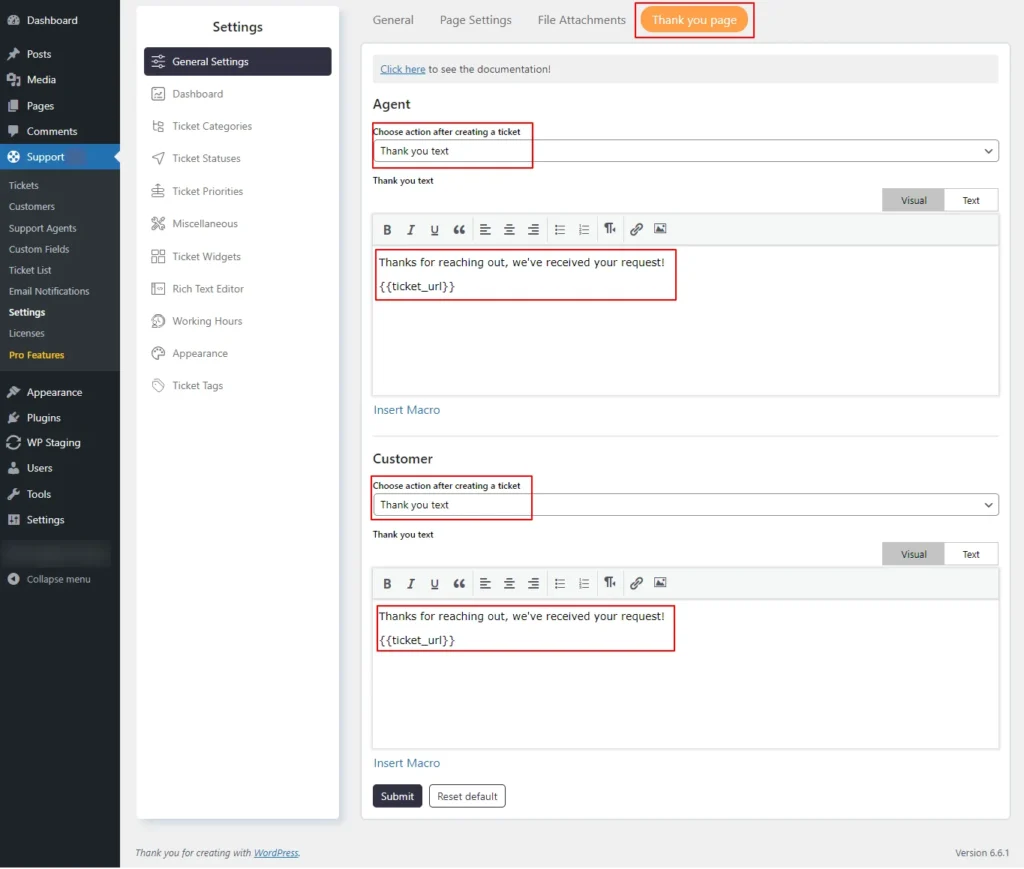
Screenshot 4: Thank You Page
- You can show a thank-you text, redirect to the custom page, or open a ticket page.
Step 2: Dashboard
- Dashboard in SupportCandy lets support agents quickly see important ticket information. This helps them plan their work and choose what to do first.
- You can see how many new tickets, unresolved tickets, unassigned tickets, closed tickets, tickets assigned to the current agent (mine), tickets that are out of SLA, tickets that are due today, and tickets that are due tomorrow.
- If an agent clicks any of these numbers they will be redirected to the respective categories list of tickets with the right filter in place.
General
- Here we define the general settings for the dashboard, such as the default date range and dashboard auto-refresh.
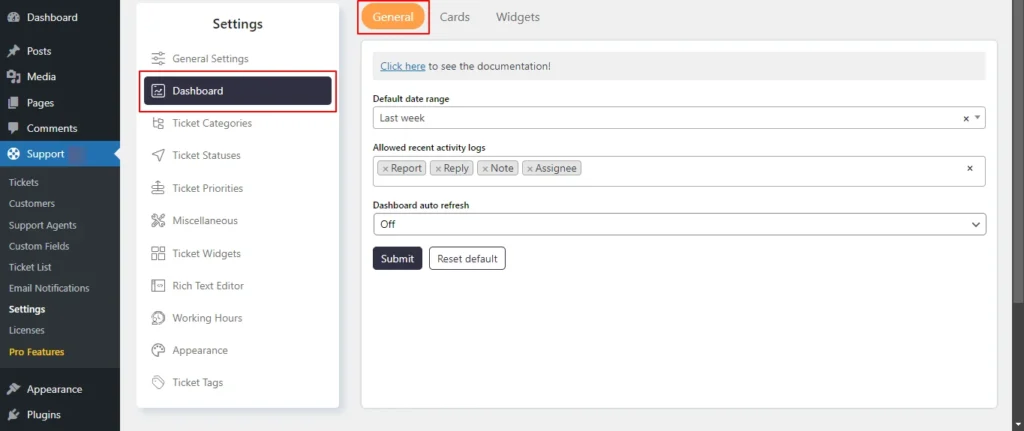
Screenshot 5: Dashboard General Tab
Cards
- Under this tab, set the order of the tickets based on the ticket status.
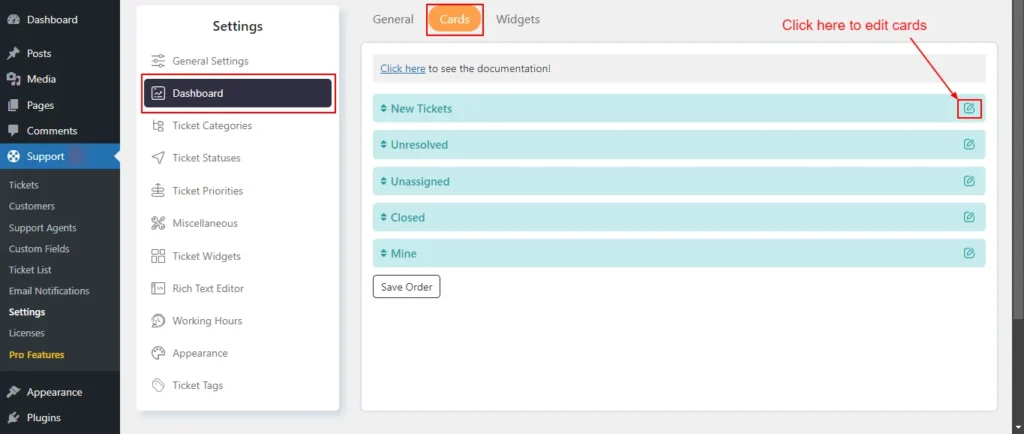
Screenshot 6: Dashboard Cards
- Click the Edit button next to that card, as shown in the screenshot below . You can change the Title, show/hide the card in the dashboard, and allow agent roles who can see the card info in the dashboard.
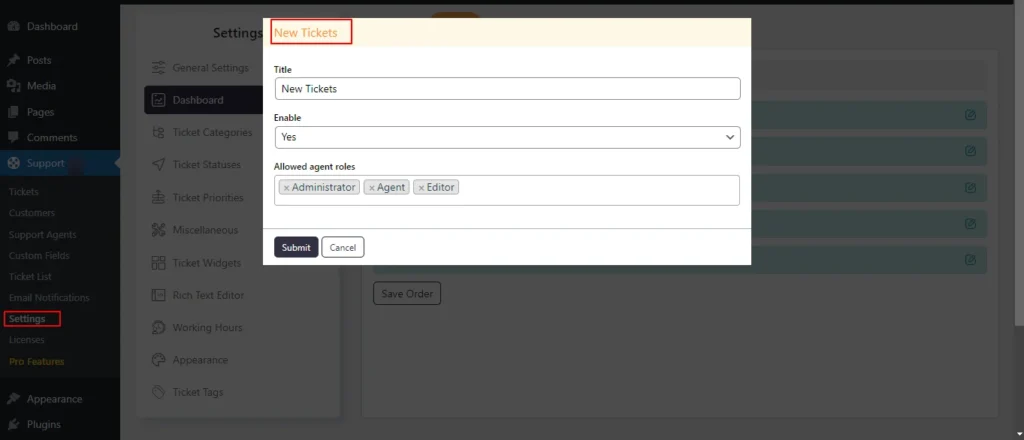
Screenshot 7: Edit the Cards
Widgets
- The dashboard widgets give you a complete view of your support operations, with real-time information on new tickets and closed tickets, as well as full analytics on response times and communication gaps.
- You can customize the dashboard to your needs by rearranging widgets based on priority.
- Also, you can manage visibility for different agent roles by enabling or disabling widgets for specific roles.
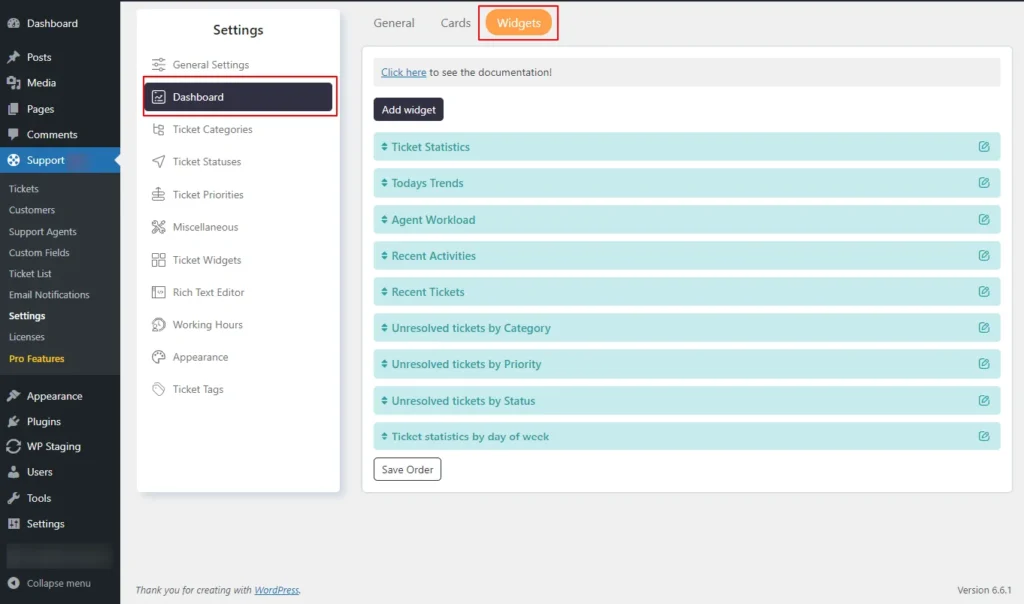
Screenshot 8: Dashboard Widgets
Here is the List of widgets that are available by default
- Ticket Statistics
- Trends of Today
- Agent Workload
- Recent Activity
- Recent Tickets
- Unresolved Tickets by Type
- Unresolved Tickets by Priority
- List of Unresolved Tickets by Status
- Response Delay
- Ticket Closing Delay
- Communication Gap
- Ticket comments
- Agent scores
- Out of SLA Tickets
- Active Timer
- Usergroups
Adding a new widget
- In the Widgets tab, locate the Add New Widget button and click on it.
- Select the Custom field for which you want to add widgets. Click Submit to save changes.
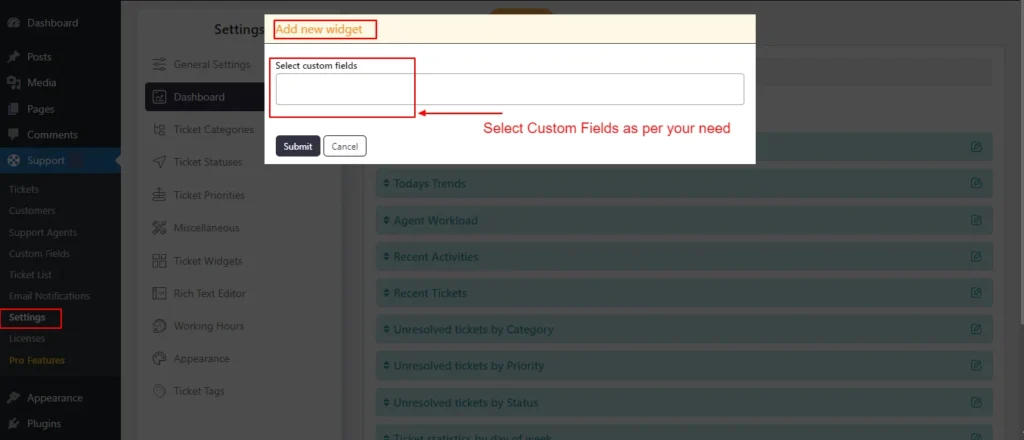
Screenshot 9: Adding a new widget
Editing the Widgets
- Click on the edit icon beside the widget name.
- You can change the title, show/hide the widget in the dashboard, and allow agent roles who see the widget in the dashboard.
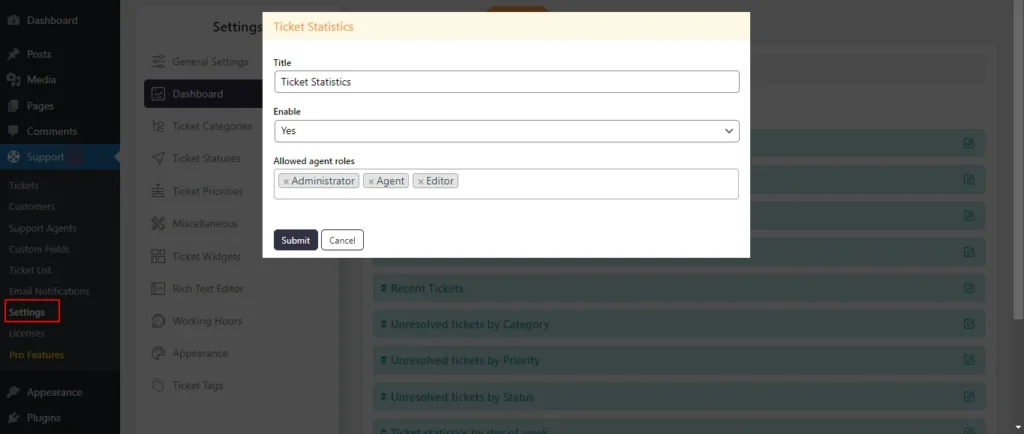
Screenshot 10: Editing Widgets
Step 3: Ticket Categories
- Ticket categories let users and agents sort tickets into groups based on what they are about, which makes it easier to communicate and solve problems.
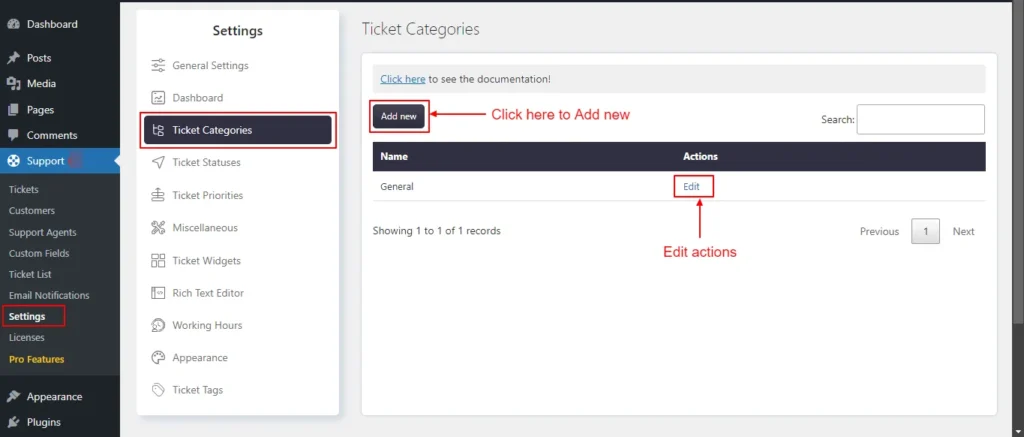
Screenshot 11: Ticket categories
Adding a New Category
- Users with the necessary permissions can create new ticket categories.
- Navigate to Support → Settings → Ticket Categories
- Click on Add New.
- Give a name to the category.
- Select the order of loading the categories by Load after dropdown.
- Click Submit
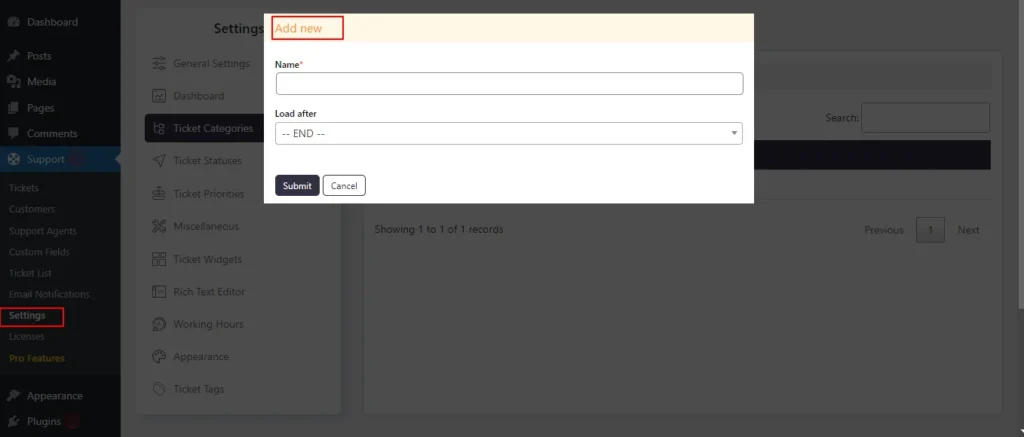
Screenshot 12: Add New Ticket Category
Edit Category
- Click on the Edit option beside the name of the ticket.
- You can change the name and loaf after settings.
- Click Submit.
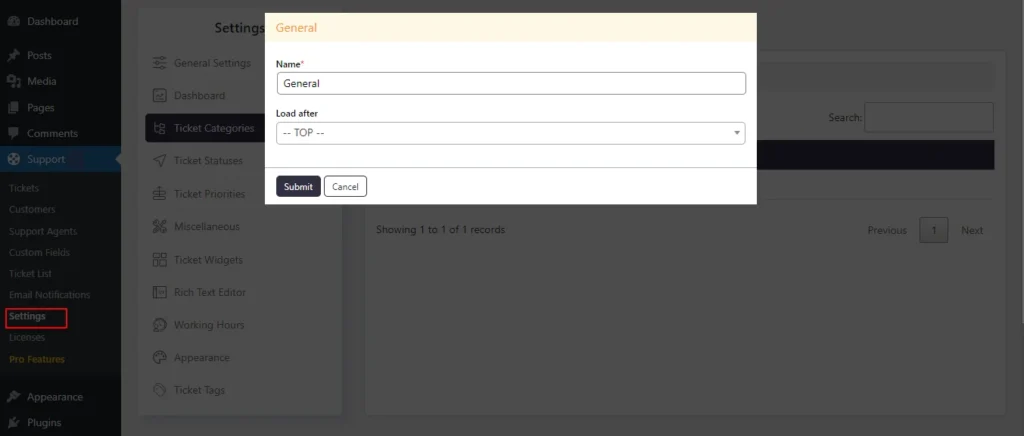
Screenshot 13: Edit Ticket Categories
Step 4: Ticket Statuses
- Under this tab you can set your own custom statuses to customize the process and life cycle of the tickets.
- Customization includes the color patterns that go with each status, which show clearly what state the ticket is in.
- Administrators can edit or delete statuses as needed.
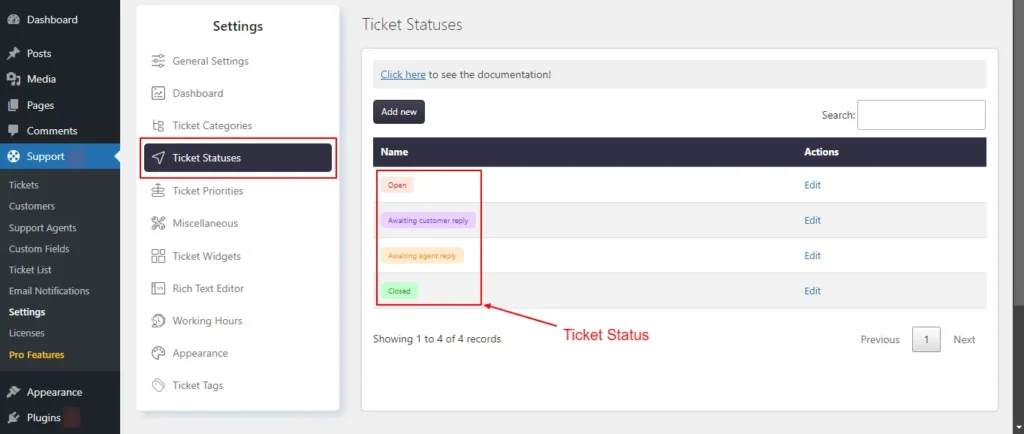
Screenshot 14: Ticket Status
Adding Status:
- Head over to Support → Settings → Ticket Statuses.
- Click on Add New.
- Enter a suitable name for the new status that you want to add.
- Choose a color and background color for visual identification.
- Click Submit.
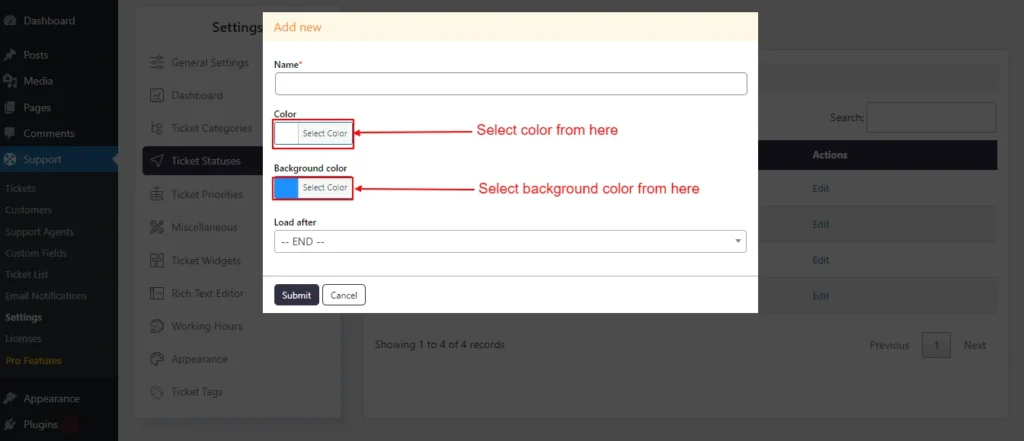
Screenshot 15: Adding status
Edit Status:
- Click the Edit link beside the status name that you want to edit.
- Edit the color, background color, and load after setting.
- Click Submit.
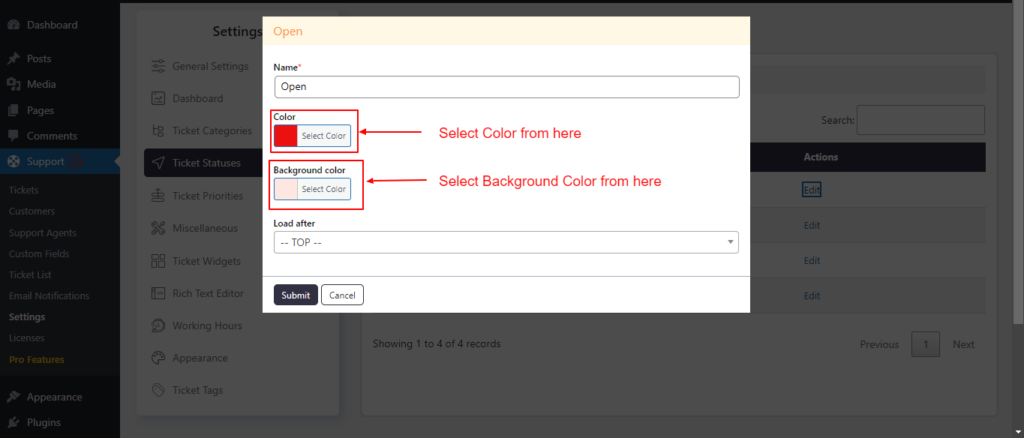
Screenshot 16: Editing a Ticket status
Step 5: Ticket Priorities
- Using this setting, you can prioritize tickets based on urgency. You can create new priorities or edit existing ones (High, Medium, Low priorities).
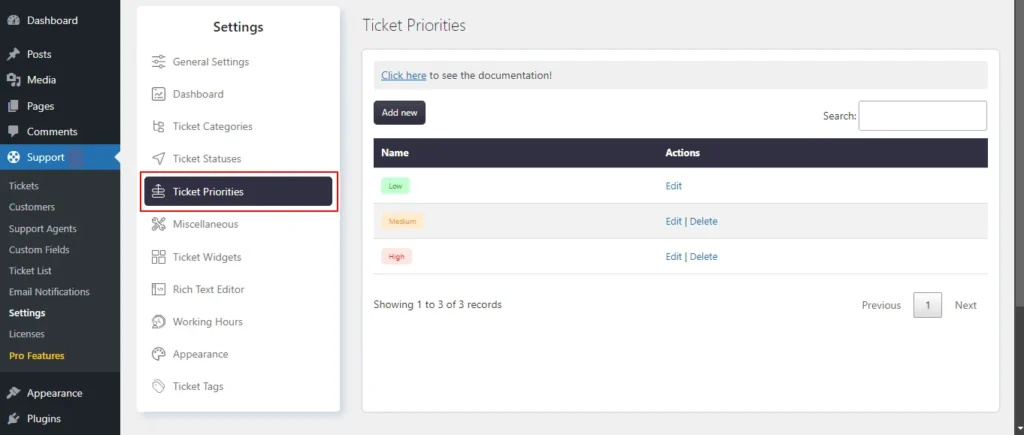
Screenshot 17: Ticket Priorities
Adding a New Priority
- Go to Support → Settings → Ticket Priorities and click on Add New.
- Enter a name and choose a color and background color for the priority based on its urgency.
- Click Submit.
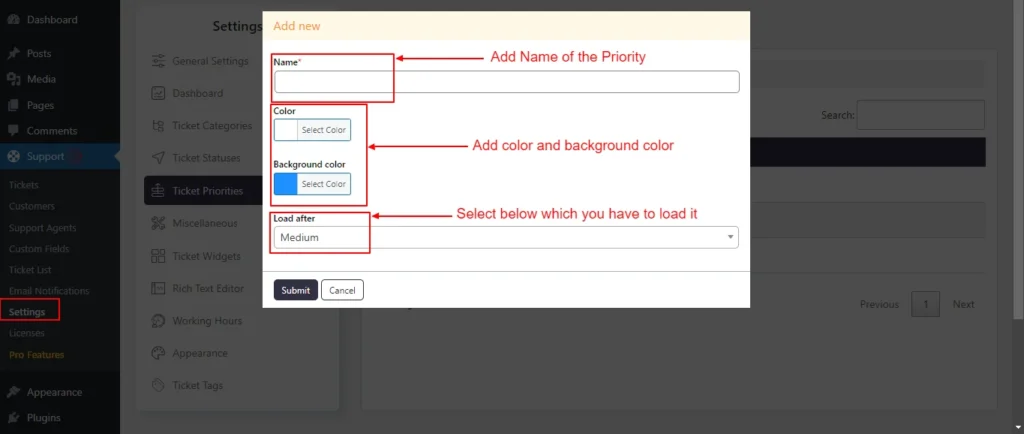
Screenshot 18: Adding a new Ticket Priority
Edit Priority
- Click on the edit link for which you want to edit.
- Click on the Edit option.
- Edit the Name, Color, or Background color, Load after settings as per your needs.
- Click Submit
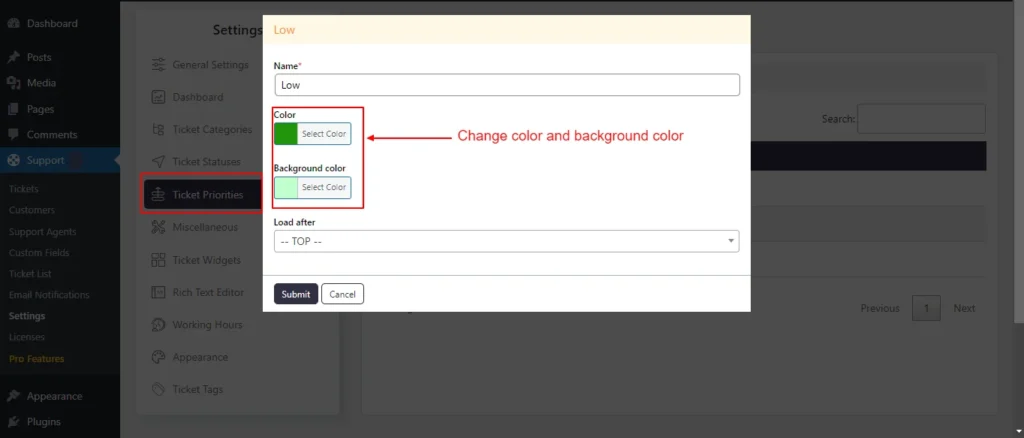
Screenshot 19: Editing Ticket Priorities
Step 6: Miscellaneous
- Under the Miscellaneous settings, you can set the following settings:
- Term & Conditions
- GDPR
- reCaptcha
- Advanced
Terms and conditions
- Enabling this feature will add a checkbox in the Create Ticket form and Registration Form prompting the user to agree to the terms and conditions.
- The terms and conditions message can be customized as seen in the below screenshot no.. You can also add to link to your terms and conditions page.
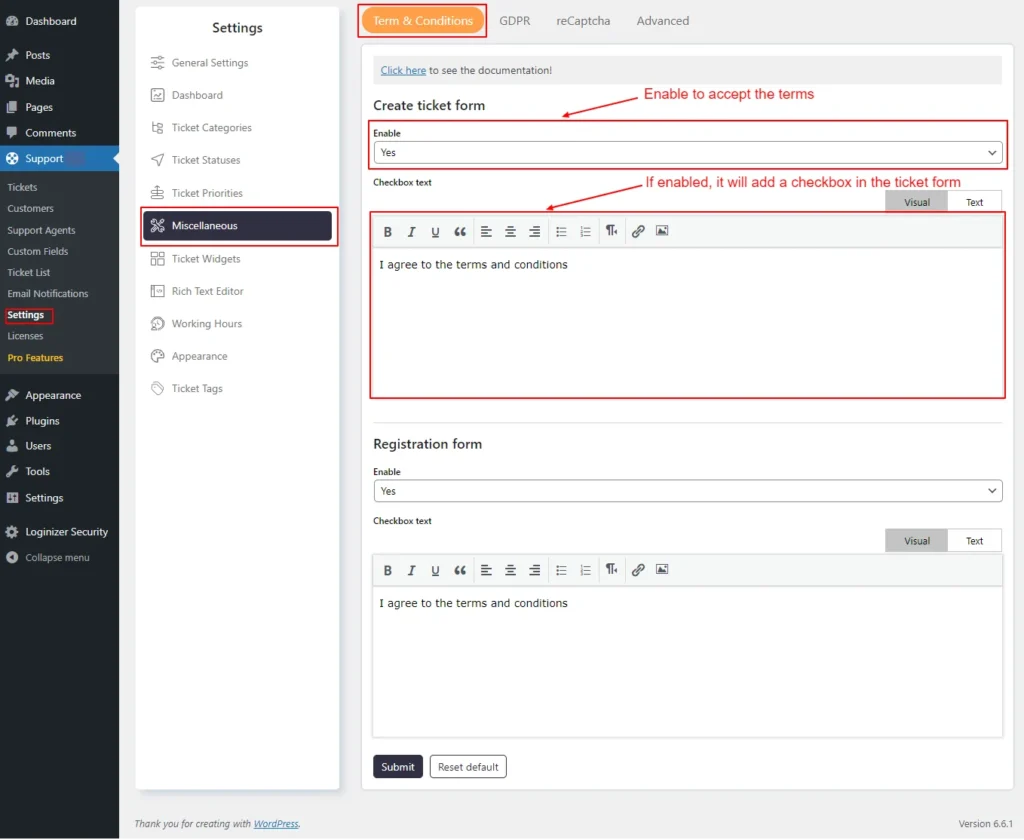
Screenshot 20: Miscellaneous → Terms & Conditions
GDPR
- If enabled, it will add a checkbox in the Create Ticket form and Registration Form with a custom message letting the user know what information will be stored in the database.
- You can also send the Personal data retention
- It specifies the duration for which the system should retain personal information within the ticket. Once the retention period has passed, the database will either delete or anonymize personal details such as Name, Email Address, IP Address, and any custom fields marked as personal information, from the date of creation.
- If you wish to retain personal information indefinitely, set the retention period to 0 days.
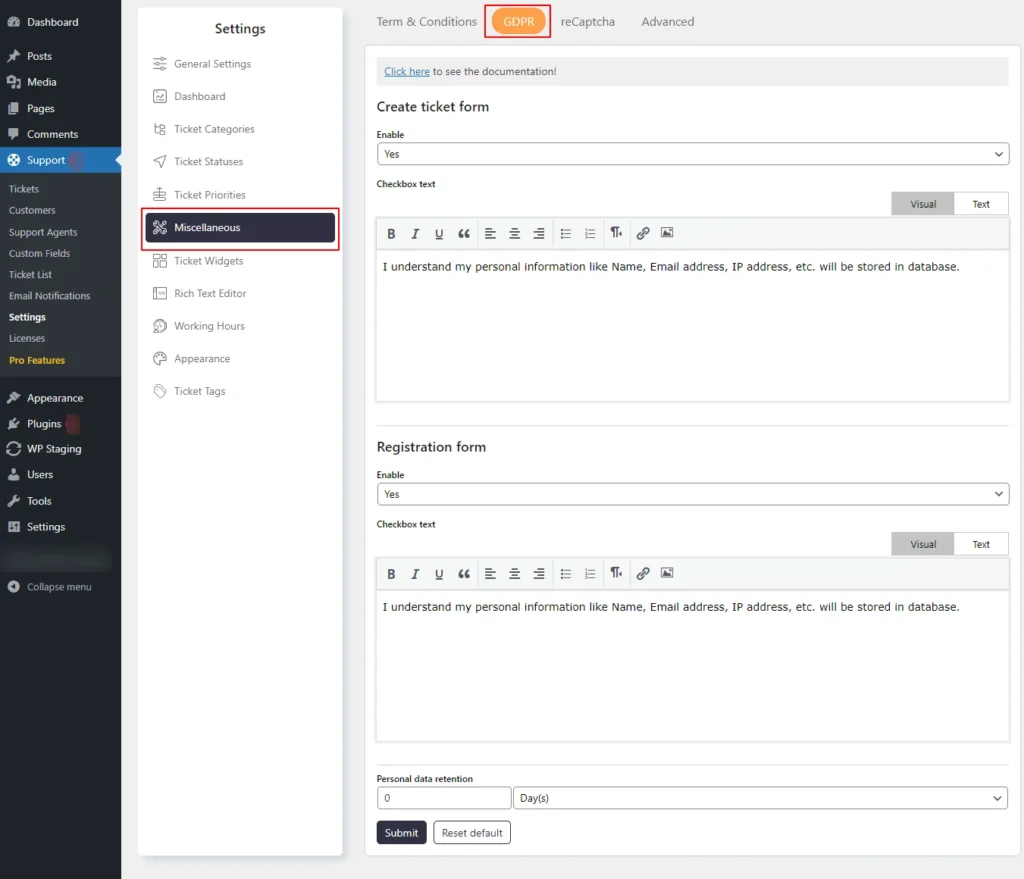
Screenshot 21: Miscellaneous → GDPR
reCaptcha
- You can add Google reCaptcha to the ticket form, login and registration screen, profile screen, etc.
- For that, you need to generate the Site key and Secret key from this link.
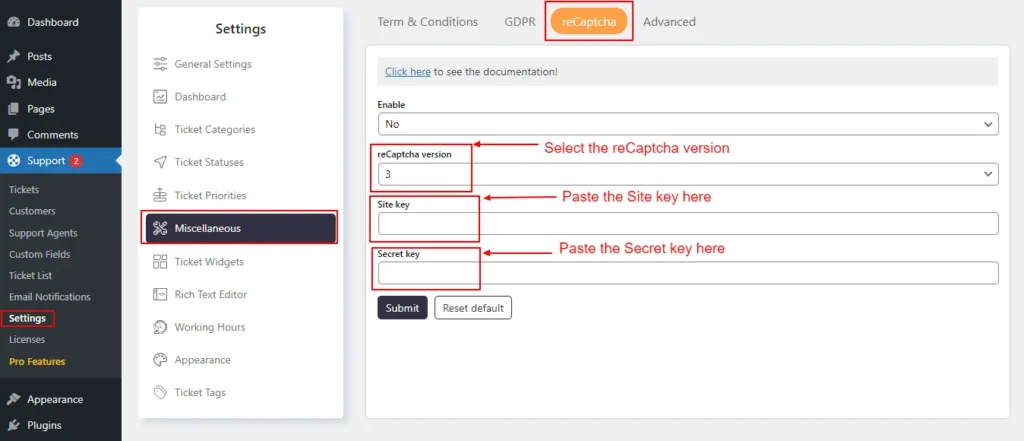
Screenshot 22: Miscellaneous → reCaptcha
Advanced Settings
- Here you can configure 25 types of advanced settings. We will discuss the main settings for now.
- Reply confirmation: After clicking the reply button on a specific ticket, the system will prompt the user for confirmation.
- Ticket ID: In this setting, you can choose whether new ticket IDs are assigned sequentially or randomly.
- Starting Ticket ID: Within the Sequential Ticket IDs setting, you can specify the initial ticket ID to be used for new tickets.
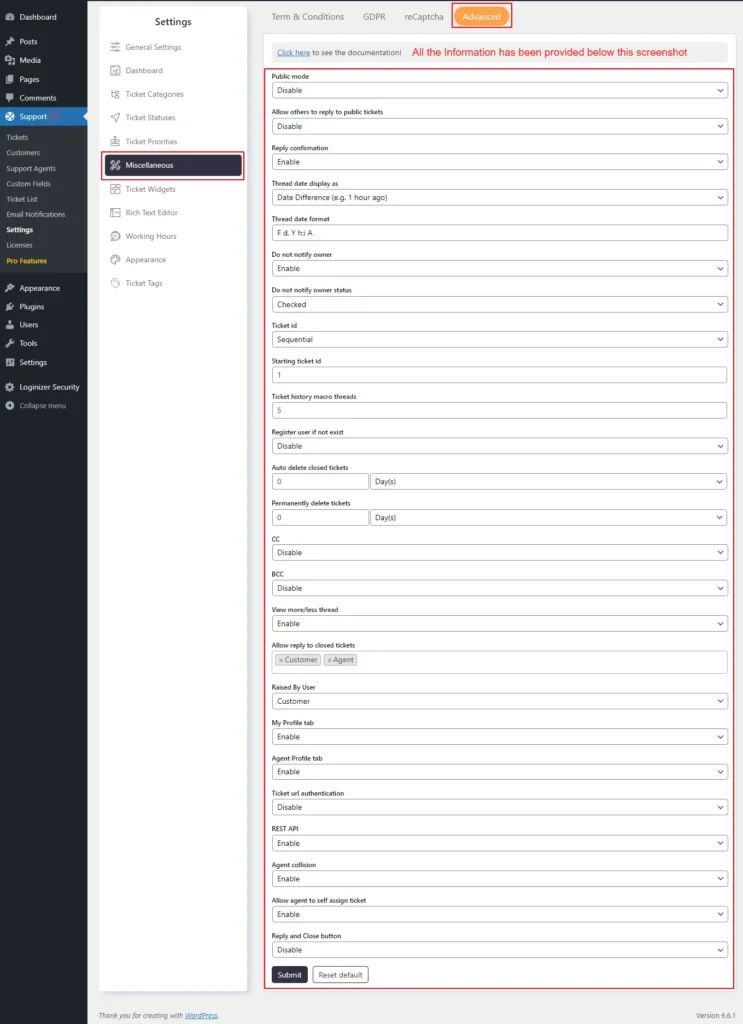
Screenshot 23: Miscellaneous → Advanced settings
Step 7: Ticket Widgets
- The Ticket widgets are displayed on the single ticket in the backend. You can manage the access levels for each widget, determining who can view or edit them.
- Also, you can rename, enable, or disable, and change the order of the widgets from this settings tab.
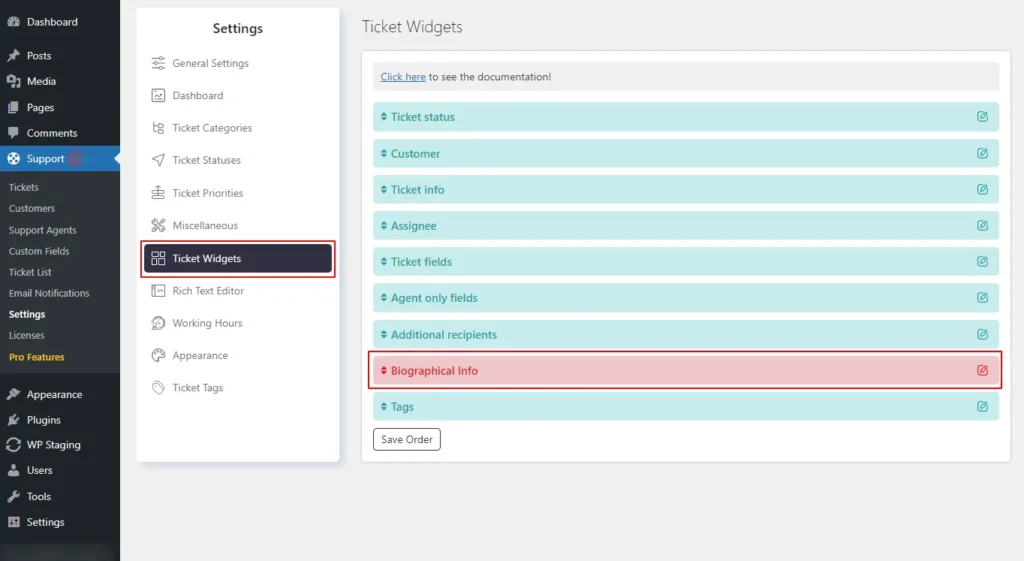
Screenshot 24: Support → Settings → Ticket Widgets
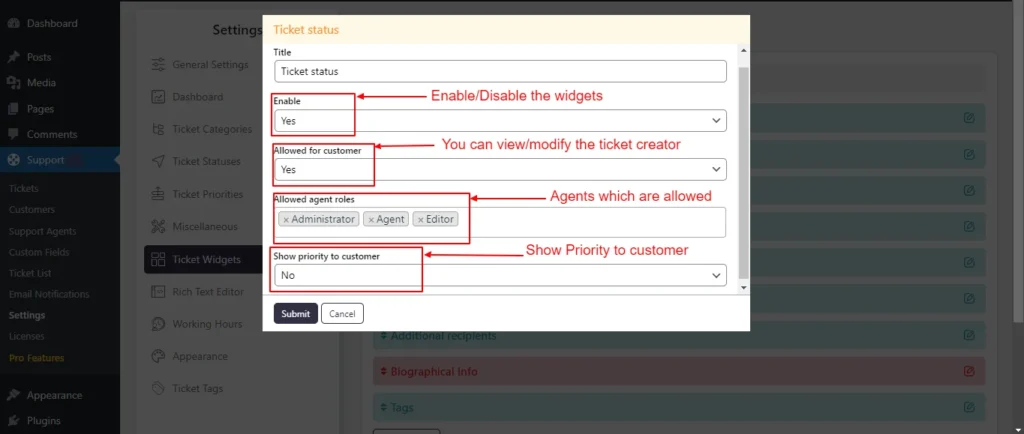
Screenshot 25: Edit Ticket Widgets
Step 8: Rich Text Editor
- This setting allows you to manage the rich text editor configurations for Agents, Registered Users, and Guest Users.
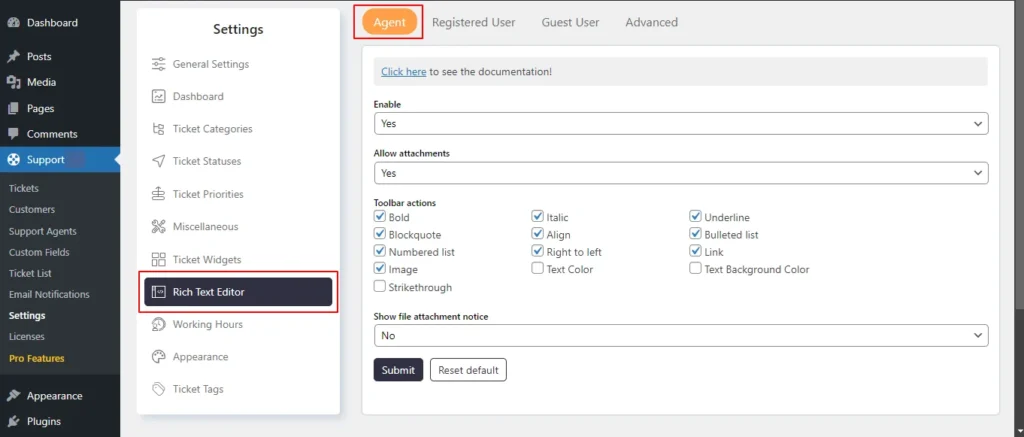
Screenshot 26: Rich Text Editor Agent Tab
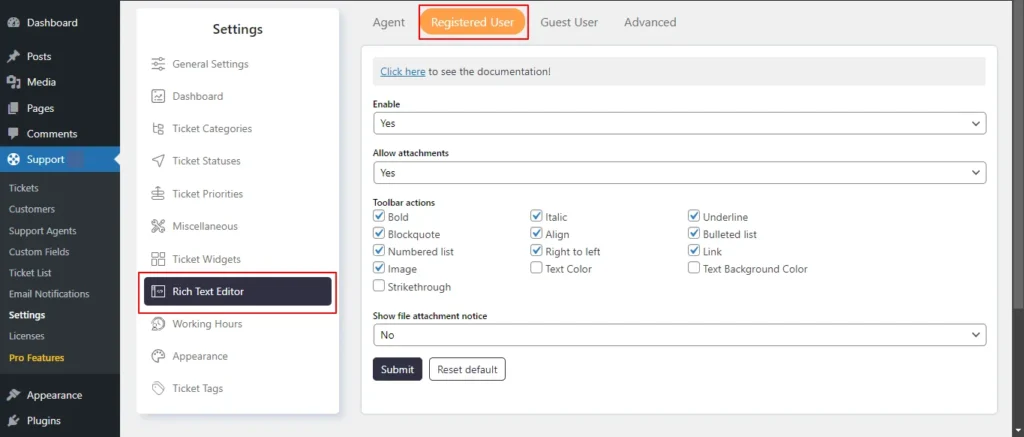
Screenshot 27: Rich Text Editor Registered User Tab
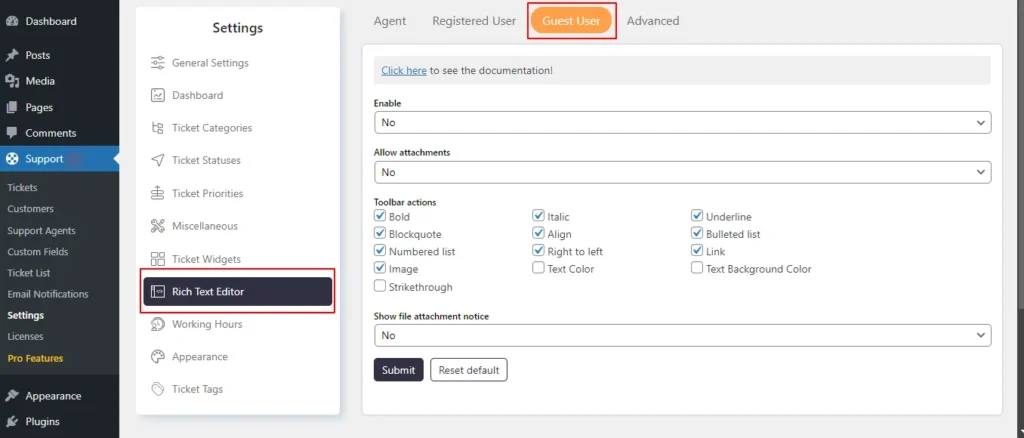
Screenshot 28: Rich Text Editor Guest user Tab
- Enable: You can enable or disable the rich text editor for users.
- Allow Attachments: You have the option to allow or disallow attachments in various areas such as ticket descriptions, reply descriptions, and note descriptions.
- Toolbar Actions: The rich text editor allows you to select which actions to enable, including:
- Bold
- Block quote
- Italic
- Align
- Right to left
- Underline
- Bulleted list
- Link
- Text background color
- Image
- Numbered list
- Strikethrough
- Show File Attachment Notice: You can choose to display information about file attachments, including allowed file types and sizes, to users. This can be configured in the user types setting.
- HTML Pasting: When activated, any text that is copied to the clipboard will be pasted with HTML.
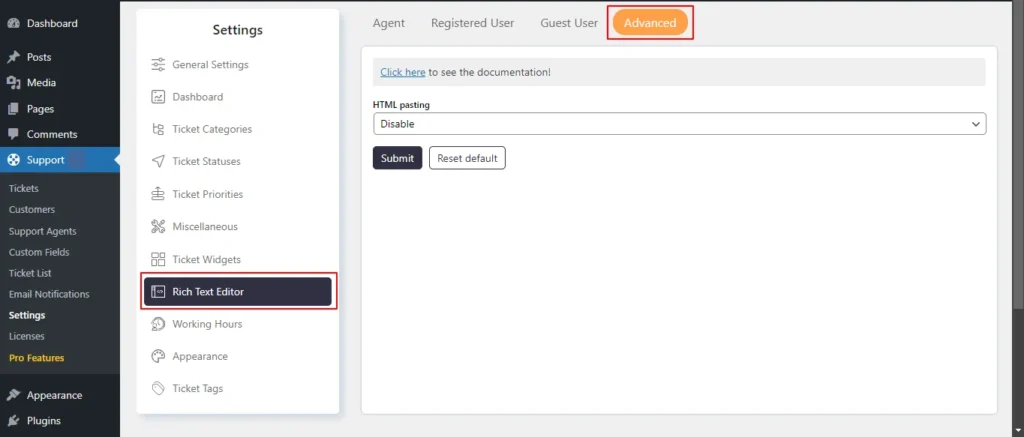
Screenshot 29: Rich Text Editor Advanced Tab
Step 9: Working Hours
- This section allows you to choose the working hours for your company or organization. These specified hours will act as a standard template for the working hours of agents.
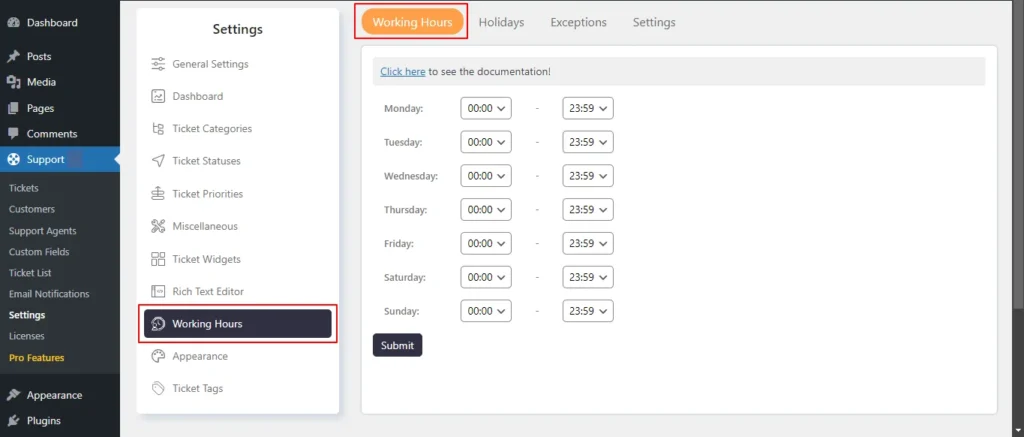
Screenshot 30: Support → Settings → Working Hours
Holidays
- In this setting, you can add holidays for your company or organization,
- You can add a single holiday by clicking on a single date or multiple holidays by date range (selecting and dragging),
- After electing choose the action Add new holidays.
- If you want this to occur annually select yes in Repeat every year drop-down.
- Similarly, you can delete holidays.
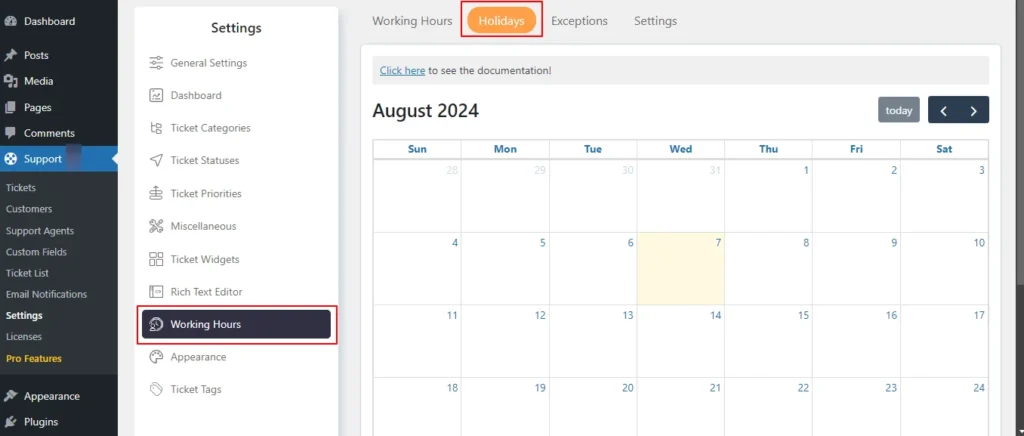
Screenshot 31: Holidays Calendar
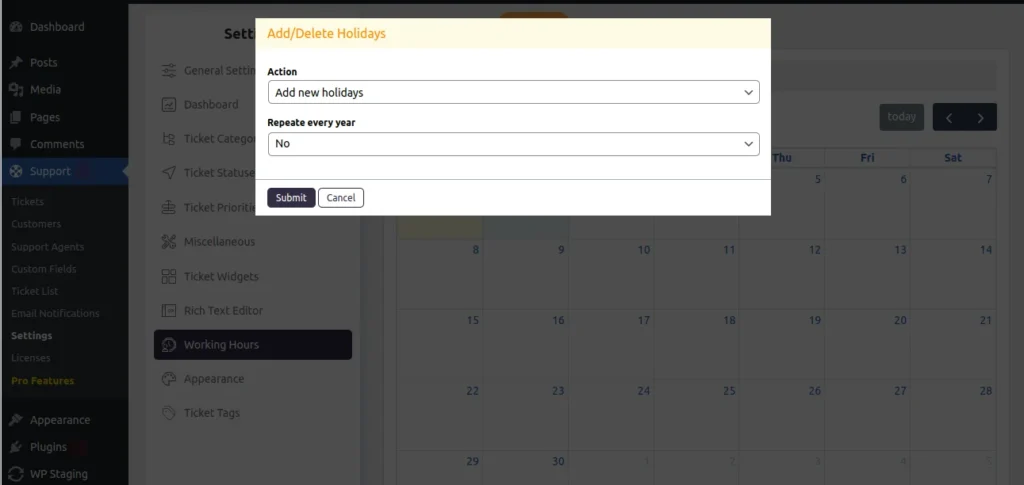
Screenshot 32: Add/Delete Holidays
Exceptions
- In some situations, you may want to modify the working hours for a specific day. You can do this by selecting that specific date and modifying the working hours.
- This exception will apply only to the working hours set at the company or organization level.
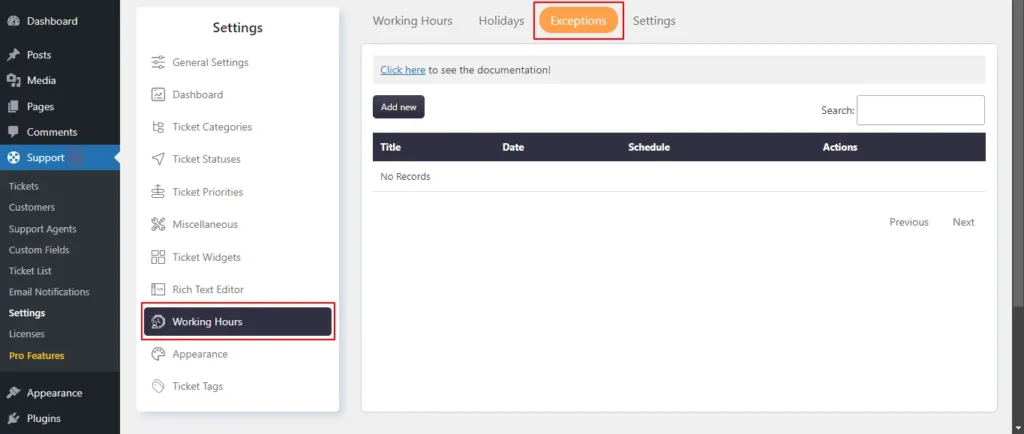
Screenshot 33: Working hours → Exceptions list
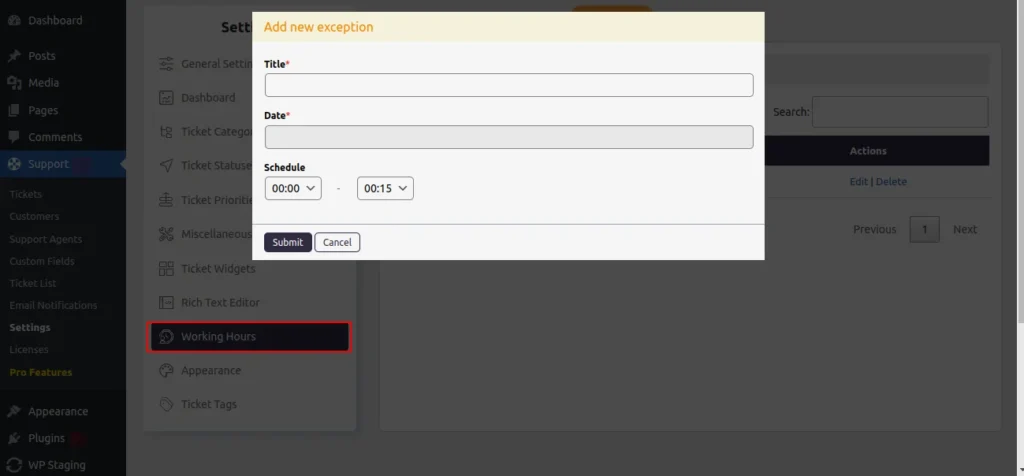
Screenshot 34: Working hours → Exceptions → Add New
Settings
- In the Settings Tab, you can Allow agents to modify working hours or you can Allow agents to modify their leaves.
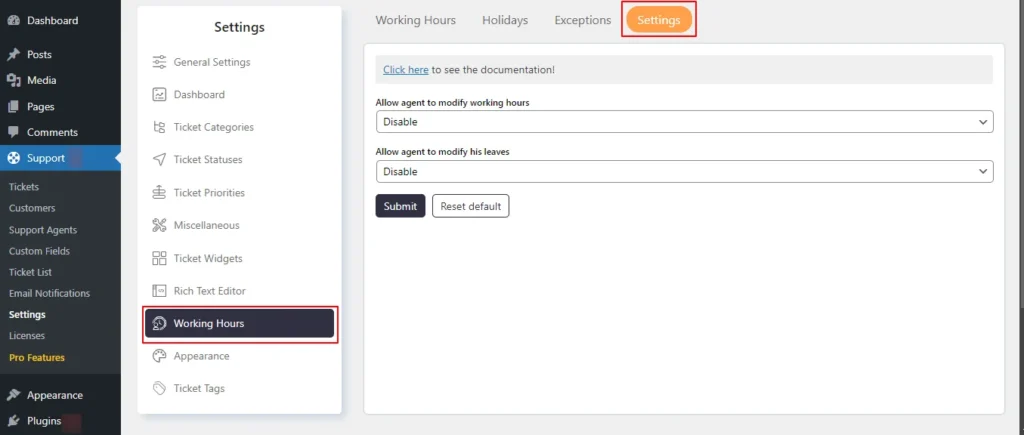
Screenshot 35: Working hours → Settings Tab
Step 10: Appearance
- You can configure the appearance of General (overall look and feel), Ticket List, Individual Ticket, Modal Popup, Agent Collision, and Dashboard screens.
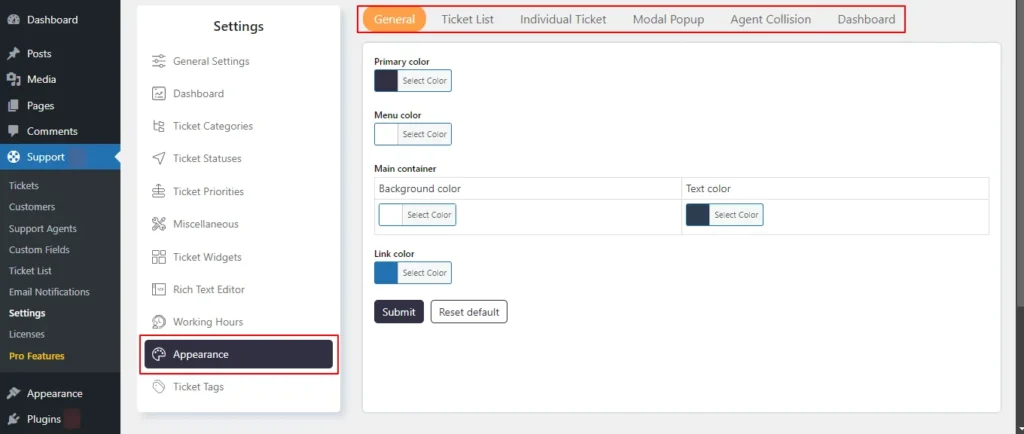
Screenshot 36: Appearance
Step 11: Ticket Tags
- The Ticket Tag Setting feature allows administrators to add tags to the tickets.
- To add a ticket tag enter its name and description, and select its color and background color.
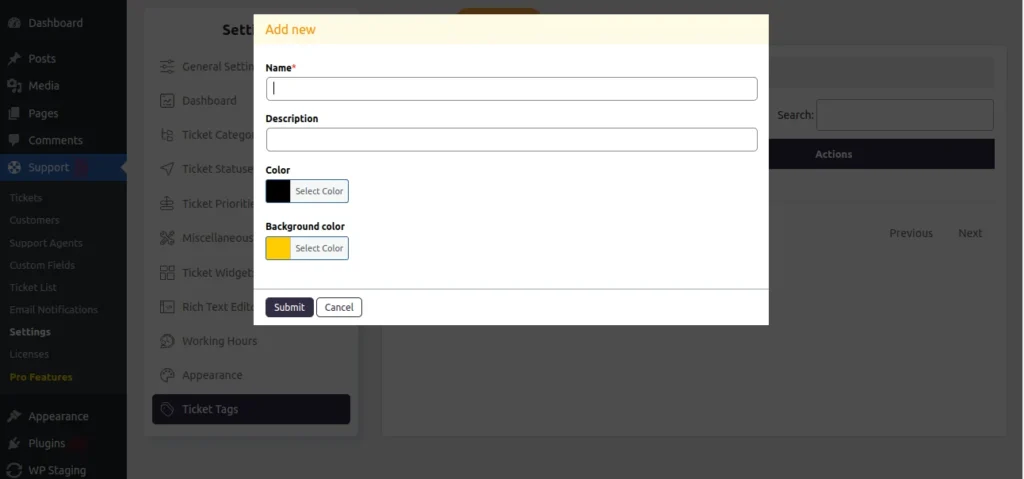
Screenshot 37: Add new Ticket tag
- Under the same screen, you can customize Tag Appearance for ticket tags.
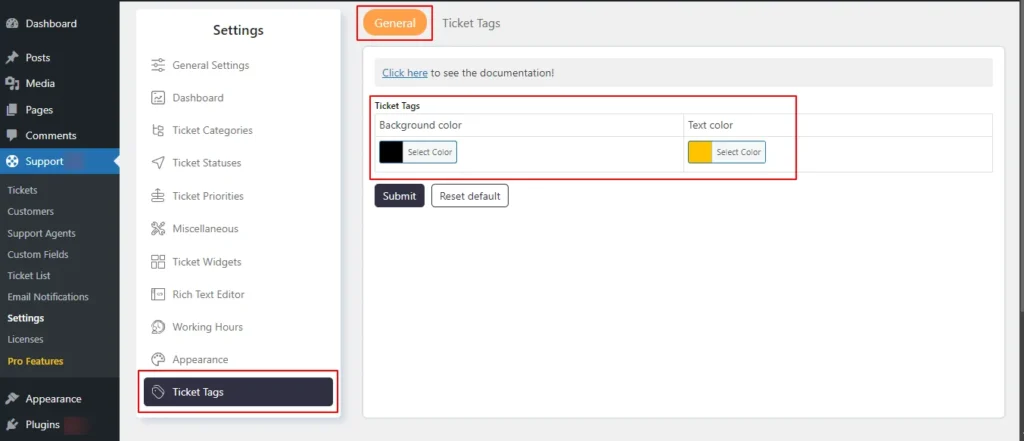
Screenshot 38: Ticket Tags General (Customizing Tag Appearance)
Conclusion
In this blog, we walked you through how to add a helpdesk and ticket system on WordPress using the SupportCandy plugin.
SupportCandy adds to your WordPress site the features of a complete help desk and customer support ticket system. It is one of WordPress's most popular helpdesk and customer support ticketing plugins.
That’s it for this article. Do more with your website.
If you need any help related to WordPress, contact our WordPress experts.


Tutorials
9 min read
How to integrate a Helpdesk and Customer Support Ticket System in WordPress using SupportCandy (Part 2)
Introduction
In Part 1 of this 3 part Blog series, we covered the basics of setting up the Support Candy plugin, focusing on the following sections of the plugin
- Installation and Setting up the Plugin
- Tickets
- Customers
- Support Agents
- Custom fields
Now, in Part 2 of this Blog, we will explore the following sections of the SupportCandy.
- Ticket List
- Agent Ticket List
- Customer Ticket List
- Email notification
Ticket List
- Ticket List section is used to define the columns that appear in the Admin and Agent dashboard under Tickets → Ticket List screen and Customer Tickets list on the front end.
- You can add new columns from the existing list of items or rearrange the columns order in which they are displayed.
Step 1: Agent Ticket List
List Items tab
- Go to the SupportCandy plugin menu.
- Click on the Ticket List → Agent ticket list → List items
- Customize the column order displayed in the ticket list.
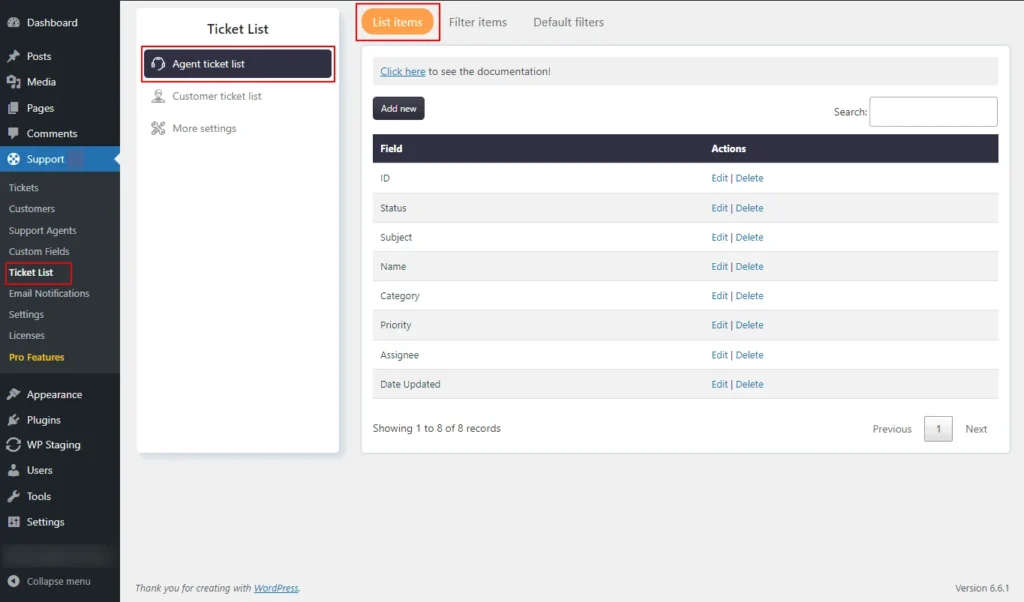
Screenshot 1: Item Lists
Adding List Items (Coulmns) to Tickelt list table
- Click on Add new to Add new List items.
- Select fields from the available list (e.g. date created, email address, etc) as shown in the below screenshot.
- Hit Submit to save changes.
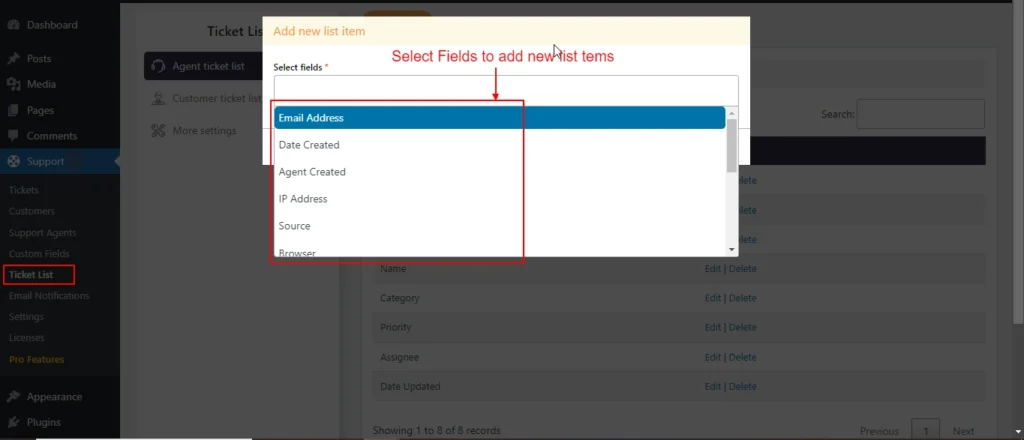
Screenshot 2: Adding New Column to Agent Ticket List table
Editing List Items
- In the Agent Ticket List section, edit the column that you want to reorder.
- Click Submit to apply your changes.
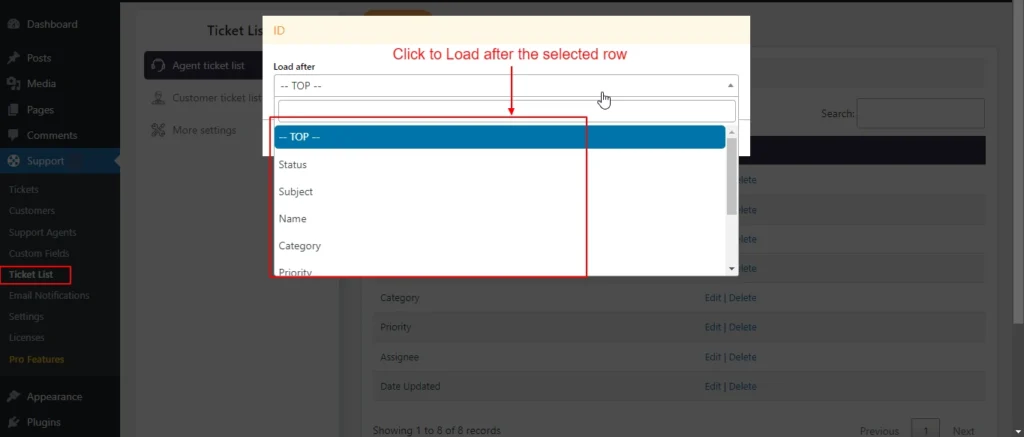
Screenshot 3: Edit List Items (reordering columns)
Filter Items
- This screen allows us to add filter options for filtering tickets on the Agent Tickets list screen. You filter tickets based on their status, customer, subject, category, priority, and so on.
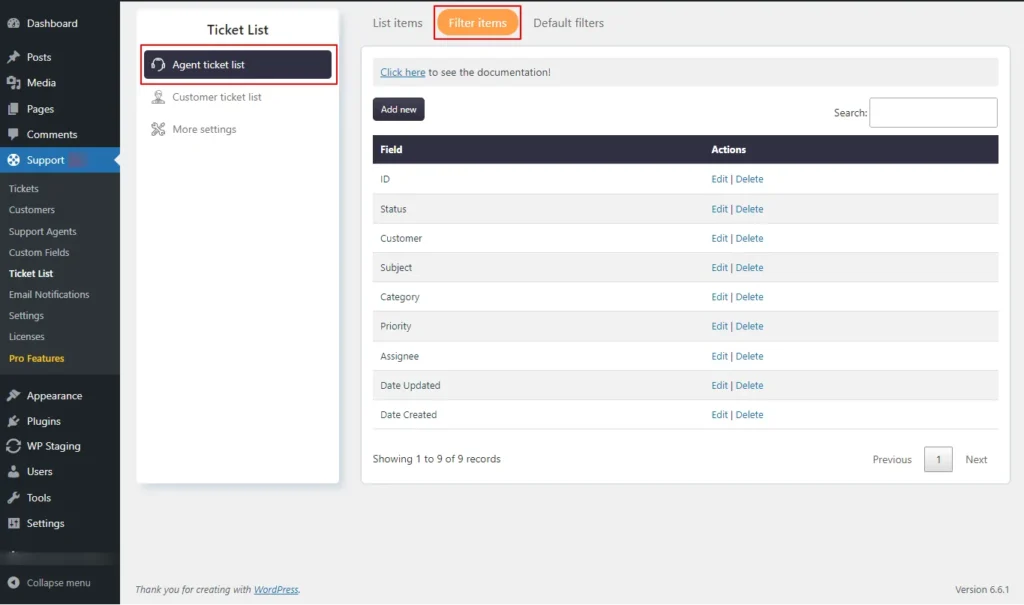
Screenshot 4: List of available filters in the Agent Ticket List
Add New Agent Tickets Filter Items
- Go to the Ticket List → Agent ticket list → Filter items.
- Add the filter options you want to filter tickets by, as shown in the screenshot below.
- Click Submit to apply the filter settings.
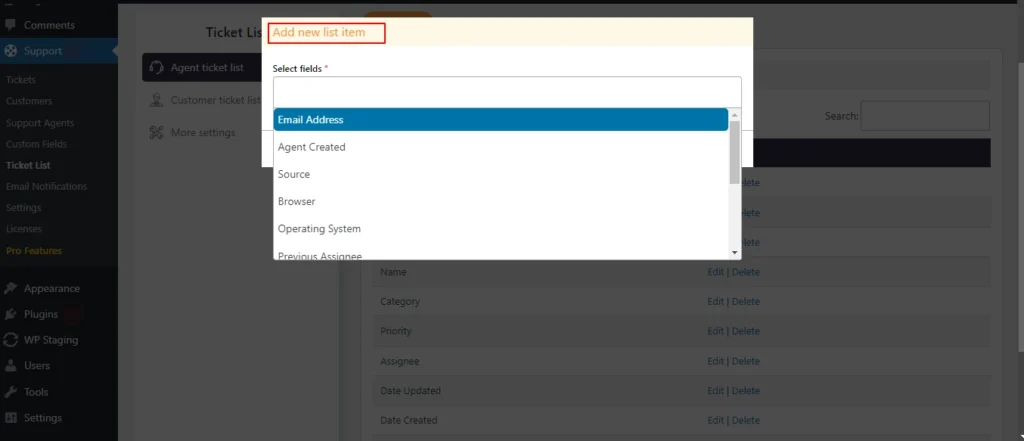
Screenshot 5: Add New filter options to Agents Tickets
Edit Agent tickets Filter Items
- Go to the Ticket List → Agent ticket list → Filter items. Click the Edit link beside the field.
- You can only change the Load after setting
- Click Submit to apply your changes.
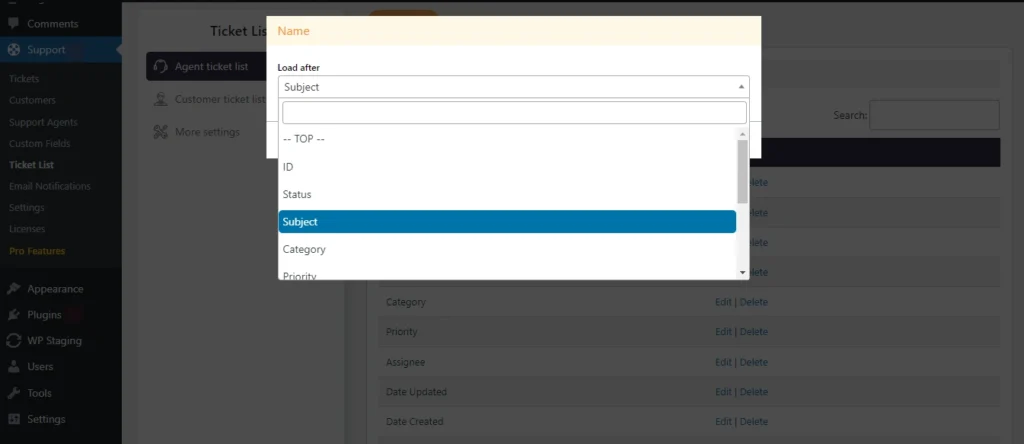
Screenshot 6: Edit filter item for Agents Tickets
Default Filters
- Default filters are filters on the ticket list. Here we choose the fields created in the above steps. These filters are available to agents.
- Select the items for default filters drop down on the Ticket List page (e.g., All, Unresolved, Unassigned, Mine, Closed, Deleted, show only open tickets).
- Drag and drop to reorder the fields as needed.
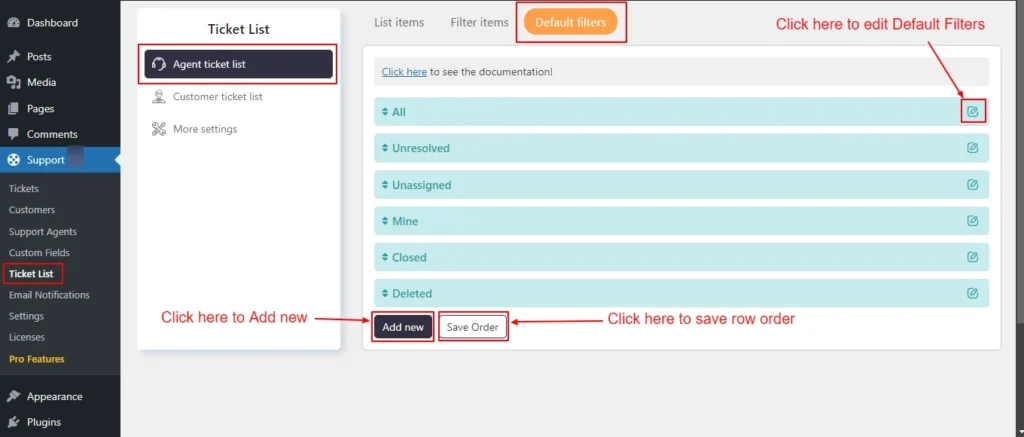
Screenshot 7: Agent Ticket List Default filters
Add new Agent ticket list Default Filters
- Go to Ticket List → Agent ticket list → Default filters
- Enter the Label, choose the Parent filter if needed
- If required apply conditional logic.
- Set the Enable drop-down to Yes
- Click Submit.
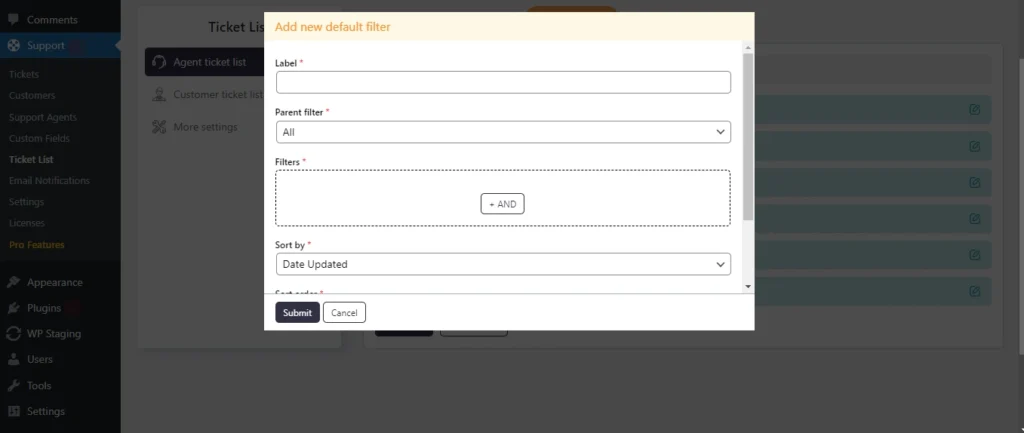
Screenshot 8: Add new Default filter
Edit Agent tickets Default Filter
- Go to Ticket List > Agent ticket list > Default filters
- Click on the edit icon beside the filter name
- You can only edit the Label and its Enable status.
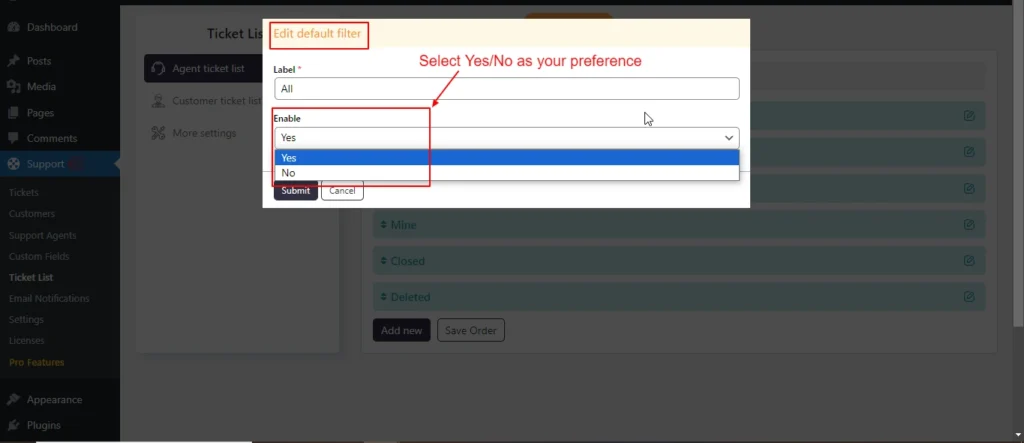
Screenshot 9: Edit Default filters
Step 2: Customer Ticket List
- Similar to Agent ticket list we can define columns for the Customer ticket list and add new filters to it.
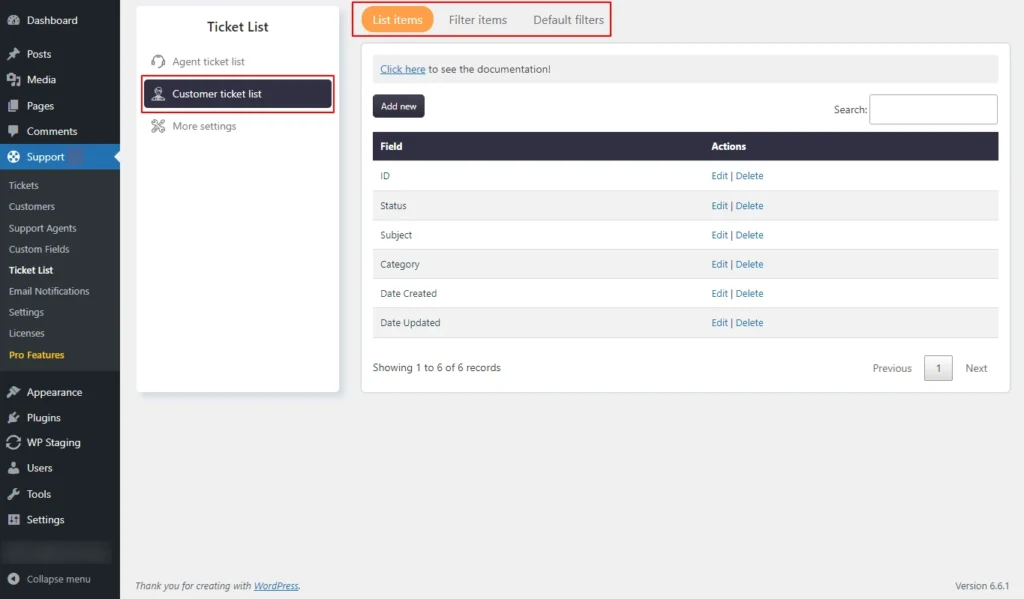
Screenshot 10: Columns displayed in the Customer ticket list
List Items
- Go to the SupportCandy plugin menu.
- Click on the Ticket List → Customer ticket list → List items
- Customize the column order displayed in the ticket list.
Adding List Items (Coulmns to Tickelt List Table)
- Click on Add new
- Select fields from the available dropdown (eg. Name, email address, priority, etc.) as shown in the below screenshot.
- Hit Submit to save changes.
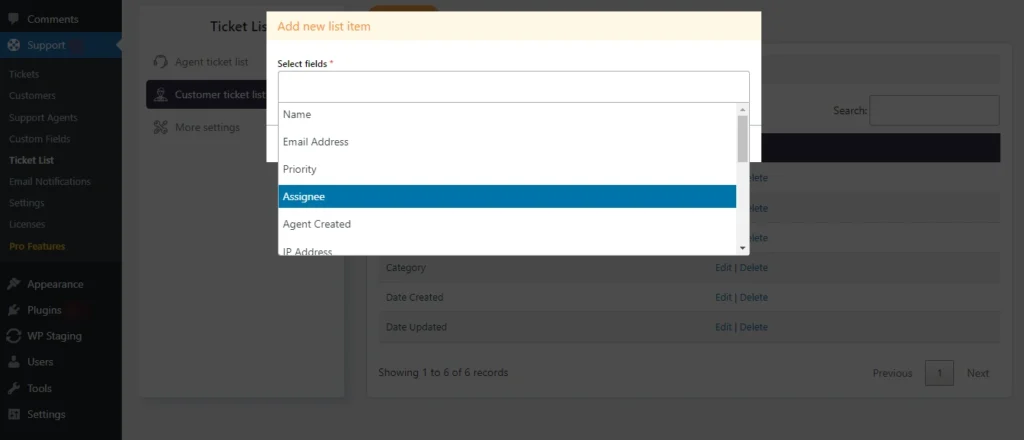
Screenshot 11: Custom ticket list → Add new list item
Editing List Items
- In the Customer Ticket List section, edit the column that you want to reorder.
- Click Submit to apply your changes.
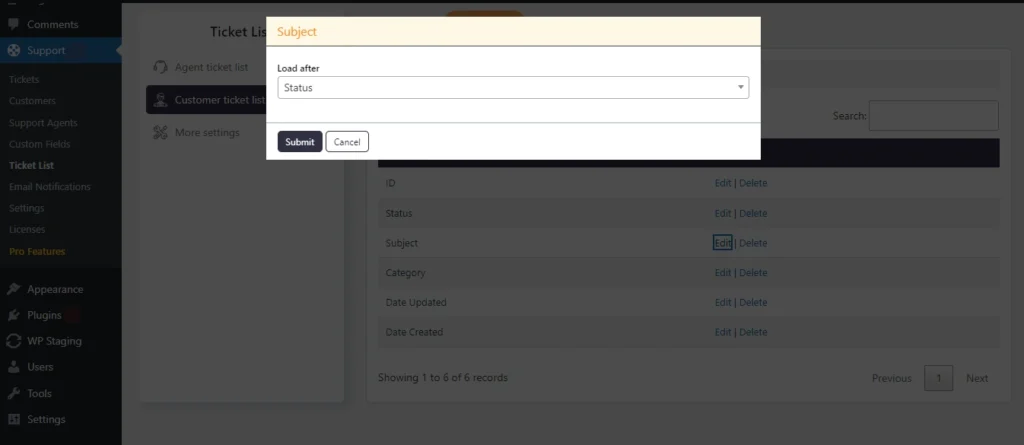
Screenshot 12: Customer ticket list → Edit list item
Filter Items
- This screen allows us to add filter options for filtering tickets on the Agent Tickets list screen. You filter tickets based on it’s status, customer, subject, category, priority, and so on.
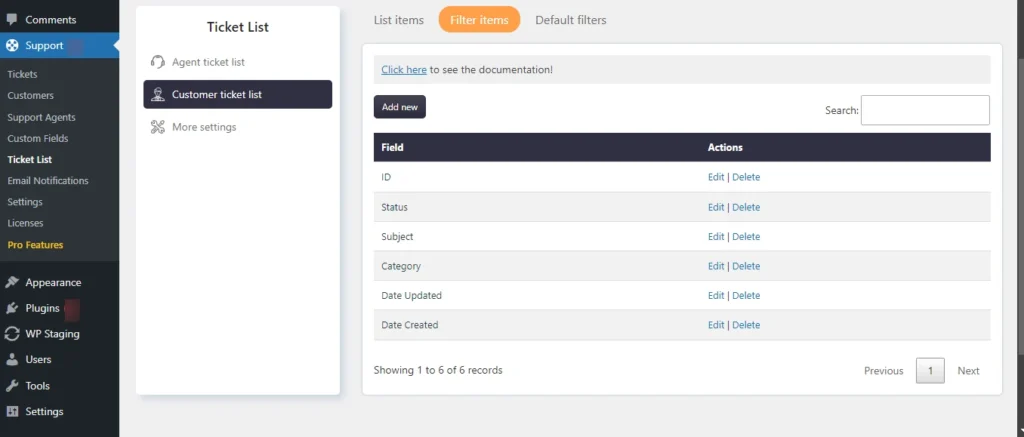
Screenshot 13: Filter fields for Customer tickets (frontend)
Add New Customer Tickets Filter Items
- Go to the Ticket List → Customer ticket list → Filter items.
- Add the filter options you want to filter tickets by, as shown in the screenshot below.
- Click Submit to apply the filter settings.
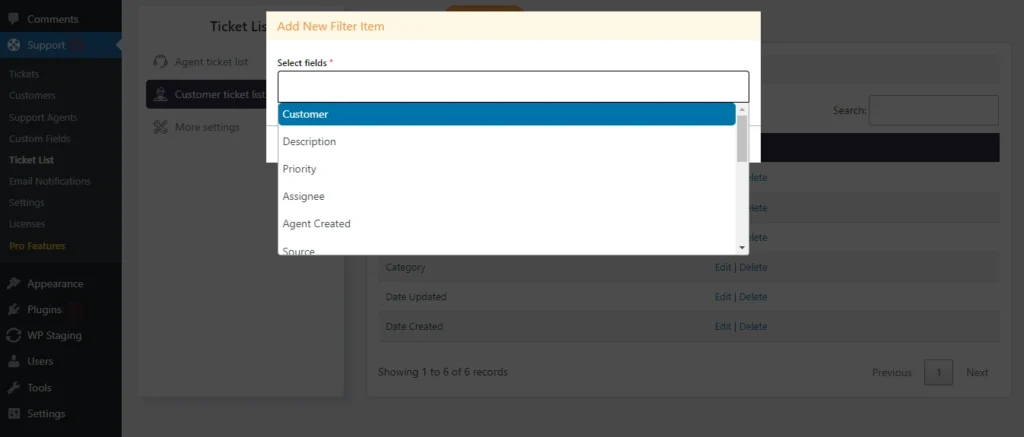
Screenshot 14: Add New filter options to Customer Tickets
Edit Agent tickets Filter Items
- Go to the Ticket List → Customer ticket list → Filter items. Click the Edit link beside the field.
- You can only change the Load after setting
- Click Submit to apply your changes.
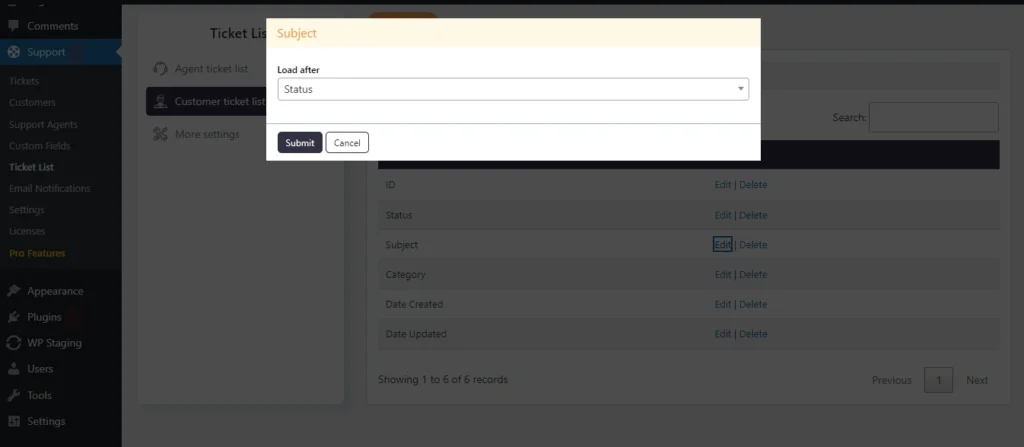
Screenshot 15: Edit filter options to Customer Tickets
Default Filters
- Go to Support → Ticket List → Agent ticket list → Default filters
- You can set the default filters that appear in the customer tickets screen, similar to the Agent Agent tickets screen.
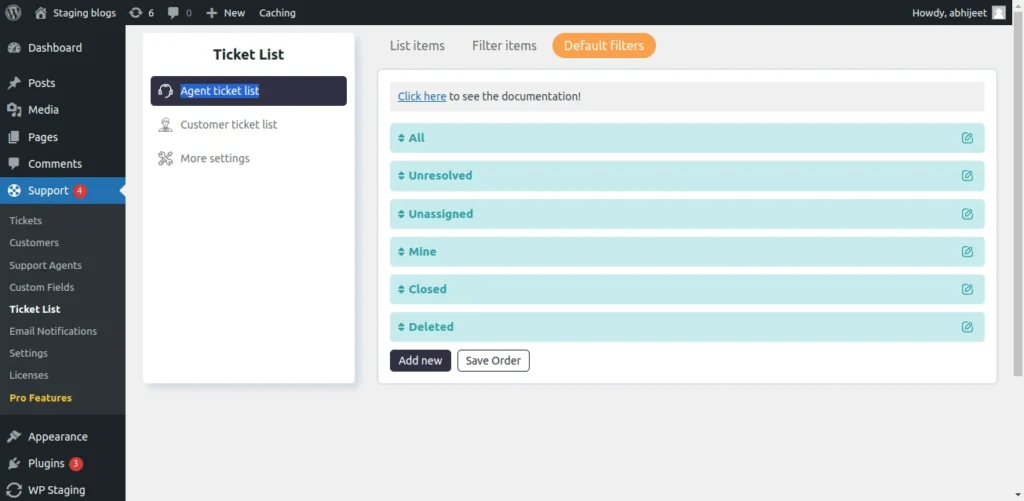
Screenshot 16: Default filters in the Customer Tickets list
Adding Default Filters to Customer Tickets
- Go to Support → Ticket List → Agent Customer list → Default filters
- Enter the label; choose the Parent filter if needed.
- If required, apply conditional logic.
- Set the Enable drop-down to Yes.
- Click Submit.
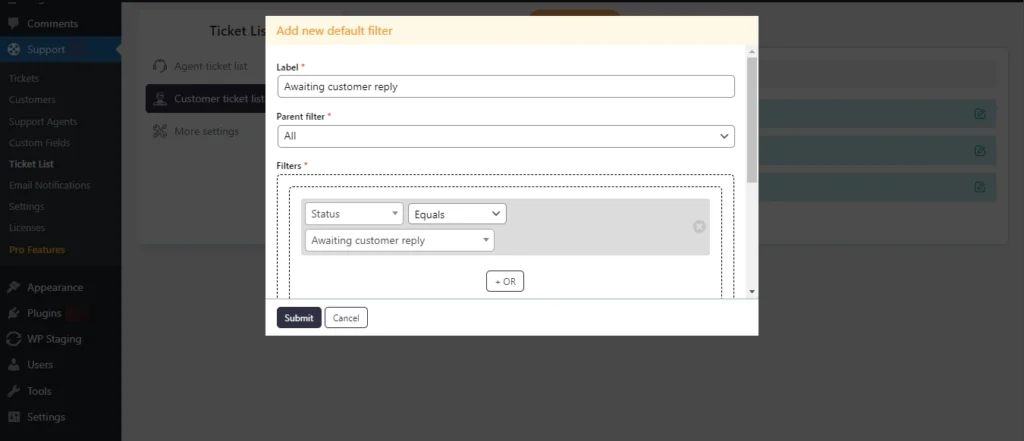
Screenshot 17: Adding Default Filters to Customer Tickets
Edit Customer tickets Default Filter
- Go to Ticket List → Customer ticket list → Default filters
- Click on the edit icon beside the filter name.
- You can only edit the Label and its Enable status.
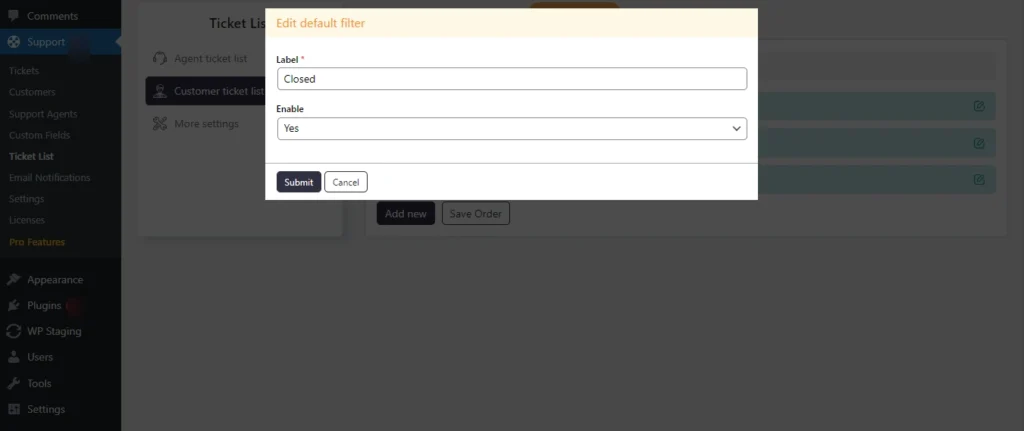
Screenshot 18: Edit Customer tickets Default Filter
Step 3: More Settings
- Using the More settings tab, you can customize how the ticket list behaves for both agent and customer views.
- Here are the available settings for both:
- Default Sort By: Choose the default field by which tickets will be sorted.
- Default Sort Order: Set the default sort order (ascending or descending).
- Number of Tickets: Specify how many tickets will be displayed per page.
- Unresolved Statuses: Define the statuses that are considered unresolved.
- Default Filter: Set the default filter for the ticket list. Agents can adjust this further in their profile settings within the ticket portal.
- Ticket Reply Redirect: Choose what happens after a reply is added to a ticket. "No redirect" keeps the customer on the current ticket screen, while "Ticket list" redirects them back to the ticket list screen.
Agent view
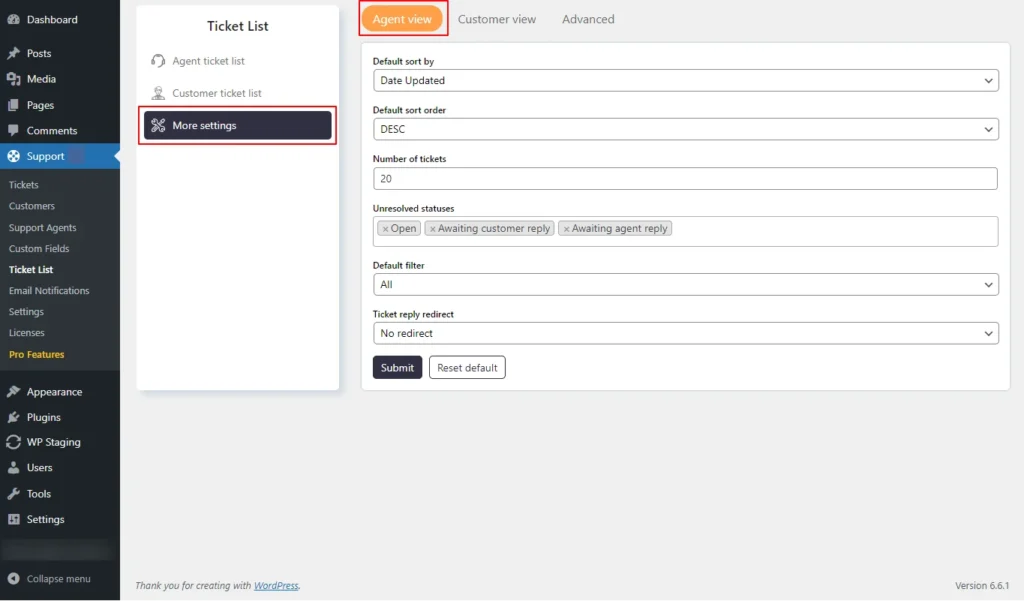
Screenshot 19: More Settings Agent View
Customer view
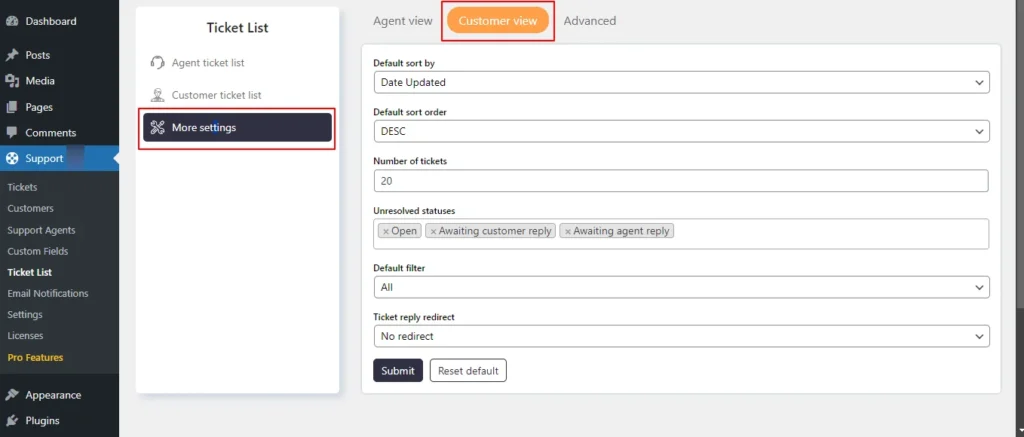
Screenshot 20: More Settings Customer View
Advanced Tab
- You can define a closed ticket status group, where tickets with statuses in this group are treated as closed.
- Additionally, you can configure the default auto-refresh behavior for the ticket list. If enabled, the ticket list will automatically refresh every 10 seconds by default until you turn off this feature from the ticket list settings.
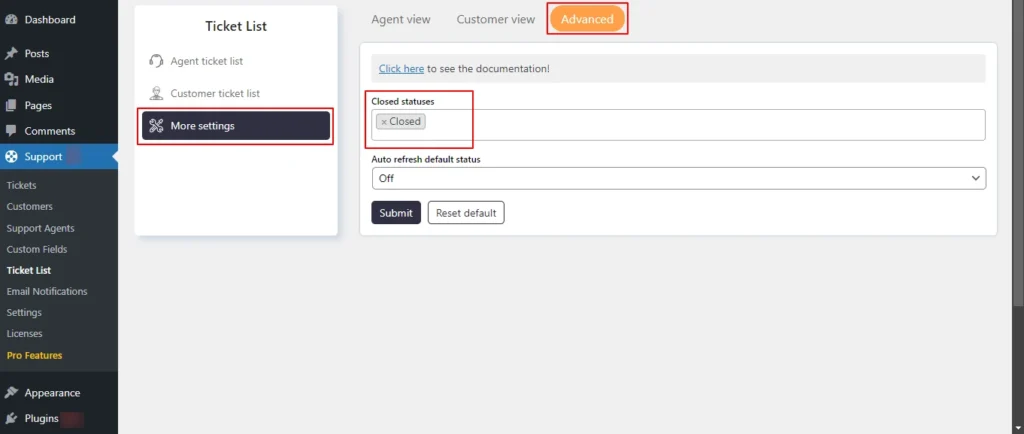
Screenshot 21: Advanced Tab
Email Notifications
- Using this menu, you can set up email notifications.
Step 4: General Settings
- Go to the Email Notifications section under the Support menu.
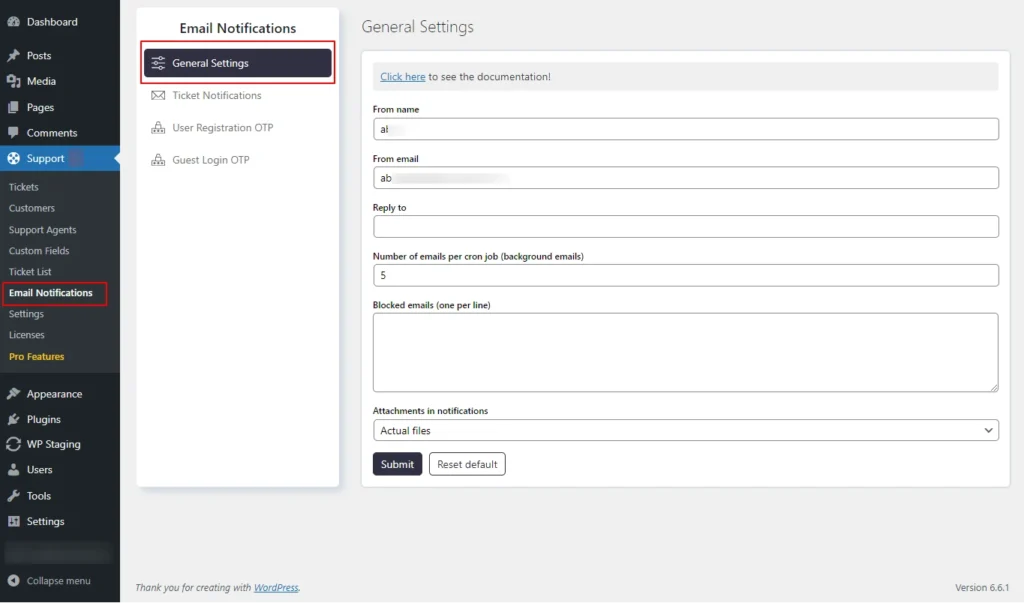
Screenshot 22: Email Notification → General settings
- Here, you can configure the following email settings:
- From name – Sender's name.
- From email – From which email address will the email be sent
- Reply To – When a user replies to a notification, emails will be sent to the specified email address. If no address is provided, the "From" email address will be used as the reply-to address.
- Number of emails per cron job – Set the maximum number of emails that should be sent in a batch.
- Blocked Emails – Specify email addresses that should not receive email notifications.
- Attachments in notifications – configure to send emails with attachments (links or actual files )
Step 5: Ticket Notifications
- In this section, you can edit or create email notification templates.
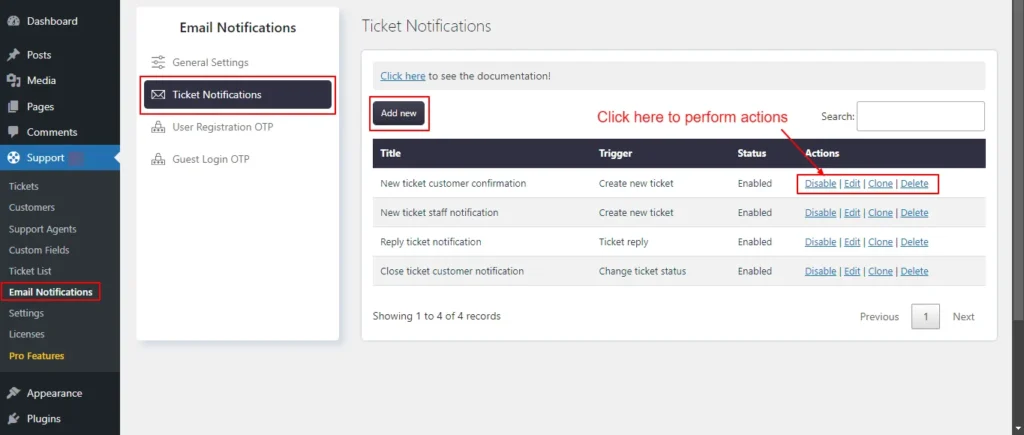
Screenshot 23: Ticket Notifications
Adding New Ticket Notification
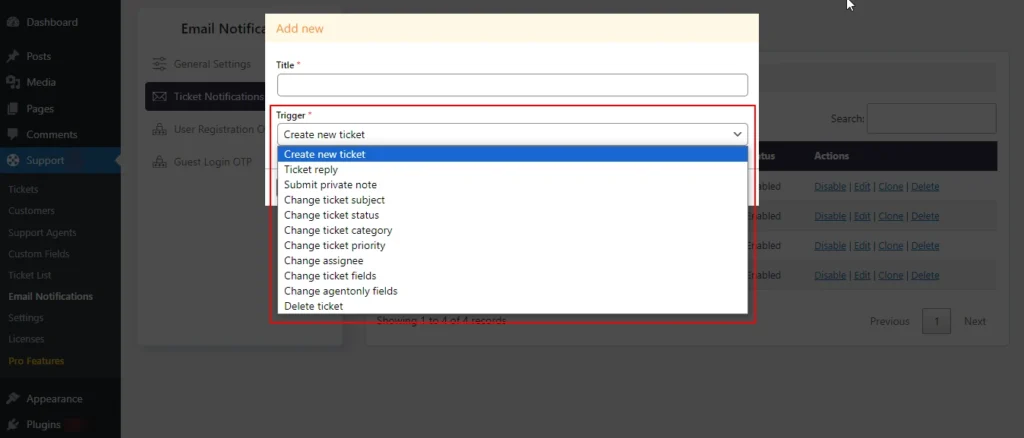
Screenshot 24: Add New Ticket Notification
- Click on Add New.
- Add Title and Select a Trigger
- Following are trigger events that can be used to send email notifications
- Cricket new ticket: When a new ticket is created
- Ticket reply: When a ticket receives a new reply, relevant parties are notified to the new response.
- Change ticket status: When the ticket status changes, for example, from Open to Awaiting customer reply, the activation occurs.
- Change ticket category: When the category of the ticket is modified
- Change ticket priority: When the priority of a ticket is changed
- Change assignee: When the assigned agent of the ticket is changed, it will trigger a notification to the new assignee.
- Delete ticket: When a ticket is deleted,
- Submit private note: When a private note is added to a ticket
- You must change the notification status to Enabled. Otherwise, this email notification won’t be sent.
- You can use macros or placeholders within the Subject and Body.
Editing Ticket Notifications
- Click on Edit button beside the template name for which you want to edit.
- You can manually add recipients in To address (required), CC, and BCC using the following settings
- General Recipients
- Agent Roles
- Custom Email Addresses (one per line)
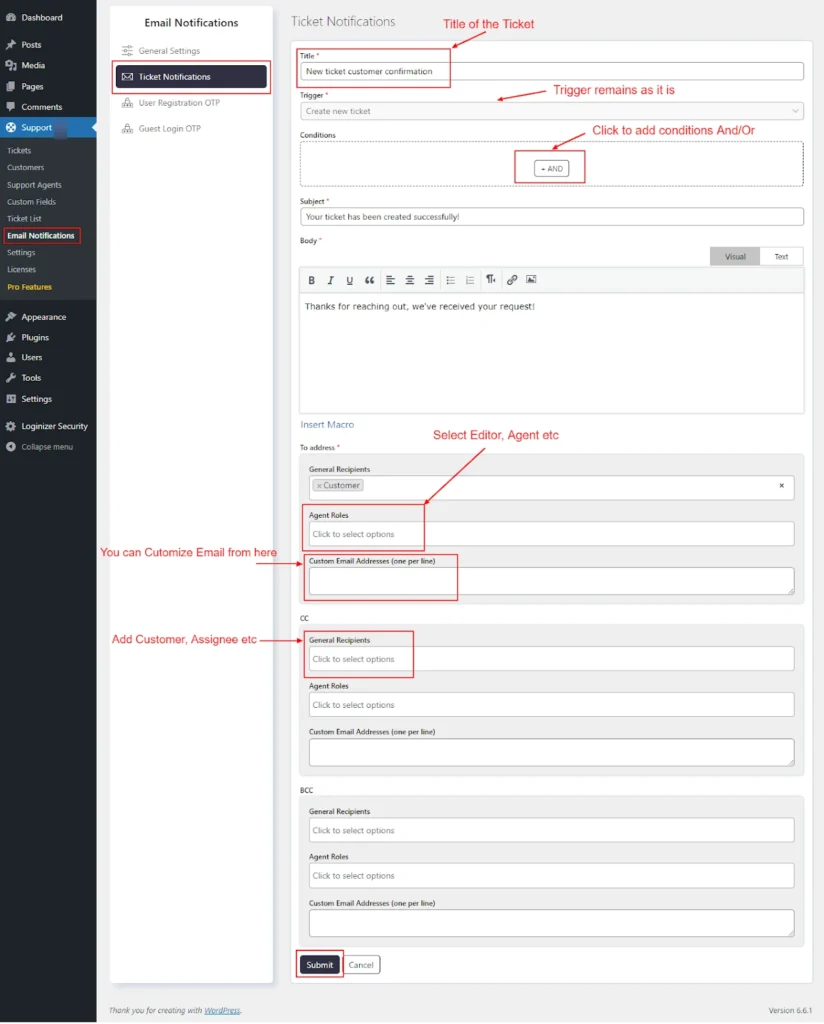
Screenshot 25: Editing Ticket Notifications
- You can Insert Macro in the email body
- Click on the Insert Macro button to view a list of available macros.
- The list will include placeholders for various types of data, such as customer name, status, date created, etc.
- Select the macro you wish to insert. For example, {{customer_name}} can be used to insert the customer's name dynamically.
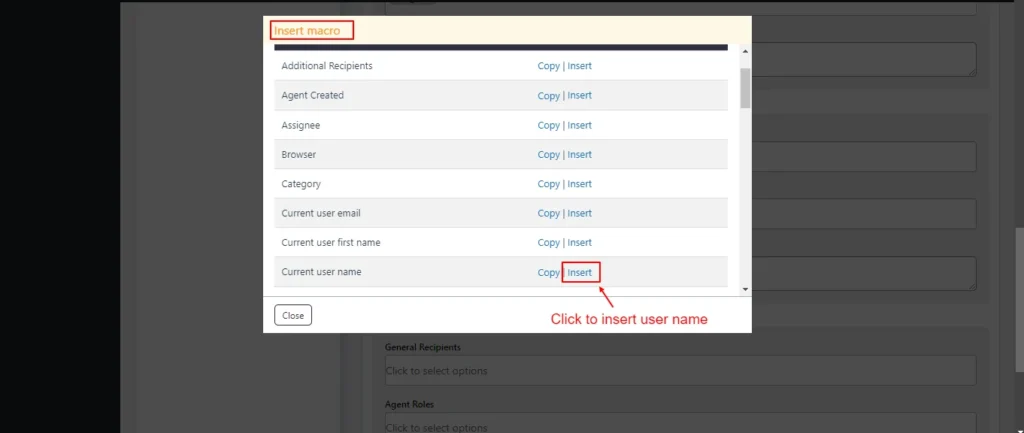
Screenshot 26: Insert macro current user name
- After clicking on the Insert button, the user name macro has been added under the body, as shown in the below screenshot.
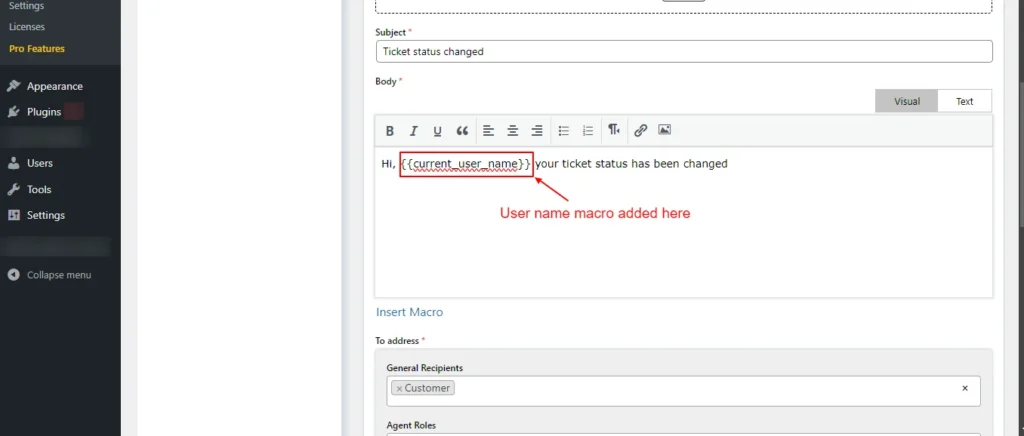
Screenshot 27: User name Macro
Conditions
- You can add And/Or conditions, and when they are met, then only an email notification is sent
- Let’s say that you want to send a notification for ticket change status to the Awating agent reply.
- Click on Add New under the Email Notifications → Ticket Notifications section. Set the trigger to Change Ticket status
- Under the Conditions section, set the Status equal Awaiting Agent reply.
- Add the subject, body, and email addresses to which this notification should be sent.
- Click Submit. Just now you configured that this notification should be sent when the status is Awating agent reply.
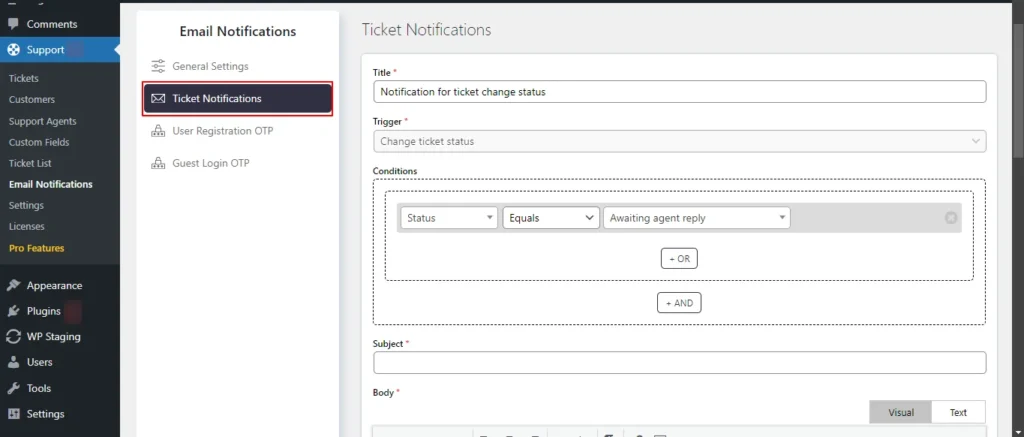
Sccreenshot 28: Setting Conditions in Ticket Notifications
Step 6: User Registration OTP
- This screen is to configure the email template for the Default registration of the supportcandy plugin. You can customize the email template that is used to send the OTP.
- The user registration OTP is a single-use password that is sent to verify the user's email address when using the “Default” registration form.
- Within the body section of the setting, you can utilize macros (placeholders) in the email subject and body as shown below.
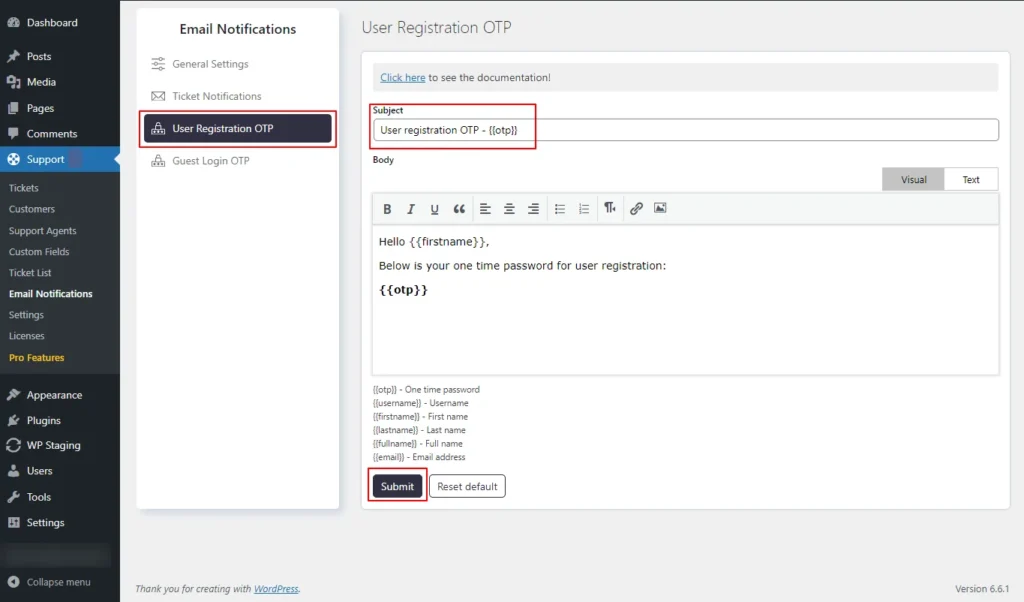
Screenshot 29: User Registration OTP
Step 7: Guest Login OTP
- To allow guest users to access their ticket list, you can activate an OTP (One Time Password) login.
- Keep in mind that OTP login is functional only when guest tickets are enabled. You can turn on this feature by navigating to Support → Settings → General Settings → Page Settings.
- Under the Guest Login OTP setting, you have the option to change the email template used for sending the OTP.
- On the same setting page, you can insert macros (placeholders) into the email subject and body.
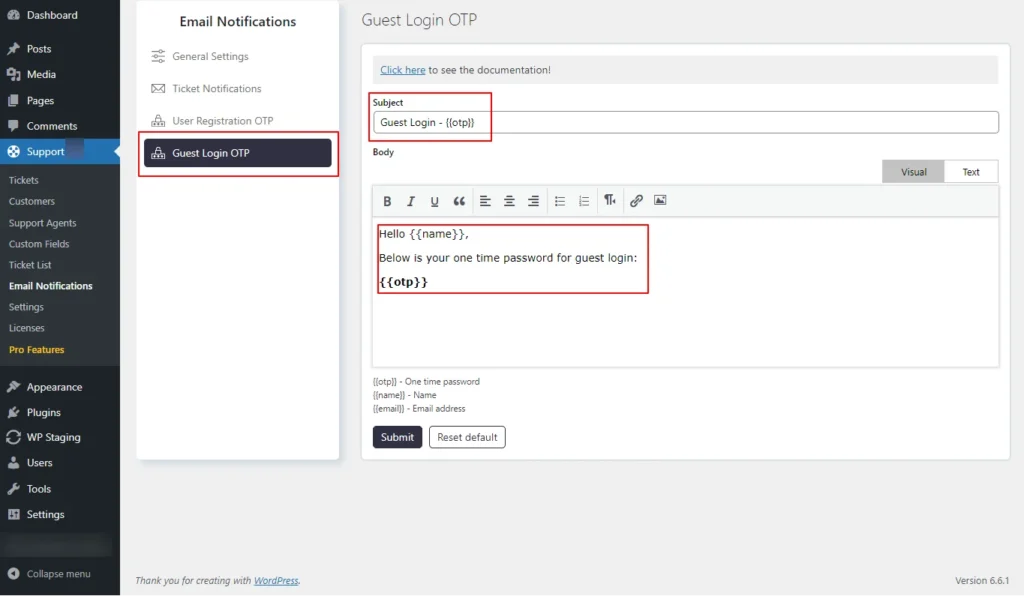
Screenshot 30: Guest Login email notification template for OTP
Conclusion
In this blog (Part 2 of the 3 Part Blog series), we walked you through the Ticket List, Customer Ticket List, Agent Ticket List and Email Notifications Sections.
That’s it for this article.
In the upcoming Part 3 of this series, we'll explore even more advanced features to take your customer support to the next level.
If you need any help related to WordPress, contact our WordPress experts.
Tutorials
12 min read
How to integrate a Helpdesk and Customer Support Ticket System in WordPress using SupportCandy (Part 1)
Introduction
In today's competitive landscape, providing exceptional customer support is a top priority for businesses to maintain a loyal client base. Whether you run an online eCommerce store, a membership site, a product, or a service-based business, having a robust customer support system is essential for maintaining a positive customer experience.
Integrating a helpdesk and customer support ticket system directly into your WordPress website can be a game-changer.
In this step-by-step guide, we'll delve into the process of integrating a robust customer support ticket system into your WordPress website using the SupportCandy plugin.
This is a three-part blog series. In this Part 1 article, we discuss the following sections of the SupportCandy.
- Installation and Setting up the Plugin
- Tickets
- Customers
- Support Agents
- Custom Fields
The step-by-step process of adding a customer support system to WordPress using the SupportCandy
Step 1: Installing the SupportCandy plugin
- In the beginning, go to your WordPress homepage.
- For the Plugins tab, click on it.
- Press the Add New button.
- Use the search bar to look for SupportCandy.
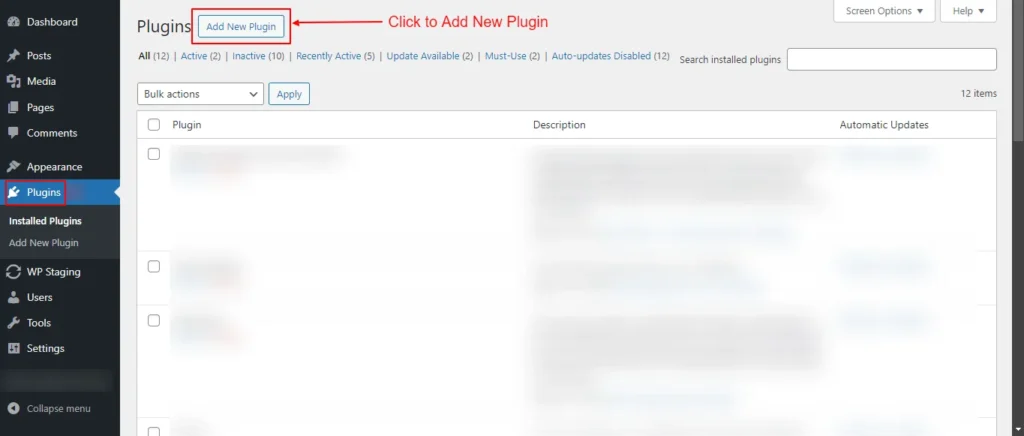
Screenshot 1: Click on Add New Plugin
- Click the Install Now button under the plugin SupportCandy—Helpdesk & Support Ticket System.
- Click the Activate button, and you are done!
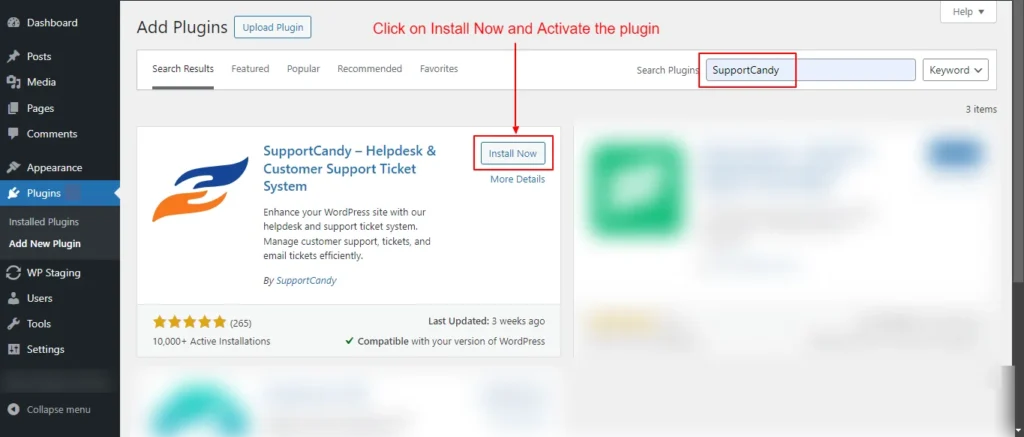
Screenshot 2: Install and Activate the Plugin
Step 2: Setting up Frontend Pages
Once the plugin is activated, we need to create web pages to embed SupportCandy shortcodes to display various support-related features and functionality.
Support requests Page
- Go to the WordPress Pages menu. Click on the Add New Page. Name the page Supports Requests.
- Add the shortcode ‘[supportcandy]’ to this page and save it.
- Go to the Support Candy menu Support → Settings → General Settings → Page Settings.
- Select the newly created page Support Requests under the Support page dropdown.
- Save the settings by clicking the Submit button.
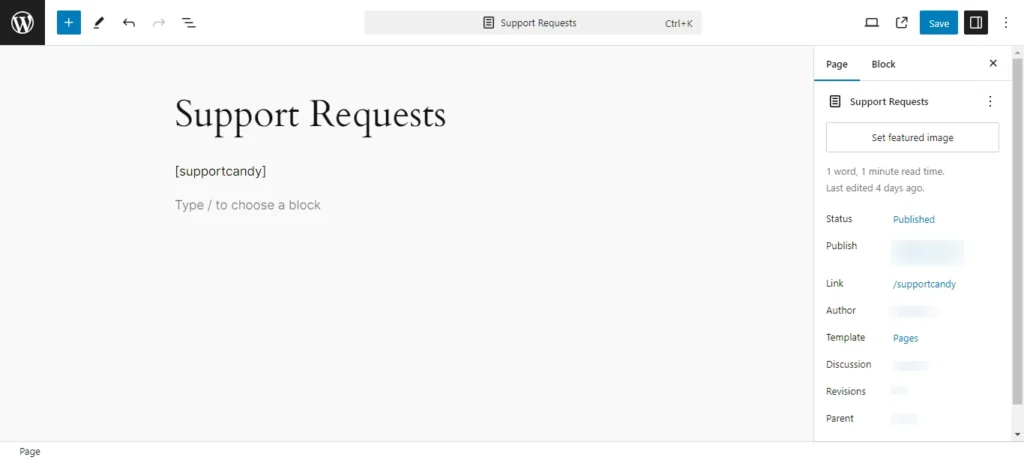
Screenshot 3: Create a New WordPress Page Support Requests
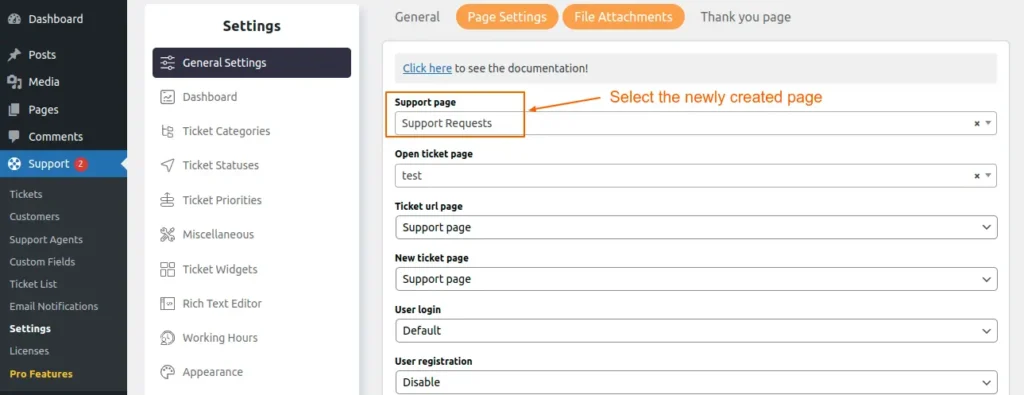
Screenshot 4: Add it to Support → Settings → General Settings → Page Settings
Tickets
Step 3: Ticket List (Viewing Tickets)
- Navigate to the Tickets section under the SupportCandy menu.
- Here you will see a list of all tickets.
- Use the filters and search bar to find specific tickets.
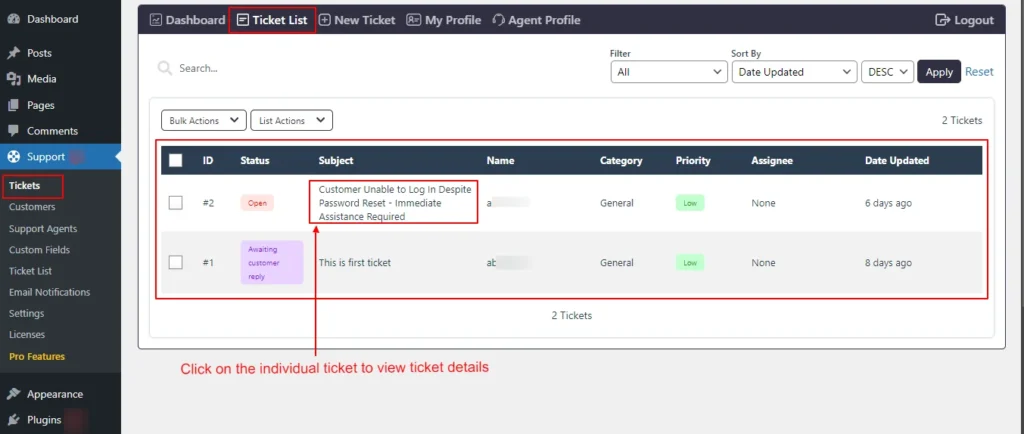
Screenshot 5: Ticket List
- Click on an individual ticket to view the ticket details, such as ticket status, ticket info, and comments, as shown in the below screenshot 6.
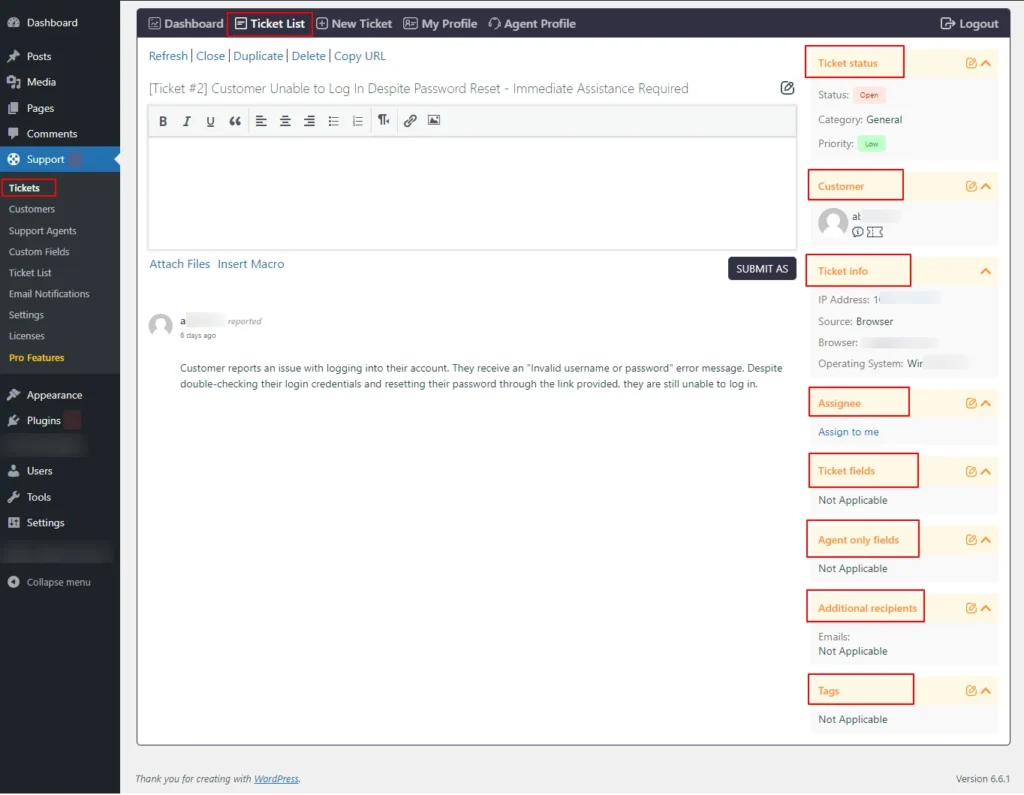
Screenshot 6: View single ticket details
Step 4: Viewing Dashboard
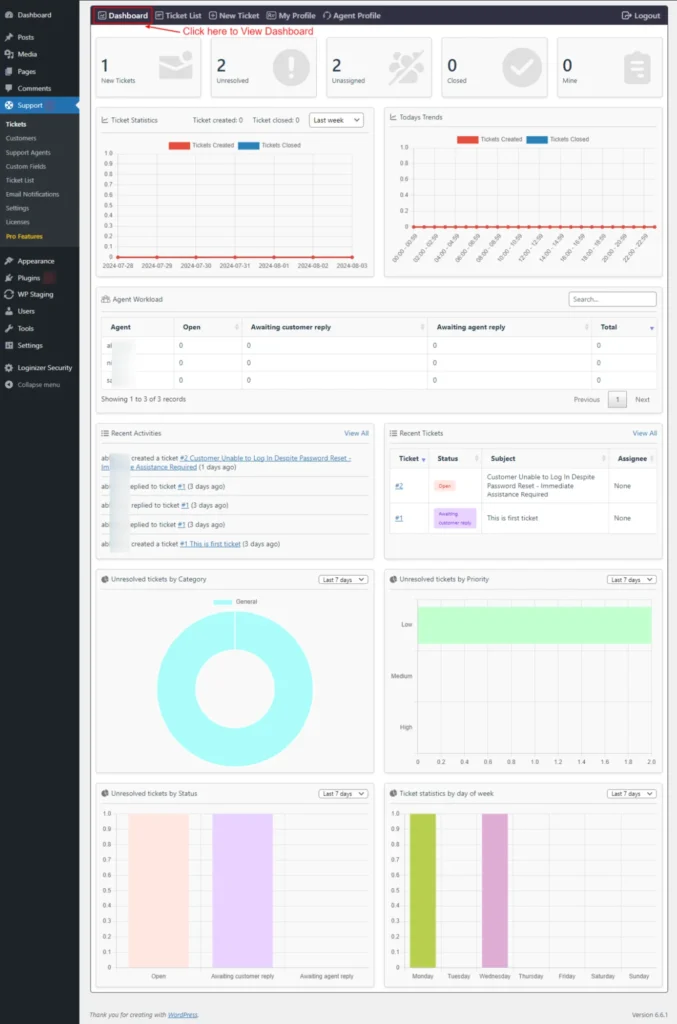
Screenshot 7: Dashboard
- At the top of the dashboard, we can see numbers of New, Unresolved, Unassigned, and Closed Tickets.
- Below that we can see various cards, such as
- Ticket Statistics
- Today's Trends
- Agent Workload
- Recent Activities
- Recent Tickets
- Unresolved tickets by Category, Priority, and Status (default: last 7 days data)
- Ticket statistics by day of the week
- You can choose which cards to display in this dashboard under the settings menu, which is discussed in the default tab under Agent Profile.
Step 5: Adding a New Ticket
Adding a New Ticket from Frontend
- Your customers can add a ticket from the front end.
- Go to the Support Requests page that we created in Step 2.
- Click on the hamburger menu on the right side of the ticket list.
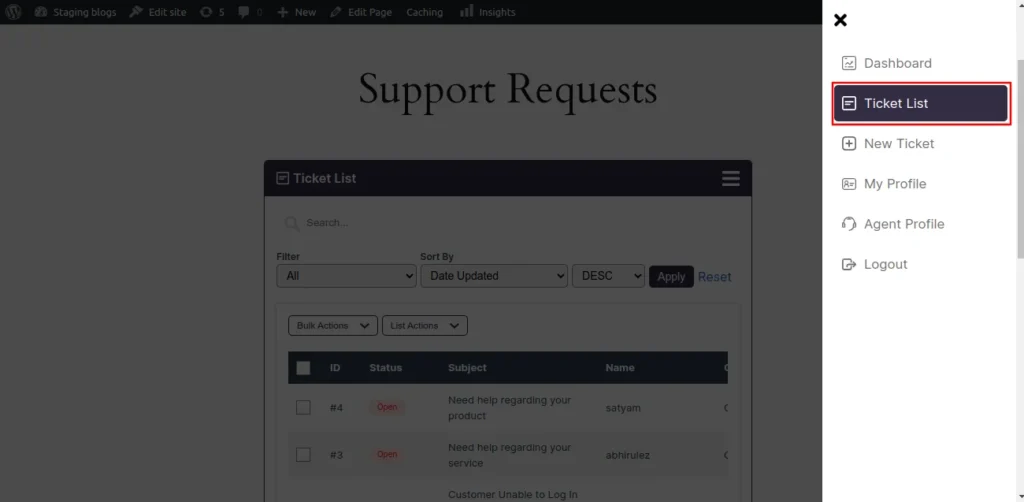
Screenshot 8: Slideover
- Click on New ticket.
- Add a subject or short description of the ticket.
- Add a detailed description of the ticket.
- Select the category.
- Agree to all terms and conditions.
- Click on Submit.
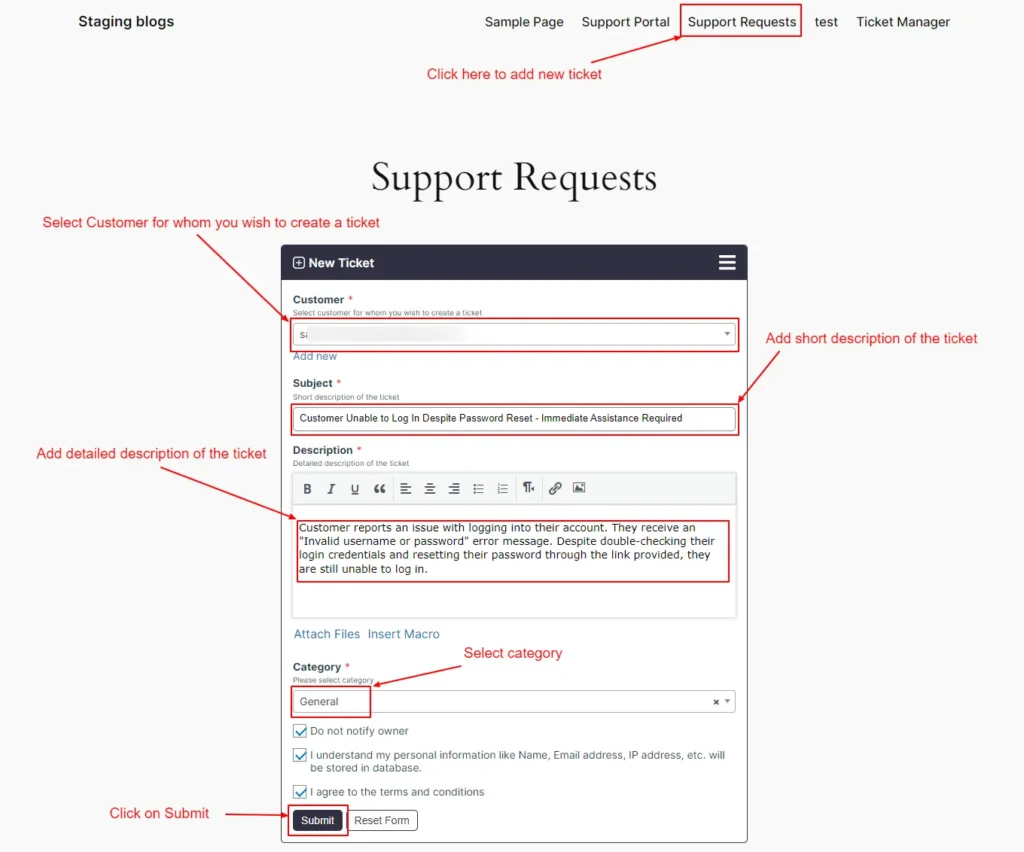
Screenshot 9: Adding a New Ticket from the Frontend
Adding a New Ticket from the backend
- In some situations, Support agents need to create tickets. Agents can add tickets from their accounts using this screen.
- Click on Support → Tickets.
- Click the New Ticket tab.
- In the Customer section, select the customer for whom you wish to create a ticket.
- Add a subject or short description of the ticket.
- Add a detailed description of the ticket.
- Select the category.
- Agree to the terms and conditions and click submit to save details.
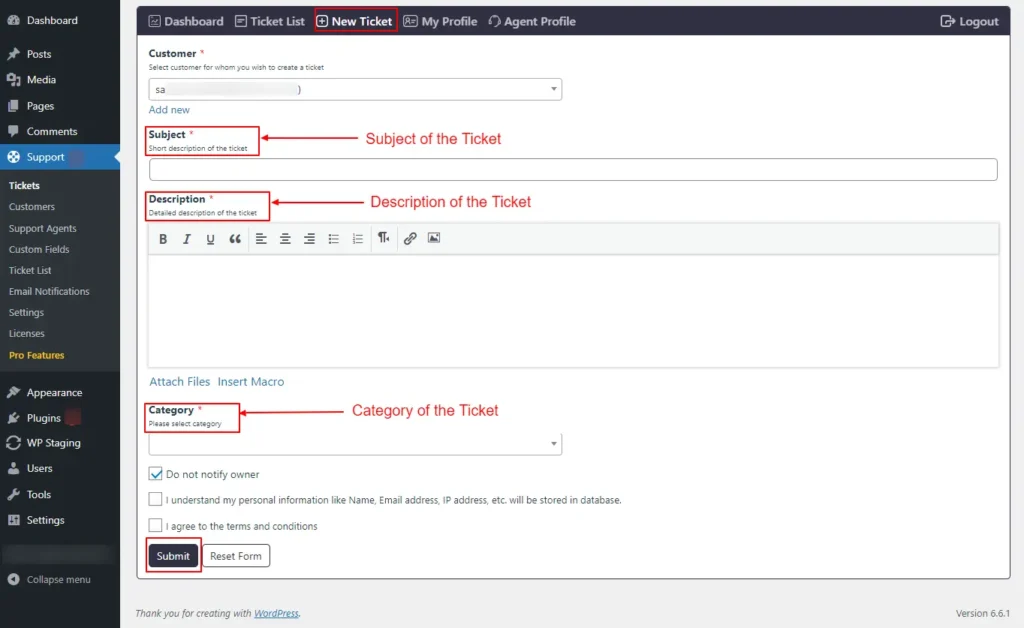
Screenshot 10: Adding a New Ticket from the Backend
Step 6: My Profile
- Since we have already logged in as administrators, we can view our profile.
- If you want to update your name, you can do it on the My Profile screen.
- Hit Save Changes to save your name.
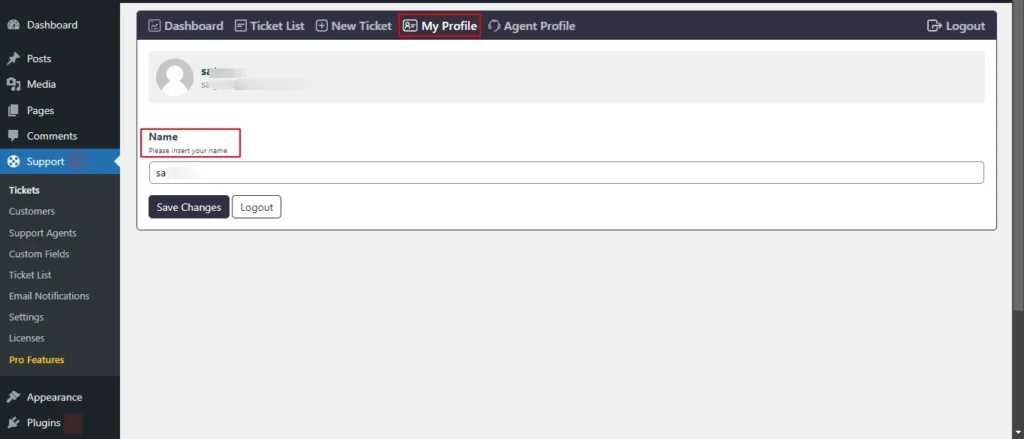
Screenshot 11: My Profile
Step 7: Agent Profile
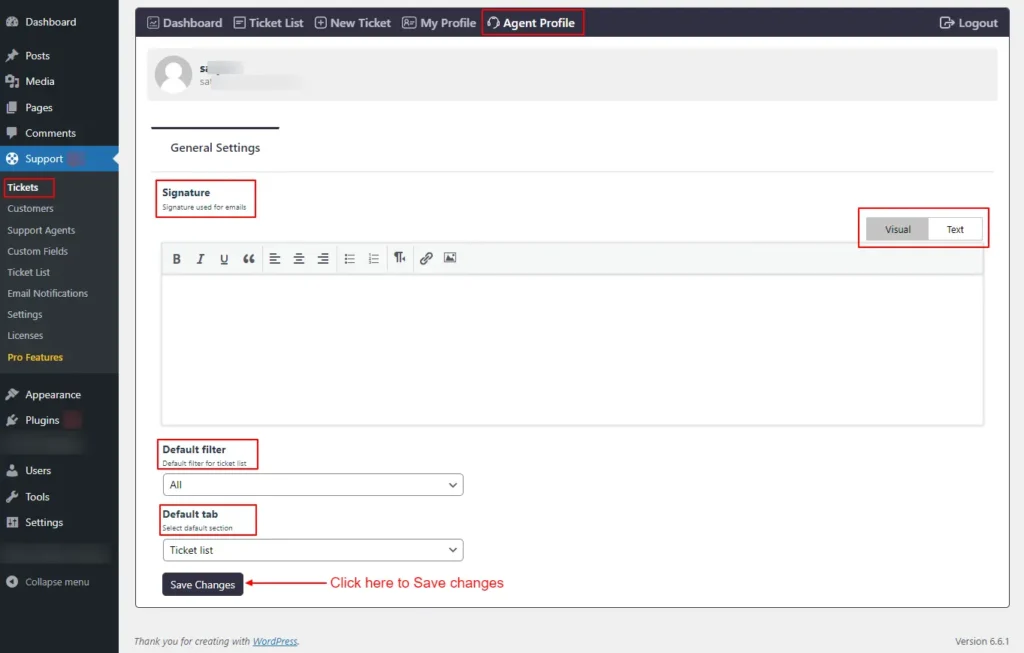
Screenshot 12: Agent Profile
- You can set the signature used for emails using the screen.
- Default filters on the Ticket List tab can be set from here. You can choose from Unresolved, Unassigned, Mine, Closed, and Deleted tickets.
- The default tab for the Support main menu can be set from here. You can choose from the available options Ticket List, Dashboard, and New Ticket.
Customers
Step 8: Managing Customers
- Go to the SupportCandy plugin menu.
- Click on the Customers, submenu.
- Here you will see a list of all registered customers.
- You can select between All Users or Users who have tickets to filter the customer list.
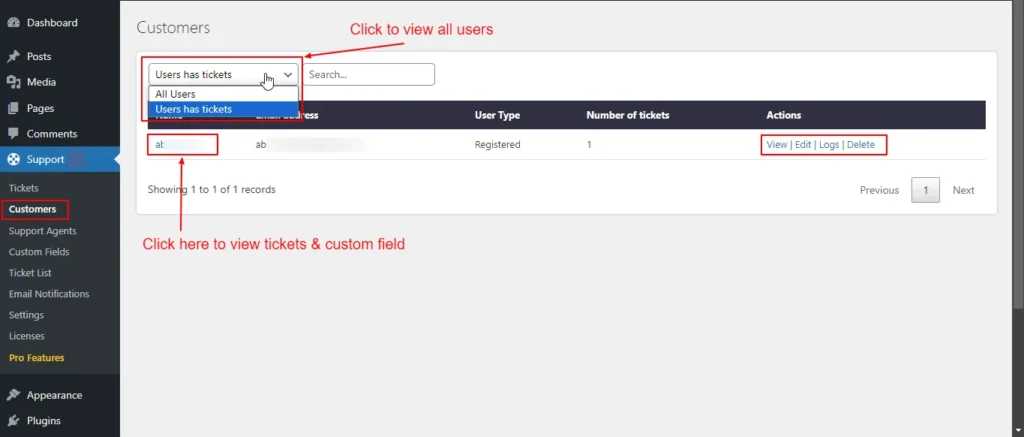
Screenshot 13: Filter Customers
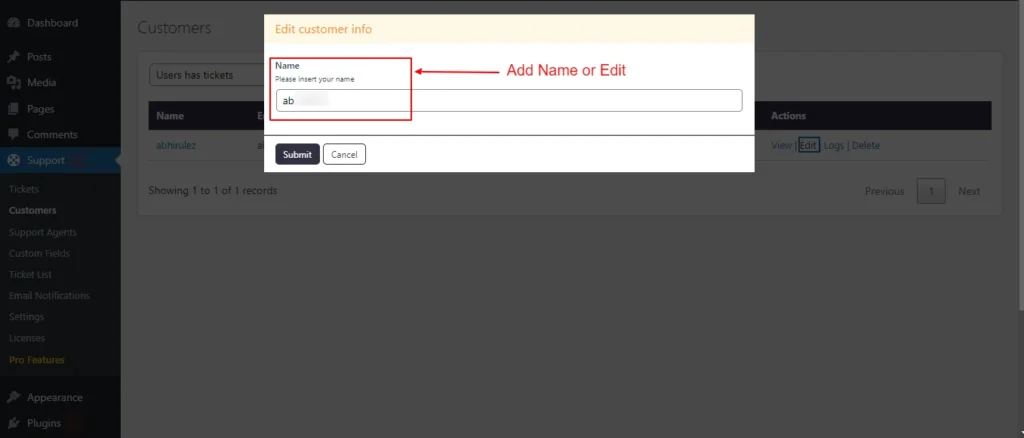
Screenshot 14: Edit Customer Info
- You can edit the customer information by clicking the edit button or view it by clicking the view button.
- When you click on the customer name, it will take you to his ticket list, as shown in the screenshot 15. There are 3 subtabs. Tickets, Custom Fields, Other.
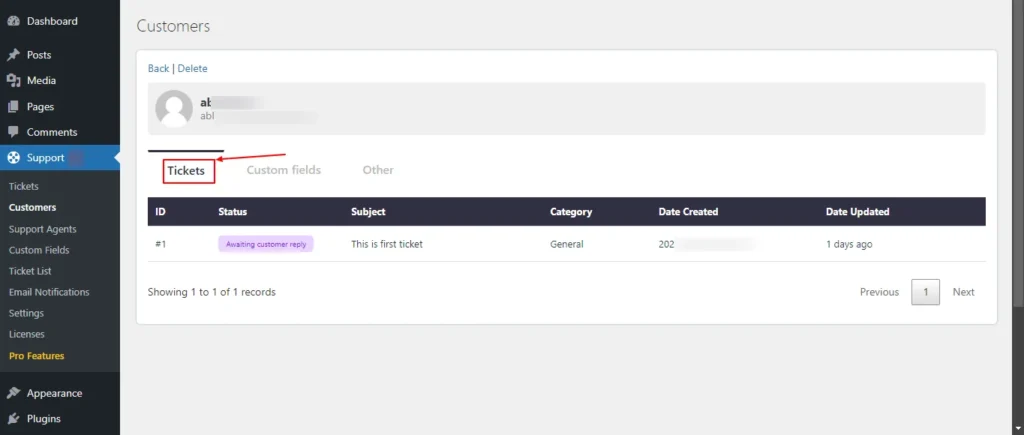
Screenshot 15: Customers → Tickets
- The Tickets tab shows all the tickets of a particular customer.
- Other tabs shows Recent Activities related to that customer.
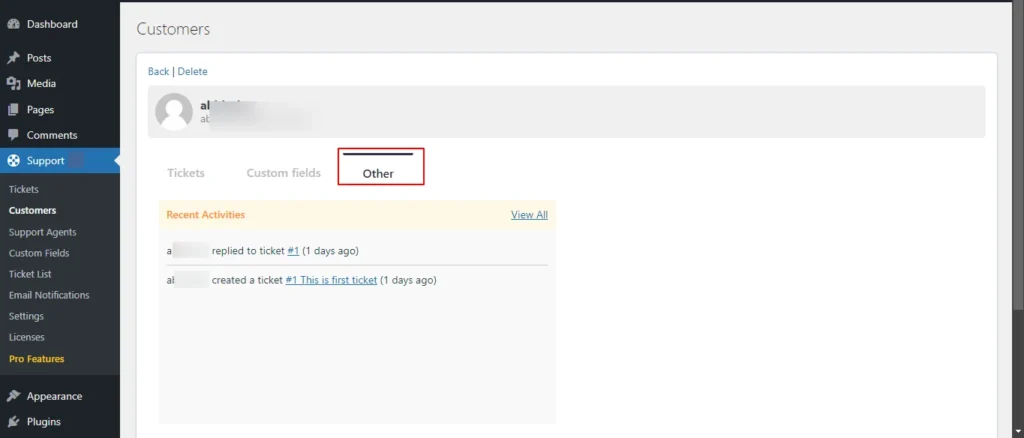
Screenshot 16: Customers Recent Activities
Support Agents
Step 9: Managing Agents
Adding a New Agent
- First, there should be a WordPress user account for the person to whom you wish to add an agent.
- Go to the SupportCandy plugin menu.
- Click on Support Agents.
- You can see all the agent lists in the screenshot 17.
- Click on Add New Agent.
- Search for the name from the list of WordPress users, for which you want to add as an agent.
- Select Role (Administrator, Agent, Editor, etc.)
- Click Submit.
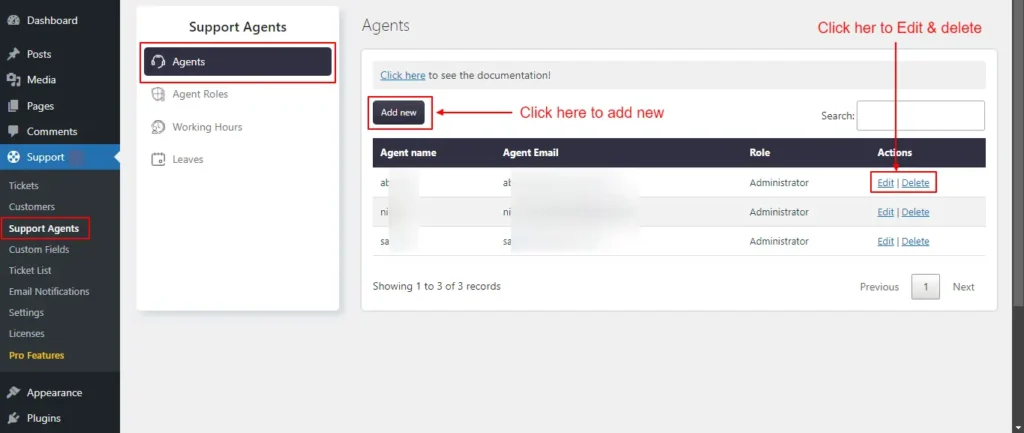
Screenshot 17: Agent List
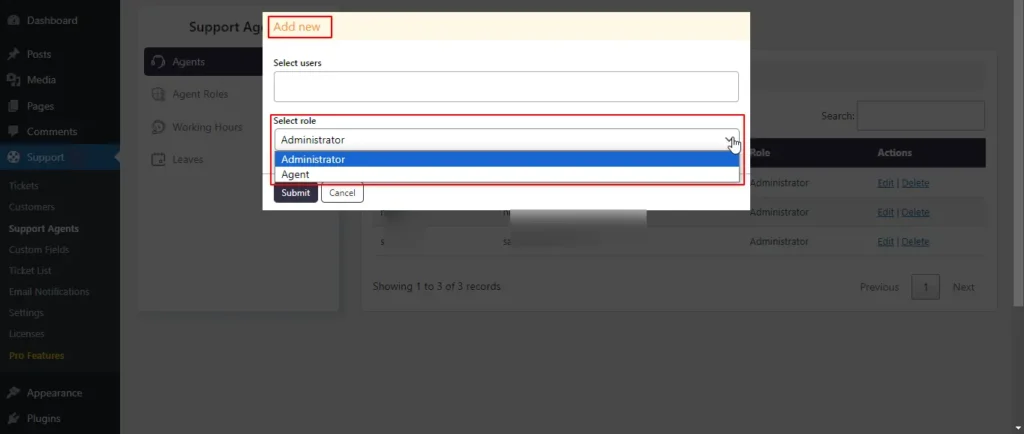
Screenshot 18: Adding a new Agent
- You can also edit the agent role from the edit link or delete an agent using the delete link.
- The Edit link allows update roles (Administrator, Agent, Editor, or any custom role that you have added).
Step 10: Agent Roles
You can create an agent role and set its capabilities on this screen. By default, there are two roles, as follows:
- Administrator: Has all possible capabilities.
- Agent has limited capabilities.
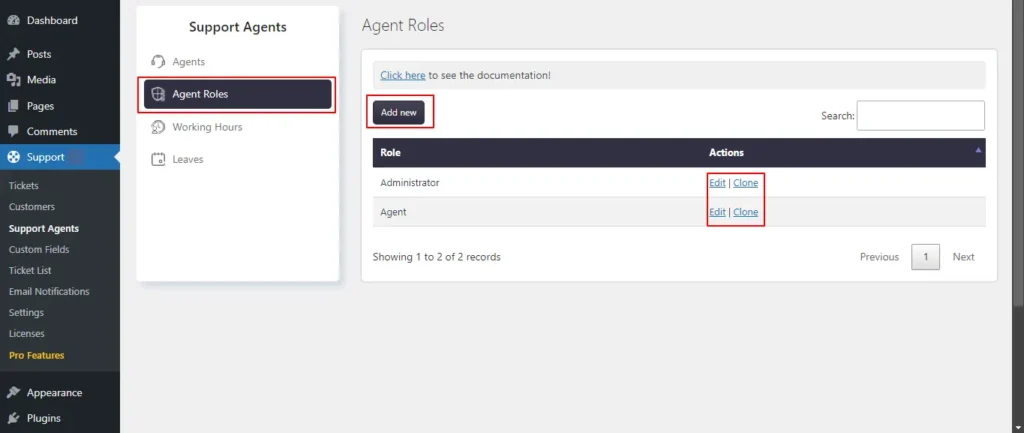
Screenshot 19: Agent Roles List
Adding a New Role
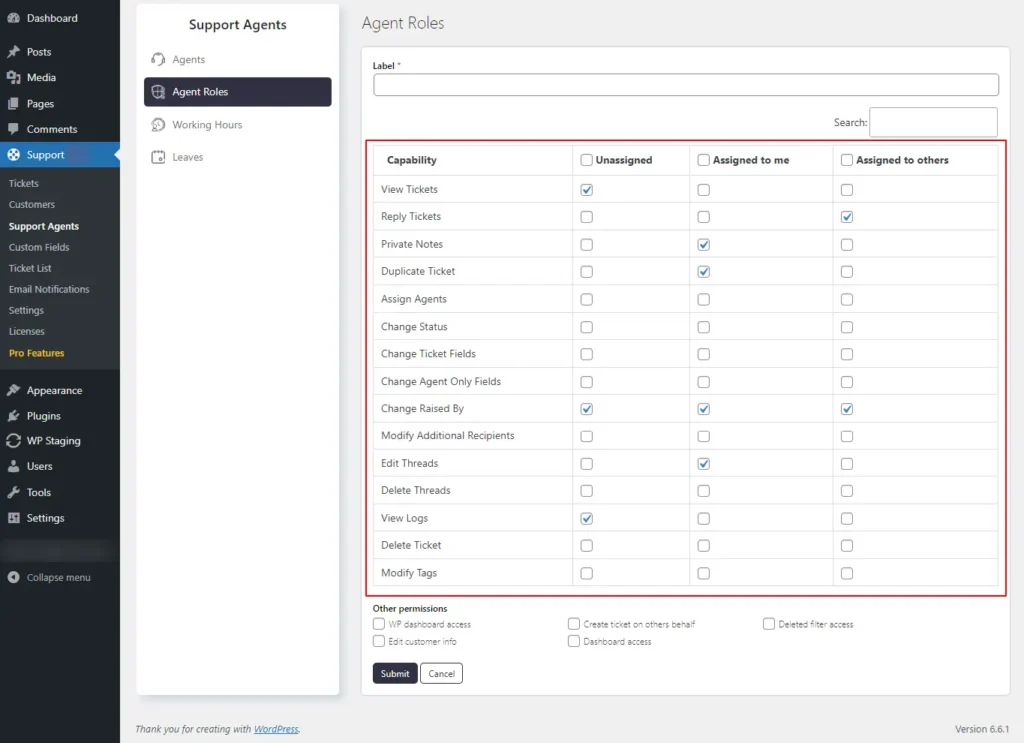
Screenshot 20: Assign agent capabilities
- Click on Add New Role.
- Specify the role name (label).
- You can grant permission for the following tickets:
- Unassigned: Tickets that have not been assigned to any agent or agent group.
- Assigned to me: Tickets that are specifically assigned to the current agent.
- Assigned to others: Tickets that are assigned to agents other than the current agent, but are not unassigned
- A few of the capabilities (actions that agents can perform)
- View Tickets: Controls read permission for applicable tickets. Agents who create tickets have read permission by default.
- Reply Tickets: Controls reply permission for applicable tickets. Agents who create tickets can reply by default.
- Private Notes: Controls permission to submit or read private notes on applicable tickets.
- Assign Agents: Controls permission to assign agents to applicable tickets.
- Change Status: Controls permission to change the status, category, and priority of applicable tickets.
- Change Ticket Fields: Controls permission to update ticket fields for applicable tickets.
- Change Agent-only Fields: Controls permission to update agent-only fields for applicable tickets.
- Change Raised By: Controls permission to update the ticket owner/creator for applicable tickets.
- Modify Additional Recipients: Controls permission to update additional recipients of applicable tickets. Ticket creators always have this capability.
- Edit Thread: Controls permission to edit/update threads of applicable tickets.
- Delete Thread: Controls permission to delete threads of applicable tickets.
- View Logs: Controls permission to view logs of applicable tickets.
- Delete Ticket: Controls permission to delete or restore applicable tickets.
- Here are additional permissions beyond ticket management:
- WP Dashboard Access: Grants an agent access to the WordPress dashboard. Without this, the agent can only view tickets from the front end, not the dashboard.
- Create Ticket on Others' Behalf: Allows an agent to create tickets on behalf of others.
- Deleted Filter Access: Allows agents to access the Deleted filter on the ticket list, enabling them to view deleted tickets. Without this, deleted tickets cannot be accessed.
- Edit Customer Info: Permits an agent to update customer information within individual tickets.
- Click Submit to save the new role.
Editing an Agent Role
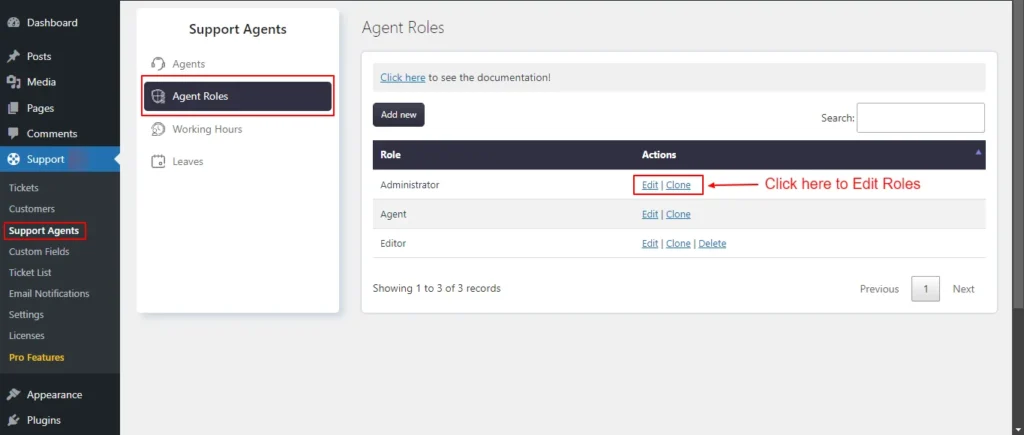
Screenshot 21: Edit Agent Roles
- Under the Support Agents tab, click on Agent Roles.
- Select a role and click Edit.
- Make the necessary changes.
- Click Save.
- You cannot delete Administrator and Agent roles as these are the default roles.
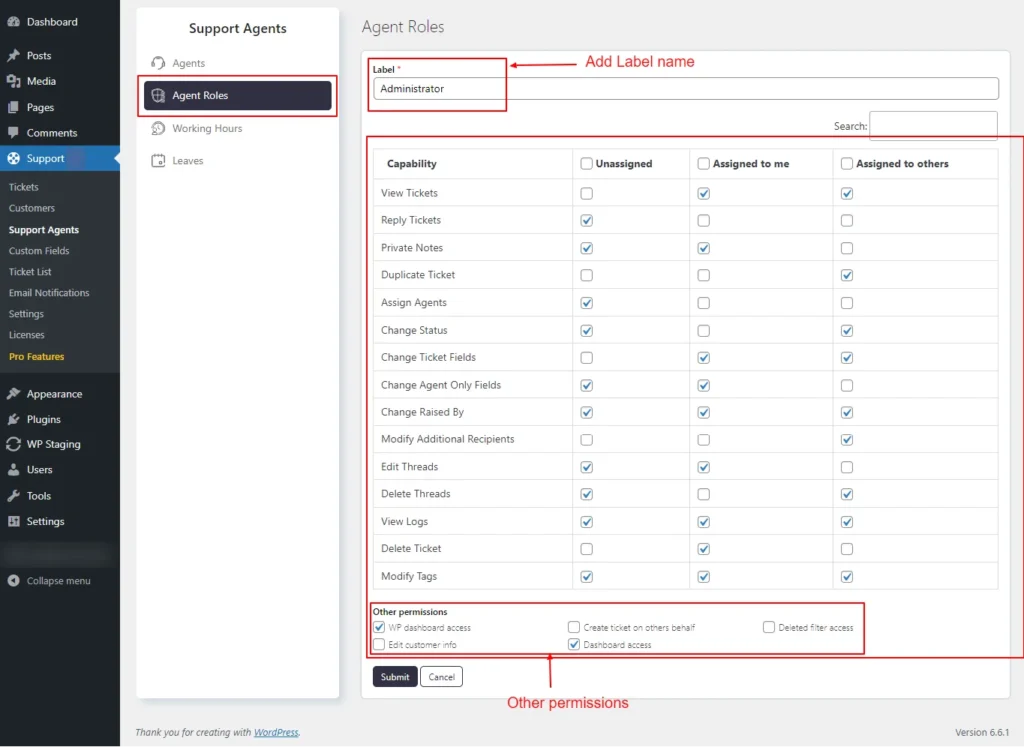
Screenshot 22: Edit roles and permissions
Step 11: Working Hours
Configuring Working Hours
- Go to the Support Agents → Working Hours tab.
- Select the agent from the dropdown and then set the working hours.
- Click Submit.
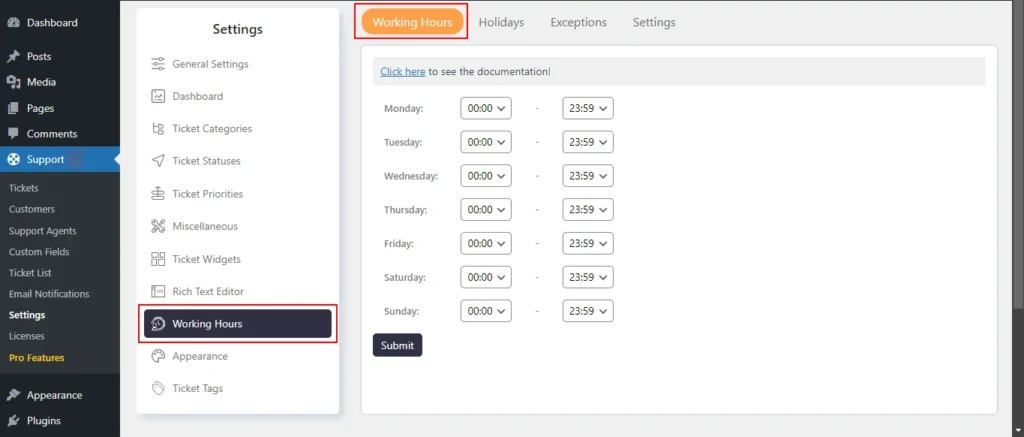
Screenshot 23: Working hours
Working Hours Exceptions
- Exceptions allow for adjustments to standard working hours on specific dates. For example, if your typical working hours on a Monday are from 9:00 a.m. to 6:00 p.m. but you need to work from 9:00 a.m. to 2:00 p.m. on a particular Monday, you can set an exception to reflect this change.
- The system will then prioritize these modified hours over the usual schedule.
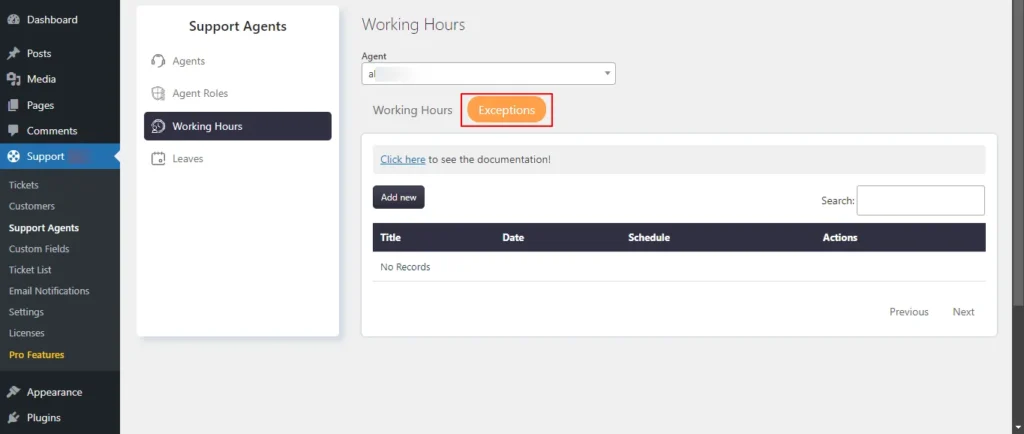
Screenshot 24: Exceptions
- Click on Exceptions.
- Add Title, Date, and Schedule
- Click Submit.
Step 12: Leaves
- You can set leaves or day-offs for the agents.
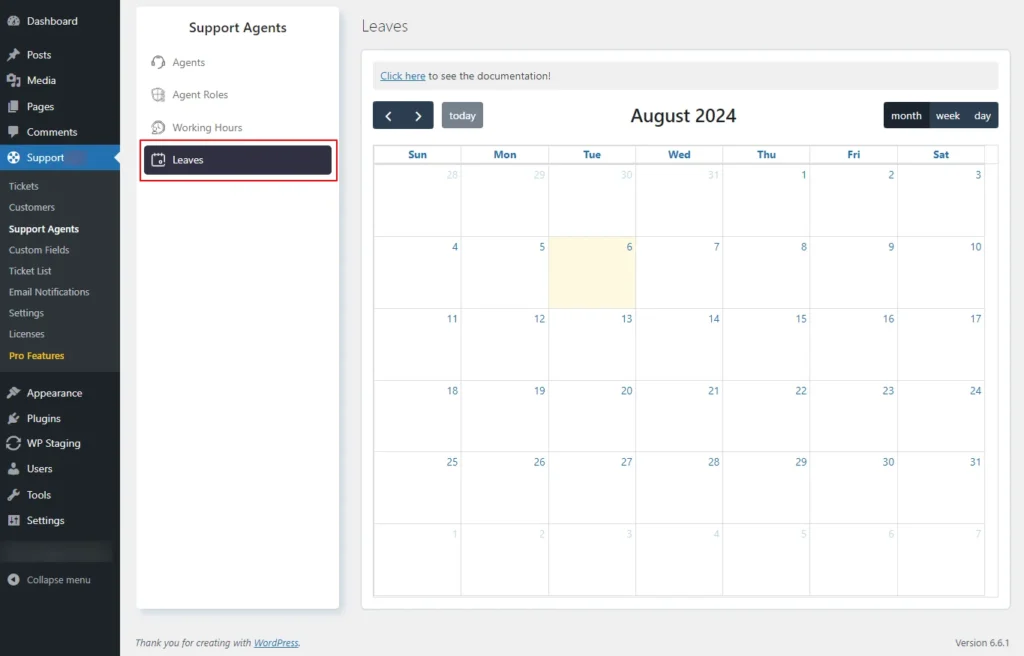
Screenshot 25: Leaves Calendar
- Click on the date for which you want to add leaves. Search for the agent name for which you want to grant leave and click submit.
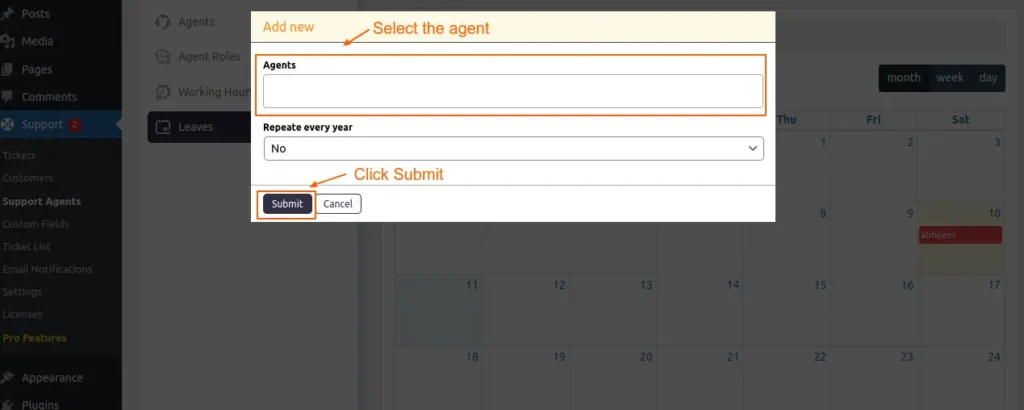
Screenshot 26: Add leaves
Custom Fields
Step 13: Ticket Form Fields
- The Ticket Form Fields are the fields that are displayed on ticket form. This section lets you add or remove fields from the submit ticket form.
- If you want to add new fields to this form, Go to Support → Custom Fields → Ticket Fields, which is discussed next.
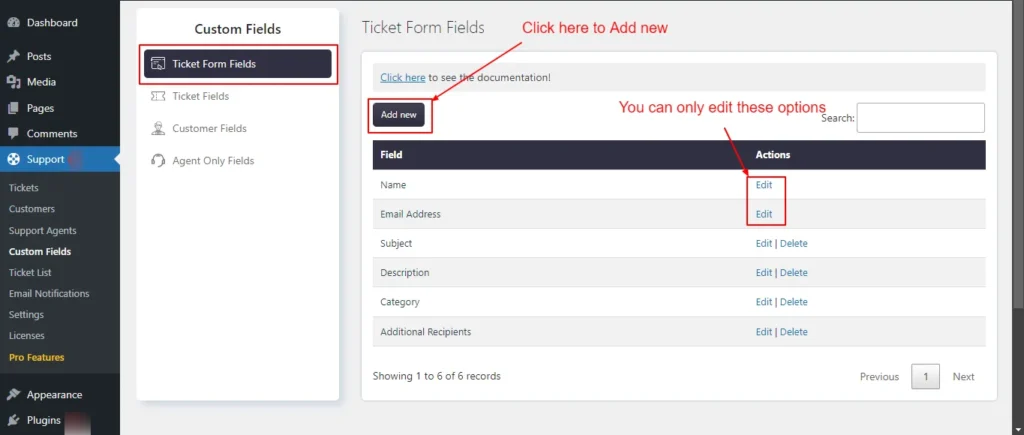
Screenshot 27: Ticket Form fields list
Add a field to the Ticket form fields
- Using Ticket Fields, Customer Fields, and Agent Only Fields you can add new fields to a ticket submission form.
- Ticket Fields: These are fields to collect more information from the customer (ticket subject, ticket description).
- Customer Fields: Fields to collect information about the customer. Name and email are default.
- Agent Only Fields: You can add fields specific to an agent.
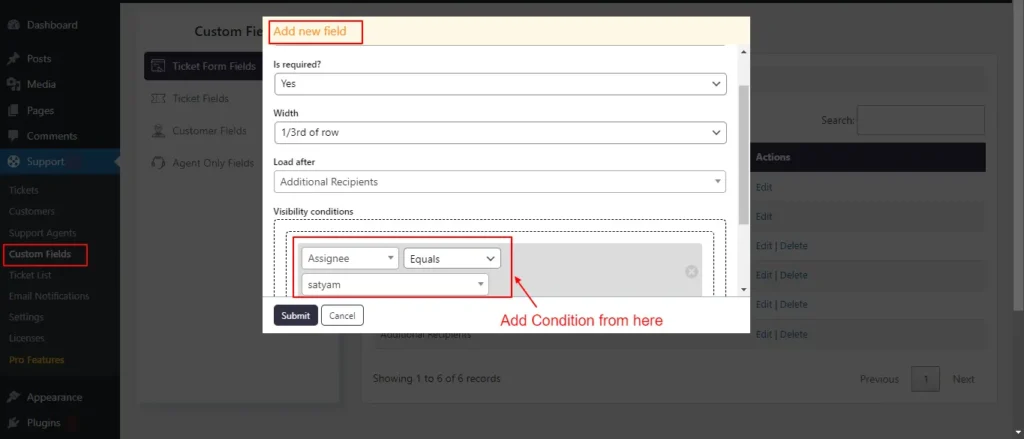
Screenshot 28: Add a new field to the Ticket form
- The Add New Field screen has the following settings to be configured
- Select field: You can choose which fields from the ticket fields and user fields you want to add.
- Is required: Deciding whether the selected field is essential is up to you. If a field is marked as mandatory, it must be completed before submitting the report.
- Width: Within the form, it's possible to adjust the width of the area. There are three choices available: one-third of the row, half the width of the row, and the entire width of the row.
- Load after: This choice lets you change the order of the fields.
- Visibility conditions: The selected field can be displayed only when a specific situation is met. The fields will remain hidden as long as the conditions are not met. Conditions can be set using both AND logic (where all conditions must be met) and OR logic (where at least one condition must be met).
Editing Ticket Form Fields
- Go to the Support menu.
- Click Custom Fields → Ticket Form Fields.
- Click the Edit button next to a field you want to change to make changes.
- Click Submit.
- The name and email address fields are default; hence, you can only change the Width and Load after settings. Also, you can't delete them.
- For the rest of the fields, you can edit and delete them.
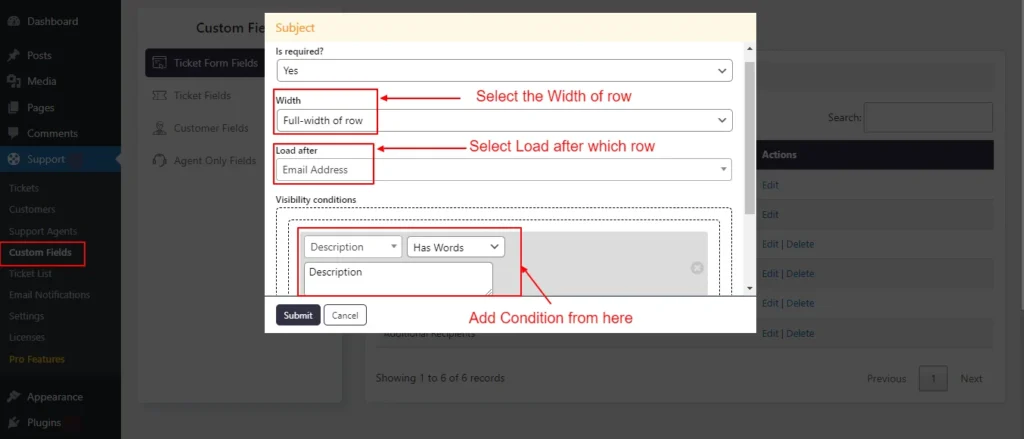
Screenshot 29: Editing the Subject Field
Step 14: Ticket Fields
- From the Ticket fields screen, you can create new fields to collect more information about tickets which can then be added to the New Ticket form.
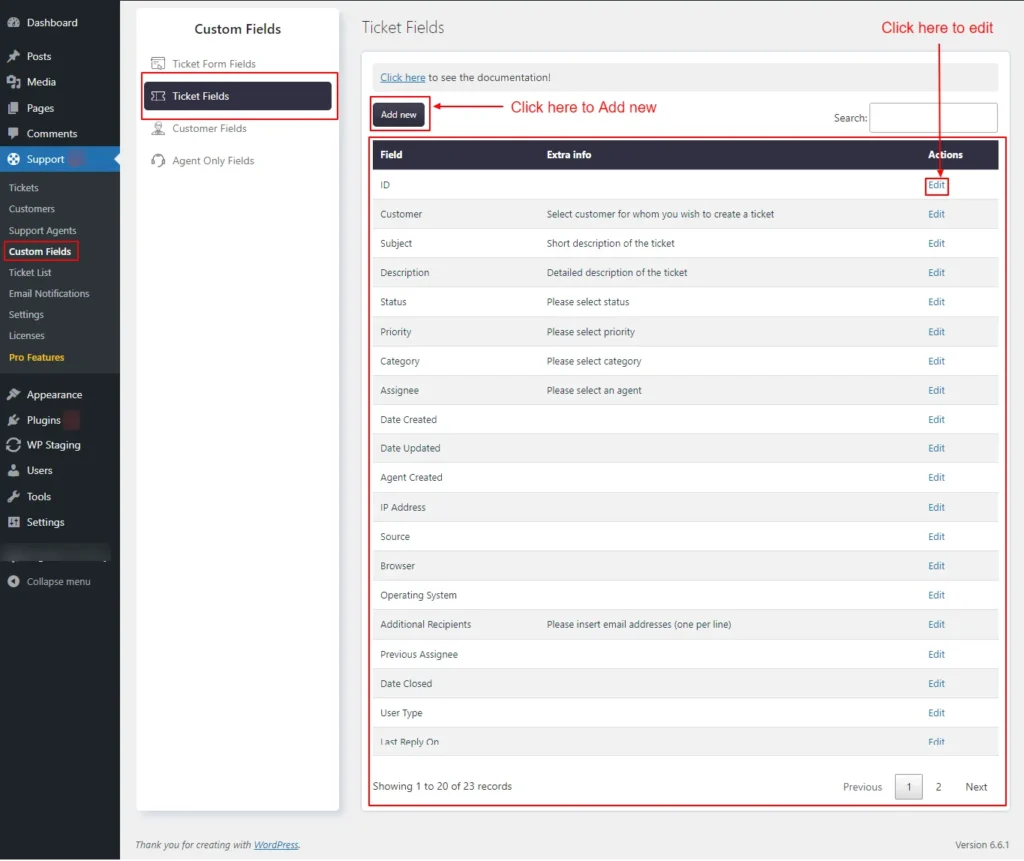
Screenshot 30: Ticket fields
Adding New Ticket Fields
- Click Add New to create a new ticket field.
- Enter the label.
- Choose where will be this field loaded after.
- Choose the field type (e.g., text, dropdown, checkbox). Based on the field type, it will show more configuration options, such as Extra Info, Default Value, Auto-fill in ticket form, Character limit, Placeholder, Has personal info etc.
- Click Submit.
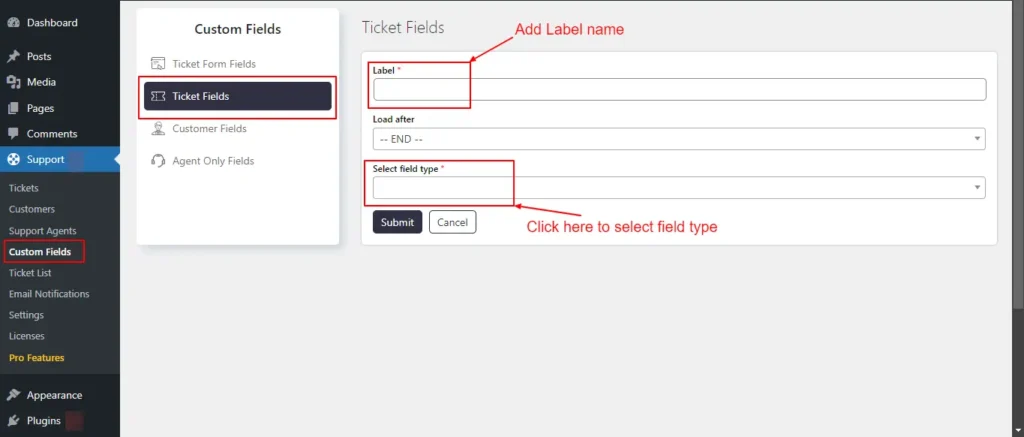
Screenshot 31: Adding New Ticket fields in the custom field
Editing Existing Ticket Fields
- Click Edit to edit a ticket field.
- Edit the field details such as Label, Subject, Load after, Extra info, Short description of the ticket, Default value, Not Applicable, Auto-fill in ticket form, Character limit, Placeholder, Ticket list width (pixels), etc.
- Once done Click Submit.

Screenshot 32: Editing Ticket fields in Custom fields
Step 15: Customer Fields
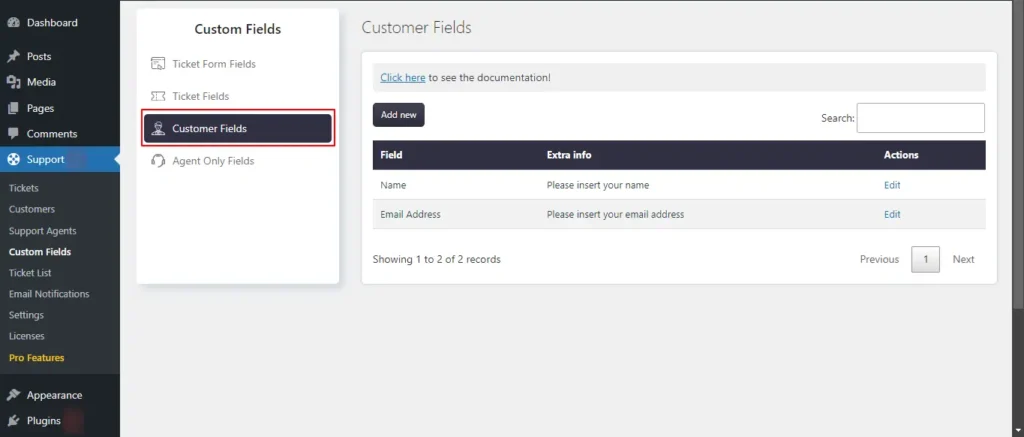
Screenshot 33: Customer Fields list
Adding New Customer Fields
- Click on the Add New button to create a new customer field.
- Choose the field type (e.g., text, dropdown, checkbox). Based on the field type, it will show more configuration options, such as Extra Info, Default Value, Auto-fill in ticket form, Character limit, Placeholder, Has personal info, Allow in my profile and Allow in ticket form, etc.
- Click Submit.
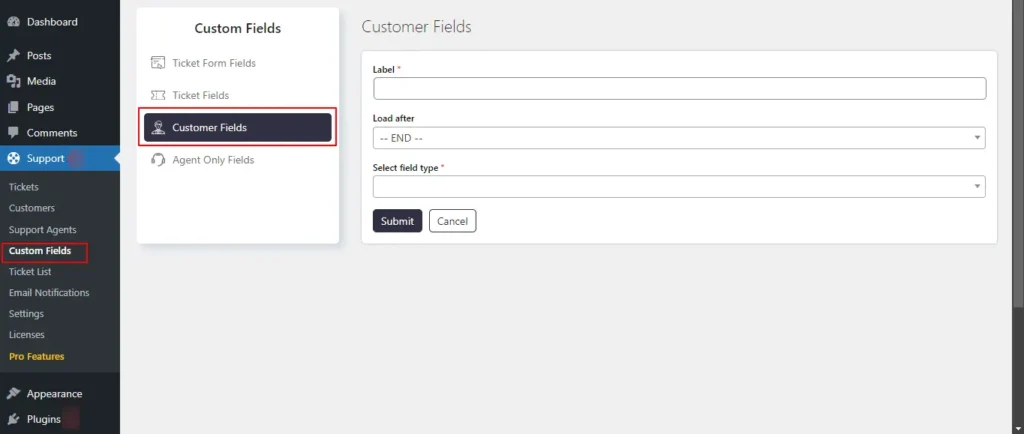
Screenshot 34: Adding New Customer Fields
Editing Customer Fields
- Click on Customer Fields.
- To edit an existing field, click on the Edit button next to the field.
- Make the necessary changes to the field settings.
- Click Submit.
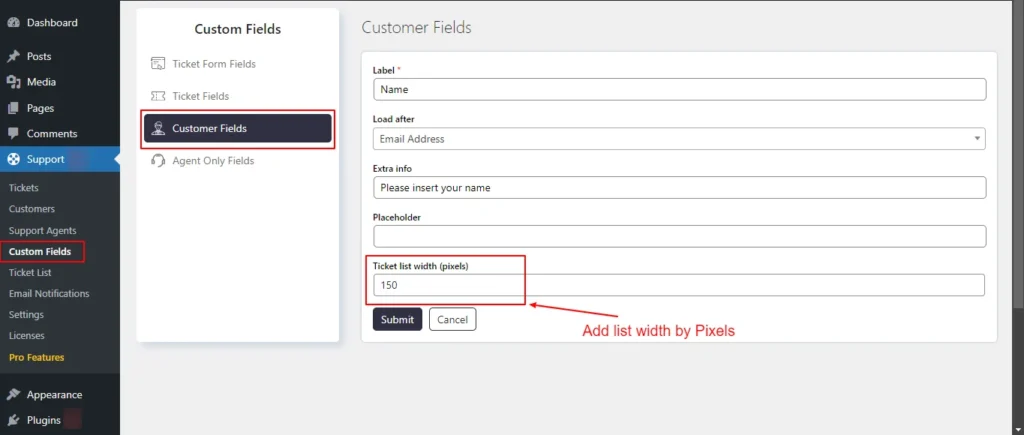
Screenshot 35: Editing Customer Fields
Step 16: Agent Only Fields
- Ticket fields and agent-only fields are essentially identical, with the sole distinction being that the latter is not viewable by customers.
- If agent-only fields are included in the customer ticket list items, customers have the ability to view them in the ticket list.
Adding New Agent-Only Fields
- Click Add New to create a new agent-only field.
- Choose the field type (e.g., text, dropdown, checkbox).
- Configure the field settings (Extra info, Default value, Character limit, Placeholder, Ticket list width, Has personal info etc.)
- Click Submit.
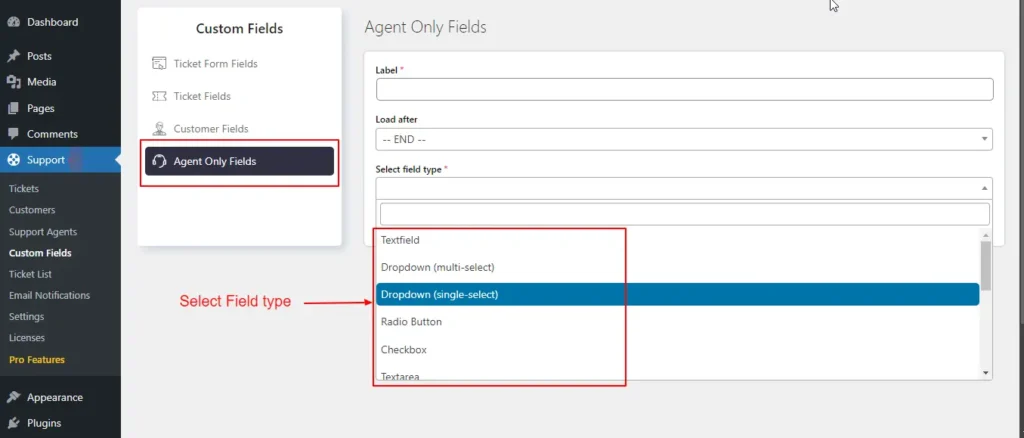
Screenshot 36: Adding New Agent Only Fields
Editing Agent Only Fields
- Go to the SupportCandy plugin menu.
- Click on Agent Only Fields.
- To edit an existing field, click on the Edit button next to the field.
- Make the necessary changes to the field settings.
- Click Submit.
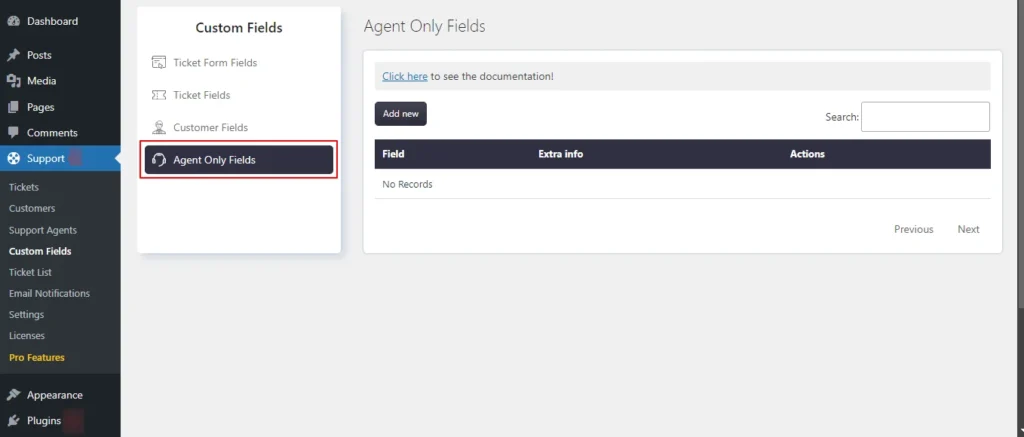
Screenshot 37: Editing Agent Only Fields
Conclusion
In this blog (Part 1 of 3 of the series), we walked you through how to add a helpdesk and ticket system on WordPress using the SupportCandy plugin.
SupportCandy adds to your WordPress site the features of a complete help desk and customer support ticket system. It is one of WordPress's most popular helpdesk and customer support ticketing plugins.
That’s it for this article.
In Part 2 of this series, we will dive deeper into other sections of SupportCandy.
If you need any help related to WordPress, please contact our WordPress experts.
Tutorials
4 min read
How to Create a Staging Site in WordPress using WP Staging plugin
Introduction
When managing a WordPress site, whether it's for blogging, e-commerce, or any professional use, ensuring a smooth, uninterrupted user experience is a must. Here, a staging site turns into a vital resource for WordPress users. By acting as a testing ground, a staging site enables developers and website managers to make and test changes without having an impact on the live website. This is especially crucial when updating WordPress core, themes, or plugins, as these changes may cause incompatibilities or break your website.
In essence, a staging site acts as a critical step in a professional web development workflow, enabling WordPress users to manage and implement website changes systematically and securely.
Why is a staging site important?
Is a staging site really necessary? The importance of a staging site in the context of web development, particularly for WordPress sites, cannot be overstated. A staging site serves several critical roles in ensuring the smooth operation, security, and continuous improvement of a website. Here are the key reasons why a staging site is important:
- Safe Testing Environment:
A staging site provides a safe and isolated platform where all types of changes, updates, and new features can be tested without affecting the live website. This means that any errors, bugs, or issues can be identified and fixed in the staging environment without risking the performance or functionality of the live site.
- Prevents Downtime:
By using a staging site to test changes, you significantly reduce the risk of your live site going down due to a faulty update or incompatible plugin. Downtime can be costly, especially for e-commerce sites or businesses that rely heavily on their online presence.
- Quality Assurance:
Staging sites allow for thorough testing and quality assurance before changes are made live. This includes checking for visual consistency, functionality, compatibility with different browsers and devices, and the overall user experience.
- Update Verification:
WordPress regularly releases updates for its core software. Also, themes and plugins are regularly updated. A staging site enables you to test these updates to ensure they work seamlessly with your site’s customizations and existing setup.
- Secure Development:
Developing directly on a live site can be risky, as it can expose your site to security vulnerabilities. A staging site ensures that development is done in a secure environment, reducing the risk of security breaches.
- Collaboration and Feedback:
For teams, a staging site offers a collaborative environment where developers, designers, content creators, and other stakeholders can work together. It’s easier to gather feedback and make iterative improvements without disrupting the live site.
- Performance Testing:
Staging sites allow you to test the performance impact of your changes. This is particularly important for large-scale sites, where even minor changes can have a significant impact on loading times and overall site performance.
- Backup and Rollback:
In case something goes wrong during the update process, having a staging site means you have a recent backup of your site. This makes it easier to roll back changes if necessary.
Setting Up a Staging Site
Everything is easy in WordPress using plugins, isn’t it? Let’s discover how we can use the WP Staging plugin to set up a new staging site.
Step 1: Search and install the WP Staging plugin
- Search and install the WP Staging plugin on your WP Dashboard. After installation, activate the plugin.
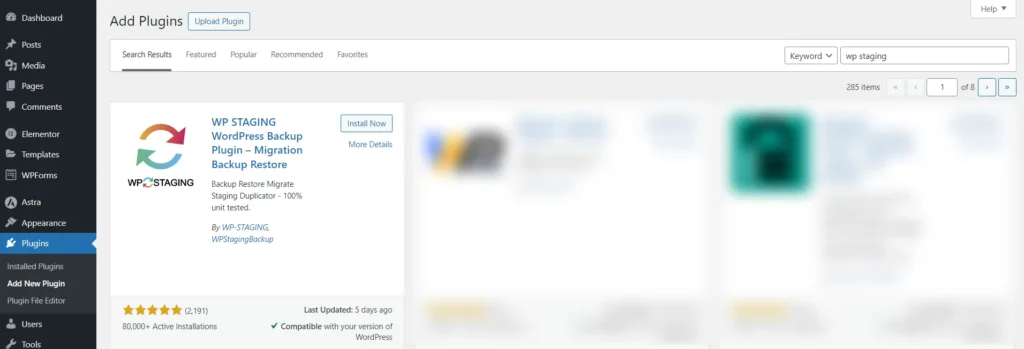
Screenshot 1: Install WP Staging Plugin
- Allow and continue to enable security alerts.
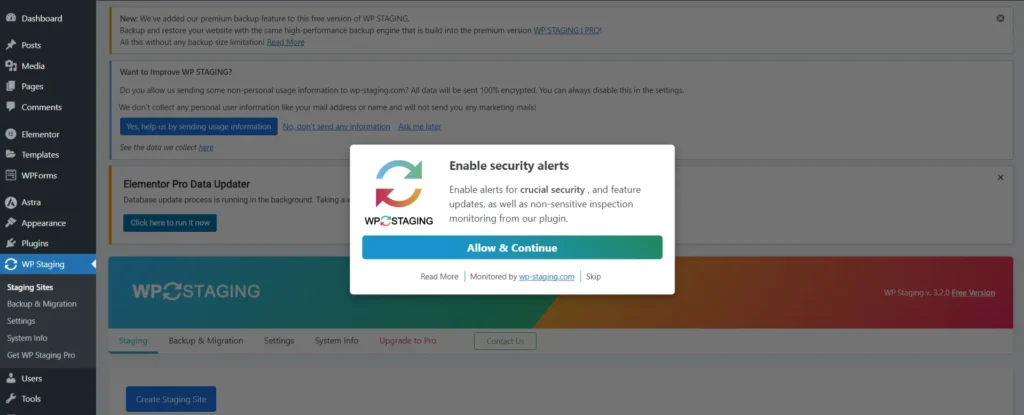
Screenshot 2: Enable security alerts.
Step 2: Create a Staging Site
- Click on Skip and Start WP Staging link. You will be redirected to Staging sites submenu.
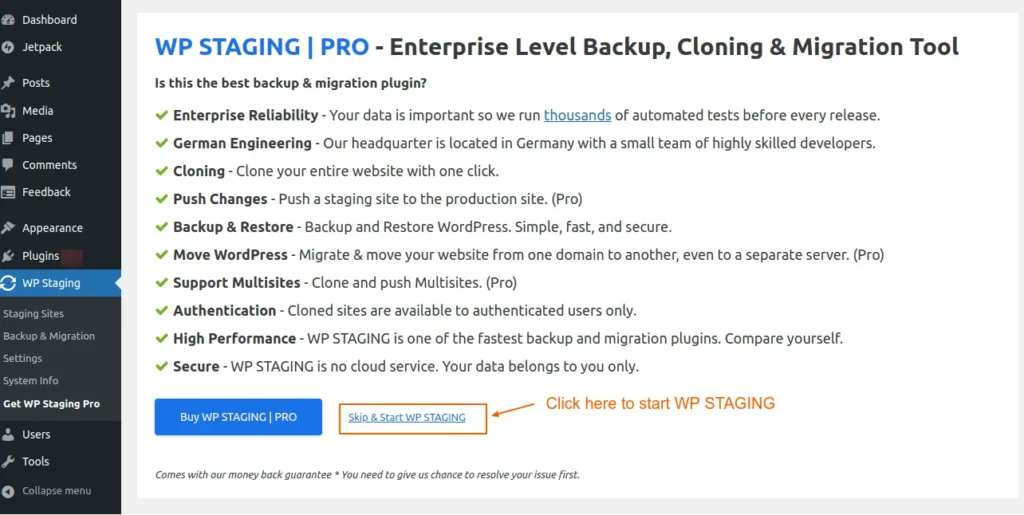
Screenshot 3: Skip and Start WP Staging
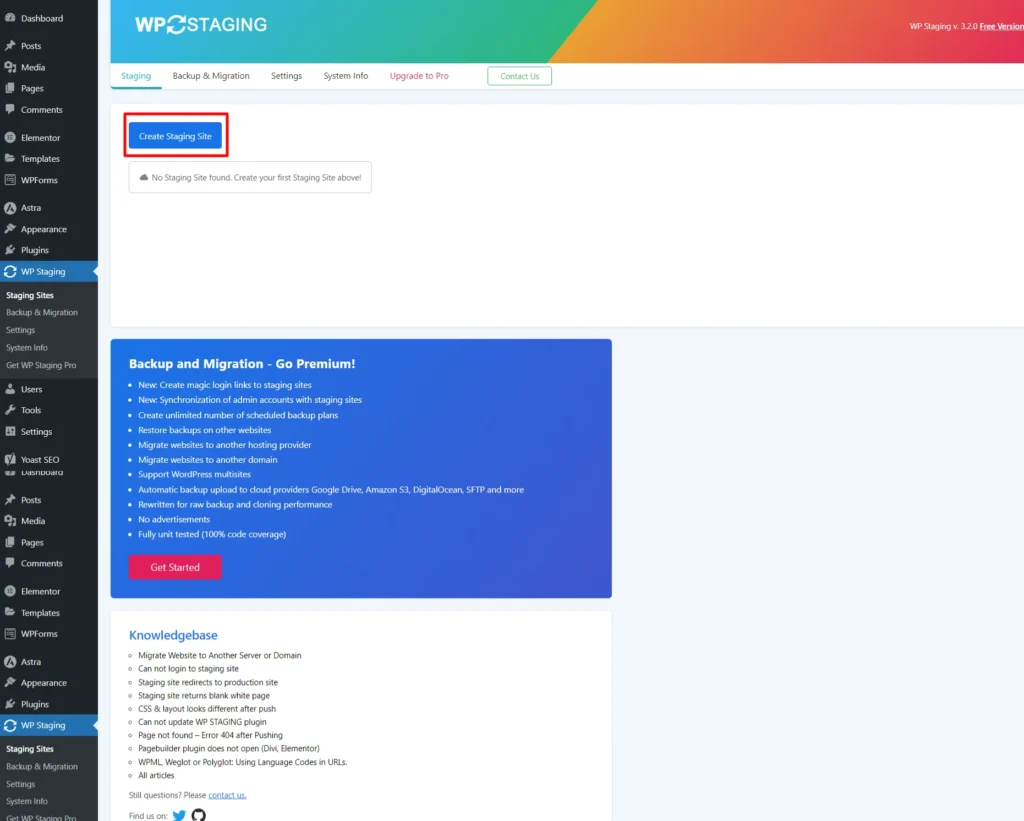
Screenshot 4: Click on Create Staging Site
- Next, click on “Create Staging Site”. Enter the name of the staging site that you want to create. (This is an optional step).
- Here, the database tables and files are selected by default. However, you can unselect some tables or files if you don't want to clone them.
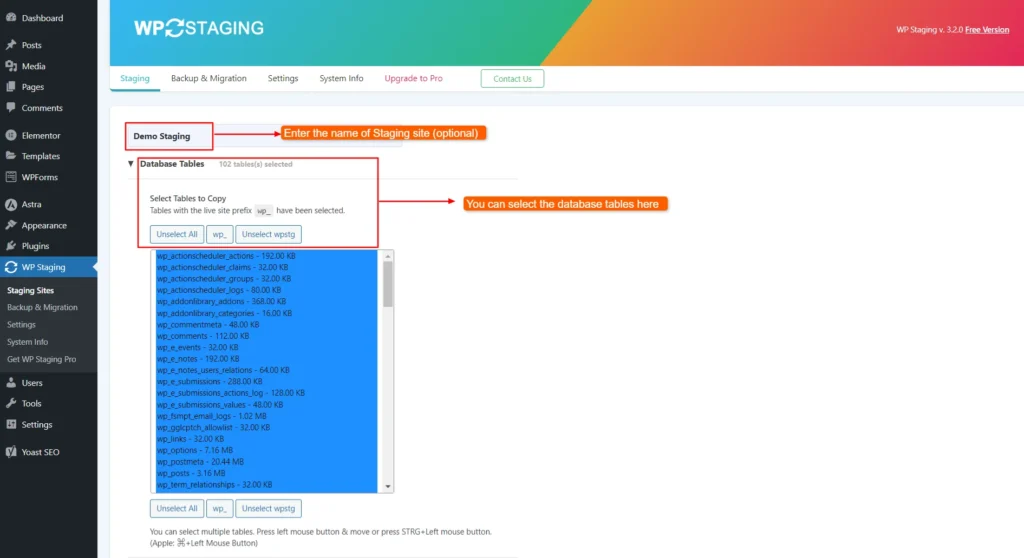
Screenshot 5: Selecting Database Tables
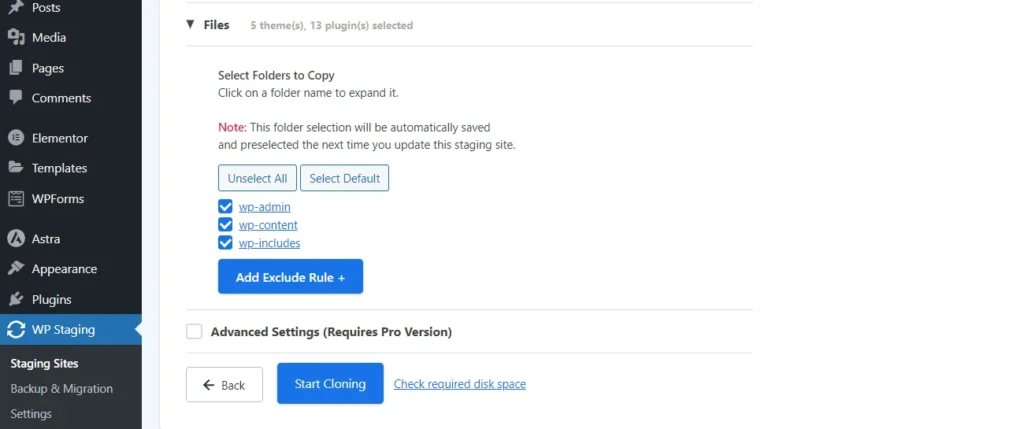
Screenshot 6: Selecting Files
- Click on “Start Cloning.” A display would show the current status of the staging site's progress.
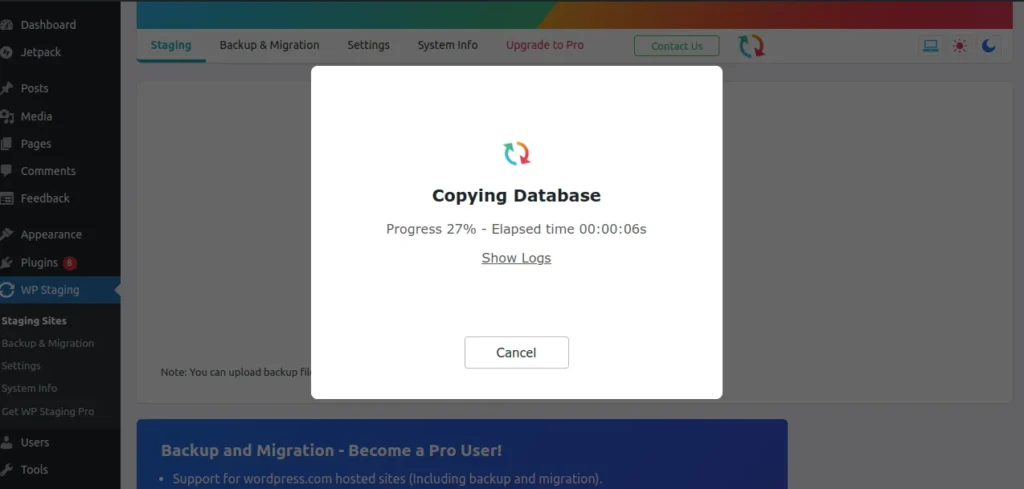
Screenshot 7: Staging site creation
- When the data is processed, the staging site is ready and the URL is displayed.
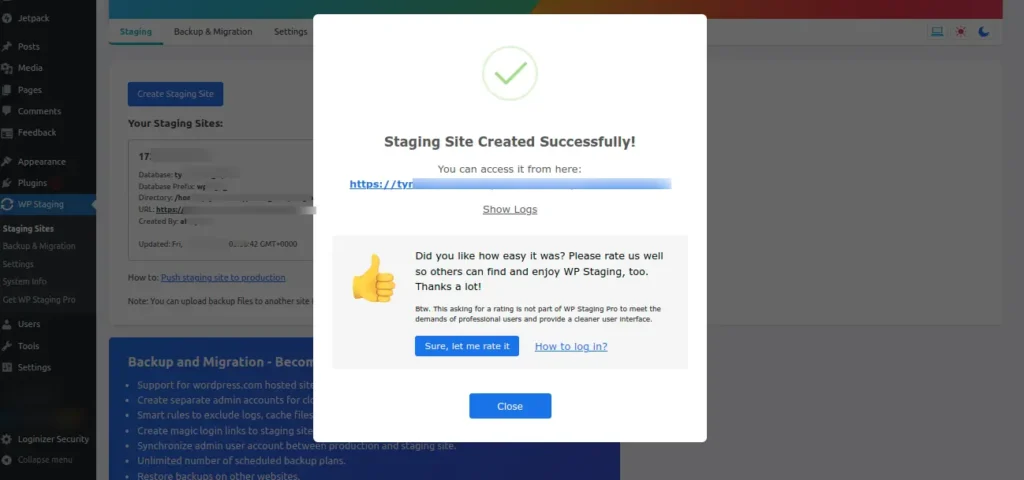
Screenshot 9: Staging Site Created Successfully
- If you click on Show Logs, you can see the entire process of logging that was done to create the staging site.
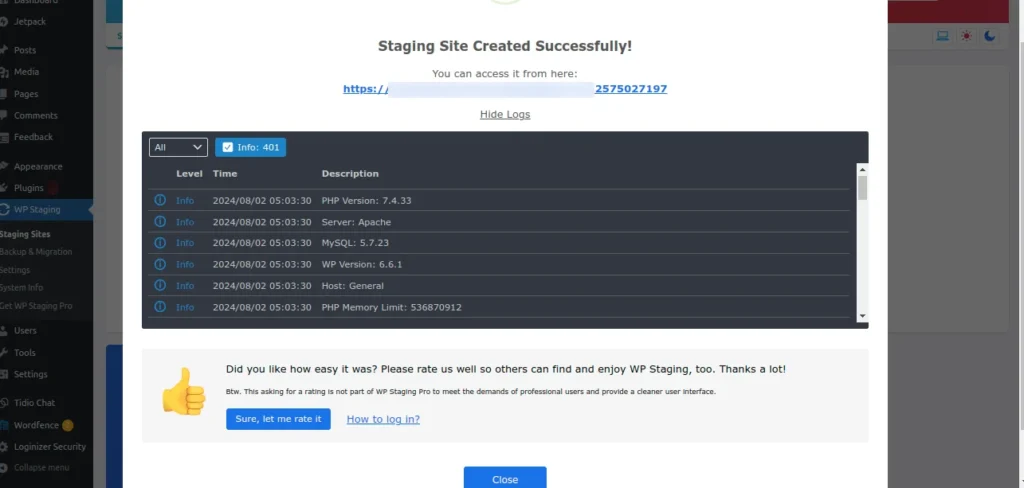
Screenshot 10: Logos
- When you click on the URL of the staging site, you’ll be required to login to the staging site. Use the same credentials as your site.
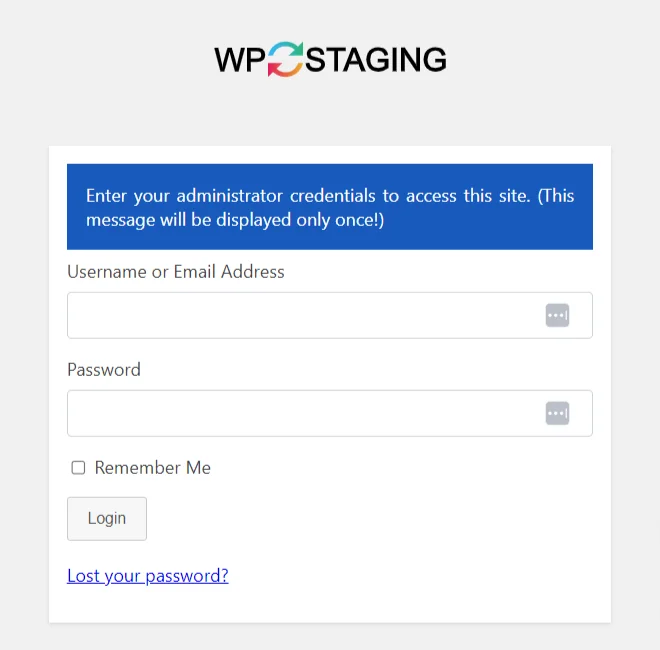
Screenshot 11: Login Page of Staging Site
- Enter the details, and your staging site is ready to use! You can access your staging site at any time from WP Staging.
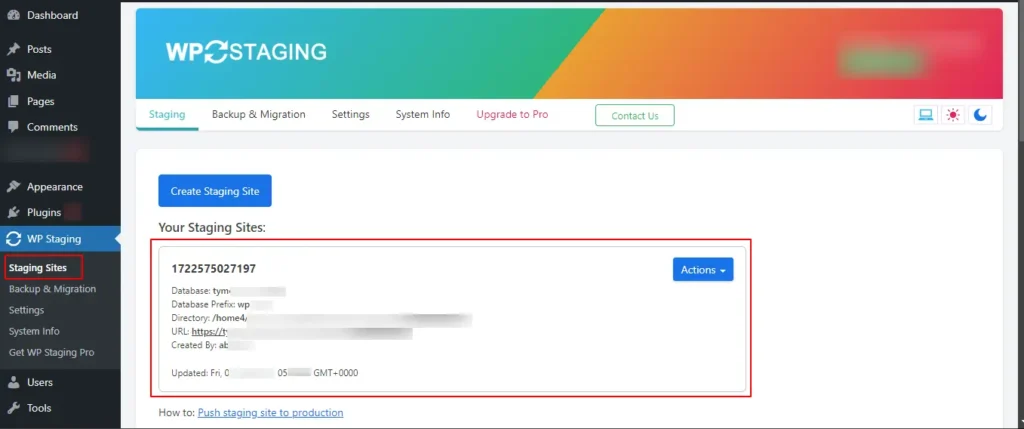
Screenshot 12: Access your staging site from WP Staging
Conclusion
In conclusion, setting up a staging site is a crucial step in website development and maintenance.
The WP staging plugin simplifies the process, making it accessible even to those with limited technical knowledge. Remember that a staging site is your best ally in ensuring that your live website runs smoothly, efficiently, and without interruptions.
Tutorials
9 min read
How to Secure Your Enterprise WordPress Website Using Wordfence (Part 2)
Introduction
This blog is Part 2 of our series, exploring how the Wordfence plugin can help secure your enterprise website. In the previous post, Part 1, we installed and configured the plugin, understood the Wordfence Dashboard, and configured the Wordfence Firewall.
In Part 2, we discuss the following sections of the Wordfence plugin,
- Wordfence Scan
- Wordfence Tools
- Wordfence Login Security
Wordfence Scan
Step 1: Scan
Wordfence checks your WordPress site for hidden threats like malware, backdoors, and suspicious URLs, all in one scan.
- Once you have configured the firewall, go to Scan.
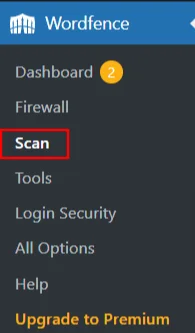
Screenshot 1: Scan
- The dashboard of Scan shows various aspects such as Scan Type, Malware signatures, Reputation checks, Scan options, and Scheduling.
- It also displays a detailed report of your scan.
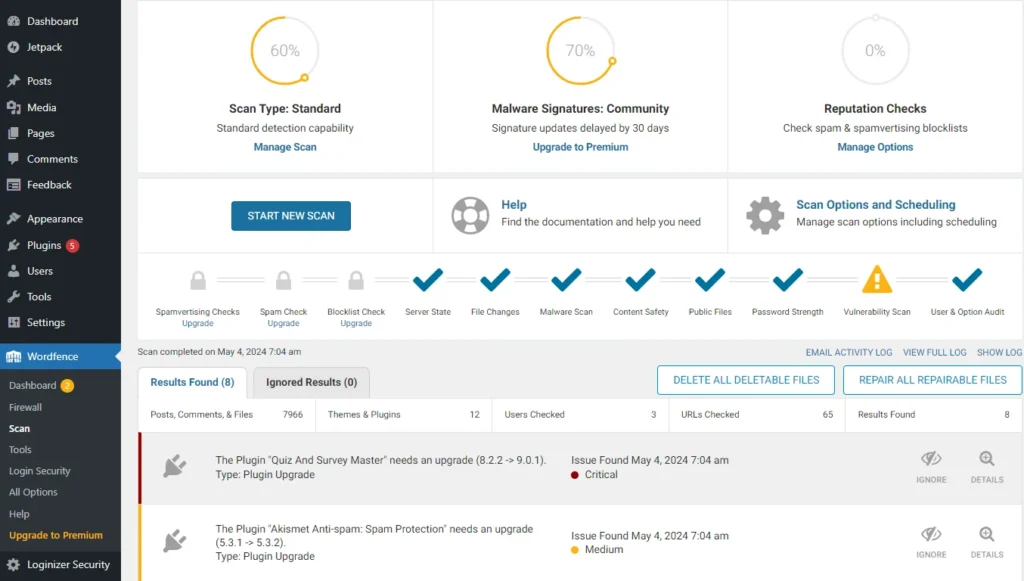
Screenshot 2: Wordfence Scan Dashboard
Step 2: Manage Scan
- Click on Manage Scan on the Wordfence Scan dashboard.
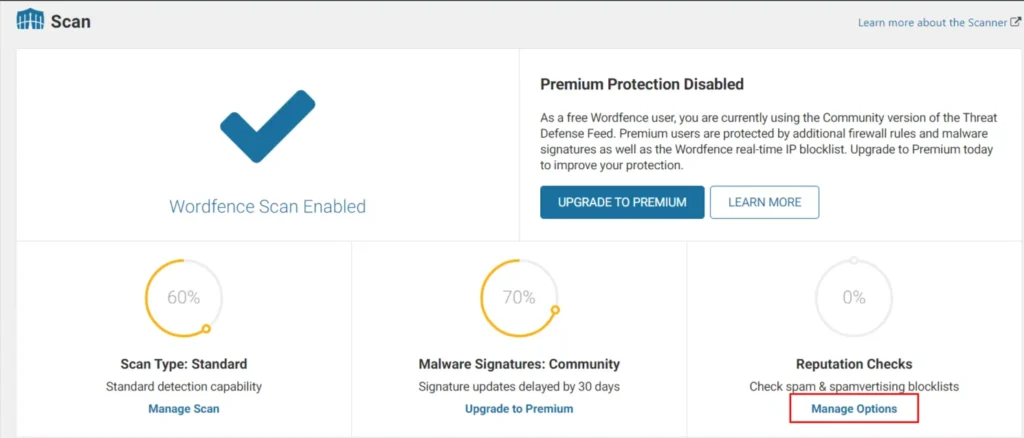
Screenshot 3: Manage Scan
- Click on Scan Scheduling to Enable or Disable Wordfence Scheduled Scans. By default, it is enabled.
- You can choose either automatic scans scheduled by Wordfence or scan manually (premium feature).
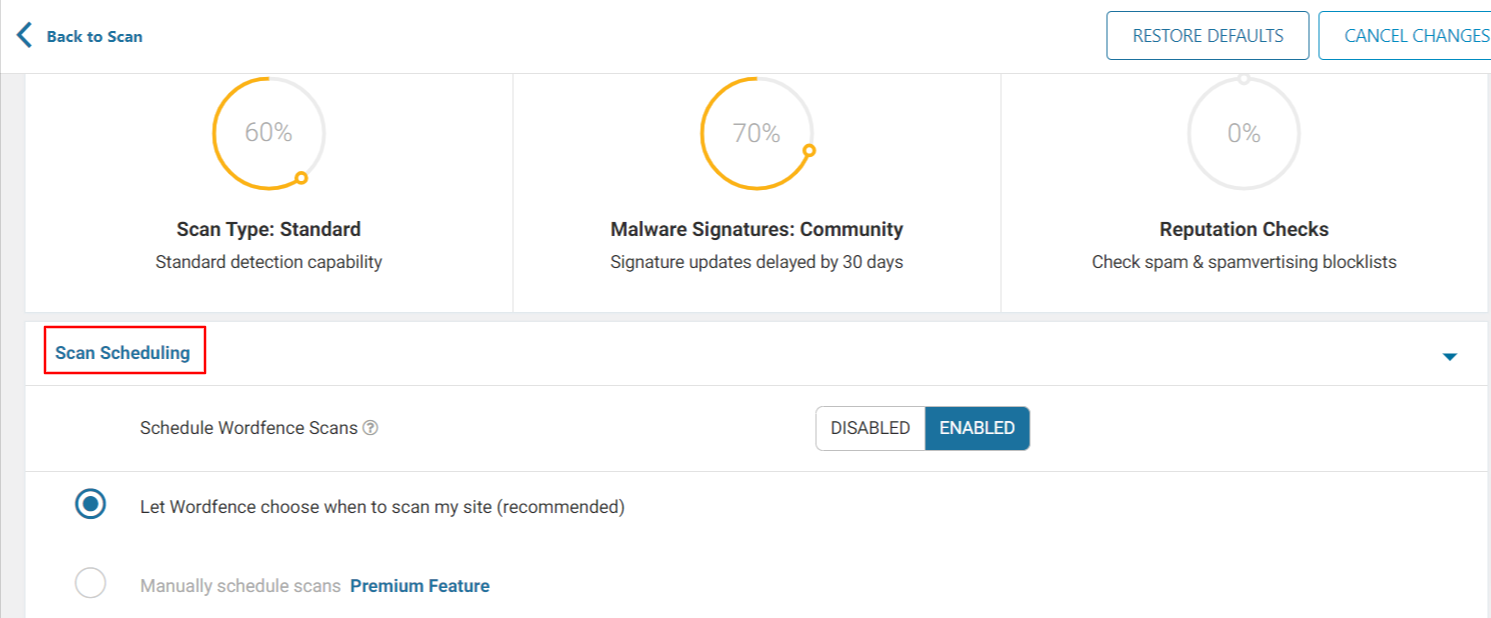
Screenshot 4: Scan Scheduling
- After you have selected how to schedule your scans, you can choose the Basic Scan Type options.
- Depending on the type of your requirement, you can select the type of scan:
- Limited Scan: Designed for entry-level hosting, this plan provides a basic level of threat detection without using many server resources.
- Standard Scan: Selected by default, this option is recommended by Wordfence for all websites.
- High sensitivity: This is a more in-depth scan ideal for those who believe their site may have been breached, but be aware it might identify some safe actions as potential threats.
- Custom Scans: Automatically chosen after you adjust General Options for this site.
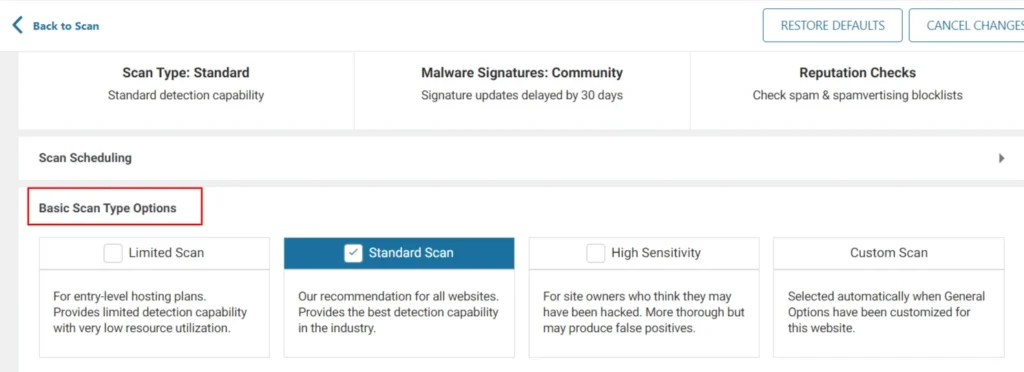
Screenshot 5: Basic scan Type Options
- After you have chosen the Basic Scan Type option, go to General Options.
- Here you can choose what to scan on your website.
- This includes Spamvertising Checks, Spam Checks, Blocklist Checks, Server State, File Changes, Malware Scans, Content Safety, Public Files, Password Strength, Vulnerability Scans, and User & Option audits.
- Some options are selected by default, but you can customize it further by choosing the options that best fit your requirements.
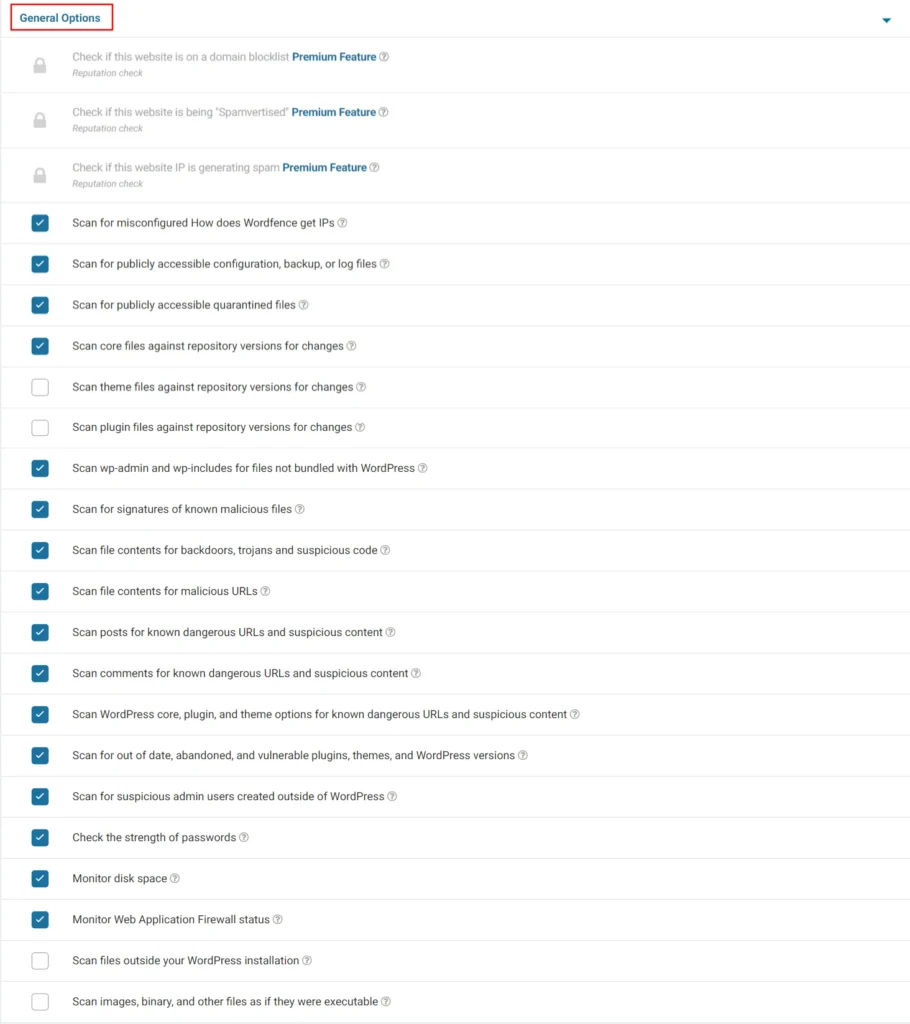
Screenshot 6: General Options
- After you have selected General Options, go to Performance Options.
- Here you can optimize the server performance by choosing to Use Low Resource Scanning, Limit the number of issues sent in the scan results email, Time limit that a scan can run in seconds (by default it is three hours), How much memory should Wordfence request when scanning (256 by default), and Maximum execution time for each scan stage.
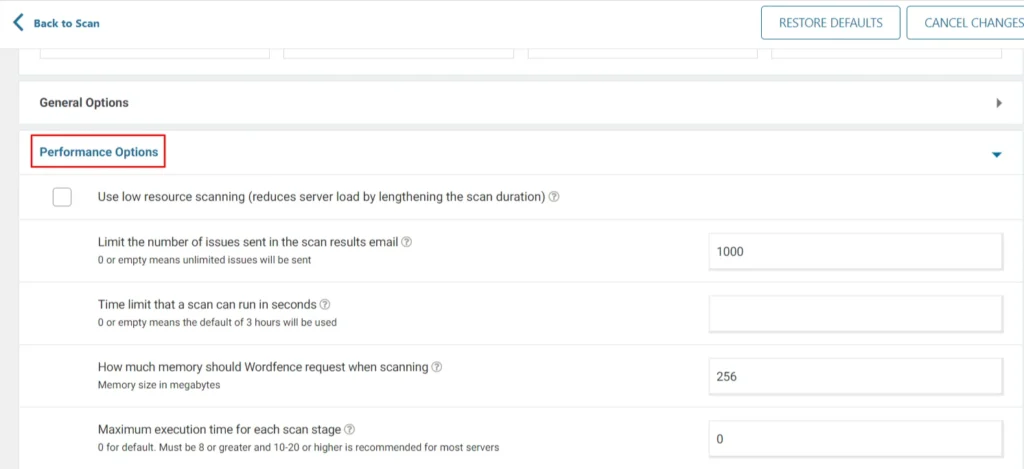
Screenshot 7: Performance Options
- Go to Advanced Scan Options to:
- Exclude files from scan that match these wildcard patterns: If you have large, safe files like backups that Wordfence keeps getting hung up on, this feature lets Wordfence to ignore certain file extensions.
- Additional scan signatures: This section lets you define custom scan signatures that the scanner will use to identify malware during checks. However, this is an advanced option that only works well if you understand how malware signatures are built and how they function.
- Use only IPv4 to start scans: Check this if you want to avoid connecting your site to IPV6.
- Maximum number of attempts to resume each scan stage: Internal connection problems can make Wordfence scans fail. It retries 2 times by default (up to 5). You can disable retries by setting it to 0.
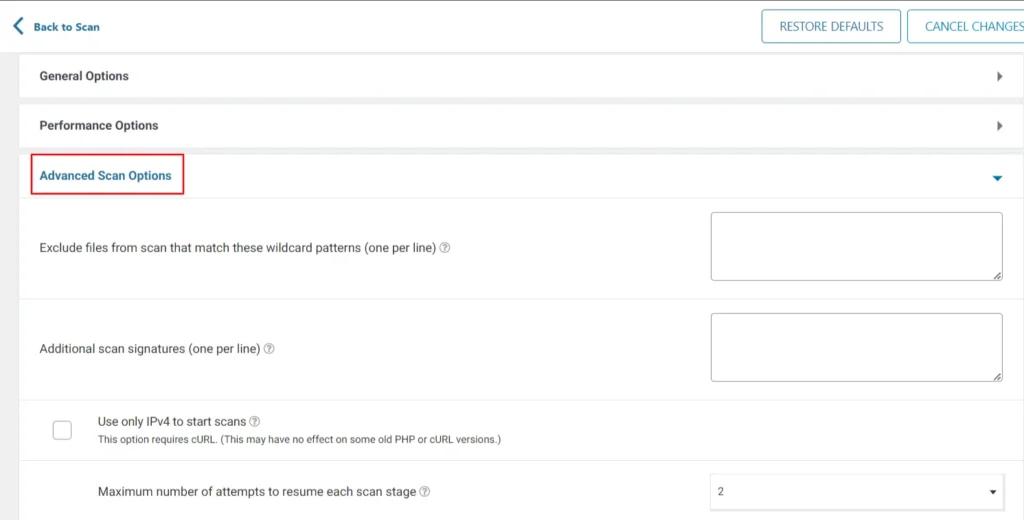
Screenshot 8: Advanced Scan Options
Step 3: Manage Options (Reputation Check)
- Wordfence's Reputation Check feature monitors your website's reputation on known databases of compromised and dangerous sites. It checks if your website is listed on three blacklists, and alerts you if your domain or IP is blacklisted. (Premium Option)
- Under the status circle of Reputation Check, you’ll see Manage Options.
- This will take you to the General Options covered above under Manage Scan Step 8.
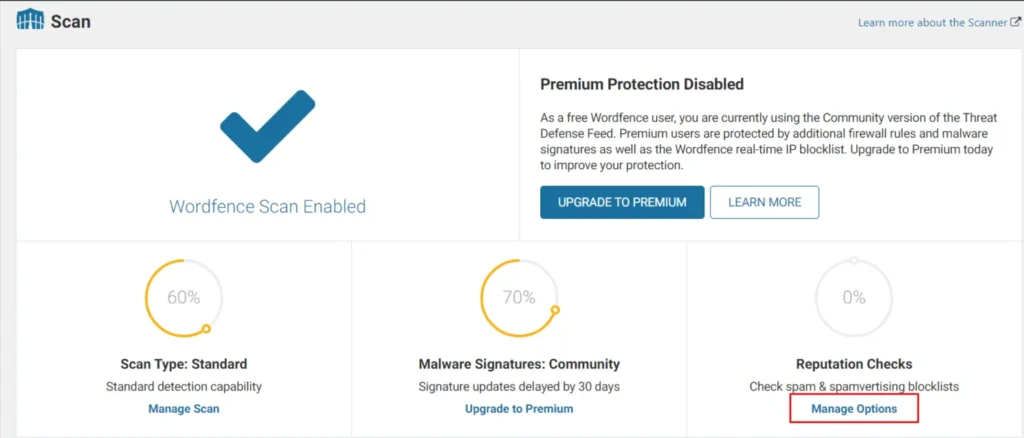
Screenshot 9: Manage Options
Step 4: Scan Options and Scheduling
- Wordfence's Scan Options and Scheduling dashboard allows users to set up automatic or manual scans.
- Clicking on this link will take you to Scan Scheduling, Scan options and Scheduling already covered above in Manage Scan.
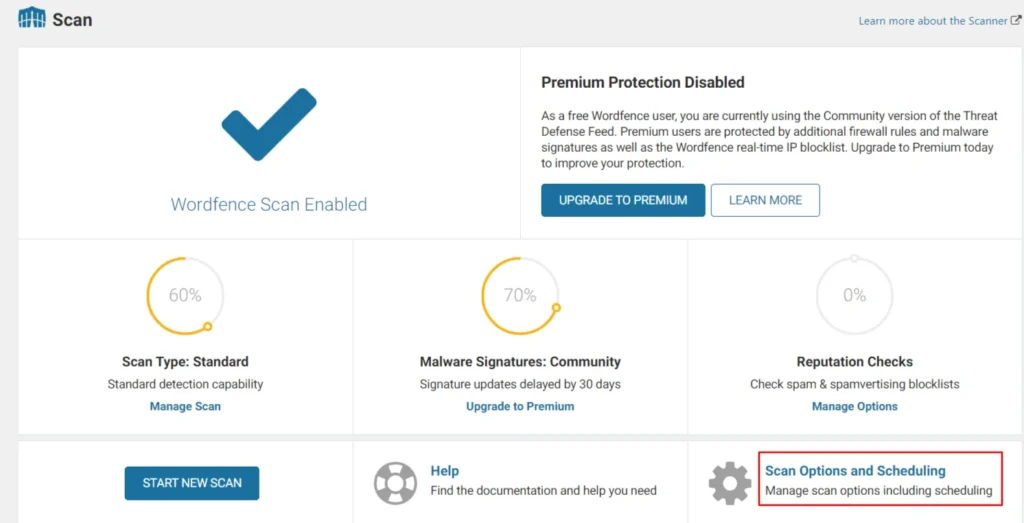
Screenshot 10: Scan Options and scheduling
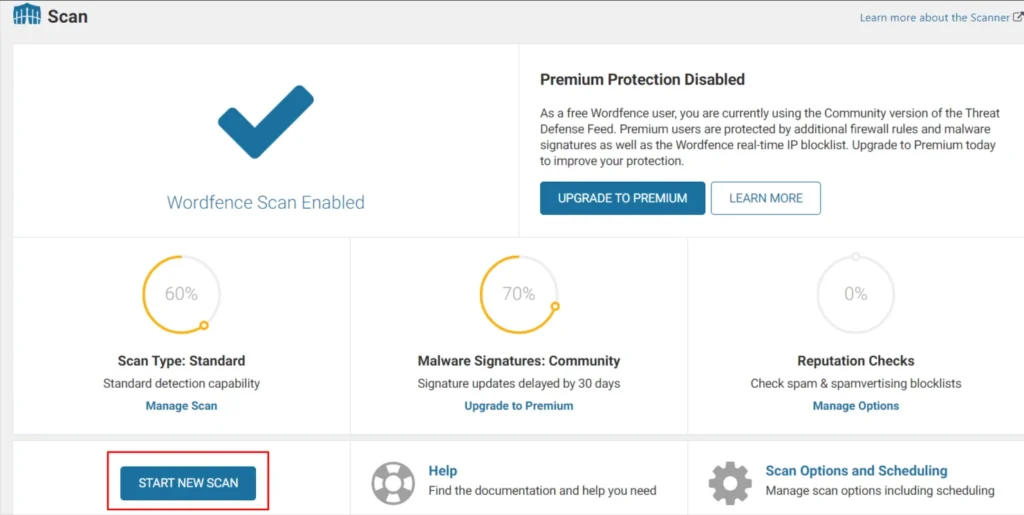
Step 5: Start New Scan
- After you are done customizing, you can Start New Scan.
- By default, scans are enabled to run automatically. The free version of Wordfence runs a quick scan every day and a full scan every 72 hours, while the Premium version runs a quick scan daily and a full scan every 24 hours.
- However, if you wish to scan again, you can select this option.
Screenshot 11: Start New Scan
Step 6: Scan Stages
- Wordfence scans your site in stages, with icons showing progress and any problems found. A blue check means all is clear, while a yellow warning means something needs attention.
- The stages include Spamvertising Checks, Spam Checks, Blocklist Checks, Server State, File Changes, Malware Scans, Content Safety, Public Files, Password Strength, Vulnerability Scans, and User & Option audits.
- The settings for these can also be found in General Options under Manage Scan.

Screenshot 12: Scan Status
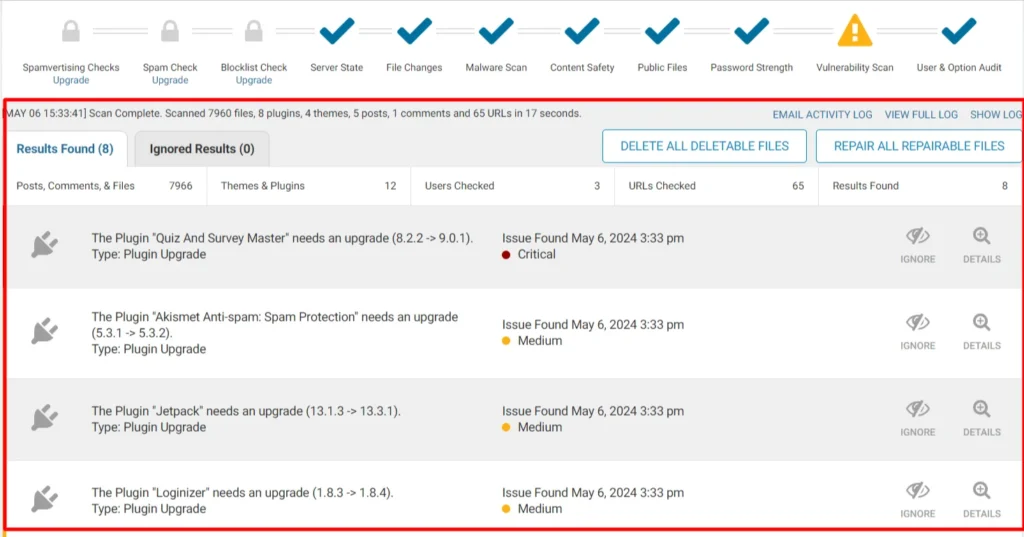
Step 7: Handling Scan Results
- The result of a Wordfence scan will vary depending on what it finds on your website.
- The report shows Results Found and Ignored Results (false positive results).
- It also shows the numbers for Posts, Comments, & Files, Themes & Plugins, Users Checked, and Results Found.
- You can take action by clicking on Delete all Deletable Files and Repair all Repairable Files.
Screenshot 13: Scan Result
Wordfence Tools
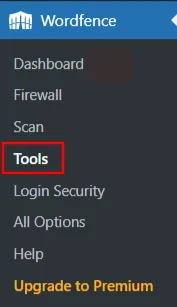
Step 8: Tools > Live Traffic
- Go to Wordfence> Tools.
Screenshot 14: Tools
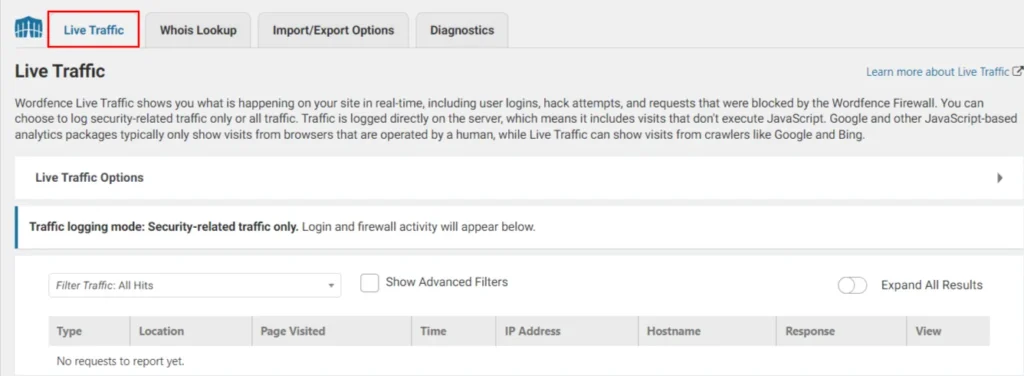
- The screen will display Live Traffic.
- Wordfence "Live Traffic" gives you a real-time view of your website activity, including things missed by analytics tools. It tracks everything happening at the server level, so you see visits from bots, crawlers, and even hack attempts, not just human visitors with Javascript enabled.
Screenshot 15: Live Traffic
- Select Live Traffic Options to choose which traffic to log or ignore some types of visitors, and other options.
- This functionality provides granular control over traffic logging. You can define which visitor interactions are recorded based on access level, user credentials, IP address, or browser type.
- You can choose options like Don't log signed-in users with publishing access, List of comma separated usernames to ignore, Browser user-agent to ignore, and others (refer to screenshot below).
- For high-traffic websites where real-time monitoring might not be practical, the Traffic logging mode can be adjusted to Security Only to prioritize security-related events.
- You can also check to Display Live Traffic menu option.
- Click on Save Changes at the end.
- Click on Restore Defaults to restore the default options.
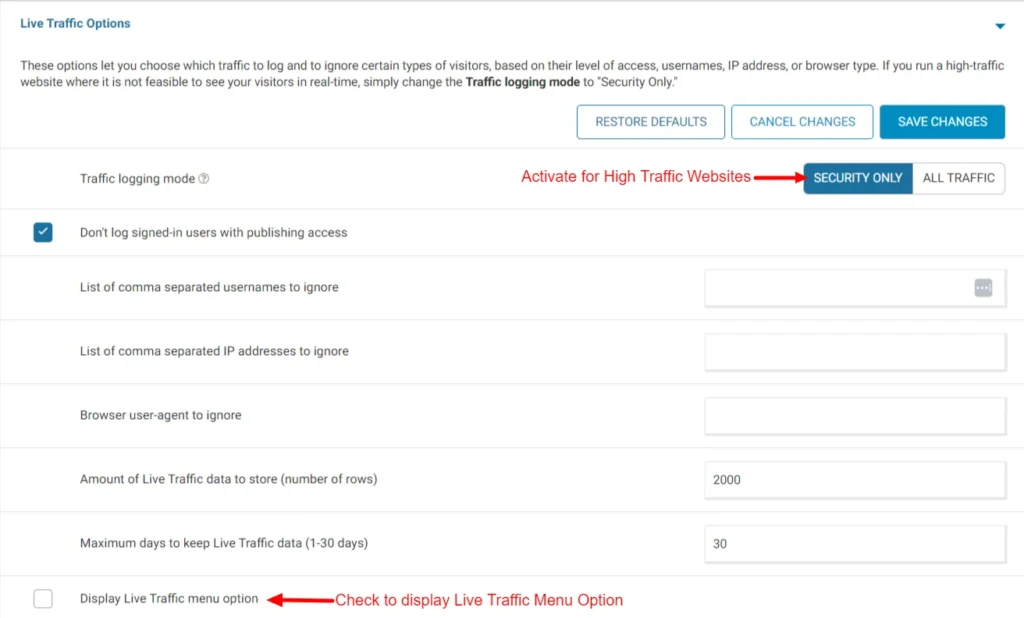
Screenshot 16: Live Traffic Options
- You can filter Live Traffic data based on various filters like All Hits, Humans, Crawlers, Registered Users, Page Not Found, Blocked by Firewall, and others.
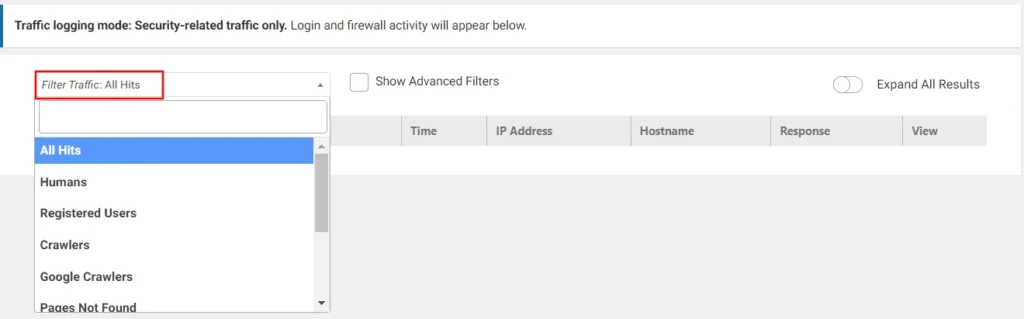
Screenshot 17: Filter Traffic
- Check Show Advanced Filters to customize your Live Traffic data.
- In this, you can have advanced filters like Username, Google Bot, IP, URL, and many others. You can also add your filter by clicking on Add Filter.
- You can set the time period for which you want to view the traffic.
- Select the Group By to view the traffic according to the option selected.
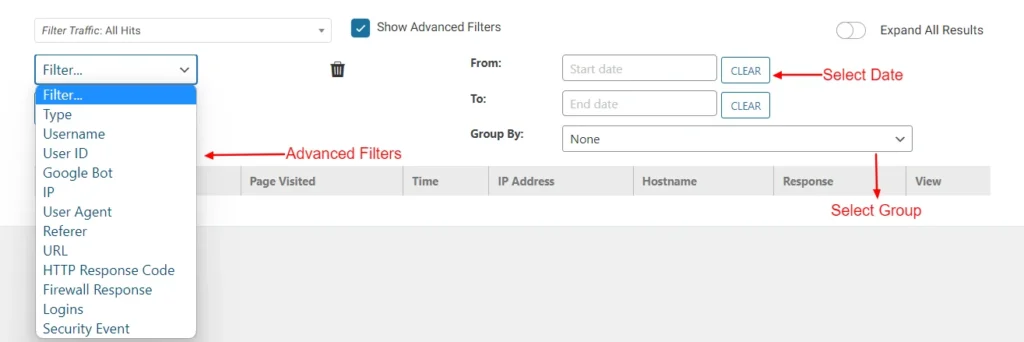
Screenshot 18: Advanced Filters, Select Date, and Select Group
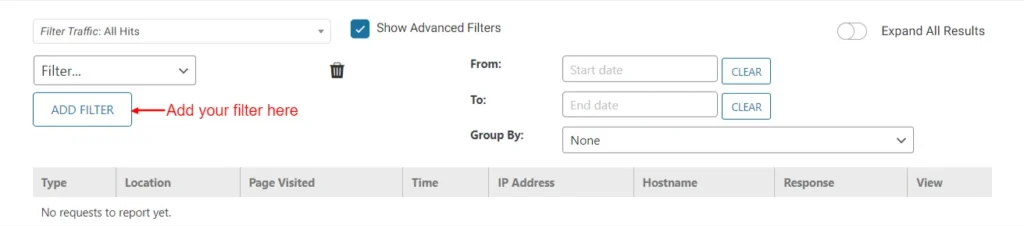
Screenshot 19: Add Filter
Step 9: Tools > Whois Lookup
- Whois Lookup helps to identify the owner behind an IP address or domain name. This is particularly useful for investigating suspicious website visitors or malicious activity.
- To utilize this feature, simply enter the desired domain name and initiate the lookup process. This will provide details such as registration date, expiration date, registrant information, and potentially associated contact email addresses.
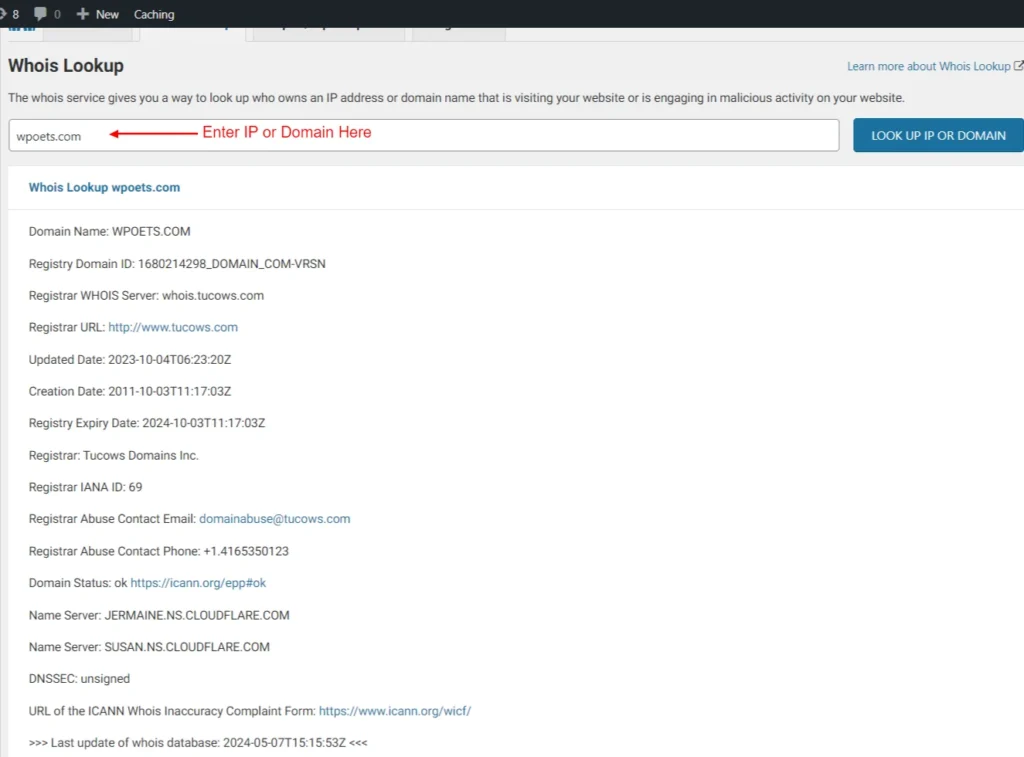
Screenshot 20: Whois Lookup Tool
Step 10: Tools> Import/ Export Options
- Go to Import/ Export Options to establish cloning across multiple sites.
- You can either Export this site's Wordfence options for import on another site or Import Wordfence options from another site using a token.
- The export and import process generates a token, a unique alphanumeric string. This token should be treated with the same level of confidentiality as your login credentials.
- Unlike other systems, Wordfence tokens are permanent, ensuring the continued availability of your exported settings.
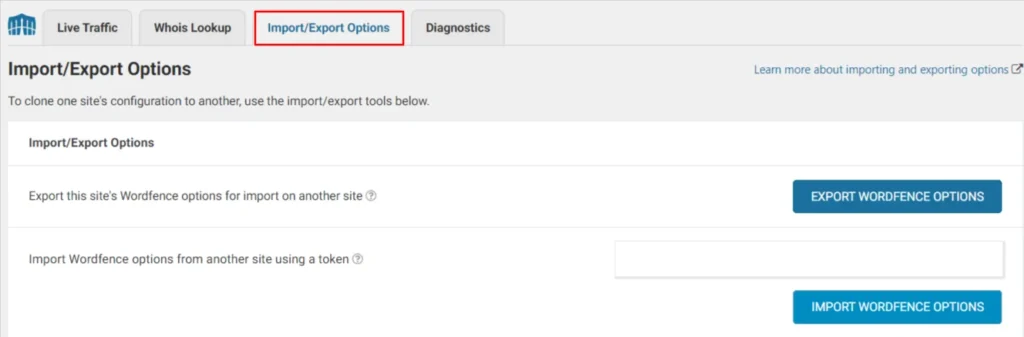
Screenshot 21: Import/ Export Tool
Step 11: Tools> Diagnostics
- Go to Tools> Diagnostics to access information when you are facing issues with Wordfence and need troubleshooting.
- This guide assists in troubleshooting conflicts, configuration issues, or compatibility problems with plugins, themes, or your hosting environment.
- You will have access to information about Wordfence installation, current WAF configuration, PHP version, Database version, status of installed themes, and many others.
- You can choose to Export or Send Report by Email.
- Click on Expand All Diagnostics to view all information at once.
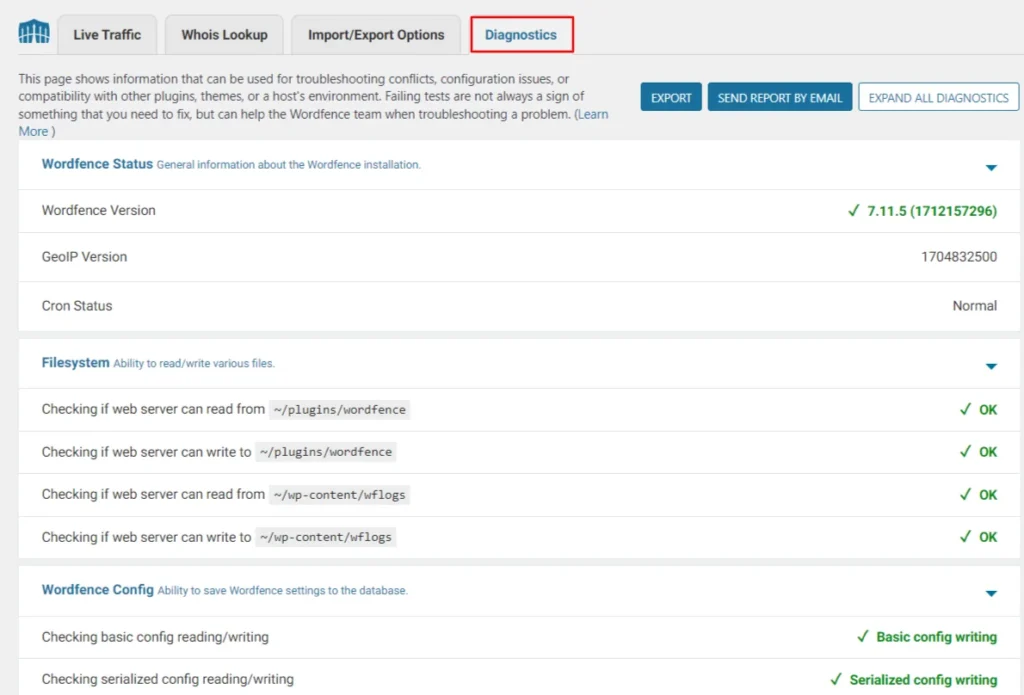
Screenshot 22: Diagnostics Tool
Wordfence Login Security
Step 12: Login Security
- Go to Wordfence> Login Security for 2-factor Authentication.
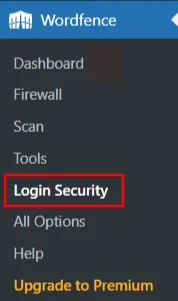
Screenshot 23: Wordfence> Login Security
- This option enables Two-Factor Authentication for your Wordfence.
- To add your account in the authenticator app, Scan the QR code displayed, or enter the code.
- The authenticator app will generate a code, which is to be entered to verify and activate Two-Factor Authentication.
- If you face any issues logging into your authenticator app, Wordfence provides you with 5 recovery codes. Each of these codes can be used only once.
- Click on Activate.
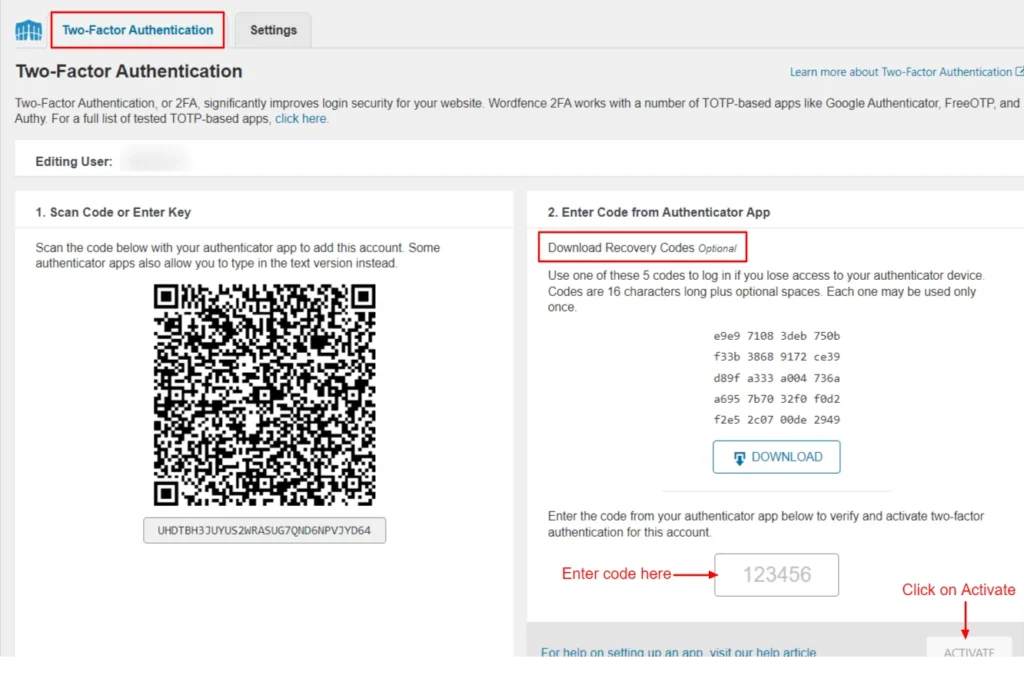
Screenshot 24: Two-Factor Authentication
- Go to Login Security> Settings.
- This Login Security page offers functionalities to enhance login security, including two-factor authentication (2FA) and reCAPTCHA.
- The report begins with a User Summary, providing a breakdown of users who have activated two-factor authentication (2FA) and those who haven't.
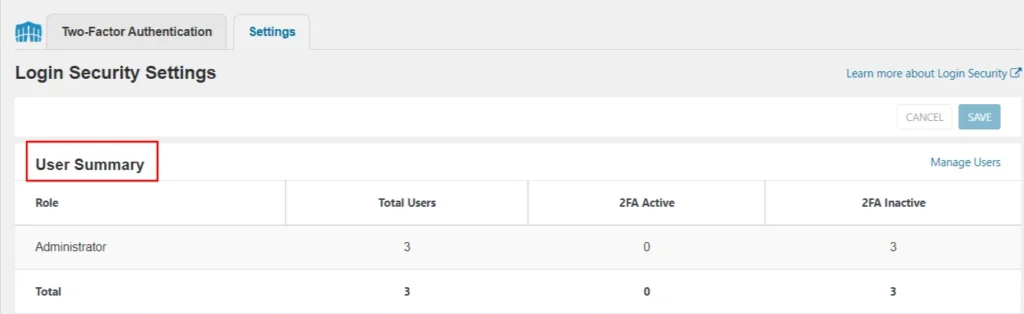
Screenshot 25: User Summary
- By default, only admins (or super-admins in multisite) can use 2FA. You can extend it to other roles:
- Required: Enforces 2FA for specific roles (with a grace period).
- Optional: Allows, but doesn't require, 2FA for certain roles.
- Disabled: Prevents 2FA usage for a role (except Admin).
- Users manage their own 2FA devices through a dedicated "Login Security" menu (visible when enabled for their role).
- 2FA enforcement includes a grace period for required roles, preventing immediate lockouts.
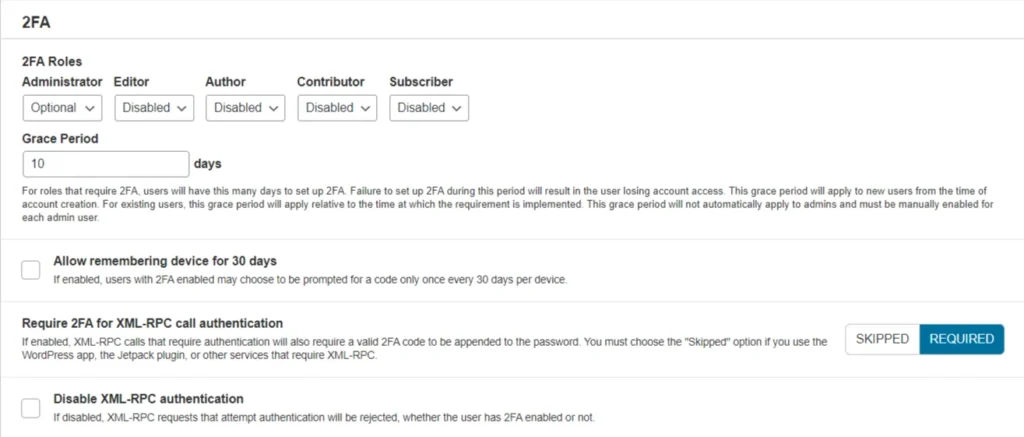
Screenshot 26: 2FA Settings
- Check WooCommerce Integrations if you have the WooCommerce plugin activated.
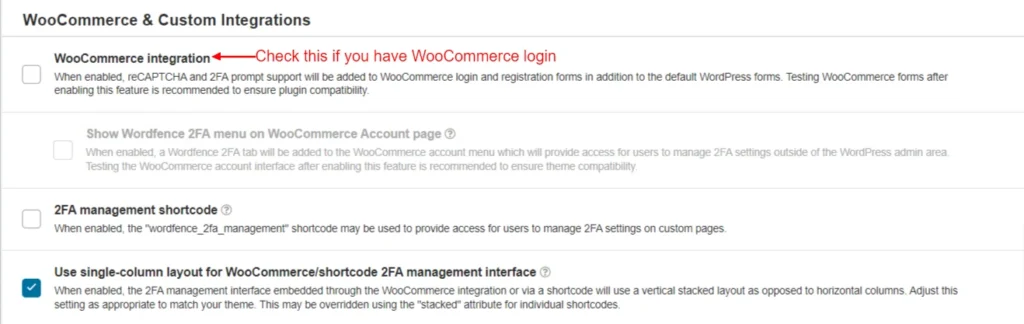
Screenshot 27: WooCommerce and Custom Integrations
- Check Enable reCAPTCHA on the login and user registration pages box for enhanced security and enabling reCAPTCHA.
- Activate by entering the site key.
- For optimal balance, fine-tune the captcha's threshold (default 0.5) based on your site's score history.
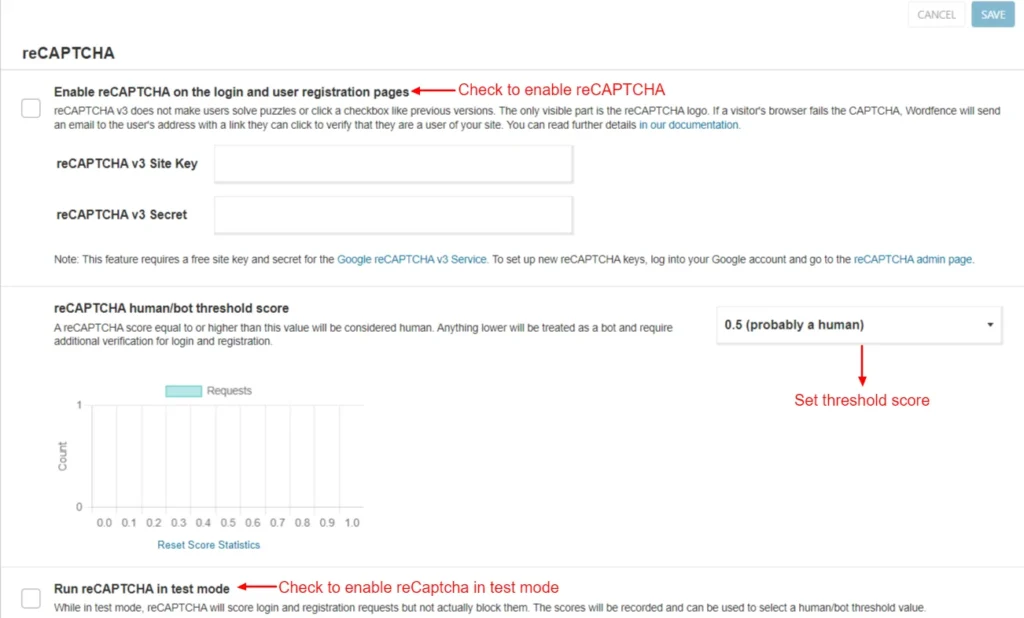
Screenshot 28: reCAPTCHA
- The General settings have the inclusion of Allowlisted IP addresses that bypass 2FA and reCAPTCHA, NTP Protocol (Network Time Protocol), last login timestamp, and deletion of security settings and of 2FA upon deactivation of the plugin.
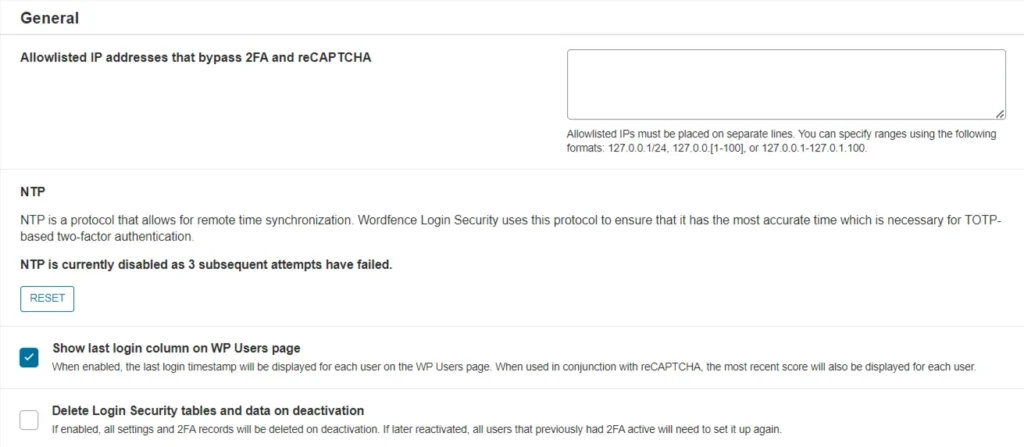
Screenshot 29: General Settings
Wordfence All Options
The All Options section of Wordfence includes Wordfence Global Options, Firewall Options, Blocking Options, Scan Options, and Tool Options.
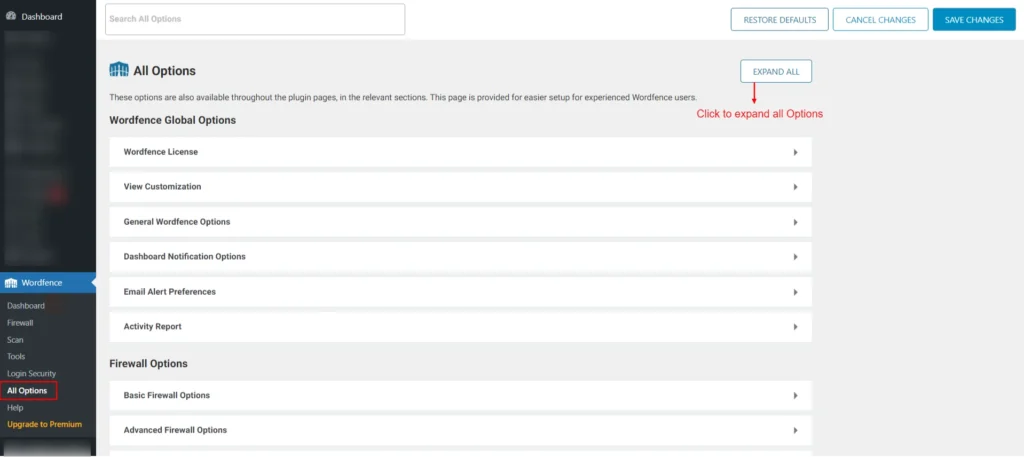
Screenshot 30: All Options
Conclusion
By now, you have gained insight on why security is important to your enterprise website, and how Wordfence is a good fit for it. With its comprehensive features and user-friendly interface, Wordfence empowers you to take control of your website security and keeps your enterprise website well-protected.
We hope this guide has equipped you with the knowledge and resources to secure your website. Remember, website security is an ongoing process. Stay vigilant, keep your software updated, and leverage tools like Wordfence to maintain a strong defense against ever-evolving threats.
Tutorials
10 min read
How to Secure Your Enterprise WordPress Website Using Wordfence (Part 1)
Introduction
Website security is no longer a luxury for businesses; it's an essential foundation. Enterprises today rely heavily on their websites to conduct business, communicate with customers, and store valuable information. A secure website is critical for protecting this data and maintaining trust with your audience.
For enterprises, the consequences of a website breach can be severe. Hackers can steal sensitive customer data, like credit card numbers or personal information, leading to financial losses and legal repercussions.
The most damaging impact may be on your brand reputation. A security breach can erode customer trust and make it difficult to regain their confidence.
Taking website security seriously is key to safeguarding your enterprise. By implementing the right tools and strategies, you can prevent these risks and build a strong foundation for success.
This guide will explore how the Wordfence plugin can help you secure your enterprise website and ensure its ongoing protection.
This is a two-part blog series. In Part 1, we discuss the following sections of the Wordfence plugin
- Wordfence Dashboard
- Wordfence Firewall
Understanding the Security Threats Faced by Your WordPress Website
While WordPress offers a powerful platform for building websites, it's important to understand the potential security risks involved. Here's a breakdown of some common threats faced by WordPress sites:
- Hacking Attempts: Malicious actors may try to gain unauthorized access to your website through various methods. This could involve brute-force attacks where they guess your password repeatedly, or exploiting vulnerabilities in outdated plugins or themes.
- Malware Injections: Hackers might inject malicious code into your website. This code could steal sensitive data from your visitors, like credit card information or login credentials. It can also redirect users to fraudulent websites or disrupt your website's functionality.
- Security Vulnerabilities: Outdated WordPress core software, plugins, and themes can contain vulnerabilities that hackers can exploit. These vulnerabilities can act as backdoors for unauthorized access or allow malicious code execution.
Now, let's talk about the potential consequences of a security breach on your enterprise website:
- Data Breaches: A security breach can expose sensitive customer data like names, addresses, and credit card information. This can lead to financial losses for your company and legal trouble from regulatory bodies.
- Website Downtime: Malware or a denial-of-service attack can take down your website, preventing customers from accessing your products, services, or information. This can lead to lost revenue and damage your brand reputation.
- Loss of Trust: A security breach can erode customer trust in your brand. If customers believe their data is not secure on your website, they may be hesitant to do business with you. Regaining their trust can be a long and challenging process.
By understanding these security threats and their potential consequences, you can appreciate the importance of taking proactive measures to safeguard your enterprise website. The good news is that plugins like Wordfence can help!
Step-by-Step Process of Securing an Enterprise Website with Wordfence
Step 1: Install Wordfence
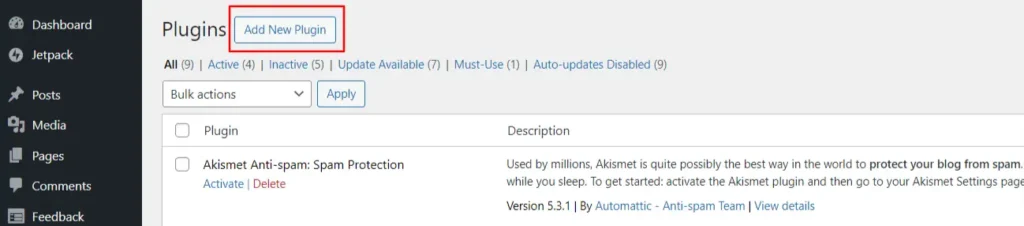
- Go to the dashboard and click on Plugins to add a new plugin.
- Search for the Wordfence plugin.
- Click on Install and Activate.
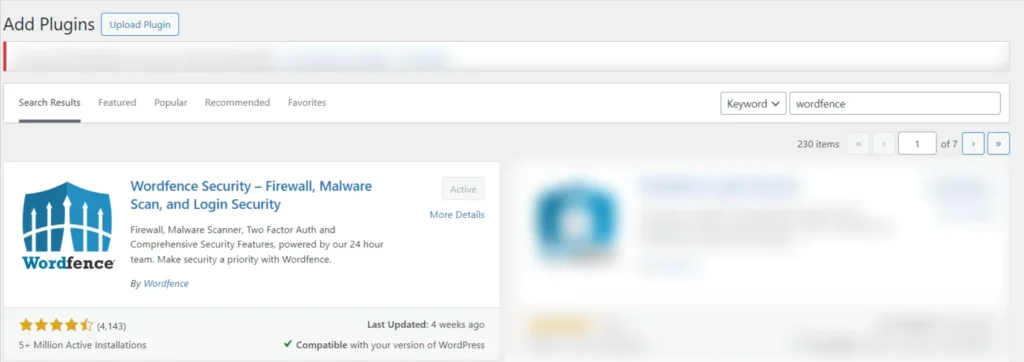
Screenshot 1: Install and Activate the Wordfence Plugin
Step 2: Getting the License
- On installing the plugin, you’ll be prompted to register and get the license to use the plugin. You’ll be redirected to the official website of Wordfence to register.
- Enter your email ID and you get your license. There’s no extra cost for that.
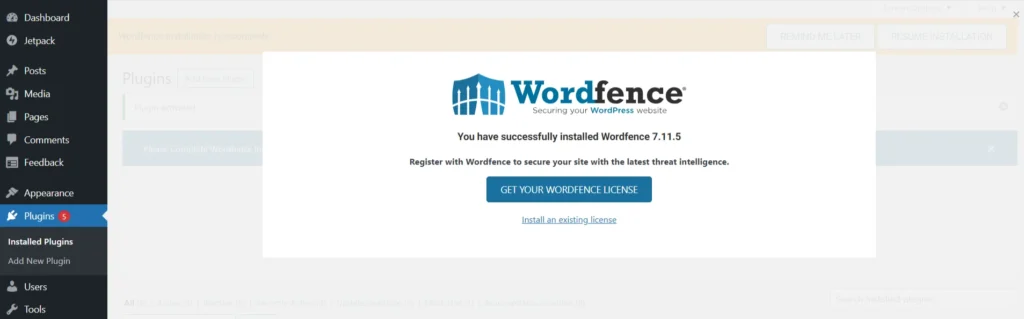
Screenshot 2: Get WordFence license
Step 3: Activating the Wordfence License
- Enter the email ID and the license that you got on your mail.
- Click on Install license.
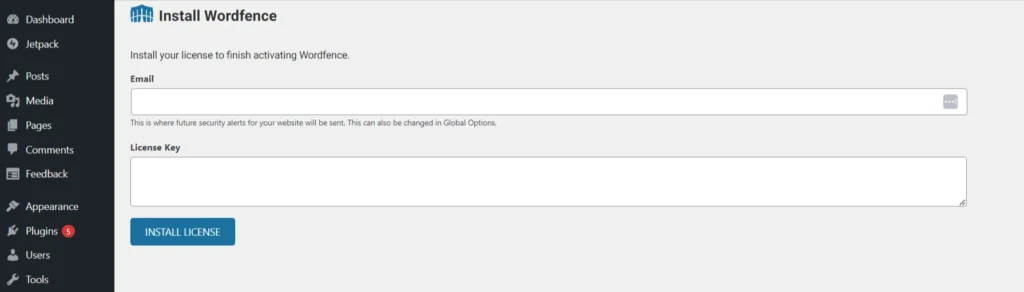
Screenshot 3: Install Licence
Wordfence Dashboard
Step 4: Understanding Wordfence Dashboard
- The Wordfence dashboard indicates the status of your installation.
- The Firewall and Scan indicate how much your site is protected in percentage. The features and settings that you have activated determine the degree of protection.
- When you first install Wordfence, you’ll see below the Firewall status circle, “WAF Currently in Learning Mode”. This status will automatically change after 7 days. This allows the firewall to get adjusted to your website.
- In learning mode, the firewall is not fully active and does not block any attacks.
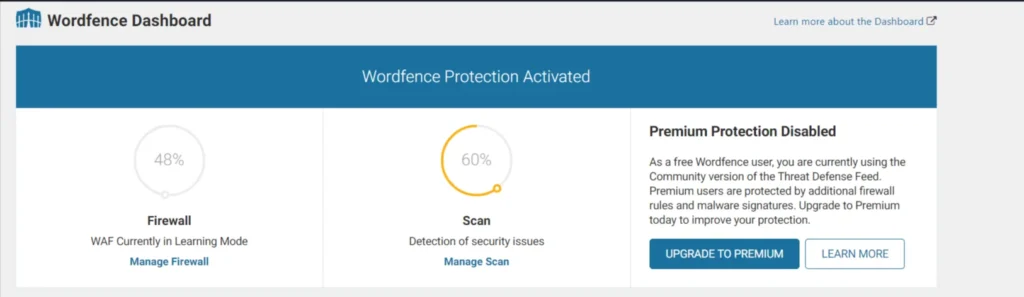
Screenshot 4: Wordfence Dashboard
- On a computer, move your mouse cursor over a status circle. On a mobile device, simply tap it. Either way, a tooltip will appear, explaining what steps you need to take for full protection.
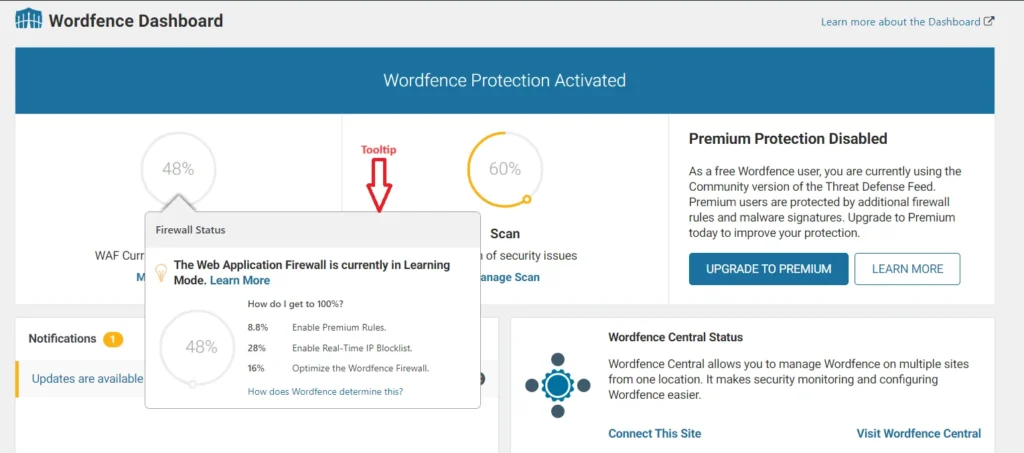
Screenshot 5: Firewall Status Tooltip
- The Notification section indicates which actions are to be taken.
- You’ll get notified about required updates, security alerts, product updates, promotions, blog highlights, etc. Please note that some of these notifications are only available in the premium version.
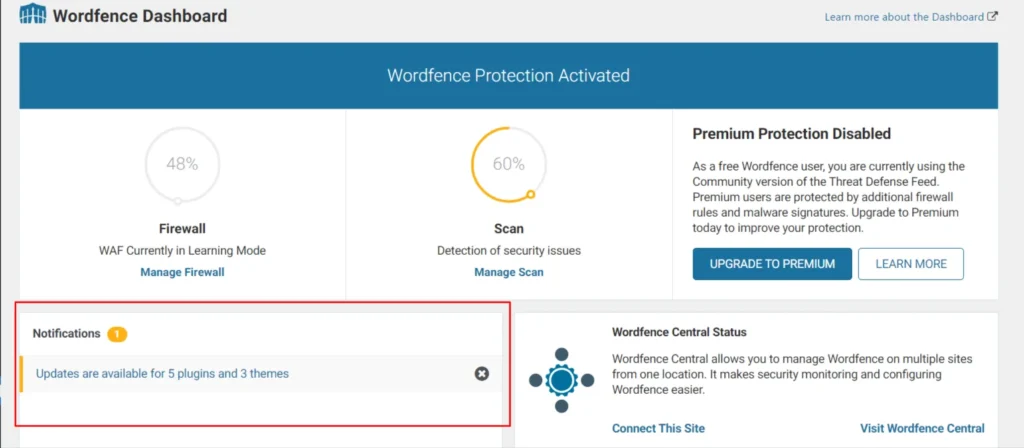
Screenshot 6: Notifications
- The Wordfence Central Status section shows if your site connects to Wordfence Central. This tool lets you manage security for multiple WordPress sites in one place. A free account gets you started, while a Premium license unlocks additional features (login required).
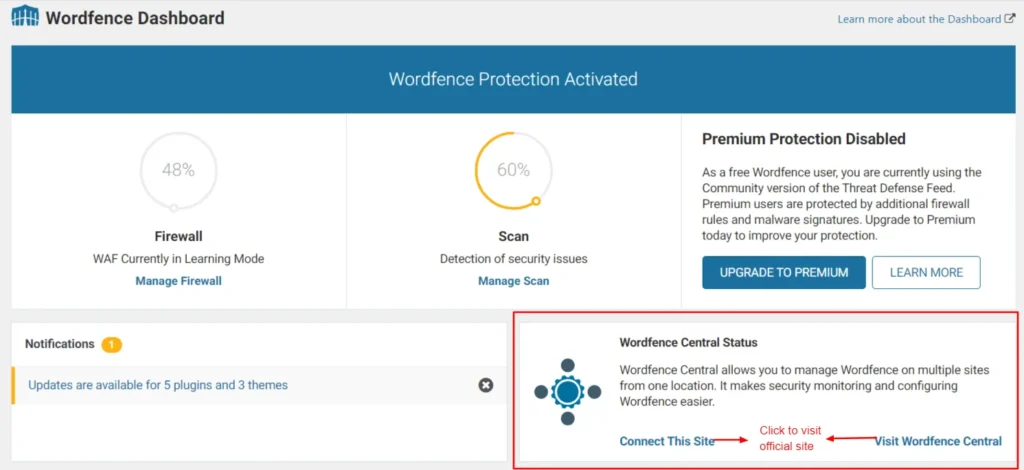
Screenshot 7: Wordfence Central Status
- In addition to the main menu, you'll find sections for Tools, Help, and Global Settings. Global Settings lets you configure Wordfence overall, including how it sends alerts (email address), what triggers alerts, and what kind of notifications appear on the Dashboard.
- You can also find the Tools section in the menu bar of Wordfence, as indicated in the following screenshot.

Screenshot 8: Tools, Help, and Global Options of Wordfence Dashboard
- The Firewall Summary section details the recent attacks blocked by your website's security measures, categorized by the type of attack. This is not visible in Learning Mode.
- The Total Attacks Blocked graph visualizes the overall attack volume targeting your site, and compares it to attacks detected across the entire Wordfence security network.
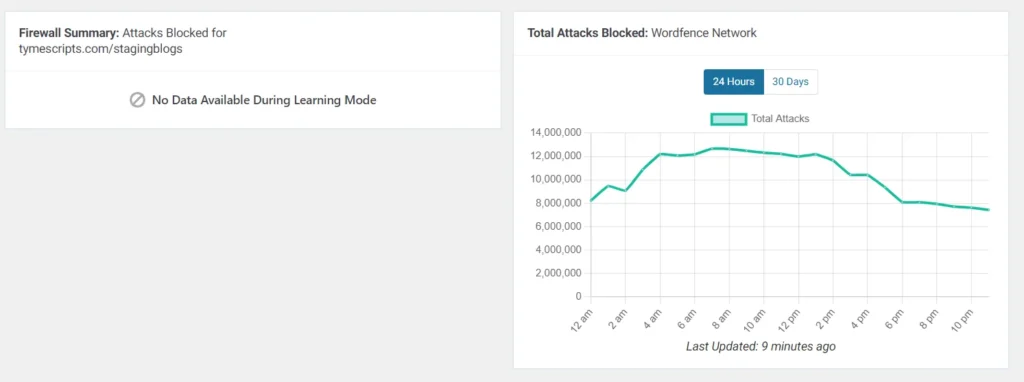
Screenshot 9: Firewall Summary and Total Attacks Blocked.
Wordfence Firewall
Step 5: Firewall Configurations
Wordfence WAF shields your WordPress site from both general web attacks and those targeting WordPress itself. It acts as an early defense system, filtering threats before vulnerable code from plugins or themes can be exploited.
- Once you understand how to read the dashboard, click on “Firewall” to configure it.
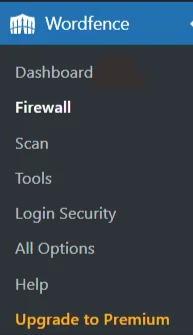
Screenshot 10: Click on “Firewall”
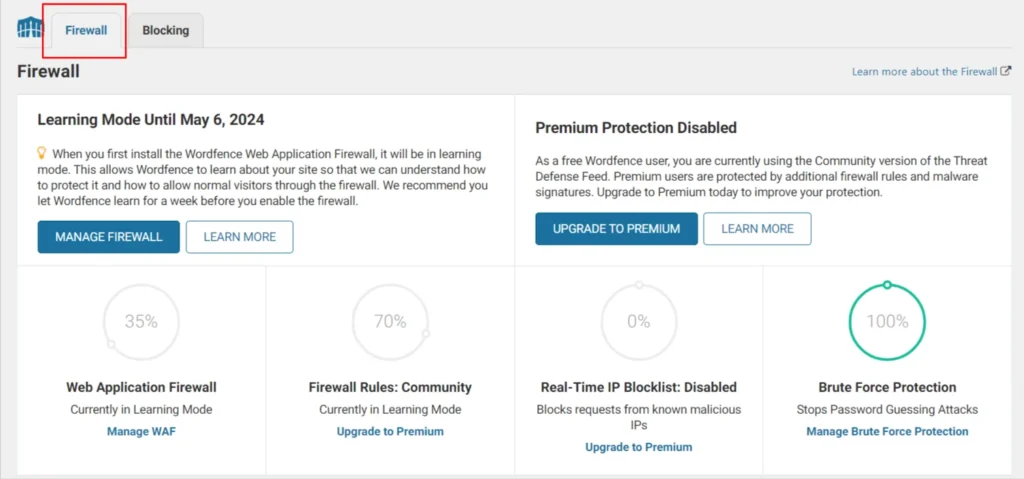
Screenshot 11: Firewall Section of Wordfence
- When you go to the Firewall section, you’ll see the status of your protection.
- The colored circles show how well your firewall is protecting you right now. Gray circles mean the firewall is either in learning mode or turned off. If you click on a circle, a tooltip will pop up explaining what you need to do for the best possible protection (100% rating).
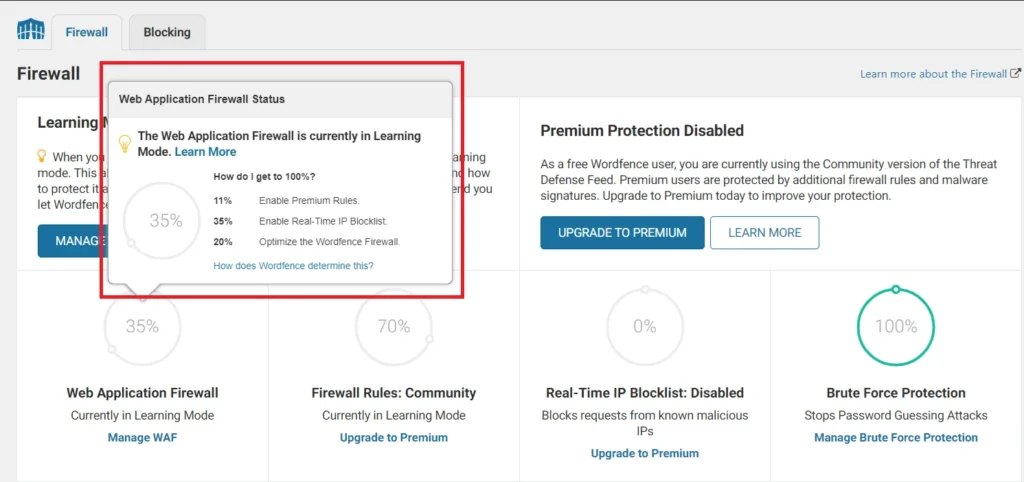
Screenshot 12: Firewall Status Circle and Tooltip
Step 6: Firewall Status Circle Check
- For all your firewall circles to be completely filled (at 100%), you need to make sure the following things are done:
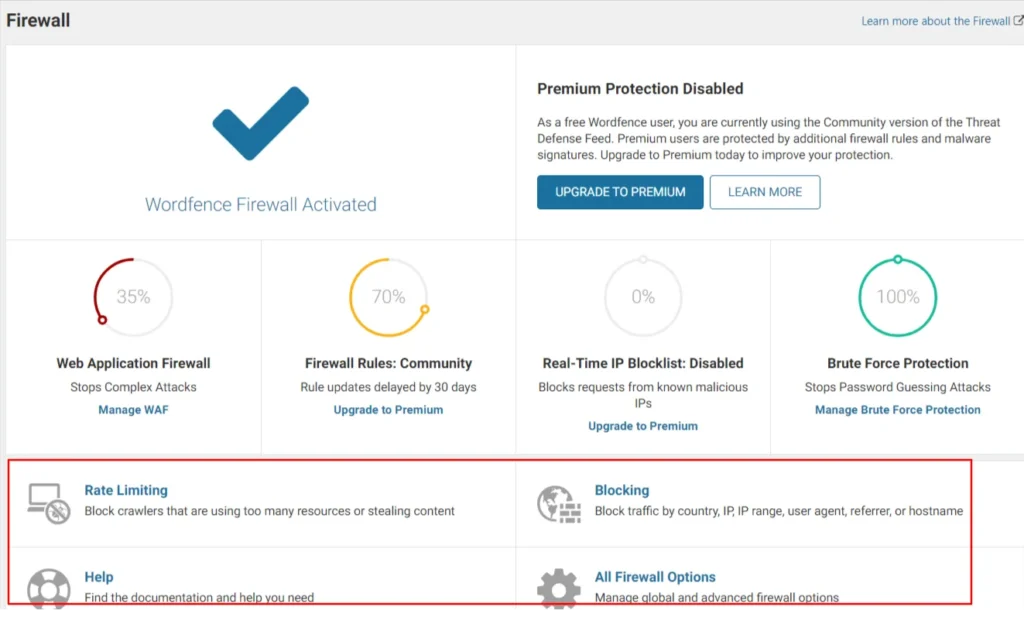
Screenshot 13: Firewall Settings to get 100% Status Circle Check
- Rate Limiting: By default, this feature is turned on. It's located on the "Firewall Options" page under "Rate Limiting". The rate limiting settings include configurations about how we should treat Google's crawlers, if anyone's requests exceed or if a crawler's page views exceed, and so on.
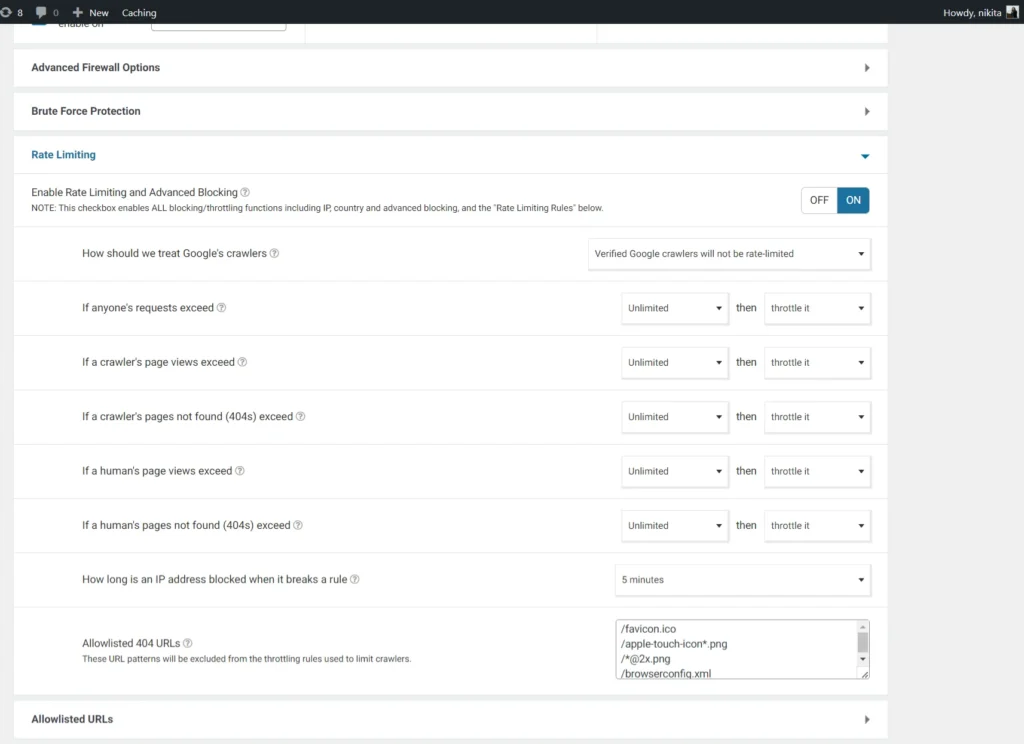
Screenshot 14: Rate Limiting Settings
- Blocking: This helps to configure what you want to block including blocking according to geolocations (country) (premium), IP address, or Custom Pattern in which you can block by IP address range, hostname, user agent etc.
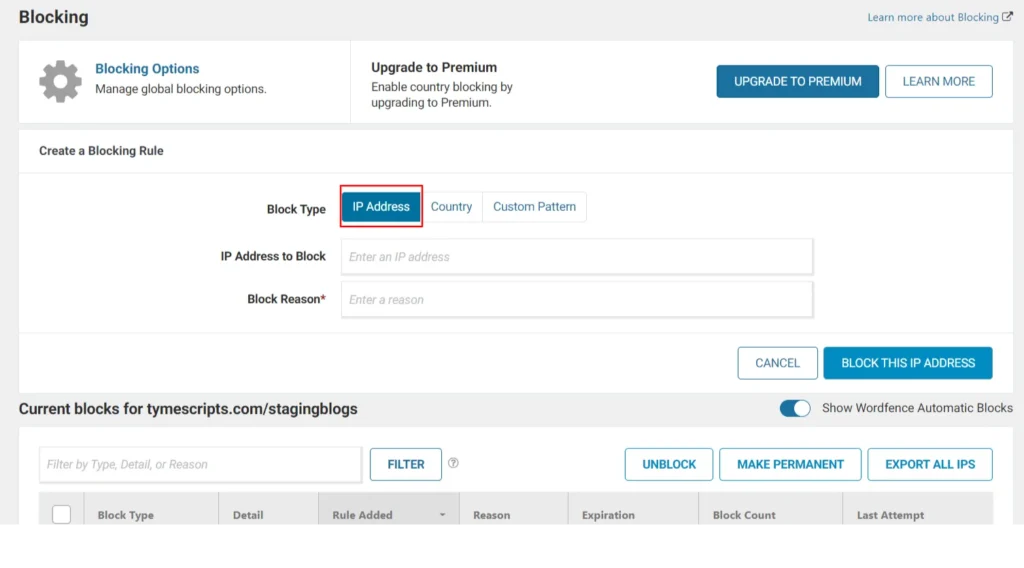
Screenshot 15: Blocking by IP Address
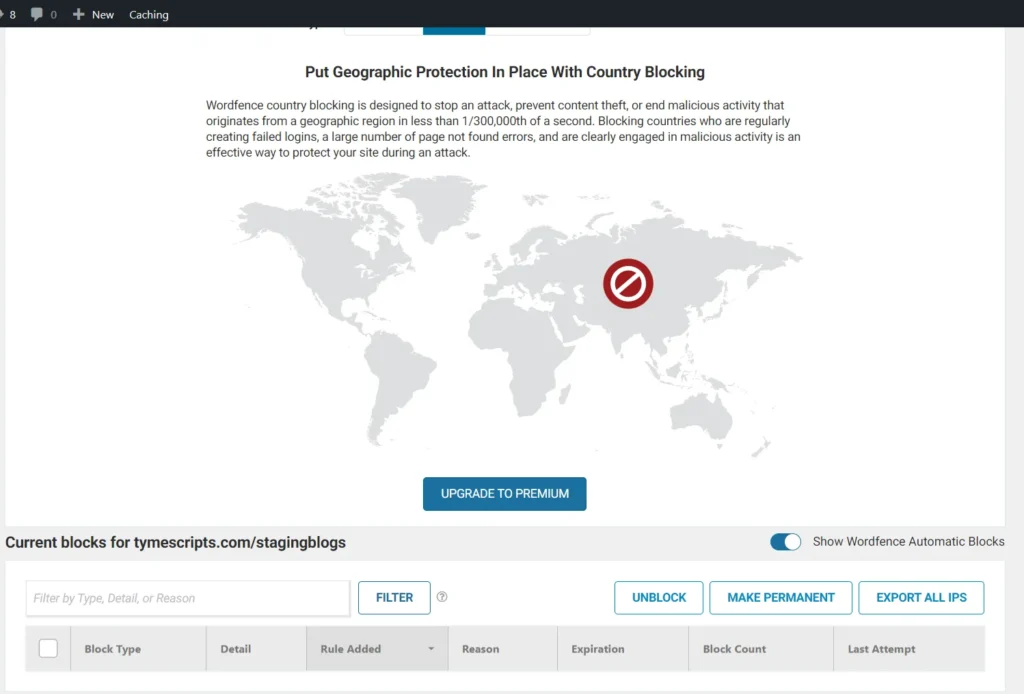
Screenshot 16: Blocking by Country
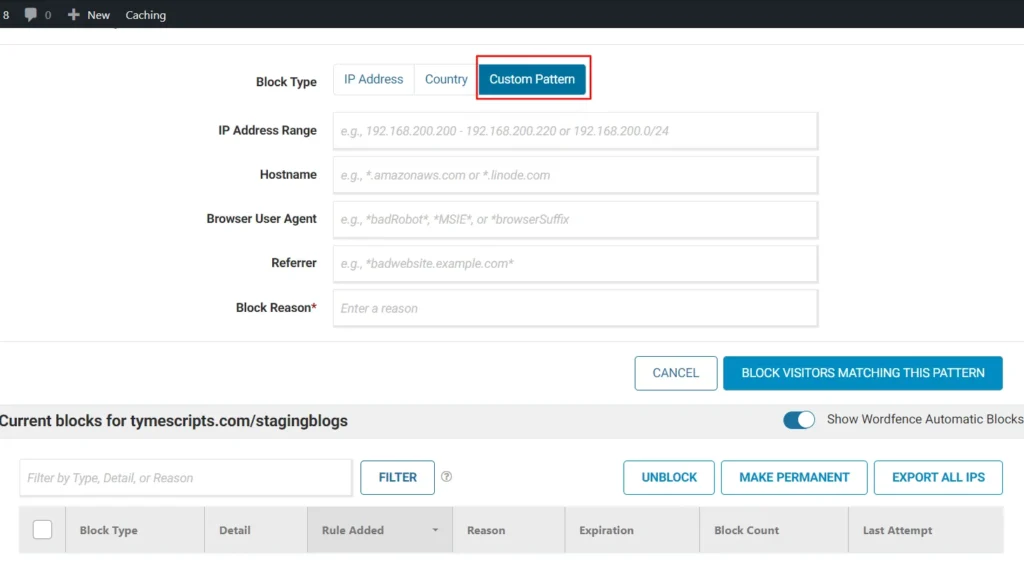
Screenshot 17: Blocking by Custom Pattern
- Help: You can get the documentation and help from here.

Screenshot 18: Firewall Help
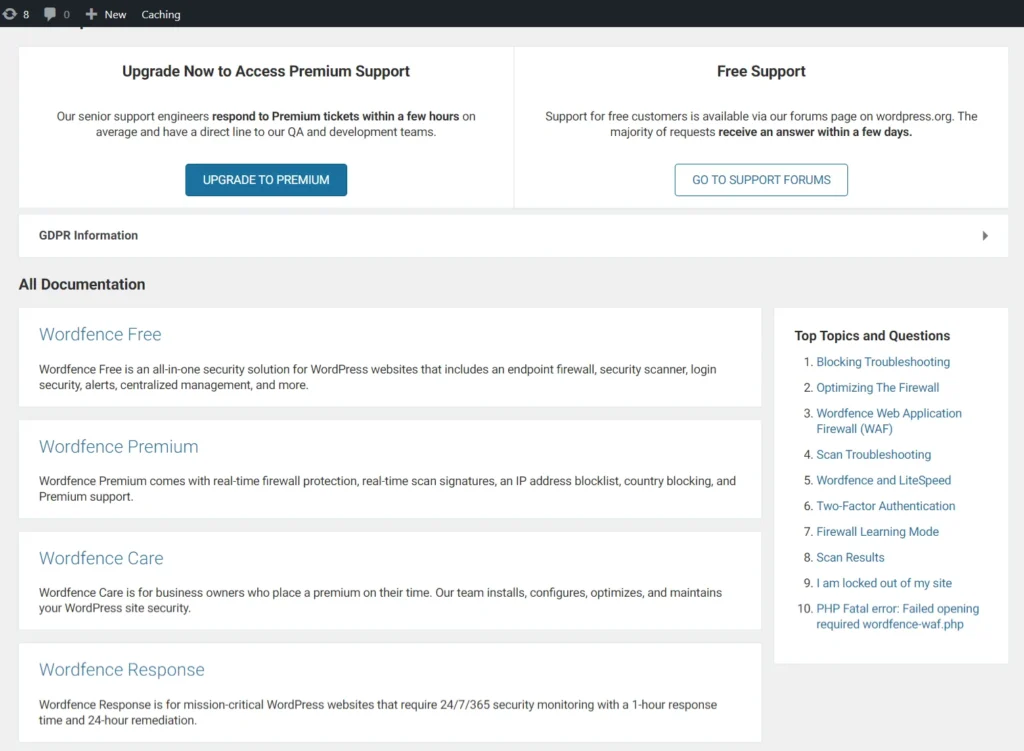
Screenshot 19: Help Section
- All Firewall Options: Go to All Firewall Options and select Advanced Firewall Options.
- In this section, you can enable advanced firewall securities such as:
Allowlisted IP addresses that bypass all rules: This feature lets you create an exception for a specific IP address, allowing it full access to your website regardless of Wordfence security rules. This is useful if you have a constant internet connection (like in an office) with a static IP address.
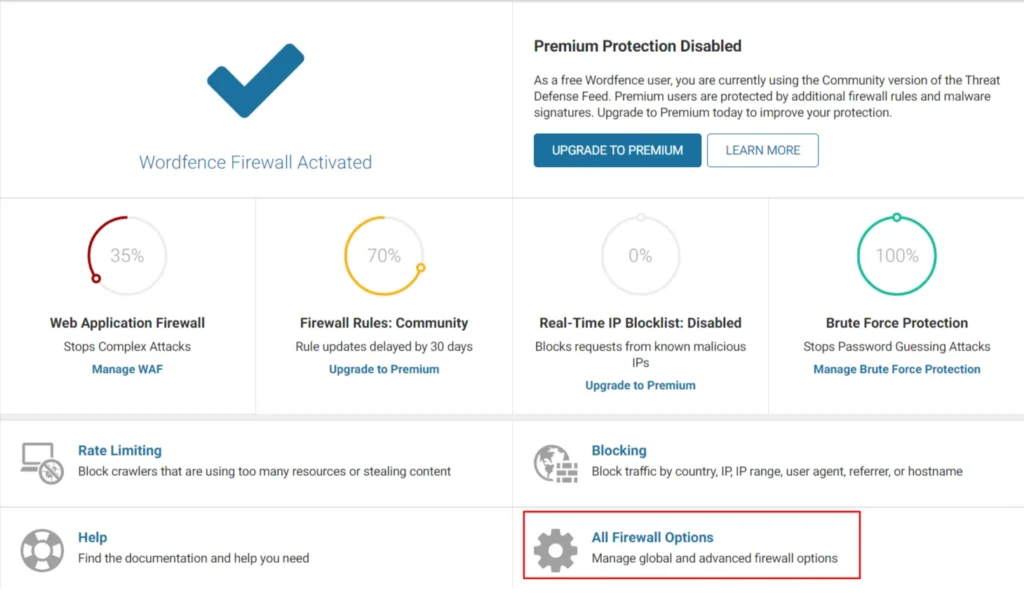
Screenshot 20: All Firewall Options
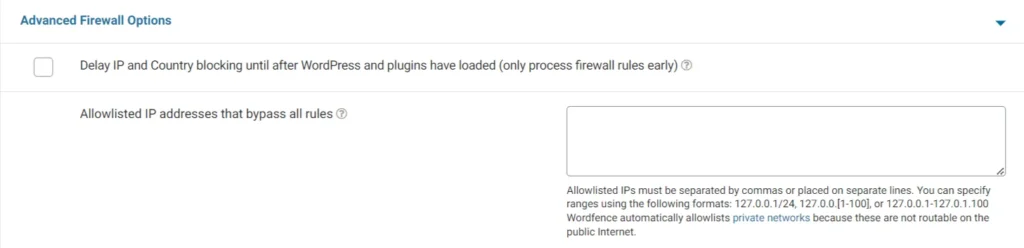
Screenshot 21: Advanced Firewall Options
- Allowlisted Services: Wordfence prevents accidental blockage of certain external services, like Facebook. This can happen with strict Rate Limiting rules, where Facebook's crawler might get blocked if it requests pages too fast (like when someone shares multiple links from your site). By default, some services are pre-approved (allowlisted). You can manually remove any service from this list using the "Allowlisted Services" option. Once unchecked, a service will be treated like any other visitor.

Screenshot 22: Allowlisted Services
- Immediately block IPs that access these URLs: This feature lets you create a honeypot to catch malicious visitors. You can define a fake URL, like "/example-one". Anyone attempting to access this non-existent address will be automatically blocked. Remember to use relative URLs starting with a forward slash, and be mindful that these URLs are case-sensitive.

Screenshot 23: Block IPs that Access mentioned URLs
- Ignored IP addresses for Wordfence Web Application Firewall alerting: Do you run regular scans, uptime checks, or other automated services on your site? If so, and you don't want alerts for those activities triggering an "increased attack rate" notification, you can add their IP addresses here. But remember, only include services you completely trust, as you won't be notified if that IP actually attacks your site.

Screenshot 24: Ignored IP Addresses
- Rules: Wordfence's firewall packs a double punch. First, it has a set of specific rules that recognize common attacks hackers love to use. These rules are super efficient at spotting matches because they're so precise. Second, the firewall has another layer of defense with broader rules that use patterns to sniff out suspicious activity. This helps block even never-before-seen attacks (known as "0-days") that fall into familiar categories.
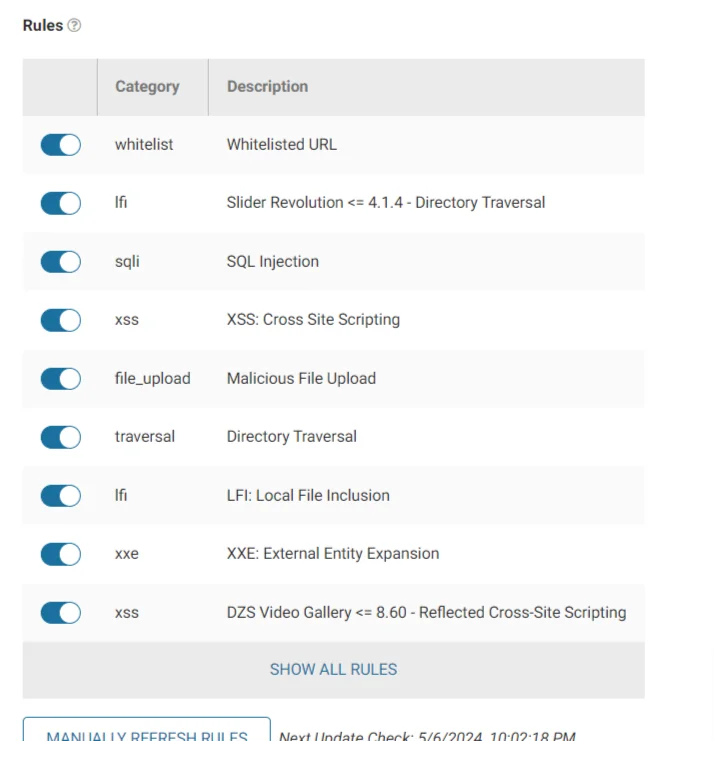
Screenshot 25: Rules
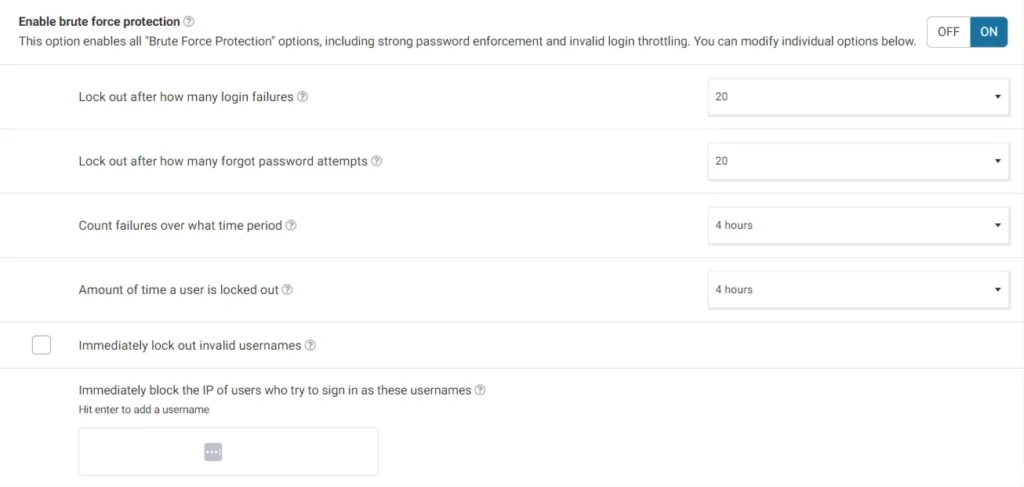
- Brute Force Protection: This acts as a master control for enabling or disabling all Brute Force Protection features.
Screenshot 26: Brute Force Protection
- Lock out after how many login failures: Blocks repeated login attempts (protects against brute force attacks). Set to 20 to allow for forgotten passwords, but lockout kicks in after 20 attempts.
- Lock out after how many forgot password attempts: Limits on the "Forgot password?" form stop spam and brute-force attacks. Set it to 5 for most sites.
- Count failures over what time period: This setting defines a window to track failed logins. It thwarts brute-force attacks by locking out users after too many failed attempts within that period. You can adjust this window for your needs.
- Amount of time a user is locked out: This sets the lockout duration for failed login attempts (to prevent brute force attacks). Strong passwords make it very difficult to crack them, even after many tries.
- Immediately lock out invalid usernames: Enabling immediate lockouts for invalid usernames can be inconvenient for small sites (1-2 admins/editors) due to potential typos. It's best for sites with few users. If a legitimate user gets locked out, unblock their IP via Wordfence "Firewall" > "Blocking".
- Immediately block the IP of users who try to sign in as these usernames: This setting blocks login attempts with usernames you specify (e.g., "admin" or your domain name). Avoid usernames similar to real accounts to prevent accidental blocks. Existing accounts with these usernames won't be blocked.
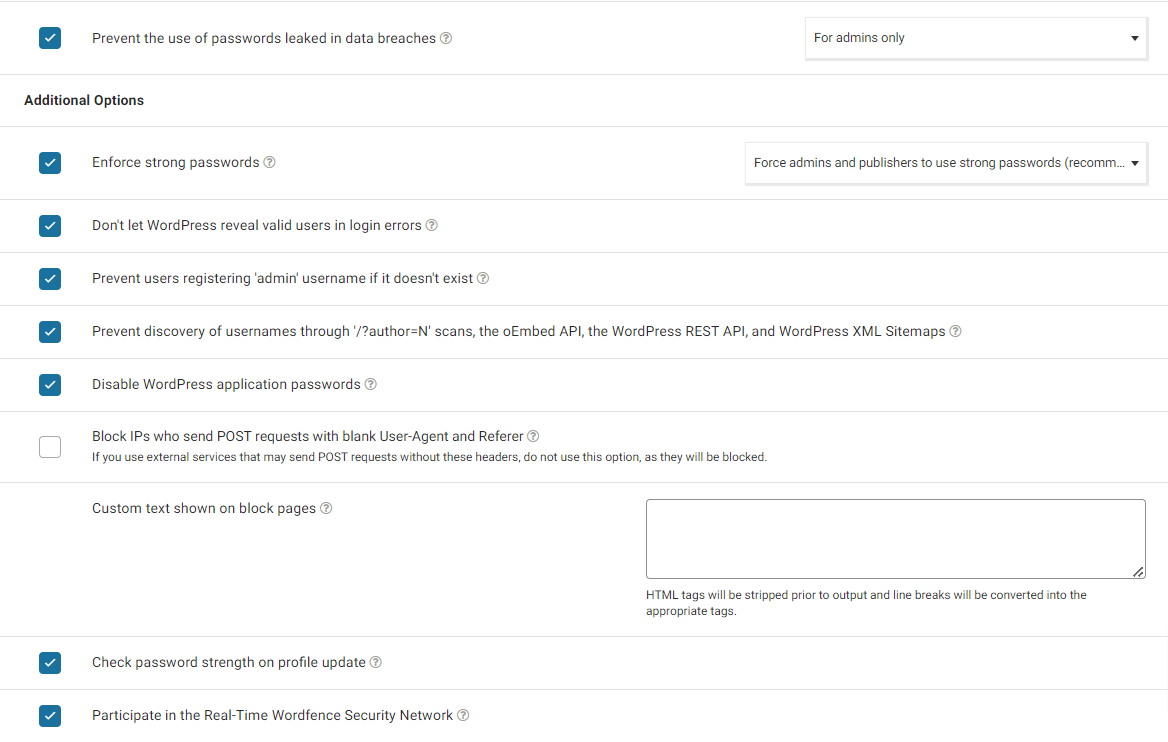
Screenshot 27: Brute Force Additional Options
- Prevent the use of passwords leaked in data breaches: Stops logins with leaked passwords (used in hacks) for admins by default. Optionally, apply it to all who can publish posts (including admins).
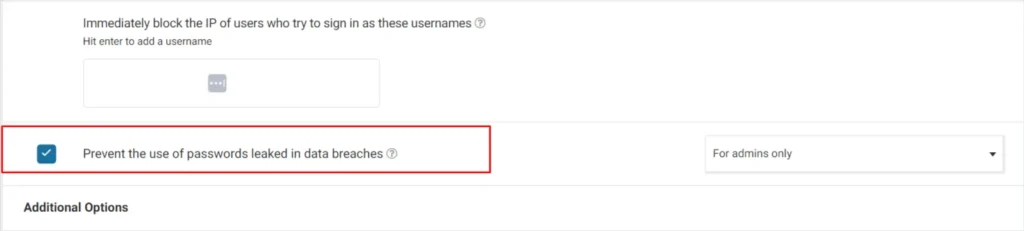
Screenshot 28: Check to Prevent Use of Passwords Leaked
- Additional Options:
- Enforce strong passwords
- Don't let WordPress reveal valid users in login errors
- Prevent users from registering 'admin' username if it doesn't exist
- Prevent discovery of usernames through '/?author=N' scans, the oEmbed API, the WordPress REST API, and WordPress XML Sitemaps
- Disable WordPress application passwords
- Block IPs who send POST requests with blank User-Agent and Referer
- Custom text shown on block pages: Wordfence lets you add a custom message for blocked users (e.g., how to contact the site owner). Keep it plain text, and line breaks work like the WordPress editor.
- Check password strength on profile update
- Participate in the Real-Time Wordfence Security Network
- The dashboard of Wordfence Firewall also displays IPs blocked, Top Countries by Number of Attacks, firewall summary, a graph about total blocked attacks, and login attempts (both failed and successful).
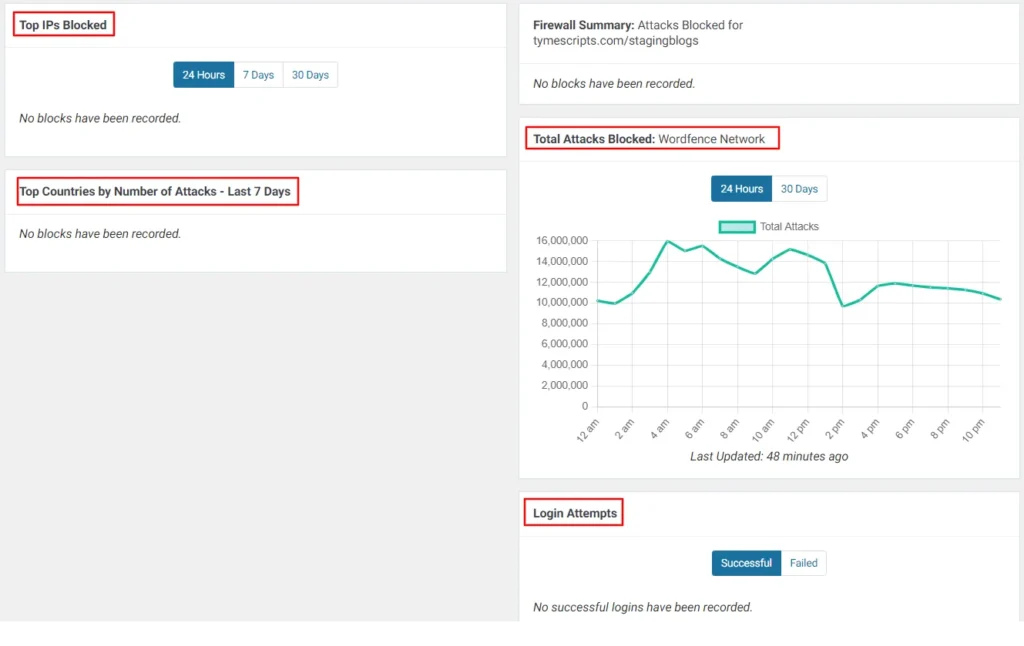
Screenshot 29: Firewall Dashboard
Conclusion
In this post (Part 1 of 2 of the series), we installed and configured the WordFence plugin. Then we understood the Wordfence dashboard, which shows the status of the installation, with Firewall and Scan indicating the site protection percentage.
Next, we configured the firewall WAF, which protects the WordPress site from web attacks. We also looked at the features of rate limiting, blocking, and advanced firewall options.
In the next part of this series, we will explore in more depth the various settings and features of WordFence.


